Page 284 of 532
If your vehicle’s battery is
disconnected or goes dead, you may
need to set the clock.You can quickly set the time to the
nearest hour. If the displayed time is
bef ore the half hour, pressing and
holding the CLOCK button, then
pressing the R (RESET) button sets
the clock back to the previous hour.
If the displayed time is after the half
hour, the clock sets f orward to the
beginning of the next hour.
When you are f inished, press the
CLOCK button again.For example: 1:06 will reset to 1:00
1:52 will reset to 2:00
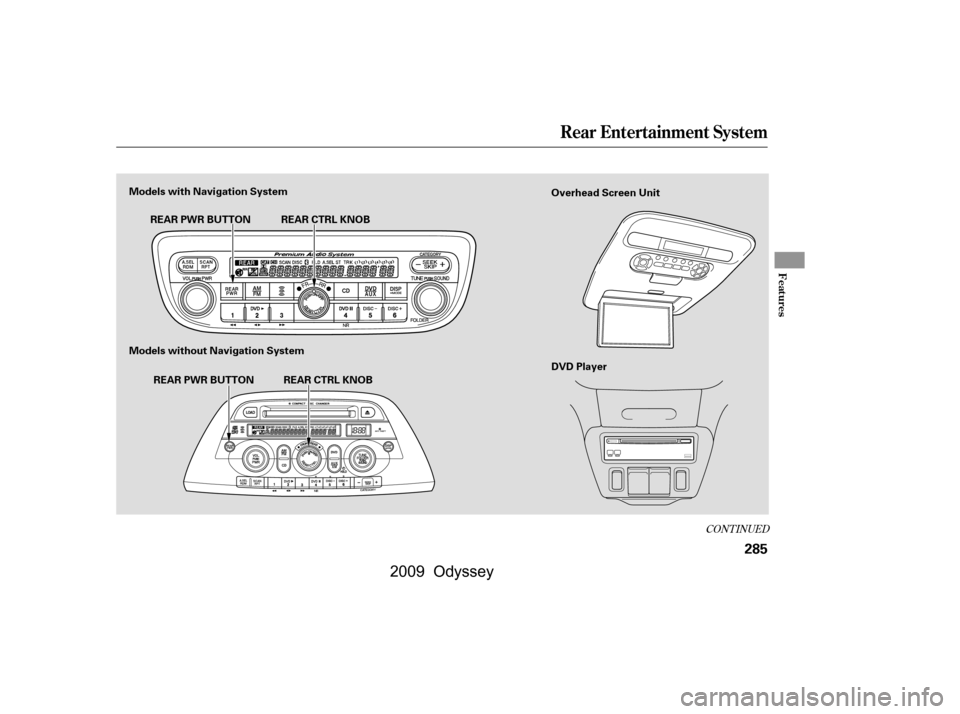
Press and hold the CLOCK button
until the clock f lashes. Change the
hours by pressing the H button until
the numbers advance to the desired
time. Change the minutes by
pressing the M button until the
numbers advance to the desired time. Refer to the navigation system
manual f or how to adjust the time.
On models without navigation system
On models with navigation system
Setting the Clock
Features
281
CLOCK BUTTON
R BUTTON
M BUTTON CLOCK BUTTON
H BUTTON R BUTTON
M BUTTON
EX and EX-L models
U.S. EX-L model is shown.
H BUTTON
LX and Canadian DX models
�\f���—�\f���—���
�y�
�
�������\f���y���
�(���������\f�y�\f�������y
2009 Odyssey
Page 288 of 532
CONT INUED
Rear Entertainment System
Features
285
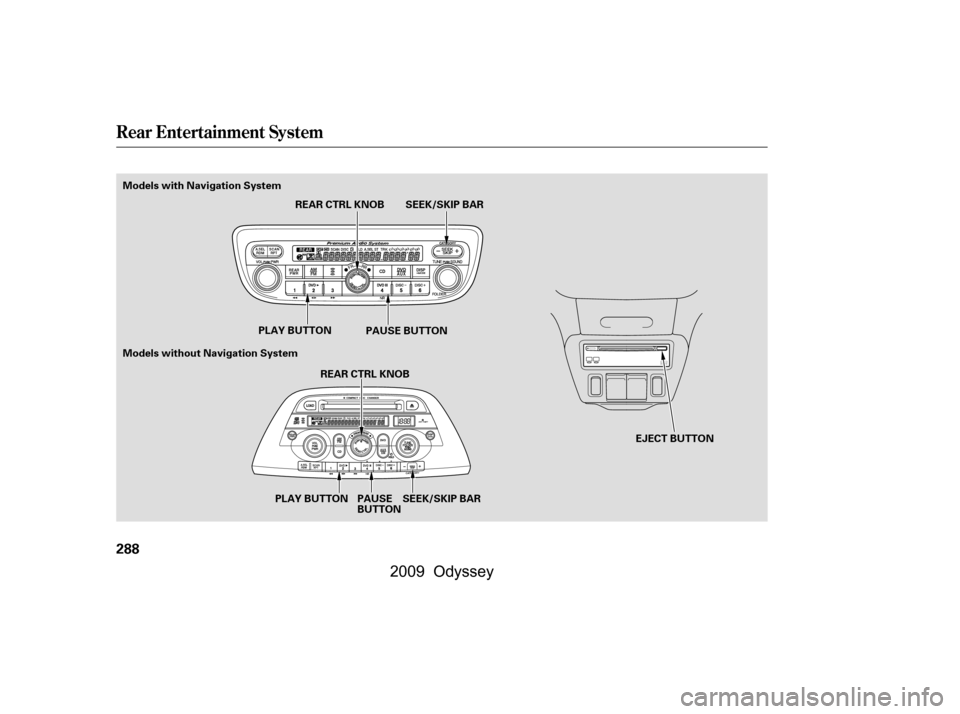
Overhead Screen Unit
DVD Player
Models with Navigation System
Models without Navigation System
REAR CTRL KNOB
REAR PWR BUTTON
REAR CTRL KNOB
REAR PWR BUTTON
�\f���—�\f���—���
�y�
�
�����������y���
�(���������\f�y�\f�����\f�y
2009 Odyssey
Page 291 of 532
Rear Entertainment System
288
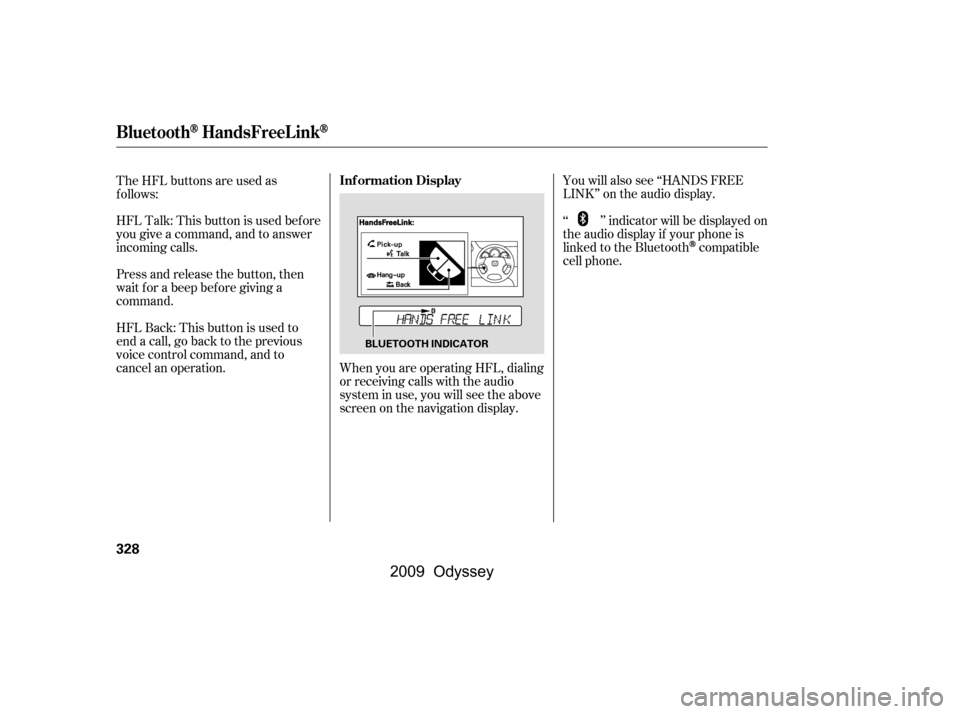
PLAY BUTTONPLAY BUTTON PAUSE BUTTON
REAR CTRL KNOB SEEK/SKIP BAR
PAUSE BUTTON
SEEK/SKIP BAR
REAR CTRL KNOB
EJECT BUTTON
Models without Navigation System
Models with Navigation System
�\f���—�\f���—���
�y�
�
�����������y���
�(���������\f�y�\f�������y
2009 Odyssey
Page 329 of 532
With a linked phone, HFL allows you
to send and receive calls in your
vehicle without holding the phone.
The HFL system has a help f unction
to provide instructions f or pairing a
phone, and give hints on how to
operate HFL properly. If your
response or command is not correct,
or the system cannot recognize a
command, the HFL system will give
you an appropriate command or play
the help prompt.HFL can store up to 50 names and
phone numbers in its phonebook.
Withalinkedphone,youcanthen
automatically dial any name or
number in the phonebook.
Your vehicle’s HFL system has the
cellular phonebook import f unction.
This allows you to import your
cellular phonebook to HFL. Using
the navigation system, you can make
acalldirectlyandstoreadesired
number in HFL f rom the list shown
on the navigation display. For
more inf ormation on how to import
the phonebook, see page . To
make a call, see page . Your phone may not have
phonebook import f unction. Visit ,orcallthe
HandsFreeLink
consumer support
at (888) 528-7876. In Canada, call
(888) 9-HONDA-9. You can see your
phone’s owner’s manual f or
inf ormation.
You can also store the desired
number to the HFL phonebook
directly f rom your cell phone using
the receive contact f unction in HFL.
340351
handsf reelink.honda.com
BluetoothHandsFreeL ink
Incoming/Outgoing Calls
Help Assistance Phonebook
326
NOTE:
�\f���—�\f���—�����y�
�������������y���
�(���������\f�y�\f�����
�y
2009 Odyssey
Page 330 of 532
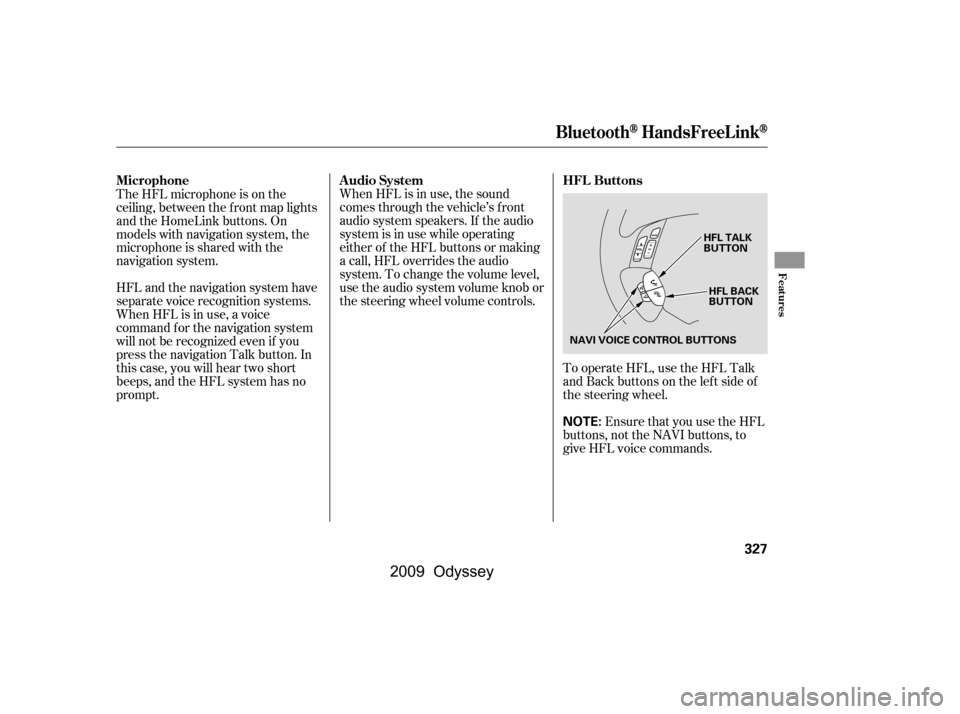
Ensure that you use the HFL
buttons, not the NAVI buttons, to
give HFL voice commands.
To operate HFL, use the HFL Talk
and Back buttons on the left side of
the steering wheel.
When HFL is in use, the sound
comes through the vehicle’s f ront
audio system speakers. If the audio
system is in use while operating
either of the HFL buttons or making
a call, HFL overrides the audio
system. To change the volume level,
use the audio system volume knob or
the steering wheel volume controls.
The HFL microphone is on the
ceiling, between the f ront map lights
and the HomeLink buttons. On
models with navigation system, the
microphone is shared with the
navigation system.
HFL and the navigation system have
separate voice recognition systems.
When HFL is in use, a voice
command f or the navigation system
will not be recognized even if you
press the navigation Talk button. In
this case, you will hear two short
beeps, and the HFL system has no
prompt.
BluetoothHandsFreeL ink
HFL Buttons
Audio System
Microphone
Features
327
NOTE:
HFL BACK
BUTTON
HFL TALK
BUTTON
NAVI VOICE CONTROL BUTTONS
�\f���—�\f���—���
�y�
�
���������
�y���
�(���������\f�y�\f�������y
2009 Odyssey
Page 331 of 532
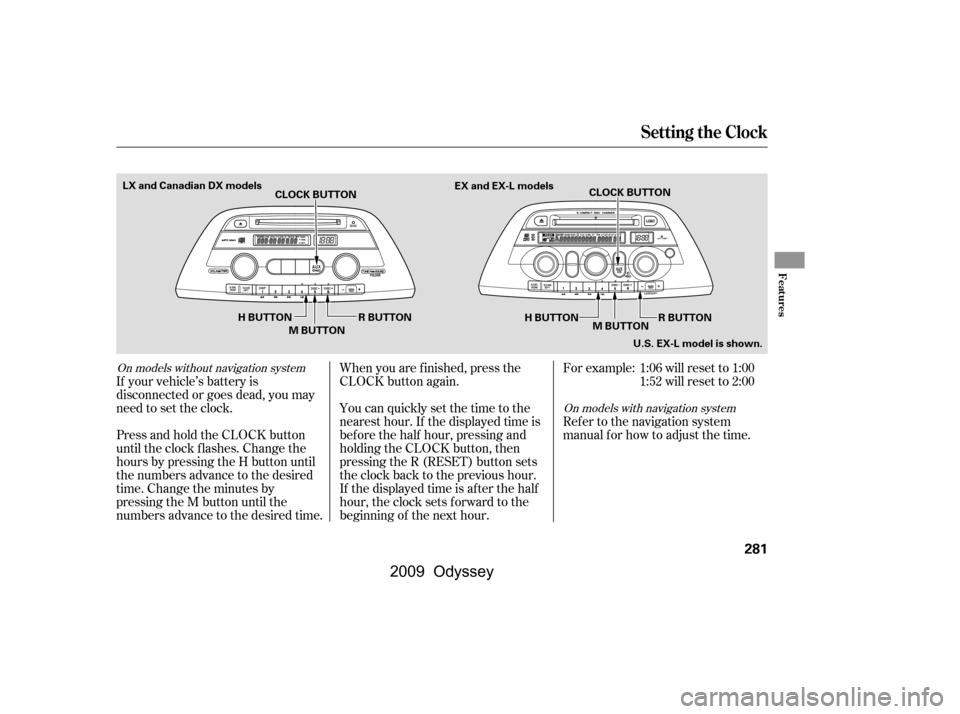
When you are operating HFL, dialing
or receiving calls with the audio
system in use, you will see the above
screen on the navigation display.You will also see ‘‘HANDS FREE
LINK’’ on the audio display.
‘‘ ’’ indicator will be displayed on
the audio display if your phone is
linked to the Bluetooth
compatible
cell phone.
HFLTalk:Thisbuttonisusedbefore
you give a command, and to answer
incoming calls.
HFLBack:Thisbuttonisusedto
end a call, go back to the previous
voice control command, and to
cancel an operation.
The HFL buttons are used as
f ollows:
Press and release the button, then
wait f or a beep bef ore giving a
command.
BluetoothHandsFreeL ink
Inf ormation Display
328
BLUETOOTH INDICATOR
�\f���—�\f���—���
�y�
�
�����������y���
�(���������\f�y�\f�������y
2009 Odyssey
Page 345 of 532

To redial the last number called by thephone, do this:
To make a call using a name in the HFL phonebook, do this:
Press and release the Talk button.
Af ter the beep, say ‘‘Redial.’’
HFL responds ‘‘Redialing.’’
Once connected, you will hear the
person you called through the audio
speakers. To change the volume, use
the audio system volume knob or the
steering wheel volume controls.
Press and release the Talk button.
After the beep, say the name you
want to call. For example, say
‘‘John.’’
HFL responds ‘‘Would you like to
call John? Press the Talk button
and say Yes or No.’’
Press and release the Talk button.
Af ter the beep, say ‘‘Yes.’’
HFL responds ‘‘Calling’’ or
‘‘Dialing.’’
Once connected, you will hear the
person you called through the
audio speakers. To change the
volume, use the audio system
volume knob or the steering wheel
volume controls.
To end the call, press the Back
button.
Press and release the Talk button.
Af ter the beep, say ‘‘Call.’’ HFL
responds ‘‘Dialing the number
received from the navigation
system. To end the call, please
press the Bluetooth
HandsFreeLink Back button on
the steering wheel.’’
HFL responds ‘‘What name or
number would you like to call/
dial? Press the Talk button and say
a name, a number, or say list to
hear the phonebook entries.’’
With your phone on and the
ignition switch in the
ACCESSORY (I) or ON (II)
position, press and release the
Talk button. After the beep, say
‘‘Call’’ or ‘‘Dial.’’
1. 2.
3.
4.
8.
BluetoothHandsFreeL ink
342
�\f���—�\f���—���
�y�
����\f�\f����
�y���
�(���������\f�y�\f�������y
2009 Odyssey
Page 368 of 532

�Ý
�Û
When in reverse, the touch screen
and navigation system ‘‘hard’’
buttons are locked out, except the
‘‘ZOOM’’ button. Touching the ‘‘ ’’
or ‘‘ ’’ button allows you to adjust
the brightness of the rearview
camera image.
For the best picture, always keep the
rearview camera clean, and do not
cover the camera lens. To avoid
scratching the lens when you clean it,
use a moist, sof t cloth.
Since the rearview camera display
area is limited, you should always
back up slowly and caref ully, and
look behind you f or obstacles.
Whenever you shif t to reverse (R)
with the ignition switch in the ON
(II) position, the rear view is shown
on the navigation system screen. On
vehicle without navigation system,
the rear view is shown on the lef t
side of the inside mirror.
On EX-L and Touring models On U.S. EX-L with navigation system
and Touring models
Rearview Camera and Monitor
Features
365
ZOOM BUTTON
The camera brightness cannot be
adjusted by voice control.
�\f���—�\f���—���
�y�
����\f����\f�\f�y���
�(���������\f�y�\f�����\f�y
2009 Odyssey