2009 GMC SIERRA change time
[x] Cancel search: change timePage 266 of 596
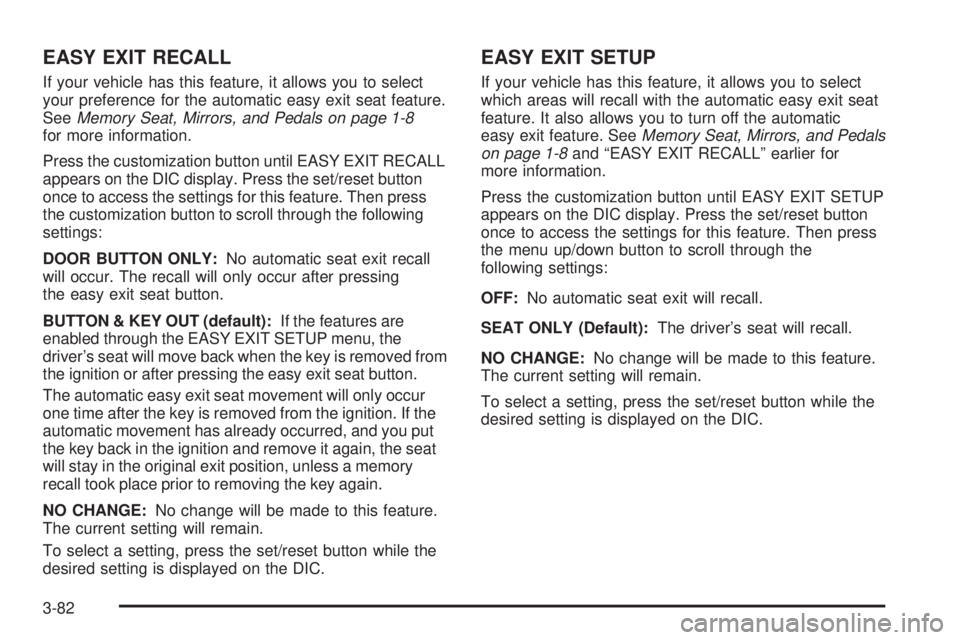
EASY EXIT RECALL
If your vehicle has this feature, it allows you to select
your preference for the automatic easy exit seat feature.
SeeMemory Seat, Mirrors, and Pedals on page 1-8
for more information.
Press the customization button until EASY EXIT RECALL
appears on the DIC display. Press the set/reset button
once to access the settings for this feature. Then press
the customization button to scroll through the following
settings:
DOOR BUTTON ONLY:No automatic seat exit recall
will occur. The recall will only occur after pressing
the easy exit seat button.
BUTTON & KEY OUT (default):If the features are
enabled through the EASY EXIT SETUP menu, the
driver’s seat will move back when the key is removed from
the ignition or after pressing the easy exit seat button.
The automatic easy exit seat movement will only occur
one time after the key is removed from the ignition. If the
automatic movement has already occurred, and you put
the key back in the ignition and remove it again, the seat
will stay in the original exit position, unless a memory
recall took place prior to removing the key again.
NO CHANGE:No change will be made to this feature.
The current setting will remain.
To select a setting, press the set/reset button while the
desired setting is displayed on the DIC.
EASY EXIT SETUP
If your vehicle has this feature, it allows you to select
which areas will recall with the automatic easy exit seat
feature. It also allows you to turn off the automatic
easy exit feature. SeeMemory Seat, Mirrors, and Pedals
on page 1-8and “EASY EXIT RECALL” earlier for
more information.
Press the customization button until EASY EXIT SETUP
appears on the DIC display. Press the set/reset button
once to access the settings for this feature. Then press
the menu up/down button to scroll through the
following settings:
OFF:No automatic seat exit will recall.
SEAT ONLY (Default):The driver’s seat will recall.
NO CHANGE:No change will be made to this feature.
The current setting will remain.
To select a setting, press the set/reset button while the
desired setting is displayed on the DIC.
3-82
Page 270 of 596

Setting the Clock
AM-FM Radio with Optional CD Player
If the vehicle has an AM/FM radio with an optional
CD player, it has a
H(clock) button for setting the time.
With these types of radios, the clock can be set with
either the radio turned on or off.
To set the clock:
1. Press the
Hbutton until the hour numbers begin
ashing on the display. Press the
Hbutton a
second time and the minute numbers begin ashing
on the display. Press the
Hbutton a third time
and the 12HR or 24HR time format begins ashing.
2. While either the hour or the minute numbers
are ashing, turn the
fknob, located on the upper
right side of the radio faceplate, clockwise or
counterclockwise to increase or decrease the time.
While the 12HR or 24HR time format is ashing,
turn the
fknob clockwise or counterclockwise
to select the default time settings.
3. Press the
Hbutton again until the clock display
stops ashing to set the currently displayed time;
otherwise, the ashing stops after ve seconds and
the current time displayed will be automatically set.
MP3 Radios with a Single CD or a
Single CD and DVD Player
If the vehicle has a radio with a single CD or a CD
and DVD player, it has a
Hbutton for setting the time
and date.
To set the time and date:
1. Press the
Hbutton and the HR, MIN, MM, DD,
YYYY (hour, minute, month, day, and year)
displays.
2. Press the pushbutton located under any one of
the labels to change. Every time the pushbutton
is pressed again, the time or the date if selected,
increases by one.
Another way to increase the time or date, is to
press the right
¨SEEK arrow or the\FWD
(forward) button.
To decrease, press the left©SEEK arrow or
the
sREV (reverse) button, or turn thefknob,
located on the upper right side of the radio, to
adjust the selected setting.
3-86
Page 271 of 596

Changing the Time and Date Default
Settings
To change the time default setting from 12 hours
to 24 hours or change the date default setting from
month/day/year to day/month/year.
To change the time or date default settings:
1. Press the
Hbutton and then the pushbutton
located under the forward arrow that is currently
displayed on the radio screen until the time
12H (hour) and 24H (hour), and the date MM/DD
(month and day) and DD/MM (day and month)
are displayed.
2. Press the pushbutton located under the desired
option.
3. Press the
Hbutton again to apply the selected
default, or let the screen time out.
MP3 Radio with a Six-Disc CD Player
If the vehicle has a radio with a six-disc CD player, the
radio has a MENU button instead of the
Hbutton to
set the time and date.
To set the time and date:
1. Press the MENU button.
2. Once the
Hoption displays, press the pushbutton
located under that label. The HR, MIN, MM, DD,
YYYY (hour, minute, month, day, and year)
displays.
3. Press the pushbutton located under any one of the
labels to change. Every time the pushbutton is
pressed again, the time or the date if selected,
increases by one.
Another way to increase the time or date, is to
press the right
¨SEEK arrow or the\FWD
(forward) button.
4. To decrease, press the left
©SEEK arrow or
the
sREV (reverse) button, or turn thefknob,
located on the upper right side of the radio, to adjust
the selected setting.
3-87
Page 272 of 596
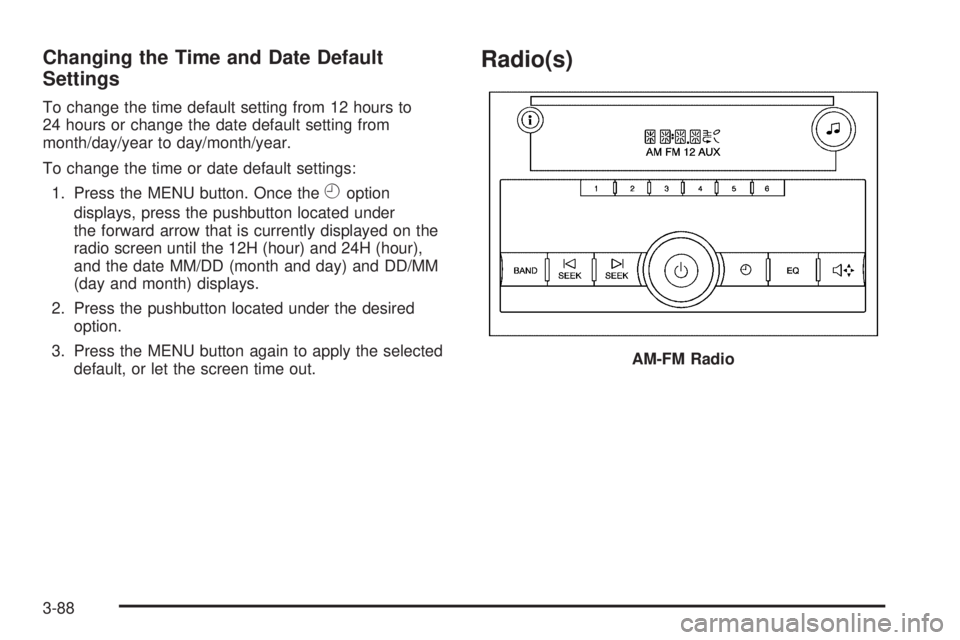
Changing the Time and Date Default
Settings
To change the time default setting from 12 hours to
24 hours or change the date default setting from
month/day/year to day/month/year.
To change the time or date default settings:
1. Press the MENU button. Once the
Hoption
displays, press the pushbutton located under
the forward arrow that is currently displayed on the
radio screen until the 12H (hour) and 24H (hour),
and the date MM/DD (month and day) and DD/MM
(day and month) displays.
2. Press the pushbutton located under the desired
option.
3. Press the MENU button again to apply the selected
default, or let the screen time out.
Radio(s)
AM-FM Radio
3-88
Page 275 of 596

H(Clock) (AM-FM Radio):The radio may have a
clock button for setting the time. With this type of radio,
the clock can be set with either the radio turned on
or off. SeeSetting the Clock on page 3-86for more
information.
Speed Compensated Volume (SCV):Radios with
Speed Compensated Volume (SCV) automatically
adjusts the radio volume to compensate for road and
wind noise as the vehicle’s speed changes while driving,
so that the volume level stays consistent.
To activate SCV:
1. Set the radio volume to the desired level.
2. Press the MENU button to display the radio
setup menu.
3. Press the pushbutton under the AUTO VOLUM
(automatic volume) label on the radio display.
4. Press the pushbutton under the desired Speed
Compensated Volume setting (OFF, Low, Med,
or High) to select the level of radio volume
compensation. The display times out after
approximately 10 seconds. Each higher setting
allows for more radio volume compensation at
faster vehicle speeds.Finding a Station
BAND:Press to switch between AM, FM, or XM™
(if equipped). The selection displays.
f(Tune):Turn to select radio stations.
©SEEK¨:Press either arrow to go to the previous
or to the next station and stay there.
To scan stations, press and hold either arrow for a
few seconds until a beep sounds. The radio goes to a
station, plays for a few seconds, then goes to the
next station.
For AM-FM Radio, the station frequency ashes while
the radio is in the scan mode.
Press either arrow again to stop scanning.
The radio only seeks and scans stations with a strong
signal that are in the selected band.
For the AM-FM Radio, scan presets within the current
selected band by pressing and holding either seek arrow
for four seconds until a double beep sounds. The radio
goes to a stored preset, plays for a few seconds if
a strong signal is present, then goes to the next stored
preset. The station frequency ashes while the radio
is in the scan mode.
3-91
Page 287 of 596

A lock symbol displays next to the clock display.
The parental control feature remains on until the knob
is pressed and held for more than two seconds again, or
until the driver turns the ignition off and exits the
vehicle.
f(Tune):Turn to change tracks on a CD or DVD, to
manually tune a radio station, or to change clock or date
settings, while in the clock or date setting mode. See
the information given earlier in this section specic to the
radio, CD, and the DVD. Also, see “Setting the Time”
in the index, for setting the clock and date.
©SEEK (Previous Track/Chapter):Press the left
arrow to return to the start of the current track or
chapter. Press the left arrow again to go to the previous
track or chapter. This button might not work when the
DVD is playing the copyright information or the previews.
SEEK
¨(Next Track/Chapter):Press the right
arrow to go to the next track or chapter. This button
might not work when the DVD is playing the copyright
information or the previews.
sREV (Fast Reverse):Press to quickly reverse the
CD or DVD at ve times the normal speed. The radio
displays the elapsed time while in fast reverse. To stop
fast reversing, press again. This button might not work
when the DVD is playing the copyright information or
the previews.
\FWD (Fast Forward):Press to fast forward the CD
or DVD. The radio displays the elapsed time and fast
forwards ve times the normal speed. To stop fast
forwarding, press again. This button might not work
when the DVD is playing the copyright information or
the previews.
Z(Eject):Press to eject a CD or DVD. If a CD or
DVD is ejected, but not removed, the player
automatically pulls it back in after 15 seconds.
If loading and reading of a CD cannot be completed,
because of an unknown format, etc., and the disc fails
to eject, press and hold for more than ve seconds
to force the disc to eject.
3-103
Page 303 of 596

Unknown:If this message is received when tuned to
channel 0, there could be a receiver fault. Consult with
your dealer/retailer.
Check XM Receivr:If this message does not clear
within a short period of time, the receiver could have a
fault. Consult with your dealer/retailer.
XM Not Available:If this message does not clear
within a short period of time, the receiver could have a
fault. Consult with your dealer/retailer.
Navigation/Radio System
For vehicles with a navigation radio system, see the
separate Navigation System manual.
Bluetooth®
Vehicles with a Bluetooth system can use a Bluetooth
capable cell phone with a Hands Free Prole to make
and receive phone calls. The system can be used while
the key is in ON/RUN or ACC/ACCESSORY position.
The range of the Bluetooth system can be up to
30 ft. (9.1 m). Not all phones support all functions,
and not all phones are guaranteed to work with
the in-vehicle Bluetooth system. See gm.com/bluetooth
for more information on compatible phones.
Voice Recognition
The Bluetooth system uses voice recognition to interpret
voice commands to dial phone numbers and name tags.
Noise:Keep interior noise levels to a minimum. The
system may not recognize voice commands if there
is too much background noise.
When to Speak:A short tone sounds after the system
responds indicating when it is waiting for a voice
command. Wait until the tone and then speak.
How to Speak:Speak clearly in a calm and natural
voice.
Audio System
When using the in-vehicle Bluetooth system, sound
comes through the vehicle’s front audio system speakers
and overrides the audio system. Use the audio system
volume knob, during a call, to change the volume level.
The adjusted volume level remains in memory for
later calls. To prevent missed calls, a minimum volume
level is used if the volume is turned down too low.
3-119
Page 304 of 596

Bluetooth Controls
Use the buttons located on the steering wheel to
operate the in-vehicle Bluetooth system. SeeAudio
Steering Wheel Controls on page 3-141for more
information.
bg(Push To Talk):Press to answer incoming calls,
to conrm system information, and to start speech
recognition.
cx(Phone On Hook):Press to end a call, reject
a call, or to cancel an operation.
Pairing
A Bluetooth enabled cell phone must be paired to the
in-vehicle Bluetooth system rst and then connected to
the vehicle before it can be used. See the cell phone
manufacturers user guide for Bluetooth functions before
pairing the cell phone. If a Bluetooth phone is not
connected, calls will be made using OnStar
®
Hands-Free Calling, if available. Refer to the OnStar
owner’s guide for more information.Pairing Information:
Up to ve cell phones can be paired to the in-vehicle
Bluetooth system.
The pairing process is disabled when the vehicle
is moving.
The in-vehicle Bluetooth system automatically links
with the rst available paired cell phone in the
order the phone was paired.
Only one paired cell phone can be connected to
the in-vehicle Bluetooth system at a time.
Pairing should only need to be completed once,
unless changes to the pairing information have
been made or the phone is deleted.
To link to a different paired phone, see Linking to a
Different Phone later in this section.
Pairing a Phone
1. Press and holdbgfor two seconds. The system
responds with “Ready” followed by a tone.
2. Say “Bluetooth”. The system responds with
“Bluetooth ready” followed by a tone.
3. Say “Pair”. The system responds with instructions
and a four digit PIN number. The PIN number will
be used in Step 4.
3-120