2009 GMC SIERRA 1500 battery
[x] Cancel search: batteryPage 232 of 602
Emissions Inspection and
Maintenance Programs
Some state/provincial and local governments have or
might begin programs to inspect the emission control
equipment on the vehicle. Failure to pass this inspection
could prevent getting a vehicle registration.
Here are some things to know to help the vehicle pass
an inspection:
The vehicle will not pass this inspection if the check
engine light is on with the engine running, or if the
key is in ON/RUN and the light is not on.
The vehicle will not pass this inspection if the OBD II
(on-board diagnostic) system determines that critical
emission control systems have not been completely
diagnosed by the system. The vehicle would be
considered not ready for inspection. This can happen
if the battery has recently been replaced or if the
battery has run down. The diagnostic system is
designed to evaluate critical emission control
systems during normal driving. This can take several
days of routine driving. If this has been done and the
vehicle still does not pass the inspection for lack of
OBD II system readiness, your dealer/retailer can
prepare the vehicle for inspection.
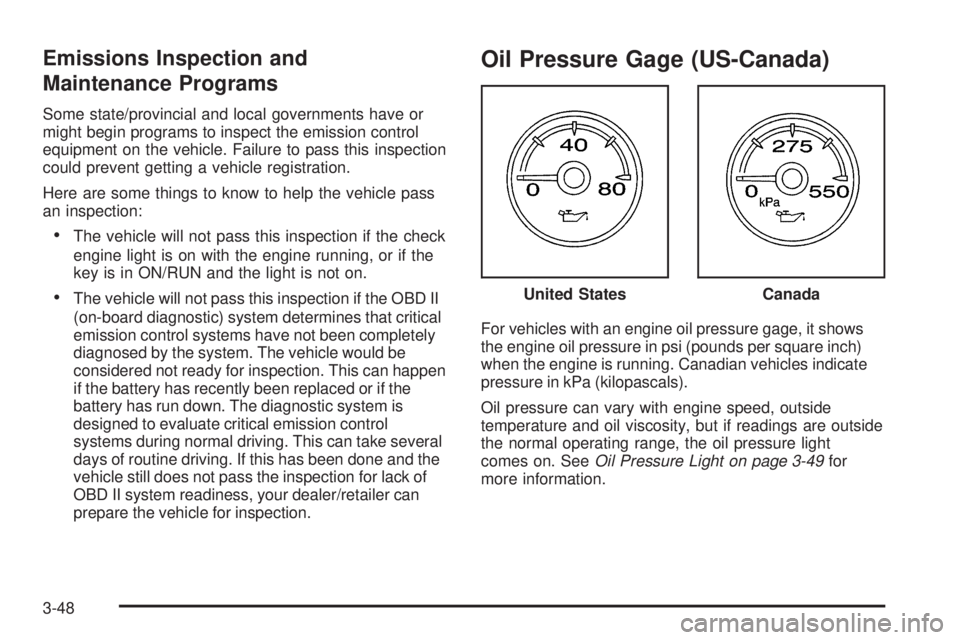
Oil Pressure Gage (US-Canada)
For vehicles with an engine oil pressure gage, it shows
the engine oil pressure in psi (pounds per square inch)
when the engine is running. Canadian vehicles indicate
pressure in kPa (kilopascals).
Oil pressure can vary with engine speed, outside
temperature and oil viscosity, but if readings are outside
the normal operating range, the oil pressure light
comes on. SeeOil Pressure Light on page 3-49for
more information.United States
Canada
3-48
Page 254 of 602

OIL PRESSURE LOW STOP ENGINE
Notice:If you drive your vehicle while the engine
oil pressure is low, severe engine damage may
occur. If a low oil pressure warning appears on the
Driver Information Center (DIC), stop the vehicle
as soon as possible. Do not drive the vehicle until
the cause of the low oil pressure is corrected.
SeeEngine Oil on page 5-17for more information.
This message displays if low oil pressure levels occur.
Stop the vehicle as soon as safely possible and do not
operate it until the cause of the low oil pressure has been
corrected. Check the oil as soon as possible and have
your vehicle serviced by your dealer/retailer. SeeEngine
Oil on page 5-17.
PARK ASSIST OFF
If your vehicle has the Ultrasonic Rear Parking Assist
(URPA) system, after the vehicle has been started, this
message displays to remind the driver that the URPA
system has been turned off. Press the set/reset button
or the trip odometer reset stem to acknowledge this
message and clear it from the DIC display. To turn the
URPA system back on, seeUltrasonic Rear Parking
Assist (URPA) on page 2-61.
PASSENGER DOOR OPEN
This message displays and a chime sounds if the front
passenger door is not fully closed and the vehicle is
shifted out of P (Park). Stop and turn off the vehicle,
check the door for obstructions, and close the door again.
Check to see if the message still appears on the DIC.
REMOTE KEY LEARNING ACTIVE
This message displays while you are matching a Remote
Keyless Entry (RKE) transmitter to your vehicle. See
“Matching Transmitter(s) to Your Vehicle” underRemote
Keyless Entry (RKE) System Operation on page 2-5and
DIC Operation and Displays (With DIC Buttons) on
page 3-53orDIC Operation and Displays (Without DIC
Buttons) on page 3-59for more information.
REPLACE BATTERY IN REMOTE KEY
This message displays if a Remote Keyless Entry (RKE)
transmitter battery is low. The battery needs to be
replaced in the transmitter. See “Battery Replacement”
underRemote Keyless Entry (RKE) System Operation
on page 2-5.
3-70
Page 255 of 602

RIGHT REAR DOOR OPEN (Crew Cab)
This message displays and a chime sounds if the
passenger side rear door is not fully closed and the
vehicle is shifted out of P (Park). Stop and turn off the
vehicle, check the door for obstructions, and close the
door again. Check to see if the message still appears on
the DIC.
SERVICE 4 WHEEL DRIVE
This message displays if a problem occurs with the
four-wheel-drive system. If this message appears, stop
as soon as possible and turn off the vehicle. Make sure
the key is in the LOCK/OFF position for at least one
minute and then restart the vehicle and check for the
message on the DIC display. If the message is still
displayed or appears again when you begin driving, the
four-wheel-drive system needs service. See your
dealer/retailer.
SERVICE AIR BAG
This message displays if there is a problem with the
airbag system. Have your dealer/retailer inspect the
system for problems. SeeAirbag Readiness Light on
page 3-37andAirbag System on page 1-72for more
information.
SERVICE BATTERY CHARGING
SYSTEM
On some vehicles, this message displays if there is a
problem with the battery charging system. Under certain
conditions, the charging system light may also turn on in
the instrument panel cluster. SeeCharging System Light
on page 3-41. Driving with this problem could drain the
battery. Turn off all unnecessary accessories. Have the
electrical system checked as soon as possible. See your
dealer/retailer.
SERVICE BRAKE SYSTEM
This message displays along with the brake system
warning light if there is a problem with the brake system.
SeeBrake System Warning Light on page 3-42. If this
message appears, stop as soon as possible and turn
off the vehicle. Restart the vehicle and check for the
message on the DIC display. If the message is still
displayed or appears again when you begin driving,
the brake system needs service as soon as possible.
See your dealer/retailer.
3-71
Page 260 of 602

To change customization preferences, use the following
procedure.
Entering the Feature Settings Menu
1. Turn the ignition on and place the vehicle in
P (Park).
To avoid excessive drain on the battery, it is
recommended that the headlamps are turned off.
2. Press the customization button to scroll through the
available customizable options.
Feature Settings Menu Items
The following are customization features that allow you
to program settings to the vehicle:
DISPLAY IN ENGLISH
This feature will only display if a language other than
English has been set. This feature allows you to change
the language in which the DIC messages appear to
English.
Press the customization button until the PRESS
VTO
DISPLAY IN ENGLISH screen appears on the DIC
display. Press the set/reset button once to display all
DIC messages in English.
DISPLAY LANGUAGE
This feature allows you to select the language in which
the DIC messages will appear.
Press the customization button until the DISPLAY
LANGUAGE screen appears on the DIC display. Press
the set/reset button once to access the settings for this
feature. Then press the customization button to scroll
through the following settings:
ENGLISH (default):All messages will appear in
English.
FRANCAIS:All messages will appear in French.
ESPANOL:All messages will appear in Spanish.
NO CHANGE:No change will be made to this feature.
The current setting will remain.
To select a setting, press the set/reset button while the
desired setting is displayed on the DIC.
You can also change the language by pressing the trip
odometer reset stem. See “Language” under DIC
Operation and Displays (Without DIC Buttons) earlier in
this section for more information.
3-76
Page 290 of 602

To use a portable audio player, connect a 3.5 mm
(1/8 inch) cable to the radio’s front auxiliary input jack.
When a device is connected, press the radio CD/AUX
button to begin playing audio from the device over
the vehicle speakers.
For optimal sound quality, increase the portable audio
device’s volume to the loudest level.
It is always best to power the portable audio device
through its own battery while playing.
O(Power/Volume):Turn clockwise or
counterclockwise to increase or decrease the
volume of the portable player. Additional volume
adjustments might have to be made from the portable
device if the volume is not loud or soft enough.
BAND:Press to listen to the radio when a portable
audio device is playing. The portable audio device
continues playing.
CD/AUX (CD/Auxiliary):Press to play a CD when a
portable audio device is playing. Press again and
the system begins playing audio from the connected
portable audio player. If a portable audio player is
not connected, “No Input Device Found” displays.
DVD/CD AUX (CD/Auxiliary):Press to cycle through
DVD, CD, or Auxiliary when listening to the radio. The
DVD/CD text label and a message showing track or
chapter number displays when a disc is in either slot.Press again and the system automatically searches for
an auxiliary input device, such as a portable audio player.
If a portable audio player is not connected, “No Aux Input
Device” displays. If a disc is in both the DVD slot and the
CD slot the DVD/CD AUX button cycles between the two
sources and not indicate “No Aux Input Device”. If a front
auxiliary device is connected, the DVD/CD AUX button
cycles through all available options, such as: DVD slot,
CD slot, Front Auxiliary, and Rear Auxiliary (if available).
See “Using the Auxiliary Input Jack(s)” later in this
section, or “Audio/Video (A/V) Jacks” under,Rear Seat
Entertainment (RSE) System on page 3-129for more
information.
Using an MP3 (Radio with CD or
Six-Disc CD Player)
MP3 CD-R or CD-RW Disc
The radio plays MP3 les that were recorded on a
CD-R or CD-RW disc. The les can be recorded with
the following xed bit rates: 32 kbps, 40 kbps, 56 kbps,
64 kbps, 80 kbps, 96 kbps, 112 kbps, 128 kbps,
160 kbps, 192 kbps, 224 kbps, 256 kbps, and 320 kbps
or a variable bit rate. Song title, artist name, and album
are available for display by the radio when recorded using
ID3 tags version 1 and 2.
3-106
Page 314 of 602

Parental Control can also be turned off by inserting or
ejecting any disc, pressing the play icon on the radio DVD
display menu, or changing an ignition position.
Headphones
The RSE includes two 2-channel wireless headphones
that are dedicated to this system. Channel 1 is dedicated
to the video screen, while Channel 2 is dedicated to RSA
selections. These headphones can used to listen to the
radio, CDs, DVDs, MP3s, DVDAs, any auxiliary source
connected to A/V jacks, or the auxiliary input jack, if the
vehicle has this feature. The wireless headphones have
an On/Off button, channel 1/2 switch, and a volume
control.Push the power button to turn on the headphones.
An indicator light located on the headphones comes on.
If the light comes on but, there is intermittent sound
and/or static on the headphones, or if the indicator light
does not come on, the batteries might need to be
replaced. See “Battery Replacement” later in this section
for more information. Switch the headphones to Off when
not in use.
Infrared transmitters are located at the rear of the
overhead console. The headphones shut off
automatically to save the battery power if the RSE
system and RSA are shut off or if the headphones are out
of range of the transmitters for more than three minutes.
If you move too far forward or step out of the vehicle,
the headphones lose the audio signal.
The headphones automatically turns off after four hours
of continuous use.
To adjust the volume on the headphones, use the
volume control located on the right side.
For optimal audio performance, the headphones must
be worn correctly. Headphones should be worn with
headband over the top of the head for best audio
reception. The symbol L (Left) appears on the upper
left side, above the ear pad and should be positioned on
the left ear. The symbol R (Right) appears on the upper
right side, above the ear pad and should be positioned
on the right ear.
3-130
Page 315 of 602

Notice:Do not store the headphones in heat or
direct sunlight. This could damage the headphones
and repairs will not be covered by the warranty.
Storage in extreme cold can weaken the batteries.
Keep the headphones stored in a cool, dry place.
If the foam ear pads attached to the headphones
become worn or damaged, the pads can be replaced
separately from the headphone set. Refer to your
dealer/retailer for more information.
Battery Replacement
To change the batteries on the headphones, do the
following:
1. Turn the screw to loosen the battery door located on
the left side of the headphones. Slide the battery
door open.
2. Replace the two batteries in the compartment.
Make sure that they are installed correctly, using
the diagram on the inside of the battery
compartment.
3. Replace the battery door and tighten the door
screw.
If the headphones are to be stored for a long period of
time, remove the batteries and keep them in a cool,
dry place.
Audio/Video (A/V) Jacks
The A/V jacks, located on the rear of the oor console,
allow audio or video signals to be connected from an
auxiliary device such as a camcorder or a video game
unit to the RSE system. Adapter connectors or cables
(not included) may be required to connect the auxiliary
device to the A/V jacks. Refer to the manufacturer’s
instructions for proper usage.
The A/V jacks are color coded to match typical home
entertainment system equipment. The yellow jack (A) is
for the video input. The white jack (B) is for the left audio
input. The red jack (C) is for the right audio input.
Power for auxiliary devices is not supplied by the radio
system.
3-131
Page 317 of 602

Video Screen
The video screen is located in the overhead console.
To use the video screen, do the following:
1. Push the release button located on the overhead
console.
2. Move the screen to the desired position.
When the video screen is not in use, push it up into its
locked position.
If a DVD is playing and the screen is raised to its locked
position, the screen remains on. This is normal, and
the DVD continues to play through the previous audio
source. Use the remote control power button or eject the
disc to turn off the screen.
The overhead console contains the infrared transmitters
for the wireless headphones and the infrared receivers
for the remote control. They are located at the rear
of the console.
Notice:Avoid directly touching the video screen,
as damage may occur. See “Cleaning the Video
Screen” later in this section for more information.
Remote Control
To use the remote control, aim it at the transmitter
window at the rear of the RSE overhead console and
press the desired button. Direct sunlight or very bright
light could affect the ability of the RSE transmitter to
receive signals from the remote control. If the remote
control does not seem to be working, the batteries might
need to be replaced. See “Battery Replacement” later in
this section. Objects blocking the line of sight could also
affect the function of the remote control.
If a CD or DVD is in the Radio DVD slot, the remote
control
O(power) button can be used to turn on the video
screen display and start the disc. The radio can also turn
on the video screen display. SeeRadio(s) on page 3-87
for more information.
Notice:Storing the remote control in a hot area or in
direct sunlight can damage it, and the repairs will not
be covered by the warranty. Storage in extreme cold
can weaken the batteries. Keep the remote control
stored in a cool, dry place.
If the remote control becomes lost or damaged, a new
universal remote control can be purchased. If this
happens, make sure the universal remote control uses
a code set of Toshiba
®.
3-133