2009 GMC SAVANA change time
[x] Cancel search: change timePage 163 of 404

If the retro-active reset feature is activated after the
vehicle is started, but before it begins moving, the display
will show the number of miles (mi) or kilometers (km) that
were driven during the last ignition cycle.
Fuel Range
Press the trip/fuel button until FUEL RANGE displays.
This display shows the approximate number of remaining
miles (mi) or kilometers (km) the vehicle can be driven
without refueling. The display will show LOW if the fuel
level is low.
The fuel range estimate is based on an average of the
vehicle’s fuel economy over recent driving history and the
amount of fuel remaining in the fuel tank. This estimate
will change if driving conditions change. For example, if
driving in traffic and making frequent stops, this display
may read one number, but if the vehicle is driven on a
freeway, the number may change even though the same
amount of fuel is in the fuel tank. This is because different
driving conditions produce different fuel economies.
Generally, freeway driving produces better fuel economy
than city driving.If your vehicle is low on fuel, the FUEL LEVEL LOW
message will be displayed. See “FUEL LEVEL LOW”
underDIC Warnings and Messages on page 3-50for
more information.
Average Economy
Press the trip/fuel button until AVG ECONOMY displays.
This display shows the approximate average miles per
gallon (mpg) or liters per 100 kilometers (L/100 km).
This number is calculated based on the number of
mpg (L/100 km) recorded since the last time this menu
item was reset. To reset AVG ECONOMY, press and
hold the set/reset button. The display will return to zero.
Fuel Used
Press the trip/fuel button until FUEL USED displays.
This display shows the number of gallons (gal) or
liters (L) of fuel used since the last reset of this menu
item. To reset the fuel used information, press and hold
the set/reset button while FUEL USED is displayed.
3-45
Page 164 of 404

Timer
Press the trip/fuel button until TIMER displays. This
display can be used as a timer.
To start the timer, press the set/reset button while TIMER
is displayed. The display will show the amount of time
that has passed since the timer was last reset, not
including time the ignition is off. Time will continue to be
counted as long as the ignition is on, even if another
display is being shown on the DIC. The timer will record
up to 99 hours, 59 minutes and 59 seconds (99:59:59)
after which the display will return to zero.
To stop the timer, press the set/reset button briefly while
TIMER is displayed.
To reset the timer to zero, press and hold the set/reset
button while TIMER is displayed.
Average Speed
Press the trip/fuel button until AVERAGE SPEED
displays. This display shows the average speed of the
vehicle in miles per hour (mph) or kilometers per
hour (km/h). This average is calculated based on the
various vehicle speeds recorded since the last reset of
this value. To reset the value, press and hold the
set/reset button. The display will return to zero.
Digital Tachometer
Press the trip/fuel button until Tachometer ##00 RPM
displays. This display shows the engine speed in
revolutions per minute (RPM).
Blank Display
This display shows no information.
Vehicle Information Menu Items
T
(Vehicle Information):Press this button to scroll
through the following menu items:
Oil Life
Press the vehicle information button until OIL LIFE
REMAINING displays. This display shows an estimate of
the oil’s remaining useful life. If you see 99% OIL LIFE
REMAINING on the display, that means 99% of the
current oil life remains. The engine oil life system will alert
you to change the oil on a schedule consistent with your
driving conditions.
When the remaining oil life is low, the CHANGE ENGINE
OIL SOON message will appear on the display. See
“CHANGE ENGINE OIL SOON” underDIC Warnings and
Messages on page 3-50. You should change the oil as
soon as possible. SeeEngine Oil on page 5-15.In
addition to the engine oil life system monitoring the oil life,
additional maintenance is recommended in the
Maintenance Schedule in this manual. SeeScheduled
Maintenance on page 6-4for more information.
3-46
Page 165 of 404

Remember, you must reset the OIL LIFE yourself after
each oil change. It will not reset itself. Also, be careful not
to reset the OIL LIFE accidentally at any time other than
when the oil has just been changed. It cannot be reset
accurately until the next oil change. To reset the engine
oil life system, seeEngine Oil Life System on page 5-18.
Units
Press the vehicle information button until UNITS
displays. This display allows you to select between
English or Metric units of measurement. Once in this
display, press the set/reset button to select between
ENGLISH or METRIC units.
Tire Pressure
If your vehicle has the Tire Pressure Monitor System
(TPMS), the pressure for each tire can be viewed in the
DIC. The tire pressure will be shown in either pounds
per square inch (psi) or kilopascals (kPa). Press
the vehicle information button until the DIC displays
FRONT TIRES PSI (kPa) LEFT ## RIGHT ##. Press the
vehicle information button again until the DIC displays
REAR TIRES PSI (kPa) LEFT ## RIGHT ##.
If a low or high tire pressure condition is detected by the
system while driving, a message advising you to check
the pressure in a specific tire will appear in the display.
SeeInflation - Tire Pressure on page 5-62andDIC
Warnings and Messages on page 3-50for more
information.If the tire pressure display shows dashes instead of a
value, there may be a problem with your vehicle.
If this consistently occurs, see your dealer/retailer for
service.
Engine Hours
Press the vehicle information button until ENGINE
HOURS displays. This display shows the total number
of hours the engine has run.
Relearn Tire Positions
Your vehicle may have this display. To access this
display, the vehicle must be in P (Park). If your vehicle
has the Tire Pressure Monitor System (TPMS), after
rotating the tires or after replacing a tire or sensor, the
system must re-learn the tire positions. To re-learn
the tire positions, seeTire Pressure Monitor System on
page 5-64. SeeTire Inspection and Rotation on
page 5-69andDIC Warnings and Messages on
page 3-50for more information.
Change Compass Zone
Your vehicle may have this feature. To change the
compass zone through the DIC, seeDIC Compass on
page 3-48.
3-47
Page 169 of 404

AUTOMATIC LIGHT CONTROL OFF
This message displays when the automatic headlamps
are turned off. SeeExterior Lamps on page 3-13for
more information.
AUTOMATIC LIGHT CONTROL ON
This message displays when the automatic headlamps
are turned on. SeeExterior Lamps on page 3-13for
more information.
CALIBRATING: DRIVE IN CIRCLES
This message displays when calibrating the compass.
Drive the vehicle in circles at less than 5 mph (8 km/h)
to complete the calibration. SeeDIC Compass on
page 3-48for more information.
CALIBRATION COMPLETE
This message displays when the compass calibration is
complete. SeeDIC Compass on page 3-48for more
information.
CARGO DOOR OPEN
This message displays and a chime sounds if the cargo
door is open while the ignition is in ON/RUN. Turn off the
vehicle and check the cargo door. Restart the vehicle and
check for the message on the DIC display.
CHANGE ENGINE OIL SOON
This message displays when the engine oil needs to be
changed. When you change the engine oil, be sure to
reset the CHANGE ENGINE OIL SOON message. See
Engine Oil Life System on page 5-18for information on
how to reset the message. SeeEngine Oil on page 5-15
andScheduled Maintenance on page 6-4for more
information.
CHECK TIRE PRESSURE
If your vehicle has the Tire Pressure Monitor System
(TPMS), this message displays when the pressure in one
or more of the vehicle’s tires needs to be checked. This
message also displays LEFT FRONT, RIGHT FRONT,
LEFT REAR, or RIGHT REAR to indicate which tire
needs to be checked. You can receive more than one tire
pressure message at a time. To read the other messages
that may have been sent at the same time, press the
set/reset button. If a tire pressure message appears on
the DIC, stop as soon as you can. Have the tire pressures
checked and set to those shown on the Tire Loading
Information label. SeeTires on page 5-54,Loading the
Vehicle on page 4-18, andInflation - Tire Pressure on
page 5-62. The DIC also shows the tire pressure values.
SeeDIC Operation and Displays on page 3-43. If the tire
pressure is low, the low tire pressure warning light comes
on. SeeTire Pressure Light on page 3-35.
3-51
Page 181 of 404
EXIT LIGHTING
This feature allows you to select the amount of time you
want the exterior lamps to remain on when it is dark
enough outside. This happens after the key is turned
from ON/RUN to LOCK/OFF.
Press the customization button until EXIT LIGHTING
appears on the DIC display. Press the set/reset button
once to access the settings for this feature. Then
press the customization button to scroll through the
following settings:
OFF:The exterior lamps will not turn on.
30 SECONDS (default):The exterior lamps will stay
on for 30 seconds.
1 MINUTE:The exterior lamps will stay on for
one minute.
2 MINUTES:The exterior lamps will stay on for
two minutes.
NO CHANGE:No change will be made to this feature.
The current setting will remain.
To select a setting, press the set/reset button while the
desired setting is displayed on the DIC.
APPROACH LIGHTING
This feature allows you to select whether or not to have
the exterior lights turn on briefly during low light periods
after unlocking the vehicle using the Remote Keyless
Entry (RKE) transmitter.
Press the customization button until APPROACH
LIGHTING appears on the DIC display. Press the
set/reset button once to access the settings for
this feature. Then press the customization button to
scroll through the following settings:
OFF:The exterior lights will not turn on when you
unlock the vehicle with the RKE transmitter.
ON (default):If it is dark enough outside, the exterior
lights will turn on briefly when you unlock the vehicle
with the RKE transmitter. The lights will remain on for
20 seconds or until the lock button on the RKE
transmitter is pressed, or the vehicle is no longer off.
SeeRemote Keyless Entry (RKE) System Operation on
page 2-4for more information.
NO CHANGE:No change will be made to this feature.
The current setting will remain.
To select a setting, press the set/reset button while the
desired setting is displayed on the DIC.
3-63
Page 184 of 404

Setting the Clock
AM/FM Radio with Optional CD Player
If your vehicle has an AM/FM radio with an optional
CD player, it has a
Hbutton for setting the time.
With these types of radios, the clock can be set with
either the radio turned on or off.
Set the time by following these steps:
1. Press
Huntil the hour begins flashing on display.
Press this button a second time and the minutes
begin flashing on display.
Press
Ha third time and the 12HR or 24HR time
format begins flashing.
2. While either the hour or the minutes are flashing,
turn the
fknob, located on the upper right side of
the radio, clockwise or counterclockwise to
increase or decrease the time. While the 12HR or
24HR time format is flashing, turn the
fknob
clockwise or counterclockwise to select the default
time settings.
3. Press
Hagain until the clock display stops flashing
to set the currently displayed time; otherwise, the
flashing stops after five seconds and the current
time displayed is automatically set.
MP3 Radio with a Single CD Player
If your vehicle has a radio with a single CD (MP3)
player, the radio has a
Hbutton for setting the time
and date.
To set the time and date, follow the instructions:
1. Press the
Hbutton and the HR, MIN, MM, DD,
YYYY (hour, minute, month, day, and year)
displays.
2. Press the pushbutton located under any one of the
labels that you want to change. Every time the
pushbutton is pressed again, the time or the date if
selected, increases by one.
•Another way to increase the time or date, is to
press the right
¨SEEK arrow or the\FWD
(forward) button.
3. To decrease, press the left
©SEEK arrow or the
sREV button. You can also turn thefknob,
located on the upper right side of the radio, to adjust
the selected setting.
3-66
Page 185 of 404
Changing the Time and Date Default
Settings
You can change the time default setting from 12 hours
to 24 hours or change the date default setting from
month/day/year to day/month/year.
To change the time or date default settings, follow these
instructions:
1. Press
Hand then the pushbutton located under the
forward arrow that is currently displayed on the radio
screen until the time 12H (hour) and 24H (hour), and
the date MM/DD (month and day) and DD/MM (day
and month) are displayed.
2. Press the pushbutton located under the desired
option.
3. Press the
Hbutton again to apply the selected
default, or let the screen time out.
MP3 Radio with a Six-Disc CD Player
If your vehicle has a radio with a six-disc CD player, the
radio has a MENU button instead of the
Hbutton to
set the time and date.
To set the time and date, follow these instructions:
1. Press the MENU button. Once the
Hoption displays,
press the pushbutton located under that label. The
HR, MIN, MM, DD, YYYY (hour, minute, month, day,
and year) displays.
2. Press the pushbutton located under any one of the
labels to change. Every time the pushbutton is
pressed again, the time or the date if selected,
increases by one.
•Another way to increase the time or date, is to
press the right
¨SEEK arrow or the\FWD
(forward) button.
3. To decrease, press the left
©SEEK arrow or the
sREV button, or turn thefknob, located on the
upper right side of the radio, to adjust the selected
setting.
3-67
Page 186 of 404
Changing the Time and Date Default
Settings
To change the time default setting from 12 hours to
24 hours or change the date default setting from
month/day/year to day/month/year.
To change the time or date default settings, follow these
instructions:
1. Press the MENU button. Once the
Hoption
displays, press the pushbutton located under
the forward arrow that is currently displayed on the
radio screen until the 12H (hour) and 24H (hour),
and the date MM/DD (month and day) and DD/MM
(day and month) displays.
2. Press the pushbutton located under the desired
option.
3. Press the MENU button again to apply the selected
default, or let the screen time out.
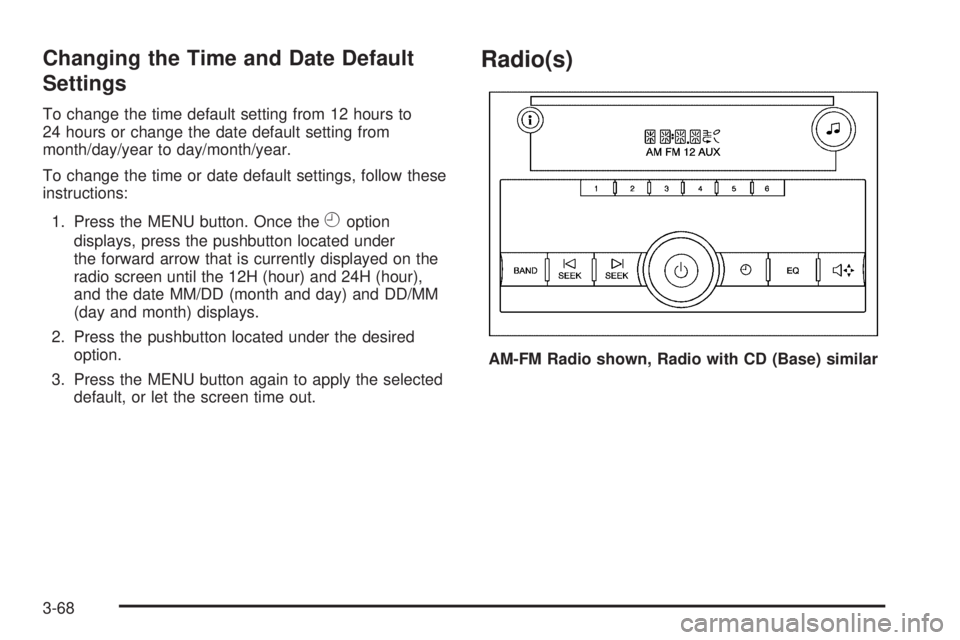
Radio(s)
AM-FM Radio shown, Radio with CD (Base) similar
3-68