2009 FORD SUPER DUTY lock
[x] Cancel search: lockPage 29 of 418
In satellite radio mode (if equipped), press/to tune to the
next/previous channel.
Satellite radio is available only with a valid SIRIUS radio
subscription. Check with your authorized dealer for availability.
2.
(Phone):If your vehicle is
equipped with SYNC, press to
access SYNC PHONE features. For
further information, please refer to supplemental information onSYNC
included with your vehicle.
If your vehicle is not equipped with SYNC, the display will read NO
PHONE.
3.MENU:Press MENU repeatedly
to access to the following settings:
Setting the clock:Press MENU until SET HOUR or SET MINUTES is
displayed. Use
//SEEK, SEEKto adjust the
hours/minutes.
SATELLITE RADIO MENU (if equipped):Press MENU when satellite
radio mode is active to access. Press OK to enter into the satellite radio
menu. Press
/to cycle through the following options:
•CATEGORY:Press OK to enter category mode. Press
/to
scroll through the list of available SIRIUS channel Categories (Pop,
Rock, News, etc.) Press OK when the desired category appears in the
display. After a category is selected, press SEEK to search for that
specific category of channels only (i.e. ROCK). You may also select
CATEGORY ALL to seek all available SIRIUS categories and channels.
Press OK to close and return to the main menu.
•SAVE SONG:Press OK to save the currently playing song title in the
system’s memory. (If you try to save something other than a song,
CANT SAVE will appear in the display.) When the chosen song is
playing on any satellite radio channel, the system will alert you with
an audible prompt. Press OK while SONG ALERT is in the display and
the system will take you to the channel playing the desired song. You
can save up to 20 song titles. If you attempt to save a song when the
system is full, the display will read REPLACE SONG? Press OK to
access the saved songs and press
/to cycle through the saved
songs. When the song appears in the display that you would like to
replace, press OK. SONG REPLACED will appear in the display.
2009 F-250/350/450/550(f23)
Owners Guide, 1st Printing
USA(fus)
Entertainment Systems
29
Page 36 of 418
Satellite radio is available only with a valid SIRIUS radio
subscription. Check with your authorized dealer for availability.
2.
(Phone):If your vehicle is
equipped with SYNC, press to
access SYNC PHONE features. For
further information, please refer to supplemental information onSYNC
included with your vehicle.
If your vehicle is not equipped with SYNC, the display will read NO
PHONE.
3.MENU:Press repeatedly to
access to the following settings:
Setting the clock:Press until SELECT HOUR or SELECT MINS is
displayed. Press
//SEEKto adjust the hours/minutes.
SATELLITE RADIO MENU (if equipped):Press MENU when satellite
radio mode is active to access. Press OK to enter into the satellite radio
menu. Press
/to cycle through the following options:
•CATEGORY:Press OK to enter category mode. Press
/to
scroll through the list of available SIRIUS channel Categories (Pop,
Rock, News, etc.) Press OK when the desired category appears in the
display. After a category is selected, press SEEK to search for that
specific category of channels only (i.e. ROCK). You may also select
CATEGORY ALL to seek all available SIRIUS categories and channels.
Press OK to close and return to the main menu.
•SAVE SONG:Press OK to save the currently playing song title in the
system’s memory. (If you try to save something other than a song,
CANT SAVE will appear in the display.) When the chosen song is
playing on any satellite radio channel, the system will alert you with
an audible prompt. Press OK while SONG ALERT is in the display and
the system will take you to the channel playing the desired song. You
can save up to 20 song titles. If you attempt to save a song when the
system is full, the display will read REPLACE SONG? Press OK to
access the saved songs and press
/to cycle through the saved
songs. When the song appears in the display that you would like to
replace, press OK. SONG REPLACED will appear in the display.
•DELETE SONG:Press OK to delete a song from the system’s
memory. Press
/to cycle through the saved songs. When the
2009 F-250/350/450/550(f23)
Owners Guide, 1st Printing
USA(fus)
Entertainment Systems
36
Page 50 of 418
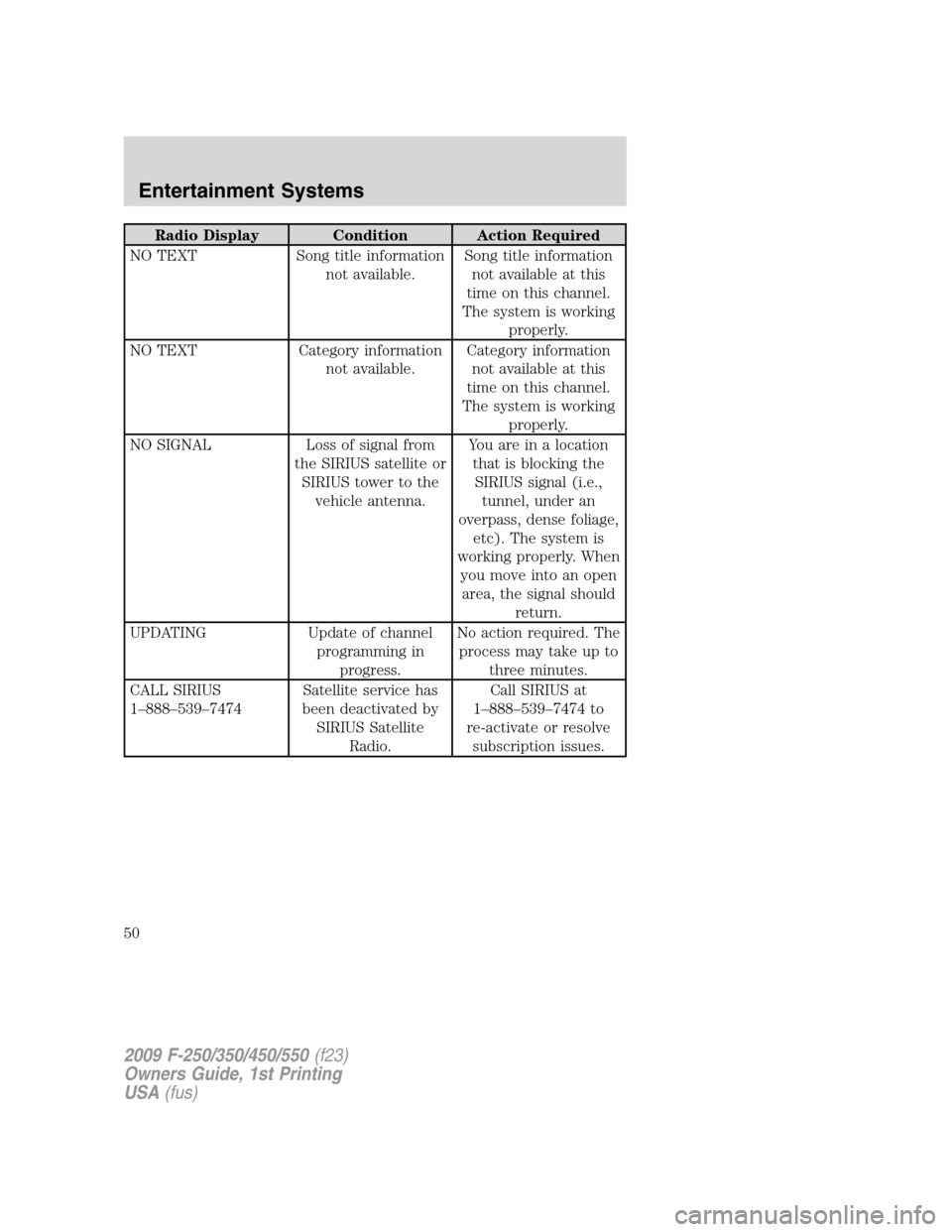
Radio Display Condition Action Required
NO TEXT Song title information
not available.Song title information
not available at this
time on this channel.
The system is working
properly.
NO TEXT Category information
not available.Category information
not available at this
time on this channel.
The system is working
properly.
NO SIGNAL Loss of signal from
the SIRIUS satellite or
SIRIUS tower to the
vehicle antenna.You are in a location
that is blocking the
SIRIUS signal (i.e.,
tunnel, under an
overpass, dense foliage,
etc). The system is
working properly. When
you move into an open
area, the signal should
return.
UPDATING Update of channel
programming in
progress.No action required. The
process may take up to
three minutes.
CALL SIRIUS
1–888–539–7474Satellite service has
been deactivated by
SIRIUS Satellite
Radio.Call SIRIUS at
1–888–539–7474 to
re-activate or resolve
subscription issues.
2009 F-250/350/450/550(f23)
Owners Guide, 1st Printing
USA(fus)
Entertainment Systems
50
Page 75 of 418
There are three levels of control of
the FES buttons. The states are
FULL (enabled), LOCAL or
LOCKED (disabled). To change the level of control, press the memory
preset controls 3 and 5 simultaneously on the front audio controls. The
control level will cycle each time the buttons are pressed simultaneously.
The three states are described as:
FULL(enabled): The FES has control over the primary (speaker) and
secondary (headphone) audio sources.
LOCAL: The FES has control over the secondary source (headphones)
only. The radio will ignore button presses that affect the primary
(speaker) audio source.
LOCKED(disabled): The FES buttons are locked and all FES button
presses are ignored by the radio and the FES except for load and eject.
When the DVD system is ON, you
can then press the memory preset
controls 2 and 4 simultaneously to
toggle between Single Play and Dual Play. In Single Play mode, all
speakers listen to the same media. In Dual Play mode, rear seat
passengers can use the infrared wireless, or wired (not included)
headphones to listen to a different playing media than the front seat
passengers.
General information
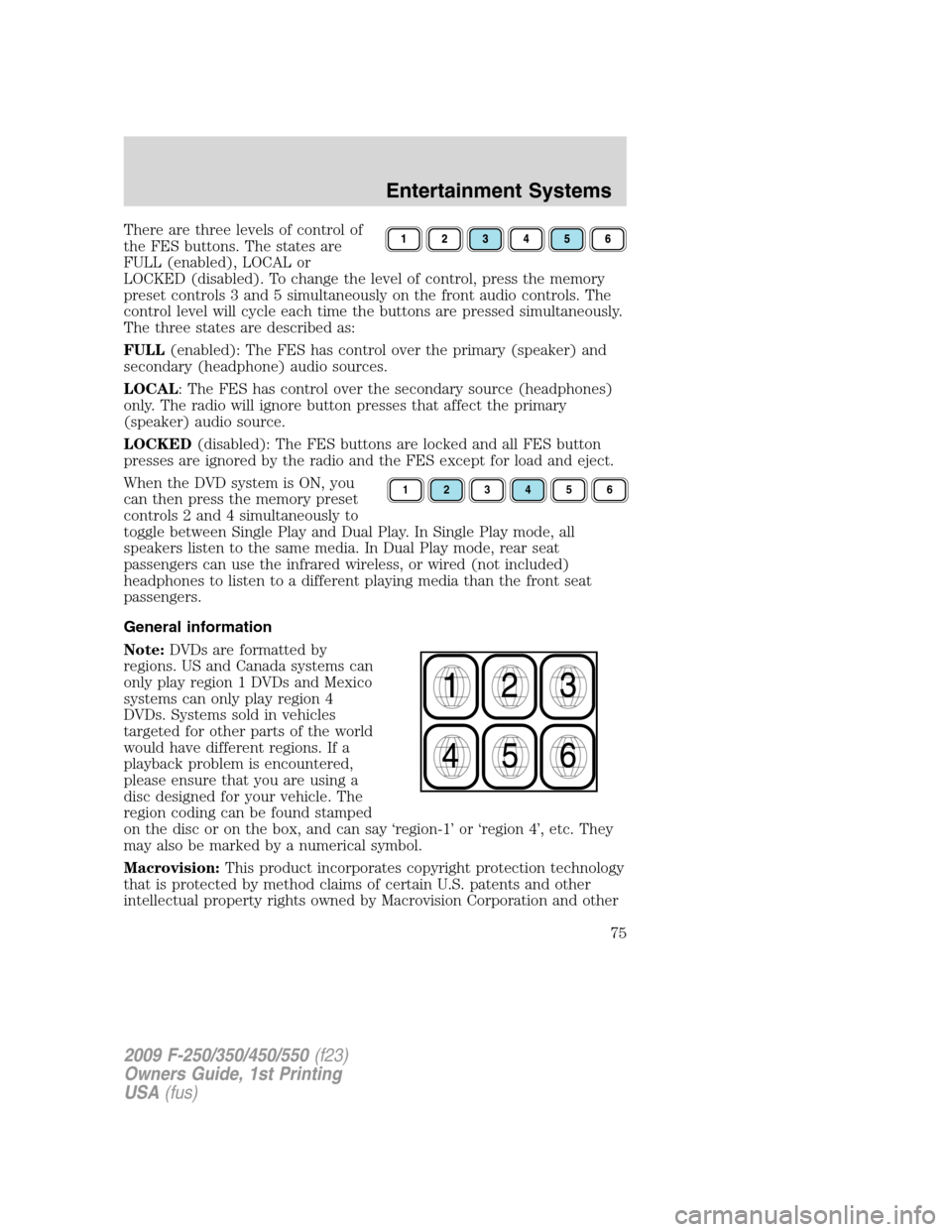
Note:DVDs are formatted by
regions. US and Canada systems can
only play region 1 DVDs and Mexico
systems can only play region 4
DVDs. Systems sold in vehicles
targeted for other parts of the world
would have different regions. If a
playback problem is encountered,
please ensure that you are using a
disc designed for your vehicle. The
region coding can be found stamped
on the disc or on the box, and can say ‘region-1’ or ‘region 4’, etc. They
may also be marked by a numerical symbol.
Macrovision:This product incorporates copyright protection technology
that is protected by method claims of certain U.S. patents and other
intellectual property rights owned by Macrovision Corporation and other
123456
2009 F-250/350/450/550(f23)
Owners Guide, 1st Printing
USA(fus)
Entertainment Systems
75
Page 89 of 418
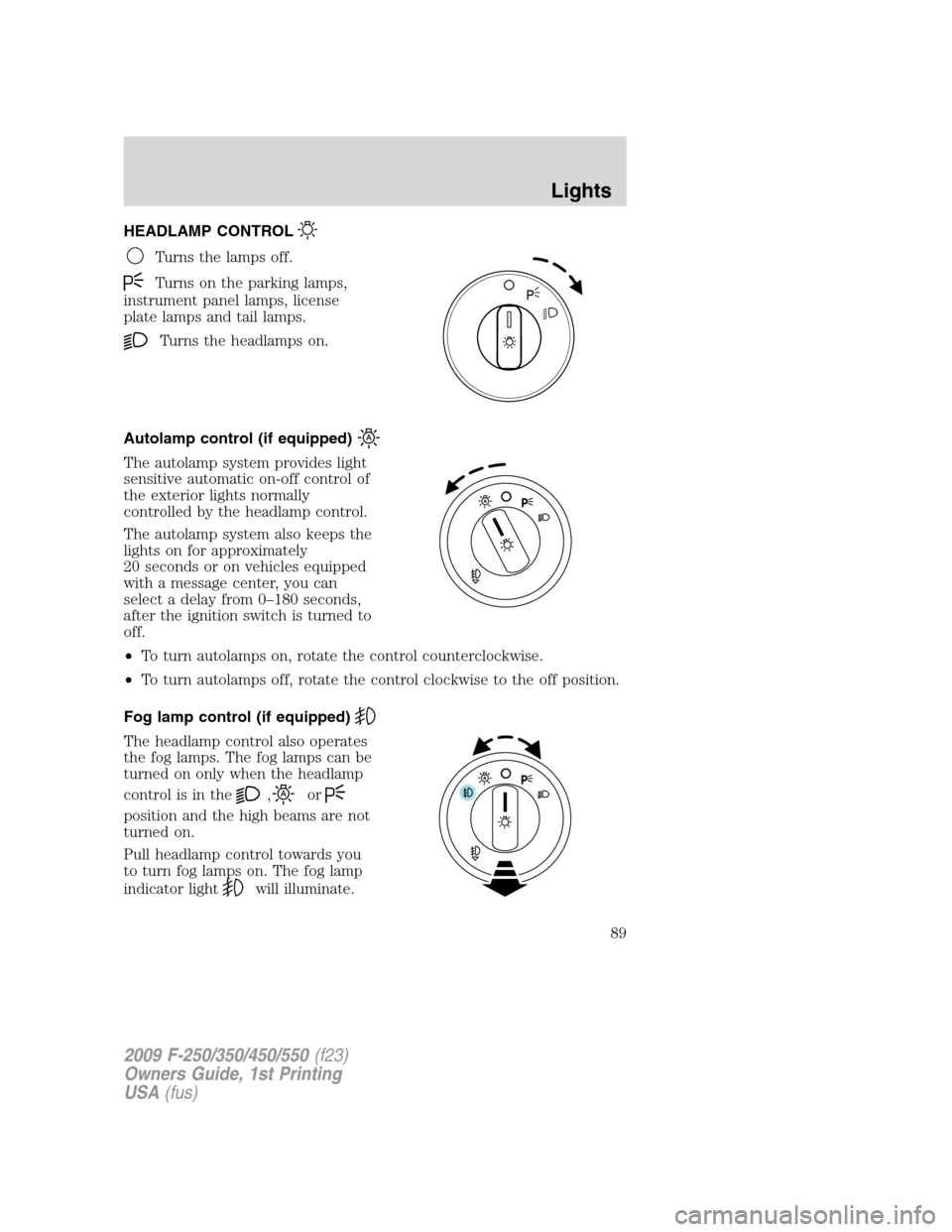
HEADLAMP CONTROL
Turns the lamps off.
Turns on the parking lamps,
instrument panel lamps, license
plate lamps and tail lamps.
Turns the headlamps on.
Autolamp control (if equipped)
The autolamp system provides light
sensitive automatic on-off control of
the exterior lights normally
controlled by the headlamp control.
The autolamp system also keeps the
lights on for approximately
20 seconds or on vehicles equipped
with a message center, you can
select a delay from 0–180 seconds,
after the ignition switch is turned to
off.
•To turn autolamps on, rotate the control counterclockwise.
•To turn autolamps off, rotate the control clockwise to the off position.
Fog lamp control (if equipped)
The headlamp control also operates
the fog lamps. The fog lamps can be
turned on only when the headlamp
control is in the
,or
position and the high beams are not
turned on.
Pull headlamp control towards you
to turn fog lamps on. The fog lamp
indicator light
will illuminate.
2009 F-250/350/450/550(f23)
Owners Guide, 1st Printing
USA(fus)
Lights
89
Page 91 of 418
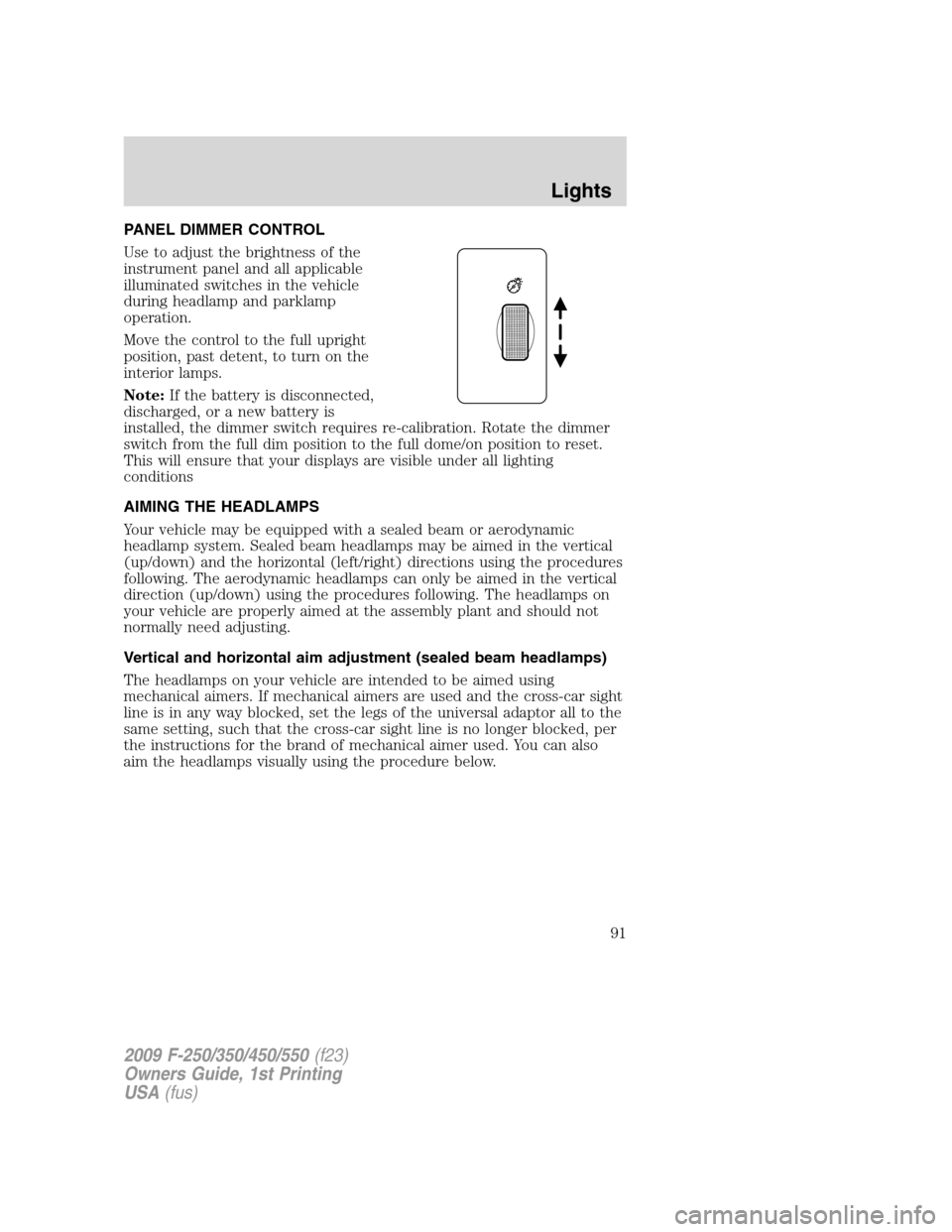
PANEL DIMMER CONTROL
Use to adjust the brightness of the
instrument panel and all applicable
illuminated switches in the vehicle
during headlamp and parklamp
operation.
Move the control to the full upright
position, past detent, to turn on the
interior lamps.
Note:If the battery is disconnected,
discharged, or a new battery is
installed, the dimmer switch requires re-calibration. Rotate the dimmer
switch from the full dim position to the full dome/on position to reset.
This will ensure that your displays are visible under all lighting
conditions
AIMING THE HEADLAMPS
Your vehicle may be equipped with a sealed beam or aerodynamic
headlamp system. Sealed beam headlamps may be aimed in the vertical
(up/down) and the horizontal (left/right) directions using the procedures
following. The aerodynamic headlamps can only be aimed in the vertical
direction (up/down) using the procedures following. The headlamps on
your vehicle are properly aimed at the assembly plant and should not
normally need adjusting.
Vertical and horizontal aim adjustment (sealed beam headlamps)
The headlamps on your vehicle are intended to be aimed using
mechanical aimers. If mechanical aimers are used and the cross-car sight
line is in any way blocked, set the legs of the universal adaptor all to the
same setting, such that the cross-car sight line is no longer blocked, per
the instructions for the brand of mechanical aimer used. You can also
aim the headlamps visually using the procedure below.
2009 F-250/350/450/550(f23)
Owners Guide, 1st Printing
USA(fus)
Lights
91
Page 93 of 418
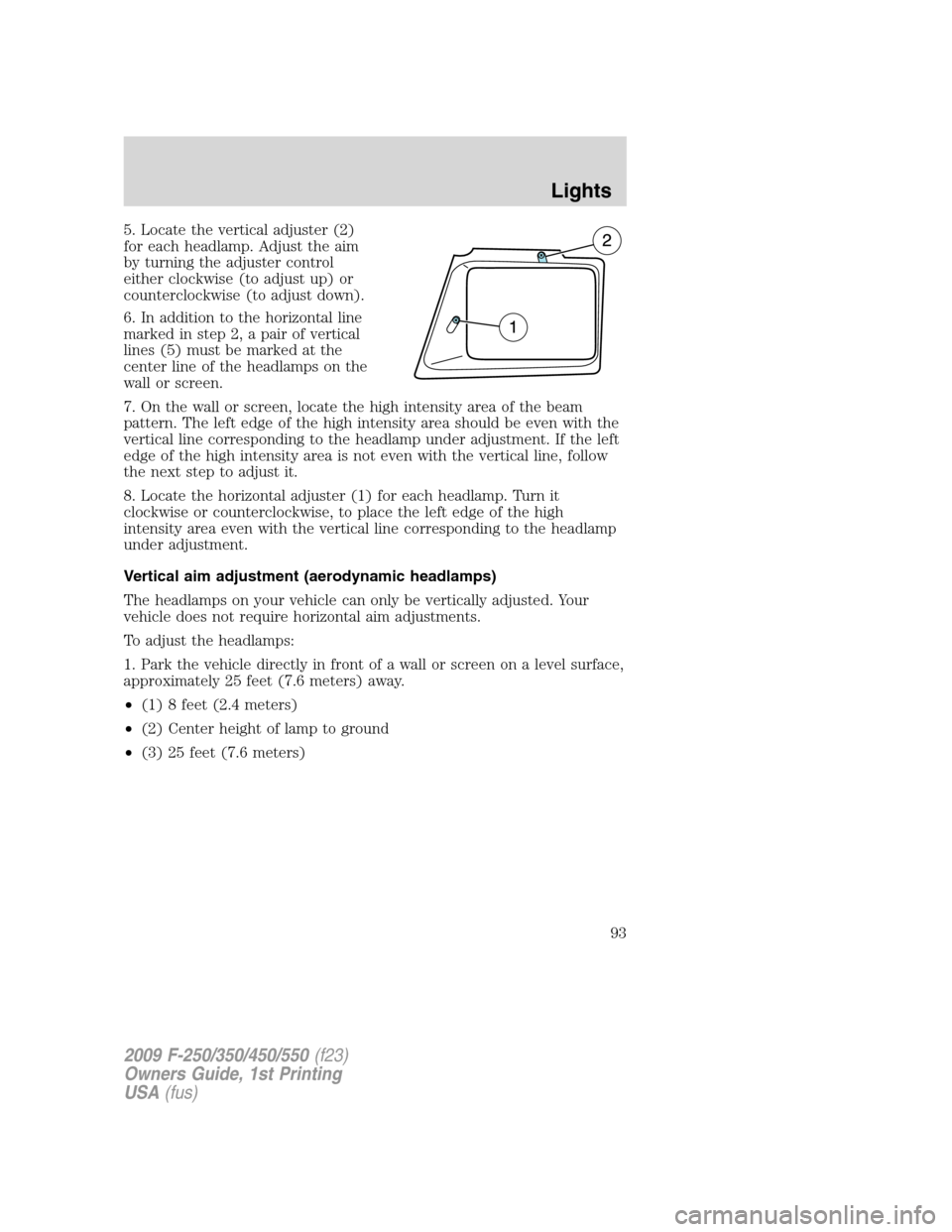
5. Locate the vertical adjuster (2)
for each headlamp. Adjust the aim
by turning the adjuster control
either clockwise (to adjust up) or
counterclockwise (to adjust down).
6. In addition to the horizontal line
marked in step 2, a pair of vertical
lines (5) must be marked at the
center line of the headlamps on the
wall or screen.
7. On the wall or screen, locate the high intensity area of the beam
pattern. The left edge of the high intensity area should be even with the
vertical line corresponding to the headlamp under adjustment. If the left
edge of the high intensity area is not even with the vertical line, follow
the next step to adjust it.
8. Locate the horizontal adjuster (1) for each headlamp. Turn it
clockwise or counterclockwise, to place the left edge of the high
intensity area even with the vertical line corresponding to the headlamp
under adjustment.
Vertical aim adjustment (aerodynamic headlamps)
The headlamps on your vehicle can only be vertically adjusted. Your
vehicle does not require horizontal aim adjustments.
To adjust the headlamps:
1. Park the vehicle directly in front of a wall or screen on a level surface,
approximately 25 feet (7.6 meters) away.
•(1) 8 feet (2.4 meters)
•(2) Center height of lamp to ground
•(3) 25 feet (7.6 meters)
2009 F-250/350/450/550(f23)
Owners Guide, 1st Printing
USA(fus)
Lights
93
Page 94 of 418
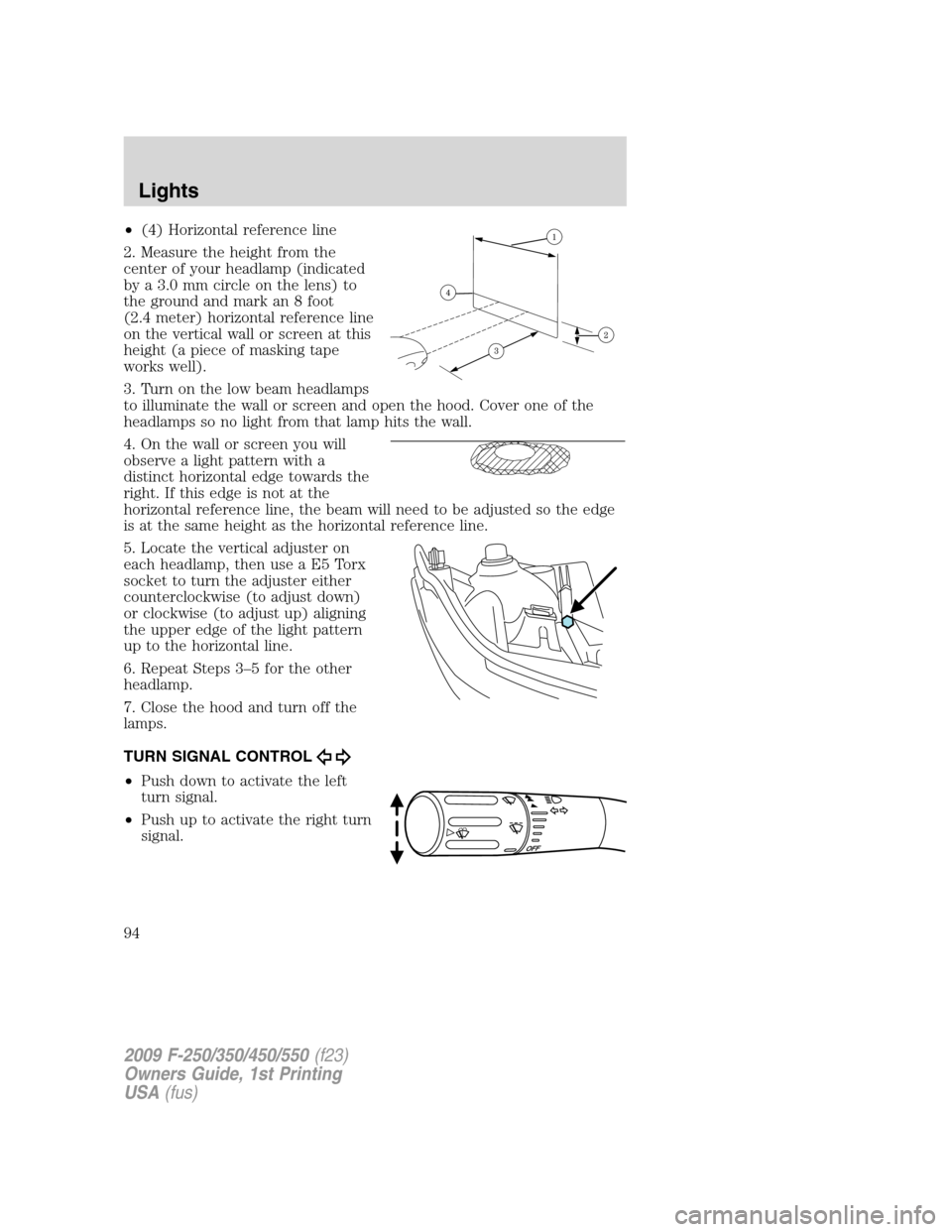
•(4) Horizontal reference line
2. Measure the height from the
center of your headlamp (indicated
by a 3.0 mm circle on the lens) to
the ground and mark an 8 foot
(2.4 meter) horizontal reference line
on the vertical wall or screen at this
height (a piece of masking tape
works well).
3. Turn on the low beam headlamps
to illuminate the wall or screen and open the hood. Cover one of the
headlamps so no light from that lamp hits the wall.
4. On the wall or screen you will
observe a light pattern with a
distinct horizontal edge towards the
right. If this edge is not at the
horizontal reference line, the beam will need to be adjusted so the edge
is at the same height as the horizontal reference line.
5. Locate the vertical adjuster on
each headlamp, then use a E5 Torx
socket to turn the adjuster either
counterclockwise (to adjust down)
or clockwise (to adjust up) aligning
the upper edge of the light pattern
up to the horizontal line.
6. Repeat Steps 3–5 for the other
headlamp.
7. Close the hood and turn off the
lamps.
TURN SIGNAL CONTROL
•Push down to activate the left
turn signal.
•Push up to activate the right turn
signal.
2009 F-250/350/450/550(f23)
Owners Guide, 1st Printing
USA(fus)
Lights
94