2009 FORD EXPLORER light
[x] Cancel search: lightPage 53 of 407
from the auxiliary source, the screen will remain black. If the video
source is set to DVD-AUX, the display will automatically turn on if a
video signal is detected.
To listen to audio over the headphones— Dual play mode
(Navigation-based radio systems only):
You may listen to channels A and B over wired or wireless headphones.
Refer toUsing the infrared wireless headphonesandUsing wired
headphonesfor further information.
•Black (4) — wired headphone output (wired headphones not
included)
There are two ways to get into dual
play mode:
1. After initially switching ignition
on, when a is disc inserted, the FES immediately switches to dual-play
mode.
2. Press the headphone/speaker
/button on the DVD player or
navigation radio touch screen.
3. Press the 2 and 4 memory presets on the radio at the same time.
Repeating each of these actions will switch back to single play mode, all
speakers playing and headphones off.
A green light will illuminate next to either the A or B Headphone Control
Button to indicate which channel is active (able to be controlled).
4. Press MEDIA to change the audio source of the active channel (A or
B). The audio source will be shown on the display. You may change the
active channel by pressing the A or B headphone control button.
Note:Channel A can access any possible media source (AM, FM1, FM2,
SAT (if equipped), CD, DVD, AUX). Channel B can only access DVD and
AUX sources.
Note:Refer toSingle play/Dual playfor more information.
To listen to audio over the headphones— Dual play mode
(Non-navigation based radio systems):
You may listen to channels A and B over wired or wireless headphones.
Refer toUsing the infrared wireless headphonesandUsing wired
headphonesfor further information.
•Black (4) — wired headphone output (wired headphones not
included)
2009 Explorer(exp)
Owners Guide, 1st Printing
USA(fus)
Entertainment Systems
53
Page 54 of 407
1. Press the
headphone/speaker
/button
on the DVD player or press the 2
and 4 memory presets on the radio at the same time.
A green light will illuminate next to either the A or B Headphone Control
Button to indicate which channel is active (able to be controlled).
2. Press MEDIA to change the audio source of the active channel (A or
B). The audio source will be shown on the display. You may change the
active channel by pressing the A or B headphone control button.
Note:Channel A can access any possible media source (AM, FM1, FM2,
SAT (if equipped), CD, DVD, AUX). Channel B can only access DVD and
AUX sources.
Note:Refer toSingle play/Dual playfor more information.
Using the infrared (IR) wireless headphones:
1. Press the power control on the earpiece to turn the headphones ON.
2. Select Channel A or B for each set of wireless headphones by using
the A/B control on the ear piece.
3. Adjust the headphone volume using the rotary dial on the earpiece.
Using wired headphones (not included):
WARNING:Do not leave children unattended in the vehicle and
do not let children operate the system while unsupervised. If
wired headphones or auxiliary systems are used, children may become
entangled in the cords and seriously injure themselves.
1. Connect the wired headphones in to the headphone jacks on either
side of the DVD system. Each side is labeled
AorB. Headphones
plugged into jack A will listen to Channel A and headphones plugged into
jack B will listen to Channel B.
2. Adjust the volume levels using
the volume controls on the DVD
system.
2009 Explorer(exp)
Owners Guide, 1st Printing
USA(fus)
Entertainment Systems
54
Page 60 of 407

8.Fast Forward/Next:In DVD mode, press and hold for a quick
advance within the DVD. Press and release to advance to the next
chapter. In CD/MP3 mode, press to access the next track.
9.Play/Pause:Press to play or pause a DVD.
10.SHUFFLE:Press to play all tracks on the current CD/MP3 disc in
random order.
11.STOP:Press to stop the current DVD or CD/MP3.
12.
/Speaker/Headphone(Single/Dual Play): Press to toggle
between Single Play (same media playing through all speakers) and Dual
Play (headphone mode — the rear speakers are muted). You can also
press the 2 and 4 memory presets on the audio system at the same time
to perform the same function.
13.Numeric Keypad:Use the numeric controls to enter in a specific
CD/MP3 track or DVD chapter to be played.
14.C (Cancel):Press to cancel/clear the numeric input (i.e. chapter
number).
15.MEDIA:Press to cycle through the possible media sources: AM,
FM1, FM2, SAT (if equipped), CD, DVD, LINE IN (if equipped),
DVD-AUX.
Channel B can only access DVD and AUX sources.
16.VIDEO:Press to cycle through video states: DVD-DISC, DVD-AUX,
NON-DVD, Off.
17.EJECT:Press to eject a disc from the FES.
18.Fast reverse/Previous:When a DVD is playing, press and hold for a
quick reverse within the DVD. Press and release for the previous
chapter. Press PLAY to resume normal playback speed and volume.
In CD/MP3 mode, press to access the previous track.
19.MENU:Press to access the DVD disc menu for selections. Press
MENU again when in the DVD disc menu to access the system set-up
menu.
20.SUBTITLE(DVD dependent): Press to turn the subtitle feature ON
or OFF.
21.LANGUAGE(DVD dependent): Press to select the desired
language.
22.ENTER:Press to select the highlighted menu option.
23.ILLUMINATION: Press to illuminate the remote control and
backlight all of the buttons.
2009 Explorer(exp)
Owners Guide, 1st Printing
USA(fus)
Entertainment Systems
60
Page 63 of 407
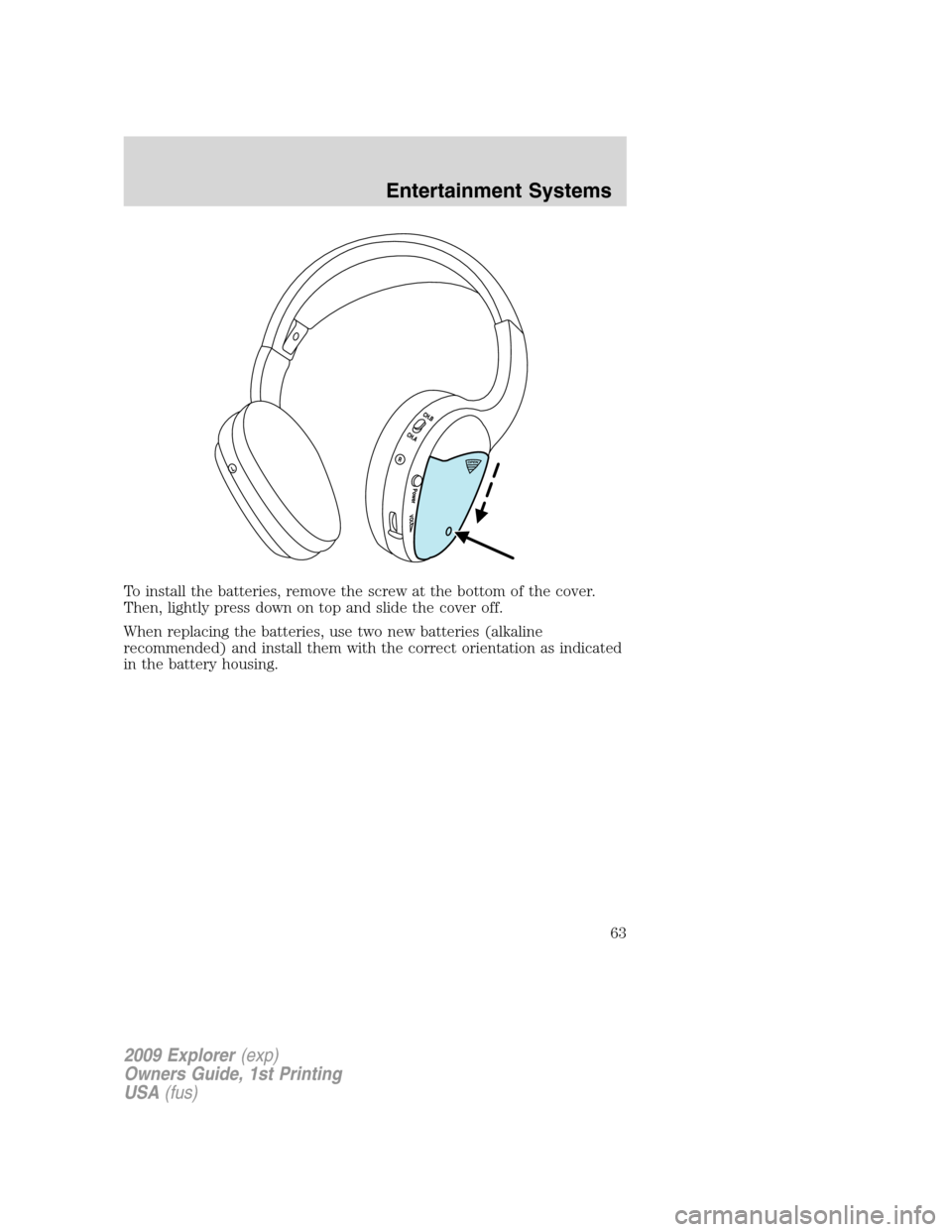
To install the batteries, remove the screw at the bottom of the cover.
Then, lightly press down on top and slide the cover off.
When replacing the batteries, use two new batteries (alkaline
recommended) and install them with the correct orientation as indicated
in the battery housing.
2009 Explorer(exp)
Owners Guide, 1st Printing
USA(fus)
Entertainment Systems
63
Page 64 of 407
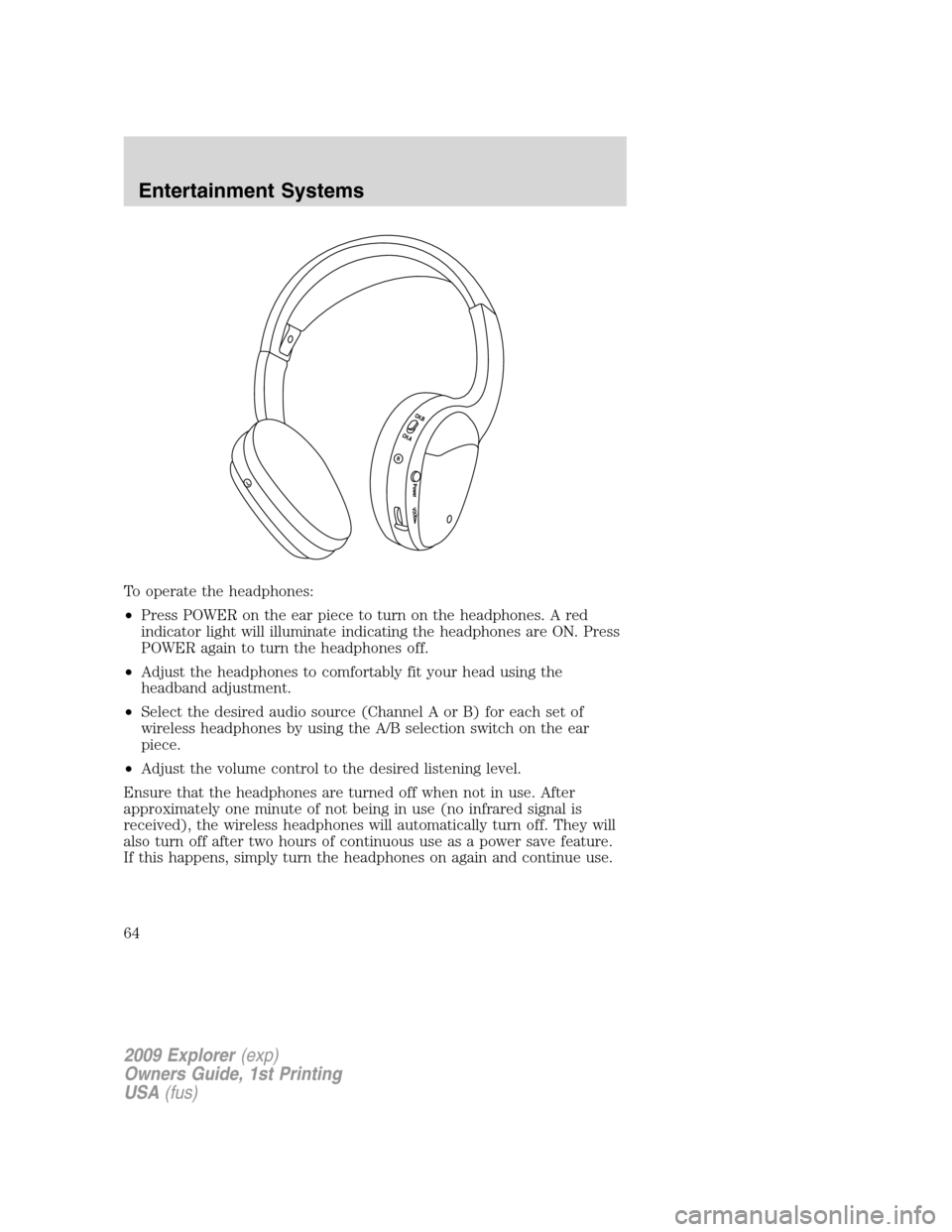
To operate the headphones:
•Press POWER on the ear piece to turn on the headphones. A red
indicator light will illuminate indicating the headphones are ON. Press
POWER again to turn the headphones off.
•Adjust the headphones to comfortably fit your head using the
headband adjustment.
•Select the desired audio source (Channel A or B) for each set of
wireless headphones by using the A/B selection switch on the ear
piece.
•Adjust the volume control to the desired listening level.
Ensure that the headphones are turned off when not in use. After
approximately one minute of not being in use (no infrared signal is
received), the wireless headphones will automatically turn off. They will
also turn off after two hours of continuous use as a power save feature.
If this happens, simply turn the headphones on again and continue use.
2009 Explorer(exp)
Owners Guide, 1st Printing
USA(fus)
Entertainment Systems
64
Page 66 of 407

Single Play:Single play consists of all occupants in the vehicle listening
to the same playing media over the front and rear speakers. When the
DVD system is on, and the same source is playing through the front and
rear speakers, SINGLE PLAY will appear in the front radio display.
Dual Play (navigation-based radio systems only):Dual play is when
the rear seat passengers choose to listen to a different playing media
than the front seat passengers. With the DVD and rear seat controls
turned ON, the rear seat passengers may choose to listen to the radio,
CD, MP3, SYNC, DVD, or DVD-AUX media sources over headphones
while the front speakers play the chosen selection for the front audio
system, they may listen to another over the headphones. DUAL PLAY
will appear in the radio display.
When both the front seat passengers and the rear seat passengers listen
to the same audio source, SHARED MODE will appear on the radio.
Note:If the front seat passengers are listening to the radio, the rear seat
passengers can also listen to the radio; however, they will be limited to
listening to the same radio channel.
There are two ways to get into dual play mode:
1. After initially turning ignition on, when a disc is inserted, the FES
immediately switches to dual-play mode.
2. Press
the
/headphone/speaker
button on the DVD player or
navigation radio touch screen.
3. Press the 2 and 4 memory presets on the radio at the same time.
Repeating each of these actions will switch back to single play mode, all
speakers playing and headphones off.
The headphone control will now be active and a green light next to the
A or B headphone control buttons will illuminate. The system can output
two different audio sources over the headphones. These are called
Channel A and Channel B. Both Channel A and Channel B can be
listened to on the wired headphones (not included) or on the infrared
(IR) wireless headphones.
Press the Headphone Control button
A to change the audio source for
Channel A.
2009 Explorer(exp)
Owners Guide, 1st Printing
USA(fus)
Entertainment Systems
66
Page 67 of 407

Press MEDIA to change the audio
source for Channel A. This
information will display on the DVD
system screen.
Press the Headphone Control button
B to change the audio source for
Channel B.
Press MEDIA to change the audio source for Channel B. This information
will display on the DVD system screen. Channel B can listen to either
the DVD media or the DVD system auxiliary inputs (DVD-AUX).
Dual Play (non-navigation based radio systems):Dual play is when
the rear seat passengers choose to listen to a different playing media
than the front seat passengers. With the DVD and rear seat controls
turned ON, the rear seat passengers may choose to listen to the radio,
CD, MP3, DVD, or DVD-AUX media sources over headphones while the
front speakers play the chosen selection for the front audio system, they
may listen to another over the headphones. DUAL PLAY will appear in
the radio display.
When both the front seat passengers and the rear seat passengers listen
to the same audio source, SHARED MODE will appear on the radio.
Note:If the front seat passengers are listening to the radio, the rear seat
passengers can also listen to the radio; however, they will be limited to
listening to the same radio channel.
Press the
/headphone/speaker
button on the DVD player or
navigation radio touch screen.
The headphone control will now be active and a green light next to the
A or B headphone control buttons will illuminate. The system can output
two different audio sources over the headphones. These are called
Channel A and Channel B. Both Channel A and Channel B can be
listened to on the wired headphones (not included) or on the infrared
(IR) wireless headphones.
Press the Headphone Control button
A to change the audio source for
Channel A.
2009 Explorer(exp)
Owners Guide, 1st Printing
USA(fus)
Entertainment Systems
67
Page 71 of 407

Once you have made your selection,
press ENTER to confirm. This is
disc dependent.
Audio CDs
To play audio CDs on your DVD system:
1. Ensure that the vehicle is on or the ignition is in accessory mode.
2. Ensure that the DVD system is on.
3. Insert an audio CD into the DVD system, label side up.
4. The track and elapsed time will
appear in the status bar. Use the
DVD cursor controls on the bezel to
highlight which track you would like
to play. You can also use the cursor
controls to highlight
COMPRESSION, SHUFFLE or
SCAN. Once you have highlighted
the desired track or function, press ENTER on the DVD bezel to confirm
your selection.
COMP (Compression):Compression brings soft and loud CD passages
together for a more consistent listening level when in CD mode. Press to
turn the feature on/off.
SHUFFLE:Press to hear all tracks on the current CD in random order.
Press again to stop.
SCAN:Press for a brief sampling of all tracks on the current CD. Press
again to stop.
Playing MP3 discs
To play an MP3 disc on your DVD system:
1. Ensure that the vehicle is on or the ignition is in accessory mode.
2. Ensure that the DVD system is on.
3. Insert the MP3 disc into the DVD system, label side up.
2009 Explorer(exp)
Owners Guide, 1st Printing
USA(fus)
Entertainment Systems
71