Page 196 of 449
Press and hold the INFO button again for three seconds
to return to9elapsed time9display.
Operation Instructions - Auxiliary Mode
The auxiliary (AUX) jack is an audio input jack, which
allows the user to plug in a portable device such as an
MP3/WMA player, cassette player, or microphone and
utilize the vehicle's audio system to amplify the source
and play through the vehicle speakers.
Pressing the AUX button will change the mode to auxil-
iary device if the AUX jack is connected.
NOTE:The AUX device must be turned on and the
device's volume set to the proper level. If the AUX audio
is not loud enough, turn the device's volume up. If the
AUX audio sounds distorted, turn the device's volume
down.
SEEK Button (Auxiliary Mode)
No function.
SCAN Button (Auxiliary Mode)
No function.
EJECT Button (Auxiliary Mode)
No function.
TIME Button (Auxiliary Mode)
Press the TIME button to change the display from
elapsed playing time to time of day. The time of day will
display for five seconds.
RW/FF (Auxiliary Mode)
No function.
SET Button (Auxiliary Mode)
No function.
194 UNDERSTANDING YOUR INSTRUMENT PANEL
Page 197 of 449
Operating Instructions Ð Voice Recognition
System (VR) (If Equipped)
For the radio, refer to ªVoice Recognition System (VR)º in
Section 3.
For UConnecttªVoice Recognition System (VR),º refer to
ªHands-Free Communication (UConnectt)º in Section 3.
Operating Instructions - Hands-Free Phone
(UConnectt) (If Equipped)
Refer to ªHands-Free Communication (UConnectt)º in
Section 3.
Operating Instructions - Satellite Radio Mode (If
Equipped)
Refer to ªSatellite Radioº in this section.
Operating Instructions - Video Entertainment
System (VES)Ÿ (If Equipped)
Refer to separate ªVideo Entertainment System (VES)Ÿ
Guide.ºDolbyt
Manufactured under license from DolbytLaboratories.
9Dolbyt9and the double-D symbol are trademarks of
DolbytLaboratories.
Macrovision
This product incorporates copyright protection technol-
ogy that is protected by U.S. patents and other intellec-
tual property rights. Use of this copyright protection
technology must be authorized by Macrovision, and is
intended for home and other limited viewing uses only,
unless otherwise authorized by Macrovision. Reverse
engineering or disassembly is prohibited
DTSŸ
9DTSŸ9and9DTSŸ 2.09are trademarks of Digital The-
ater Systems, Inc.
UNDERSTANDING YOUR INSTRUMENT PANEL 195
4
Page 211 of 449
Voice Recognition System (Radio) Ð If Equipped
Refer to ªVoice Recognition System (VR)º in Section 3.
Voice Recognition Button (UConnecttHands-Free
Phone) Ð If Equipped
Press this button to operate the Hands-Free Phone
(UConnectt) feature (if equipped). Refer to ªHands-Free
Communication (UConnectt)º in Section 3.
If your vehicle is not equipped with or this feature is not
available on your vehicle, a ªNot Equipped With
UConnectº message will display on the radio screen.
Phone Button (UConnecttHands-Free Phone) Ð If
Equipped
Press this button to operate the Hands-Free Phone
(UConnectt) feature (if equipped). Refer to ªHands-Free
Communication (UConnectt)º in Section 3.If your vehicle is not equipped with or this feature is not
available on your vehicle, a ªNot Equipped With
UConnectº message will display on the radio screen.
TIME Button
Press the TIME button and the time of day will display. In
AM or FM mode, pressing the TIME button will switch
between the time and frequency displays.
Clock Setting Procedure
1. Press and hold the TIME button, until the hours blink.
2. Adjust the hours by turning the right side Tune/Scroll
control knob.
3. After adjusting the hours, press the right side Tune/
Scroll control knob to set the minutes. The minutes will
begin to blink.
UNDERSTANDING YOUR INSTRUMENT PANEL 209
4
Page 222 of 449
Operating Instructions - Hands-Free Phone
(UConnectt) (If Equipped)
Refer to ªHands-Free Communication (UConnectt)º in
Section 3.
Operating Instructions - Satellite Radio Mode (If
Equipped)
Refer to ªSatellite Radioº in this section.
SOUND BOX OPERATION
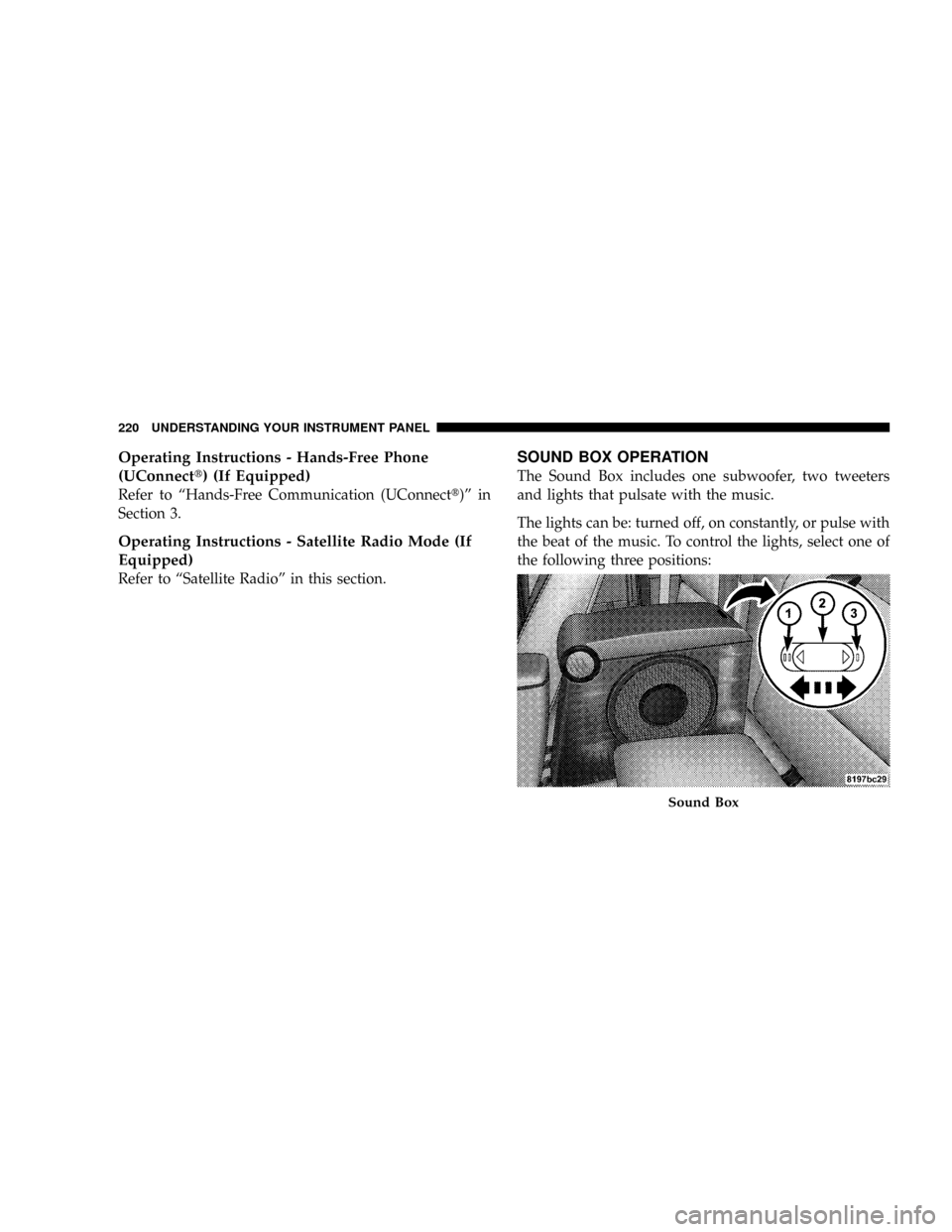
The Sound Box includes one subwoofer, two tweeters
and lights that pulsate with the music.
The lights can be: turned off, on constantly, or pulse with
the beat of the music. To control the lights, select one of
the following three positions:
Sound Box
220 UNDERSTANDING YOUR INSTRUMENT PANEL
Page 228 of 449
Operating Instructions Ð Hands-Free Phone (If
Equipped)
Refer to ªHands-Free Communication (UConnectt)º in
Section 3.
Operating Instructions Ð Video Entertainment
System (VES)Ÿ (If Equipped)
Refer to separate ªVideo Entertainment System (VES)Ÿ
Guide.º
REMOTE SOUND SYSTEM CONTROLS Ð IF
EQUIPPED
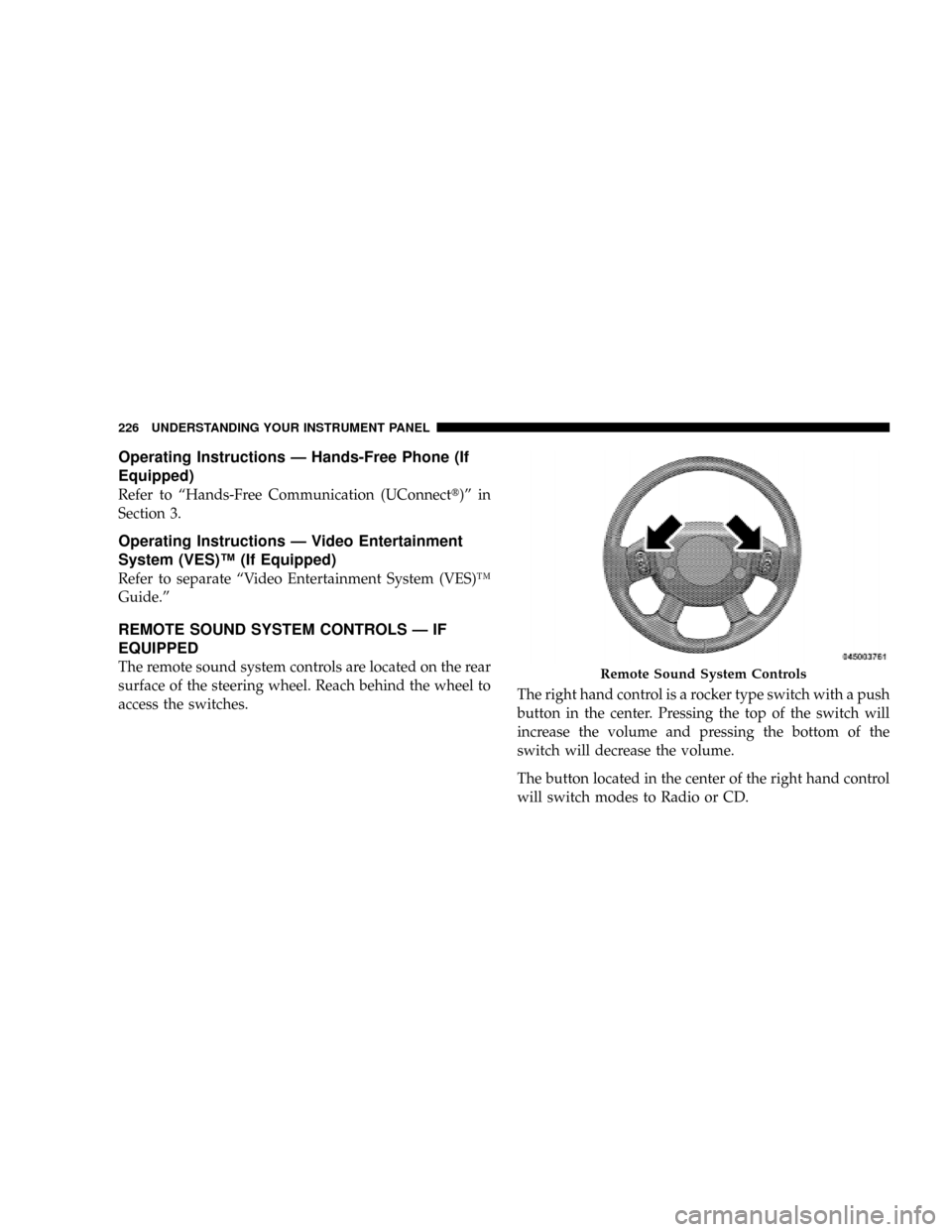
The remote sound system controls are located on the rear
surface of the steering wheel. Reach behind the wheel to
access the switches.The right hand control is a rocker type switch with a push
button in the center. Pressing the top of the switch will
increase the volume and pressing the bottom of the
switch will decrease the volume.
The button located in the center of the right hand control
will switch modes to Radio or CD.Remote Sound System Controls
226 UNDERSTANDING YOUR INSTRUMENT PANEL
Page 230 of 449
3. Do not apply paper or tape to the disc; avoid scratch-
ing the disc.
4. Do not use solvents such as benzine, thinner, cleaners,
or antistatic sprays.
5. Store the disc in its case after playing.
6. Do not expose the disc to direct sunlight.
7. Do not store the disc where temperatures may become
too high.
NOTE:If you experience difficulty in playing a particu-
lar disc, it may be damaged (i.e. scratched, reflective
coating removed, a hair, moisture or dew on the disc)
oversized, or have theft protection encoding. Try a
known good disc before considering disc player service.RADIO OPERATION AND CELLULAR PHONES
Under certain conditions, the cellular phone being ON in
your vehicle can cause erratic or noisy performance from
your radio. This condition may be lessened or eliminated
by relocating the cellular phone antenna. This condition
is not harmful to the radio. If your radio performance
does not satisfactorily ªclearº by the repositioning of the
antenna, it is recommended that the radio volume be
turned down or off during cellular phone operation.
CLIMATE CONTROLS
The controls for the heating, ventilation and air condi-
tioning system in this vehicle consist of a series of rotary
knobs. These comfort controls can be set to obtain desired
interior conditions.
228 UNDERSTANDING YOUR INSTRUMENT PANEL
Page 423 of 449
PUBLICATION ORDER FORMS
To order the following manuals, you may use either the
website or the phone numbers listed below. Visa, Mas-
tercard, American Express, and Discover orders are ac-
cepted. If you prefer mailing your payment, please call
for an order form.
NOTE:A street address is required when ordering
manuals (no P.O. Boxes).
²Service Manuals
These comprehensive Service Manuals provide the
information that students and professional technicians
need in diagnosing/troubleshooting, problem solving,
maintaining, servicing, and repairing Chrysler LLC
vehicles. A complete working knowledge of the ve-
hicle, system, and/or components is written in
straightforward language with illustrations, diagrams,
and charts.
²Diagnostic Procedure Manuals
Diagnostic Procedure Manuals are filled with dia-
grams, charts and detailed illustrations. These practi-
cal manuals make it easy for students and technicians
to find and fix problems on computer-controlled ve-
hicle systems and features. They show exactly how to
find and correct problems the first time, using step-by-
step troubleshooting and drivability procedures,
proven diagnostic tests and a complete list of all tools
and equipment.
²Owner's Manuals
These Owner's Manuals have been prepared with the
assistance of service and engineering specialists to
acquaint you with specific Chrysler LLC vehicles.
Included are starting, operating, emergency and main-
tenance procedures as well as specifications, capabili-
ties and safety tips.
IF YOU NEED CONSUMER ASSISTANCE 421
9
Page 426 of 449
and are most concerned that you get prompt and high
quality service. The manufacturer's authorized dealers
have the facilities, factory-trained technicians, special
tools, and the latest information to ensure the vehicle is
fixed correctly and in a timely manner.
This is why you should always talk to an authorized
dealer's service manager first. Most matters can be re-
solved with this process.
²If for some reason you are still not satisfied, talk to the
general manager or owner of the authorized dealer-
ship. They want to know if you need assistance.
²If an authorized dealership is unable to resolve the
concern, you may contact the manufacturer's customer
center.Any communication to the manufacturer's customer cen-
ter should include the following information:
²Owner's name and address
²Owner's telephone number (home and office)
²Authorized dealership name
²Vehicle Identification Number (VIN)
²Vehicle delivery date and mileage
Chrysler LLC Customer Center
P.O. Box 21±8004
Auburn Hills, MI 48321±8004
Phone: (800) 992-1997
Chrysler Canada Inc. Customer Center
P.O. Box 1621
Windsor, Ontario N9A 4H6
Phone: (800) 465±2001
424 IF YOU NEED CONSUMER ASSISTANCE