Page 111 of 449
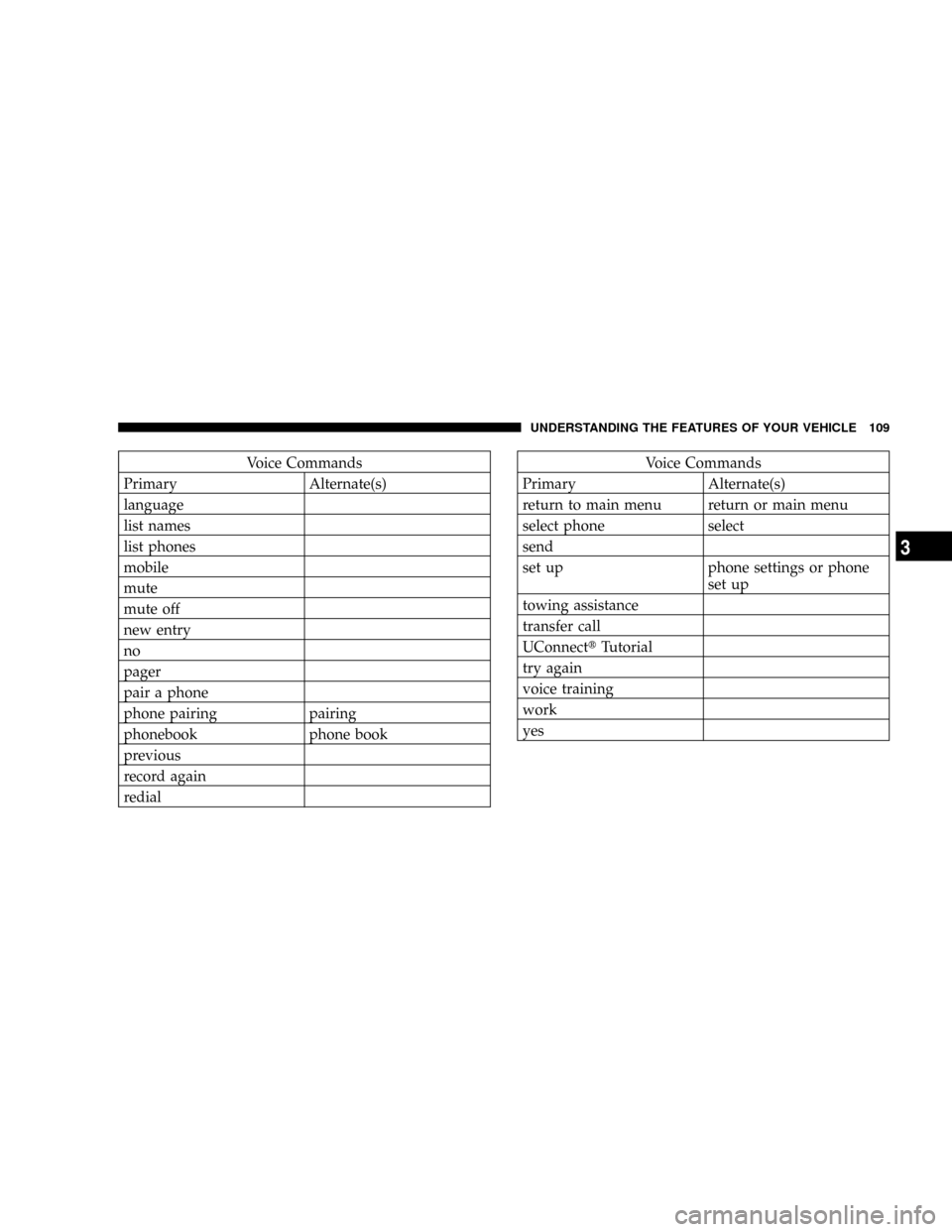
Voice Commands
Primary Alternate(s)
language
list names
list phones
mobile
mute
mute off
new entry
no
pager
pair a phone
phone pairing pairing
phonebook phone book
previous
record again
redialVoice Commands
Primary Alternate(s)
return to main menu return or main menu
select phone select
send
set up phone settings or phone
set up
towing assistance
transfer call
UConnecttTutorial
try again
voice training
work
yes
UNDERSTANDING THE FEATURES OF YOUR VEHICLE 109
3
Page 151 of 449
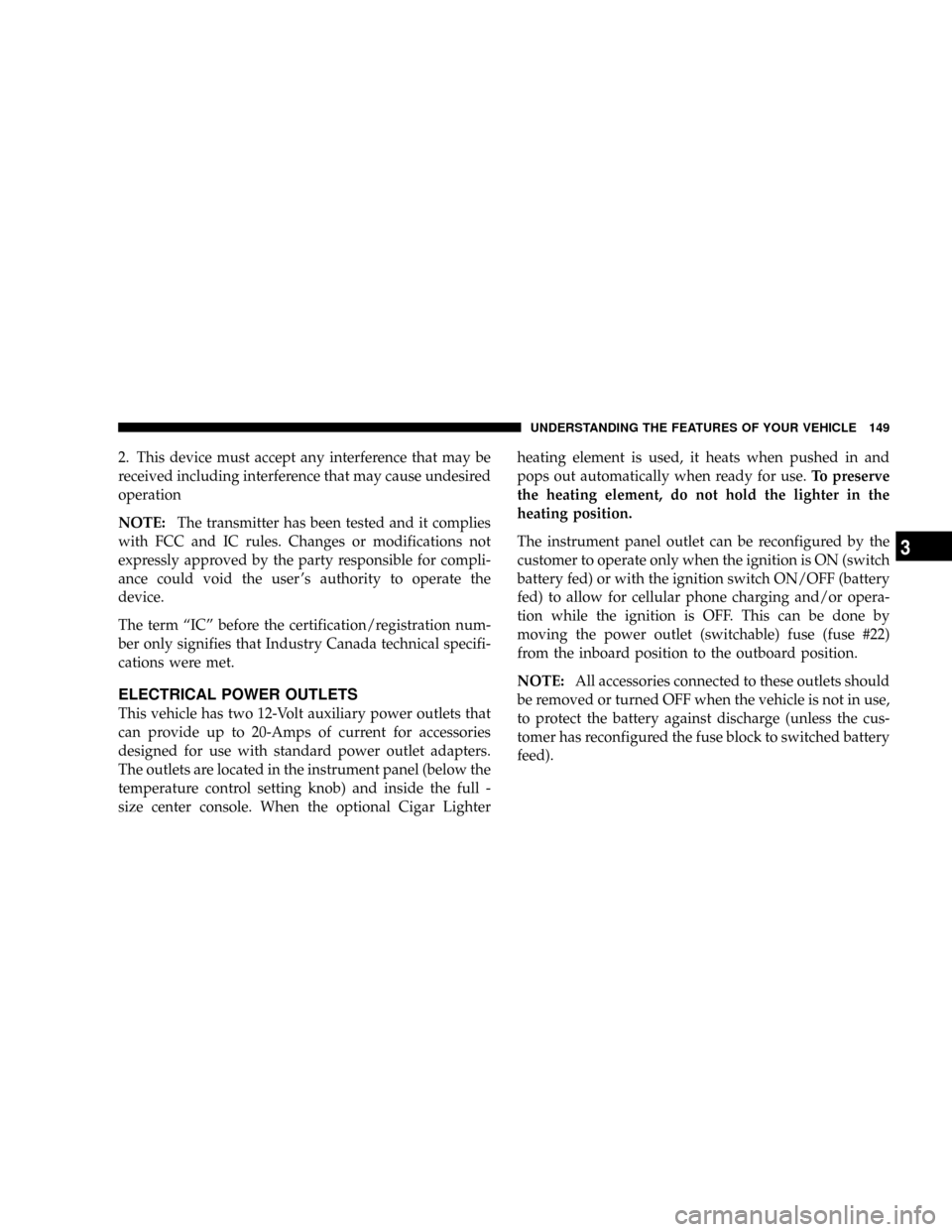
2. This device must accept any interference that may be
received including interference that may cause undesired
operation
NOTE:The transmitter has been tested and it complies
with FCC and IC rules. Changes or modifications not
expressly approved by the party responsible for compli-
ance could void the user 's authority to operate the
device.
The term ªICº before the certification/registration num-
ber only signifies that Industry Canada technical specifi-
cations were met.
ELECTRICAL POWER OUTLETS
This vehicle has two 12-Volt auxiliary power outlets that
can provide up to 20-Amps of current for accessories
designed for use with standard power outlet adapters.
The outlets are located in the instrument panel (below the
temperature control setting knob) and inside the full -
size center console. When the optional Cigar Lighterheating element is used, it heats when pushed in and
pops out automatically when ready for use.To preserve
the heating element, do not hold the lighter in the
heating position.
The instrument panel outlet can be reconfigured by the
customer to operate only when the ignition is ON (switch
battery fed) or with the ignition switch ON/OFF (battery
fed) to allow for cellular phone charging and/or opera-
tion while the ignition is OFF. This can be done by
moving the power outlet (switchable) fuse (fuse #22)
from the inboard position to the outboard position.
NOTE:All accessories connected to these outlets should
be removed or turned OFF when the vehicle is not in use,
to protect the battery against discharge (unless the cus-
tomer has reconfigured the fuse block to switched battery
feed).
UNDERSTANDING THE FEATURES OF YOUR VEHICLE 149
3
Page 152 of 449
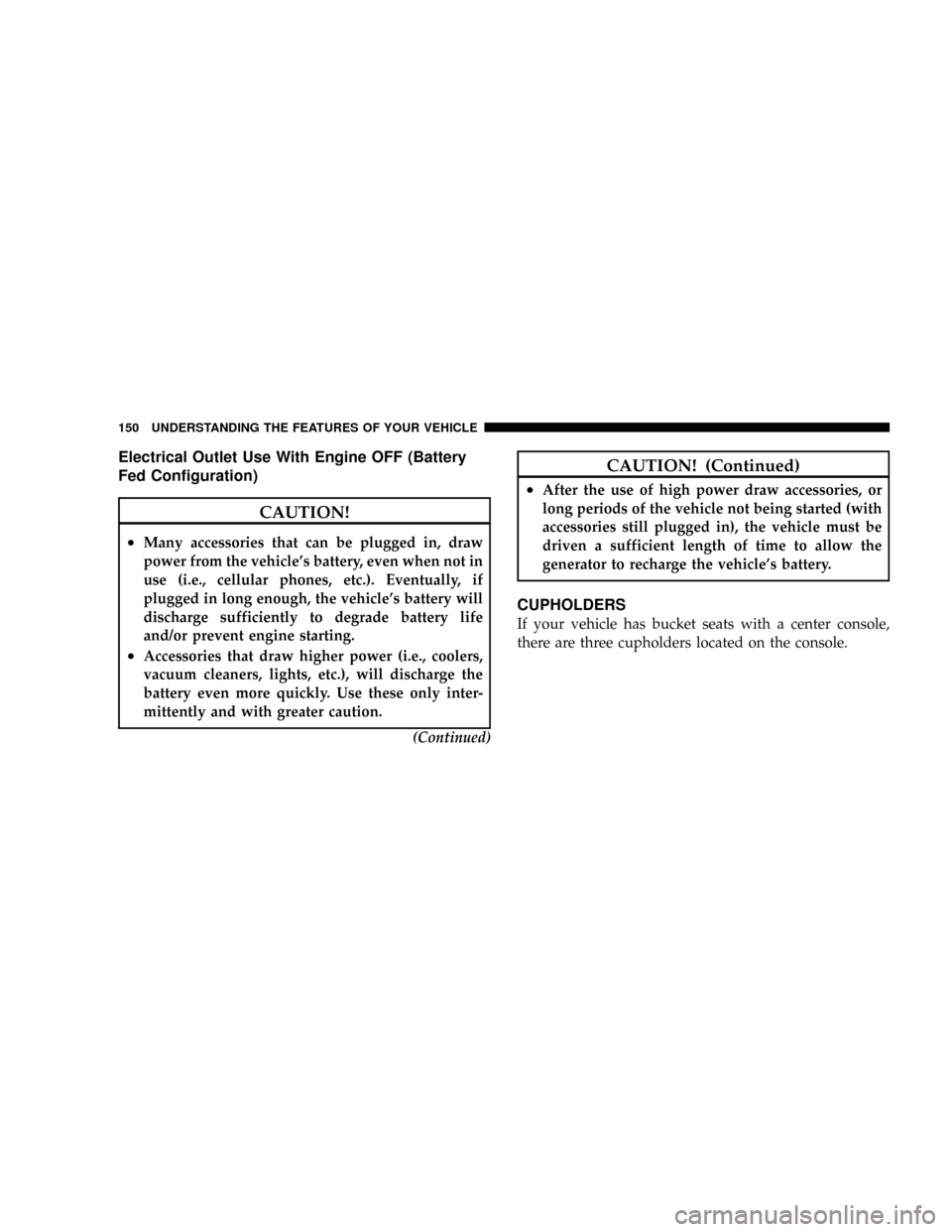
Electrical Outlet Use With Engine OFF (Battery
Fed Configuration)
CAUTION!
²Many accessories that can be plugged in, draw
power from the vehicle's battery, even when not in
use (i.e., cellular phones, etc.). Eventually, if
plugged in long enough, the vehicle's battery will
discharge sufficiently to degrade battery life
and/or prevent engine starting.
²Accessories that draw higher power (i.e., coolers,
vacuum cleaners, lights, etc.), will discharge the
battery even more quickly. Use these only inter-
mittently and with greater caution.
(Continued)
CAUTION! (Continued)
²After the use of high power draw accessories, or
long periods of the vehicle not being started (with
accessories still plugged in), the vehicle must be
driven a sufficient length of time to allow the
generator to recharge the vehicle's battery.
CUPHOLDERS
If your vehicle has bucket seats with a center console,
there are three cupholders located on the console.
150 UNDERSTANDING THE FEATURES OF YOUR VEHICLE
Page 156 of 449
FLOOR CONSOLE Ð IF EQUIPPED
Floor Console Features
The Floor Console between the driver's and front pas-
senger's seat has the following features:
²Miscellaneous storage compartments.
²Three cupholders (two removable).
²iPod/Phone storage bin.
²12-Volt power outlet inside storage compartment.
²Side open armrest lid.
²Tissue holder and two pen holders.
²Coin slots (located under the instrument panel center
stack).
Storage Compartments
Some miscellaneous storage compartments and cuphold-
ers are both removable and dishwasher safe (upper rackof dishwasher only) for cleaning purposes. Various stor-
age compartments provide versatile and useful storage.
A coin holder is also provided inside the driver side
storage bin.
Power Outlet and Portable Phone Storage
The console is equipped with a power outlet and an
iPod/phone storage bin. The phone storage bin can be
used when easy access to the phone is needed. Also, the
power outlet inside the console compartment can be used
to charge the phone while it is being stored in the bin. The
power outlet may be used for any portable item with a
standard 12-Volt power plug.
Side Open Armrest Lid
Pressing the button on the left side of the console opens
the console armrest lid. The armrest lid will remain open
until the armrest lid is closed manually, by pressing the
lid back into place. Two pen holders are provided on the
154 UNDERSTANDING THE FEATURES OF YOUR VEHICLE
Page 167 of 449
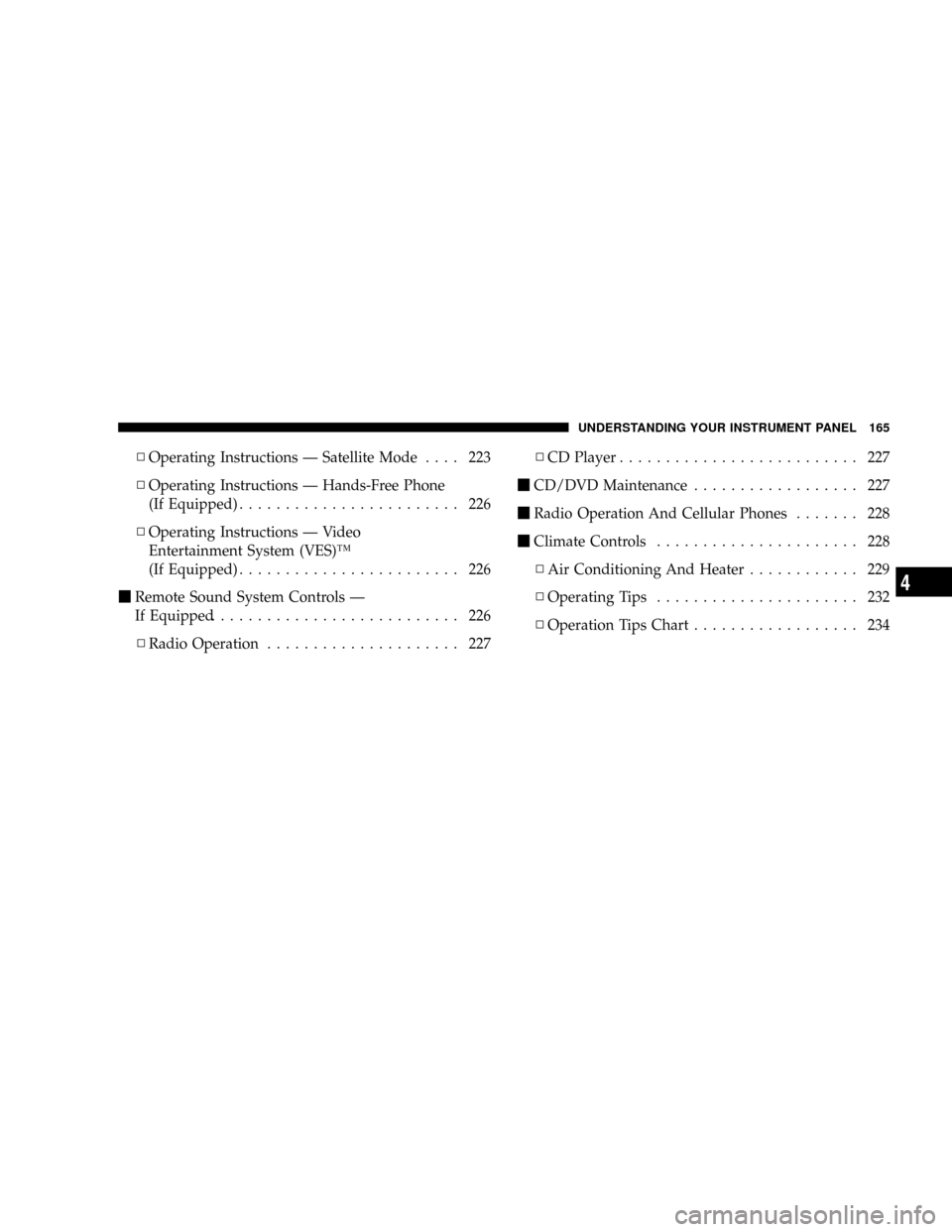
NOperating Instructions Ð Satellite Mode.... 223
NOperating Instructions Ð Hands-Free Phone
(If Equipped)........................ 226
NOperating Instructions Ð Video
Entertainment System (VES)Ÿ
(If Equipped)........................ 226
mRemote Sound System Controls Ð
If Equipped........................... 226
NRadio Operation..................... 227NCD Player.......................... 227
mCD/DVD Maintenance.................. 227
mRadio Operation And Cellular Phones....... 228
mClimate Controls...................... 228
NAir Conditioning And Heater............ 229
NOperating Tips...................... 232
NOperation Tips Chart.................. 234
UNDERSTANDING YOUR INSTRUMENT PANEL 165
4
Page 183 of 449
Power Switch/Volume Control (Rotary)
Push the ON/VOLUME control knob to turn on the
radio. Press the ON/VOLUME control knob a second
time to turn off the radio.
Electronic Volume Control
The electronic volume control turns continuously (360
degrees) in either direction without stopping. Turning the
ON/VOLUME control knob to the right increases the
volume and to the left decreases it.
When the audio system is turned ON, the sound will be
set at the same volume level as last played.
SEEK Buttons
Press and release the SEEK buttons to search for the next
listenable station in AM/FM mode. Press the right switch
to seek up and the left switch to seek down. The radio
will remain tuned to the new station until you make
another selection. Holding either button will bypass
stations without stopping until you release it.
SCAN Button
Pressing the SCAN button causes the tuner to search for
the next listenable station, in AM, FM or Satellite (if
equipped) frequencies, pausing for five seconds at each
listenable station before continuing to the next. To stop
the search, press the SCAN button a second time.
Voice Recognition Button (UConnecttHands-Free
Phone) Ð If Equipped
Press this button to operate the Hands-Free Phone
(UConnectt) feature (if equipped). Refer to ªHands-Free
Communication (UConnectt)º in Section 3.
If your vehicle is not equipped with or this feature is not
available on your vehicle, a ªNot Equipped With
UConnectº message will display on the radio screen.
UNDERSTANDING YOUR INSTRUMENT PANEL 181
4
Page 184 of 449
Phone Button (UConnecttHands-Free Phone) Ð If
Equipped
Press this button to operate the Hands-Free Phone
(UConnectt) feature (if equipped). Refer to ªHands-Free
Communication (UConnectt)º in Section 3.
If your vehicle is not equipped with or this feature is not
available on your vehicle, a ªNot Equipped With
UConnectº message will display on the radio screen.
TIME Button
Press the TIME button and the time of day will display. In
AM or FM mode, pressing the TIME button will switch
between the time and frequency displays.
Clock Setting Procedure
1. Press and hold the TIME button until the hours blink.
2. Adjust the hours by turning the right side TUNE/
SCROLL control knob.3. After adjusting the hours, press the right side TUNE/
SCROLL control knob to set the minutes. The minutes
will begin to blink.
4. Adjust the minutes using the right side TUNE/
SCROLL control knob. Press the TUNE/SCROLL control
knob to save the time change.
5. To exit, press any button/knob or wait five seconds.
The clock can also be set by pressing the SETUP button
and selecting the ªSET HOME CLOCKº entry. Once in
this display follow the above procedure, starting at
step 2.
INFO Button
Press the INFO button for an RDS station (one with call
letters displayed). The radio will return a Radio Text
message broadcast from an FM station (FM mode only).
182 UNDERSTANDING YOUR INSTRUMENT PANEL
Page 188 of 449
²Audio Stream ± Repeatedly pressing SELECT will
switch to different audio languages (if supported on
the disc) (if equipped).
²Angle ± Repeatedly pressing SELECT will change
the viewing angle if supported by the DVD disc (if
equipped).
NOTE:
²The available selections for each of the above entries
varies depending upon the disc.
²These selections can only be made while playing a
DVD.
²VESŸ Power -Allows you to turn VESŸ ON and
OFF (if equipped).
²VESŸ Lock -Locks out rear VESŸ remote controls (if
equipped).
²VESŸ CH1/CH2 -Allows the user to change the
mode of either the IR1 or IR2, wireless headphones by
pressing the AUDIO/SELECT button (if equipped).
²Set Home Clock -Pressing the SELECT button allows
you to set the clock. Turn the TUNE/SCROLL control
knob to adjust the hours and then press and turn the
TUNE/SCROLL control knob to adjust the minutes.
Press the TUNE/SCROLL control knob again to save
changes.
²Player Defaults -Selecting this item will allow the
user to scroll through the following items, and set
defaults according to customer preference.
Menu Language Ð If Equipped
Selecting this item will allow the user to choose the
default startup DVD menu language (effective only if
language supported by disc). If you want to select a
language not listed, then scroll down and select9other.9
186 UNDERSTANDING YOUR INSTRUMENT PANEL