Page 134 of 475
Commands
The Voice Recognition system understands two types of
commands. Universal commands are available at all
times. Local commands are available if the supported
radio mode is active.
Changing the Volume
1. Start a dialogue by pressing the VR hard-key.
2. Say a command (e.g., “Help”).
3. Use the ON/OFF VOLUME rotary knob to adjust the
volume to a comfortable level while the Voice Recogni-
tion system is speaking. Please note the volume setting
for VR is different then the audio system.
Main Menu
Start a dialogue by pressing the VR hard-key. You may
say “Main Menu” to switch to the main menu.In this mode, you can say the following commands:
•“Radio” (to switch to the radio mode)
•“Disc” (to switch to the disc mode)
•“Memo” (to switch to the memo recorder)
•“System Setup” (to switch to system setup)
Radio AM (or Radio Long Wave or Radio Medium
Wave — If Equipped)
To switch to the AM band say “AM” or “Radio AM”. In
this mode, you may say the following commands:
•“Frequency” (to change the frequency)
•“Next Station” (to select the next station)
•“Previous Station” (to select the previous station)
•“Radio Menu” (to switch to the radio menu)
•“Main Menu” (to switch to the main menu)
132 UNDERSTANDING THE FEATURES OF YOUR VEHICLE
Page 135 of 475
Radio FM
To switch to the FM band say “FM” or “Radio FM”. In
this mode, you may say the following commands:
•“Frequency” (to change the frequency)
•“Next Station” (to select the next station)
•“Previous Station” (to select the previous station)
•“Radio Menu” (to switch to the radio menu)
•“Main Menu” (to switch to the main menu)
Satellite Radio
To switch to satellite radio mode say “Sat” or “Satellite
Radio”. In this mode, you may say the following com-
mands:
•“Channel Number” (to change the channel by its
spoken number)
•“Next Channel” (to select the next channel)
•“Previous Channel” (to select the previous channel)
•“List Channel” (to hear a list of available channels)
•“Select Name” (to say the name of a channel)
•“Radio Menu” (to switch to the radio menu)
•“Main Menu” (to switch to the main menu)
Disc
To switch to the disc mode say “Disc”. In this mode, you
may say the following commands:
•“Track” (#) (to change the track)
•“Next Track” (to play the next track)
•“Previous Track” (to play the previous track)
•“Main Menu” (to switch to the main menu)
UNDERSTANDING THE FEATURES OF YOUR VEHICLE 133
3
Page 152 of 475
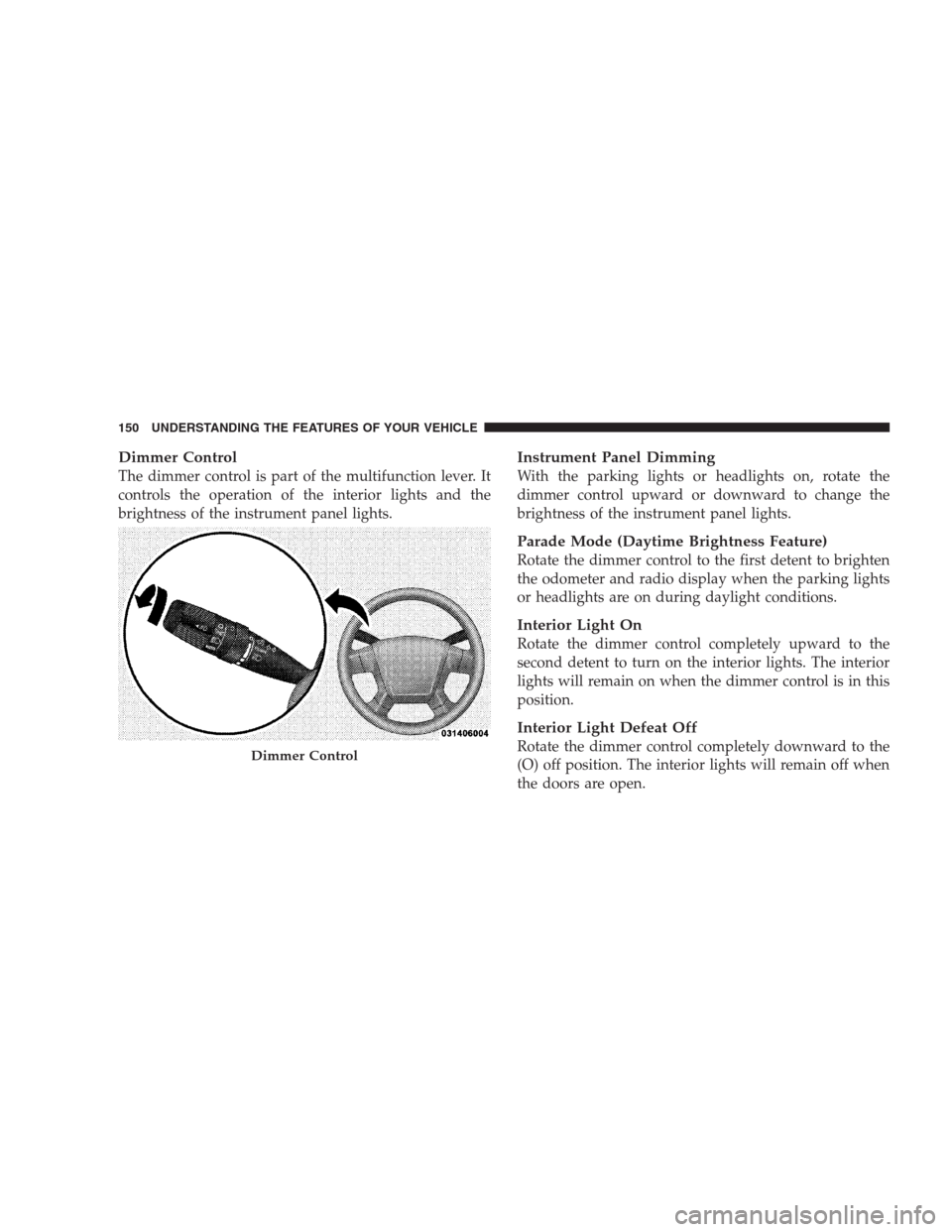
Dimmer Control
The dimmer control is part of the multifunction lever. It
controls the operation of the interior lights and the
brightness of the instrument panel lights.
Instrument Panel Dimming
With the parking lights or headlights on, rotate the
dimmer control upward or downward to change the
brightness of the instrument panel lights.
Parade Mode (Daytime Brightness Feature)
Rotate the dimmer control to the first detent to brighten
the odometer and radio display when the parking lights
or headlights are on during daylight conditions.
Interior Light On
Rotate the dimmer control completely upward to the
second detent to turn on the interior lights. The interior
lights will remain on when the dimmer control is in this
position.
Interior Light Defeat Off
Rotate the dimmer control completely downward to the
(O) off position. The interior lights will remain off when
the doors are open.Dimmer Control
150 UNDERSTANDING THE FEATURES OF YOUR VEHICLE
Page 161 of 475

WARNING!
•Your motorized door or gate will open and close
while you are training the universal transceiver.
Do not train the transceiver if people or pets are in
the path of the door or gate. Only use this trans-
ceiver with a garage door opener that has a “stop
and reverse” feature as required by Federal safety
standards. This includes most garage door opener
models manufactured after 1982. Do not use a
garage door opener without these safety features.
Call toll-free 1–800–355–3515 or, on the Internet at
www.HomeLink.com for safety information or as-
sistance.
•Vehicle exhaust contains carbon monoxide, a dan-
gerous gas. Do not run your vehicle in the garage
while training the transceiver. Exhaust gas can
cause serious injury or death.
Programming Homelink�
Before You Begin
If you have not trained any of the HomeLink�buttons,
erase all channels before you begin training.
To do this, press and hold the two outside buttons for up
to 20 seconds until the red indicator flashes.
It is recommended that a new battery be placed in the
handheld transmitter of the device being programmed to
HomeLink�for more efficient training and accurate
transmission of the radio-frequency signal.
Your vehicle should be parked outside of the garage
when programming.
UNDERSTANDING THE FEATURES OF YOUR VEHICLE 159
3
Page 164 of 475
NOTE:There are 30 seconds in which to initiate the next
step after the “Learn” button has been pressed.
7. Return to the vehicle and press the programmed
HomeLink�button twice (holding the button for two
seconds each time). If the device is plugged in and
activates, programming is complete.
If the device does not activate, press the button a third
time (for two seconds) to complete the training.
If you have any problems, or require assistance, please
call toll-free 1–800–355–3515 or, on the Internet at
www.HomeLink.com for information or assistance.
To program the remaining two HomeLink�buttons,
repeat each step for each remaining button. DO NOT
erase the channels.
Using HomeLink�
To operate, simply press and release the programmed
HomeLink�button. Activation will now occur for thetrained device (i.e., garage door opener, gate operator,
security system, entry door lock, home/office lighting,
etc. The handheld transmitter of the device may also be
used at any time.
Reprogramming a Single Homelink�Button
To reprogram a channel that has been previously trained,
follow these steps:
1. Turn the ignition switch to the ON/RUN position.
2. Press and hold the desired HomeLink�button until
the indicator light begins to flash after 20 seconds.Do not
release the button.
3.Without releasing the button,proceed with Program-
ming Homelink�Step 2 and follow all remaining steps.
Gate Operator/Canadian Programming
Canadian radio frequency laws require transmitter sig-
nals to time-out (or quit) after several seconds of trans-
mission – which may not be long enough for HomeLink�
162 UNDERSTANDING THE FEATURES OF YOUR VEHICLE
Page 177 of 475
UNDERSTANDING YOUR INSTRUMENT PANEL
CONTENTS
�Instrument Panel Features............... 178
�Instrument Cluster – Base............... 179
�Instrument Cluster – Premium............ 180
�Instrument Cluster Descriptions........... 181
�Electronic Vehicle Information Center (EVIC) –
If Equipped.......................... 193
▫Electronic Vehicle Information Center (EVIC)
Displays........................... 195
▫Oil Change Required.................. 196
▫Trip Functions...................... 196▫Compass Display.................... 198
▫Personal Settings (Customer-Programmable
Features).......................... 200
�Setting The Analog Clock................ 202
�Sales Code REQ — AM/FM Stereo Radio And
6–Disc CD/DVD Changer (MP3/WMA AUX
Jack)............................... 203
▫Operating Instructions - Radio Mode...... 203
▫Operation Instructions - (Disc Mode For CD
And MP3/WMA Audio Play, DVD-Video) . . . 2124
Page 178 of 475

▫Notes On Playing MP3/WMA Files....... 214
▫List Button (Disc Mode For MP3/WMA
Play)............................. 216
▫Info Button (Disc Mode For MP3/WMA
Play)............................. 216
�AM/FM/CD/DVD Multimedia System Radio
(RER/REN) – If Equipped................ 219
▫Operating Instructions — Voice Recognition
System (VR) — If Equipped............. 219
▫Operating Instructions — Hands-Free
Communication (UConnect�)—
If Equipped........................ 219
▫Clock Setting Procedure............... 219
�Sales Code RES — AM/FM Stereo Radio With
CD Player (MP3 AUX Jack)............... 222▫Operating Instructions — Radio Mode..... 222
▫Operation Instructions — CD Mode For CD
And MP3 Audio Play................. 225
▫Notes On Playing MP3 Files............ 227
▫Operation Instructions - Auxiliary Mode.... 230
�Sales Code RES/RSC — AM/FM Stereo Radio
With CD Player (MP3 AUX Jack) And Sirius
Radio............................... 231
▫Operating Instructions — Radio Mode..... 231
▫Operation Instructions — CD Mode For CD
And MP3 Audio Play................. 237
▫Notes On Playing MP3 Files............ 239
▫List Button (CD Mode For MP3 Play)...... 242
▫Info Button (CD Mode For MP3 Play)...... 242
176 UNDERSTANDING YOUR INSTRUMENT PANEL
Page 179 of 475
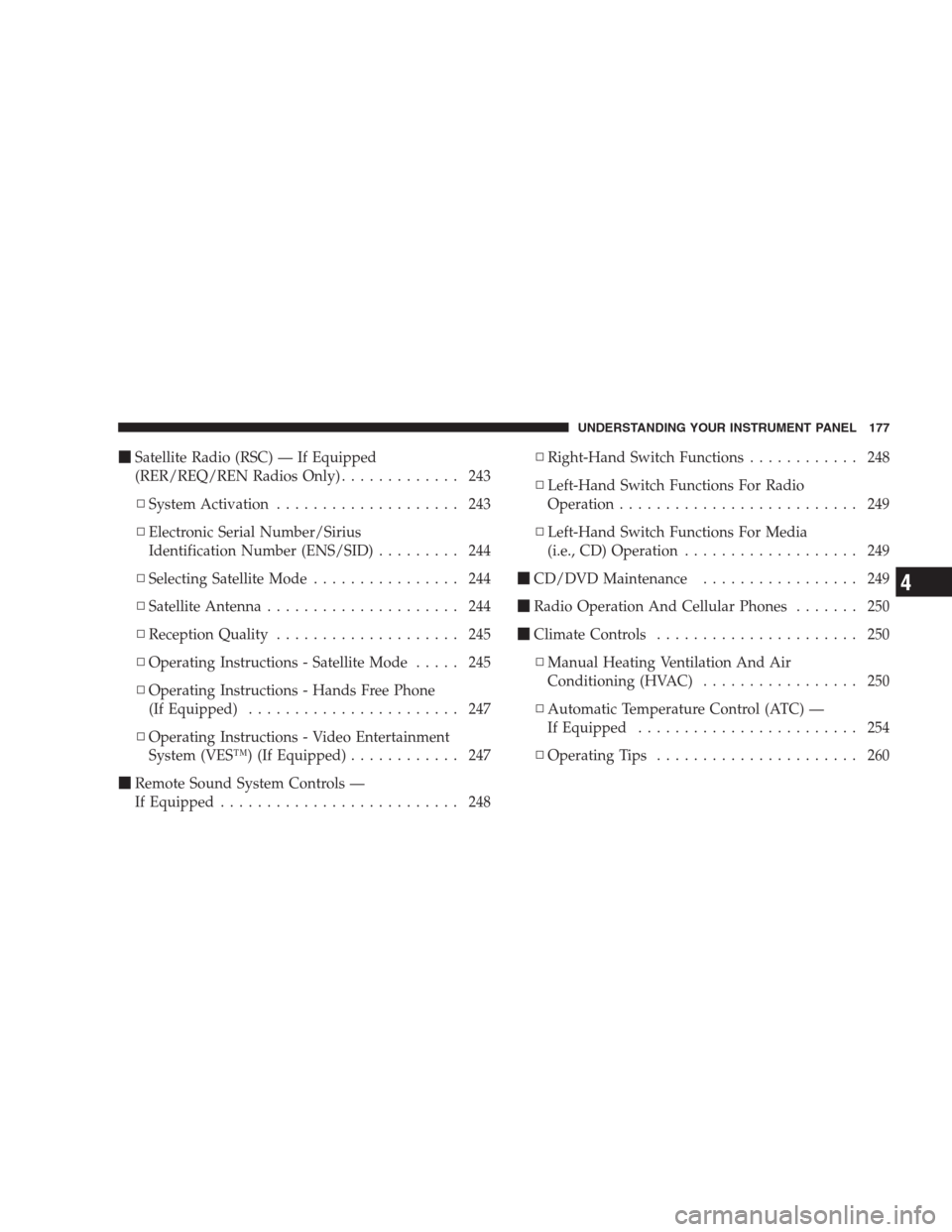
�Satellite Radio (RSC) — If Equipped
(RER/REQ/REN Radios Only)............. 243
▫System Activation.................... 243
▫Electronic Serial Number/Sirius
Identification Number (ENS/SID)......... 244
▫Selecting Satellite Mode................ 244
▫Satellite Antenna..................... 244
▫Reception Quality.................... 245
▫Operating Instructions - Satellite Mode..... 245
▫Operating Instructions - Hands Free Phone
(If Equipped)....................... 247
▫Operating Instructions - Video Entertainment
System (VES™) (If Equipped)............ 247
�Remote Sound System Controls —
If Equipped.......................... 248▫Right-Hand Switch Functions............ 248
▫Left-Hand Switch Functions For Radio
Operation.......................... 249
▫Left-Hand Switch Functions For Media
(i.e., CD) Operation................... 249
�CD/DVD Maintenance................. 249
�Radio Operation And Cellular Phones....... 250
�Climate Controls...................... 250
▫Manual Heating Ventilation And Air
Conditioning (HVAC)................. 250
▫Automatic Temperature Control (ATC) —
If Equipped........................ 254
▫Operating Tips...................... 260
UNDERSTANDING YOUR INSTRUMENT PANEL 177
4