Page 120 of 493
Commands
The Voice Recognition system understands two types of
commands. Universal commands are available at all
times. Local commands are available if the supported
radio mode is active.
Changing the Volume
1. Start a dialogue by pressing the VR hard-key.
2. Say a command (e.g., “Help”).
3. Use the ON/OFF VOLUME rotary knob to adjust the
volume to a comfortable level while the Voice Recogni-
tion system is speaking. Please note the volume setting
for VR is different then the audio system.
Main Menu
Start a dialogue by pressing the VR hard-key. You may
say “Main Menu” to switch to the main menu.In this mode, you can say the following commands:
•“Radio” (to switch to the radio mode)
•“Disc” (to switch to the disc mode)
•“Memo” (to switch to the memo recorder)
•“System Setup” (to switch to system setup)
Radio AM (or Radio Long Wave or Radio Medium
Wave — If Equipped)
To switch to the AM band say “AM” or “Radio AM”. In
this mode, you may say the following commands:
•“Frequency” (to change the frequency)
•“Next Station” (to select the next station)
•“Previous Station” (to select the previous station)
•“Radio Menu” (to switch to the radio menu)
•“Main Menu” (to switch to the main menu)
118 UNDERSTANDING THE FEATURES OF YOUR VEHICLE
Page 121 of 493
Radio FM
To switch to the FM band say “FM” or “Radio FM”. In
this mode, you may say the following commands:
•“Frequency” (to change the frequency)
•“Next Station” (to select the next station)
•“Previous Station” (to select the previous station)
•“Radio Menu” (to switch to the radio menu)
•“Main Menu” (to switch to the main menu)
Satellite Radio
To switch to satellite radio mode say “Sat” or “Satellite
Radio”. In this mode, you may say the following com-
mands:
•“Channel Number” (to change the channel by its
spoken number)
•“Next Channel” (to select the next channel)
•“Previous Channel” (to select the previous channel)
•“List Channel” (to hear a list of available channels)
•“Select Name” (to say the name of a channel)
•“Radio Menu” (to switch to the radio menu)
•“Main Menu” (to switch to the main menu)
UNDERSTANDING THE FEATURES OF YOUR VEHICLE 119
3
Page 130 of 493
WARNING!
•Be certain that the seatback is securely locked into
position. If the seatback is not securely locked into
position, the seat will not provide the proper
stability for child seats and/or passengers. An
improperly latched seat could cause serious injury.
•The cargo area in the rear of the vehicle (with the
rear seatbacks in the locked-up or folded down
position) should not be used as a play area by
children when the vehicle is in motion. They could
be seriously injured in an accident. Children
should be seated and using the proper restraint
system.
DRIVER MEMORY SEAT — IF EQUIPPED
This feature allows the driver to store up to two different
memory profiles for easy recall through a Memory
switch. Each memory profile contains desired position
settings for the driver seat, side mirror, adjustable pedals,
and power tilt and telescopic steering column, and a set
of desired radio station presets.
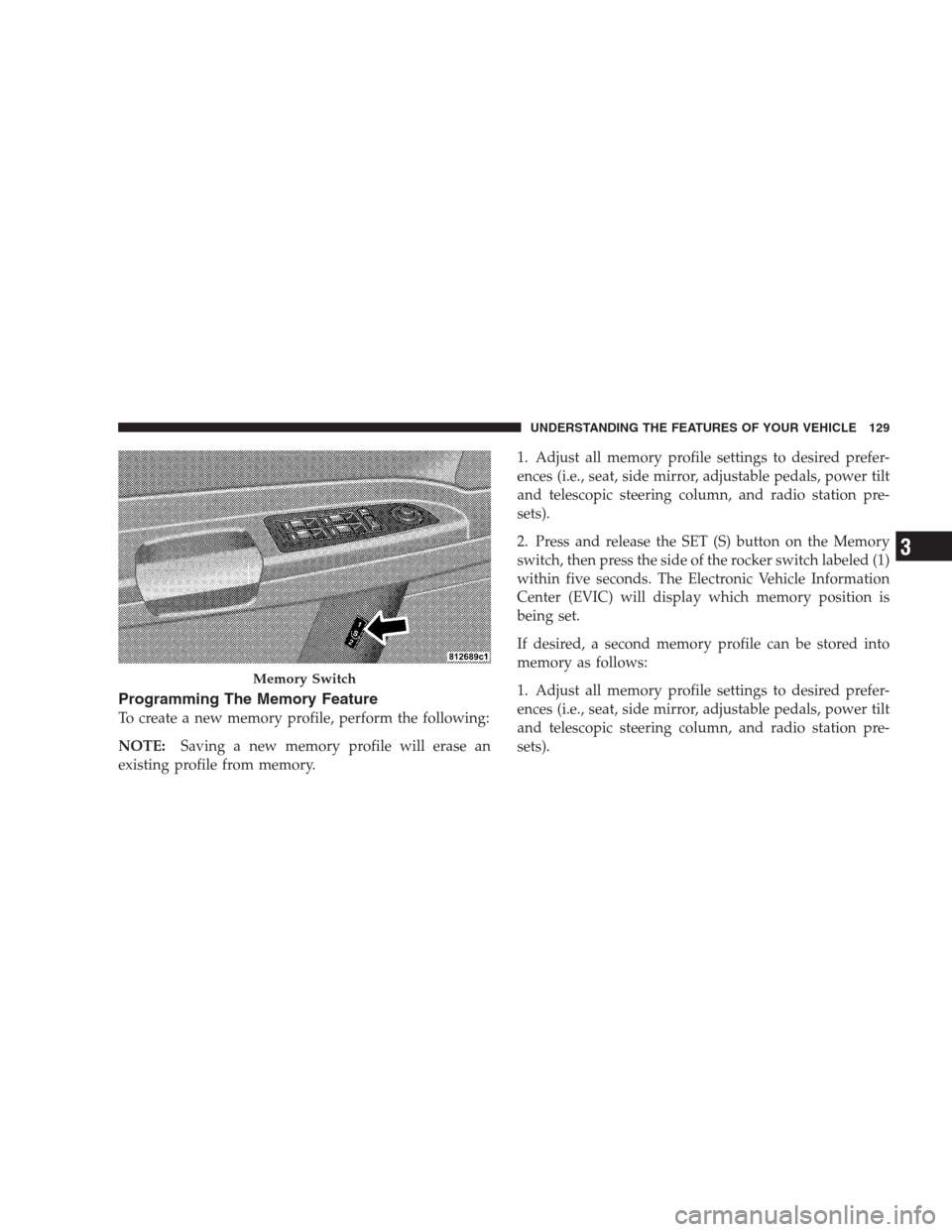
The Memory switch is located on the driver’s door trim
panel. The switch contains an (S) button to activate the
memory save function. It also contains a rocker switch
labeled with the number (1) and the number (2). The
rocker switch allows the driver to recall either of two
pre-programmed memory profiles by pressing the appro-
priate side of the switch.
128 UNDERSTANDING THE FEATURES OF YOUR VEHICLE
Page 131 of 493
Programming The Memory Feature
To create a new memory profile, perform the following:
NOTE:Saving a new memory profile will erase an
existing profile from memory.1. Adjust all memory profile settings to desired prefer-
ences (i.e., seat, side mirror, adjustable pedals, power tilt
and telescopic steering column, and radio station pre-
sets).
2. Press and release the SET (S) button on the Memory
switch, then press the side of the rocker switch labeled (1)
within five seconds. The Electronic Vehicle Information
Center (EVIC) will display which memory position is
being set.
If desired, a second memory profile can be stored into
memory as follows:
1. Adjust all memory profile settings to desired prefer-
ences (i.e., seat, side mirror, adjustable pedals, power tilt
and telescopic steering column, and radio station pre-
sets).
Memory Switch
UNDERSTANDING THE FEATURES OF YOUR VEHICLE 129
3
Page 143 of 493

because a door is open. This includes the glove box light,
but not the trunk light. To restore interior light operation,
either turn the ignition switch ON or cycle the light
switch.
Dimmer Control
The dimmer control is part of the
headlight switch and is located on the
left side of the instrument panel. With
the parking lights or headlights on,
rotating the dimmer control upward
will increase the brightness of the in-
strument panel lights and, if so
equipped, the lighting in the door map pockets and
cupholders.
Dome Light Position
Rotate the dimmer control completely upward to the
second detent to turn on the interior lights. The interior
lights will remain on when the dimmer control is in this
position.
Interior Light Defeat (OFF)
Rotate the dimmer control to the extreme bottom off
position. The interior lights will remain off when the
doors are open.
Parade Mode (Daytime Brightness Feature)
Rotate the dimmer control upward to the first detent.
This feature brightens all text displays such as the
odometer, EVIC, and radio when the parking lights or
headlights are on.
UNDERSTANDING THE FEATURES OF YOUR VEHICLE 141
3
Page 179 of 493
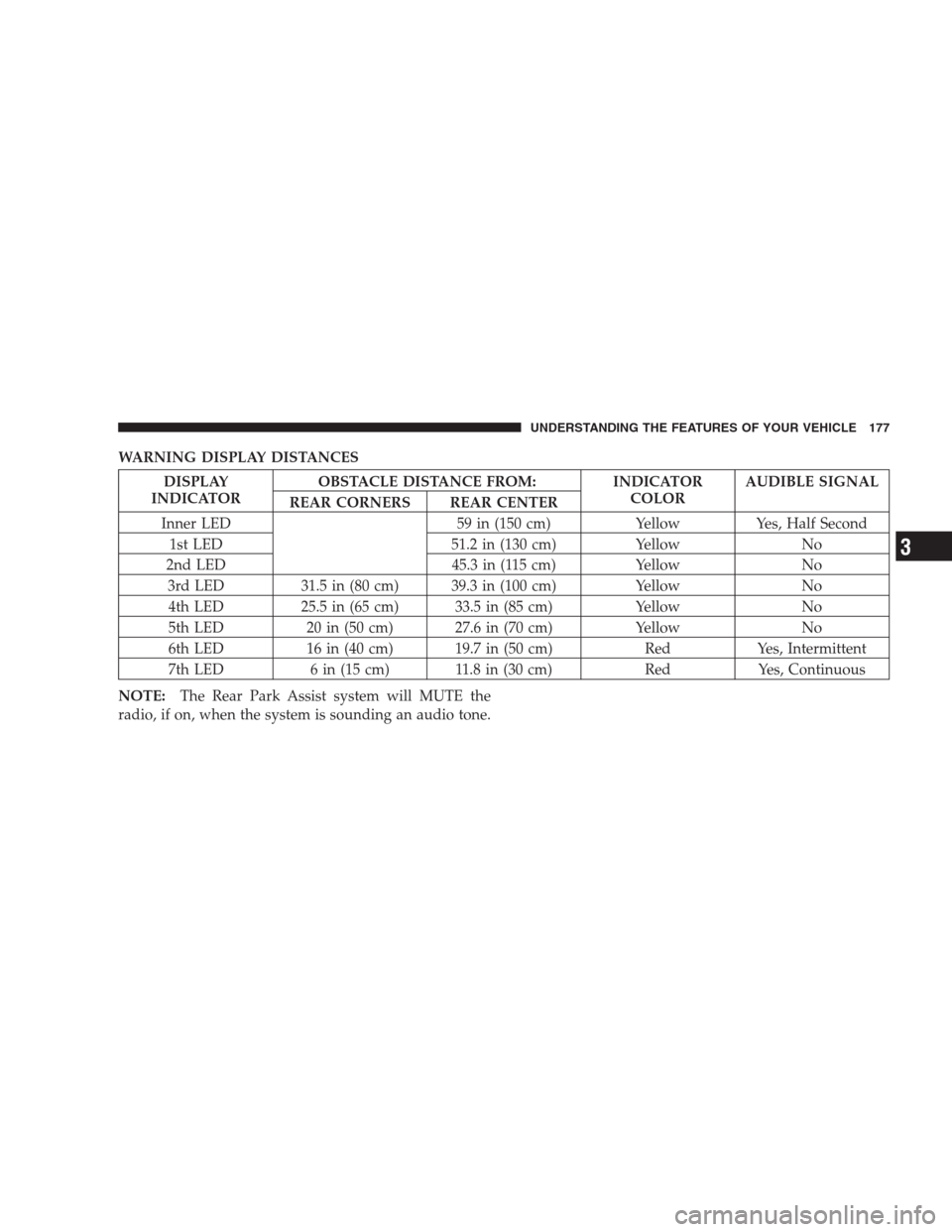
WARNING DISPLAY DISTANCES
DISPLAY
INDICATOROBSTACLE DISTANCE FROM: INDICATOR
COLORAUDIBLE SIGNAL
REAR CORNERS REAR CENTER
Inner LED 59 in (150 cm) Yellow Yes, Half Second
1st LED 51.2 in (130 cm) Yellow No
2nd LED 45.3 in (115 cm) Yellow No
3rd LED 31.5 in (80 cm) 39.3 in (100 cm) Yellow No
4th LED 25.5 in (65 cm) 33.5 in (85 cm) Yellow No
5th LED 20 in (50 cm) 27.6 in (70 cm) Yellow No
6th LED 16 in (40 cm) 19.7 in (50 cm) Red Yes, Intermittent
7th LED 6 in (15 cm) 11.8 in (30 cm) Red Yes, Continuous
NOTE:The Rear Park Assist system will MUTE the
radio, if on, when the system is sounding an audio tone.
UNDERSTANDING THE FEATURES OF YOUR VEHICLE 177
3
Page 184 of 493
WARNING!
•Your motorized door or gate will open and close
while you are training the Universal Transceiver.
Do not train the transceiver if people or pets are in
the path of the door or gate. Only use this trans-
ceiver with a garage door opener that has a “stop
and reverse” feature as required by federal safety
standards. This includes most garage door opener
models manufactured after 1982. Do not use a
garage door opener without these safety features.
Call toll-free 1–800–355–3515 or, on the Internet at
www.HomeLink.com for safety information or as-
sistance.
•Vehicle exhaust contains carbon monoxide, a dan-
gerous gas. Do not run your vehicle in the garage
while training the transceiver. Exhaust gas can
cause serious injury or death.
Programming HomeLink�
Before You Begin
If you have not trained any of the HomeLink�buttons,
erase all channels before you begin training.
To do this, press and hold the two outside buttons for up
to 20 seconds. The EVIC will display “CLEARING
CHANNELS.” Release the buttons when the EVIC mes-
sage states “CHANNELS CLEARED.”
It is recommended that a new battery be placed in the
hand-held transmitter of the device being programmed
to HomeLink�for more efficient training and accurate
transmission of the radio-frequency signal.
Your vehicle should be parked outside of the garage
while training.
1. Turn the ignition switch to the ON/RUN position.
182 UNDERSTANDING THE FEATURES OF YOUR VEHICLE
Page 187 of 493
Gate Operator/Canadian Programming
Canadian radio-frequency laws require transmitter sig-
nals to “time-out” (or quit) after several seconds of
transmission – which may not be long enough for
HomeLink�to pick up the signal during programming.
Similar to this Canadian law, some U.S. gate operators are
designed to “time-out” in the same manner.
It may be helpful to unplug the device during the cycling
process to prevent possible overheating of the garage
door or gate motor.
If you are having difficulties programming a garage door
opener or a gate operator, replace “Programming
HomeLink” Step 3 with the following:
3. Continue to press and hold the HomeLink�button
while you press and release - every two seconds
(“cycle”) your hand-held transmitter until HomeLink�has successfully accepted the frequency signal. The
EVIC display will change from “CHANNEL # TRAIN-
ING” to “CHANNEL # TRAINED.”
If you unplugged the device for training, plug it back in
at this time.
Then proceed with Step 4 under “Programming
HomeLink�” earlier in this section.
Using HomeLink�
To operate, simply press and release the programmed
HomeLink�button. Activation will now occur for the
trained device (i.e., garage door opener, gate operator,
security system, entry door lock, home/office lighting,
etc.) The hand-held transmitter of the device may also be
used at any time.
UNDERSTANDING THE FEATURES OF YOUR VEHICLE 185
3