Page 203 of 493
▫Operation Instructions — CD Mode For CD
And MP3 Audio Play................. 269
▫Notes On Playing MP3 Files............ 271
▫List Button (CD Mode For MP3 Play)...... 274
▫Info Button (CD Mode For MP3 Play)...... 274
�Universal Consumer Interface (UCI) —
If Equipped.......................... 276
▫Connecting The iPod�................. 276
▫Using This Feature................... 277
▫Controlling The iPod�Using Radio
Buttons........................... 277
▫Play Mode......................... 277
▫List Or Browse Mode................. 279�Satellite Radio — If Equipped
(REN/REQ/RER/RES/REU Radios Only)..... 281
▫System Activation.................... 281
▫Electronic Serial Number/Sirius
Identification Number (ESN/SID)......... 281
▫Selecting Satellite Mode................ 282
▫Satellite Antenna..................... 282
▫Reception Quality.................... 282
▫Operating Instructions — Satellite Mode.... 283
▫Operating Instructions — Hands-Free Phone
(If Equipped)....................... 286
▫Operating Instructions — Video
Entertainment System (VES)™
(If Equipped)....................... 286
UNDERSTANDING YOUR INSTRUMENT PANEL 201
4
Page 217 of 493

This system conveniently allows the driver to select a
variety of useful information by pressing the switches
mounted on the steering wheel. The EVIC consists of the
following:
•System status
•Vehicle information warning message displays
•Tire Pressure Monitor System (if equipped)
•Personal settings (customer programmable features)
•Compass display
•Outside temperature display
•Trip computer functions
•UConnect�hands-free communication system dis-
plays (if equipped)
•Navigation system screens (if equipped)
•Audio mode display
•Surround Sound modes (if equipped with Driver-
Selectable Surround [DSS])
•Performance Pages (if equipped)
The system allows the driver to select information by
pressing the following buttons mounted on the steering
wheel.
Press and release the MENU button and the
mode displayed will change between Trip
Functions, Performance Pages (if equipped),
Navigation (if equipped), System Warnings,
System Status, Personal Settings, and Surround
Sound (if equipped).
MENU
Button
UNDERSTANDING YOUR INSTRUMENT PANEL 215
4
Page 218 of 493

Press the FUNCTION SELECT button to accept
a selection. The FUNCTION SELECT button
also functions as a remote sound system con-
trol. Refer to “Remote Sound System Controls”
in this section.
Press the SCROLL button to scroll through Trip
Functions, Performance Pages (if equipped),
Navigation (if equipped), System Status Mes-
sages, and Personal Settings (Customer Pro-
grammable Features). The SCROLL button also
functions as a remote sound system control.
Refer to “Remote Sound System Controls” in this section.Press the AUDIO MODE button to select the
Compass/Temp/Audio screen. Along with
compass reading and outside temperature, this
screen will display radio and media mode
information depending on which radio is in the
vehicle. Refer to “Remote Sound System Con-
trols” in this section.
Electronic Vehicle Information Center (EVIC)
Displays
When the appropriate conditions exist, the EVIC displays
the following messages:
•Turn Signal On (with a continuous warning chime if
the vehicle is driven more than 1 mile [1.6 km] with
either turn signal on)
•Left Front Turn Signal Light Out (with a single chime)
•Left Rear Turn Signal Light Out (with a single chime)
FUNC-
TION
SELECT
Button
SCROLL
Button
AUDIO
MODE
Button
216 UNDERSTANDING YOUR INSTRUMENT PANEL
Page 222 of 493
•Upshift
•Stereo (if equipped with Driver-Selectable Surround
Sound [DSS])
•Video Surround (if equipped with Driver-Selectable
Surround Sound [DSS])
•Audio Surround (if equipped with Driver-Selectable
Surround Sound [DSS])
•0-60 mph (0-100 km/h) (if equipped with Performance
Pages)
•Braking Distance (if equipped with Performance
Pages)
•1/8 Mile (if equipped with Performance Pages)
•1/4 Mile (if equipped with Performance Pages)
•Instantaneous G-Force (if equipped with Performance
Pages)
•Peak G-Force (if equipped with Performance Pages)
•Digital Speedometer (if equipped with Performance
Pages)
Trip Functions
Press and release the MENU button until one of the
following Trip Functions displays in the EVIC:
•Average Fuel Economy
•Distance To Empty
•Trip A
•Trip B
•Elapsed Time
•Display Units of Measure in
Press the SCROLL button to cycle through all the Trip
Computer functions.
220 UNDERSTANDING YOUR INSTRUMENT PANEL
Page 231 of 493

used to select an item, and the AUDIO MODE button can
be used to return to the previous menu. When the Map
display is active, pressing the FUNCTION SELECT but-
ton will change the Navigation Unit Display to the Menu.
Turn-by-Turn Directions
The EVIC displays turn-by-turn directions to a pro-
grammed destination when Turn-by-Turn Navigation is
enabled through Personal Settings. When enabled, the
EVIC displays the name of the approaching road at the
top of the screen, followed by an arrow to indicate the
direction to turn the vehicle, and a count down to
indicate the distance to the turn.
NOTE:Refer to your “Navigation User’s Manual” for
detailed operating instructions.
Driver-Selectable Surround Sound (DSS) – If
Equipped
Press and release the MENU button until “Surround
Sound” displays in the EVIC. The EVIC provides infor-
mation on the current surround mode.
•Stereo
•Video Surround
•Audio Surround
While in the Surround Sound menu, press the FUNC-
TION SELECT button to change surround modes. The
Video Surround Mode will only be available for video
media sources (DVDs, Video CDs, or other video media
supported by the radio).
UNDERSTANDING YOUR INSTRUMENT PANEL 229
4
Page 238 of 493
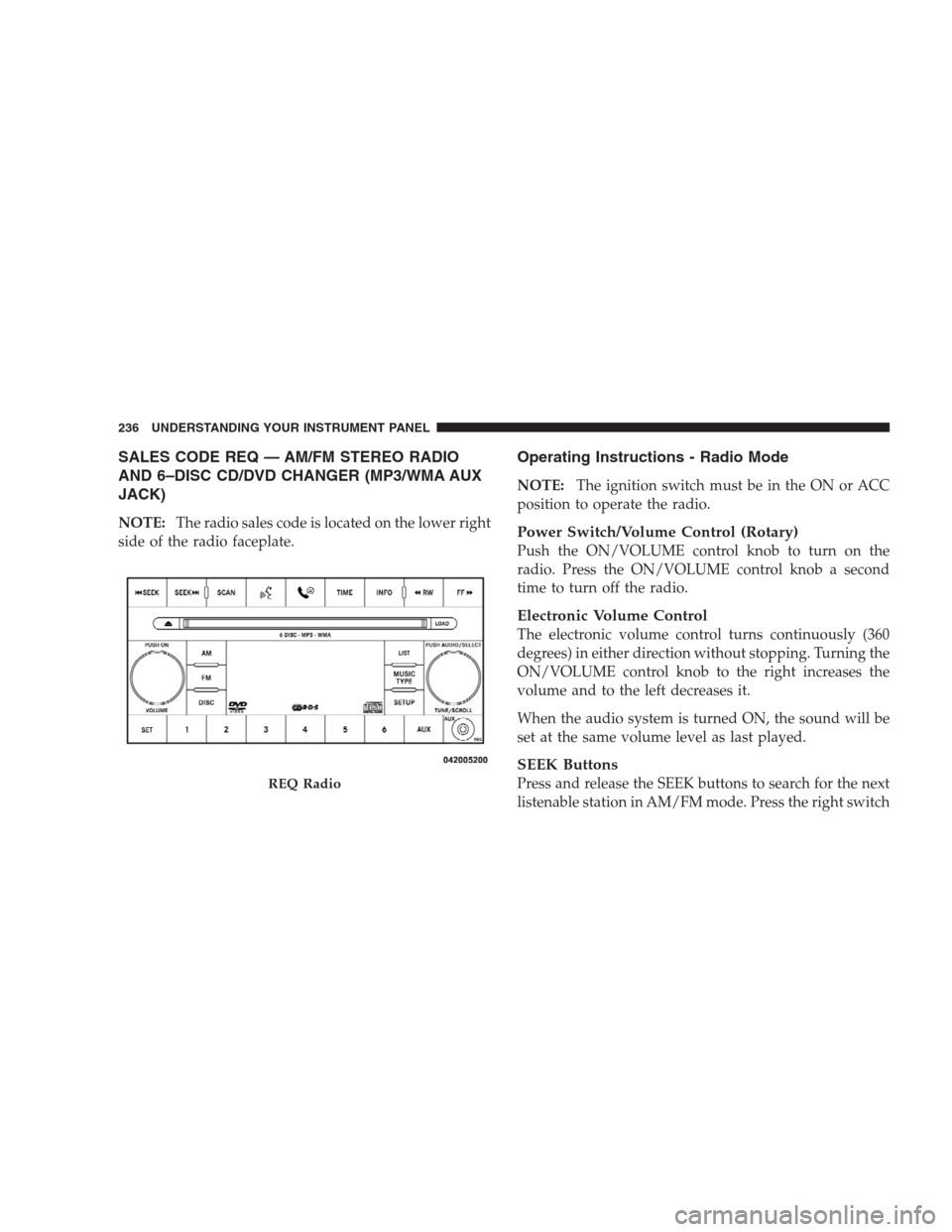
SALES CODE REQ — AM/FM STEREO RADIO
AND 6–DISC CD/DVD CHANGER (MP3/WMA AUX
JACK)
NOTE:The radio sales code is located on the lower right
side of the radio faceplate.
Operating Instructions - Radio Mode
NOTE:The ignition switch must be in the ON or ACC
position to operate the radio.
Power Switch/Volume Control (Rotary)
Push the ON/VOLUME control knob to turn on the
radio. Press the ON/VOLUME control knob a second
time to turn off the radio.
Electronic Volume Control
The electronic volume control turns continuously (360
degrees) in either direction without stopping. Turning the
ON/VOLUME control knob to the right increases the
volume and to the left decreases it.
When the audio system is turned ON, the sound will be
set at the same volume level as last played.
SEEK Buttons
Press and release the SEEK buttons to search for the next
listenable station in AM/FM mode. Press the right switchREQ Radio
236 UNDERSTANDING YOUR INSTRUMENT PANEL
Page 243 of 493
SETUP Button
Pressing the SETUP button allows you to select between
the following items:
NOTE:Turn the TUNE/SCROLL control knob to scroll
through the entries. Push the AUDIO/SELECT button to
select an entry and make changes.
•DVD Enter -When the disc is in DVD Menu mode,
selecting DVD Enter will allow you to play the current
highlighted selection. Use the remote control to scroll
up and down the menu (if equipped).
•DISC Play/Pause -You can toggle between
playing the DVD and pausing the DVD by
pushing the SELECT button (if equipped).
•DVD Play Options -Selecting the DVD Play Options
will display the following:
•Subtitle – Repeatedly pressing SELECT will switch
subtitles to different subtitle languages that are
available on the disc (if equipped).
•Audio Stream – Repeatedly pressing SELECT will
switch to different audio languages (if supported on
the disc) (if equipped).
•Angle – Repeatedly pressing SELECT will change
the viewing angle if supported by the DVD disc (if
equipped).
NOTE:
•The available selections for each of the above entries
varies depending upon the disc.
•These selections can only be made while playing a
DVD.
UNDERSTANDING YOUR INSTRUMENT PANEL 241
4
Page 244 of 493

•VES™ Power -Allows you to turn VES™ ON and
OFF (if equipped).
•VES™ Lock -Locks out rear VES™ remote controls (if
equipped).
•VES™ CH1/CH2 -Allows the user to change the
mode of either the IR1 or IR2, wireless headphones by
pressing the AUDIO/SELECT button (if equipped).
•Set Home Clock -Pressing the SELECT button allows
you to set the clock. Turn the TUNE/SCROLL control
knob to adjust the hours and then press and turn the
TUNE/SCROLL control knob to adjust the minutes.
Press the TUNE/SCROLL control knob again to save
changes.
•Player Defaults -Selecting this item will allow the
user to scroll through the following items, and set
defaults according to customer preference.Menu Language — If Equipped
Selecting this item will allow the user to choose the
default startup DVD menu language (effective only if
language supported by disc). If you want to select a
language not listed, then scroll down and select�other.�
Enter the four-digit country code using the TUNE/
SCROLL control knob to scroll up and down to select the
number and then push to select.
Audio Language — If Equipped
Selecting this item allows you to choose a default audio
language (effective only if the language is supported by
the disc). You can select a language not listed by scrolling
down and selecting�other.�Enter the country code using
the TUNE/SCROLL control knob to scroll up and down
to select the number and then push to select.
Subtitle Language — If Equipped
Selecting this item allows you to choose a default subtitle
language (effective only if the language is supported by
242 UNDERSTANDING YOUR INSTRUMENT PANEL
![CHRYSLER 300 SRT 2009 1.G Owners Manual •Upshift
•Stereo (if equipped with Driver-Selectable Surround
Sound [DSS])
•Video Surround (if equipped with Driver-Selectable
Surround Sound [DSS])
•Audio Surround (if equipped with Driver-Se](/manual-img/25/8467/w960_8467-221.png "CHRYSLER 300 SRT 2009 1.G Owners Manual •Upshift
•Stereo (if equipped with Driver-Selectable Surround
Sound [DSS])
•Video Surround (if equipped with Driver-Selectable
Surround Sound [DSS])
•Audio Surround (if equipped with Driver-Se")