2009 CHEVROLET TAHOE light
[x] Cancel search: lightPage 278 of 574

Adjusting the Speakers (Balance/Fade)
BAL/FADE (Balance/Fade):To adjust balance or
fade, press the
fknob until the speaker control labels
display. Continue pressing to highlight the desired
label, or press the pushbutton positioned under the
desired label. Turn the
fknob clockwise or
counterclockwise to adjust the highlighted setting.
Adjust the highlighted setting by pressing either SEEK
arrow,
\FWD, orsREV button until the desired
levels are obtained.
To quickly adjust balance or fade to the middle position,
press the pushbutton positioned under the BAL or
FADE label for more than two seconds. A beep sounds
and the level adjusts to the middle position.
To quickly adjust all speaker and tone controls to the
middle position, press the
fknob for more than
two seconds.
If the Rear Seat Audio (RSA) is turned on, the radio
disables FADE and the rear speakers mute.
Finding a Category (CAT) Station
CAT (Category):The CAT button is used to nd XM
stations when the radio is in the XM mode. To nd
XM channels within a desired category:
1. Press the BAND button until the XM frequency
displays. Press the CAT button to display the
category labels. Continue pressing the CAT button
until the desired category name displays.
Radios with CD and DVD can also navigate the
category list by pressing the
sREV button or
the
\FWD button.
2. Press either of the two buttons below the desired
category label to immediately tune to the rst XM
station associated with that category.
3. Turn the
fknob, press the buttons below the right
or left arrows displayed, or press either SEEK arrow
to go to the previous or to the next XM station
within the selected category.
4. To exit the category search mode, press the FAV
button or BAND button to display favorites again.
3-90
Page 281 of 574

Playing a CD (In Either the DVD or
CD Slot)
Insert a CD partway into the slot, label side up. The
player pulls it in and the CD should begin playing
in 5 to 20 seconds for a CD, and in 30 seconds for a
DVD, depending on media type and format ranges.
If the ignition or radio is turned off, while a CD is in the
player, it stays in the player. When the ignition or
radio is turned on, the CD starts playing where it
stopped, if it was the last selected audio source. The
CD is controlled by the buttons on the radio faceplate or
by the RSA unit. SeeRear Seat Audio (RSA) on
page 3-135for more information. The DVD/CD decks,
(upper slot is the DVD deck and the lower slot is the CD
deck) of the radio are compatible with most audio
CDs, CD-R, CD-RW, and MP3s.
When a CD is inserted, the text label DVD or CD
symbol displays on the left side of the radio display. As
each new track starts to play, the track number
displays.
The CD player can play the smaller 3 inch (8 cm) single
CDs with an adapter ring. Full-size CDs and the
smaller CDs are loaded in the same manner.
Care of CDs
If playing a CD-R, the sound quality can be reduced due
to CD-R or CD-RW quality, the method of recording, the
quality of the music that has been recorded, and the way
the CD-R or CD-RW has been handled. Handle them
carefully. Store CD-R(s) or CD-RW(s) in their original
cases or other protective cases and away from direct
sunlight and dust. The CD or DVD player scans the
bottom surface of the disc. If the surface of a CD is
damaged, such as cracked, broken, or scratched, the CD
does not play properly or not at all. Do not touch the
bottom side of a CD while handling it; this could damage
the surface. Pick up CDs by grasping the outer edges or
the edge of the hole and the outer edge.
If the surface of a CD is soiled, clean it with a soft, lint
free cloth or dampen a clean, soft cloth in a mild, neutral
detergent solution mixed with water. Make sure the
wiping process starts from the center to the edge.
3-93
Page 288 of 574

DVD-V (Video) Display Buttons
Once a DVD-V is inserted, the radio display menu
shows several tag options for DVD playing. Press the
pushbuttons located under any desired tag option during
DVD playback. See the tag options listed after, for
more information.
The rear seat passenger can navigate the DVD-V
menus and controls through the remote control. See
“Remote Control”, underRear Seat Entertainment (RSE)
System on page 3-125for more information. The
Video Screen automatically turns on when the DVD-V is
inserted into the DVD slot.
r/j(Play/Pause):Press either the play or pause
icon displayed on the radio system, to toggle between
pausing or restarting playback of a DVD. If the
forward arrow is showing on display, the system is in
pause mode. If the pause icon is showing on display, the
system is in playback mode. If the DVD screen is off,
press the play button to turn the screen on.
Some DVDs begin playing after the previews have
nished, although there could be a delay of up to
30 seconds. If the DVD does not begin playing the
movie automatically, press the pushbutton located under
the play/pause symbol tag displayed on the radio. If
the DVD still does not play, refer to the on-screen
instructions, if available.
c(Stop):Press to stop playing, rewinding, or fast
forwarding a DVD.
r(Enter):Press to select the choices that are
highlighted in any menu.
y(Menu):Press to access the DVD menu. The DVD
menu is different on every DVD. Use the pushbuttons
located under the navigation arrows to navigate
the cursor through the DVD menu. After making a
selection press this button. This button only operates
when using a DVD.
Nav (Navigate):Press to display directional arrows for
navigating through the menus.
q(Return):Press to exit the current active menu
and return to the previous menu. This button operates
only when a DVD is playing and a menu is active.
3-100
Page 315 of 574
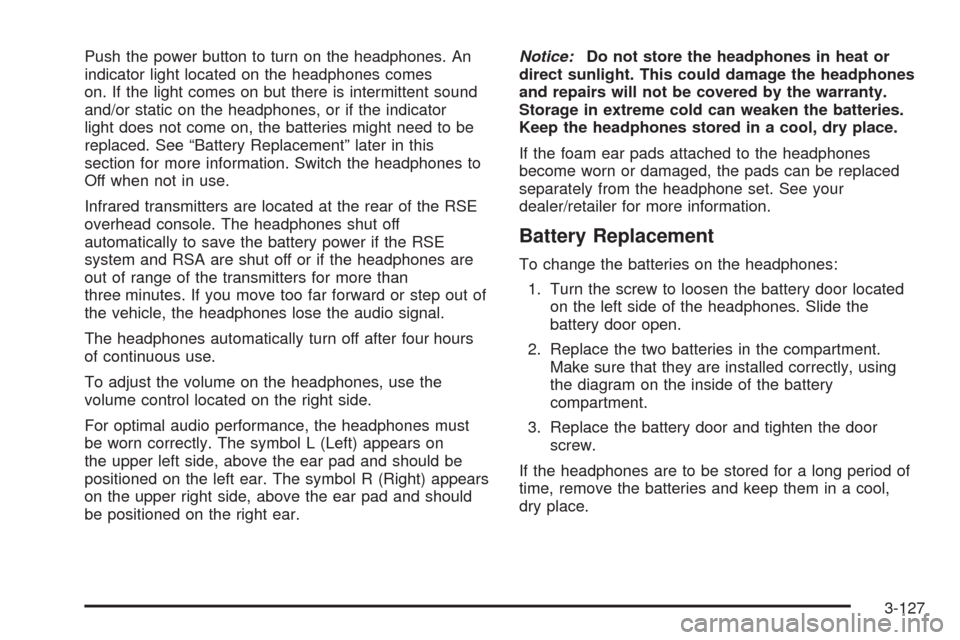
Push the power button to turn on the headphones. An
indicator light located on the headphones comes
on. If the light comes on but there is intermittent sound
and/or static on the headphones, or if the indicator
light does not come on, the batteries might need to be
replaced. See “Battery Replacement” later in this
section for more information. Switch the headphones to
Off when not in use.
Infrared transmitters are located at the rear of the RSE
overhead console. The headphones shut off
automatically to save the battery power if the RSE
system and RSA are shut off or if the headphones are
out of range of the transmitters for more than
three minutes. If you move too far forward or step out of
the vehicle, the headphones lose the audio signal.
The headphones automatically turn off after four hours
of continuous use.
To adjust the volume on the headphones, use the
volume control located on the right side.
For optimal audio performance, the headphones must
be worn correctly. The symbol L (Left) appears on
the upper left side, above the ear pad and should be
positioned on the left ear. The symbol R (Right) appears
on the upper right side, above the ear pad and should
be positioned on the right ear.Notice:Do not store the headphones in heat or
direct sunlight. This could damage the headphones
and repairs will not be covered by the warranty.
Storage in extreme cold can weaken the batteries.
Keep the headphones stored in a cool, dry place.
If the foam ear pads attached to the headphones
become worn or damaged, the pads can be replaced
separately from the headphone set. See your
dealer/retailer for more information.
Battery Replacement
To change the batteries on the headphones:
1. Turn the screw to loosen the battery door located
on the left side of the headphones. Slide the
battery door open.
2. Replace the two batteries in the compartment.
Make sure that they are installed correctly, using
the diagram on the inside of the battery
compartment.
3. Replace the battery door and tighten the door
screw.
If the headphones are to be stored for a long period of
time, remove the batteries and keep them in a cool,
dry place.
3-127
Page 318 of 574
Remote Control
To use the remote control, aim it at the transmitter
window at the rear of the overhead console and press
the desired button. Direct sunlight or very bright light
could affect the ability of the RSE transmitter to receive
signals from the remote control. If the remote control
does not seem to be working, the batteries might need
to be replaced. See “Battery Replacement” later in
this section. Objects blocking the line of sight could also
affect the function of the remote control.
If a CD or DVD is in the Radio DVD slot, the remote
control power button can be used to turn on the video
screen display and start the disc. The radio can also
turn on the video screen display. SeeRadio(s) on
page 3-85for more information.
Notice:Storing the remote control in a hot area or
in direct sunlight can damage it, and the repairs
will not be covered by the warranty. Storage
in extreme cold can weaken the batteries. Keep the
remote control stored in a cool, dry place.
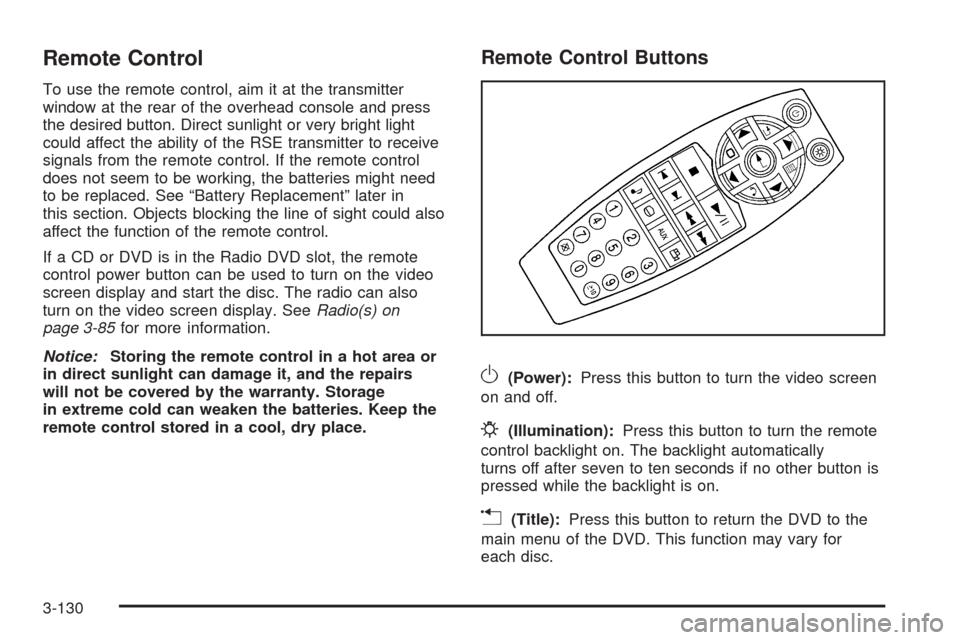
Remote Control Buttons
O(Power):Press this button to turn the video screen
on and off.
P(Illumination):Press this button to turn the remote
control backlight on. The backlight automatically
turns off after seven to ten seconds if no other button is
pressed while the backlight is on.
v(Title):Press this button to return the DVD to the
main menu of the DVD. This function may vary for
each disc.
3-130
Page 319 of 574

y(Main Menu):Press this button to access the DVD
menu. The DVD menu is different on every DVD.
Use the navigation arrows to move the cursor around
the DVD menu. After making a selection press the enter
button. This button only operates when using a DVD.
n,q,p,o(Menu Navigation Arrows):Use
the arrow buttons to navigate through a menu.
r(Enter):Press this button to select the choice that
is highlighted in any menu.
z(Display Menu):Press this button to adjust the
brightness, screen display mode (normal, full, or zoom),
and display the language menu.
q(Return):Press this button to exit the current
active menu and return to the previous menu. This
button operates only when the display menu or a DVD
menu is active.
c(Stop):Press this button to stop playing, fast
reversing, or fast forwarding a DVD. Press this button
twice to return to the beginning of the DVD.
s(Play/Pause):Press this button to start playing a
DVD. Press this button while a DVD is playing to
pause it. Press it again to continue playing the DVD.On some radios, play may be slowed down by pressing
the play/pause button then pressing the fast forward
button when the DVD is playing. The DVD continues
playing in a slow play mode. Some radios may perform
reverse slow play by pressing the play/pause button
and then pressing the fast reverse button. To cancel
slow play mode, press the play/pause button.
t(Previous Track/Chapter):Press this button to
return to the start of the current track or chapter. Press
this button again to go to the previous track or
chapter. This button might not work when the DVD is
playing the copyright information or the previews.
u(Next Track/Chapter):Press this button to go to
the beginning of the next chapter or track. This
button might not work when the DVD is playing the
copyright information or the previews.
r(Fast Reverse):Press this button to fast reverse
the DVD or CD. To stop fast reversing a DVD video,
press the play button. To stop fast reversing a
DVD audio or CD, release this button. This button might
not work when the DVD is playing the copyright
information or the previews.
3-131
Page 332 of 574
Braking
If the vehicle is a Two-mode Hybrid, see the Two-mode
Hybrid manual for more information.
SeeBrake System Warning Light on page 3-40.
Braking action involves perception time and reaction
time. Deciding to push the brake pedal is perception
time. Actually doing it is reaction time.
Average reaction time is about three-fourths of a
second. But that is only an average. It might be less
with one driver and as long as two or three seconds or
more with another. Age, physical condition, alertness,
coordination, and eyesight all play a part. So do alcohol,
drugs, and frustration. But even in three-fourths of a
second, a vehicle moving at 60 mph (100 km/h) travels
66 feet (20 m). That could be a lot of distance in an
emergency, so keeping enough space between
the vehicle and others is important.
And, of course, actual stopping distances vary greatly
with the surface of the road, whether it is pavement
or gravel; the condition of the road, whether it is
wet, dry, or icy; tire tread; the condition of the brakes;
the weight of the vehicle; and the amount of brake force
applied.Avoid needless heavy braking. Some people drive
in spurts — heavy acceleration followed by heavy
braking — rather than keeping pace with traffic. This is
a mistake. The brakes might not have time to cool
between hard stops. The brakes will wear out much
faster with a lot of heavy braking. Keeping pace with
the traffic and allowing realistic following distances
eliminates a lot of unnecessary braking. That means
better braking and longer brake life.
If the engine ever stops while the vehicle is being
driven, brake normally but do not pump the brakes.
If the brakes are pumped, the pedal could get harder to
push down. If the engine stops, there will still be
some power brake assist but it will be used when the
brake is applied. Once the power assist is used up,
it can take longer to stop and the brake pedal will be
harder to push.
Adding non-dealer/non-retailer accessories can affect
vehicle performance. SeeAccessories and Modifications
on page 5-3.
4-4
Page 333 of 574

Antilock Brake System (ABS)
This vehicle has the Antilock Brake System (ABS), an
advanced electronic braking system that will help
prevent a braking skid.
When the engine is started and the vehicle begins to
drive away, ABS checks itself. A momentary motor
or clicking noise might be heard while this test is going
on. This is normal.
If there is a problem with
ABS, this warning light
stays on. SeeAntilock
Brake System (ABS)
Warning Light on
page 3-41.
Along with ABS, the vehicle has a Dynamic Rear
Proportioning (DRP) system. If there is a DRP problem,
both the brake and ABS warning lights come on
accompanied by a 10-second chime. The lights and
chime will come on each time the ignition is turned on
until the problem is repaired. See your dealer/retailer for
service.Let us say the road is wet and you are driving safely.
Suddenly, an animal jumps out in front of you. You slam
on the brakes and continue braking. Here is what
happens with ABS:
A computer senses that the wheels are slowing down. If
one of the wheels is about to stop rolling, the computer
will separately work the brakes at each front wheel
and at both rear wheels.
ABS can change the brake pressure to each wheel, as
required, faster than any driver could. This can help
the driver steer around the obstacle while braking hard.
As the brakes are applied, the computer keeps
receiving updates on wheel speed and controls braking
pressure accordingly.
Remember: ABS does not change the time needed to get
a foot up to the brake pedal or always decrease stopping
distance. If you get too close to the vehicle in front of you,
there will not be enough time to apply the brakes if that
vehicle suddenly slows or stops. Always leave enough
room up ahead to stop, even with ABS.
Using ABS
Do not pump the brakes. Just hold the brake pedal
down rmly and let antilock work. The brakes might
vibrate or some noise might be heard, but this is normal.
4-5