2009 CHEVROLET SILVERADO wheel
[x] Cancel search: wheelPage 239 of 600
Driver Information Center (DIC)
Your vehicle has a Driver Information Center (DIC).
The DIC displays information about your vehicle. It also
displays warning messages if a system problem is
detected.
All messages will appear in the DIC display located
below the tachometer in the instrument panel cluster.
The DIC comes on when the ignition is on. After a short
delay, the DIC will display the information that was
last displayed before the engine was turned off.
If your vehicle has DIC buttons, see “DIC Operation and
Displays (With DIC Buttons)” later in this section and
DIC Vehicle Customization (With DIC Buttons) on
page 3-76for the displays available.
If your vehicle does not have DIC buttons, see “DIC
Operation and Displays (Without DIC Buttons)” later in
this section for the displays available.
DIC Operation and Displays
(With DIC Buttons)
If your vehicle has DIC buttons, the information below
explains the operation of this system.
The DIC has different displays which can be accessed
by pressing the DIC buttons located on the instrument
panel, next to the steering wheel.
The DIC displays trip, fuel, and vehicle system
information, and warning messages if a system problem
is detected.
The DIC also allows some features to be customized.
SeeDIC Vehicle Customization (With DIC Buttons)
on page 3-76for more information.
If your vehicle has DIC buttons, you can also use
the trip odometer reset stem to view some of the
DIC displays. See “DIC Operation and Displays
(Without DIC Buttons)” later in this section.
3-53
Page 257 of 600
RIGHT REAR DOOR OPEN (Crew Cab)
This message displays and a chime sounds if the
passenger side rear door is not fully closed and the
vehicle is shifted out of P (Park). Stop and turn off the
vehicle, check the door for obstructions, and close
the door again. Check to see if the message still
appears on the DIC.
SERVICE 4 WHEEL DRIVE
This message displays if a problem occurs with the
four-wheel-drive system. If this message appears, stop
as soon as possible and turn off the vehicle. Make
sure the key is in the LOCK/OFF position for at least
one minute and then restart the vehicle and check
for the message on the DIC display. If the message
is still displayed or appears again when you begin
driving, the four-wheel-drive system needs service.
See your dealer/retailer.
SERVICE AIR BAG
This message displays if there is a problem with the
airbag system. Have your dealer/retailer inspect
the system for problems. SeeAirbag Readiness Light
on page 3-37andAirbag System on page 1-74for
more information.
SERVICE BATTERY CHARGING
SYSTEM
On some vehicles, this message displays if there is a
problem with the battery charging system. Under certain
conditions, the charging system light may also turn
on in the instrument panel cluster. SeeCharging System
Light on page 3-41. Driving with this problem could
drain the battery. Turn off all unnecessary accessories.
Have the electrical system checked as soon as
possible. See your dealer/retailer.
SERVICE BRAKE SYSTEM
This message displays along with the brake system
warning light if there is a problem with the brake system.
SeeBrake System Warning Light on page 3-42. If this
message appears, stop as soon as possible and turn off
the vehicle. Restart the vehicle and check for the
message on the DIC display. If the message is still
displayed or appears again when you begin driving,
the brake system needs service as soon as possible.
See your dealer/retailer.
3-71
Page 258 of 600
SERVICE BRAKES SOON
This message displays if there is a problem with the
brake system. If this message appears, stop as soon as
possible and turn off the vehicle. Restart the vehicle
and check for the message on the DIC display.
If the message is still displayed or appears again when
you begin driving, the brake system needs service.
See your dealer/retailer.
SERVICE PARK ASSIST
If your vehicle has the Ultrasonic Rear Parking Assist
(URPA) system, this message displays if there is a
problem with the URPA system. Do not use this system
to help you park. SeeUltrasonic Rear Parking Assist
(URPA) on page 2-62for more information. See your
dealer/retailer for service.
SERVICE STABILITRAK
If your vehicle has StabiliTrak®and this message
displays, it means there may be a problem with the
StabiliTrak system. If you see this message, try to reset
the system. Stop; turn off the engine for at least
15 seconds; then start the engine again. If this message
still comes on, it means there is a problem. You should
see your dealer/retailer for service. The vehicle is
safe to drive, however, you do not have the benet of
StabiliTrak, so reduce your speed and drive accordingly.
SERVICE THEFT DETERRENT SYSTEM
This message displays when there is a problem with
the theft-deterrent system. The vehicle may or may not
restart so you may want to take the vehicle to your
dealer/retailer before turning off the engine. See
PASS-Key
®III+ Electronic Immobilizer Operation on
page 2-19for more information.
SERVICE TIRE MONITOR SYSTEM
If your vehicle has the Tire Pressure Monitor System
(TPMS), this message displays if a part on the system is
not working properly. The tire pressure light also
ashes and then remains on during the same ignition
cycle. SeeTire Pressure Light on page 3-45. Several
conditions may cause this message to appear. SeeTire
Pressure Monitor Operation on page 5-77for more
information. If the warning comes on and stays on,
there may be a problem with the TPMS. See your
dealer/retailer.
SERVICE TRACTION CONTROL
If your vehicle has StabiliTrak, this message displays
when there is a problem with the Traction Control
System (TCS). When this message displays, the system
will not limit wheel spin. Adjust your driving accordingly.
See your dealer/retailer for service. SeeStabiliTrak
®
System on page 4-6for more information.
3-72
Page 259 of 600
SERVICE TRAILER BRAKE SYSTEM
On vehicles with the Integrated Trailer Brake Control
(ITBC) system, this message displays and a chime
sounds when there is a problem with the ITBC system.
When this message displays, power is no longer
available to the trailer brakes.
As soon as it is safe to do so, carefully pull your vehicle
over to the side of the road and turn the ignition off.
Check the wiring connection to the trailer and turn
the ignition back on. If this message still displays,
either your vehicle or the trailer needs service.
See your dealer/retailer.
See “Integrated Trailer Brake Control System” under
Towing a Trailer on page 4-51for more information.
STABILITRAK OFF
If your vehicle has StabiliTrak, this message displays
when you turn off StabiliTrak, or when the stability
control has been automatically disabled. To limit wheel
spin and realize the full benets of the stability
enhancement system, you should normally leave
StabiliTrak on. However, you should turn StabiliTrak off
if your vehicle gets stuck in sand, mud, ice, or snow
and you want to rock your vehicle to attempt to free it,
or if you are driving in extreme off-road conditionsand require more wheel spin. SeeIf Your Vehicle is
Stuck in Sand, Mud, Ice, or Snow on page 4-30.
To turn the StabiliTrak system on or off, seeStabiliTrak
®
System on page 4-6.
There are several conditions that can cause this
message to appear.
One condition is overheating, which could occur if
StabiliTrak®activates continuously for an extended
period of time.
The message also displays if the brake system
warning light is on. SeeBrake System Warning
Light on page 3-42.
The message could display if the stability system
takes longer than usual to complete its diagnostic
checks due to driving conditions.
The message displays if an engine or vehicle
related problem has been detected and the vehicle
needs service. See your dealer/retailer.
The message also displays if the vehicle is shifted
into 4LO.
The message turns off as soon as the conditions that
caused the message to be displayed are no longer
present.
3-73
Page 278 of 600
4(Information) (XM Satellite Radio Service, MP3,
and RDS Features):Press to switch the display
between the radio station frequency and the time.
When the ignition is in the OFF position, press
4to
display the time. For vehicles with XM, MP3, WMA or
RDS features, press
4to display additional text
information related to the current FM-RDS or XM station;
or CD, MP3 or WMA song. If information is available
during XM, CD, MP3 or WMA playback, the song
title information displays on the top line of the display
and artist information displays on the bottom line. When
information is not available, “NO INFO” displays.
Setting Preset Stations (AM-FM Radio)
If the radio does not have XM, up to 18 stations
(six FM1, six FM2, and six AM), can be programmed on
the six numbered pushbuttons. To program presets:
1. Turn the radio on.
2. Press BAND to select FM1, FM2, or AM.
3. Tune in the desired station.
4. Press and hold one of the six numbered
pushbuttons for three seconds until a beep sounds.
Whenever that pushbutton is pressed and
released, the station that was set, returns.
5. Repeat the Steps 2 through 4 for each pushbutton.
Storing a Radio Station as a Favorite
Drivers are encouraged to set up their radio station
favorites while the vehicle is parked. Tune to favorite
stations using the presets, favorites button, and
steering wheel controls, if the vehicle has this feature.
SeeDefensive Driving on page 4-2.
FAV (Favorites):If the vehicle has XM and has a FAV
button, a maximum of 36 stations can be programmed
as favorites using the six pushbuttons positioned
below the radio station frequency labels and by using
the radio favorites page button (FAV button). Press the
FAV button to go through up to six pages of favorites,
each having six favorite stations available per page.
Each page of favorites can contain any combination of
AM, FM, or XM (if equipped) stations.
The balance/fade and tone settings that were previously
adjusted, are stored with the favorite stations.
To store a station as a favorite:
1. Tune to the desired radio station.
2. Press the FAV button to display the page where the
station will be stored.
3. Press and hold one of the six pushbuttons until a
beep sounds. When that pushbutton is pressed
and released, the station that was set, returns.
4. Repeat the steps for each pushbutton radio station
to store as a favorite.
3-92
Page 306 of 600
Bluetooth Controls
Use the buttons located on the steering wheel to
operate the in-vehicle Bluetooth system. SeeAudio
Steering Wheel Controls on page 3-141for more
information.
bg(Push To Talk):Press to answer incoming calls,
to conrm system information, and to start speech
recognition.
cx(Phone On Hook):Press to end a call, reject a
call, or to cancel an operation.
Pairing
A Bluetooth enabled cell phone must be paired to the
in-vehicle Bluetooth system rst and then connected to
the vehicle before it can be used. See the cell phone
manufacturers user guide for Bluetooth functions before
pairing the cell phone. If a Bluetooth phone is not
connected, calls will be made using OnStar
®
Hands-Free Calling, if available. Refer to the OnStar
owner’s guide for more information.Pairing Information:
Up to ve cell phones can be paired to the in-vehicle
Bluetooth system.
The pairing process is disabled when the vehicle is
moving.
The in-vehicle Bluetooth system automatically links
with the rst available paired cell phone in the
order the phone was paired.
Only one paired cell phone can be connected to the
in-vehicle Bluetooth system at a time.
Pairing should only need to be completed once,
unless changes to the pairing information have
been made or the phone is deleted.
To link to a different paired phone, see Linking to a
Different Phone later in this section.
Pairing a Phone
1. Press and holdbgfor two seconds. The system
responds with “Ready” followed by a tone.
2. Say “Bluetooth”. The system responds with
“Bluetooth ready” followed by a tone.
3. Say “Pair”. The system responds with instructions
and a four digit PIN number. The PIN number will
be used in Step 4.
3-120
Page 327 of 600
Audio Steering Wheel Controls
Vehicles with audio
steering wheel controls
could differ depending on
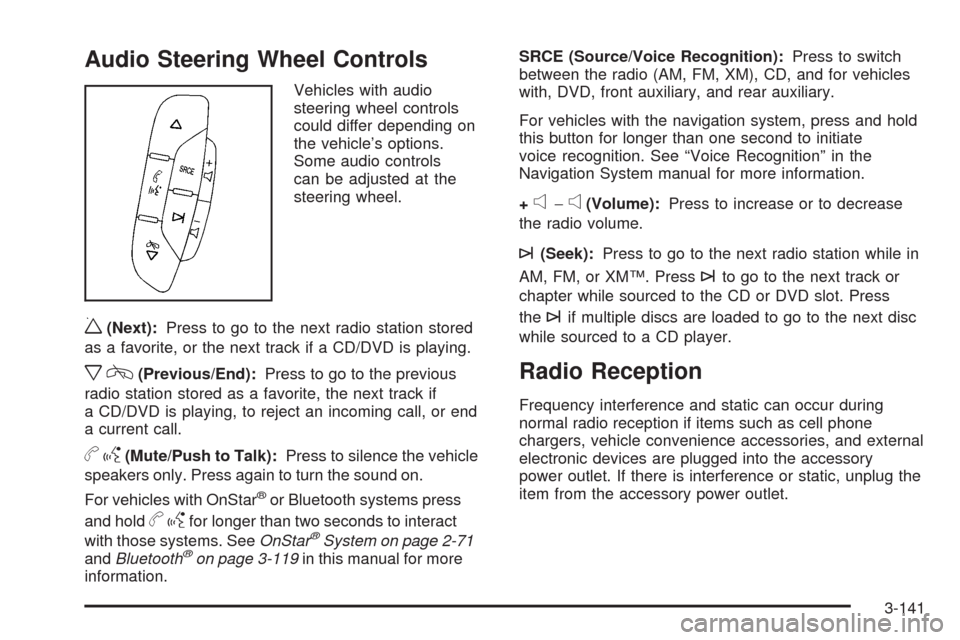
the vehicle’s options.
Some audio controls
can be adjusted at the
steering wheel.
w(Next):Press to go to the next radio station stored
as a favorite, or the next track if a CD/DVD is playing.
xc(Previous/End):Press to go to the previous
radio station stored as a favorite, the next track if
a CD/DVD is playing, to reject an incoming call, or end
a current call.
bg(Mute/Push to Talk):Press to silence the vehicle
speakers only. Press again to turn the sound on.
For vehicles with OnStar
®or Bluetooth systems press
and hold
bgfor longer than two seconds to interact
with those systems. SeeOnStar®System on page 2-71
andBluetooth®on page 3-119in this manual for more
information.SRCE (Source/Voice Recognition):Press to switch
between the radio (AM, FM, XM), CD, and for vehicles
with, DVD, front auxiliary, and rear auxiliary.
For vehicles with the navigation system, press and hold
this button for longer than one second to initiate
voice recognition. See “Voice Recognition” in the
Navigation System manual for more information.
+
e−e(Volume):Press to increase or to decrease
the radio volume.
¨(Seek):Press to go to the next radio station while in
AM, FM, or XM™. Press
¨to go to the next track or
chapter while sourced to the CD or DVD slot. Press
the
¨if multiple discs are loaded to go to the next disc
while sourced to a CD player.
Radio Reception
Frequency interference and static can occur during
normal radio reception if items such as cell phone
chargers, vehicle convenience accessories, and external
electronic devices are plugged into the accessory
power outlet. If there is interference or static, unplug the
item from the accessory power outlet.
3-141
Page 333 of 600
Antilock Brake System (ABS)
This vehicle has the Antilock Brake System (ABS), an
advanced electronic braking system that will help
prevent a braking skid.
When the engine is started and the vehicle begins to
drive away, ABS checks itself. A momentary motor
or clicking noise might be heard while this test is going
on. This is normal.
If there is a problem with
ABS, this warning light
stays on. SeeAntilock
Brake System (ABS)
Warning Light on
page 3-43.
Along with ABS, the vehicle has a Dynamic Rear
Proportioning (DRP) system. If there is a DRP problem,
both the brake and ABS warning lights come on
accompanied by a 10-second chime. The lights and
chime will come on each time the ignition is turned on
until the problem is repaired. See your dealer/retailer for
service.Let us say the road is wet and you are driving safely.
Suddenly, an animal jumps out in front of you. You slam
on the brakes and continue braking. Here is what
happens with ABS:
A computer senses that the wheels are slowing down. If
one of the wheels is about to stop rolling, the computer
will separately work the brakes at each front wheel
and at both rear wheels.
ABS can change the brake pressure to each wheel, as
required, faster than any driver could. This can help
the driver steer around the obstacle while braking hard.
As the brakes are applied, the computer keeps
receiving updates on wheel speed and controls braking
pressure accordingly.
Remember: ABS does not change the time needed to
get a foot up to the brake pedal or always decrease
stopping distance. If you get too close to the vehicle in
front of you, there will not be enough time to apply
the brakes if that vehicle suddenly slows or stops.
Always leave enough room up ahead to stop, even
with ABS.
Using ABS
Do not pump the brakes. Just hold the brake pedal
down rmly and let antilock work. The brakes might
vibrate or some noise might be heard, but this is normal.
4-5