2009 CHEVROLET HHR change time
[x] Cancel search: change timePage 183 of 450
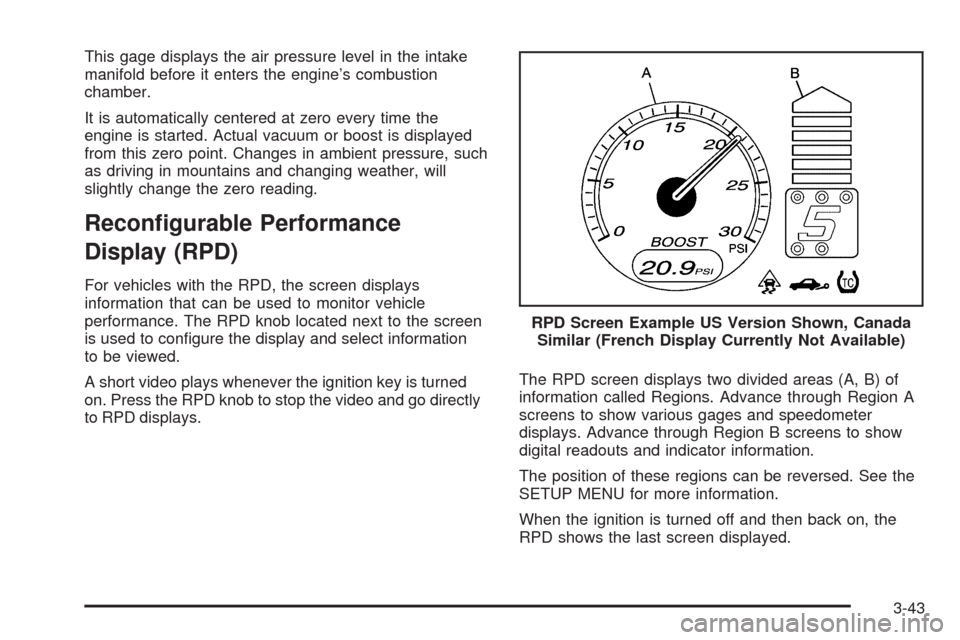
This gage displays the air pressure level in the intake
manifold before it enters the engine’s combustion
chamber.
It is automatically centered at zero every time the
engine is started. Actual vacuum or boost is displayed
from this zero point. Changes in ambient pressure, such
as driving in mountains and changing weather, will
slightly change the zero reading.
Recongurable Performance
Display (RPD)
For vehicles with the RPD, the screen displays
information that can be used to monitor vehicle
performance. The RPD knob located next to the screen
is used to congure the display and select information
to be viewed.
A short video plays whenever the ignition key is turned
on. Press the RPD knob to stop the video and go directly
to RPD displays.The RPD screen displays two divided areas (A, B) of
information called Regions. Advance through Region A
screens to show various gages and speedometer
displays. Advance through Region B screens to show
digital readouts and indicator information.
The position of these regions can be reversed. See the
SETUP MENU for more information.
When the ignition is turned off and then back on, the
RPD shows the last screen displayed.RPD Screen Example US Version Shown, Canada
Similar (French Display Currently Not Available)
3-43
Page 188 of 450
Driver Information Center (DIC)
Your vehicle has a Driver Information Center (DIC).
The DIC display gives you the status of many of your
vehicle’s systems. The DIC is also used to display driver
personalization menu modes and warning/status
messages. All messages will appear in the DIC display,
located at the bottom of the instrument panel cluster.
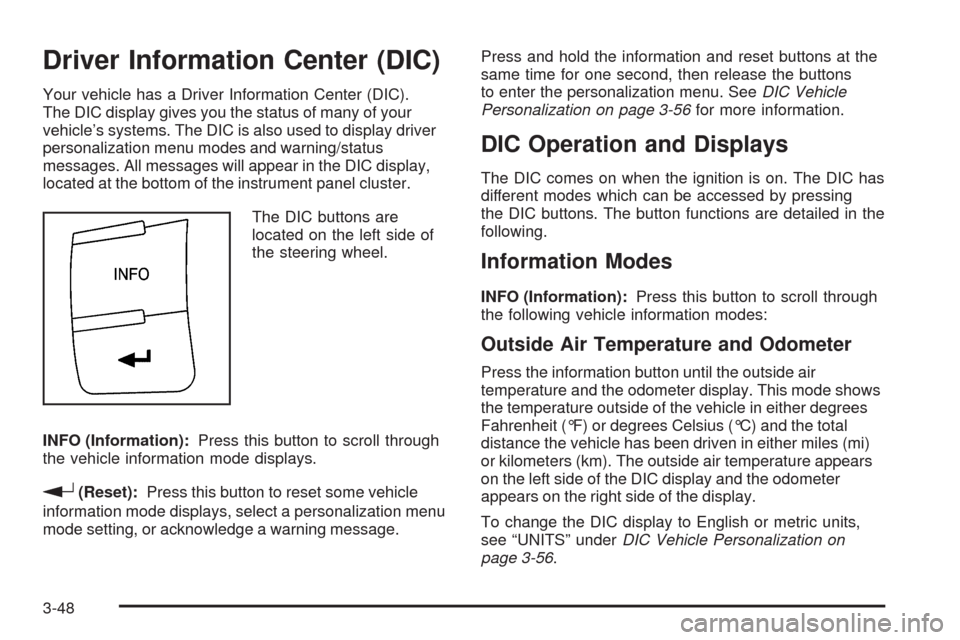
The DIC buttons are
located on the left side of
the steering wheel.
INFO (Information):Press this button to scroll through
the vehicle information mode displays.
r(Reset):Press this button to reset some vehicle
information mode displays, select a personalization menu
mode setting, or acknowledge a warning message.Press and hold the information and reset buttons at the
same time for one second, then release the buttons
to enter the personalization menu. SeeDIC Vehicle
Personalization on page 3-56for more information.
DIC Operation and Displays
The DIC comes on when the ignition is on. The DIC has
different modes which can be accessed by pressing
the DIC buttons. The button functions are detailed in the
following.
Information Modes
INFO (Information):Press this button to scroll through
the following vehicle information modes:
Outside Air Temperature and Odometer
Press the information button until the outside air
temperature and the odometer display. This mode shows
the temperature outside of the vehicle in either degrees
Fahrenheit (°F) or degrees Celsius (°C) and the total
distance the vehicle has been driven in either miles (mi)
or kilometers (km). The outside air temperature appears
on the left side of the DIC display and the odometer
appears on the right side of the display.
To change the DIC display to English or metric units,
see “UNITS” underDIC Vehicle Personalization on
page 3-56.
3-48
Page 189 of 450
TRIP A or TRIP B
Press the information button until TRIP A or TRIP B
display. These modes show the current distance
traveled since the last reset for each trip odometer in
either miles (mi) or kilometers (km). Both odometers
can be used at the same time.
To reset the trip odometer to zero, press and hold the
reset button for a few seconds while the desired
trip odometer is displayed.
FUEL RANGE
Press the information button until FUEL RANGE displays.
This mode shows the remaining distance you can drive
without refueling in either miles (mi) or kilometers (km).
It is based on fuel economy and the fuel remaining in
the tank.
When the fuel level is low, FUEL RANGE LOW displays.
The fuel economy data used to determine fuel range is
an average of recent driving conditions. As your driving
conditions change, this data is gradually updated.
The FUEL RANGE mode cannot be reset.
MPG (L/100 KM) AVG (Average)
Press the information button until MPG (L/100 KM) AVG
displays. This mode shows how many miles per
gallon (mpg) or liters per 100 kilometers (L/100 km)
your vehicle is getting based on current and past driving
conditions.
To reset the average fuel economy, press and hold the
reset button while MPG (L/100 KM) AVG is displayed.
Average fuel economy is then calculated starting
from that point. If the average fuel economy is not
reset, it is continually updated each time you drive.
MPG (L/100 KM) INST (Instantaneous)
Press the information button until MPG (L/100 KM) INST
displays. This mode shows the current fuel economy
at a particular moment and changes frequently as
driving conditions change. This mode shows the
instantaneous fuel economy in miles per gallon (mpg)
or liters per 100 kilometers (L/100 km). Unlike average
fuel economy, this screen cannot be reset.
AV (Average) SPEED
Press the information button until AV SPEED displays.
This mode shows the vehicle’s average speed in
miles per hour (mph) or kilometers per hour (km/h).
To reset the average vehicle speed, press and hold the
reset button while AV SPEED is displayed.
3-49
Page 190 of 450

OIL LIFE
Press the information button until OIL LIFE displays.
The engine oil life system shows an estimate of the oil’s
remaining useful life. It shows 100% when the system
is reset after an oil change. It alerts you to change the oil
on a schedule consistent with your driving conditions.
In addition to the engine oil life system monitoring the oil
life, additional maintenance is recommended in the
Maintenance Schedule in this manual. SeeEngine Oil
on page 5-17andScheduled Maintenance on page 6-4.
Always reset the engine oil life system after an oil
change. See “How to Reset the Engine Oil Life System”
underEngine Oil Life System on page 5-21.
COOLANT
Press the information button until COOLANT displays.
This mode shows the temperature of the engine coolant
in either degrees Fahrenheit (°F) or degrees Celsius (°C).
Tire Pressure
If your vehicle has a Tire Pressure Monitor System
(TPMS), the pressure for each tire can be viewed in the
DIC. The tire pressure is shown in either pounds per
square inch (psi) or kilopascals (kPa). Press the
information button until LF ## PSI (kPa) ## RF displays
for the front tires. Press the information button again until
LR ## PSI (kPa) ## RR displays for the rear tires.If a low tire pressure condition is detected by the system
while driving, a message advising you to check the tire
pressure appears in the display. SeeInflation - Tire
Pressure on page 5-61andDIC Warnings and Messages
on page 3-50for more information.
DIC Warnings and Messages
These messages appear if there is a problem detected
in one of your vehicle’s systems.
A message clears when the vehicle’s condition is no
longer present. To acknowledge a message and clear it
from the display, press and hold any of the DIC buttons.
If the condition is still present, the warning message
comes back on the next time the vehicle is turned off and
back on. With most messages, a warning chime sounds
when the message displays. Your vehicle may have other
warning messages.
AUTO (Automatic) LIGHTS OFF
This message displays if the automatic headlamp
system is disabled with the headlamp switch.
SeeAutomatic Headlamp System on page 3-16
for more information.
3-50
Page 196 of 450
DIC Vehicle Personalization
Your vehicle has personalization capabilities that allow
you to program certain features to a preferred setting.
All of the features listed may not be available on your
vehicle. Only the features available will be displayed on
the DIC.
The default settings for the features were set when your
vehicle left the factory, but may have been changed
from their default state since that time.
To change feature settings, use the following procedure:
Entering Personalization Menu
1. Turn the ignition on while the vehicle is stopped.
To avoid excessive drain on the battery, it is
recommended that the headlamps are turned off.
2. Press and hold the information and reset buttons at
the same time for one second, then release to enter
the personalization menu.
If the vehicle speed is greater than 2 mph (3 km/h),
only the UNITS menu will be accessible.3. Press the information button to scroll through the
available personalization menu modes.
Press the reset button to scroll through the available
settings for each mode.
If you do not make a selection within ten seconds,
the display will go back to the previous information
displayed.
Personalization Menu Modes
OIL LIFE RESET
When this feature is displayed, you can reset the engine
oil life system. To reset the system, seeEngine Oil Life
System on page 5-21. See “OIL LIFE” underDIC
Operation and Displays on page 3-48for more
information.
3-56
Page 202 of 450
Setting the Clock
Without Date Display
AM/FM Base Radio with a Single
CD Player
To set the time:
1. Turn the ignition key to ACC/ACCESSORY or
ON/RUN. Press
Oto turn the radio on.
2. Press
Huntil the hour begins ashing on the
display. Press
Ha second time and the minute
begins ashing on the display.
3. While either the hour or the minute numbers are
ashing, turn
fto increase or decrease the time.
4. Press
Hagain until the clock display stops ashing
to set the currently displayed time; otherwise, the
ashing stops after ve seconds and the current
time displayed is automatically set.
To change the time default setting from 12 hour to
24 hour, press the
Hbutton until 12H or 24H is
displayed. Once 12H or 24H is displayed, turn
the
fknob to the desired option to select the setting.
Press the
Hbutton again to apply the setting, or let the
screen time out.
With Date Display
Radio with CD (MP3) and USB Port, and
Radio with Single CD (MP3) Player
To set the time and date:
1. Turn the ignition key to ACC/ACCESSORY or
ON/RUN. Press
Oto turn the radio on.
2. Press
Hand the HR, MIN, MM, DD, YYYY
(hour, minute, month, day, and year) displays.
3. Press the softkey located below any one of the tabs
that you want to change.
4. To increase the time or date do one of the following:
Press the softkey located below the selected tab.
Press¨SEEK, or\FWD.
Turnfclockwise.
5. To decrease the time or date do one of the following:
Press©SEEK orsREV.
Turnfcounterclockwise.
3-62
Page 203 of 450
The date does not automatically display. To see the
date press
Hwhile the radio is on. The date with display
times out after a few seconds and goes back to the
normal radio and time display.
To change the time default setting from 12 hour to
24 hour or to change the date default setting from
month/day/year to day/month/year:
1. Press
Hand then the softkey located below the
forward arrow label. Once the time 12H and 24H,
and the date MM/DD/YYYY (month, day, and year)
and DD/MM/YYYY (day, month, and year) displays.
2. Press the softkey located below the desired option.
3. Press
Hagain to apply the selected default, or
let the screen time out.
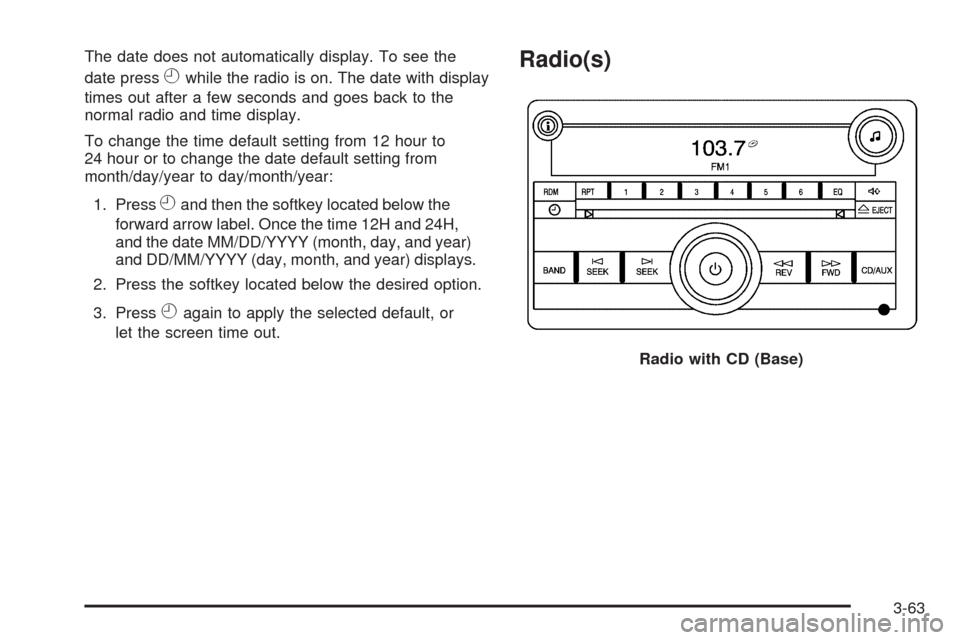
Radio(s)
Radio with CD (Base)
3-63
Page 207 of 450
FAV (Favorites):A maximum of 36 stations can be
stored as favorites using the six softkeys located below
the radio station frequency tabs and by using the radio
favorites page button (FAV button). Press FAV to go
through up to six pages of favorites, each having six
favorite stations available per page. Each page of
favorites can contain any combination of AM, FM, or XM
stations. The current balance/fade and tone settings are
also stored with the favorite stations.
To store a station as a favorite:
1. Tune to the desired radio station and set the
balance/fade and tone settings to the desired levels.
2. Press FAV to display the page where to store the
station.
3. Press and hold one of the six softkeys until a beep
sounds.
4. Repeat the steps for each radio station to be stored
as a favorite.
To setup the number of favorites pages:
1. Press MENU to display the radio setup menu.
2. Press the softkey located below the FAV 1-6 tab.3. Select the desired number of favorites pages by
pressing the softkey located below the displayed
page numbers.
4. Press FAV, or let the menu time out, to return to the
original main radio screen showing the radio station
frequency tabs and to begin programming favorites.
Auto Text (Satellite Radio Service, CD, MP3, and
WMA features):If additional information is available
for the current song being played, Auto Text will
automatically page/scroll the information every
three seconds above the FAV presets on the radio
display. By default, Auto Text is enabled.
To change the Auto Text setting:
1. Press MENU to display the radio setup menu.
2. Press the softkey under AUTO TXT tab on the radio
display.
3. Press the softkey under the ON or OFF tab on the
radio display.
If
4is pressed and the song title or artist information is
longer than what can be displayed, the extra information
will page every three seconds when Auto Text is
activated.
3-67