2009 CHEVROLET EQUINOX key
[x] Cancel search: keyPage 225 of 442
Navigation/Radio System
For vehicles with a navigation radio system, see the
separate Navigation System manual.
Bluetooth®
Vehicles with a Bluetooth system can use a Bluetooth
capable cell phone with a Hands Free Prole to make
and receive phone calls. The system can be used while
the key is in ON/RUN or ACC/ACCESSORY position.
The range of the Bluetooth system can be up to
30 ft. (9.1 m). Not all phones support all functions,
and not all phones are guaranteed to work with
the in-vehicle Bluetooth system. See gm.com/bluetooth
for more information on compatible phones.
Voice Recognition
The Bluetooth system uses voice recognition to interpret
voice commands to dial phone numbers and name tags.
Noise:Keep interior noise levels to a minimum.
The system may not recognize voice commands if there
is too much background noise.
When to Speak:A short tone sounds after the system
responds indicating when it is waiting for a voice
command. Wait until the tone and then speak.
How to Speak:Speak clearly in a calm and natural
voice.
Audio System
When using the in-vehicle Bluetooth system, sound
comes through the vehicle’s front audio system speakers
and overrides the audio system. Use the audio system
volume knob, during a call, to change the volume level.
The adjusted volume level remains in memory for
later calls. To prevent missed calls, a minimum volume
level is used if the volume is turned down too low.
Bluetooth Controls
Use the buttons located on the steering wheel to
operate the in-vehicle Bluetooth system. SeeAudio
Steering Wheel Controls on page 3-116for more
information.
bg(Push To Talk):Press to answer incoming calls,
to conrm system information, and to start speech
recognition.
cx(Phone On Hook):Press to end a call, reject a
call, or to cancel an operation.
3-97
Page 233 of 442
To Mute a call
1. Pressbg. The system responds with “Ready”
followed by a tone.
2. Say “Mute Call”. The system responds with
“Call muted”.
To Cancel Mute
1. Pressbg. The system responds with “Ready”
followed by a tone.
2. After the tone, say “Mute Call”. The system
responds with “Resuming call”.
Transferring a Call
Audio can be transferred between the in-vehicle
Bluetooth system and the cell phone.
To Transfer Audio to the Cell Phone
During a call with the audio in the vehicle:
1. Press
bg. The system responds with “Ready”
followed by a tone.
2. Say “Transfer Call.” The system responds with
“Transferring call” and the audio will switch from
the vehicle to the cell phone.
To Transfer Audio to the In-Vehicle
Bluetooth System
The cellular phone must be paired and connected with
the Bluetooth system before a call can be transferred.
The connection process can take up to two minutes after
the key is turned to the ON/RUN or ACC/ACCESSORY
position.
During a call with the audio on the cell phone,
press
bgfor more than two seconds. The audio
switches from the cell phone to the vehicle.
Voice Pass-Thru
Voice Pass-Thru allows access to the voice recognition
commands on the cell phone. See the cell phone
manufacturers user guide to see if the cell phone
supports this feature. This feature can be used to
verbally access contacts stored in the cell phone.
1. Press and hold
bgfor two seconds. The system
responds with “Ready” followed by a tone.
2. Say “Bluetooth”. The system responds with
“Bluetooth ready” followed by a tone.
3. Say “Voice”. The system responds with “OK,
accessing
The cell phone’s normal prompt messages will
go through its cycle according to the phone’s
operating instructions.
3-105
Page 241 of 442
When the DVD is playing, depending on the radio, slow
play may be performed by pressing the play/pause
button then pressing the fast forward button. The DVD
continues playing in a slow play mode. Depending
on the radio, slow reverse may be performed by
pressing the play/pause button and then pressing the
fast reverse button while a DVD is playing. To cancel
slow play mode, press this button.
t(Previous Track/Chapter):Press this button to
return to the start of the current track or chapter. Press
this button again to go to the previous track or
chapter. This button might not work when the DVD is
playing the copyright information or the previews.
u(Next Track/Chapter):Press this button to go to the
beginning of the next chapter or track. This button
might not work when the DVD is playing the copyright
information or the previews.
r(Fast Reverse):Press this button to fast reverse
the DVD or CD. To stop fast reversing a DVD video,
press the play/pause button. To stop fast reversing a
DVD audio or CD, release the fast reverse button.
This button might not work when the DVD is playing the
copyright information or the previews.
[(Fast Forward):Press this button to fast forward
the DVD or CD. To stop fast forwarding a DVD
video, press the play/pause button. To stop fast
forwarding a DVD audio or CD, release the fast forward
button. This button might not work when the DVD is
playing the copyright information or the previews.
e(Audio):Press this button to change audio tracks on
DVDs that have this feature when the DVD is playing.
The format and content of this function vary for
each disc.
{(Subtitles):Press this button to turn ON/OFF
subtitles and to move through subtitle options when a
DVD is playing. The format and content of this function
vary for each disc.
AUX (Auxiliary):Press this button to switch the system
between the DVD player and an auxiliary source.
d(Camera):Press this button to change camera
angles on DVDs that have this feature when a DVD is
playing. The format and content of this function vary
for each disc.
1 through 0 (Numeric Keypad):The numeric keypad
provides the capability of direct chapter or track
number selection.
3-113
Page 274 of 442
For vehicles being dinghy towed, re-install the fuse and
run the vehicle at the beginning of each day and at each
RV fuel stop for about ve minutes. This will ensure
proper lubrication of transmission components.
To tow a vehicle with a 6–speed transmission from the
front with all four wheels on the ground:
1. Position the vehicle being towed behind the tow
vehicle and shift the transmission to P (Park).
2. Turn the ignition to LOCK/OFF.
3. Firmly set the parking brake.
4. Securely attach the vehicle being towed to the tow
vehicle.
5. Turn the ignition to ACC/ACCESSORY.
6. Shift the transmission to N (Neutral).
7. To prevent the battery from draining while the
vehicle is being towed, remove the 50 amp
BATT1 fuse from the engine compartment fuse
block and store in a safe location. SeeEngine
Compartment Fuse Block on page 5-100.
8. Release the parking brake.Notice:If the vehicle is towed without performing
each of the steps listed under “Dinghy Towing,”
the automatic transmission could be damaged.
Be sure to follow all steps of the dinghy towing
procedure prior to and after towing the vehicle.
Notice:If 65 mph (105 km/h) is exceeded while
towing the vehicle, it could be damaged. Never
exceed 65 mph (105 km/h) while towing the vehicle.
Once the destination has been reached:
1. Set the parking brake.
2. Reinstall the 50 amp BATT1 fuse to the engine
compartment fuse block.
3. Shift the transmission to P (Park), turn the ignition
to LOCK/OFF and remove the key from the ignition.
4. Release the parking brake.
Notice:Do not tow a vehicle with the front drive
wheels on the ground if one of the front tires
is a compact spare tire. Towing with two different
tire sizes on the front of the vehicle can cause
severe damage to the transmission.
4-28
Page 290 of 442
California Proposition 65 Warning
Most motor vehicles, including this one, contain and/or
emit chemicals known to the State of California to cause
cancer and birth defects or other reproductive harm.
Engine exhaust, many parts and systems (including
some inside the vehicle), many uids, and some
component wear by-products contain and/or emit
these chemicals.
California Perchlorate Materials
Requirements
Certain types of automotive applications, such as
airbag initiators, seat belt pretensioners, and lithium
batteries contained in remote keyless transmitters,
may contain perchlorate materials. Special handling
may be necessary. For additional information, see
www.dtsc.ca.gov/hazardouswaste/perchlorate.
Doing Your Own Service Work
{CAUTION:
You can be injured and the vehicle could be
damaged if you try to do service work on a vehicle
without knowing enough about it.
Be sure you have sufficient knowledge,
experience, the proper replacement parts,
and tools before attempting any vehicle
maintenance task.
Be sure to use the proper nuts, bolts, and
other fasteners. English and metric fasteners
can be easily confused. If the wrong fasteners
are used, parts can later break or fall off.
You could be hurt.
If doing some of your own service work, use the proper
service manual. It tells you much more about how to
service the vehicle than this manual can. To order the
proper service manual, seeService Publications Ordering
Information on page 7-15.
5-4
Page 305 of 442
How to Reset the Engine Oil Life
System
The Engine Oil Life System calculates when to change
the engine oil and lter based on vehicle use. Whenever
the oil is changed, reset the system so it can calculate
when the next oil change is required. If a situation occurs
where the oil is changed prior to a change engine oil light
or CHANGE ENGINE OIL SOON message being turned
on, reset the system.
1. Turn the ignition key to ON/RUN with the
engine off.
2. Fully press and release the accelerator pedal
three times within ve seconds.
The change engine oil light will ash while the
system is resetting.
3. When the light stops ashing, turn the key to
LOCK/OFF.
If the light or message comes back on and stays on
when the vehicle is started, the engine oil life system
has not reset. Repeat the procedure.
What to Do with Used Oil
Used engine oil contains certain elements that can be
unhealthy for your skin and could even cause cancer.
Do not let used oil stay on your skin for very long. Clean
your skin and nails with soap and water, or a good hand
cleaner. Wash or properly dispose of clothing or rags
containing used engine oil. See the manufacturer’s
warnings about the use and disposal of oil products.
Used oil can be a threat to the environment. If you
change your own oil, be sure to drain all the oil from the
lter before disposal. Never dispose of oil by putting it
in the trash, pouring it on the ground, into sewers, or into
streams or bodies of water. Recycle it by taking it to a
place that collects used oil.
5-19
Page 317 of 442
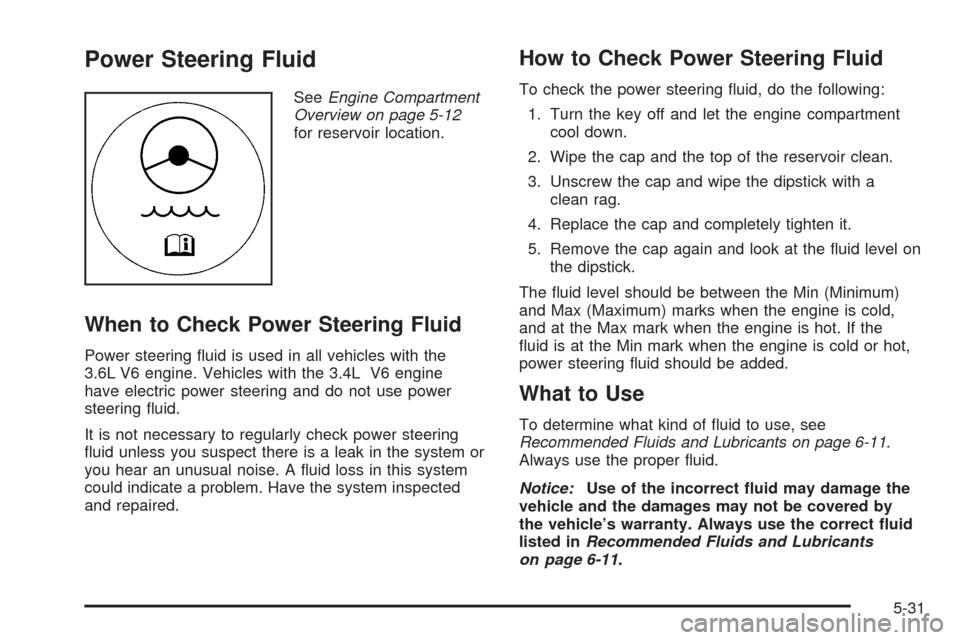
Power Steering Fluid
SeeEngine Compartment
Overview on page 5-12
for reservoir location.
When to Check Power Steering Fluid
Power steering uid is used in all vehicles with the
3.6L V6 engine. Vehicles with the 3.4L V6 engine
have electric power steering and do not use power
steering uid.
It is not necessary to regularly check power steering
uid unless you suspect there is a leak in the system or
you hear an unusual noise. A uid loss in this system
could indicate a problem. Have the system inspected
and repaired.
How to Check Power Steering Fluid
To check the power steering uid, do the following:
1. Turn the key off and let the engine compartment
cool down.
2. Wipe the cap and the top of the reservoir clean.
3. Unscrew the cap and wipe the dipstick with a
clean rag.
4. Replace the cap and completely tighten it.
5. Remove the cap again and look at the uid level on
the dipstick.
The uid level should be between the Min (Minimum)
and Max (Maximum) marks when the engine is cold,
and at the Max mark when the engine is hot. If the
uid is at the Min mark when the engine is cold or hot,
power steering uid should be added.
What to Use
To determine what kind of uid to use, see
Recommended Fluids and Lubricants on page 6-11.
Always use the proper uid.
Notice:Use of the incorrect uid may damage the
vehicle and the damages may not be covered by
the vehicle’s warranty. Always use the correct uid
listed inRecommended Fluids and Lubricants
on page 6-11.
5-31
Page 322 of 442
Replacing Brake System Parts
The braking system on a vehicle is complex. Its many
parts have to be of top quality and work well together if
the vehicle is to have really good braking. The vehicle
was designed and tested with top-quality brake parts.
When parts of the braking system are replaced — for
example, when the brake linings wear down and new
ones are installed — be sure to get new approved
replacement parts. If this is not done, the brakes might
not work properly. For example, if someone puts in
brake linings that are wrong for the vehicle, the balance
between the front and rear brakes can change — for the
worse. The braking performance expected can change in
many other ways if the wrong replacement brake parts
are installed.
Battery
This vehicle has a maintenance free battery. When it is
time for a new battery, see your dealer/retailer for
one that has the replacement number shown on the
original battery’s label.
For battery replacement, see your dealer/retailer or the
service manual. To purchase a service manual, see
Service Publications Ordering Information on page 7-15.
Warning:Battery posts, terminals, and related
accessories contain lead and lead compounds,
chemicals known to the State of California to cause
cancer and reproductive harm. Wash hands after
handling.
Vehicle Storage
{CAUTION:
Batteries have acid that can burn you and gas that
can explode. You can be badly hurt if you are not
careful. SeeJump Starting on page 5-37for tips
on working around a battery without getting hurt.
Infrequent Usage: If the vehicle is driven infrequently,
remove the black, negative (−) cable from the battery.
This helps keep the battery from running down.
Extended Storage: For extended storage of the vehicle,
remove the black, negative (−) cable from the battery or
use a battery trickle charger. This helps maintain the
charge of the battery over an extended period of time.
All doors and the liftgate must be closed before
reconnecting the battery. After reconnecting the
battery, press the unlock button on the keyless access
transmitter. Failure to follow this procedure could result
in the alarm sounding. Pressing unlock on the keyless
access transmitter will stop the alarm.
5-36