2009 CADILLAC ESCALADE service
[x] Cancel search: servicePage 250 of 586

Sending a Stored Name Tag During a Call
1. Pressbg. The system responds with “Ready”
followed by a tone.
2. Say “Send name tag.” The system responds
with “Say a name tag to send tones” followed
by a tone.
3. Say the name tag to send.
If the system clearly recognizes the name tag it
responds with “OK, Sending
the dial tones are sent and the call continues.
If the system is not sure it recognized the name
tag properly, it responds “Dial
Please say yes or no?” followed by a tone. If the
name tag is correct, say “Yes”. The system
responds with “OK, Sending
the dial tones are sent and the call continues.
Clearing the System
Unless information is deleted out of the in-vehicle
Bluetooth®system, it will be retained indenitely. This
includes all saved name tags in the phonebook and
phone pairing information. For information on how
to delete this information, see the above sections on
Deleting a Paired Phone and Deleting Name Tags.
Other Information
The Bluetooth®word mark and logos are owned by the
Bluetooth®SIG, Inc. and any use of such marks by
General Motors is under license. Other trademarks and
trade names are those of their respective owners.
This device complies with Part 15 of the FCC Rules.
Operation is subject to the following two conditions:
1. This device may not cause harmful interference.
2. This device must accept any interference received,
including interference that may cause undesired
operation.
This device complies with RSS-210 of Industry Canada.
Operation is subject to the following two conditions:
1. This device may not cause interference.
2. This device must accept any interference received,
including interference that may cause undesired
operation of the device.
Changes or modications to this system by other than
an authorized service facility could void authorization to
use this equipment.
3-84
Page 280 of 586

SRCE (Source/Voice Recognition):Press to switch
between the radio (AM, FM, XM), CD, and for vehicles
with, DVD, and rear auxiliary.
Press and hold this button for longer than one second
to initiate voice recognition. SeeVoice Recognition
on page 4-82for more information.
+
e−e(Volume): Press to increase or to decrease
the radio volume.
¨(Seek):Press to go to the next radio station while in
AM, FM, or XM™. Press
¨to go to the next track or
chapter while sourced to the CD or DVD slot. Press the
¨if multiple discs are loaded to go to the next disc while
sourced to a CD player.
Radio Reception
Frequency interference and static can occur during
normal radio reception if items such as cell phone
chargers, vehicle convenience accessories, and external
electronic devices are plugged into the accessory power
outlet. If there is interference or static, unplug the item
from the accessory power outlet.
AM
The range for most AM stations is greater than for FM,
especially at night. The longer range can cause station
frequencies to interfere with each other. For better radio
reception, most AM radio stations boost the power levels
during the day, and then reduce these levels during the
night. Static can also occur when things like storms and
power lines interfere with radio reception. When this
happens, try reducing the treble on the radio.
FM Stereo
FM signals only reach about 10 to 40 miles
(16 to 65 km). Although the radio has a built-in electronic
circuit that automatically works to reduce interference,
some static can occur, especially around tall buildings or
hills, causing the sound to fade in and out.
XM™ Satellite Radio Service
XM Satellite Radio Service gives digital radio reception
from coast-to-coast in the 48 contiguous United States,
and in Canada. Just as with FM, tall buildings or hills can
interfere with satellite radio signals, causing the sound to
fade in and out. In addition, traveling or standing under
heavy foliage, bridges, garages, or tunnels may cause
loss of the XM signal for a period of time.
3-114
Page 283 of 586

Overview.........................................................4-2
Navigation System Overview............................4-2
Getting Started...............................................4-4
Cleaning the Display.....................................4-11
Features and Controls....................................4-12
Using the Navigation System..........................4-12
Maps ..........................................................4-14
Symbols......................................................4-17
Destination..................................................4-24
Congure Menu............................................4-42
Global Positioning System (GPS)....................4-56Vehicle Positioning........................................4-57
Problems with Route Guidance.......................4-58
If the System Needs Service..........................4-58
Ordering Map DVDs......................................4-59
Database Coverage Explanations....................4-59
Navigation Audio System................................4-59
CD Player...................................................4-67
DVD Player.................................................4-74
Care of Your CDs and DVDs.........................4-80
Auxiliary Devices..........................................4-81
Voice Recognition..........................................4-82
Section 4 Navigation System
4-1
Page 294 of 586

Features and Controls
Using the Navigation System
This section presents basic information needed to
operate the navigation system.
Use the hard keys located on the navigation system
along with the available touch-sensitive screen buttons
on the navigation screen to operate the system.
SeeNavigation System Overview on page 4-2for more
information.
Once the vehicle is moving, various functions are
disabled to reduce driver distractions.
Hard Keys
The following hard keys are located on the navigation
system:
O/n(Power/Volume):Press to turn the system on
and off. Turn to increase or decrease the volume to
the audio system.
Press and hold for more than two seconds to turn off
the navigation system, the Rear Seat Entertainment
(RSE), and Rear Seat Audio (RSA). If the vehicle has
not been tuned off, the RSE and the RSA can be turned
back on by pressing this knob and continues play of
the last active source.
w(Tune):Turn to go to the next or previous radio
station or disc track or chapter. SeeNavigation Audio
System on page 4-59,CD Player on page 4-67,orDVD
Player on page 4-74for more information.
Z(DVD Map Disc Eject):Press to eject the DVD
map disc. This button is located next to the upper disc
slot. SeeMaps on page 4-14for more information.
M(Load):Press to load CDs or audio/video DVDs.
SeeCD Player on page 4-67orDVD Player on
page 4-74for more information.
Z(CD/DVD Eject):Press to eject CDs or audio/video
DVDs. This button is located under the load button.
SeeCD Player on page 4-67orDVD Player on
page 4-74for more information.
m(Tilt):Press up or down to tilt the screen.
AUDIO:Press access the full Audio screen to change
AM, FM, XM™ Satellite Radio Service (if equipped),
CD/DVD, and auxiliary input. See “Audio” under
Navigation Audio System on page 4-59for more
information.
FAV (Favorite):Press to access the preset stations.
See “Storing Radio Station Presets” underNavigation
Audio System on page 4-59for more information.
4-12
Page 296 of 586

U(Space):Select to enter a space between
characters or the words of a name.
Backspace:Select if an incorrect character has
been entered.
To make name entries easier, the system only highlights
the characters that can follow the last one entered.
For example, if a Z is entered, a T may not be available
for selection.
If a name does not display after entry, it may need to
be entered differently or the map DVD disc may
not contain that information. SeeDatabase Coverage
Explanations on page 4-59for more information.
Maps
This section includes basic information that you need to
know about the map database.
The maps are stored on a DVD. The United States,
Canada, and Puerto Rico are contained on one disc.
Detailed Areas
Road network attributes are contained in the map
database for detailed areas. Attributes include
information such as street names, street address, turn
restrictions, etc. A detailed area includes all major
highways, service roads, and residential roads. The
detailed areas include points of interest (POI) such as:
restaurants, airports, banks, hospitals, police stations,
gas stations, tourist attractions, historical monuments,
etc. The map database may not include data for newly
constructed areas or map database corrections that are
completed after the production of the disc. The navigation
system provides full route guidance in the detailed
map areas.
Limited Guidance Areas
Any area that is not classied as detailed, is a limited
guidance area. Limited guidance streets are displayed
on the map but route guidance may not be given
on these streets. Some POI categories, such as the city
center POI category, and some street addresses are
included in the limited guidance areas.
The navigation system informs through voice prompts
when you are traveling into a limited guidance area
where route guidance is not available. The street maps
and the directional arrow displayed on the navigation
system can then be used to determine the remaining
route to your destination.
4-14
Page 316 of 586

Map Destination Screen Functions
If the map screen is used to show destinatiion, it will have
map screen capabilities such as Go, Mark, Zoom, Scroll,
etc. The address is shown at the top of the screen.
OnStar®Destination Download
OnStar®Destination Download (if equipped) is a service
available for OnStar* subscribers that makes operating
your navigation system much simpler. It allows
subscribers to request and receive navigation assistance
on-the-go.
Using OnStar®Destination Download
Press the blue OnStar®button and an Advisor can
locate a point-of-interest or an address and download
the necessary information or coordinates to your
navigation system. Once the destination is downloaded,
the navigation system will search for the address in
the mapping disc’s database. When the address
is found, it will be shown on your navigation system’s
screen along with the buttons described below.
Destination Map Screen
4-34
Page 329 of 586
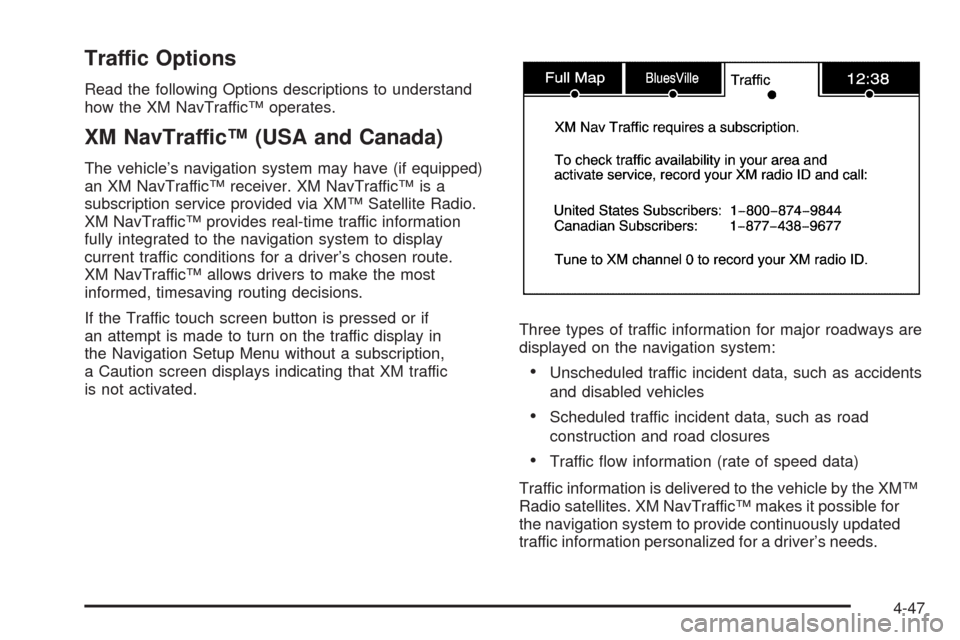
Traffic Options
Read the following Options descriptions to understand
how the XM NavTraffic™ operates.
XM NavTraffic™ (USA and Canada)
The vehicle’s navigation system may have (if equipped)
an XM NavTraffic™ receiver. XM NavTraffic™ is a
subscription service provided via XM™ Satellite Radio.
XM NavTraffic™ provides real-time traffic information
fully integrated to the navigation system to display
current traffic conditions for a driver’s chosen route.
XM NavTraffic™ allows drivers to make the most
informed, timesaving routing decisions.
If the Traffic touch screen button is pressed or if
an attempt is made to turn on the traffic display in
the Navigation Setup Menu without a subscription,
a Caution screen displays indicating that XM traffic
is not activated.Three types of traffic information for major roadways are
displayed on the navigation system:
Unscheduled traffic incident data, such as accidents
and disabled vehicles
Scheduled traffic incident data, such as road
construction and road closures
Traffic ow information (rate of speed data)
Traffic information is delivered to the vehicle by the XM™
Radio satellites. XM NavTraffic™ makes it possible for
the navigation system to provide continuously updated
traffic information personalized for a driver’s needs.
4-47
Page 330 of 586

XM NavTraffic™ currently broadcasts the traffic
information for many markets nationally, and the service
may be available in more cities in the future. Visit
xmnavtraffic.com for more details on local coverage.
A service fee is required in order to receive the
XM NavTraffic™ service.
Turning XM NavTraffic™ On and Off
To turn traffic on or off:
1. Press the CONFIG hard key, then press the
CONFIG key repeatedly until Nav is selected
or press the Nav screen button.
2. Touch the Traffic Options button.
3. Touch the Traffic button. This button is highlighted
when it is active.
Selecting Alert for Approaching Traffic Events
enables the system to show a pop-up screen that
noties of possible traffic issues ahead.
When this feature is highlighted, while traveling on
a route, accidents located on the route are
indicated and can be avoided.
Traffic Icon
The Traffic Icon appears on the Traffic Tab, next to the
word Traffic, when traffic is found in the local area.
The Traffic Icon has three different condition displays.
These are:
Condition Traffic Status Icon
No XM NavTraffic™
subscription.
No Traffic is found in
the local area.
The Traffic Feature is
turned off.
4-48