2009 BMW X6 XDRIVE Condition
[x] Cancel search: ConditionPage 143 of 317
Driving tips
141Reference
At a glance
Controls
Communications
Navigation
Entertainment
Mobility
General information on the care of your BMW is
provided beginning on page265.
Mixed tires*
Before driving into a car wash, make sure
that the vehicle width is not too large for
the car wash, as otherwise the vehicle and the
car wash could be damaged. <
BMW X5: rear window wiper
The rear window wiper can be damaged in car
washes. Take appropriate protective measures;
ask the car wash operator if necessary.
With comfort access*
Insert the remote control into the ignition lock.
The engine can be switched off in transmission
position N, also refer to page41.
Loading
To avoid loading the tires beyond their
approved carrying capacity, never over-
load the vehicle. Overlo ading can lead to over-
heating and increases the rate at which damage
develops inside the tire s. The ultimate result
can assume the form of a sudden blow-out. <
Make sure that no fluids leak in the cargo
bay; otherwise the vehicle could be dam-
aged. <
Determining loading limit
1.Locate the following statement on your
vehicle's placard
*:
The combined weight of occupants
and cargo should never exceed
YYY lbs. or XXX kg. Otherwise, this could damage the vehicle and produce unstable
vehicle operating conditions.
<
2. Determine the combined weight of the
driver and passengers that will be riding in
your vehicle.
3. Subtract the combined weight of the driver
and passengers from YYY lbs. or XXX kg.
4. The resulting figure equals the available
amount of cargo and luggage load capacity.
For example, if the YYY amount equals
1,400 lbs. and there will be five 150 lbs.
passengers in your ve hicle, the amount of
available cargo and lugga ge load capacity is
650 lbs.:
1,400 lbs. minus 750 lbs. = 650 lbs.
5. Determine the combined weight of luggage
and cargo being loaded on the vehicle. That
weight may not safely exceed the available
cargo and luggage load capacity calculated
in step 4.
6. If your vehicle will be towing a trailer, part of
the load from your tra iler will be transferred
to your vehicle. Consult the manual for
transporting a trailer to determine how this
may reduce the availa ble cargo and luggage
load capacity of your vehicle.
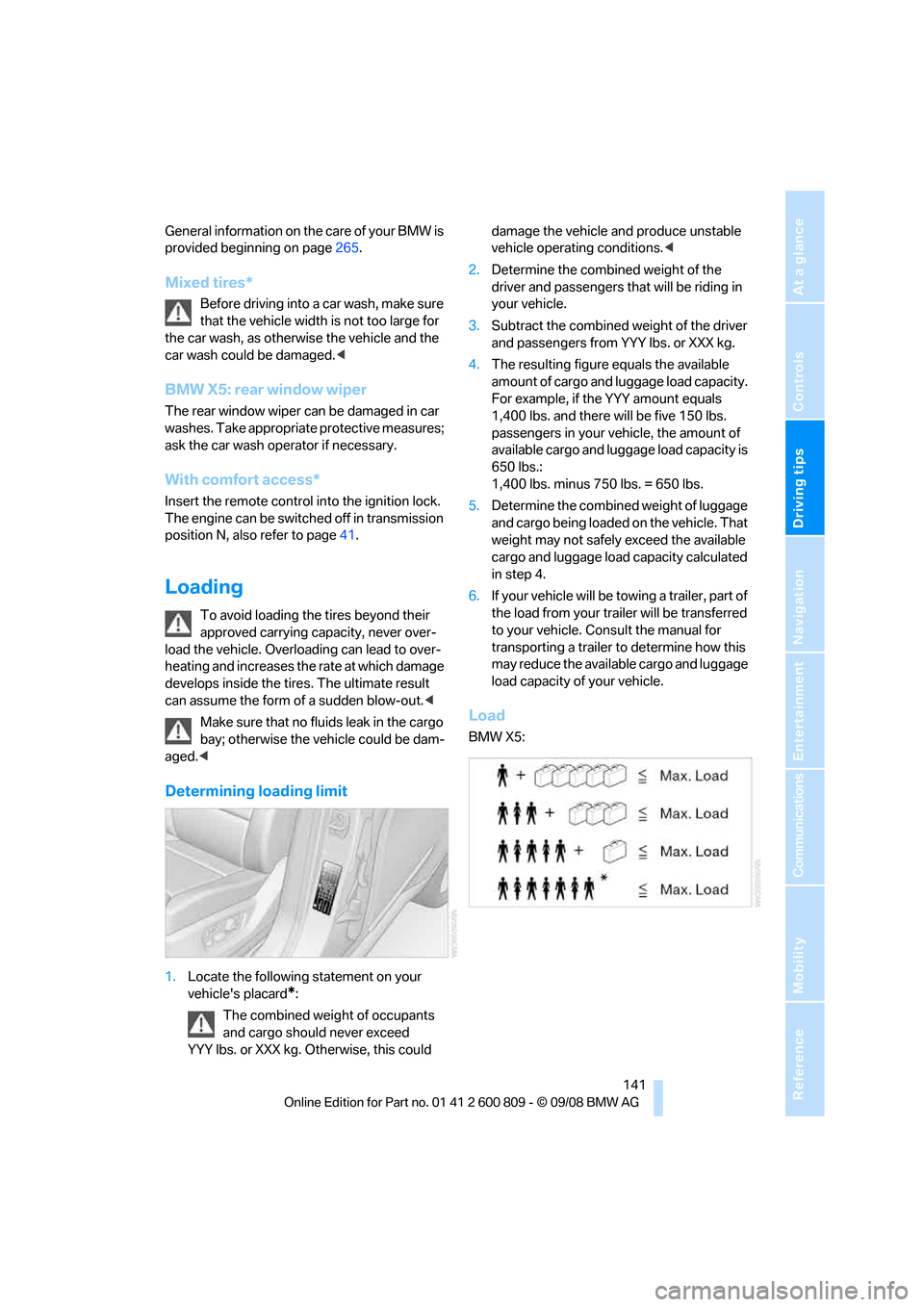
Load
BMW X5:
Page 146 of 317

Things to remember when driving
144
Driving on poor roads
Your BMW is at home on all roads and surfaces.
It combines a 4-wheel drive system with the
advantages of a normal passenger car.Do not drive on unpaved terrain, as other-
wise the vehicle may be damaged. <
When you are driving on poor roads, there are a
few points which you shou ld strictly observe for
your own safety, for that of your passengers,
and for the safety of the vehicle:
> Familiarize yourself wi th the vehicle before
driving off and avoid taking risks at all costs.
> Adapt your driving spee d to the road condi-
tions. The steeper and rougher the road
surface is, the lower the speed should be.
> If you want to drive on very steep uphill or
downhill gradients, ma ke sure beforehand
that the engine oil and coolant levels are
near the MAX mark, refer to page 259.
BMW X5: you can operate your vehicle on
uphill and downhill gradients with a maxi-
mum slope of 50 %.
> On very steep downhill slopes, use Hill
Descent Control HDC, refer to page 98.
BMW X5: it is possible to start off on inclines
of up to 33 %. The permissible body roll is
50 %.
> While driving, watch carefully for obstacles
such as rocks or holes. Try to avoid these
obstacles whenev er possible.
> Make sure that the undercarriage does not
touch the ground, for example on crests and
bumpy roads. The ground clearance of the
vehicle is a maximum of approx. 8 in/20 cm.
Please note that the ground clearance can
vary depending on lo ading and the driving
conditions of the vehicle.
> Only drive through road surface water up to
a maximum water depth of
> BMW X5 20 in/50 cm
> BMW X6 17 in/45 cm
and only drive at walking speed; do not
remain stationary. >
After driving through water at low speed,
lightly press the brake pedal several times
to dry the brakes and to prevent the braking
effect from being reduced by wetness.
> Depending on the condition of the surface,
it may be practical to briefly activate DTC,
refer to DTC Dynamic Traction Control on
page 97.
> If the drive wheels spin on one side, depress
the accelerator pedal su fficiently so that the
driving stability control systems can distrib-
ute the drive forces to the individual wheels.
Please note the following points after driving on
poor roads to maintain the driving safety of your
BMW:
> Clean the coarsest dirt from the body.
> Clean mud, snow, ice etc. from the wheels
and tires and check the tires for damage.
Page 152 of 317
Destination entry
150
Destination entry
In entering your destination you can select from
among the following options:
>Entering a destination manually, see below
> Entering destination via voice*, refer to
page 153
> Selecting destination using information,
refer to page 156
> Selecting destination from a list, refer to
Destination list, page 157
> Selecting destination from address book,
refer to page 158
> Selecting home addr ess, refer to page160
After selecting your de stination you can pro-
ceed to start the destin ation guidance, refer to
page 162.
You can also store a navigation destination on
the programmable memo ry buttons, refer to
page 21.
Enter data only with the vehicle station-
ary, and always give priority to the appli-
cable traffic regulations in the event of any con-
tradiction between traffic and road conditions
and the instructions issu ed by the navigation
system. If you do not ob serve this precaution,
you can endanger the vehicle occupants and
other road users.
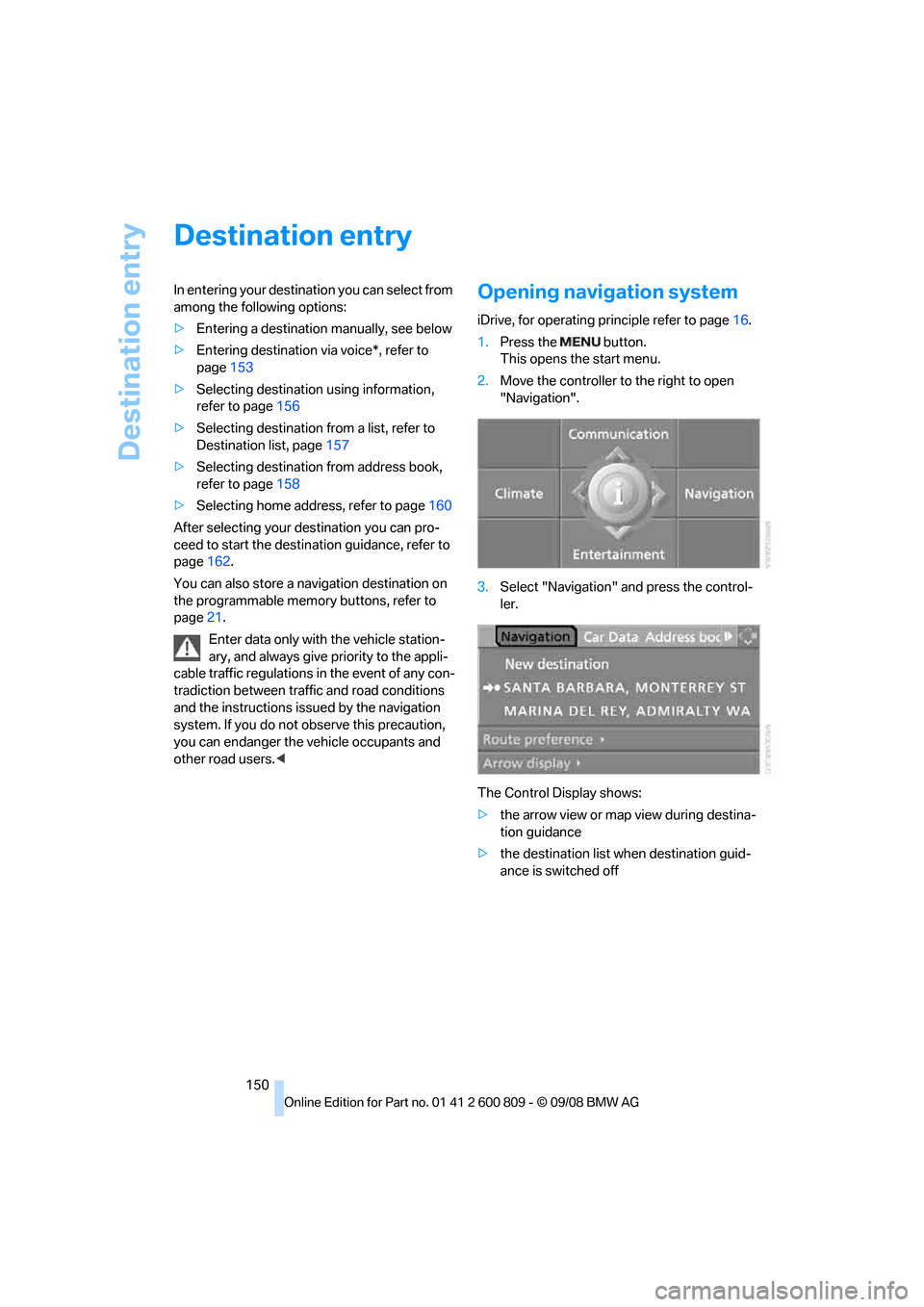
1. Press the button.
This opens the start menu.
2. Move the controller to the right to open
"Navigation".
3. Select "Navigation" and press the control-
ler.
The Control Display shows:
> the arrow view or map view during destina-
tion guidance
> the destination list when destination guid-
ance is switched off
Page 168 of 317
Destination guidance
166
Setting volume of voice instructions
The volume can only be adjusted while a voice
instruction is being output.
1.Repeat the last voice instruction, if neces-
sary.
2. Turn the knob during the voice instruction
to select the desired volume.
This volume is independen t of the volume of the
audio sources.
The setting is stored fo r the remote control cur-
rently in use.
Changing route
During destination guidan ce, you can revise the
navigation system's route recommendations to
avoid particular stretches of road. Enter the
number of miles/kilomete rs that you want to
travel before returning to the original route.
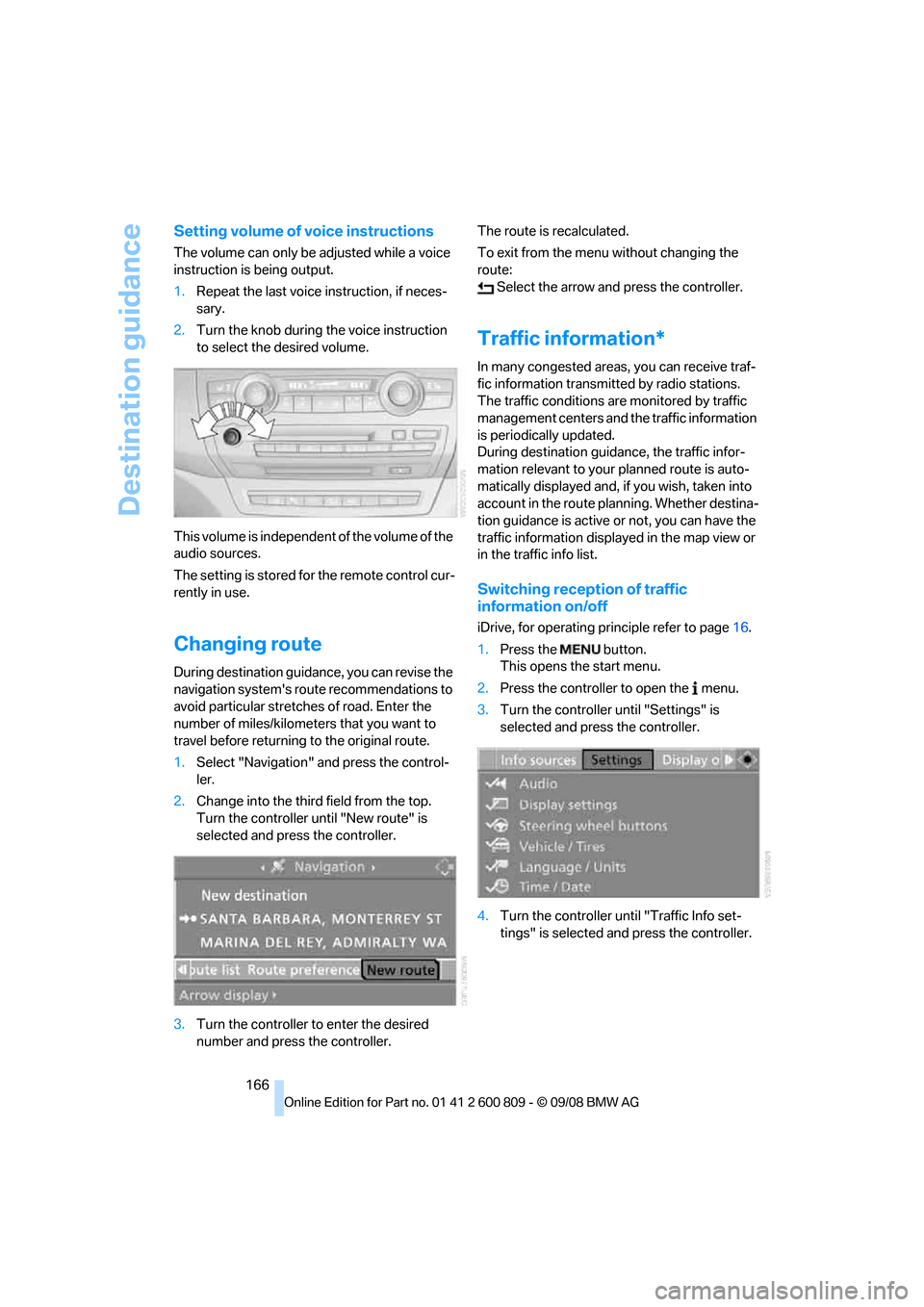
1. Select "Navigation" and press the control-
ler.
2. Change into the third field from the top.
Turn the controller until "New route" is
selected and press the controller.
3. Turn the controller to enter the desired
number and press the controller. The route is recalculated.
To exit from the menu without changing the
route:
Select the arrow and press the controller.
Traffic information*
In many congested areas, you can receive traf-
fic information transmitted by radio stations.
The traffic conditions ar e monitored by traffic
management centers and the traffic information
is periodically updated.
During destination guid ance, the traffic infor-
mation relevant to your planned route is auto-
matically displayed and, if you wish, taken into
account in the route planning. Whether destina-
tion guidance is active or not, you can have the
traffic information displayed in the map view or
in the traffic info list.
Switching reception of traffic
information on/off
iDrive, for operating pr inciple refer to page16.
1. Press the button.
This opens the start menu.
2. Press the controller to open the menu.
3. Turn the controller until "Settings" is
selected and press the controller.
4. Turn the controller until "Traffic Info set-
tings" is selected and press the controller.
Page 188 of 317
Satellite radio
186
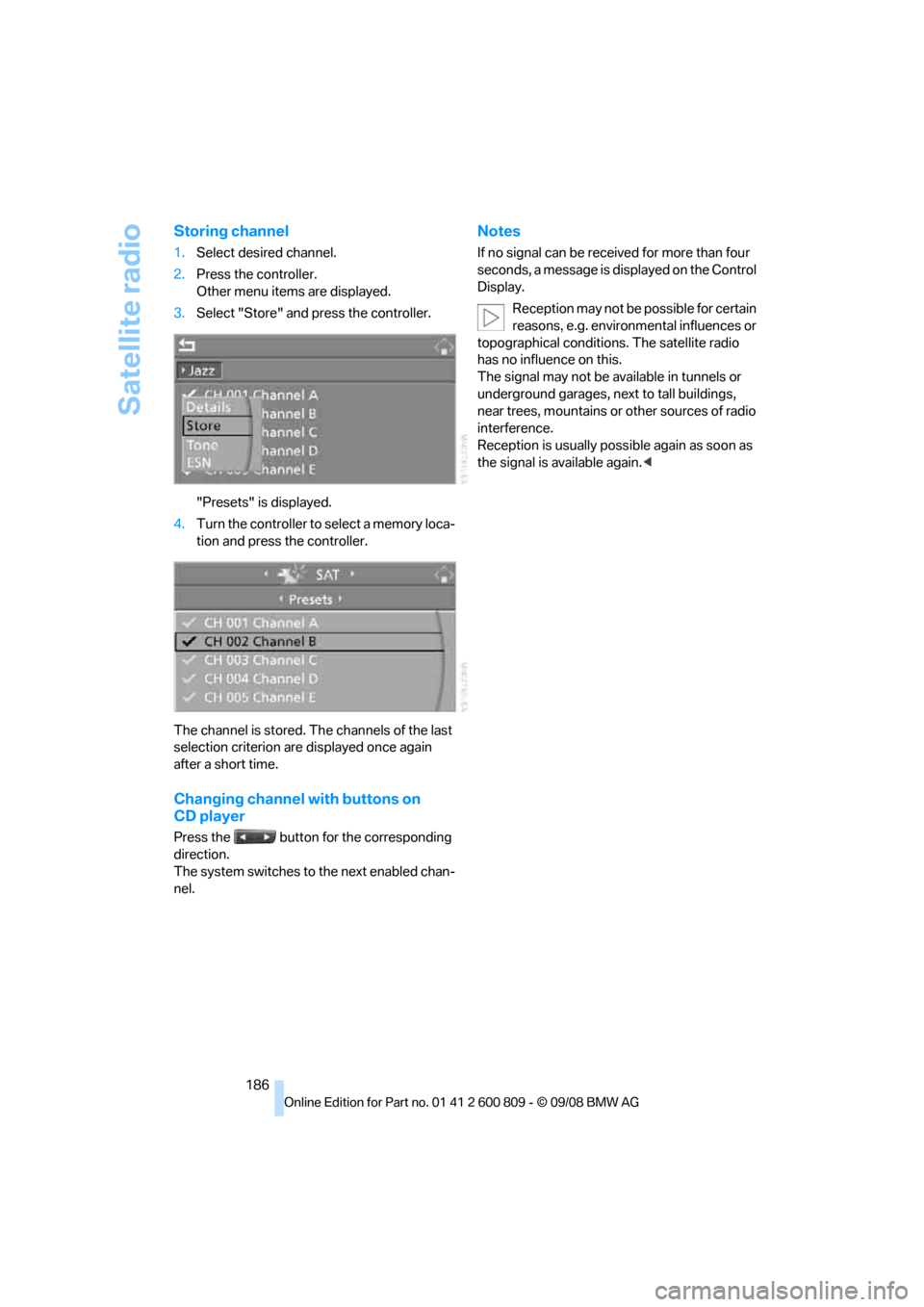
Storing channel
1.Select desired channel.
2. Press the controller.
Other menu items are displayed.
3. Select "Store" and press the controller.
"Presets" is displayed.
4. Turn the controller to select a memory loca-
tion and press the controller.
The channel is stored. Th e channels of the last
selection criterion are displayed once again
after a short time.
Changing channel with buttons on
CD player
Press the button for the corresponding
direction.
The system switches to the next enabled chan-
nel.
Notes
If no signal can be rece ived for more than four
seconds, a message is displayed on the Control
Display.
Reception may not be possible for certain
reasons, e.g. environmental influences or
topographical conditions. The satellite radio
has no influence on this.
The signal may not be av ailable in tunnels or
underground garages, ne xt to tall buildings,
near trees, mountains or other sources of radio
interference.
Reception is usually poss ible again as soon as
the signal is available again. <
Page 205 of 317
Navigation
Entertainment
Driving tips
203Reference
At a glance
Controls
Communications
Mobility
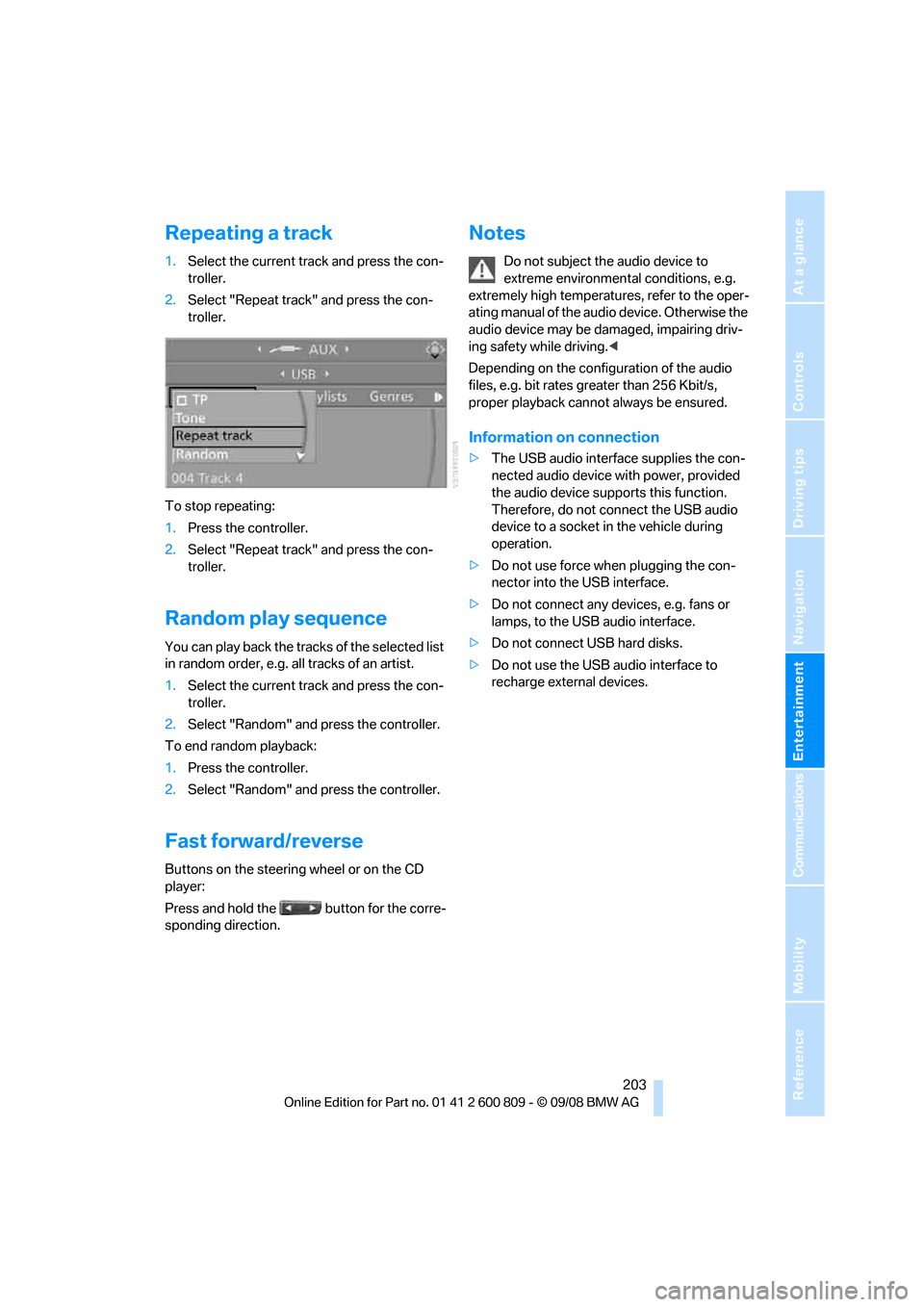
Repeating a track
1.Select the current track and press the con-
troller.
2. Select "Repeat track" and press the con-
troller.
To stop repeating:
1. Press the controller.
2. Select "Repeat track" and press the con-
troller.
Random play sequence
You can play back the trac ks of the selected list
in random order, e.g. a ll tracks of an artist.
1. Select the current track and press the con-
troller.
2. Select "Random" and press the controller.
To end random playback:
1. Press the controller.
2. Select "Random" and press the controller.
Fast forward/reverse
Buttons on the steering wheel or on the CD
player:
Press and hold the button for the corre-
sponding direction.
Notes
Do not subject the audio device to
extreme environmental conditions, e.g.
extremely high temperatures, refer to the oper-
ating manual of the audio device. Otherwise the
audio device may be damaged, impairing driv-
ing safety while driving. <
Depending on the configuration of the audio
files, e.g. bit rates greater than 256 Kbit/s,
proper playback cannot always be ensured.
Information on connection
> The USB audio interface supplies the con-
nected audio device with power, provided
the audio device suppo rts this function.
Therefore, do not connect the USB audio
device to a socket in the vehicle during
operation.
> Do not use force when plugging the con-
nector into the USB interface.
> Do not connect any devices, e.g. fans or
lamps, to the USB audio interface.
> Do not connect USB hard disks.
> Do not use the USB audio interface to
recharge external devices.
Page 207 of 317
Navigation
Entertainment
Driving tips
205Reference
At a glance
Controls
Communications
Mobility
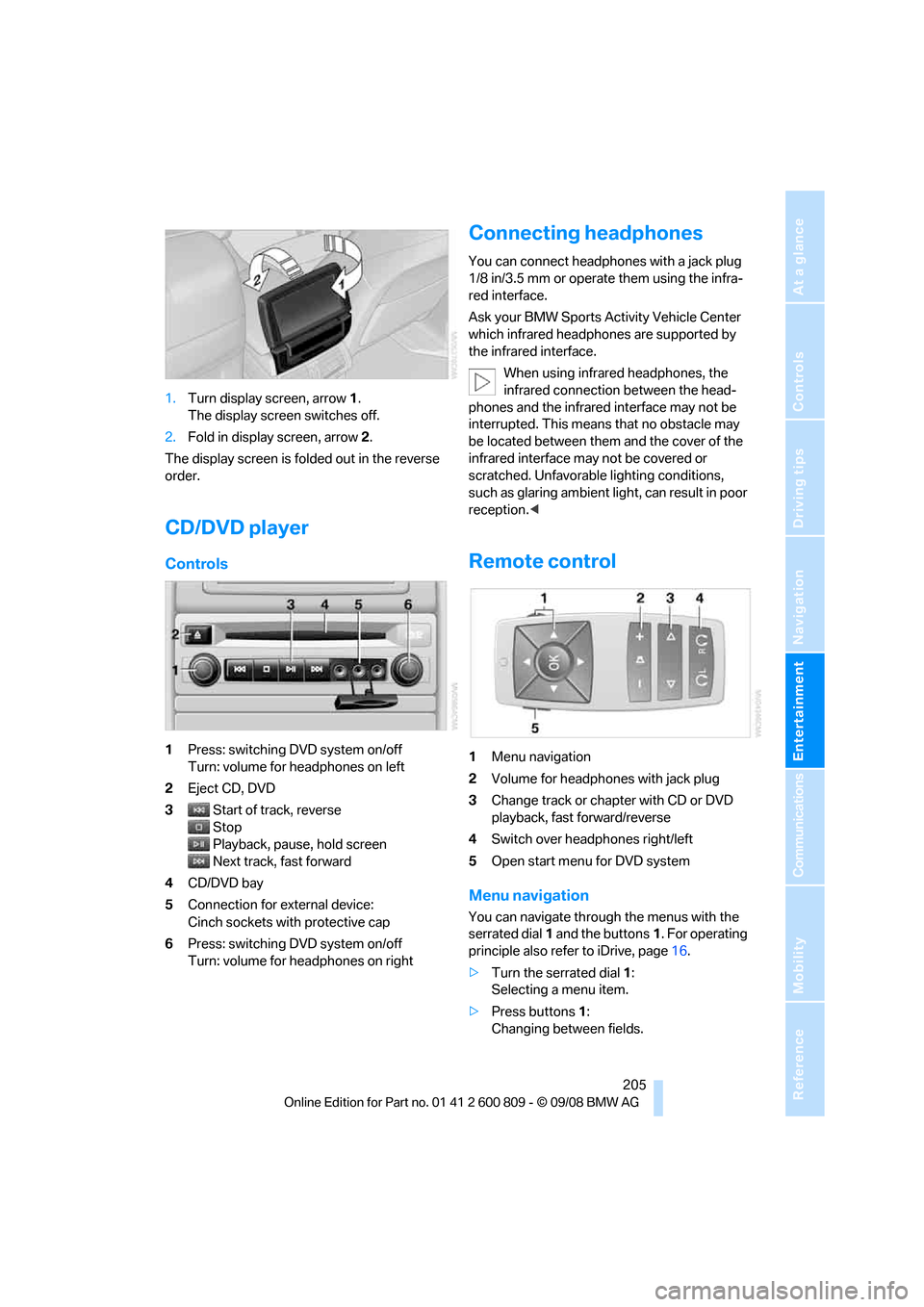
1.Turn display screen, arrow 1.
The display screen switches off.
2. Fold in display screen, arrow 2.
The display screen is folded out in the reverse
order.
CD/DVD player
Controls
1 Press: switching DVD system on/off
Turn: volume for he adphones on left
2 Eject CD, DVD
3 Start of track, reverse
Stop
Playback, pause, hold screen
Next track, fast forward
4 CD/DVD bay
5 Connection for external device:
Cinch sockets with protective cap
6 Press: switching DVD system on/off
Turn: volume for he adphones on right
Connecting headphones
You can connect headphones with a jack plug
1/8 in/3.5 mm or operate them using the infra-
red interface.
Ask your BMW Sports Activity Vehicle Center
which infrared headphones are supported by
the infrared interface.
When using infrared headphones, the
infrared connection between the head-
phones and the infrared interface may not be
interrupted. This means that no obstacle may
be located between them and the cover of the
infrared interface may not be covered or
scratched. Unfavorable lighting conditions,
such as glaring ambient lig ht, can result in poor
reception. <
Remote control
1Menu navigation
2 Volume for headphones with jack plug
3 Change track or chapter with CD or DVD
playback, fast forward/reverse
4 Switch over headphones right/left
5 Open start menu for DVD system
Menu navigation
You can navigate throug h the menus with the
serrated dial 1 and the buttons 1. For operating
principle also refer to iDrive, page 16.
> Turn the serrated dial 1:
Selecting a menu item.
> Press buttons 1:
Changing between fields.
Page 237 of 317
235
Entertainment
Reference
At a glance
Controls
Driving tips
Communications
Navigation
Mobility
BMW Assist
BMW Assist provides you with various services.
For example, the position data of your vehicle
can be transferred to the BMW Assist
Response Center if an emergency request
* has
been initiated.
Many BMW Assist services depend on the indi-
vidually agreed contract.
After your contract has expired, the BMW
Assist system will be deactivated by the BMW
Assist Response Center without you having to
visit a BMW Sports Activity Vehicle Center.
After the BMW Assist system has been deacti-
vated, no BMW Assist se rvice will be available.
The BMW Assist system can be reactivated by
a BMW Sports Activity Vehicle Center after
signing a new contract.
Requirements
If the following requirements are met, you can
use BMW Assist:
> The installed BMW Assist system is logged
in on a wireless communications network.
This network must be capable of transmit-
ting the services.
> To transmit position data, the vehicle must
be able to determine the current position.
> To activate and update BMW Assist, a GPS
signal must be available.
> You have subscribed to BMW Assist with
your BMW Sports Activity Vehicle Center or
with the BMW Assist Response Center.
Enabling must have been completed.
> BMW Assist is activated, refer to page 240.
Offered services
The following services are available via
BMW Assist:
>Emergency request, refer to page 279:
When you press the SOS button, a connec-
tion is established to the BMW Assist
Response Center. The BMW Assist
Response Center contacts you and takes
further steps to help you.
> Automatic collision notification:
Under certain conditions, a connection is
established to the BMW Assist Response
Center after a serious accident. If possible,
the BMW Assist Response Center contacts
you and takes further steps to help you.
> Enhanced roadside assistance:
You can call BMW Roadside Assistance
*
should you require help in the event of a
breakdown. If possible, the vehicle and
position data are transmitted in the process.
> BMW Customer Relations:
For information on all aspects of your vehi-
cle, you can be connected to BMW Cus-
tomer Relations.
> BMW TeleServices
*:
The data on the service status of your vehi-
cle or on required inspections are transmit-
ted to your BMW Sports Activity Vehicle
Center either automati cally prior to the due
date or when you request a BMW service
appointment.
> Unlocking and locking the vehicle:
Inform the BMW Assist Response Center,
e.g. if your remote control is not available
and you want to have the vehicle opened or
closed.
> Stolen vehicle recovery:
After your vehicle has been reported to the
police as stolen, the BMW Assist Response
Center can locate its position.
In addition, you can be provided with other ser-
vices, e.g. the concierg e service or information
*