2008 VOLVO S80 radio
[x] Cancel search: radioPage 138 of 275
Fast-forward/change CD tracks and sound files
Short presses
/ on the navigation button are used to scroll between CD tracks/sound files. Long presses are used
to search within CD tracks/sound files. TUNING (or the steering wheel keypad) can also be used for this purpose.
Scan CD
This function plays the first ten seconds of each CD track/sound file. Press SCAN to activate. Interrupt with EXIT or
SCAN to continue playing the current CD track/sound file.
Random
This function plays the tracks in random order (shuffle). The random CD tracks/sound files can be scrolled through in
the normal way.
NOTE
It is only possible to scroll between random CD tracks on the current disc.
Different messages are displayed depending on which random function has been selected:
RANDOM means that the tracks from only one music CD are played
RND ALL means that all tracks on all music CDs in the optional CD changer are played.
RANDOM FOLDER means that the sound files in a directory on the current CD are played.
CD player
If a normal music CD is being played, activate/deactivate under Random .
If a disc with sound files is being played, activate/deactivate under Random
Folder .
140 04 Comfort and driving pleasure
Audio system
CD changer
If a normal music CD is being played under Random
Single disc or Random All discs. The option All discs only
applies to the music CDs in the changer.
If a CD with sound files is being played, activate/deactivate instead under Random
Folder . If you select another CD
the function is deactivated.
Disc text
If title information is stored on a music CD it can be shown on the display
1. Activate/deactivate in CD mode under CD
settings
Disc text.
1Only applies to the CD changer.
141 04 Comfort and driving pleasure
Audio system
Radio functions
Page 139 of 275
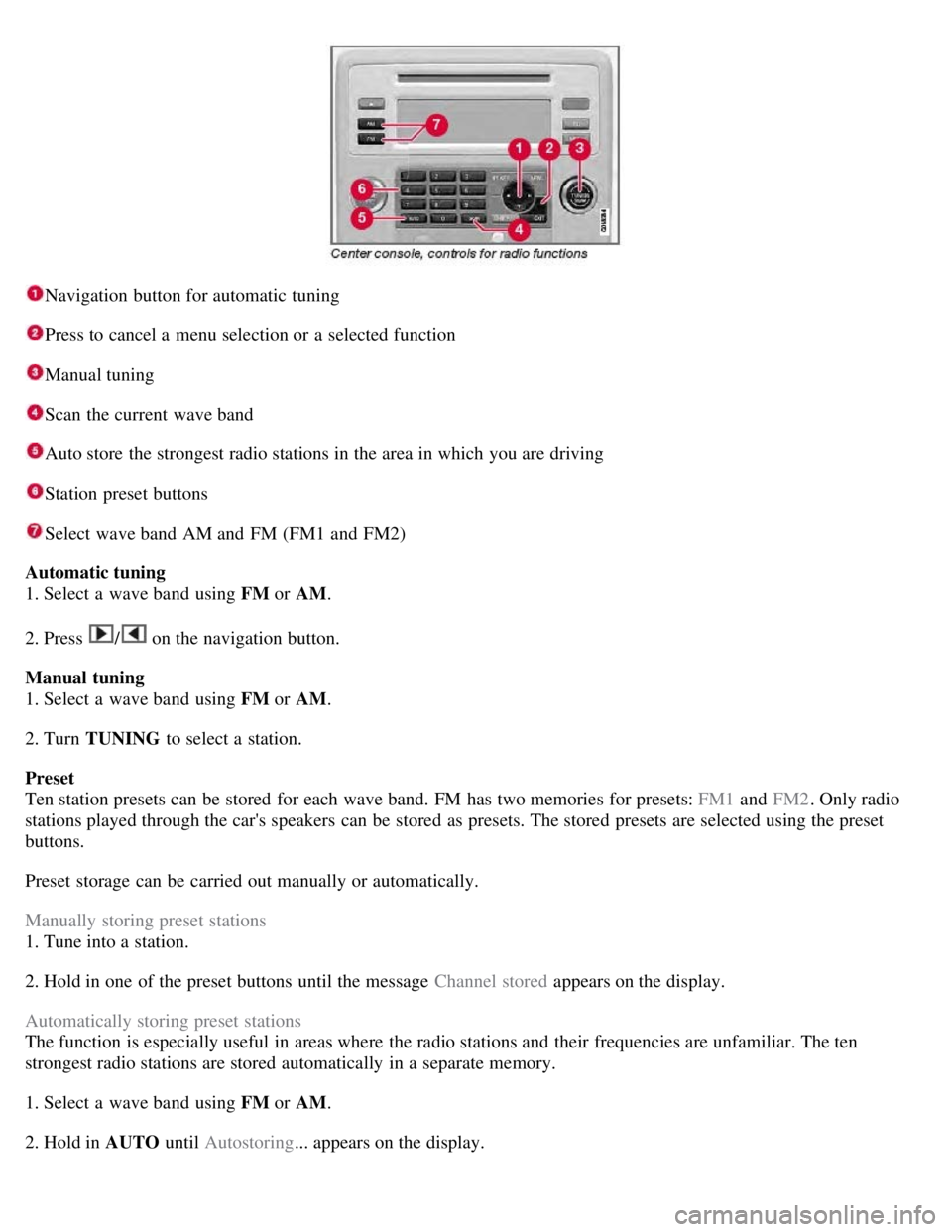
Navigation button for automatic tuning
Press to cancel a menu selection or a selected function
Manual tuning
Scan the current wave band
Auto store the strongest radio stations in the area in which you are driving
Station preset buttons
Select wave band AM and FM (FM1 and FM2)
Automatic tuning
1. Select a wave band using FM or AM.
2. Press
/ on the navigation button.
Manual tuning
1. Select a wave band using FM or AM.
2. Turn TUNING to select a station.
Preset
Ten station presets can be stored for each wave band. FM has two memories for presets: FM1 and FM2. Only radio
stations played through the car's speakers can be stored as presets. The stored presets are selected using the preset
buttons.
Preset storage can be carried out manually or automatically.
Manually storing preset stations
1. Tune into a station.
2. Hold in one of the preset buttons until the message Channel stored appears on the display.
Automatically storing preset stations
The function is especially useful in areas where the radio stations and their frequencies are unfamiliar. The ten
strongest radio stations are stored automatically in a separate memory.
1. Select a wave band using FM or AM.
2. Hold in AUTO until Autostoring... appears on the display.
Page 140 of 275
Once Autostoring... disappears from the display, the stations are stored. The radio continues in Auto mode and Auto
appears on the display. The automatically stored presets can now be selected using the preset buttons. Automatic
preset storage can be cancelled using EXIT .
Auto mode is cancelled by pressing for example AUTO or FM.
Returning to Auto mode provides access to the autostored presets:
1. Press AUTO .
Auto appears on the display.
2. Press a preset button.
Scan
The function automatically searches the current wave band for strong stations. When a station is found, it is played for
approx. eight seconds before scanning is resumed. While the station is playing it can be stored as a preset as usual.
1. Select a wave band using AM or FM.
2. Press SCAN .
SCAN appears on the display. Close using SCAN or EXIT.
142 04 Comfort and driving pleasure
Audio system
Radio text
Some stations transmit information on program content, artists, etc. This information can be shown on the display.
Activate/deactivate in FM mode under Radio text.
143 04 Comfort and driving pleasure
Audio system
Sirius satellite radio (option)
Listening to satellite radio
The Sirius satellite system consists of a number of high elevation satellites in geosynchronous orbit.
NOTE
The digital signals from the Sirius satellites are line-of-sight, which means that physical obstructions such as
bridges, tunnels, etc, may temporarily interfere with signal reception.
Avoid any obstructions, such as metallic objects transported on roof racks or in a ski box, or other antennas that
may impede signals from the SIRIUS satellites.
Selecting Sirius radio mode
1. Press Power to switch on the audio system (see pages 137
and 141 for information on the standard audio and radio
functions).
Page 141 of 275
2. Press the MODE button repeatedly until Sirius 1 or 2 is displayed.
Activating Sirius radio
1. Tune to a satellite channel that has no audio, which means that the channel is unsubscribed and the text "Call 888-
539- SIRIUS TO SUBSCRIBE" is displayed (see also "Selecting a channel".
2. Call Sirius at 1-888-539-SIRIUS (7474).
3. When asked for the Sirius ID number press AUTO to display this number. It is also possible to retrieve the Sirius ID
from the menu.
4. UPDATING SUBSCRIPTION will be displayed while the subscription is being updated, after which the display
will return to the normal view.
SIRIUS ID
The SIRIUS ID is required when contacting the Sirius Call Center. It is used to activate your account and when making
any account transactions. The SIRIUS ID is sometimes referred to as the Electronic Serial Number (ESN).
Selecting a channel category
1. Select Sirius radio mode as described above.
2. Press ENTER .
3. Use the up/down arrow keys to scroll through the list of categories.
4. Press ENTER or the right arrow key to select a category.
The first channel in the selected category will then be played.
NOTE
The category ALL is default, which enables you to scroll through the entire list of available satellite channels.
The channel categories are automatically updated several times a year. This takes approximately two minutes and
will interrupt normal broadcasting. A message will be displayed while updating is in progress. Information on
channel or feature updates is available at www.sirius.com.
Selecting a channel
There are three ways of tuning in a channel:
Using the left and right arrow keys
By turning the tuning control
Through direct channel entry.
NOTE
The numbers of skipped or locked channels will not be displayed.
If a channel is locked, the access code must be entered before the channel can be selected. See "Unlocking a
channel" on page 145
.
144 04 Comfort and driving pleasure
Audio system
Page 142 of 275
Direct channel entry
The Sirius satellite channels are in numerical order throughout all of the categories. To access a channel directly:
1. Press MENU and scroll to Direct channel entry .
2. Use the numerical keypad to enter the channel's number.
3. Press ENTER . The radio will tune to this channel, even if it belongs to a category other than the currently selected
one.
Scanning
SCAN automatically searches through the list of satellite channels. The search will only be carried out in the selected
category. See page 141
for more detailed information.
Storing a channel
A total of 20 satellite channels can be stored; 10 channels each for Sirius 1 and 2. See page 141
for detailed
information on storing channels.
A long press on one of the number keys stores the currently tuned channel on that key.
A short press on a number key while the radio is in Sirius 1or 2 mode will tune to the preset satellite channel stored
on that button, regardless of the currently selected channel category.
Song Seek and Song Memory
The Song Seek and Song Memory functions provide both audio and visual notification when Sirius is broadcasting
your favorite songs. Song Seek enables you to store the name of the song for future advance notification when that
song is being played. The Song Memory feature makes it possible to view all of the current songs that are stored in
memory.
Song memory
Up to ten songs can be saved in the system's memory.
1. Press MENU .
2. Scroll to Add song to song mem. and follow the instructions shown in the display.
If a new song is selected when the memory is full, you will be prompted to press ENTER to delete the last song on
the list.
NOTE
The remaining songs in the list will move down one position, and the newly added song will be placed at the top of
the list.
Song seek
When a satellite radio channel plays one of the songs stored in the song memory, the listener will be alerted by a text
message and an audible signal.
Press ENTER to listen to the song or EXIT to cancel.
To activate/deactivate the song seek function:
1. Press MENU
2. Scroll to Song seek
Page 143 of 275
3. Press ENTER to activate or deactivate the function.
NOTE
When the song has ended, the radio will remain tuned to the channel on which the song was played.
Radio text
The text that is displayed about the song that is currently playing can be changed. Use the AUTO button or the menu
to display the Artist, Title, Composer, or switch radio text off.
145 04 Comfort and driving pleasure
Audio system
Advanced settings
This menu function enables you to make settings on certain Sirius satellite radio functions. To access this menu:
1. Press MENU .
2. Scroll to the Sirius menu.
3. Select Advanced Sirius settings .
WARNING
Settings should be made when the vehicle is at a standstill.
The following settings can be made in the Sirius menu:
The list of saved songs can be displayed
Channel skip settings can be made
Channel lock settings can be made
The channel access code can be displayed or changed
Your Sirius ID can be displayed
Skip options
This function is used to remove a channel from the list of available channels.
Skipping a channel
1. Select CHANNEL SKIP LIST and press ENTER.
2. Select a category in the list and press ENTER .
3. Skip channels in the list presented by pressing ENTER or right arrow key.
Unskip all channels
This permanently removes all channels from the skip list and makes them available for selection.
Temp. unskip all ch.
This function will temporarily unskip all channels and make them available for selection. The channels remain on the
skip list and will again be skipped the next time the ignition is switched on.
Page 264 of 275
2 0 0 8
VOLVO S80
278 Index
12-volt sockets 185
A
Accessory installation warning7
Active Bi -Xenon® headlights90
Active chassis system153
Active yaw control151
Adaptive cruise control156-159
Air conditioning130
Air distribution127
Air distribution table133
Air vents128
Airbags
disconnecting the front passenger's side 22-24
front19- 21
inflatable curtain27
side impact25
Alarm system 67-69
All Wheel Drive112
Anti-freeze190, 214
Anti-lock brake system113
warning light75
Approach lighting 54, 94
Audio system
audio functions 137
CD player/changer138, 138
menu control135
overview134
radio functions141
Sirius satellite radio143- 146
sound settings137
steering wheel keypad134
Auto-dim rearview mirror 100
Automatic locking63
Automatic locking retractor33
Automatic transmission
Page 271 of 275

Panic alarm55
Park assist176-178
Parking brake
electric, applying/releasing 116
manual, applying/releasing115
warning light76
Parking lights 90
changing bulbs217- 218
Personal Car Communicator, unique functions55-56
Power front seat
memory function 83
with keyless drive84
Power mirrors 99
defroster100
Power moonroof 101-102
Power steering
fluid 215
, 275
speed-dependent153
Power windows 97
laminated glass98
Pregnancy, using seat belts during 17
Proposition 65 warning9, 109, 228, 276
R
Radio
functions 141
Sirius satellite radio143- 146
Rain sensor95
READ button124-125
Rear fog light91
Rear park assist176-178
Rear seats
center head restraint 85
folding85
heated129
lowering outboard head restraints86
Rear window defroster 100
Rearview mirror
auto-dim function 100
compass149
Recall, child restraints 44
Refrigerant275
Refueling192-193
fuel filler cap196
fuel filler door194