Page 198 of 268

AUDIO/VIDEO SYSTEM
218
�DVD audio
If you touch a part of the screen, where
controls are not located while watching
video, DVD controls will appear.
“> Page2”: Touching this will display on
the second page of DVD controls.
“< Page1”: Touching this will display the
top page of DVD controls.
“Hide Buttons”: Touching this will turn off
the controls from the screen.
If “
” appears on the screen when you
touch a control, the operation relevant to
the control is not permitted.
�Description of DVD controls
TOP PAGE OF DVD VIDEO CONTROLS
“Menu” and “Top Menu”: If you touch ei-
ther button, the menu screen for DVD vid-
eo appears. (For the operation, see the
manual that come with the DVD video disc
provided separately.)
: The menu control key appears on
the screen. (See page 219.)
: Touching this will pause the video
screen.
: Touching this will fast reverse.
: Touching this will stop the DVD
video disc.
: Touching this will resume normal
play after stop or pause.
: Touch this button to fast forward
during the playback. During pause, touch
this button briefly to advance frame by
frame, or touch and hold it to play slowly.
SECOND PAGE OF DVD VIDEO
CONTROLS
“Setup”: The initial setup screen appears.
(See page 224.)
“Search”: The title search screen ap-
pears. (See page 220.)
“Return”: Touching this will display the
predetermined scene and start playing
from there.
“AUDIO”: The audio changing screen ap-
pears. (See page 223.)
“Subtitle”: The subtitle changing screen
appears. (See page 222.)
“Angle”: The angle selection screen ap-
pears. (See page 224.)
Page 199 of 268

AUDIO/VIDEO SYSTEM
219
TOP PAGE OF DVD AUDIO CONTROLS
“Top Menu”: If you touch this button, the
menu screen for DVD audio appears. (For
operation, refer to the DVD audio disc
manual that is provided separately.)
“AUDIO”: The audio changing screen ap-
pears. (See page 223.)
: The menu control key appears on
the screen. (See page 219.)
: Touch this button to pause the
disc.
: Touching this will fast reverse.
: Touching this will stop the disc.
: Touching this will resume normal
play after stop or pause.
: Touch this button to fast forward
during the playback. During pause, touch
this button briefly to advance frame by
frame, or touch and hold it to play slowly.
SECOND PAGE OF DVD AUDIO
CONTROLS
“Setup”: The initial setup screen ap-
pears. (See page 224.)
“Select Number”: The track or number
search screen appears. (See page 220.)
“Search”: The group search screen ap-
pears. (See page 221.)
“Return”: Touching this will display the
predetermined scene and start playing
from there.
“Prev. Still”: Touch this button to reverse
the still pictures. (See page 222.)
“Next Still”: Touch this button to forward
the still pictures. (See page 222.)
“Subtitle”: The subtitle changing screen
appears. (See page 222.)
“Angle”: The angle selection screen ap-
pears. (See page 224.)
�Selecting a menu item
Enter the menu item using �, �, and
� buttons and touch “Enter”.
The changer starts playing video for that
menu item. (For details, see the manual
that comes with the DVD video disc pro-
vided separately.)
Each time you touch “Move Buttons”, the
controls on the screen move upward and
downward.
When you touch “<
will disappear. To display them again,
touch “>>ON”.
When you touch
, the previous
screen returns.
Page 200 of 268
AUDIO/VIDEO SYSTEM
220 �
Searching by title
DVD video only —
Enter the title number and touch “En-
ter”.
The player starts playing video for that title
number.
When you push the “
” or “” button of
“SEEK·TRACK”, you can select a chap-
ter.
If you enter the wrong numbers, touch
“Clear” to delete the numbers.
When you touch
, the previous
screen returns.
�Searching by track
DVD audio only —
Enter the track numbers on the search-
ing track screen and touch “Enter”.
The changer starts playing video for that
title number.
You can select a track number by pushing
the “
” or “” button of
“SEEK·TRACK”.
If you enter the wrong numbers, touch
“Clear” to delete the numbers.
Touch
, and the previous screen re-
turns.
Page 201 of 268
AUDIO/VIDEO SYSTEM
221 �
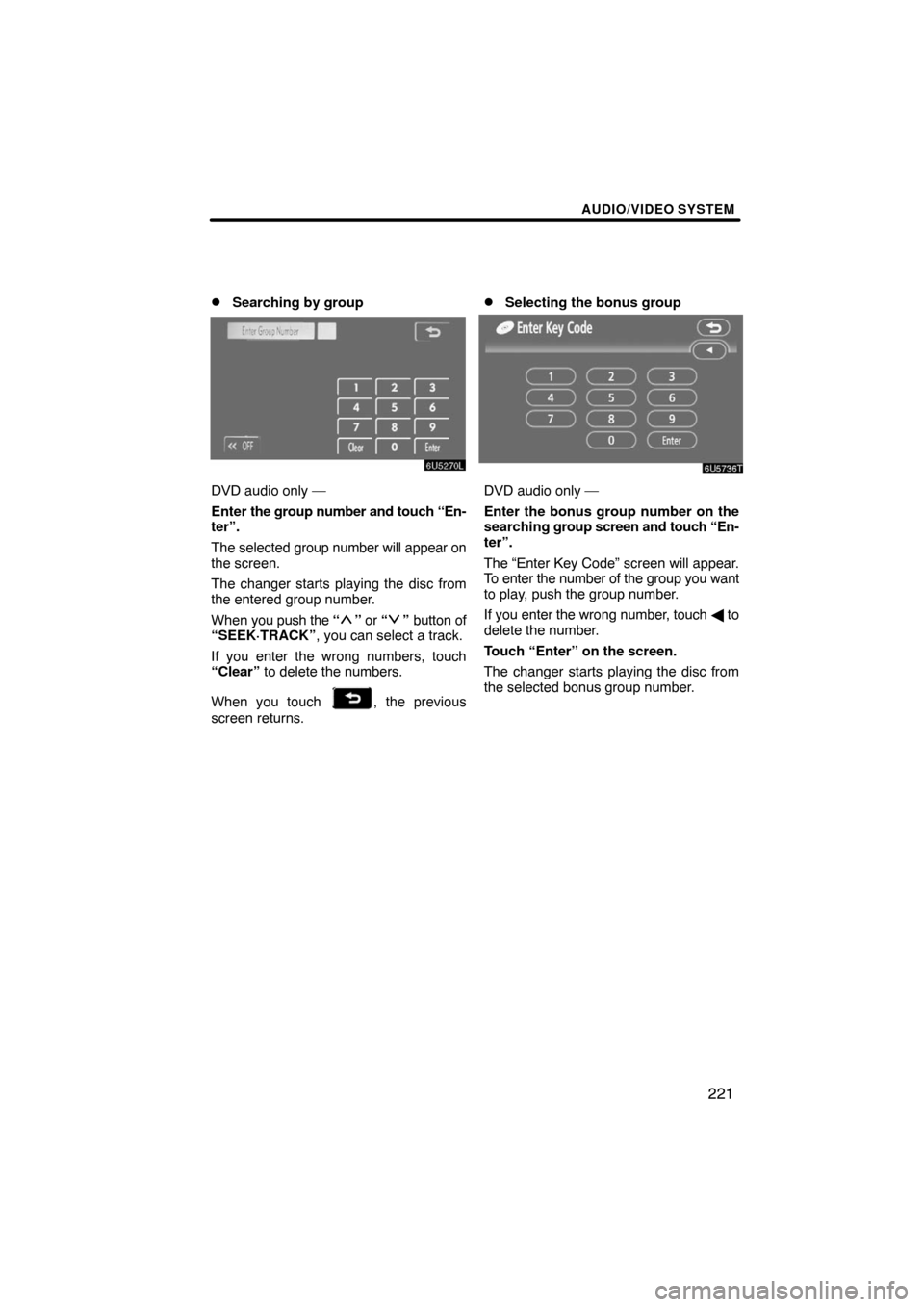
Searching by group
DVD audio only —
Enter the group number and touch “En-
ter”.
The selected group number will appear on
the screen.
The changer starts playing the disc from
the entered group number.
When you push the “
” or “” button of
“SEEK·TRACK”, you can select a track.
If you enter the wrong numbers, touch
“Clear” to delete the numbers.
When you touch
, the previous
screen returns.
�Selecting the bonus group
DVD audio only —
Enter the bonus group number on the
searching group screen and touch “En-
ter”.
The “Enter Key Code” screen will appear.
To enter the number of the group you want
to play, push the group number.
If you enter the wrong number, touch � to
delete the number.
Touch “Enter” on the screen.
The changer starts playing the disc from
the selected bonus group number.
Page 202 of 268
AUDIO/VIDEO SYSTEM
222 �
Changing the still picture
DVD audio only —
Touch “Prev. Still” or “Next Still” on the
screen to forward or reverse the still
pictures.
�Changing the subtitle language
Each time you touch “Subtitle”, the lan-
guage is selected from the ones stored
in the discs and changed.
To turn off the subtitle, touch “Hide”.
When you touch
, the previous
screen returns.
Page 203 of 268
AUDIO/VIDEO SYSTEM
223 �
Changing the audio language
DVD video only —
Each time you touch “AUDIO”, the lan-
guage is selected from the ones stored
in the discs and changed.
When you touch
, the previous
screen returns.
�Changing the audio format
DVD audio only —
Each time you touch “AUDIO”, another
audio format stored on the disc is se-
lected.
When you touch
, the previous
screen returns.
Page 204 of 268
AUDIO/VIDEO SYSTEM
224 �
Changing the angle
The angle can be selected for discs that
are multi−angle compatible when the
angle mark appears on the screen.
Each time you touch “Angle”, the angle
changes.
When you touch
, the previous
screen returns.
�Setup menu
The initial setting can be changed.
After you change the initial setting, touch
“Enter”. The previous picture will be dis-
played.
When “Default” is touched, all menus are
initialized.
AUDIO LANGUAGE
You can change the audio language.
1. Touch “Audio Language”.
2. Touch the language you want to
hear on the “Select Audio Language”
screen.
If you cannot find the language you want to
hear on this screen, touch “Other” and en-
ter a language code. For the entry of lan-
guage code, see page 226.
Page 205 of 268

AUDIO/VIDEO SYSTEM
225
SUBTITLE LANGUAGE
You can change the subtitle language.
1. Touch “Subtitle Language”.
2. Touch a language you want to read
on the “Select Subtitle Language”
screen.
If you cannot find the language you want to
read on this screen, touch “Other” and en-
ter a language code. For the entry of lan-
guage code, see page 226.
To return to the “Setup Menu” screen,
touch
.
DVD LANGUAGE
You can change the language on the DVD
video menu.
1. Touch “DVD Language”.
2. Touch the language you want to
read on the “DVD Language” screen.
If you cannot find the language you want to
read on this screen, touch “Other” and en-
ter a language code. For the entry of lan-
guage code, see page 226.
To return to the “Setup Menu” screen,
touch
.ANGLE MARK
The multi−angle mark can be turned on or
off on the screen while the disc which is
multi−angle compatible is being played.
Each time you touch “Angle Mark”, the
angle mark on the screen turns on or off al-
ternately.
PARENTAL LOCK
The level of viewer restrictions can be
changed.
1. Touch “Parental Lock”.
2. Enter the 4digit personal code on
the “Enter Personal Code” screen.
If you enter the wrong numbers, touch “�”
to delete the numbers.
10 touches of “�” will initialize the person-
al code.
3. Touch a parental level (1 — 8) on the
“Restriction Level”.
To return to the “Setup Menu” screen,
touch
.