Page 255 of 496
243
NOTICE
�Benzene or alkaline solutions may
damage the coated surface of the
screen.
� To prevent the battery from being
discharged, do not turn on the rear
seat entertainment system longer
than necessary when the engine is
not running.
INFORMATION
�Wipe off fingerprints on the surface
of the display using a glass clean-
ing cloth.
� The displayed image may become
darker and moving images may be
slightly distorted when the display
is cold.
� When you look at the screen
through polarised material such as
polarised sunglasses, the screen
may be dark and hard to see. If so,
change the angle of the screen,
look at the screen from different
angles, adjust the screen settings
on the �Display" screen, or take off
your sunglasses.
The rear seat entertainment system can
be operated with the rear seat entertain-
ment system controller and buttons on the
DVD player unit. The system cannot be
operated by touching the switches on the
screen directly.
CAUTION
Do not disassemble or modify the
controller. It may cause an accident,
fire or electric shock.
NOTICE
Keep the controller away from direct
sunlight, high heat and high humidity.
These conditions could cause the
case to deform or the battery to ex-
plode or leak.
BEFORE USING THE CONTROLLER
(for new vehicle owners)
A battery is already set in the control-
ler with an insulating sheet, which pre-
vents the battery from being dis-
charged. Before using the controller,
remove the insulating sheet according
to the following procedure.
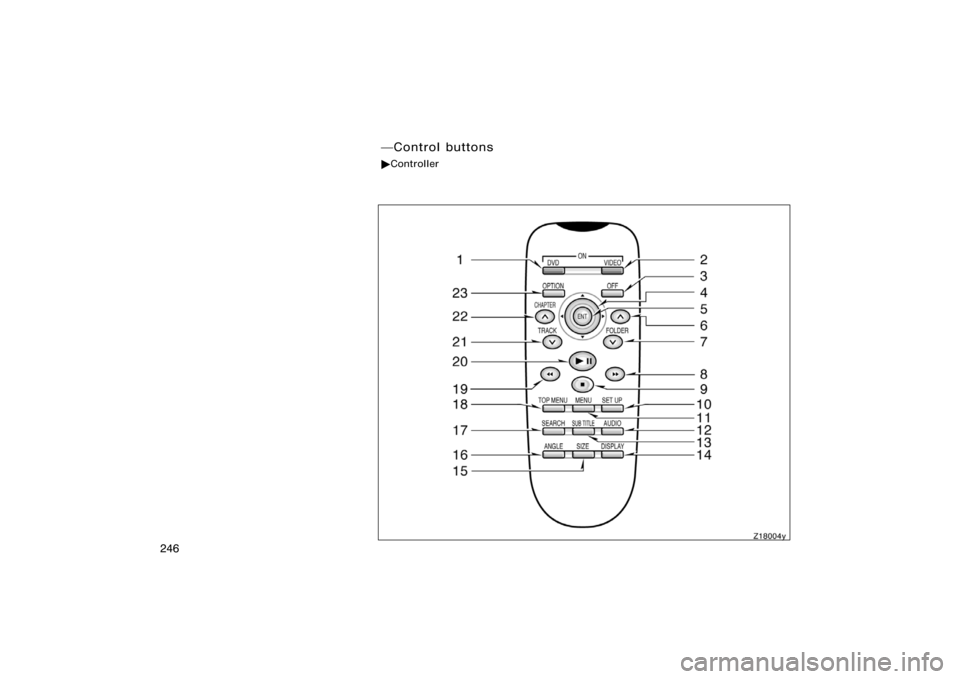
�Rear seat entertainment
system controller
Page 258 of 496
246
�Control buttons
�Controller
Page 265 of 496
253
Z17485
EJECTING THE DISC
Push the �
" button.
Z17461
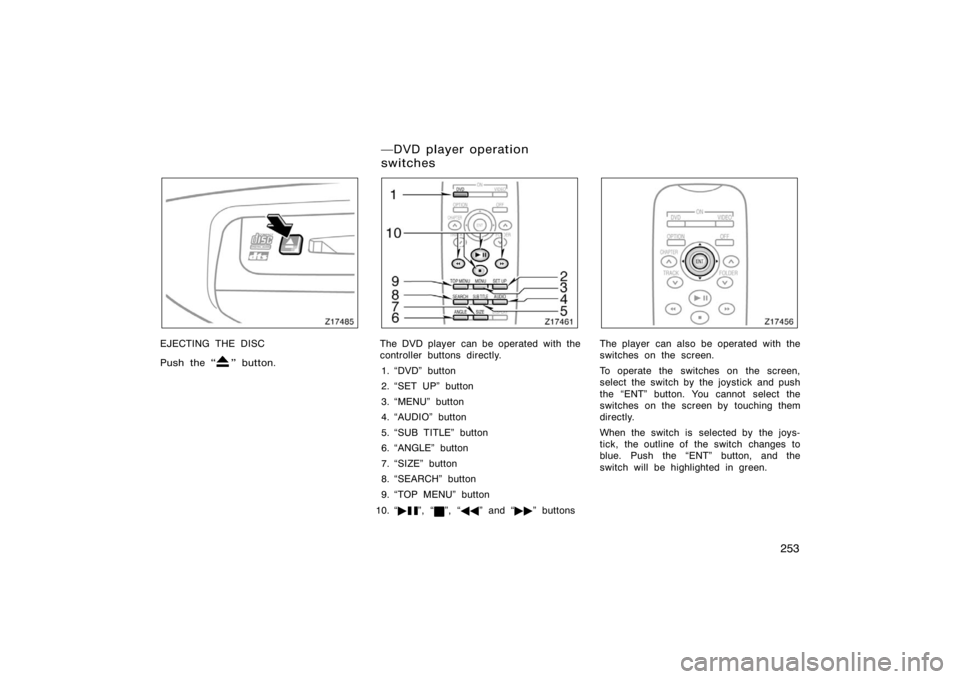
The DVD player can be operated with the
controller buttons directly.1. �DVD" button
2. �SET UP" button
3. �MENU" button
4. �AUDIO" button
5. �SUB TITLE" button
6. �ANGLE" button
7. �SIZE" button
8. �SEARCH" button
9. �TOP MENU" button
10. � �
", �", ��� " and ��� " buttons
Z17456
The player can also be operated with the
switches on the screen.
To operate the switches on the screen,
select the switch by the joystick and push
the �ENT" button. You cannot select the
switches on the screen by touching them
directly.
When the switch is selected by the joys-
tick, the outline of the switch changes to
blue. Push the �ENT" button, and the
switch will be highlighted in green.
�DVD player operation
switches
Page 268 of 496
256
To turn off the switches on the screen,
push the �OPTION" button on the control-
ler once again or push the �Hide Buttons"
on the screen.
�DVD player operation
NOTE: The playback condition of some
DVD video discs may be determined by
the DVD video software producer. This
DVD player plays discs as the software
producer intended. Therefore, some
functions may not work properly. Be
sure to read the instruction manual for
the DVD video disc separately provided.
For detailed information about DVD
video discs, see ��DVD video disc
information" on page 276 in this
Section.
Precautions for DVD video discs
When recording on a DVD video, video
CD or audio tracks may not record in
some cases while the menu is displayed.
As audio will not play in this case, verify
that the video tracks are playing and then
activate playback.
The title/chapter number and playback
time display may not appear while playing
back certain DVD video discs.CAUTION
Conversational speech on some DVDs
is recorded at a low volume to em-
phasize the impact of sound effects.
If you adjust the volume assuming
that the conversations represent the
maximum volume level available for
the DVD, you may be startled by
louder sound effects or when you
change to a different audio source.
Loud sounds may have a significant
impact on the human body or pose a
driving hazard. Keep this in mind
when you adjust the volume.
Page 270 of 496
258
Z18013
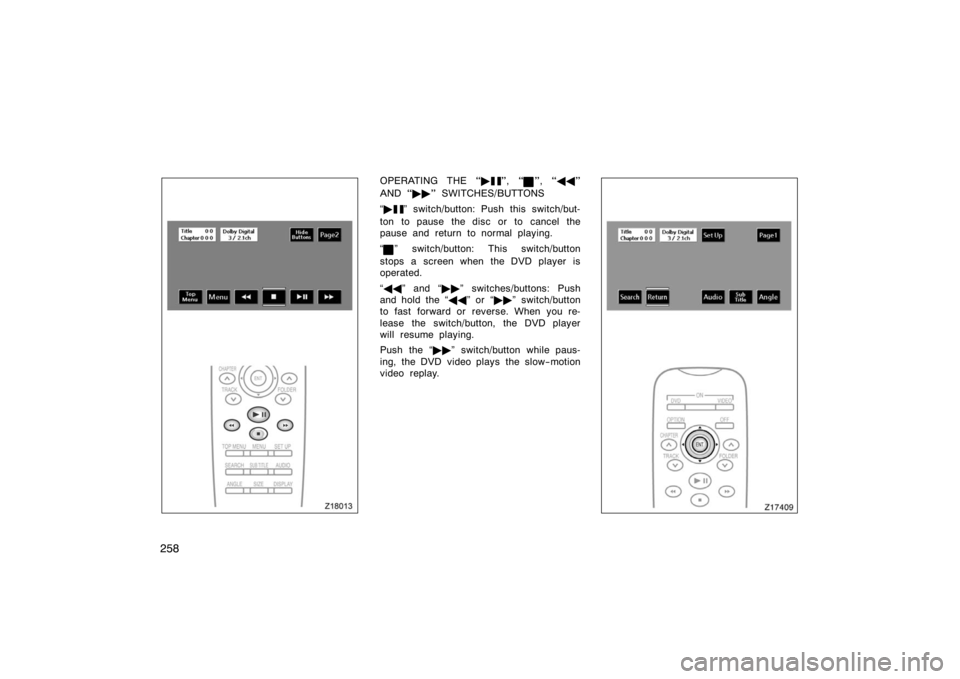
OPERATING THE ��", �", ���"
AND � ��" SWITCHES/BUTTONS
� �
" switch/button: Push this switch/but-
ton to pause the disc or to cancel the
pause and return to normal playing.
�
" switch/button: This switch/button
stops a screen when the DVD player is
operated.
� �� " and ��� " switches/buttons: Push
and hold the � ��" or ��� " switch/button
to fast forward or reverse. When you re-
lease the switch/button, the DVD player
will resume playing.
Push the ��� " switch/button while paus-
ing, the DVD video plays the slow−motion
video replay.
Z17409
Page 273 of 496
261
Z17414
Each time you push the �Sub Title" switch,
another language stored on the disc is
selected.
To turn off the subtitles, push the �Hide
Buttons" switch.
Push the �Back" switch to return to the
previous screen.
The selected subtitle language will appear
on the screen.Z17415
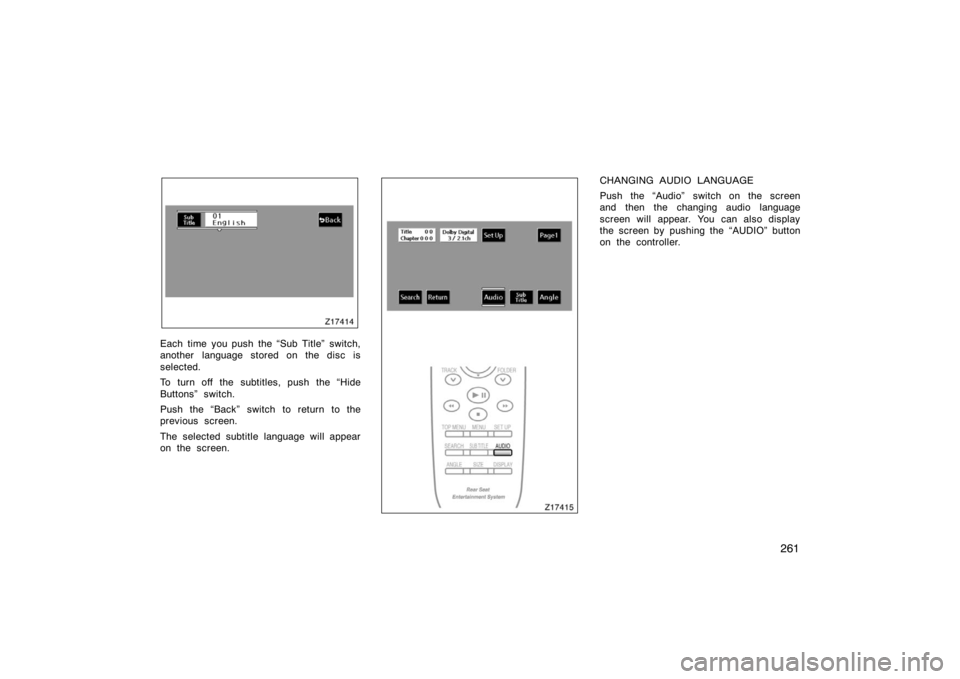
CHANGING AUDIO LANGUAGE
Push the �Audio" switch on the screen
and then the changing audio language
screen will appear. You can also display
the screen by pushing the �AUDIO" button
on the controller.
Page 274 of 496
262
Z17416
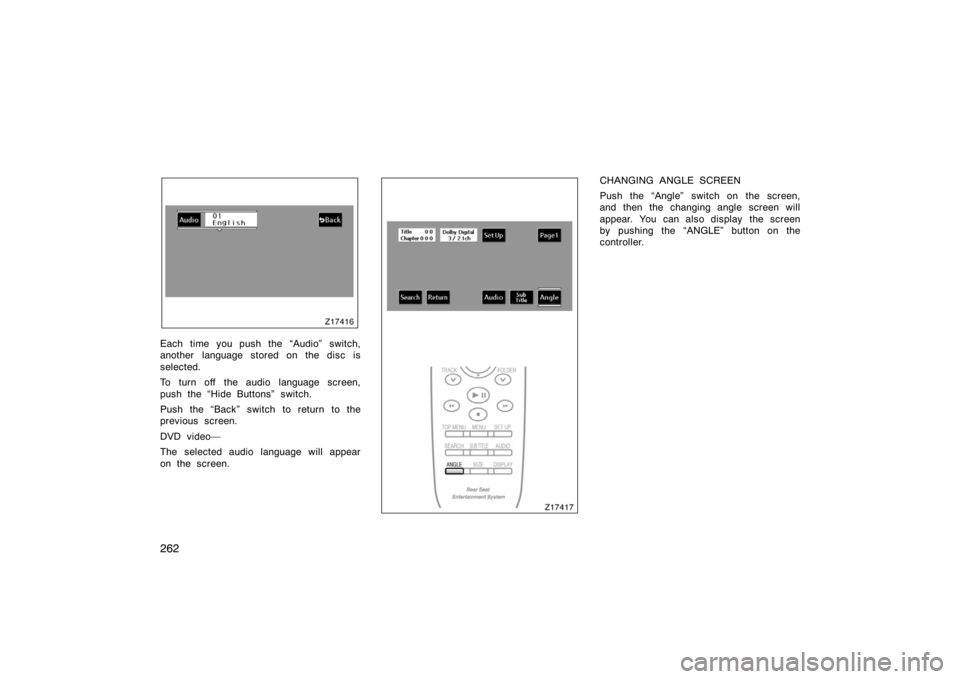
Each time you push the �Audio" switch,
another language stored on the disc is
selected.
To turn off the audio language screen,
push the �Hide Buttons" switch.
Push the �Back" switch to return to the
previous screen.
DVD video�
The selected audio language will appear
on the screen.Z17417
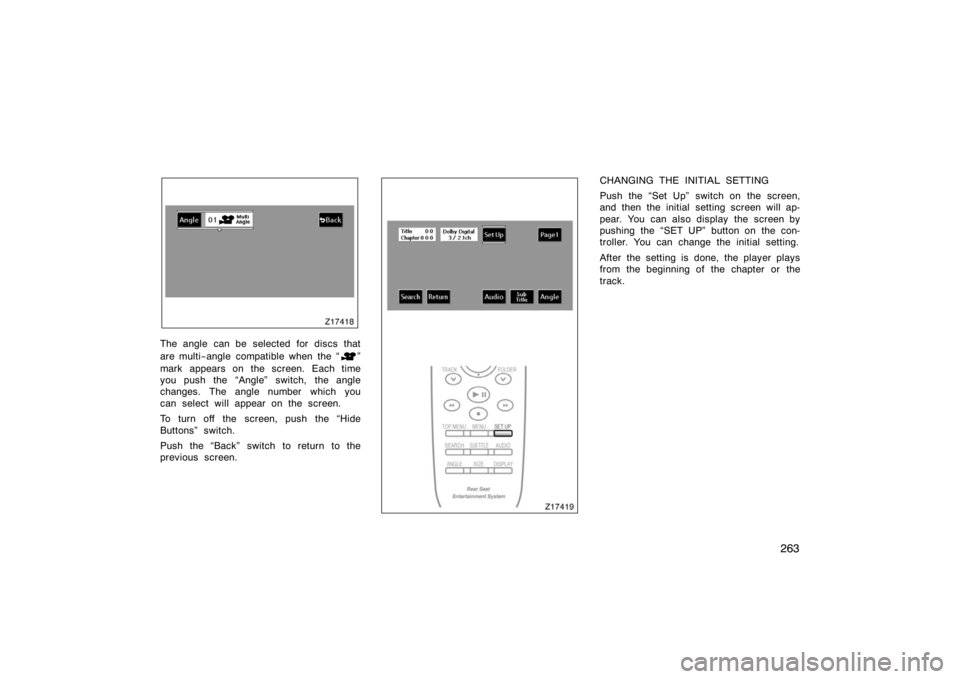
CHANGING ANGLE SCREEN
Push the �Angle" switch on the screen,
and then the changing angle screen will
appear. You can also display the screen
by pushing the �ANGLE" button on the
controller.
Page 275 of 496
263
Z17418
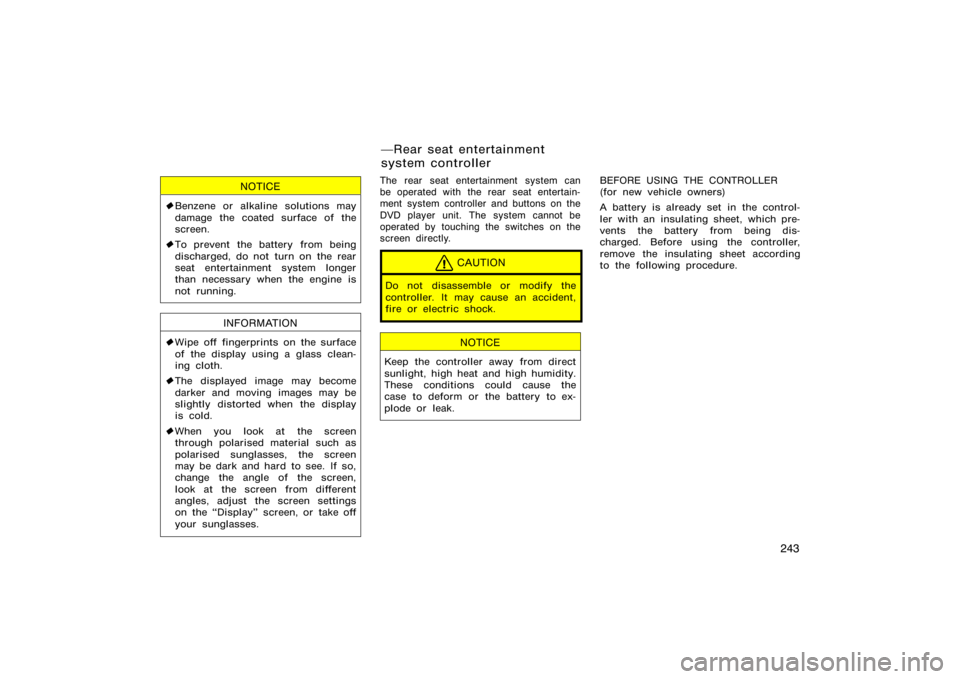
The angle can be selected for discs that
are multi−angle compatible when the �
"
mark appears on the screen. Each time
you push the �Angle" switch, the angle
changes. The angle number which you
can select will appear on the screen.
To turn off the screen, push the �Hide
Buttons" switch.
Push the �Back" switch to return to the
previous screen.Z17419
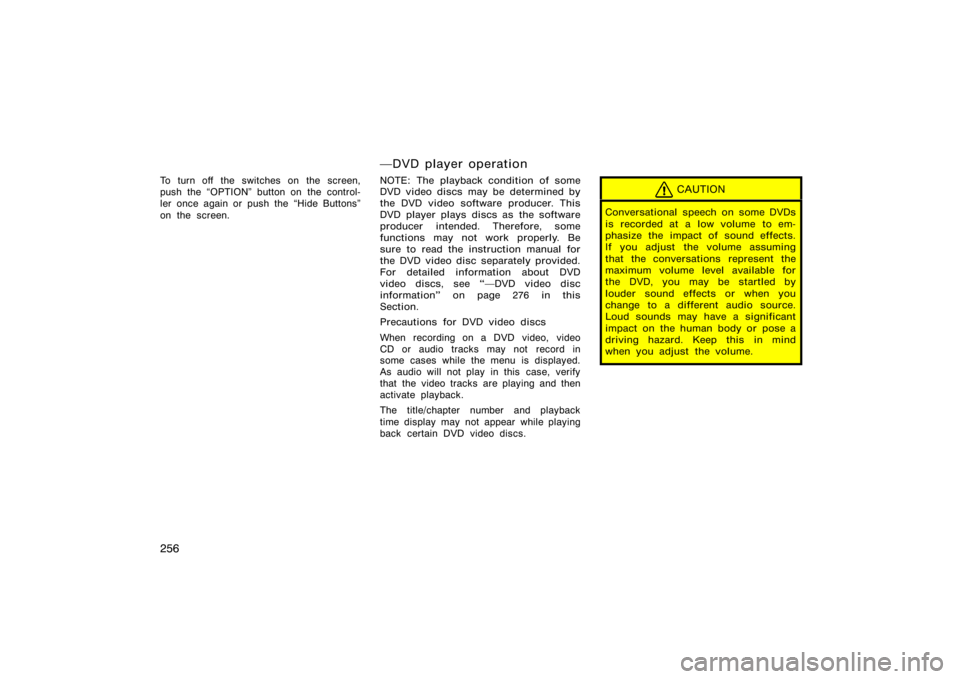
CHANGING THE INITIAL SETTING
Push the �Set Up" switch on the screen,
and then the initial setting screen will ap-
pear. You can also display the screen by
pushing the �SET UP" button on the con-
troller. You can change the initial setting.
After the setting is done, the player plays
from the beginning of the chapter or the
track.