2008 SKODA OCTAVIA Time
[x] Cancel search: TimePage 140 of 304

Automatic gearbox139
Using the systemSafetyDriving TipsGeneral MaintenanceBreakdown assistanceTechnical Data
Shifting up gears
– One-touch forward of the selector lever (in the Tiptronic position)
⇒page 138, fig. 155 .
Shifting down gears
– One-touch back of the selector lever (in the Tiptronic position) .
It is possible to switch over to manual both when the car is stationary and also when
driving.
When you accelerate, the gearbox shifts up automatically into the higher gear just
before the maximum permissible engine speed is reached.
If you select a lower gear, the automatic ge arbox does not shift down until there is
no risk of the engine overrevving.
If you operate the kickdown function, the ge arbox shifts into a lower gear in line
with the vehicle speed and engine speed.
Manual shifting on the multifunction steering wheel*
Switching over to manual shifting
– Push the selector lever to the right out of position D. After switching
over, the current engaged gear is indicated in the display. Shifting up gears
– Press the right rocker switch
⇒fig. 157 for the multifunction
steering wheel.
Shifting down gears
– Press the left rocker switch ⇒fig. 157 for the multifunction
steering wheel.
Temporarily switching over to manual shifting
– If the selector lever is in position D or S, press the left rocker switch
or the right rocker switch fo r the multifunction steering wheel.
– If the rocker switches or are not pressed for some time, the manual shifting switches off. You can also switch off the temporary
switch over to manual shifting by pressing the right rocker switch
for more than 1 second.
Emergency programme
An emergency programme exists in th e event of a fault in the system.
The gearbox operates in a corresponding emergency programme if there are func-
tional faults in the gearbox electronics. This is indicated by all of the segments in the
display lighting up or going out.
A functional fault can have the following effect:
•The gearbox only shifts into certain gears.
•The reverse gear R cannot be used.
•The manual shift programme (Tiptronic) is switched off in the emergency mode.
If the gearbox has switched over to emergency mode, drive to the nearest
specialist garage in order to have the fault rectified.
A+
A-
Fig. 157 Multifunction
steering wheel: Manual
shifting of gears
+
+
-
+
-+
+
20A5Facelift.book Page 139 Saturday, September 6, 2008 2:13 PM
Page 142 of 304

Communication141
Using the systemSafetyDriving TipsGeneral MaintenanceBreakdown assistanceTechnical Data
Communication
Multifunction steering wheel*
Operate radio und navigation on the multifunction steering wheel
The driver can set the basic functions of the radio and navigation by simply oper-
ating the buttons located on the steering wheel so that he can concentrate on the traffic situation without being distracted as little as possible by operating the radio
and navigation
⇒fig. 159 .
This applies only if your vehicle has been installed with radio
14) or navigation at the
factory. You can of course operate the ra dio and navigation at the appliance. You
will find a description in the operating instructions of your radio system.
When the headlights are switched on, the steering wheel pushbuttons are then also
illuminated.
The buttons apply for the respective operating mode of the current radio or naviga-
tion.
By pressing the buttons, you can carry out the following functions:
Fig. 159 Multifunction
steering wheel: control
buttons
14)Does not apply for Radio Blues.
ButtonActionRadio, traffic informationCDThe CD changer / MP3Navigation
press brieflySwitch off/on tone
press button for a
long period of timeswitch off/on*
turn upwardsIncrease volume
turn down-
wardsDecrease volume
press briefly
Changing to the next stored radio stationChanging to the next stored traffic infor-
mation
Interrupting the traffic report
Changing to the next title
A1
A1
A1
A1
A2
20A5Facelift.book Page 141 Saturday, September 6, 2008 2:13 PM
Page 143 of 304
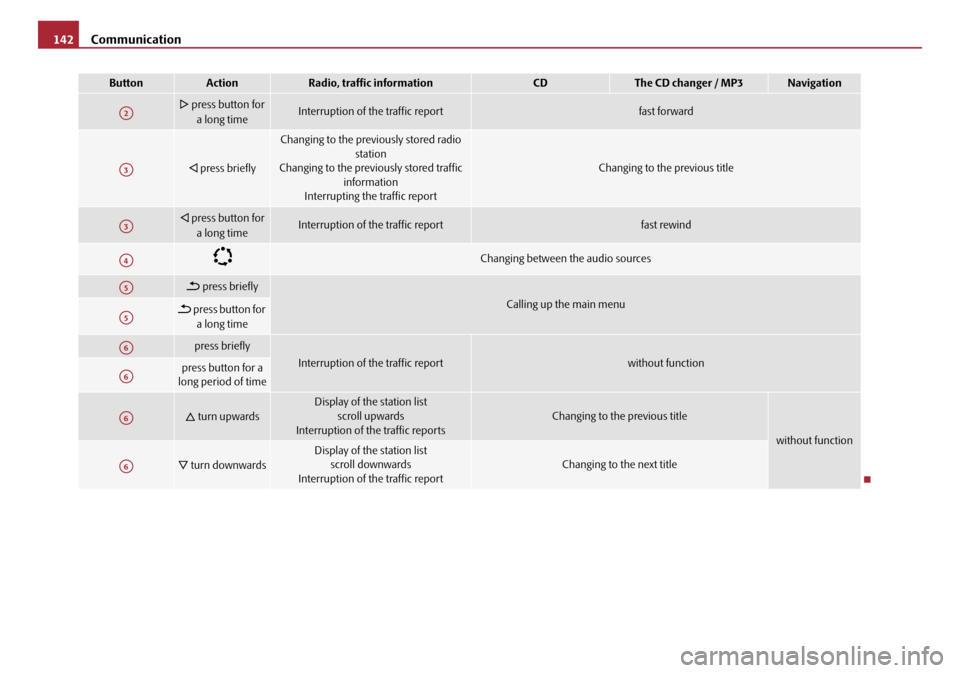
Communication
142
press button for
a long timeInterruption of the traffic reportfast forward
press briefly
Changing to the prev iously stored radio
station
Changing to the previously stored traffic
information
Interrupting the traffic report
Changing to the previous title
press button for
a long timeInterruption of the traffic reportfast rewind
Changing between the audio sources
press briefly
Calling up the main menu press button for a long time
press briefly
Interruption of the traffic reportwithout function press button for a
long period of time
turn upwardsDisplay of the station list
scroll upwards
Interruption of the traffic reportsChanging to the previous title
without function
turn downwardsDisplay of the station list scroll downwards
Interruption of the traffic reportChanging to the next title
ButtonActionRadio, traffic informationCDThe CD changer / MP3Navigation
A2
A3
A3
A4
A5
A5
A6
A6
A6
A6
20A5Facelift.book Page 142 Saturday, September 6, 2008 2:13 PM
Page 144 of 304

Communication143
Using the systemSafetyDriving TipsGeneral MaintenanceBreakdown assistanceTechnical Data
Universal telephone preinstallation GSM II*
Introduction
This enables you to make full use of the advantages of a normal carphone (“hands-
free system - Hands Free” using a micropho ne integrated in the vehicle, optimal
transmission of signals using an external aerial
15) etc.). The equipment includes
also the voice control. The telephone is connected by means of the Bluetooth®
technology ⇒page 144, “Bluetooth®”. On vehicles fitted with a telephone
mount*, it is also possible to establish the connection via the interface of the
adapter
16) ⇒ page 145, “Operating telephone calls with the aid of the adapter*.”.
A phone phonebook is part of the mobile ph one preinstallation with voice control.
In the phone phonebook there are 1500 free memory locations available. This
phone phonebook is independent of the appliance used for the mobile phone.
Furthermore the volume can be changed individually during the call at any time
with the button for setting the radio* or on vehicles fitted with multifunction
steering wheel* with function buttons on the steering wheel.
If the system answers with the voice response “ Telephone is not ready”, please
check the operating state of the telephone as follows:
•Is the telephone switched on?
•Is the PIN code entered?
Dialogue
The period, in which the telephone system is ready to receive voice commands and
carry out the voice commands, is called DIALOGUE. The system gives audible feed-
back and guides you if necessary through the relevant functions. You can start or
end the dialogue at any time by pres sing the PTT button on the adapter*
⇒ page 145 or on the multifunction steering wheel* ⇒page 146.
The dialogue is always automatically ended after carrying out an operation, e.g.
after erasing the name from the phonebook. When receiving an incoming call, the dialogue is immediately interrupted and you
can accept the call by pressing the button
on the multifunction steering wheel*
⇒ page 146 or by pressing the button for receiving a call directly on your tele-
phone.
If a voice command is not detected, the system answers with “ Sorry?” and a new
entry can be performed. After the 2nd error the system repeats the aid. After the 3rd
error the answer “ Cancel” is given and the dialogue is ended.
Optimum understanding of the voice commands depends on the following
factors:
•Speak with a normal tone of voice without intonation and excessive voice
pauses.
•Avoid insufficient articulation.
•Close the doors, windows and sliding roof, in order to reduce or stop disturbing
exterior noise.
•It is recommended to speak louder at higher speeds, so that the tone of your
voice is louder than the increased surrounding noise.
•During the dialogue avoid additional noise in the vehicle, e.g. simultaneously
talking occupants.
•Do not speak, if the system makes an announcement.
•The microphone for voice control is direct ed to the driver and front passenger.
Therefore the driver and the front passenger can operate the equipment.
WARNING
Pay attention primarily to the traffic situation! As the driver you are fully
responsible for road safety. Use the tele phone system only to such an extent,
so that you are in full contro l of your vehicle at any time.
Caution
Taking the mobile phone out of the adapter during the call can lead to interruption
of the connection. When taking out the mobile phone, the connection to the
factory-fitted antenna is interrupted, this reduces the quality of the transmitting
and receiving signal. This might result a dditionally in harmful radiation from the
15)Valid for telephone used with adapter* in the telephone mount.16)Not valid for adapter “Bluetooth only” ⇒page 146.
20A5Facelift.book Page 143 Saturday, September 6, 2008 2:13 PM
Page 145 of 304

Communication
144
mobile phone in the interior of the ve hicle and the charging of the telephone
battery is interrupted.
Note
•Please also refer to the additional instructions ⇒page 160, “Mobile phones
and two-way radio systems”.
•Please contact your Škoda Service Partner if there are any points which are not
clear.
Bluetooth®
The Bluetooth® technology serves as ca bleless connection of a
mobile phone to a hands-free system of your vehicle.
In order to connect a mobile phone with Bluetooth® to the hands-free
system, it is necessary to adapt th e phone and the hands-free system to
each other. Detailed information on this is provided in the operating
instructions of your mobile phone. The following steps must be carried
out for the connection:
– Switch on the ignition.
– Select Bluetooth
® on the mobile phone and select the menu with
which the mobile phone searches for suitable Bluetooth® devices.
– If the hands-free system on the display of the mobile phone announces Skoda UHV , enter the PIN° 1234 within 30 seconds and
wait, until the connection is established.
17)
While connecting the mobile phone with the hands-free system by means of Blue-
tooth®, no other phone can be connected wi th the hands-free system via Blue-
tooth®. Up to three mobile phones can be connected to the hands-free system by means
of Bluetooth
®, whereby only one mobile phone can communicate via Bluetooth®
with the hands-free system. If a fourth mobile phone is connected to the hands-
free-system, then the telephone, which has not been used together with the hands-
free-system for the longest period, is disconnected by means of Bluetooth
®.
Establish Bluetooth
® connection
After switching on the ignition, the Blue tooth connection is automatically estab-
lished for the already adapted mobile phone
17). Check on the mobile unit if the
automatic connection was established.
Disconnect Bluetooth
® connection
After withdrawing the ignition key, the Bluetooth® connection is disconnected.
WARNING
•Pay attention primarily to the traffic situation! As the driver you are fully
responsible for road safety. Use the telephone system only to such an extent,
so that you are in full control of your vehicle at any time - risk of accident!
•In the event of air transport, the Bluetooth® function of the handsfree-
system must be switched off by a specialist garage!
Caution
Taking the mobile phone out of the adapter during the call can lead to interruption
of the connection. When taking out th e mobile phone, the connection to the
factory-fitted antenna is interrupted, this reduces the quality of the transmitting
and receiving signal. This might result additionally in harmful radiation from the
mobile phone in the interior of the ve hicle and the charging of the telephone
battery is interrupted.
Note
•Not valid for all mobile phones which enable a communication via Bluetooth®.
You can ask at a Škoda Service Partner if your telephone is compatible with the
universal telephone preinstallation GSM II.
17)Some mobile phones have a menu, in which the authorization for establishing a Bluetooth®
connection is performed via the input of a code. If the input for the authorization is neces-
sary, it must always be performed when re-establishing the Bluetooth connection.
20A5Facelift.book Page 144 Saturday, September 6, 2008 2:13 PM
Page 148 of 304

Communication147
Using the systemSafetyDriving TipsGeneral MaintenanceBreakdown assistanceTechnical Data
The buttons operate the functions for
the operating mode of the current
telephone.
Operate telephone in the information display*
If you select the menu point Te l e p h o n e on the information display with the aid of
the handwheel , you can change to the following menus:
„Phone book
„Last calls
„Received calls
„Missed calls Phone book
In the menu point
Phone book is the list of the loaded contacts from the telephone
memory and the SIM card of the mobile phone. In the phone phonebook there are
1500 free memory locations available.
ButtonActionOperation
press brieflyActivation and deactivation of the voice control (Button PTT - Push to talk)
turn upwardsIncrease volume
turn downwardsDecrease volume
press brieflyAccept call, terminate call, entry in the main me nu of the telephone, list of selected numbers
press button for a long
timeReject call, entry in the main menu of the telephone, list of selected numbers
press brieflyReach one level higher in the menu (according to the current position in the menu)
press button for a long
timeReturn in the main menu of the information display
press brieflyConfirm menu selection
press button for a long period of timeConfirming the selected menu point, the following initial letters in the telephone book
turn upwardsThe last chosen menu selection, name
turn downwardsThe next menu selection, name
A1
A1
A1
A2
A2
A3
A3
A4
A4
A4
A4
A4
20A5Facelift.book Page 147 Saturday, September 6, 2008 2:13 PM
Page 150 of 304

Communication149
Using the systemSafetyDriving TipsGeneral MaintenanceBreakdown assistanceTechnical Data
•the mobile phone are switched on.
The digits zero to nine are permitted. The system detects no continuous digit
combinations such as twenty-three, but only individually spoken digits (two, three).
After each order of digits (separation through brief voice pause) the detected digits
are repeated.
Notes for entering the PIN code
•When entering a PIN code with more than 8 digits, the system indicates “The
PIN is too long ”.
•When entering an incorrect PIN code, the system indicates “ The PIN is incor-
rect ”.
•If the incorrect PIN code has been ente red three times consecutively, the card
is blocked. With the aid of the person al unblocking code PUK (Personal Unblock
Key), the SIM card can be unblocked. The unblocking code can only be entered
via the phone keypad and not through the voice control.
Example for entering the PIN code
You can interrupt the dialogue at any time by pressing the PTT button or with the
voice command CANCEL.
Select number
– Press the PTT button. – Give the command
DIAL NUMBER after the signal tone.
After giving this command, the system re quests the entry of a telephone number.
The telephone number can be entered as an interconnected spoken row of digits
(complete number), in the form of order of digits (separation through a brief voice
pause) or through individually spoken digits. After each order of digits (separation
through brief voice pa use) the detected digits are repeated.
The digits zero to nine are permitted. The system detects no continuous digit
combinations such as twenty-three, but only individually spoken digits (two, three).
If you enter more than 20 digits, the system announces: “ The number is too long”.
Additionally for international calls a Plus (+) has to be entered in front of the 20
digits.
Example when entering a telephone number
You can interrupt the dialogue at any time by pressing the PTT button or with the
voice command CANCEL.
Repeat last call
– Press the PTT button.
– Give the command REDIAL after the signal tone.
Voice commandAnnouncement
ENTER PIN/PIN CODE“The PIN please ”.
e.g. ZERO ONE TWO THREE“Zero One Two Three ”.
If no entry is put in, the following anno uncement is made after about 5 seconds.
“Possible commands are: store, repeat,
correct, delete or more digits ”.
STORE“The PIN is saved ”.
(end of dialogue)
Voice commandAnnouncement
DIAL NUMBER“ The number please ”.
e.g. ZERO SIX ZERO THREE“Zero Six Zero Three ”.
If no entry is put in, the following anno uncement is made after about 5 seconds.
“Possible commands are: dial, repeat,
correct, delete or more digits ”.
FIVE SEVEN TWO“Five Seven Two ”.
DIAL“The number is being dialed ”.
20A5Facelift.book Page 149 Saturday, September 6, 2008 2:13 PM
Page 151 of 304

Communication
150
After giving this command, the last numbe r selected via voice input is selected
again.
Example of redial
You can interrupt the dialogue at any time by pressing the PTT button or with the
voice command CANCEL.
Phone voice phonebook*
Store name
– Press the PTT button.
– Give the command SAVE/STORE NAMES/NAME/NUMBER after the
signal tone.
After giving this command, the system re quests the entry of a name and a tele-
phone number which should be stored in the phone voice phonebook. In the
phone voice phonebook up to 50 entries can be stored.
The telephone number can be entered as an interconnected spoken row of digits
(complete number), in the form of order of digits (separation through a brief voice
pause) or through individually spoken digits. After each order of digits (separation
through brief voice pause) the detected digits are repeated.
The digits zero to nine are permitted. The system detects no continuous digit
combinations such as twenty-three, but only individually spoken digits (two, three).
If you enter more than 20 di gits, the system announces: “ The number is too long”.
Additionally a Plus (+) has to be entered in front of the 20 digits.
The stored entry is shown on the information display* with an asterisk in front of
the name.
For similar names additional information (e.g. first names) should be stored. Example for storing in th
e phone voice phonebook
You can interrupt the dialogue at any time by pressing the PTT button or with the
voice command CANCEL.Select name
– Press the PTT button.
– Give the command DIAL/SELECT NAMES/NAME after the signal
tone.
After giving this command, there is the possibility to select a stored entry out of the
phone voice phonebook.
Voice commandAnnouncement
REDIAL“ The number is being dialed ”.
Voice commandAnnouncement
SAVE/STORE
NAMES/NAME/NUMBER“The name please ”.
COMPANY XYZ“Please repeat the name ”.
COMPANY XYZ“The number please ”.
ZERO ONE TWO THREE“Zero One Two Three ”.
FOUR FIVE SIX“Four Five Six ”.
If no entry is put in, the following anno uncement is made after about 5 seconds.
“Possible commands are: store, repeat, correct,
delete or more digits ”.
STORE“The name COMPANY XYZ is stored ”.
20A5Facelift.book Page 150 Saturday, September 6, 2008 2:13 PM