2008 NISSAN ARMADA phone
[x] Cancel search: phonePage 144 of 456

NOTE:
Once you have pressed and released the
program button on the garage door open-
er’s motor and the “training light” is lit, you
have 30 seconds in which to perform step 7.
Use the help of a second person for conve-
nience to assist when performing this step.
7. Within 30 seconds of pressing and releas-
ing the garage door opener program button,
quickly and firmly press and release the
HomeLinkTbutton you’ve just programmed.
Press and release the HomeLinkTbutton up
to 3 times to complete the training.
8. Your HomeLinkTbutton should now be pro-
grammed. (To program the remaining
HomeLinkTbuttons for additional door or
gate openers, follow steps 2-4 only.)
NOTE:
Do not repeat step 1 unless you want to
“clear” all previously programmed
HomeLinkTbuttons.
If you have any questions or are having difficulty
programming your HomeLinkTbuttons, refer to
the HomeLinkTweb site at: www.homelink.com
or call 1-800-355-3515.PROGRAMMING HOMELINKTFOR
CANADIAN CUSTOMERS
Prior to 1992, D.O.C. regulations required hand-
held transmitters to stop transmitting after 2 sec-
onds. To program your hand-held transmitter to
HomeLinkT, continue to press and hold the
HomeLinkTbutton (note steps2-4under “Pro-
gramming HomeLinkT”) while you press and re-
press (“cycle”) your hand-held transmitters every
2 seconds until the indicator light flashes rapidly
(indicating successful programming) .
NOTE:
When programming a garage door opener,
etc., it is advised to unplug the device dur-
ing the “cycling” process to prevent pos-
sible damage to the garage door opener
components.
OPERATING THE HOMELINKT
UNIVERSAL TRANSCEIVER
The HomeLinkTUniversal Transceiver (once pro-
grammed) may now be used to activate the ga-
rage door, etc. To operate, simply press the ap-
propriate programmed HomeLinkTUniversal
Transceiver button. The amber indicator light will
illuminate while the signal is being transmitted.
PROGRAMMING TROUBLE-
DIAGNOSIS
If the HomeLinkTdoes not quickly learn the hand-
held transmitter information:
creplace the hand-held transmitter batteries
with new batteries.
cposition the hand-held transmitter with its
battery area facing away from the
HomeLinkTsurface.
cpress and hold both the HomeLinkTand
hand-held transmitter buttons without inter-
ruption.
cposition the hand-held transmitter1-3
inches (26 - 76 mm) away from the
HomeLinkTsurface. Hold the transmitter in
that position for up to 15 seconds. If
HomeLinkTis not programmed within that
time, try holding the transmitter in another
position – keeping the indicator light in view
at all times.
If you continue to have programming difficulties,
please contact the NISSAN Consumer Affairs
Department. The phone numbers are located in
the Foreword of this manual.
2-62Instruments and controls
ZREVIEW COPYÐ2008 Armada(wzw)
Owners ManualÐUSA_English(nna)
03/05/07Ðarosenma
X
Page 156 of 456
The hazard warning lights will flash three times to
confirm that the horn beep feature has been
deactivated.
To activate:Press and hold the
andbuttonsfor at least 2 seconds
once more.
The hazard warning lights will flash once and the
horn will sound once to confirm that the horn
beep feature has been reactivated.
Deactivating the horn beep feature does not si-
lence the horn if the alarm is triggered.
Using the interior lights
Push thebutton on the keyfob once to turn
on the interior lights and puddle lamps (if so
equipped) .
For additional information, refer to “Interior light”
in the “Instruments and controls” section earlier in
this manual.
WARNING
Radio waves could adversely affect elec-
tric medical equipment. Those who use a
pacemaker should contact the electric
medical equipment manufacturer for the
possible influences before use.
The Intelligent Key system can operate all the
door locks using the remote controller function or
pushing the request switch on the vehicle without
taking the key out from a pocket or purse. The
operating environment and/or conditions may af-
fect the Intelligent Key system operation.
Be sure to read the following before using the
Intelligent Key system.
CAUTION
cBe sure to carry the Intelligent Key with
you when operating the vehicle.
cNever leave the Intelligent Key in the
vehicle when you leave the vehicle.
The Intelligent Key is always communicating with
the vehicle as it receives radio waves. The Intel-
ligent Key system transmits weak radio waves.
Environmental conditions may interfere with the
operation of the Intelligent Key system under the
following operating conditions.cWhen operating near a location where
strong radio waves are transmitted, such as
a TV tower, power station and broadcasting
station.
cWhen in possession of wireless equipment,
such as a cellular telephone, transceiver,
and CB radio.
cWhen the Intelligent Key is in contact with or
covered by metallic materials.
cWhen any type of radio wave remote control
is used nearby.
cWhen the Intelligent Key is placed near an
electric appliance such as a personal com-
puter.
cWhen the vehicle is parked near a parking
meter.
In such cases, correct the operating conditions
before using the Intelligent Key function or use
the mechanical key.
Although the life of the battery varies depending
on the operating conditions, the battery’s life is
approximately 2 years. If the battery is dis-
charged, replace it with a new one.
When the Intelligent Key battery is low, the Intel-
ligent Key system warning light (
) will blink
green for about 30 seconds after the ignition
switch is turned to the ON position.
INTELLIGENT KEY SYSTEM (if so
equipped)
3-10Pre-driving checks and adjustments
ZREVIEW COPYÐ2008 Armada(wzw)
Owners ManualÐUSA_English(nna)
03/05/07Ðarosenma
X
Page 180 of 456

4 Monitor, climate, audio, phone and voice
recognition systems
Control panel buttons — color screen without
Navigation System.................................4-2
How to use the NISSAN controller...............4-3
How to select menus on the screen..............4-4
How to use the STATUS button..................4-4
How to use the INFO button.....................4-4
How to use the SETTING button.................4-9
OFF button.............................4-16
Control panel buttons — color screen with
Navigation System (if so equipped).................4-17
How to use the NISSAN controller..............4-18
How to use the touch screen...................4-18
Start-up screen...............................4-20
How to select menus on the screen.............4-20
How to use the STATUS button.................4-21
How to use the INFO button....................4-21
How to use the SETTING button................4-26
OFF button.............................4-34
Rearview monitor (if so equipped)..................4-34
How to read the displayed lines.................4-35
Adjusting the screen...........................4-35
Operating tips.................................4-36
Vents...........................................4-37Heater and air conditioner (automatic)..............4-38
Automatic operation...........................4-38
Manual operation..............................4-39
Operating tips.................................4-39
Rear seat air conditioner..........................4-40
Controls......................................4-41
Servicing air conditioner...........................4-41
Audio system....................................4-41
Radio........................................4-41
FM radio reception............................4-42
AM radio reception............................4-42
Satellite radio reception (if so equipped).........4-42
Audio operation precautions....................4-43
FM/AM/SAT radio with compact disc (CD)
changer (if so equipped).......................4-49
FM/AM/SAT radio with compact disc (CD)
player (if so equipped).........................4-57
CompactFlash™ (CF) player operation
(if so equipped)...............................4-62
Music Box hard-disk drive audio system
(if so equipped)...............................4-64
CD/CF (CompactFlash™) care and cleaning......4-73
Steering wheel switch for audio control..........4-75
ZREVIEW COPYÐ2008 Armada(wzw)
Owners ManualÐUSA_English(nna)
03/05/07Ðarosenma
X
Page 181 of 456

Rear audio controls............................4-77
Antenna......................................4-77
NISSAN mobile entertainment system (MES)
(if so equipped)..................................4-78
Digital video disc (DVD) player controls..........4-79
Remote control................................4-80
Flip-down screen..............................4-80
Before operating the DVD mobile
entertainment system..........................4-82
Playing a digital versatile disc (DVD).............4-83
Remote control operation.......................4-88
Care and maintenance.........................4-90
How to handle the DVD........................4-91
Car phone or CB radio............................4-93
BluetoothTHands-Free Phone System without
Navigation System (if so equipped).................4-94
Using the system..............................4-96
Control buttons...............................4-98
Getting started................................4-98
List of voice commands.......................4-100Speaker adaptation (SA) mode.................4-105
Troubleshooting guide........................4-107
BluetoothTHands-Free Phone System with
Navigation System (if so equipped)................4-108
Voice commands.............................4-110
Pairing procedure............................4-110
Phonebook..................................4-112
Making a call.................................4-114
Receiving a call..............................4-114
During a call.................................4-115
Phone setting................................4-116
NISSAN Voice Recognition System
(if so equipped).................................4-117
Command list................................4-117
Using the system.............................4-126
System features..............................4-128
Voice command learning function...............4-129
Voice recognition settings.....................4-132
Troubleshooting guide........................4-134
ZREVIEW COPYÐ2008 Armada(wzw)
Owners ManualÐUSA_English(nna)
03/05/07Ðarosenma
X
Page 182 of 456
WARNING
cPositioning of the heating or air condi-
tioning controls and display controls
should not be done while driving in or-
der that full attention may be given to
the driving operation.
cDo not disassemble or modify this sys-
tem. If you do, it may result in accidents,
fire, or electrical shock.
cDo not use this system if you notice any
abnormality, such as a frozen screen or
lack of sound. Continued use of the
system may result in accident, fire or
electric shock.
cIn case you notice any foreign object in
the system hardware, spill liquid on it,
or notice smoke or smell coming from
it, stop using the system immediately
and contact your nearest NISSAN
dealer. Ignoring such conditions may
lead to accidents, fire or electrical
shock.
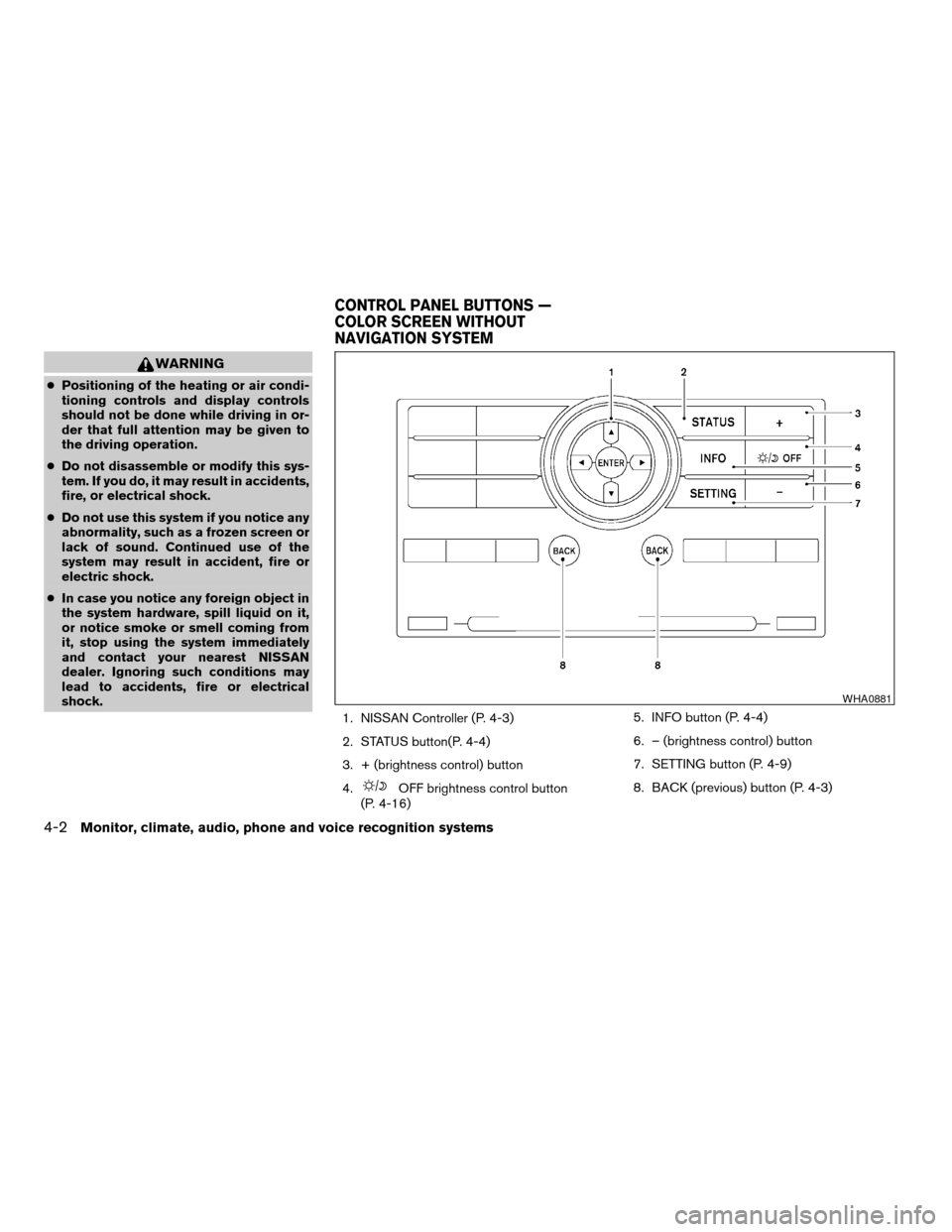
1. NISSAN Controller (P. 4-3)
2. STATUS button(P. 4-4)
3. + (brightness control) button
4.
OFF brightness control button
(P. 4-16)5. INFO button (P. 4-4)
6. – (brightness control) button
7. SETTING button (P. 4-9)
8. BACK (previous) button (P. 4-3)
WHA0881
CONTROL PANEL BUTTONS —
COLOR SCREEN WITHOUT
NAVIGATION SYSTEM
4-2Monitor, climate, audio, phone and voice recognition systems
ZREVIEW COPYÐ2008 Armada(wzw)
Owners ManualÐUSA_English(nna)
03/05/07Ðarosenma
X
Page 183 of 456

When you use this system, make sure the engine
is running.
If you use the system with the engine not
running (ignition ON or ACC) for a long
time, it will use up all the battery power,
and the engine will not start.
Reference symbols:
ENTER button — This is a button on the control
panel.
“Display” key — This is a select key on the screen.
By selecting this key you can proceed to the next
function.
HOW TO USE THE NISSAN
CONTROLLER
Use the NISSAN controller to choose an item on
the display screen. Select an item on the display
using the main directional buttons
s2or the
center dial
s3. Then press the ENTER buttons1
to select the item or perform the action.
The BACK button
s4button has two functions:
cGo back to the previous display (cancel) .
If you press the BACK button
s4during setup,
the setup will be canceled and/or the display will
return to the previous screen.cFinish setup.
In some screens pressing the BACK button
s4
accepts the changes made during setup.
WHA0883
Monitor, climate, audio, phone and voice recognition systems4-3
ZREVIEW COPYÐ2008 Armada(wzw)
Owners ManualÐUSA_English(nna)
03/05/07Ðarosenma
X
Page 184 of 456

HOW TO SELECT MENUS ON THE
SCREEN
Vehicle functions are viewed on the center dis-
play screen in menus. Whenever a menu selec-
tion is made or menu item is highlighted, different
areas on the screen provide you with important
information. See the following for details.
1. Header:
Shows the path used to get to the current
screen (for example, press the SETTING
button > then select the “Audio” key) .
2. Menu Selections:
Shows the options to choose within that
menu screen (for example, Bass, etc.) .3. UP/DOWN Movement Indicator:
Shows that the NISSAN controller may be
used to move UP/DOWN on the screen and
select more options.
4. Screen Count:
Shows the number of menu selections avail-
able for that screen (for example, 5/6) .
5. Footer/Information Line:
Provides more information (if available)
about the menu selection currently high-
lighted (for example, Enhances stereo imag-
ing and sound) .
HOW TO USE THE STATUS
BUTTON
To display the status of the audio, climate control
system and fuel consumption, press the STATUS
button.
The following information will appear when the
STATUS button is pressed:
Audio!Audio and climate control system!
Audio, climate control temperature settings, av-
erage fuel economy and distance to empty!
AudioHOW TO USE THE INFO BUTTON
Press the INFO button; the display screen shows
vehicle information for your convenience.
The information shown on the screen should be a
guide to determine the condition of the vehicle.
See the following for details.
LHA0914LHA0915
4-4Monitor, climate, audio, phone and voice recognition systems
ZREVIEW COPYÐ2008 Armada(wzw)
Owners ManualÐUSA_English(nna)
03/05/07Ðarosenma
X
Page 185 of 456

Fuel economy
Press the INFO button then select the “Fuel
Economy” key using the NISSAN controller and
press the ENTER button to display Average Fuel
Economy, Distance to Empty and Fuel Economy
Record.
Distance to empty (MI or km)
The Distance To Empty (DTE) mode provides you
with an estimation of the distance that can be
driven before refueling. The DTE is constantly
calculated based on the amount of fuel in the fuel
tank and the actual fuel consumption. The display
is updated every 30 seconds. When the fuel level
is low, the DTE display will change to (*) .NOTE:
cIf the amount of fuel added while the
ignition switch is OFF is small, the dis-
play just before the ignition switch is
turned OFF may continue to be dis-
played.
cWhen driving uphill or rounding curves,
the fuel in the tank shifts, which may
momentarily change the display.
Average fuel economy (MPG or L/100 km)
The Average Fuel Economy is calculated based
on fuel consumption since the last reset. The
display is updated every 30 seconds and 1/3
mile (500 m) . After a reset or connecting the
battery cables, the display might show (**.*) .
Resetting fuel economy
The average fuel economy calculation can be
reset to 0. Press the INFO button and select the
“Fuel Economy” key, then select the “Reset” key
using the NISSAN controller and press the EN-
TER button.Fuel economy record
Press the INFO button, then select the “Fuel
Economy” key, then select the “View” key using
the NISSAN controller and press the ENTER
button.
The average fuel consumption history will be
displayed in a graph form along with the average
fuel for the previous Reset-to-Reset period.
LHA0921LHA0922
Monitor, climate, audio, phone and voice recognition systems4-5
ZREVIEW COPYÐ2008 Armada(wzw)
Owners ManualÐUSA_English(nna)
03/05/07Ðarosenma
X