2008 NISSAN ARMADA buttons
[x] Cancel search: buttonsPage 180 of 456

4 Monitor, climate, audio, phone and voice
recognition systems
Control panel buttons — color screen without
Navigation System.................................4-2
How to use the NISSAN controller...............4-3
How to select menus on the screen..............4-4
How to use the STATUS button..................4-4
How to use the INFO button.....................4-4
How to use the SETTING button.................4-9
OFF button.............................4-16
Control panel buttons — color screen with
Navigation System (if so equipped).................4-17
How to use the NISSAN controller..............4-18
How to use the touch screen...................4-18
Start-up screen...............................4-20
How to select menus on the screen.............4-20
How to use the STATUS button.................4-21
How to use the INFO button....................4-21
How to use the SETTING button................4-26
OFF button.............................4-34
Rearview monitor (if so equipped)..................4-34
How to read the displayed lines.................4-35
Adjusting the screen...........................4-35
Operating tips.................................4-36
Vents...........................................4-37Heater and air conditioner (automatic)..............4-38
Automatic operation...........................4-38
Manual operation..............................4-39
Operating tips.................................4-39
Rear seat air conditioner..........................4-40
Controls......................................4-41
Servicing air conditioner...........................4-41
Audio system....................................4-41
Radio........................................4-41
FM radio reception............................4-42
AM radio reception............................4-42
Satellite radio reception (if so equipped).........4-42
Audio operation precautions....................4-43
FM/AM/SAT radio with compact disc (CD)
changer (if so equipped).......................4-49
FM/AM/SAT radio with compact disc (CD)
player (if so equipped).........................4-57
CompactFlash™ (CF) player operation
(if so equipped)...............................4-62
Music Box hard-disk drive audio system
(if so equipped)...............................4-64
CD/CF (CompactFlash™) care and cleaning......4-73
Steering wheel switch for audio control..........4-75
ZREVIEW COPYÐ2008 Armada(wzw)
Owners ManualÐUSA_English(nna)
03/05/07Ðarosenma
X
Page 181 of 456

Rear audio controls............................4-77
Antenna......................................4-77
NISSAN mobile entertainment system (MES)
(if so equipped)..................................4-78
Digital video disc (DVD) player controls..........4-79
Remote control................................4-80
Flip-down screen..............................4-80
Before operating the DVD mobile
entertainment system..........................4-82
Playing a digital versatile disc (DVD).............4-83
Remote control operation.......................4-88
Care and maintenance.........................4-90
How to handle the DVD........................4-91
Car phone or CB radio............................4-93
BluetoothTHands-Free Phone System without
Navigation System (if so equipped).................4-94
Using the system..............................4-96
Control buttons...............................4-98
Getting started................................4-98
List of voice commands.......................4-100Speaker adaptation (SA) mode.................4-105
Troubleshooting guide........................4-107
BluetoothTHands-Free Phone System with
Navigation System (if so equipped)................4-108
Voice commands.............................4-110
Pairing procedure............................4-110
Phonebook..................................4-112
Making a call.................................4-114
Receiving a call..............................4-114
During a call.................................4-115
Phone setting................................4-116
NISSAN Voice Recognition System
(if so equipped).................................4-117
Command list................................4-117
Using the system.............................4-126
System features..............................4-128
Voice command learning function...............4-129
Voice recognition settings.....................4-132
Troubleshooting guide........................4-134
ZREVIEW COPYÐ2008 Armada(wzw)
Owners ManualÐUSA_English(nna)
03/05/07Ðarosenma
X
Page 182 of 456
WARNING
cPositioning of the heating or air condi-
tioning controls and display controls
should not be done while driving in or-
der that full attention may be given to
the driving operation.
cDo not disassemble or modify this sys-
tem. If you do, it may result in accidents,
fire, or electrical shock.
cDo not use this system if you notice any
abnormality, such as a frozen screen or
lack of sound. Continued use of the
system may result in accident, fire or
electric shock.
cIn case you notice any foreign object in
the system hardware, spill liquid on it,
or notice smoke or smell coming from
it, stop using the system immediately
and contact your nearest NISSAN
dealer. Ignoring such conditions may
lead to accidents, fire or electrical
shock.
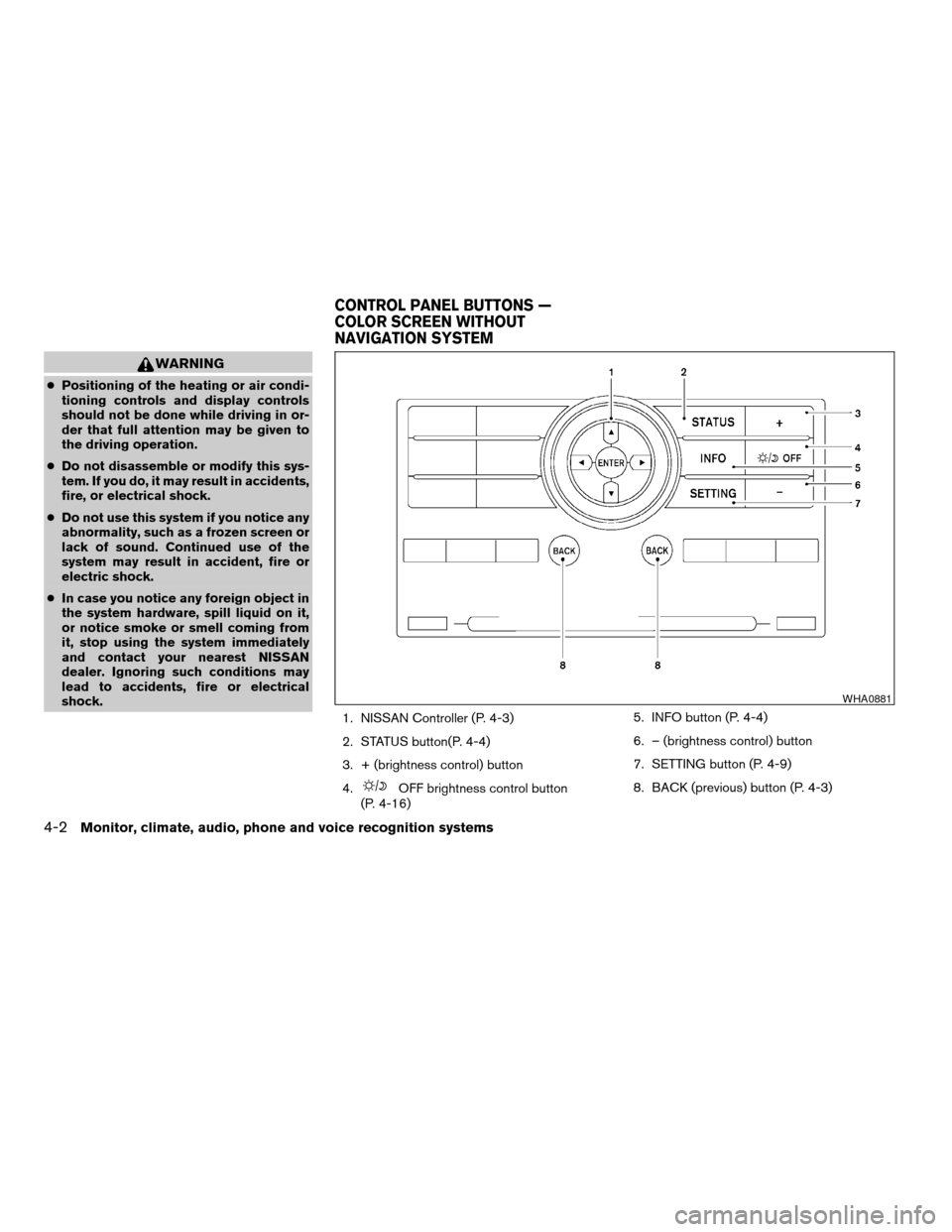
1. NISSAN Controller (P. 4-3)
2. STATUS button(P. 4-4)
3. + (brightness control) button
4.
OFF brightness control button
(P. 4-16)5. INFO button (P. 4-4)
6. – (brightness control) button
7. SETTING button (P. 4-9)
8. BACK (previous) button (P. 4-3)
WHA0881
CONTROL PANEL BUTTONS —
COLOR SCREEN WITHOUT
NAVIGATION SYSTEM
4-2Monitor, climate, audio, phone and voice recognition systems
ZREVIEW COPYÐ2008 Armada(wzw)
Owners ManualÐUSA_English(nna)
03/05/07Ðarosenma
X
Page 183 of 456

When you use this system, make sure the engine
is running.
If you use the system with the engine not
running (ignition ON or ACC) for a long
time, it will use up all the battery power,
and the engine will not start.
Reference symbols:
ENTER button — This is a button on the control
panel.
“Display” key — This is a select key on the screen.
By selecting this key you can proceed to the next
function.
HOW TO USE THE NISSAN
CONTROLLER
Use the NISSAN controller to choose an item on
the display screen. Select an item on the display
using the main directional buttons
s2or the
center dial
s3. Then press the ENTER buttons1
to select the item or perform the action.
The BACK button
s4button has two functions:
cGo back to the previous display (cancel) .
If you press the BACK button
s4during setup,
the setup will be canceled and/or the display will
return to the previous screen.cFinish setup.
In some screens pressing the BACK button
s4
accepts the changes made during setup.
WHA0883
Monitor, climate, audio, phone and voice recognition systems4-3
ZREVIEW COPYÐ2008 Armada(wzw)
Owners ManualÐUSA_English(nna)
03/05/07Ðarosenma
X
Page 190 of 456

Brightness/contrast:
Select the “Brightness” key or the “Contrast” key
to adjust the brightness or contrast of the map
background. Use the NISSAN controller to adjust
the brightness to darker or brighter and the con-
trast to lower or higher.
The new settings are automatically saved when
you exit the setting screen by pressing the BACK
button or any other mode button.Display off:
Select the “Display ON” key. The indicator of the
“Display ON” turns amber and the message
above will be displayed briefly. When the audio,
HVAC (Heater and air conditioner) , or any mode
button on the control panel is operated, the dis-
play turns on for that operation. If one of the
control panel buttons is pressed, the display will
not automatically turn off until that operation is
finished. Otherwise, the screen turns off auto-
matically after 5 seconds.To turn the screen on:
cPress the SETTING button and select the
“Display” key and then select the “Display
ON” key. Then set the screen to on by press-
ing the ENTER button, or
cHold the
OFF button for approxi-
mately 2 seconds and the message “resum-
ing display” will appear and the “Display ON”
key will be automatically turned on (no am-
ber indicator) .
Background color
Select the “Background Color” key; the display
color changes between day and night.
The new settings are automatically saved when
you exit the setting screen by pressing the BACK
button or any other mode button.
LHA0930WHA0823
4-10Monitor, climate, audio, phone and voice recognition systems
ZREVIEW COPYÐ2008 Armada(wzw)
Owners ManualÐUSA_English(nna)
03/05/07Ðarosenma
X
Page 197 of 456

1. STATUS button (P. 4-21)
2. DEST button*
3. NISSAN Controller (P. 4-18)
4. PHONE button**5.OFF brightness control button
(P. 4-34)
6. INFO button (P. 4-21)
7. SETTING button (P. 4-26)
8. VOICE button*9. BACK (previous) button (P. 4-18)
10. ROUTE button*
11. ZOOM IN button*
12. MAP button*
13. ZOOM OUT button*
*For Navigation system control buttons, refer to
the separate Navigation System Owner’s
Manual.
**For information on the PHONE button, see
“BluetoothTHands-Free Phone System with
Navigation System” later in this section.
When you use this system, make sure the engine
is running.
If you use the system with the engine not
running (ignition ON or ACC) for a long
time, it will use up all the battery power,
and the engine will not start.
Reference symbols:
ENTER button — This is a button on the control
panel.
“Display” key — This is a select key on the screen.
By selecting this key you can proceed to the next
function.
LHA0880
CONTROL PANEL BUTTONS —
COLOR SCREEN WITH NAVIGATION
SYSTEM (if so equipped)
Monitor, climate, audio, phone and voice recognition systems4-17
ZREVIEW COPYÐ2008 Armada(wzw)
Owners ManualÐUSA_English(nna)
03/05/07Ðarosenma
X
Page 198 of 456
HOW TO USE THE NISSAN
CONTROLLER
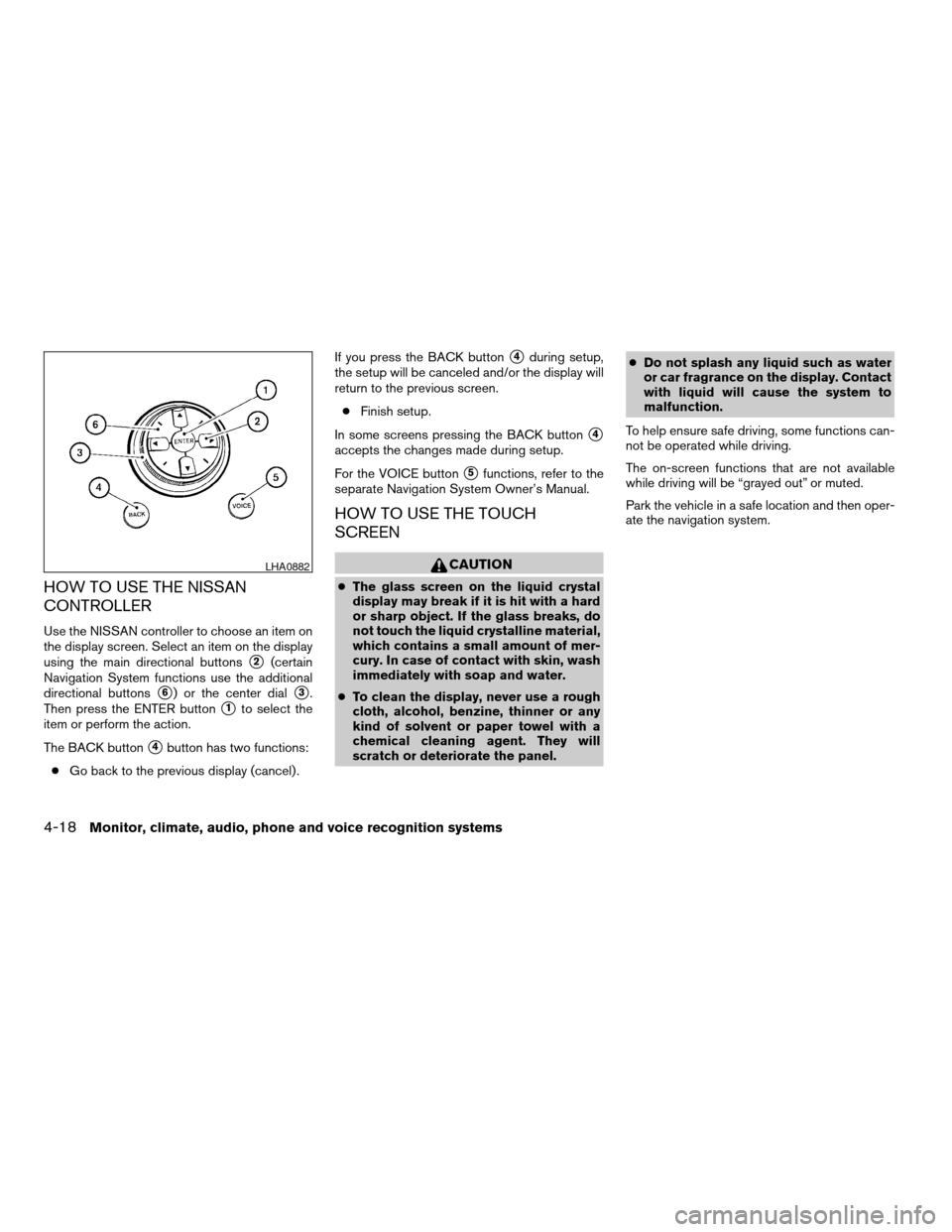
Use the NISSAN controller to choose an item on
the display screen. Select an item on the display
using the main directional buttons
s2(certain
Navigation System functions use the additional
directional buttons
s6) or the center dials3.
Then press the ENTER button
s1to select the
item or perform the action.
The BACK button
s4button has two functions:
cGo back to the previous display (cancel) .If you press the BACK button
s4during setup,
the setup will be canceled and/or the display will
return to the previous screen.
cFinish setup.
In some screens pressing the BACK button
s4
accepts the changes made during setup.
For the VOICE button
s5functions, refer to the
separate Navigation System Owner’s Manual.
HOW TO USE THE TOUCH
SCREEN
CAUTION
cThe glass screen on the liquid crystal
display may break if it is hit with a hard
or sharp object. If the glass breaks, do
not touch the liquid crystalline material,
which contains a small amount of mer-
cury. In case of contact with skin, wash
immediately with soap and water.
cTo clean the display, never use a rough
cloth, alcohol, benzine, thinner or any
kind of solvent or paper towel with a
chemical cleaning agent. They will
scratch or deteriorate the panel.cDo not splash any liquid such as water
or car fragrance on the display. Contact
with liquid will cause the system to
malfunction.
To help ensure safe driving, some functions can-
not be operated while driving.
The on-screen functions that are not available
while driving will be “grayed out” or muted.
Park the vehicle in a safe location and then oper-
ate the navigation system.
LHA0882
4-18Monitor, climate, audio, phone and voice recognition systems
ZREVIEW COPYÐ2008 Armada(wzw)
Owners ManualÐUSA_English(nna)
03/05/07Ðarosenma
X
Page 207 of 456

Display settings
Select the “Display” key and press the ENTER
button. The Display settings screen will appear.Brightness/contrast:
Select the “Brightness” key or the “Contrast” key
to adjust the brightness or contrast of the map
background. Use the NISSAN controller to adjust
the brightness to darker or brighter and the con-
trast to lower or higher.
The new settings are automatically saved when
you exit the setting screen by pressing the BACK
button or any other mode button.Display off:
Select the “Display ON” key. The indicator of the
“Display ON” turns amber and the message
above will be displayed briefly. When the audio,
HVAC (Heater and air conditioner) , or any mode
button on the control panel is operated, the dis-
play turns on for that operation. If one of the
control panel buttons is pressed, the display will
not automatically turn off until that operation is
finished. Otherwise, the screen turns off auto-
matically after 5 seconds.
LHA0901LHA0902WHA0823
Monitor, climate, audio, phone and voice recognition systems4-27
ZREVIEW COPYÐ2008 Armada(wzw)
Owners ManualÐUSA_English(nna)
03/05/07Ðarosenma
X