2008 NISSAN ALTIMA display
[x] Cancel search: displayPage 137 of 352

Symptom Possible Cause Remedy
When pushing the ignition switch to stop
the engineThe SHIFT P warning appears on the dis-
play and the inside warning chime sounds
continuously.The selector lever is not in the P (Park)
position.Shift the selector lever to the P (Park)
position.
When opening the driver’s door to get out
of the vehicleThe inside warning chime sounds
continuously.The ignition switch is in the ACC position.Push the ignition switch to the OFF
position.
The Intelligent Key is in the Intelligent Key
port.Remove the Intelligent Key from the Intelli-
gent Key port.
When closing the door after getting out of
the vehicleThe NO KEY warning appears on the
display, the outside chime sounds 3 times
and the inside warning chime sounds for
approximately 3 seconds.The ignition switch is in the ACC or ON
position.Push the ignition switch to the OFF
position.
The NO KEY warning appears on the dis-
play and the outside chime sounds
continuously.The ignition switch is in the ACC position
and the selector lever is not in the P (Park)
position.Move the selector lever to the P (Park) po-
sition and push the ignition switch to the
OFF position.
When closing the door with the inside lock
knob turned to LOCKThe outside chime sounds for approximately
3 seconds and all the doors unlock.The Intelligent Key is inside the vehicle or
trunk.Carry the Intelligent Key with you.
When pushing the door handle request
switch to lock the doorThe outside chime sounds for approximately
2 seconds.The Intelligent Key is inside the vehicle or
trunk.Carry the Intelligent Key with you.
A door is not closed securely. Close the door securely.
The door handle request switch is pushed
before the door is closed.Push the door handle request switch after
the door is closed.
When closing the trunk lidThe outside chime sounds for approximately
10 seconds and the trunk lid opens.The Intelligent Key is inside the trunk.Carry the Intelligent Key with you.
Pre-driving checks and adjustments3-15
ZREVIEW COPYÐ2008 Altima(alt)
Owners ManualÐUSA_English(nna)
03/13/07Ðdebbie
X
Page 144 of 352
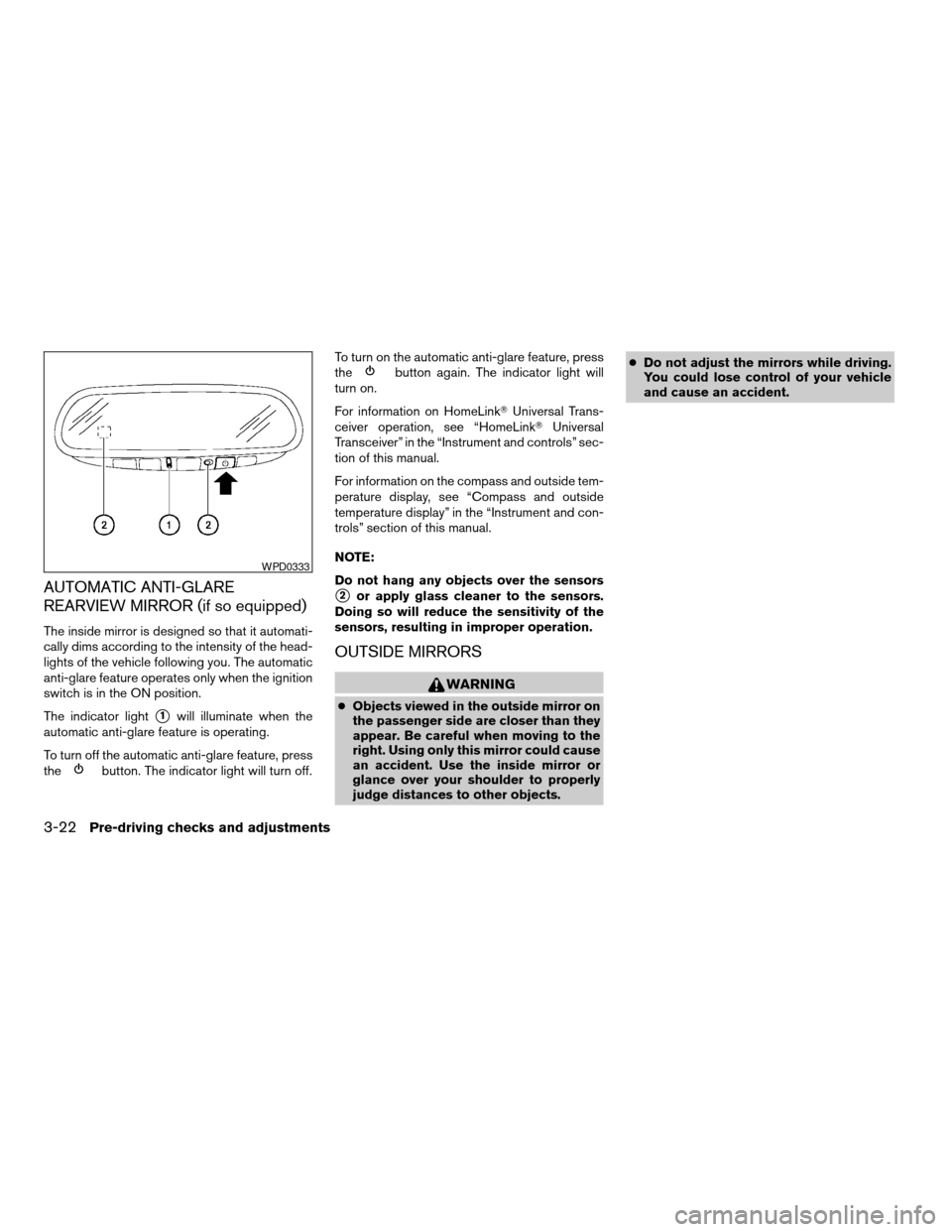
AUTOMATIC ANTI-GLARE
REARVIEW MIRROR (if so equipped)
The inside mirror is designed so that it automati-
cally dims according to the intensity of the head-
lights of the vehicle following you. The automatic
anti-glare feature operates only when the ignition
switch is in the ON position.
The indicator light
s1will illuminate when the
automatic anti-glare feature is operating.
To turn off the automatic anti-glare feature, press
the
button. The indicator light will turn off.To turn on the automatic anti-glare feature, press
the
button again. The indicator light will
turn on.
For information on HomeLinkTUniversal Trans-
ceiver operation, see “HomeLinkTUniversal
Transceiver” in the “Instrument and controls” sec-
tion of this manual.
For information on the compass and outside tem-
perature display, see “Compass and outside
temperature display” in the “Instrument and con-
trols” section of this manual.
NOTE:
Do not hang any objects over the sensors
s2or apply glass cleaner to the sensors.
Doing so will reduce the sensitivity of the
sensors, resulting in improper operation.
OUTSIDE MIRRORS
WARNING
cObjects viewed in the outside mirror on
the passenger side are closer than they
appear. Be careful when moving to the
right. Using only this mirror could cause
an accident. Use the inside mirror or
glance over your shoulder to properly
judge distances to other objects.cDo not adjust the mirrors while driving.
You could lose control of your vehicle
and cause an accident.
WPD0333
3-22Pre-driving checks and adjustments
ZREVIEW COPYÐ2008 Altima(alt)
Owners ManualÐUSA_English(nna)
03/13/07Ðdebbie
X
Page 146 of 352

4 Monitor, climate, audio, phone and voice
recognition systems
Control panel buttons (if so equipped)...............4-2
Setting up the start-up screen...................4-3
How to use the SETUP button...................4-3
button...................................4-7
Rearview monitor (if so equipped)...................4-8
How to read the displayed lines..................4-8
Adjusting the screen............................4-9
Operating tips..................................4-9
Ventilators.......................................4-10
Heater and air conditioner (manual).................4-10
Controls......................................4-11
Heater operation..............................4-12
Air conditioner operation (if so equipped)........4-13
Air flow charts.................................4-14
Heater and air conditioner (automatic)
(if so equipped)..................................4-18
Automatic operation...........................4-18
Manual operation..............................4-19
Operating tips.................................4-19
Servicing air conditioner...........................4-20
Audio system....................................4-20
Radio........................................4-20
FM radio reception............................4-21AM radio reception............................4-21
Satellite radio reception (if so equipped).........4-21
Audio operation precautions....................4-22
FM/AM radio with compact disc (CD) player......4-27
FM/AM/SAT radio with compact disc (CD)
changer (if so equipped).......................4-31
FM/AM/SAT radio with compact disc (CD)
changer (if so equipped).......................4-38
CD care and cleaning..........................4-43
Steering wheel switch for audio control
(if so equipped)...............................4-43
Antenna......................................4-45
Car phone or CB radio............................4-45
BluetoothTHands-Free Phone System without
Navigation System (if so equipped).................4-46
Using the system..............................4-47
Control buttons...............................4-49
Getting started................................4-49
List of voice commands........................4-51
Speaker adaptation (SA) mode..................4-57
Troubleshooting guide.........................4-59
BluetoothTHands-Free Phone System with
Navigation System (if so equipped).................4-60
ZREVIEW COPYÐ2008 Altima(alt)
Owners ManualÐUSA_English(nna)
03/13/07Ðdebbie
X
Page 149 of 352

When you use this system, make sure the engine
is running.
If you use the system with the engine not
running (ignition ON or ACC) for a long
time, it will use up all the battery power,
and the engine will not start.
Reference symbols:
SETUP button — This is a button on the control
panel.
“Display” key — This is a select key on the touch-
screen. By touching this key you can proceed to
the next function.
SETTING UP THE START-UP
SCREEN
With the ignition to ACC or ON, the SYSTEM
START-UP warning is displayed on the screen.
Read the warning and touch the “I agree” key
(English) or the “Enter” (Français) key.
If you do not touch the “I agree” key, the Naviga-
tion system will not proceed to the next step
display.
If you do not press a button or touch a screen key
for more than 1 minute on the START-UP screen,
the screen will change to the audio screen auto-
matically.To proceed to the next step, refer to the separate
Navigation System Owner’s Manual.
HOW TO USE THE SETUP BUTTON
When the SETUP button is pressed, the settings
screen will appear on the display. You can select
and/or adjust several functions, features and
modes that are available for your vehicle. Touch
one of the setting item keys to select each item to
be set.
LHA0747
Monitor, climate, audio, phone and voice recognition systems4-3
ZREVIEW COPYÐ2008 Altima(alt)
Owners ManualÐUSA_English(nna)
03/13/07Ðdebbie
X
Page 150 of 352

Display settings
Touch the “Display” key. The display screen will
appear.
Display/brightness/contrast:
Touch the “–” key or the “+” key to adjust the
brightness and contrast of the screen.
The new settings are automatically saved when
you exit the setting screen by touching the “Back”
key or pressing any other mode button.Display off:
Touch the Display “ON” key. The indicator of the
display turns off; touch the “Back” key to accept
the change. The message above will be dis-
played briefly. When the audio, or any mode
button on the control panel is operated, the dis-
play turns on for that operation. If one of the
control panel buttons is pressed, the display will
automatically turn off after 5 seconds.To turn the screen on,
cPress the SETUP button and then touch the
display “ON” key, or
cPress the
button. The message “Re-
suming display” will appear and the Display
“ON” key will be automatically turned on, the
amber indicator will illuminate.
LHA0748LHA0749
4-4Monitor, climate, audio, phone and voice recognition systems
ZREVIEW COPYÐ2008 Altima(alt)
Owners ManualÐUSA_English(nna)
03/13/07Ðdebbie
X
Page 151 of 352

Clock
Adjusting the time:
The following display will appear when pressing
the SETUP button, then touching the “Clock” key.
On-screen Clock:
When this item is turned on, a clock is always
displayed in the upper right corner of the screen.
This clock will indicate the time almost exactly
because it is always adjusted by the GPS system.
To turn off the clock in the upper right corner of
the screen touch the On-screen Clock “ON” key,
touch it again to display the clock.Clock Format:
Touch the
key or thekey to choose
either the 12-hour clock display or the 24-hour
clock display.
Offset Adjust:
Touch the “–” key or the “+” key to adjust the time
by increasing or decreasing per minute.
Daylight Saving Time:
When this item is turned on, the daylight saving
time, application is enabled. To turn off daylight
saving time, touch the Daylight Saving Time “ON”
key; touch it again to enable daylight saving.
Time Zone:
Touch the “Time Zone” key, the Time Zone screen
will appear.
Select one of the following zones, depending on
the current location. Touch the “ON” key for the
particular time zone.
cPacific zone
cMountain zone
cCentral zone
cEastern zone
cAtlantic zone
LHA0750LHA1005
Monitor, climate, audio, phone and voice recognition systems4-5
ZREVIEW COPYÐ2008 Altima(alt)
Owners ManualÐUSA_English(nna)
03/13/07Ðdebbie
X
Page 152 of 352

cNewfoundland zone
After selection, touch the “Back” key the Clock
screen will appear.
Pacific zone has been set as the initial (default)
setting.
Beep setting
Touch the “Volumes/Tones” key. Touch the But-
ton Beeps “ON” key to turn on or turn off the beep
sound. To accept the changes touch the “Back”
key.
With this option on, a beep will sound if any
button is pressed or any key is touched. The
amber indicator will be illuminated.
Language/units
The following display will appear when pressing
the SETUP button, then touching the
“Language/Units” key.
LHA1006LHA0751
4-6Monitor, climate, audio, phone and voice recognition systems
ZREVIEW COPYÐ2008 Altima(alt)
Owners ManualÐUSA_English(nna)
03/13/07Ðdebbie
X
Page 153 of 352

Select Language:
Touch the “Select Language” key. From the fol-
lowing display, select the English “ON” key or the
Français “ON” key for your language preference.Select Units:
Touch the “Select Units” key. From the following
display, select the US “ON” key or the Metric
“ON” key for your units preference.
Unit: US — mile, °F, MPG
Metric: — km, °C, L/100 km
The settings are automatically saved when you
exit the menu by touching the “Back” key.
Phone settings
For information on the phone settings, see “Blue-
toothTHands-Free Phone System with Naviga-
tion (if so equipped)” later in this section.
Voice recognition settings
For information on the voice recognition settings,
see “Voice Recognition System (if so equipped)”
later in this section.
Audio settings
For information on the audio settings, see “Audio
System” later in this section.
Navigation settings
Refer to the separate Navigation System Own-
er’s Manual for information regarding these set-
tings.
BUTTON
To change the display brightness, press
thebutton. Pressing the button again will
change the display to the dayor the
nightdisplay. Then, adjust the brightness
by touching thekey or thekey.
If no operation is done within 10 seconds, the
display will return to the previous display.
LHA1007LHA1008
Monitor, climate, audio, phone and voice recognition systems4-7
ZREVIEW COPYÐ2008 Altima(alt)
Owners ManualÐUSA_English(nna)
03/13/07Ðdebbie
X