2008 MERCEDES-BENZ B-CLASS HATCHBACK audio
[x] Cancel search: audioPage 106 of 305
On-board computer
103
The next stored station is selected, or the
station search starts.
Audio 20*, Audio 50 APS*or COMAND
APS*:
X To select a stored station: briefly press
the j ork button.
X To select a channel from the channel
list: press and hold the jork but-
ton.
X To select a station using the station
search (only if no station list is received):
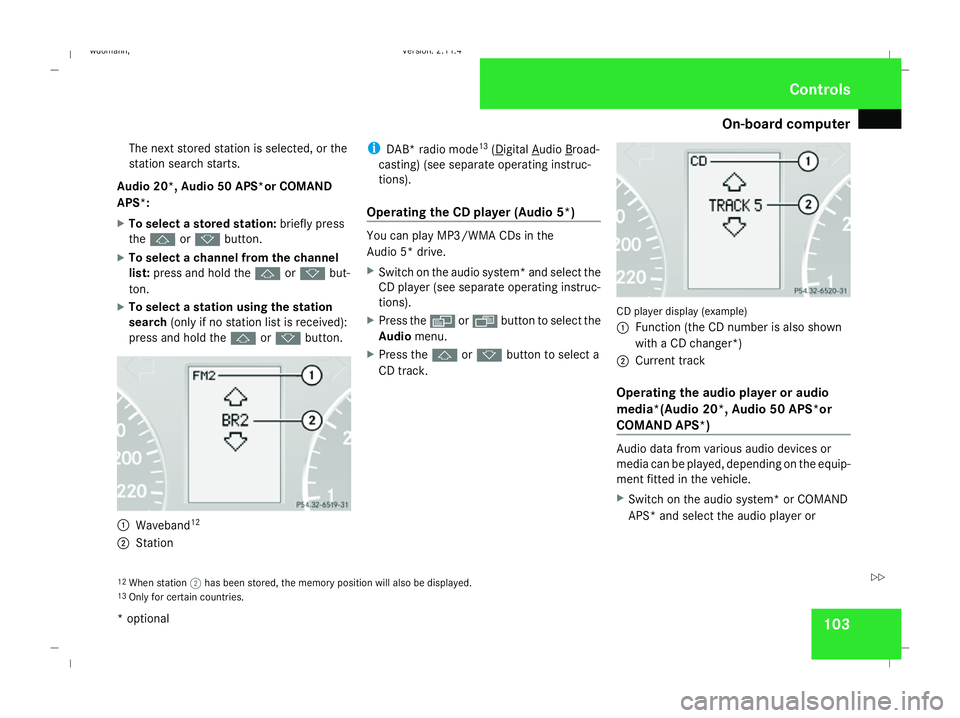
press and hold the jork button. 1
Waveband 12
2 Station i
DAB* radio mode 13
( Digital Audio Broad-
casting) (see separate operating instruc-
tions).
Operating the CD player (Audio 5*) You can play MP3/WMA CDs in the
Audio 5* drive.
X
Switch on the audio system* and select the
CD player (see separate operating instruc-
tions).
X Press the èor· button to select the
Audio menu.
X Press the jork button to select a
CD track. CD player display (example)
1
Function (the CD number is also shown
with a CD changer*)
2 Current track
Operating the audio player or audio
media*(Audio 20*, Audio 50 APS*or
COMAND APS*) Audio data from various audio devices or
media can be played, depending on the equip-
ment fitted in the vehicle.
X
Switch on the audio system* or COMAND
APS* and select the audio player or
12 When station ;has been stored, the memory position will also be displayed.
13 Only for certain countries. Controls
* optional
245_AKB; 2; 7, en-GB
wdomann
, Version: 2.11.4 2008-10-17T11:22:31+02:00 - Seite 103 ZDateiname: 6515_1640_02_buchblock.pdf; preflight
Page 107 of 305
On-board computer
104medium (see separate operating instruc-
tions).
X Use the èor· button to select the
Audio/DVD menu.
X To select next/previous track: briefly
press the jork button.
X To select a track from the track list
(rapid scrolling): press and hold the
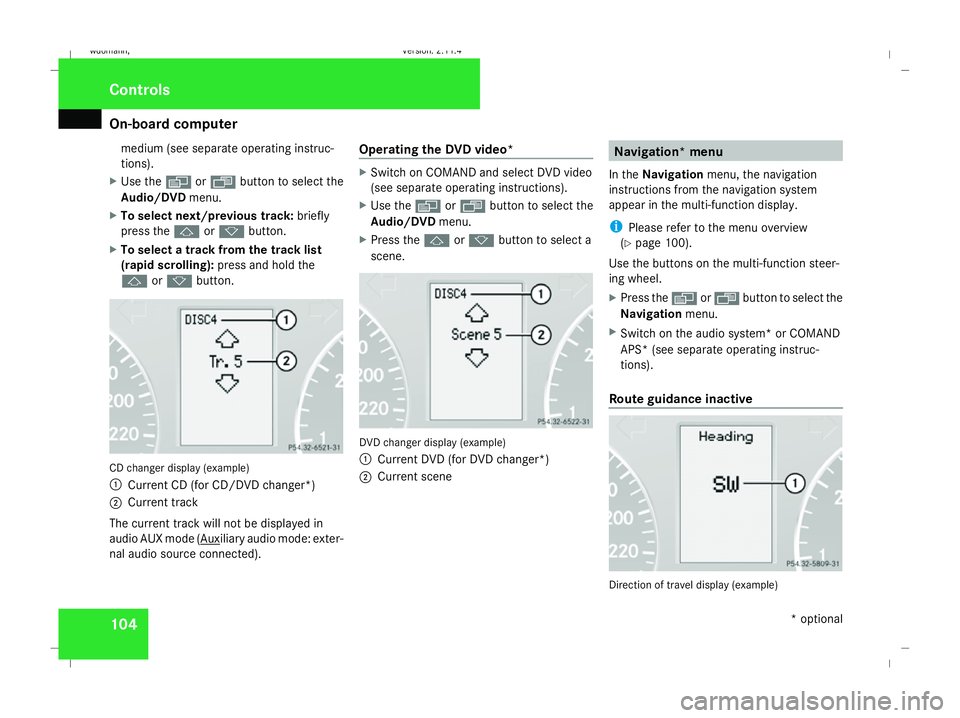
j ork button. CD changer display (example)
1
Current CD (for CD/DVD changer*)
2 Current track
The current track will not be displayed in
audio AUX mode ( Auxiliary audio mode: exter-
nal audio source connected). Operating the DVD video* X
Switch on COMAND and select DVD video
(see separate operating instructions).
X Use the èor· button to select the
Audio/DVD menu.
X Press the jork button to select a
scene. DVD changer display (example)
1
Current DVD (for DVD changer*)
2 Current scene Navigation* menu
In the Navigation menu, the navigation
instructions from the navigation system
appear in the multi-function display.
i Please refer to the menu overview
(Y page 100).
Use the buttons on the multi-function steer-
ing wheel.
X Press the èorÿ button to select the
Navigation menu.
X Switch on the audio system* or COMAND
APS* (see separate operating instruc-
tions).
Route guidance inactive Direction of travel display (example)Controls
* optional
245_AKB; 2; 7, en-GB
wdomann
, Version: 2.11.4 2008-10-17T11:22:31+02:00 - Seite 104Dateiname: 6515_1640_02_buchblock.pdf; preflight
Page 109 of 305
On-board computer
106
menu will only be reset if the vehicle is sta-
tionary.
X Press the èor· button to select the
Settings menu.
X Press and hold the reset button on the left
of the instrument cluster for approximately
three seconds.
A prompt appears in the multi-function dis-
play asking you to confirm by pressing the
reset button again.
X Press the reset button again.
The functions of most submenus are
restored to factory settings.
or
X If you want to retain the settings, do not
press the reset button a second time.
The Settings menu appears again after
approximately 5 seconds.
X Press the èor· button to select a
different menu. Submenus in the Settings menu X
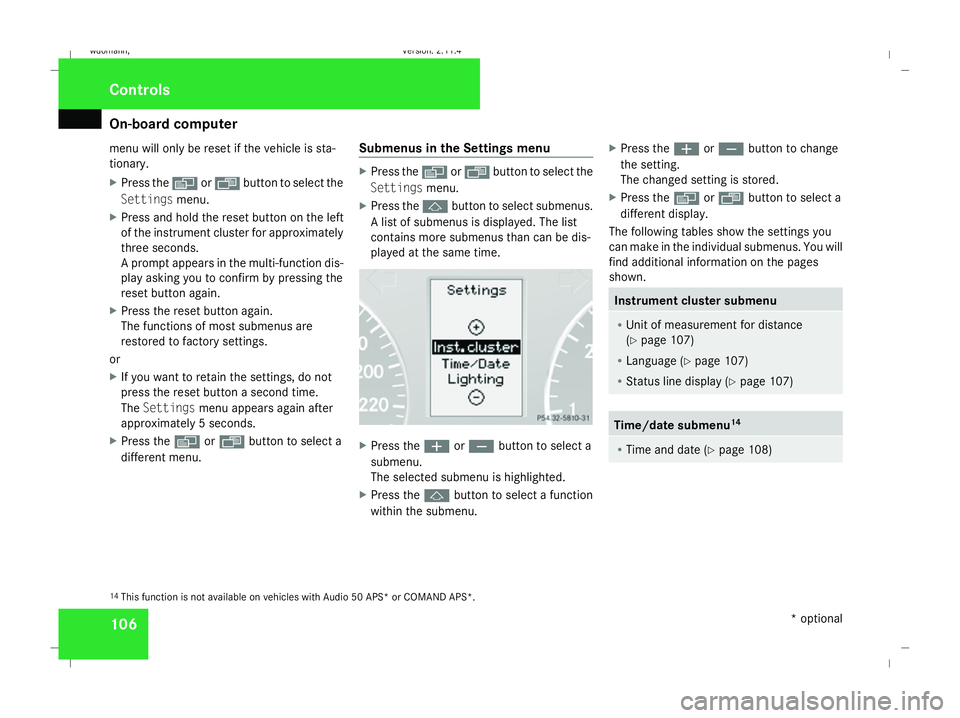
Press the èor· button to select the
Settings menu.
X Press the jbutton to select submenus.
A list of submenus is displayed. The list
contains more submenus than can be dis-
played at the same time. X
Press the æorç button to select a
submenu.
The selected submenu is highlighted.
X Press the jbutton to select a function
within the submenu. X
Press the æorç button to change
the setting.
The changed setting is stored.
X Press the èorÿ button to select a
different display.
The following tables show the settings you
can make in the individual submenus. You will
find additional information on the pages
shown. Instrument cluster submenu
R
Unit of measurement for distance
(Y page 107)
R Language (Y page 107)
R Status line display (Y page 107) Time/date submenu
14 R
Time and date ( Ypage 108) 14
This function is not available on vehicles with Audio 50 APS* or COMAND APS*. Controls
* optional
245_AKB; 2; 7, en-GB
wdomann
,V ersion: 2.11.4
2008-10-17T11:22:31+02:00 - Seite 106 Dateiname: 6515_1640_02_buchblock.pdf; preflight
Page 111 of 305
On-board computer
108
X
Press the æorç button to select the
status line display: outside temperature
(Outside temp.) or speed ( Speed).
The selected display now appears con-
stantly in the lower multi-function display.
When you scroll through the Operation
menu (Y page 101), you will see the display
you have not selected.
X Press the j,èorÿ button to
select a different display.
Setting the date and time Your vehicle may be equipped with one of the
following audio systems *:
A: Audio 5* or Audio 20*
B: Audio 50 APS*
C: COMAND APS*
X You can see which audio system *is fitted
in your vehicle by referring to the separate
operating instructions.
Depending on the audio system*, the time
and date are received from GPS satellites and
cannot be set using the on-board computer
(see the following table). A B C
Set using the on-board com-
puter X
Automatic GPS satellite recep-
tion X X
X
Press the èor· button to select the
Settings menu.
X Press the jbutton to select submenus.
X Press the æorç button to select the
Time/Date submenu.
Setting the time
X Press the jbutton to select Time
Hours (orTime Minutes).
X Press the æorç button to set a
value. Setting the date
X
Press the jbutton to select Date Set
day (orDate Set month orDate Set
year ).
X Press the æorç button to set the
date.
X Press the j,èorÿ button to
select a different display.
Setting constant headlamp mode (day-
time driving lights) When you activate constant headlamp mode
and the light switch is set to
MorU,
the parking lamps, dipped-beam headlamps
and licence plate lighting are switched on
automatically when the engine is running.
Turning the light switch to a different position
switches on the corresponding lights. Turn
the light switch to BorU first if you
wish to switch off constant headlamp mode
while driving in the dark.
In countries in which constant headlamp
mode is a legal requirement, Constantis the
factory setting.
X Press the èor· button to select the
Settings menu.
X Press the jbutton to select submenus. Controls
* optional
245_AKB; 2; 7, en-GB
wdomann,
Version: 2.11.4 2008-10-17T11:22:31+02:00 - Seite 108Dateiname: 6515_1640_02_buchblock.pdf; preflight
Page 113 of 305

On-board computer
110
switch off
function is activated, the interior
lighting remains on for 10 seconds if it is dark.
X Press the èor· button to select the
Settings menu.
X Press the jbutton to select submenus.
X Press the æorç button to select the
Lighting submenu.
X Press the jbutton to select Inter.
lighting delay.sw.off.
X Press the æorç button to activate
or deactivate Inter. lighting
delay.sw.off.
X Press the j,èorÿ button to
select a different display.
Setting the radio station selection* This function is only available in conjunction
with Audio 5*.
The Audio Search allows you to set whether
a new station is searched for every time you
switch on the radio* or a previously stored
station is selected.
X Press the èor· button to select the
Settings menu.
X Press the jbutton to select submenus. X
Press the æorç button to select the
Vehicle submenu.
X Press the jbutton to select Audio
search.
X Press the æorç button to select the
Frequency orMemory setting.
If the Frequency setting is selected, the
station search is started. If the Memoryset-
ting is selected, the next stored station is
selected.
X Press the j,èorÿ button to
select a different display.
Activating/deactivating the automatic
door locking feature When you activate the
Automatic door
locking function, your vehicle will be cen-
trally locked above a speed of approx.
15 km/h.
i For more information on the automatic
door locking feature, see (Y page 61).
X Press the èor· button to select the
Settings menu.
X Press the jbutton to select submenus.
X Press the æorç button to select the
Vehicle submenu. X
Press the jbutton to select Automatic
door lock.
X Press the æorç button to switch
the Automatic door lock feature on or
off.
X Press the j,èorÿ button to
select a different display.
Activating or deactivating the Fold in
mirrors when locking*function When you activate the
Fold mirr. in when
locking function, the exterior mirrors are
folded in when the vehicle is locked. If you
unlock the vehicle and then open the driver's
or front-passenger door, the exterior mirrors
fold out again.
When you fold the exterior mirrors in using
the button on the door with the Fold in mirrors
when locking function activated (Y page 71),
the exterior mirrors do not fold out automat-
ically. The exterior mirrors can then only be
folded out using the button on the door.
X Press the èor· button to select the
Settings menu.
X Press the jbutton to select submenus.
X Press the æorç button to select the
Convenience submenu. Controls
* optional
245_AKB; 2; 7, en-GB
wdomann
,V ersion: 2.11.4
2008-10-17T11:22:31+02:00 - Seite 110 Dateiname: 6515_1640_02_buchblock.pdf; preflight
Page 115 of 305

On-board computer
112
Resetting X
Using èor·, select From start.
X Press the jork button to select the
function that you wish to reset.
X Press and hold the reset button on the left
of the instrument cluster until the values
have reverted to "0".
Calling up the range X
Using èor·, select From start.
X Press the jork button to select
Range:.
The multi-function display shows the esti-
mated range of the vehicle, based on the
current driving style and the fuel level. If
there is only a small amount of fuel remain-
ing in the fuel tank, a vehicle refuelling
¿ appears instead of the range. Telephone menu*
Functions and displays depend on the
optional equipment installed in your vehicle.
You can place your mobile phone in the
mobile phone bracket* (Y page 163), or set
up a Bluetooth connection to the audio sys-
tem* or COMAND APS* (see separate oper-
ating instructions). G
Risk of accident
Observe the legal requirements of the
country in which you are currently driving
regarding the use of mobile phones in the
vehicle.
If it is permitted to use mobile phones while
the vehicle is in motion, you should only use
them when the road and traffic conditions
allow. Otherwise, you may be distracted
from the traffic conditions, cause an acci-
dent and injure yourself and others.
i Please refer to the menu overview
(Y page 100).
Use the buttons on the multi-function steer-
ing wheel. X
Switch on the mobile phone and audio
equipment* or COMAND APS* (see sepa-
rate operating instructions).
X Press the èor· button to select the
Telephone menu.
Mobile phone on PIN code not yet entered
Once you have inserted the mobile phone into
the mobile phone bracket*, the multi-func-
tion display shows the
PINdisplay message.
X Enter the PIN using the mobile phone, Lin-
guatronic*, the audio system* or COMAND
APS*.
The mobile phone will search for a network.
Mobile phone operational
You will see Readyor the name of the mobile
phone network provider in the multi-function
display. If the operational readiness symbol
of the mobile phone goes out, your vehicle is
outside the transmission and reception
range. In this case you will see No Service
in the multi-function display. Controls
* optional
245_AKB; 2; 7, en-GB
wdomann
,V ersion: 2.11.4
2008-10-17T11:22:31+02:00 - Seite 112 Dateiname: 6515_1640_02_buchblock.pdf; preflight
Page 162 of 305

Loading and stowing
159
i
In the glove compartment there are stow-
age spaces for the following:
R coins
R pens
R credit cards and service cards
i Depending on the vehicle's equipment,
you will find installed in the glove compart-
ment either a CD holder*, an AUX-IN con-
nection* or a Media Interface*, which is a
universal interface for portable audio
equipment, e.g. for an iPod or USB device.
i Glove compartment ventilation*:
the glove compartment is ventilated by an
adjustable vent (Y page 136).
Stowage compartment in the front
centre console If your vehicle is not equipped with the smok-
er's package*, a 12 V power socket is fitted
in place of the ashtray. 1
Cover
X To open: slide cover 1forwards.
Stowage compartment/telephone
compartment* in front of the armrest 1
Stowage compartment X
To open: briefly press the cover of stowage
compartment 1.
Stowage compartment 1opens.
Stowage boxes* under the driver's seat
and front-passenger seat The stowage boxes can store up to 2.5 kg.
The illustration shows the driver's seat
1
Recess
X To open: raise the stowage box slightly and
pull it out using recess 1. Controls
* optional
245_AKB; 2; 7, en-GB
wdomann
,V ersion: 2.11.4
2008-10-17T11:22:31+02:00 - Seite 159 ZDateiname: 6515_1640_02_buchblock.pdf; preflight
Page 224 of 305

Display
messages 221Display messages Possible cause/consequence Possible solution
¿ There is only a small amount of fuel in the
fuel tank. X
Refuel at the nearest filling station. 4 Reserve fuel level The fuel level has fallen below the reserve
range. X
Refuel at the nearest filling station. t Enter PIN You have not yet logged on to your mobile
phone*. X
Enter the PIN for the SIM card. t Bluetooth ready The Bluetooth connection between your
mobile phone and the audio system* or
COMAND APS* is not activated. X
If desired, activate the Bluetooth connection
between the mobile phone and the audio sys-
tem* or COMAND APS* (see separate operat-
ing instructions). t No telephone Your mobile phone is not inserted in the
bracket*. X
Insert the mobile phone into the
bracket* ( Ypage 163). W Top up washer fluid
Vehicles with bi-xenon headlamps*: The
washer fluid level in the washer fluid res-
ervoir has dropped below the minimum. X
Top up the windscreen washer fluid
(Y page 175). Practical advi
ce
* optional
245_AKB; 2; 7, en-GB
wdomann,
Version: 2.11.4 2008-10-17T11:22:31+02:00 - Seite 221 ZDateiname: 6515_1640_02_buchblock.pdf; preflight