2008 HYUNDAI ENTOURAGE change time
[x] Cancel search: change timePage 229 of 393
3213
Features of your vehicle
You have two options: 4:3 (normal) and
16:9 (widescreen). Press the display but-
ton to select the preferred aspect ratio.
When the RSE unit receives video sig-
nals from the AUX, the aspect ratio can
be changed to 16:9 or 4:3 by the DISP
button.
The aspect ratio information will auto-
matically disappear if no button is
pressed for three seconds.5. ForwardThere are three DVD and VCD fast for-
ward speeds. Press and hold the FWD
button for up to 2 seconds and the player
will fast forward at 4 times the normal
speed (8 times for VCDs). Hold the but-
ton for more than 2 seconds but less than
4 seconds and the player will fast forward
at about 8 times the normal speed (20
times for VCDs). Hold the button for more
than 4 seconds and the fast forward will
increase to about 32 times the normal
speed for both DVDs and VCDs. Press
the FWD button again to stop fast for-
warding and return to normal speed play.
6. ReverseThere are three DVD and VCD fast
reverse speeds. Press and hold the REV
button for up to 2 seconds and the player
will reverse through the DVD at 4 times
the normal speed (8 times for VCDs).
Hold the button for more than 2 seconds
but less than 4 seconds and the player
will reverse at about 8 times the normal
speed (20 times for VCDs). Hold the but-
ton for more than 4 seconds and the
reverse will increase to 32 times the nor-
mal speed for both DVDs and VCDs.
Press the REV button again to stop
reversing and return to normal speed
play.7. Next ChapterWhile a DVD is playing, press the NEXT
button to skip to the next chapter. The
current chapter number is shown on the
screen. Press and hold the NEXT button
to move quickly through the chapters.✽ ✽
NOTICEDepending on the DVD, if NEXT is
pressed during the last chapter on a
DVD, a red circle with a “Invalid
icon[: :
]” may be displayed, indicating
an invalid button press.
8. Previous ChapterPress the PREV button to skip to the
beginning of the previous chapter. Press
and hold the PREV button to move quick-
ly through the chapters.
Depending on your DVD, if the PREV
button is pressed during the first 8 sec-
onds of the first chapter, the player will
skip to the beginning of the last chapter
of the DVD.9. EnterA momentary press shall initiate a select
or enter function of a selected menu
item.10. Menu DVDs may contain special programming
or features that are accessed by using
the menu. To use the menu with a DVD
that is playing, press the MENU button
once to display the DVD disc menu.
Press the button a second time to exit the
menu and return to the DVD program.
The menu is not available during disc ini-
tialization, the beginning credits or any
copyright warnings.
Page 232 of 393

Features of your vehicle216 31. Stop/Eject While the disc is playing, press the
STOP/EJECT( ) button to stop disc
play.
While the disc is stopped, press the
STOP/EJECT( ) button again to eject
the disc.2. Volume Control You can adjust the volume one of two
ways. First, if you are adjusting the vol-
ume for audio through the vehicle speak-
ers, you can use the VOLUME (
)button on the control panel or the
remote control. Press “+” to increase the
volume and “-” to decrease the volume.
The volume level will be displayed on the
head-unit, when the RSE unit volume
level is adjusted from its control panel or
remote control. This button does not
affect headphone volume.
Second, you can adjust the volume on
the wireless headphones by locating the
VOL control wheel on the left side of the
headphones. Roll the control wheel to
adjust the volume.
3. Play/Pause When an audio CD is inserted, the RSE
will display the HYUNDAI logo, then
automatically begin playing the first track.
The track number and time elapsed for
the current track is displayed.
If a CD is loaded and playing, press the
PLAY/PAUSE( ) button to pause the
CD. Press the button again to resume
play.
If a CD is already loaded, stopping and
playing the CD by pressing
PLAY/PAUSE( ) button on the remote
control; cycling the ignition and pressing
play; or changing the source will cause the
CD to begin playing at the point where it
was stopped during the previous play. The
player will automatically play this previous
play position unless the
STOP/EJECT( ) button is pressed.
At the end of the CD, the player will auto-
matically return to the first track and con-
tinue playing.
4. Display When the player is in DVD mode, press
the DISP button to view the DVD title,
chapter number and elapsed time and
other information about the DVD current-
ly playing.
The next time the player is turned on, it
will return to the brightness level it was
adjusted to when last used.
The RSE unit has two presets of display
brightness. When the headlamp is turned
on, the display brightness level will be
dimmed as the preset. However, when
the headlamp is turned off, the display
brightness will return to the daytime
brightness.
Press DISP to adjust the image format.
The image format, also known as the
aspect ratio, is a ratio of the height to
width of the image on the screen. For
example, a 4:3 ratio would mean an
image that is 4 units by 3 units. You have
two options: 4:3 (normal) and 16:9
(widescreen). Press the display button to
select the preferred aspect ratio.When the RSE unit receives video sig-
nals from the AUX, the aspect ratio can
be changed to 16:9 or 4:3 by the DISP
button.The aspect ratio information will auto-
matically disappear if no button is
pressed for three seconds.
Page 235 of 393

3219
Features of your vehicle
Using the Remote ControlIn addition to having all the buttons and
functionality listed in the DVD and CD
Controls section, the remote control has
several other buttons that offer additional
functions. It is an infrared remote control,
and must be pointed at the face of the
RSE at a 45° angle for best results. It
requires a CR2025 battery (included).
The remote control has the following
additional buttons:✽ ✽
NOTICEThe RSE system is always “awake”
when the vehicle's ignition is turned on
or when the vehicle is in “accessory”
power mode.1. StopPressing this button once will stop DVD
or CD play. To eject a disc, you must use
the eject button on the control panel.2. Speaker Volume “+” and “-”These buttons control the volume of the
audio of a DVD or CD through the vehicle
speakers, not the volume from head-
phones. Press “+” to turn the volume up
and “-” to turn the volume down.
3. Play/PauseWhen an audio CD(VCD/DVD) is insert-
ed, the RSE will display the HYUNDAI
logo, then automatically begin playing
the first track. The track number and time
elapsed for the current track is displayed.
If a CD(VCD/DVD) is loaded and playing,
press the PLAY/PAUSE( ) button to
pause the CD(VCD/DVD). Press the but-
ton again to resume play.
If a CD(VCD/DVD) is already loaded,
stopping and playing the CD(VCD/ DVD)
by pressing PLAY/PAUSE( ) button
on the remote control; cycling the ignition
and pressing play; or changing the
source will cause the CD(VCD/DVD) to
begin playing at the point where it was
stopped during the previous play. The
player will automatically play this previ-
ous play position unless the
STOP/EJECT( ) button is pressed.
At the end of the CD(VCD/DVD), the
player will automatically return to the first
track and continue playing.4. DisplayWhen the player is in DVD mode, press
the DISP button to view the DVD title,
chapter number and elapsed time and
other information about the DVD current-
ly playing.It will also display brightness. There are
“Day Time” brightness with brightest level
and “Night Time” brightness which has
70% level of “Day Time” brightness. Adjust
the level of brightness by pressing the
REV(dimmer) or FWD(brighter) buttons.
The next time the player is turned on, it
will return to the brightness level it was
adjusted to when last used.
The RSE unit has two presets of display
brightness. When the headlamp is turned
on, the display brightness level will be
dimmed as the preset. However, when
the headlamp is turned off, the display
brightness will return to the daytime
brightness.
Press DISP to adjust the image format.
The image format, also known as the
aspect ratio, is a ratio of the height to
width of the image on the screen. For
example, a 4:3 ratio would mean an
image that is 4 units by 3 units. You have
two options: 4:3 (normal) and 16:9
(widescreen). Press the display button to
select the preferred aspect ratio.
When the RSE unit receives video sig-
nals from the AUX, the aspect ratio can
be changed to 16:9 or 4:3 by the DISP
button.
The aspect ratio information will auto-
matically disappear if no button is
pressed for three seconds.
Page 240 of 393
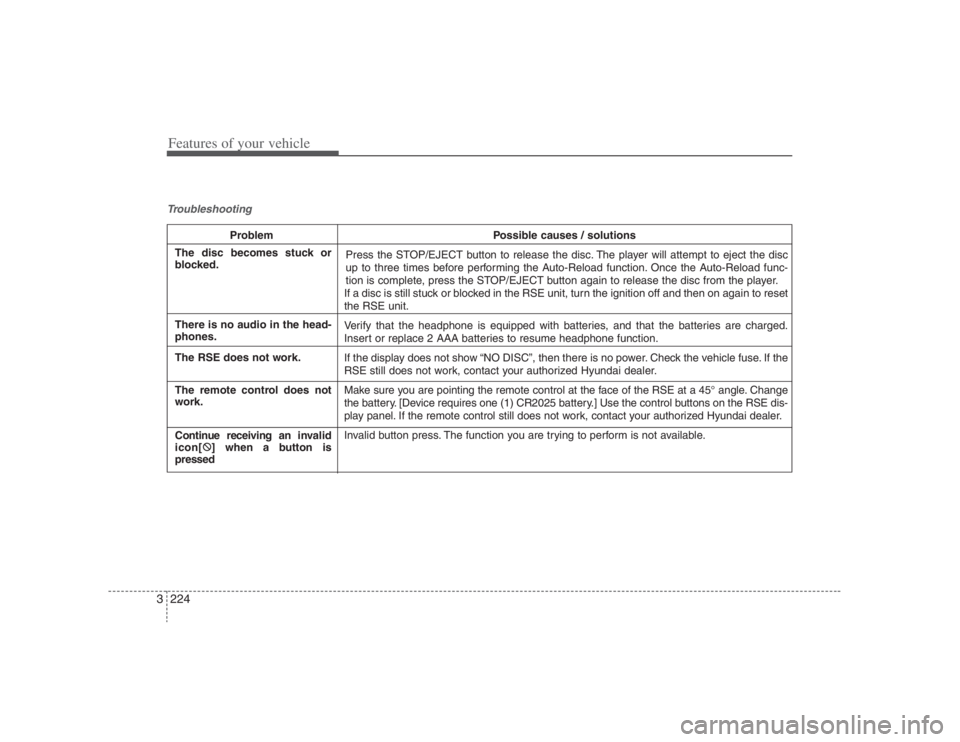
Features of your vehicle224 3Troubleshooting
Problem Possible causes / solutions
Press the STOP/EJECT button to release the disc. The player will attempt to eject the disc
up to three times before performing the Auto-Reload function. Once the Auto-Reload func-
tion is complete, press the STOP/EJECT button again to release the disc from the player.
If a disc is still stuck or blocked in the RSE unit, turn the ignition off and then on again to reset
the RSE unit.
Verify that the headphone is equipped with batteries, and that the batteries are charged.
Insert or replace 2 AAA batteries to resume headphone function.
If the display does not show “NO DISC”, then there is no power. Check the vehicle fuse. If the
RSE still does not work, contact your authorized Hyundai dealer.
Make sure you are pointing the remote control at the face of the RSE at a 45° angle. Change
the battery. [Device requires one (1) CR2025 battery.] Use the control buttons on the RSE dis-
play panel. If the remote control still does not work, contact your authorized Hyundai dealer.
Invalid button press. The function you are trying to perform is not available.
The disc becomes stuck or
blocked.
There is no audio in the head-
phones.
The RSE does not work.
The remote control does not
work.
Continue receiving an invalid
icon[:
] when a button is
pressed
Page 242 of 393
Driving your vehicle2 4
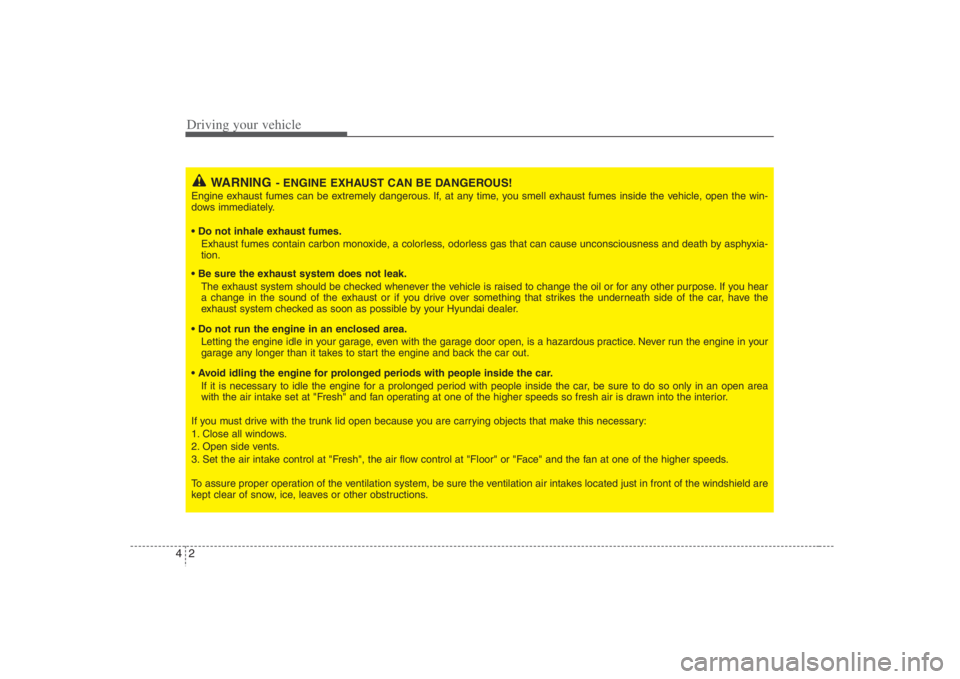
WARNING
- ENGINE EXHAUST CAN BE DANGEROUS!
Engine exhaust fumes can be extremely dangerous. If, at any time, you smell exhaust fumes inside the vehicle, open the win-
dows immediately.
• Do not inhale exhaust fumes.
Exhaust fumes contain carbon monoxide, a colorless, odorless gas that can cause unconsciousness and death by asphyxia-
tion.
The exhaust system should be checked whenever the vehicle is raised to change the oil or for any other purpose. If you hear
a change in the sound of the exhaust or if you drive over something that strikes the underneath side of the car, have the
exhaust system checked as soon as possible by your Hyundai dealer.
Letting the engine idle in your garage, even with the garage door open, is a hazardous practice. Never run the engine in your
garage any longer than it takes to start the engine and back the car out.
If it is necessary to idle the engine for a prolonged period with people inside the car, be sure to do so only in an open area
with the air intake set at "Fresh" and fan operating at one of the higher speeds so fresh air is drawn into the interior.
If you must drive with the trunk lid open because you are carrying objects that make this necessary:
1. Close all windows.
2. Open side vents.
3. Set the air intake control at "Fresh", the air flow control at "Floor" or "Face" and the fan at one of the higher speeds.
To assure proper operation of the ventilation system, be sure the ventilation air intakes located just in front of the windshield are
kept clear of snow, ice, leaves or other obstructions.
Page 256 of 393
Driving your vehicle16 4To temporarily accelerate with the
cruise control on:If you want to speed up temporarily when
the cruise control is on, depress the
accelerator pedal. Increased speed will
not interfere with cruise control operation
or change the set speed.
To return to the set speed, take your foot
off the accelerator.
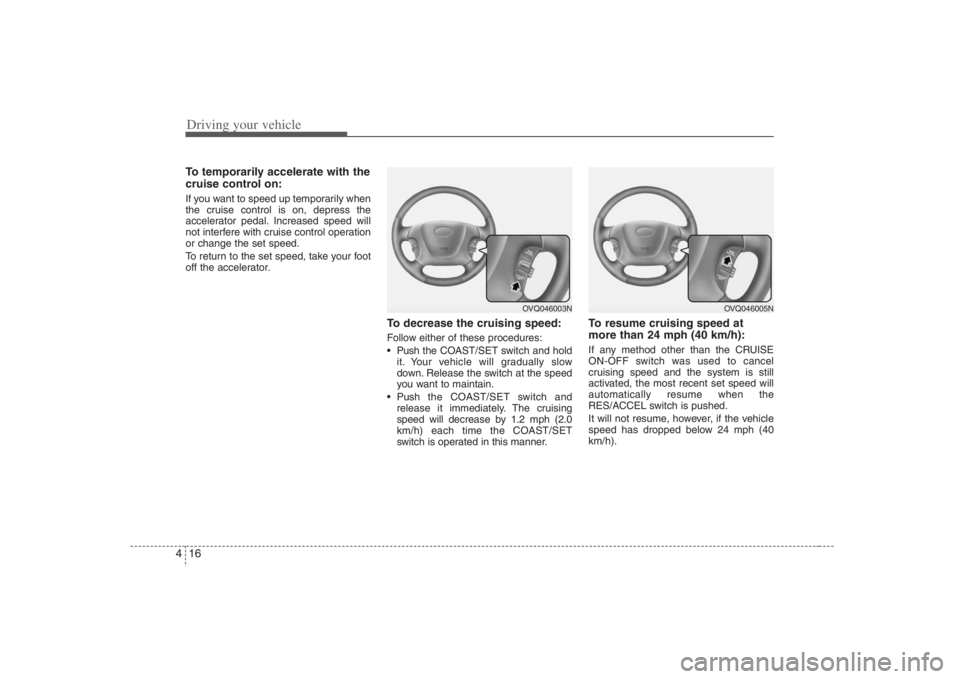
To decrease the cruising speed:Follow either of these procedures:
Pushthe COAST/SET switch and hold
it. Your vehicle will gradually slow
down. Release the switch at the speed
you want to maintain.
Push the COAST/SET switch and
release it immediately. The cruising
speed will decrease by 1.2 mph (2.0
km/h) each time the COAST/SET
switch is operated in this manner.
To resume cruising speed at
more than 24 mph (40 km/h):If any method other than the CRUISE
ON-OFF switch was used to cancel
cruising speed and the system is still
activated, the most recent set speed will
automatically resume when the
RES/ACCEL switch is pushed.
It will not resume, however, if the vehicle
speed has dropped below 24 mph (40
km/h).
OVQ046003N
OVQ046005N
Page 274 of 393
Driving your vehicle34 4
Your vehicle can tow a trailer. To identify
what the vehicle trailering capacity is for
your vehicle, you should read the infor-
mation in “Weight of the Trailer” that
appears later in this section.
Remember that trailering is different than
just driving your vehicle by itself.
Trailering means changes in handling,
durability, and fuel economy. Successful,
safe trailering requires correct equip-
ment, and it has to be used properly.This section contains many time-tested,
important trailering tips and safety rules.
Many of these are important for your
safety and that of your passengers.
Please read this section carefully before
you pull a trailer.
Load-pulling components such as the
engine, transaxle, wheel assemblies, and
tires are forced to work harder against
the load of the added weight. The engine
is required to operate at relatively higher
speeds and under greater loads. This
additional burden generates extra heat.
The trailer also adds considerably to
wind resistance, increasing the pulling
requirements.
TRAILER TOWING
WARNING
- Towing a trail-
er
If you don't use the correct equip-
ment and drive improperly, you can
lose control when you pull a trailer.
For example, if the trailer is too
heavy, the brakes may not work well
- or even at all. You and your pas-
sengers could be seriously or fatal-
ly injured. Pull a trailer only if you
have followed all the steps in this
section.
WARNING
- Weight limits
Before towing, make sure the total
trailer weight, gross combination
weight, gross vehicle weight, gross
axle weight and trailer tongue load
are all within the limits.
CAUTION
Pulling a trailer improperly can
damage your vehicle and result in
costly repairs not covered by your
warranty. To pull a trailer correctly,
follow the advice in this section.
Page 276 of 393
Driving your vehicle36 4Driving with a trailer Towing a trailer requires a certain
amount of experience. Before setting out
for the open road, you must get to know
your trailer. Acquaint yourself with the
feel of handling and braking with the
added weight of the trailer. And always
keep in mind that the vehicle you are
driving is now a good deal longer and not
nearly so responsive as your vehicle is
by itself.
Before you start, check the trailer hitch
and platform, safety chains, electrical
connector(s), lights, tires and mirror
adjustment. If the trailer has electric
brakes, start your vehicle and trailer mov-
ing and then apply the trailer brake con-
troller by hand to be sure the brakes are
working. This lets you check your electri-
cal connection at the same time.
During your trip, check occasionally to be
sure that the load is secure, and that the
lights and any trailer brakes are still work-
ing.
Following distance Stay at least twice as far behind the vehi-
cle ahead as you would when driving
your vehicle without a trailer. This can
help you avoid situations that require
heavy braking and sudden turns.Passing You’ll need more passing distance up
ahead when you’re towing a trailer. And,
because of the increased vehicle length,
you’ll need to go much farther beyond the
passed vehicle before you can return to
your lane.Backing up Hold the bottom of the steering wheel
with one hand. Then, to move the trailer
to the left, just move your hand to the left.
To move the trailer to the right, move your
hand to the right. Always back up slowly
and, if possible, have someone guide
you.Making turns When you’re turning with a trailer, make
wider turns than normal. Do this so your
trailer won’t strike soft shoulders, curbs,
road signs, trees, or other objects. Avoid
jerky or sudden maneuvers. Signal well
in advance.
Turn signals when towing a trailer When you tow a trailer, your vehicle has
to have a different turn signal flasher and
extra wiring. The green arrows on your
instrument panel will flash whenever you
signal a turn or lane change. Properly
connected, the trailer lights will also flash
to alert other drivers you’re about to turn,
change lanes, or stop.
When towing a trailer, the green arrows
on your instrument panel will flash for
turns even if the bulbs on the trailer are
burned out. Thus, you may think drivers
behind you are seeing your signals
when, in fact, they are not. It’s important
to check occasionally to be sure the trail-
er bulbs are still working. You must also
check the lights every time you discon-
nect and then reconnect the wires.
Do not connect a trailer lighting system
directly to your vehicle’s lighting system.
Use only an approved trailer wiring har-
ness.
Your Authorized Hyundai Dealer can
assist you in installing the wiring harness.
WARNING
Failure to use an approved trailer
wiring harness could result in dam-
age to the vehicle electrical system
and/or personal injury.