Page 25 of 400
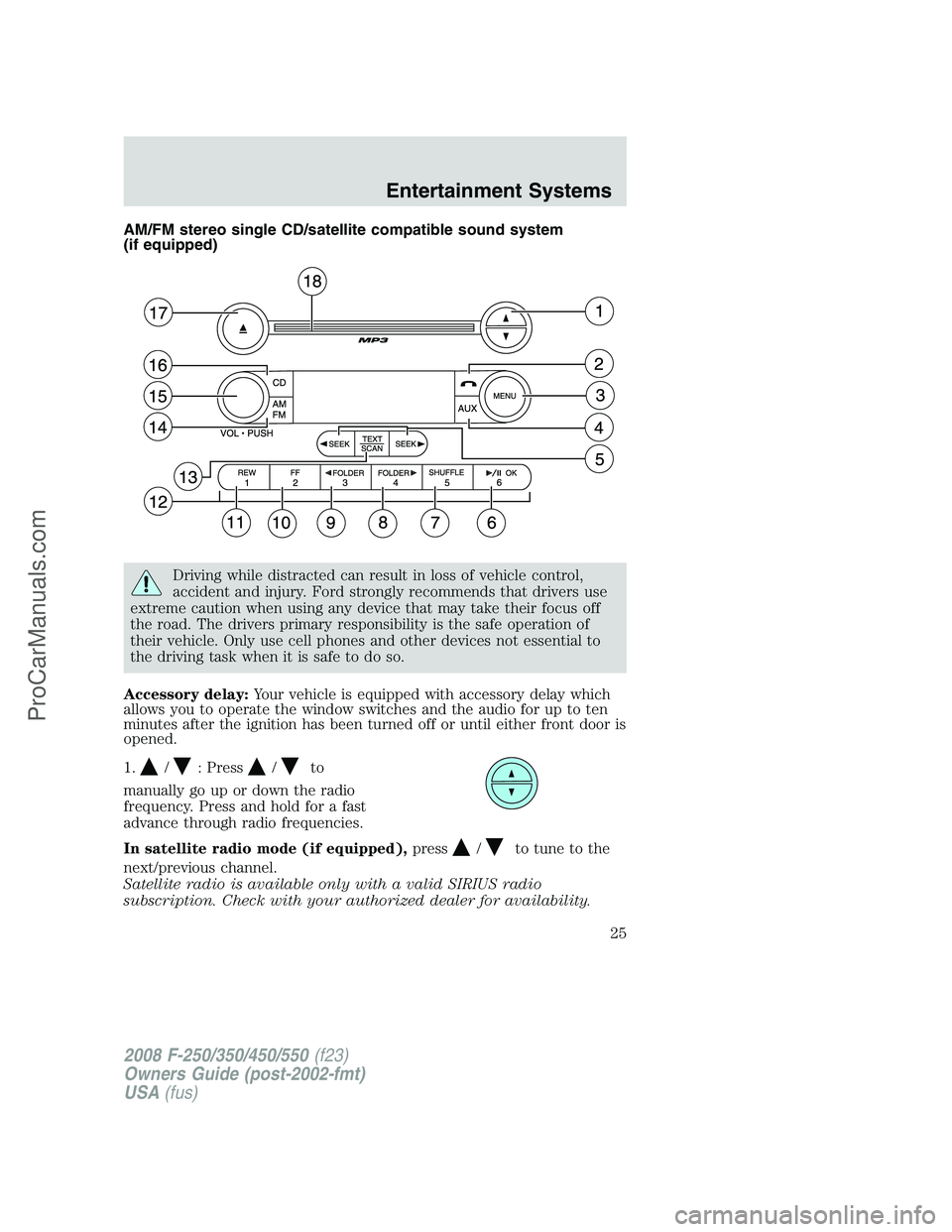
AM/FM stereo single CD/satellite compatible sound system
(if equipped)
Driving while distracted can result in loss of vehicle control,
accident and injury. Ford strongly recommends that drivers use
extreme caution when using any device that may take their focus off
the road. The drivers primary responsibility is the safe operation of
their vehicle. Only use cell phones and other devices not essential to
the driving task when it is safe to do so.
Accessory delay:Your vehicle is equipped with accessory delay which
allows you to operate the window switches and the audio for up to ten
minutes after the ignition has been turned off or until either front door is
opened.
1.
/: Press/to
manually go up or down the radio
frequency. Press and hold for a fast
advance through radio frequencies.
In satellite radio mode (if equipped),press
/to tune to the
next/previous channel.
Satellite radio is available only with a valid SIRIUS radio
subscription. Check with your authorized dealer for availability.
2008 F-250/350/450/550(f23)
Owners Guide (post-2002-fmt)
USA(fus)
Entertainment Systems
25
ProCarManuals.com
Page 31 of 400

In satellite radio mode (if equipped),press and release to enter
TEXT MODE and display the current song title. While in TEXT MODE,
press again to scroll through the current song title, artist, channel
category and the SIRIUS long channel name.
In TEXT MODEsometimes the display requires additional text to be
displayed. When the “>” indicator is active, press SEEK
to view the
additional display text. When the “<” indicator is active, press
SEEK
to view the previous display text.
In satellite radio mode (if equipped),press and hold to hear a brief
sampling of the next channels. Press again to stop. In CATEGORY
MODE, press SCAN to hear a brief sampling of the channels in the
selected category. Press again to stop.
Satellite radio is available only with a valid SIRIUS radio
subscription. Check with your authorized dealer for availability.
14.AM/FM:Press AM/FM to select
AM/FM1/FM2 frequency band.
15.ON/OFF/Volume:Press
VOL-PUSH to turn ON/OFF. Turn
VOL-PUSH to increase/decrease
volume.
Note:If the volume is set above a
certain level and the ignition is turned off, the volume will come back on
at a “nominal” listening level when the ignition switch is turned back on.
16.CD:Press to enter CD/MP3
mode. If a CD/MP3 is already loaded
into the system, CD/MP3 play will
begin where it ended last.
17.
(CD eject):Press to eject a
CD.
18.CD slot:Insert a CD label side
up in the CD slot.
2008 F-250/350/450/550(f23)
Owners Guide (post-2002-fmt)
USA(fus)
Entertainment Systems
31
ProCarManuals.com
Page 32 of 400

Premium/Audiophile in-dash six CD/MP3/satellite compatible sound
system (if equipped)
Driving while distracted can result in loss of vehicle control,
accident and injury. Ford strongly recommends that drivers use
extreme caution when using any device that may take their focus off
the road. The drivers primary responsibility is the safe operation of
their vehicle. Only use cell phones and other devices not essential to
the driving task when it is safe to do so.
Accessory delay:Your vehicle is equipped with accessory delay which
allows you to operate the window switches and audio for up to ten
minutes after the ignition has turned off or until either front door has
opened.
1.
/(Tune/Disc selector):
In radio mode,press to manually
go up (
) or down () the
radio frequency. Press and hold for
a fast advance through radio frequencies.
In menu mode,use to select various settings.
In CD/MP3 mode,press to select the desired disc.
2008 F-250/350/450/550(f23)
Owners Guide (post-2002-fmt)
USA(fus)
Entertainment Systems
32
ProCarManuals.com
Page 39 of 400
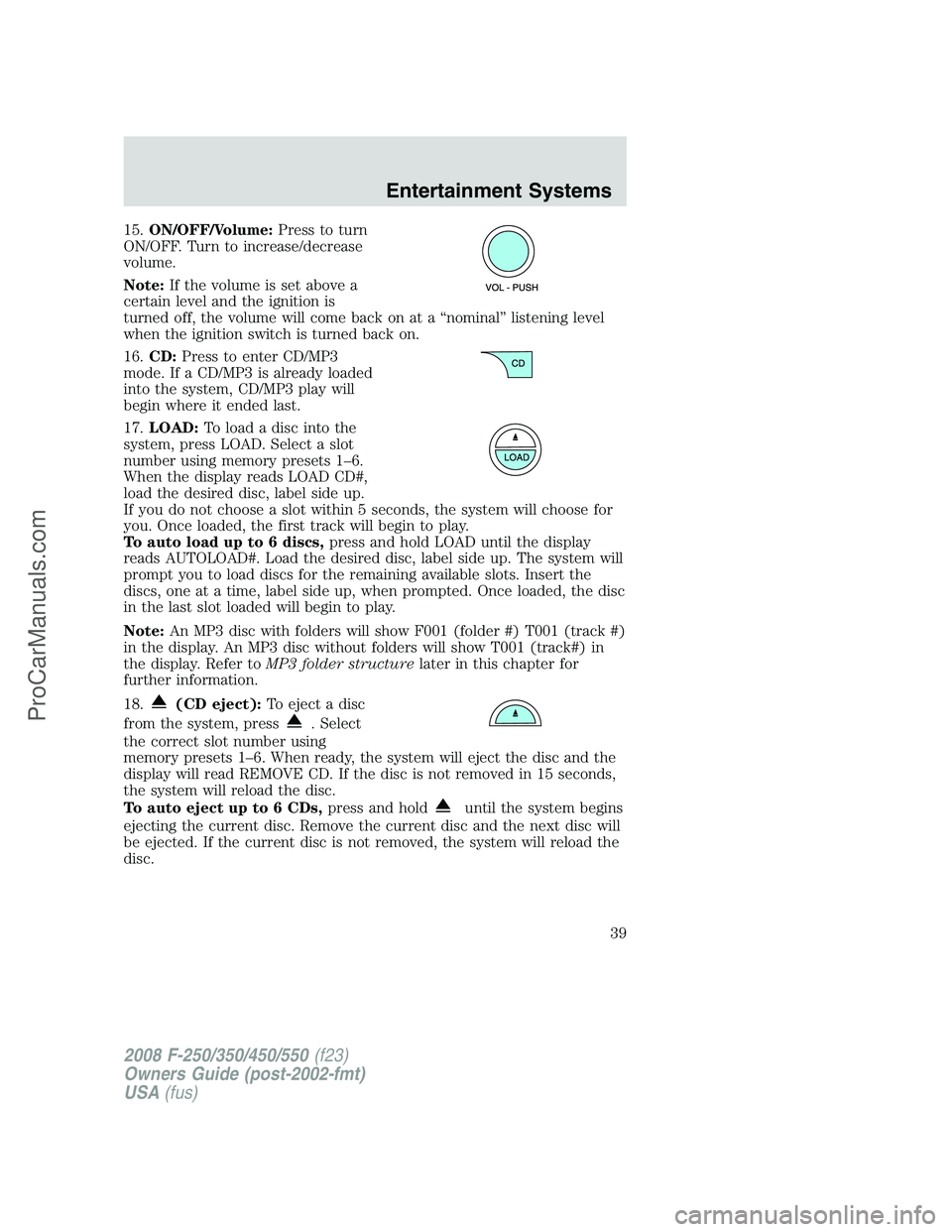
15.ON/OFF/Volume:Press to turn
ON/OFF. Turn to increase/decrease
volume.
Note:If the volume is set above a
certain level and the ignition is
turned off, the volume will come back on at a “nominal” listening level
when the ignition switch is turned back on.
16.CD:Press to enter CD/MP3
mode. If a CD/MP3 is already loaded
into the system, CD/MP3 play will
begin where it ended last.
17.LOAD:To load a disc into the
system, press LOAD. Select a slot
number using memory presets 1–6.
When the display reads LOAD CD#,
load the desired disc, label side up.
If you do not choose a slot within 5 seconds, the system will choose for
you. Once loaded, the first track will begin to play.
To auto load up to 6 discs,press and hold LOAD until the display
reads AUTOLOAD#. Load the desired disc, label side up. The system will
prompt you to load discs for the remaining available slots. Insert the
discs, one at a time, label side up, when prompted. Once loaded, the disc
in the last slot loaded will begin to play.
Note:An MP3 disc with folders will show F001 (folder #) T001 (track #)
in the display. An MP3 disc without folders will show T001 (track#) in
the display. Refer toMP3 folder structurelater in this chapter for
further information.
18.
(CD eject):To eject a disc
from the system, press
. Select
the correct slot number using
memory presets 1–6. When ready, the system will eject the disc and the
display will read REMOVE CD. If the disc is not removed in 15 seconds,
the system will reload the disc.
To auto eject up to 6 CDs,press and hold
until the system begins
ejecting the current disc. Remove the current disc and the next disc will
be ejected. If the current disc is not removed, the system will reload the
disc.
2008 F-250/350/450/550(f23)
Owners Guide (post-2002-fmt)
USA(fus)
Entertainment Systems
39
ProCarManuals.com
Page 46 of 400

Radio Display Condition Action Required
ACQUIRING Radio requires more
than two seconds to
produce audio for the
selected channel.No action required.
This message should
disappear shortly.
SAT FAULT Internal module or
system failure
present.If this message does
not clear within a short
period of time, or with
an ignition key cycle,
your receiver may have
a fault. See your
authorized dealer for
service.
INVALID CHNL Channel no longer
available.This previously
available channel is no
longer available. Tune
to another channel. If
the channel was one of
your presets, you may
choose another channel
for that preset button.
UNSUBSCRIBED Subscription not
available for this
channel.Contact SIRIUS at
1–888–539–7474 to
subscribe to the
channel or tune to
another channel.
NO TEXT Artist information not
available.Artist information not
available at this time on
this channel. The
system is working
properly.
2008 F-250/350/450/550(f23)
Owners Guide (post-2002-fmt)
USA(fus)
Entertainment Systems
46
ProCarManuals.com
Page 48 of 400
FAMILY ENTERTAINMENT DVD SYSTEM (IF EQUIPPED)
Driving while distracted can result in loss of vehicle control,
accident and injury. Ford strongly recommends that drivers use
extreme caution when using any device that may take their focus off
the road. The drivers primary responsibility is the safe operation of
their vehicle. Only use cell phones and other devices not essential to
the driving task when it is safe to do so.
Your vehicle may be equipped with a Family Entertainment System
(FES) which allows you to listen to audio CDs, MP3 discs, watch DVDs
and to plug in and play a variety of standard video game systems. The
DVD player is capable of playing standard DVDs, CDs, MP3s and is
compatible with CD-R/W, CD-R and certain CD-ROM media.
Please review this material to become familiar with the FES features and
controls as well as the very important safety information.
Quick start
Your Family Entertainment System includes a DVD system, two sets of
wireless infrared (IR) headphones and a wireless infrared (IR) remote
control.
To play a DVD in the DVD system:
The DVD system can play DVD-Video, DVD-R, DVD-R/W discs as well as
audio CDs and video CDs. To ensure proper disc operation, check the
disc for finger prints, scratches and cleanliness. Clean with a soft cloth,
wiping from center to edge.
1. Ensure that the vehicle ignition is in the RUN or ACCESSORY
position.
2. Insert a DVD into the system, label-side up to turn on the system. It
will load automatically.
3. Press the power button on the
DVD player, then press Play
to
begin to play the disc.
If a DVD is already loaded into the
system, press PLAY on the DVD
player.
Note:If sound can be heard, but no video is present, press VIDEO to
select the video source (DVD or aux-inputs).
2008 F-250/350/450/550(f23)
Owners Guide (post-2002-fmt)
USA(fus)
Entertainment Systems
48
ProCarManuals.com
Page 49 of 400

Press VIDEO to change the source
displayed on the screen. Press
repeatedly to cycle through:
DVD-DISC, DVD-AUX, NON-DVD,
OFF.
Press the power button to turn the
system off. The indicator light will
turn off indicating the system is off.
Note:The audio from the DVD system will play over all vehicle speakers
and can be adjusted by the radio volume control.
To play a CD in the DVD system:
The DVD system can play audio CDs, CD-R and CD-R/W, CD-ROM and
video CDs. To ensure proper disc operation, check the disc for finger
prints and scratches. Clean the disc with a soft cloth, wiping from the
center to the edge.
1. Ensure that the vehicle ignition is in the RUN or ACCESSORY
position.
2. Insert a CD into the system,
label-side up to turn on the DVD
system. It will load and
automatically begin to play. If there
is already a CD in the system, press
PLAY on the DVD player.
3. The disc will begin to play and
the ’CD Audio Disc’ screen will
display. From this screen, you can
also select from COMPRESSION,
SHUFFLE and SCAN features.
To play an MP3 disc in the DVD system:
1. Ensure that the vehicle ignition is in the RUN or ACCESSORY
position.
2008 F-250/350/450/550(f23)
Owners Guide (post-2002-fmt)
USA(fus)
Entertainment Systems
49
ProCarManuals.com
Page 50 of 400
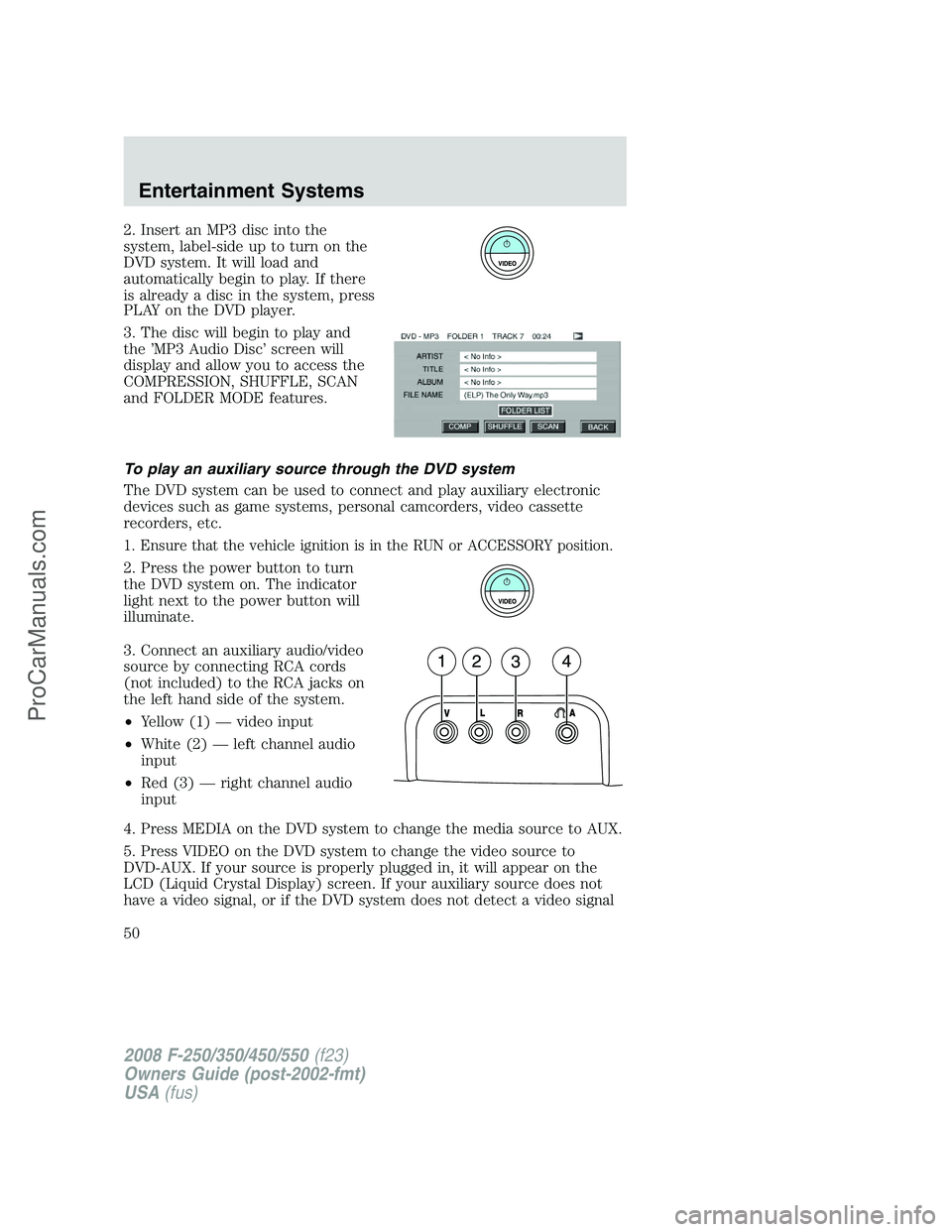
2. Insert an MP3 disc into the
system, label-side up to turn on the
DVD system. It will load and
automatically begin to play. If there
is already a disc in the system, press
PLAY on the DVD player.
3. The disc will begin to play and
the ’MP3 Audio Disc’ screen will
display and allow you to access the
COMPRESSION, SHUFFLE, SCAN
and FOLDER MODE features.
To play an auxiliary source through the DVD system
The DVD system can be used to connect and play auxiliary electronic
devices such as game systems, personal camcorders, video cassette
recorders, etc.
1. Ensure that the vehicle ignition is in the RUN or ACCESSORY position.
2. Press the power button to turn
the DVD system on. The indicator
light next to the power button will
illuminate.
3. Connect an auxiliary audio/video
source by connecting RCA cords
(not included) to the RCA jacks on
the left hand side of the system.
•Yellow (1) — video input
•White (2) — left channel audio
input
•Red (3) — right channel audio
input
4. Press MEDIA on the DVD system to change the media source to AUX.
5. Press VIDEO on the DVD system to change the video source to
DVD-AUX. If your source is properly plugged in, it will appear on the
LCD (Liquid Crystal Display) screen. If your auxiliary source does not
have a video signal, or if the DVD system does not detect a video signal
2008 F-250/350/450/550(f23)
Owners Guide (post-2002-fmt)
USA(fus)
Entertainment Systems
50
ProCarManuals.com