Page 239 of 527

INFO Button (CD Mode for MP3 Play)
Press the INFO button while playing MP3 or WMA disc.
The radio scrolls through the following TAG information:
Song Title, Artist, File Name, and Folder Name (if avail-
able).
Press the INFO button once more to return to9elapsed
time9priority mode.
Press and hold the INFO button while in the message
display priority mode or elapsed time display priority
mode will display the song title for each file.
RW/FF (CD Mode for MP3 and WMA Play)
Press the FF side of the button to move forward through
the file or MP3 and WMA selection.
TUNE Control (CD Mode for MP3 Play)
Pressing the TUNE control allows the adjustment of
Tone, Balance, and Fade.
AM/FM Button (CD Mode for MP3 Play)
Switches back to Radio mode.
RND/PTY Button (CD Mode for MP3 Play)
Pressing this button plays files randomly.
SET/DIR Button (CD Mode for MP3 Play)
Press the SET/DIR Button to display folders, when
playing an MP3 discs that have a file/folder structure.
Turn the TUNE control to display available folders or
move through available folders. Press the TUNE control
to select a folder.
Buttons1-6(CDMode for MP3 Play)
Selects disc positions1-6forPlay/Load/Eject.
UNDERSTANDING YOUR INSTRUMENT PANEL 237
4
Page 242 of 527
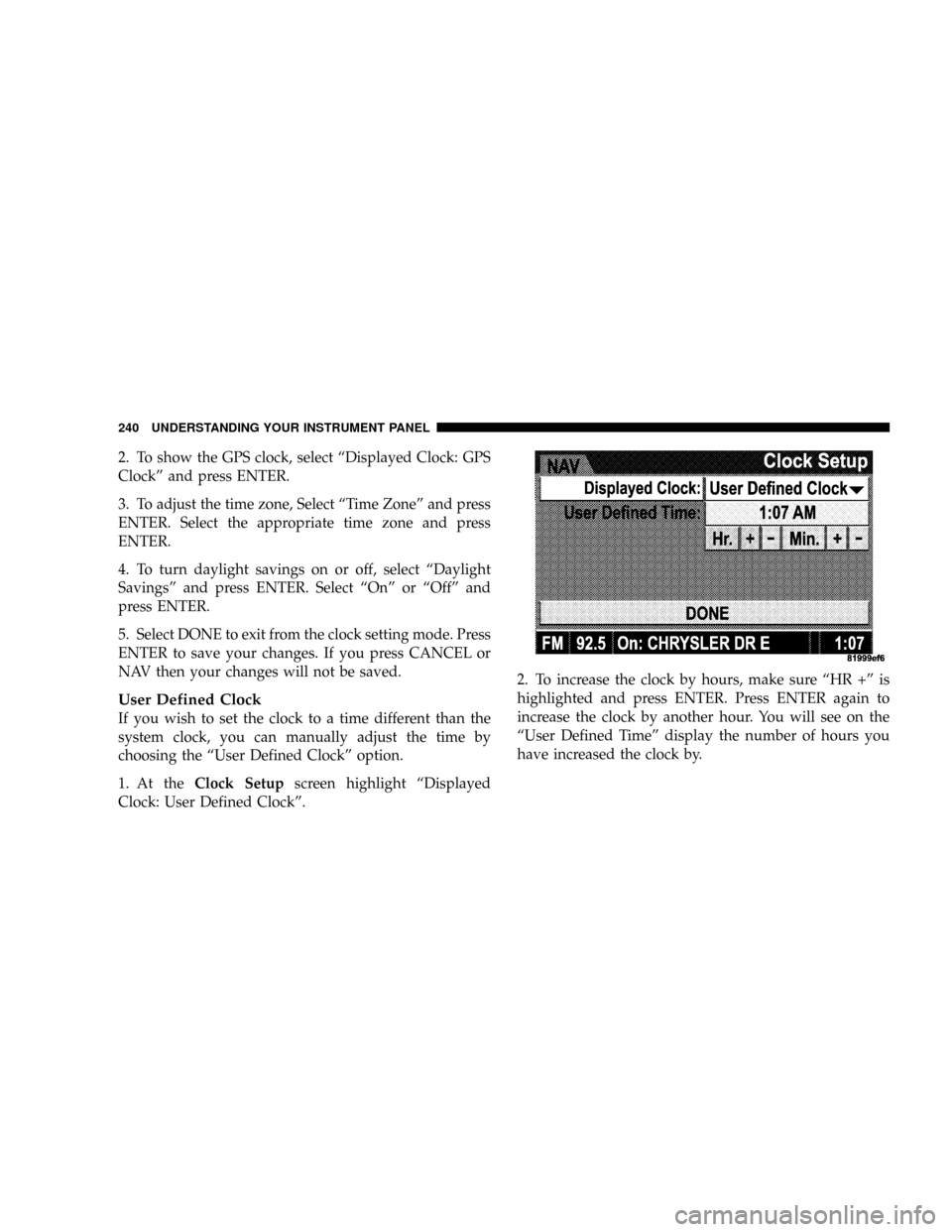
2. To show the GPS clock, select ªDisplayed Clock: GPS
Clockº and press ENTER.
3. To adjust the time zone, Select ªTime Zoneº and press
ENTER. Select the appropriate time zone and press
ENTER.
4. To turn daylight savings on or off, select ªDaylight
Savingsº and press ENTER. Select ªOnº or ªOffº and
press ENTER.
5. Select DONE to exit from the clock setting mode. Press
ENTER to save your changes. If you press CANCEL or
NAV then your changes will not be saved.
User Defined Clock
If you wish to set the clock to a time different than the
system clock, you can manually adjust the time by
choosing the ªUser Defined Clockº option.
1. At theClock Setupscreen highlight ªDisplayed
Clock: User Defined Clockº.2. To increase the clock by hours, make sure ªHR +º is
highlighted and press ENTER. Press ENTER again to
increase the clock by another hour. You will see on the
ªUser Defined Timeº display the number of hours you
have increased the clock by.
240 UNDERSTANDING YOUR INSTRUMENT PANEL
Page 243 of 527

3. To decrease the clock by one hour, use the Select
Encoder to highlight the ª-º sign. Press ENTER. Press
ENTER again to decrease the clock by another hour.
4. To increase the clock by minutes, make sure ªMIN +º
is highlighted and press ENTER. Press ENTER again to
increase the clock by another minute.
5. To decrease the clock by minutes, use the Select
Encoder to highlight the ª-ª sign. Press ENTER. Press
ENTER again to decrease the clock by another minute.
6. Select ªDONEº to exit from the clock setting mode.
Press ENTER to save your changes. If you press CAN-
CEL or NAV then your changes will not be saved.VIDEO ENTERTAINMENT SYSTEM (SALES CODE
XRV) Ð IF EQUIPPED
The optional Video Entertainment SystemŸ (VESŸ)
consists of a DVD player and LCD (liquid crystal display)
screen, a battery-powered remote control, and two head-
sets. The system is located in the headliner behind the
front row seat. Refer to your VESŸ User's Manual for
detailed operating instructions.
SATELLITE RADIO Ð IF EQUIPPED
Satellite radio uses direct satellite to receiver broadcast-
ing technology to provide clear digital sound, coast to
coast. The subscription service provider is SiriusŸ Satel-
lite Radio. This service offers over 130 channels of music,
sports, news, entertainment, and programming for chil-
dren, directly from its satellites and broadcasting studios.
NOTE:Sirius service is not available in Hawaii and has
limited coverage in Alaska.
UNDERSTANDING YOUR INSTRUMENT PANEL 241
4
Page 244 of 527

System Activation
Sirius Satellite Radio service is pre-activated, and you
may begin listening immediately to the one year of audio
service that is included with the factory-installed satellite
radio system in your vehicle. Sirius will supply a wel-
come kit that contains general information, including
how to setup your on-line listening account at no addi-
tional charge. For further information, call the toll-free
number 888-539-7474, or visit the Sirius web site at
www.sirius.com, or at www.siriuscanada.ca for Cana-
dian residents.
Electronic Serial Number/Sirius Identification
Number (ESN/SID)
Please have the following information available when
calling:
1. The Electronic Serial Number/Sirius Identification
Number (ESN/SID).
2. Your Vehicle Identification Number.To access the ESN/SID, refer to the following procedure.
ESN/SID Access with REF Radios
With the ignition switch in the ACC position and the
radio OFF, press the CD Eject and TIME buttons simul-
taneously for three seconds. The first four digits of the
12-digit ESN/SID number will display. Press the SEEK
UP button to display the next four digits. Continue to
press the SEEK UP button until all 12 ESN/SID digits
display. The SEEK DOWN will page down until the first
four digits display. The radio will exit the ESN/SID mode
when any other button is pushed, the ignition is turned
OFF, or five minutes have passed since any button was
pushed.
ESN/SID Access with RAQ and RAK Radios
With the ignition switch in the ACC position and the
radio OFF, press the CD Eject and TIME buttons simul-
taneously for three seconds. All twelve ESN/SID num-
bers will display. The radio will exit the ESN/SID mode
242 UNDERSTANDING YOUR INSTRUMENT PANEL
Page 245 of 527
when any other button is pushed, the ignition is turned
OFF, or five minutes have passed since any button was
pushed.
ESN/SID Access with REC Navigation Radios
Please refer to your Navigation User's Manual.
With the ignition in the ACC position and the radio off,
press the CD Eject and SET buttons simultaneously until
the 12 digits of the ESN/SID appear on the screen.
Selecting Satellite Mode in REF, RAQ, And RAK
Radios
Selecting Satellite Mode Ð REF Radio
Press the MODE button repeatedly until the word9SAT9
appears in the display.
A CD may remain in the radio while in the Satellite radio
mode.
Selecting Satellite Mode Ð RAQ and RAK Radio
Press the MODE button repeatedly until the word9SAT9
appears in the display.
These radios will also display the current station name
and program type. For more information, such as song
title and artist, press the MSG or INFO button.
A CD or tape may remain in the radio while in the
Satellite radio mode.
Selecting A Channel
Press and release the SEEK or TUNE knob to search for
the next channel. Press the top of the button to search up
and the bottom of the button to search down. Holding the
TUNE button causes the radio to bypass channels until
the button is released.
UNDERSTANDING YOUR INSTRUMENT PANEL 243
4
Page 246 of 527

Press and release the SCAN button (if equipped) to
automatically change channels every seven seconds. The
radio will pause on each channel for seven seconds
before moving on to the next channel. The word9SCAN9
will appear in the display between each channel change.
Press the SCAN button a second time to stop the search.
NOTE:Channels that may contain objectionable content
can be blocked. Contact Sirius Customer Care at 888-539-
7474 to discuss options for channel blocking or unblock-
ing. Please have your ESN/SID information available.
Storing And Selecting Preset Channels
In addition to the 12 AM and 12 FM preset stations, you
may also commit 12 satellite stations to pushbutton
memory. These satellite channel preset stations will not
erase any AM or FM preset memory stations. Follow the
memory preset procedures that apply to your radio.
Using The PTY (Program Type) Button Ð If
Equipped
Follow the PTY button instructions that apply to your
radio.
PTY Button SCAN
When the desired program type is obtained, press the
SCAN button within five seconds. The radio will play
seven seconds of the selected channel before moving to
the next channel of the selected program type. Press the
SCAN button a second time to stop the search.
NOTE:Pressing the SEEK or SCAN button, while
performing a music type scan, will change the channel by
one and stop the search. Pressing a preset memory button
during a music type scan will call up the memory
channel and stop the search.
244 UNDERSTANDING YOUR INSTRUMENT PANEL
Page 272 of 527

CAUTION!
If WATER IN FUEL indicator light remains on DO
NOT START engine before you drain water from the
fuel filter to avoid engine damage. Refer to ªDrain-
ing Fuel/Water Separator Filter (6.7L Diesel Engine)º
under ªMaintenance Proceduresº in Section 7.
4. Turn the ignition key to START and crank the engine.
Do not press the accelerator during starting.
CAUTION!
Do not crank engine for more than 15 seconds at a
time as starter motor damage may result. Turn key to
OFF and wait at least two minutes before trying
again.5. When the engine starts, release the key.
6. Check to see that there is oil pressure.
7. Release the parking brake.
Starting Procedure ± Engine Manifold Air
Temperature Below 66ÉF (19ÉC)
NOTE:The temperature displayed on the overhead
console (if equipped) does not necessarily reflect the
engine manifold air temperature. When certain engine
temperatures fall below 66ÉF (19ÉC) the lights will remain
on indicating the intake manifold heater system is active.
270 STARTING AND OPERATING
Page 287 of 527

TRANSMISSION SHIFTING
Automatic Transmission with Overdrive
(68RFE) Ð If Equipped
The gear selector lever display located in the instrument
panel cluster indicates the transmission gear range (the
selector is illuminated for night driving). The selector
lever is mounted on the right side of the steering column.
You must depress the brake pedal to pull the selector
lever out of PARK position (Brake Interlock System). To
drive, move the selector lever from PARK or NEUTRAL
to the desired DRIVE position. Pull the selector lever
toward you when shifting into REVERSE, SECOND,
FIRST or PARK, or when shifting out of PARK.
Gear Ranges
DO NOT race the engine when shifting from PARK or
NEUTRAL position into another gear range.PARK
This gear position supplements the parking brake by
locking the transmission. The engine can be started in
this range. Never use PARK while the vehicle is in
motion. Apply the parking brake when leaving the
vehicle in this range. Always apply parking brake first,
then place the selector in PARK position. On 4-wheel
drive vehicles be sure that the transfer case is in a drive
position!
WARNING!
Never use PARK position on an automatic transmis-
sion as a substitute for the parking brake. Always
apply parking brake fully when parked to guard
against vehicle movement and possible injury or
damage.
STARTING AND OPERATING 285
5