Page 167 of 426

first turned on, or the light stays on or comes on while
driving, have the airbag system checked by an autho-
rized dealer.
24. 4WD Indicator
Indicates when transfer case is in 4WD position.
25. SVC (Service) 4WD Indicator
The SVC 4WD lights will come on when the ignition key
is turned to the ON position and will stay on for 2
seconds. If the light stays on or comes on during driving,
it means that the 4WD system is not functioning properly
and that service is required.
26. Cruise Light (Speed Control)
This indicator lights when the electronic speed control
system is turned on.
27. Cargo Lamp
The Cargo Lamp light will illuminate when the Cargo
Lamp is activated from the headlight control switch,
located below the headlight switch.28. TOW/HAUL
The TOW/HAUL button is located at the end of the gear
shift lever. This light will illuminate when the TOW/
HAUL button has been selected.
29. 4WD LOW Indicator
Indicates transfer case is in 4WD LOW position.
30. Odometer/Trip Odometer Button
Press this button to toggle between the odometer and the
trip odometer display. Holding the button in resets the
trip odometer reading.
ELECTRONIC DIGITAL CLOCK
The clock and radio each use the display panel built into
the radio. A digital readout shows the frequency and/or
time in hours and minutes (depending on your radio
model) whenever the ignition switch is in the ªONº or
ªACCº position.
INSTRUMENT PANEL AND CONTROLS 167
4
Page 169 of 426

Two Types of Signals
There are two basic types of radio signals... AM or
Amplitude Modulation, in which the transmitted sound
causes the amplitude, or height, of the radio waves to
vary... and FM or Frequency Modulation, in which the
frequency of the wave is varied to carry the sound.
Electrical Disturbances
Radio waves may pick up electrical disturbances during
transmission. They mainly affect the wave amplitude,
and thus remain a part of the AM reception. They
interfere very little with the frequency variations that
carry the FM signal.
AM Reception
AM sound is based on wave amplitude, so AM reception
can be disrupted by such things as lightning, power lines
and neon signs.
FM Reception
Because FM transmission is based on frequency varia-
tions, interference that consists of amplitude variations
can be filtered out, leaving the reception relatively clear,
which is the major feature of FM radio.
NOTE:The radio, steering wheel radio controls (if
equipped), and 6 disc CD/DVD changer (if equipped)
will remain active for up to 10 minutes after the ignition
switch has been turned off. Opening a vehicle front door
will cancel this feature.
INSTRUMENT PANEL AND CONTROLS 169
4
Page 187 of 426

station with the same selected Music Type name. The
Music Type function only operates when in the FM
mode.
If a preset button is activated while in the Music Type
(Program Type) mode, the Music Type mode will be
exited and the radio will tune to the preset station.
SETUP Button
Pressing the SETUP button allows you to select between
the following items:
NOTE:Use the Tune Control Knob to scroll through the
entries. Push the Audio/Select button to select an entry
and make changes.
²DVD Enter -When the disc is in DVD Menu mode,
selecting DVD Enter will allow you to play the current
highlighted selection. Use the remote control to scroll
up and down the menu (If Equipped).
²DISC Play/Pause -You can toggle between
playing the DVD and pausing the DVD by
pushing the SELECT button (If Equipped).
²DVD Play Options -Selecting the DVD Play Options
will display the following:
²Subtitle ± Repeatedly Pressing SELECT will switch
subtitles to different subtitle languages that are
available on the disc (If Equipped).
²Audio Stream ± Repeatedly Pressing SELECT will
switch to different audio languages (if supported on
the disc) (If Equipped).
²Angle ± Repeatedly Pressing SELECT will change
the viewing angle if supported by the DVD disc (If
Equipped).
NOTE:The available selections for each of the above
entries varies depending upon the disc.
INSTRUMENT PANEL AND CONTROLS 187
4
Page 199 of 426

Operating Instructions Ð Satellite Radio
Refer to your ªNavigation User's Manualº for detailed
operating instructions.
Operating Instructions Ð Hands-Free
Communication (UConnectŸ) (If Equipped)
Refer to your ªNavigation User's Manualº for detailed
operating instructions.
Clock Setting Procedure
The GPS receiver in this system is synchronized to the
time data being transmitted by the GPS satellites. The
satellites' clock is Greenwich Mean Time (GMT). This is
the worldwide standard for time. This makes the sys-
tem's clock very accurate once the appropriate time zone
and daylight savings information is set.
Changing the Time Zone
1. Turn on the system.2. Touch the screen where the time is displayed. The
clock setting menu will appear on the screen. If the words
ªTime: GPS Timeº are displayed at the top of the screen,
proceed to Step 4. Otherwise, proceed to Step 3.
3. If the words ªTime: User Clockº are displayed at the
top of the screen, touch the bottom of the screen where
the words ªUser Clockº are displayed. The GPS time
setting menu will appear on the screen.
4. Touch the screen where the words ªSet Time Zoneº are
displayed. The time zone selection menu will appear on
the screen.
5. Select a time zone by touching the screen where your
selection appears. If you do not see a time zone that you
want to select, touch the screen where the word ªPageº is
displayed to view additional time zones in the menu.
INSTRUMENT PANEL AND CONTROLS 199
4
Page 200 of 426

Changing Daylight Savings Time
When selected, this feature will display the time of day in
daylight savings time. Proceed as follows to change the
current setting:
1. Turn on the system.
2. Touch the screen where the time is displayed. The
clock setting menu will appear on the screen.
3. When this feature is on, a check mark will appear in
the box next to the words ªDaylight Savings.º Touch the
screen where the words ªDaylight Savingsº are dis-
played to change the current setting.
Setting the User Clock
If you wish to set the clock to a time different from the
system clock, you can manually adjust the time by
performing the following:
1. Turn on the system.2. Touch the screen where the time is displayed. The
clock setting menu will appear on the screen. If the words
ªTime: User Clockº are displayed at the top of the screen,
proceed to Step 4. Otherwise, proceed to Step 3.
3. If the words ªTime: GPS Timeº are displayed at the top
of the screen, touch the bottom of the screen where the
words ªGPS Timeº are displayed. The user clock time
setting menu will appear on the screen.
4. To move the hour forward, touch the screen where the
word ªHourº with the arrow pointing upward is dis-
played. To move the hour backward, touch the screen
where the word ªHourº with the arrow pointing down-
ward is displayed.
5. To move the minute forward, touch the screen where
the word ªMinº with the arrow pointing upward is
displayed. To move the minute backward, touch the
screen where the word ªMinº with the arrow pointing
downward is displayed.
200 INSTRUMENT PANEL AND CONTROLS
Page 207 of 426

will go to the beginning of the current track or to the
beginning of the previous track if it is within one second
after the current track begins to play.
If you press the switch up or down twice it plays the
second track, three times, it will play the third, etc.
The button in the center of the left hand switch changes
CD's on the 6±Disc in-dash CD changer radio. This
button does not function for all other radios.
COMPACT DISC MAINTENANCE
To keep the compact discs in good condition, take the
following precautions:
1. Handle the disc by its edge; avoid touching the
surface.
2. If the disc is stained, clean the surface with a soft cloth,
wiping from center to edge.3. Do not apply paper or tape to the disc; avoid scratch-
ing the disc.
4. Do not use solvents such as benzine, thinner, cleaners,
or antistatic sprays.
5. Store the disc in its case after playing.
6. Do not expose the disc to direct sunlight.
7. Do not store the disc where temperatures may become
too high.
NOTE:If you experience difficulty in playing a particu-
lar disc, it may be damaged (i.e. scratched, reflective
coating removed, a hair, moisture or dew on the disc)
oversized, or have theft protection encoding. Try a
known good disc before considering disc player service.
INSTRUMENT PANEL AND CONTROLS 207
4
Page 208 of 426
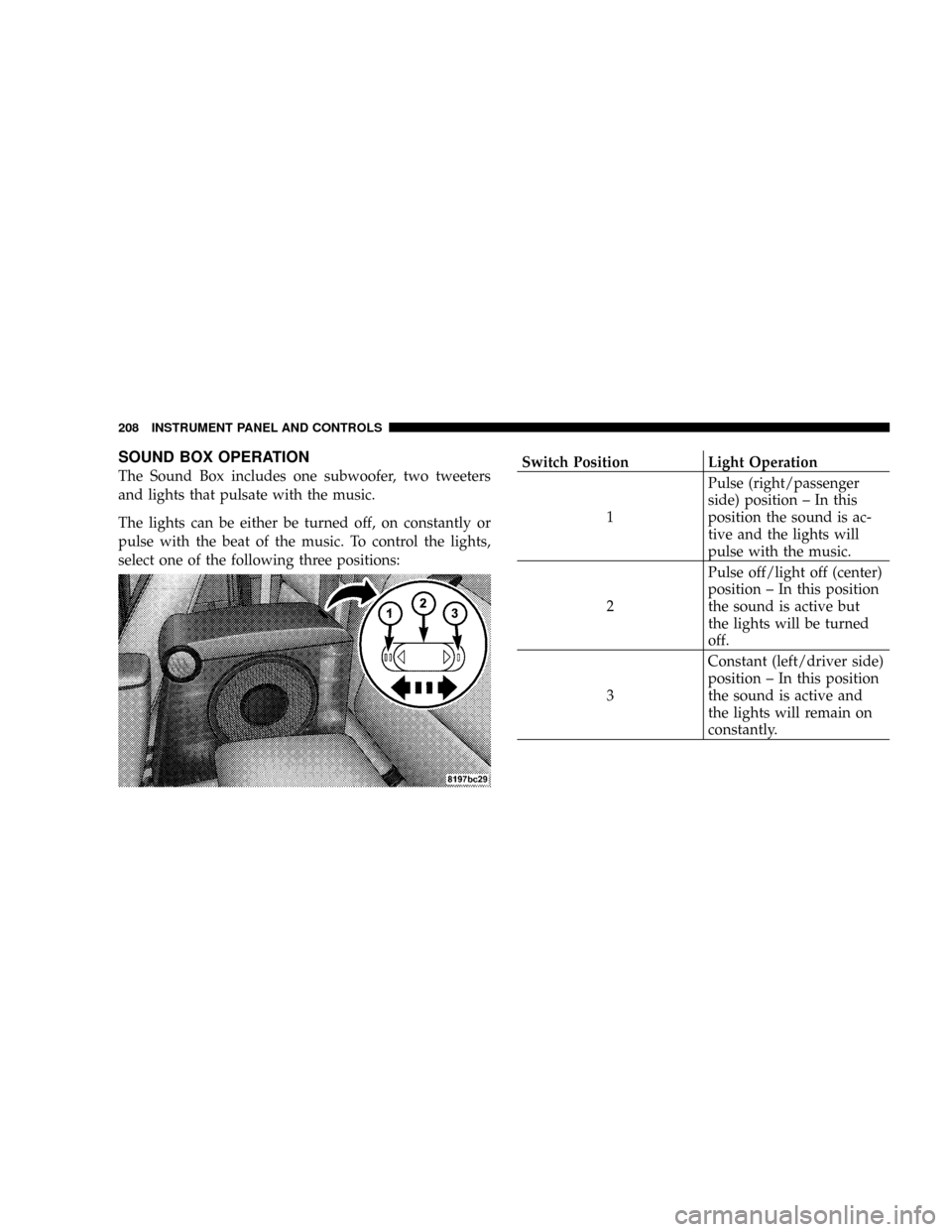
SOUND BOX OPERATION
The Sound Box includes one subwoofer, two tweeters
and lights that pulsate with the music.
The lights can be either be turned off, on constantly or
pulse with the beat of the music. To control the lights,
select one of the following three positions:Switch Position Light Operation
1Pulse (right/passenger
side) position ± In this
position the sound is ac-
tive and the lights will
pulse with the music.
2Pulse off/light off (center)
position ± In this position
the sound is active but
the lights will be turned
off.
3Constant (left/driver side)
position ± In this position
the sound is active and
the lights will remain on
constantly.
208 INSTRUMENT PANEL AND CONTROLS
Page 209 of 426

RADIO OPERATION AND CELLULAR PHONES
Under certain conditions, the cellular phone being ON in
your vehicle can cause erratic or noisy performance from
your radio. This condition may be lessened or eliminated
by relocating the cellular phone antenna. This condition
is not harmful to the radio. If your radio performance
does not satisfactorily ªclearº by the repositioning of the
antenna, it is recommended that the radio volume be
turned down or off during cellular phone operation.
CLIMATE CONTROLS
The controls for the heating, ventilation and air condi-
tioning system in this vehicle consist of a series of rotary
knobs. These comfort controls can be set to obtain desired
interior conditions.
Air Conditioning And Heater
Air Conditioning And Heater Operation
To turn on the Air Conditioning, set the fan control at any
speed and press the snowflake button located at the right
of the control panel. Conditioned air will be directed
through the outlets selected by the mode control. A light
INSTRUMENT PANEL AND CONTROLS 209
4