Page 235 of 457
EJECT (EJT) Button
If there is a disc in the changer, press the EJT button and
the disc will eject. If you do not remove the disc within 10
seconds, it will be reloaded and the display will show
PAUSE. The radio mode will continue to operate.
To eject additional discs from the premium version
multi-disc changer, first select the numbered button
where the disc is located and then press the EJT button.
Operating Instructions Ð Remote Control
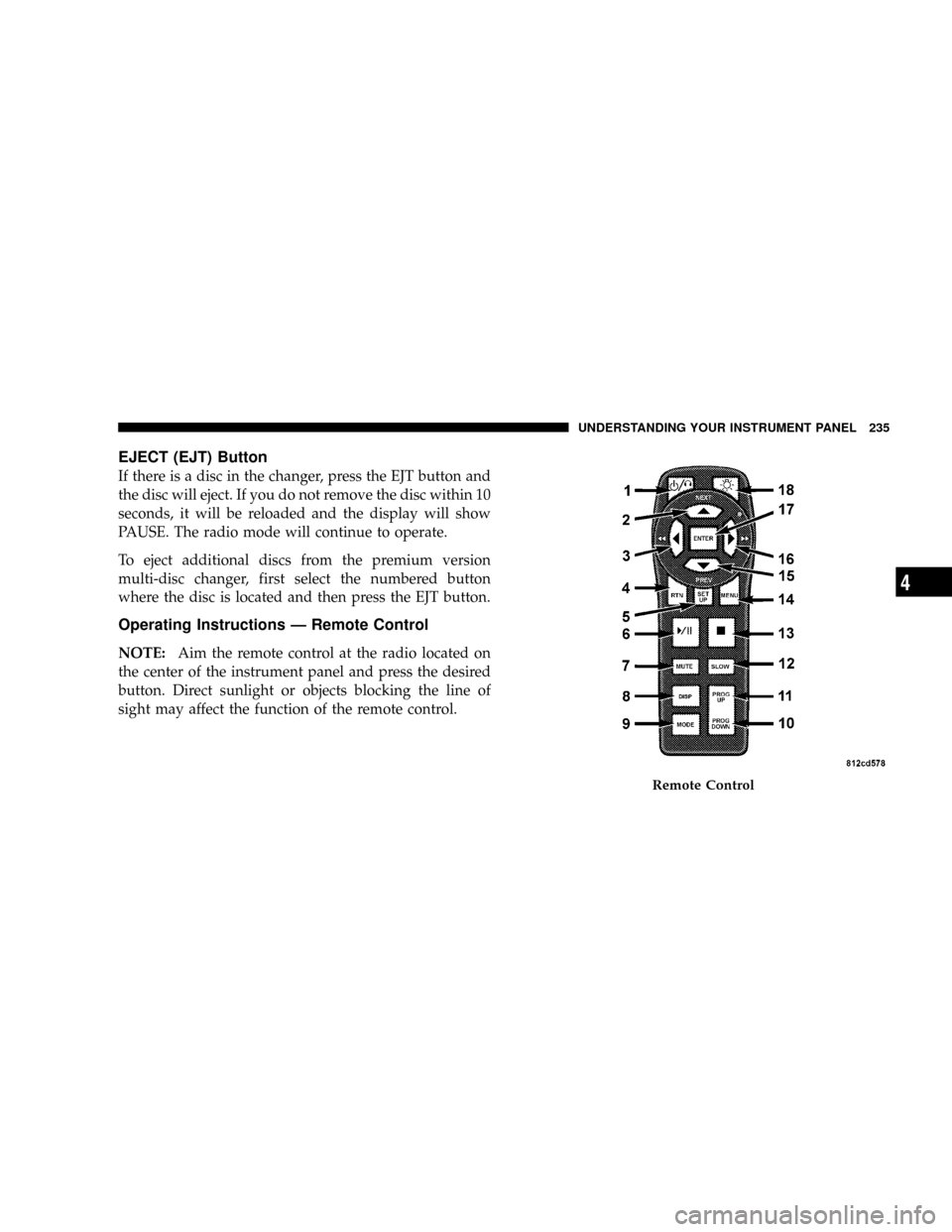
NOTE:Aim the remote control at the radio located on
the center of the instrument panel and press the desired
button. Direct sunlight or objects blocking the line of
sight may affect the function of the remote control.
Remote Control
UNDERSTANDING YOUR INSTRUMENT PANEL 235
4
Page 236 of 457
Remote Control Buttons
1. Headphone Transmitter
2. Menu Up/Next Track/Chapter
3. Menu Left/Fast Rewind
4. Return
5. Setup
6. Pause/Play
7. Mute
8. Display
9. Mode
10. Program Down - Previous Disc
11. Program Up - Next Disc
12. Slow
13. Stop
14. Menu
15. Menu Down/Previous Track/Chapter
16. Menu Right/Fast ForwardRemote Control Buttons
17. Enter
18. Light
Headphone Transmitter Button (1)
The headphone transmitter button on the remote control
and the power button on the headphones must be turned
ON before sound can be heard from the headphones. On
some radios the headphone symbol will flash for ap-
proximately 5 seconds in the radio display, indicating the
headphones are in use.
ARROW Buttons (2, 3, 15, 16)
These arrow buttons only function in CD/ DVD mode.
Use the arrow buttons to toggle through the disc menu
screen options.
236 UNDERSTANDING YOUR INSTRUMENT PANEL
Page 237 of 457
RTN Button (4)
This button only functions in CD/DVD mode. Press this
button to return to the previous menu when in the disc
menu mode.
SETUP Button (5)
This button only functions in CD/DVD mode. Press the
button after pressing the STOP button to access the set up
menu. Use the right and left arrows to move between
tabs for language, rating, mark, audio and aspect. Use the
up and down arrows to move between options within
each tab.
To change an item highlighted in blue, press ENTER. This
should cause the highlight to turn yellow. Again, using
the up and down arrows will cause the arrow to move up
or down. Once the arrow is on the desired selection, press
ENTER. When finished, press setup or play to return to
playing the CD/DVD or Menu to return to the disc
menu.
PAUSE/PLAY Button (6)
This button only functions in DVD video mode. Press this
button once to pause the video, press a second time to
play the video.
MUTE Button (7)
This button mutes audio playing through the DVD
player.
DISP Button (8)
This button only functions in DVD video mode. When a
DVD video is playing, press this button to display the
play menu options.
MODE Button (9)
²
With DVD Radio (REV) and DVD changer, this button
changes between radio DVD, Radio AUX Jacks and
DVD changer input.
²All other radios: No Function.
UNDERSTANDING YOUR INSTRUMENT PANEL 237
4
Page 241 of 457
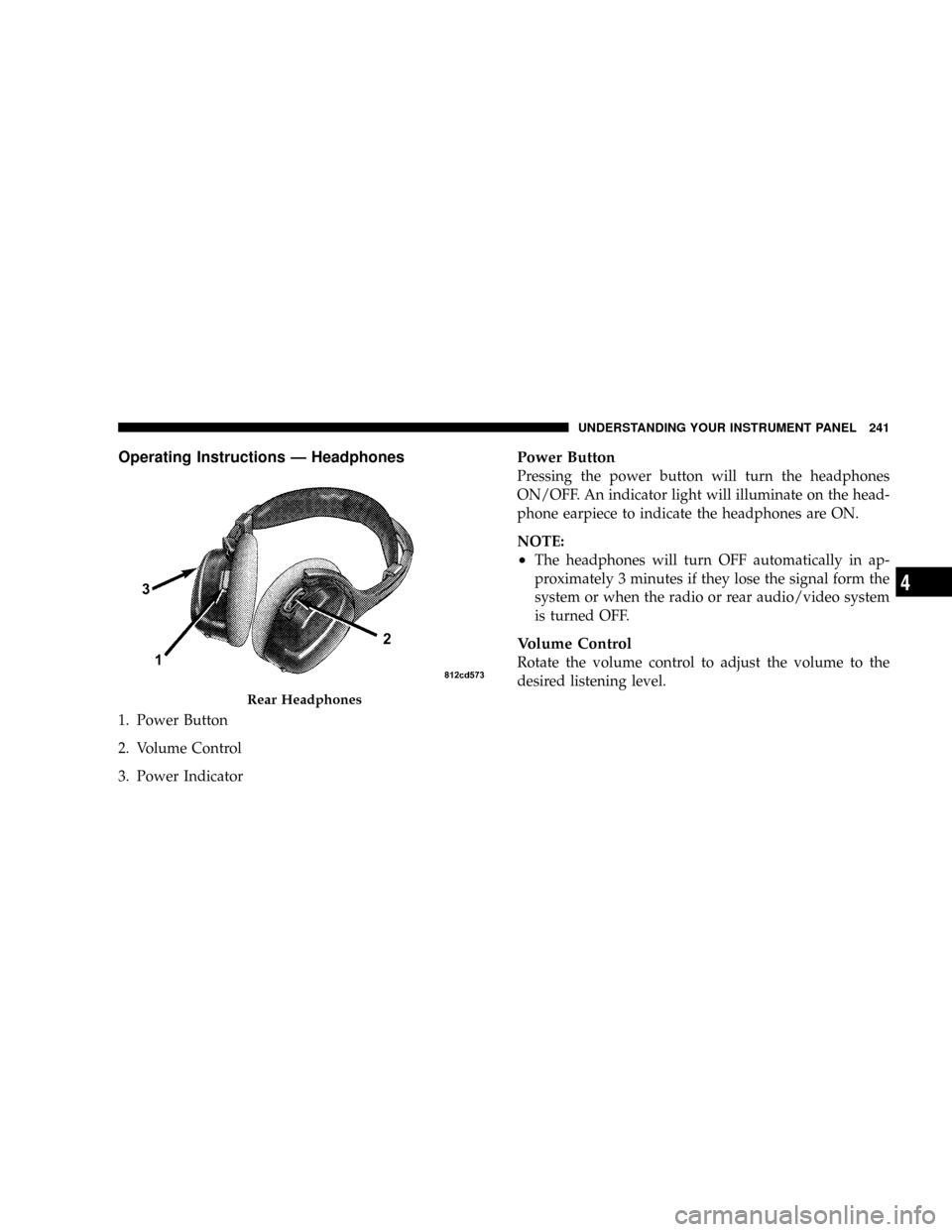
Operating Instructions Ð Headphones
1. Power Button
2. Volume Control
3. Power Indicator
Power Button
Pressing the power button will turn the headphones
ON/OFF. An indicator light will illuminate on the head-
phone earpiece to indicate the headphones are ON.
NOTE:
²The headphones will turn OFF automatically in ap-
proximately 3 minutes if they lose the signal form the
system or when the radio or rear audio/video system
is turned OFF.
Volume Control
Rotate the volume control to adjust the volume to the
desired listening level.
Rear Headphones
UNDERSTANDING YOUR INSTRUMENT PANEL 241
4
Page 245 of 457
SATELLITE RADIO Ð IF EQUIPPED
Satellite radio uses direct satellite to receiver broadcast-
ing technology to provide clear digital sound, coast to
coast. The subscription service provider is SiriusŸ Satel-
lite Radio. This service offers over 130 channels of music,
sports, news, entertainment, and talk radio, directly from
its satellites and broadcasting studios.
System Activation
Sirius Satellite Radio service is pre-activated, and you
may begin listening immediately to the one year of
SIRIUS audio service that is included with the factory-
installed satellite radio system in your vehicle. You are
also invited to call Sirius to set up your free internet
account so you can listen to Sirius online. For further
information, call the toll-free number 888-539-7474, or
visit the Sirius web site at www.sirius.com. Please have
the following information available when changing your
subscription:1. The Electronic Serial Number/Sirius Identification
Number (ESN/SID).
2. Your Vehicle Identification Number.
Electronic Serial Number/Sirius Identification
Number (ENS/SID)
The Electronic Serial Number/Sirius Identification Num-
ber can be accessed to retrieve the 12 digit number
through each radio. To access the ESN/SID, refer to the
following steps:
ESN/SID Access With RBB, RAH, REVand RBK
Radios
With the ignition switch in the ACCESSORY position and
the radio OFF, press the CD ªEJTº button and Time
buttons simultaneously for 3 seconds. The first four digits
of the twelve-digit ESN/SID number will be displayed.
Press the SEEK UP (+) button to display the next four
digits. Continue to press the SEEK UP (+) button until all
twelve ESN/SID digits have been displayed. The SEEK
UNDERSTANDING YOUR INSTRUMENT PANEL 245
4
Page 246 of 457

DOWN (-) will page down until the first four digits are
displayed. The radio will exit the ESN/SID mode when
any other button is pushed, the ignition is turned OFF, or
5 minutes has passed since any button was pushed.
ESN/SID Access With RBP, RBU, RAZ, RB1 and
RBQ Radios
With the ignition switch in the ACCESSORY position and
the radio OFF, press the CD Eject and TIME buttons
simultaneously for 3 seconds. All twelve ESN/SID num-
bers will be displayed. The radio will exit the ESN/SID
mode when any other button is pushed, the ignition is
turned OFF, or 5 minutes has passed since any button
was pushed.
Selecting Satellite Mode in RBB, RAH, REV and
RBK Radios
Press the MODE button repeatedly until9SA9appears in
the display. A CD or tape may remain in the radio while
in the Satellite radio mode.
Selecting Satellite Mode in RBP, RBU, RAZ, RB1
and RBQ Radios
Press the MODE button repeatedly until the word
9SIRIUS9appears in the display. These radios will also
display the following:
²After 3 seconds, the current channel name and channel
number will be displayed for 5 seconds.
²The current program type and channel number will
then be displayed for 5 seconds.
²The current channel number will then be displayed
until an action occurs.
A CD or tape may remain in the radio while in the
Satellite radio mode.
246 UNDERSTANDING YOUR INSTRUMENT PANEL
Page 247 of 457
Selecting a Channel
Press and release the SEEK or TUNE buttons to search for
the next channel. Press the top of the button to search up
and the bottom of the button to search down. Holding the
TUNE button causes the radio to bypass channels until
the button is released.
Press and release the SCAN button (if equipped) to
automatically change channels every 7 seconds. The
radio will pause on each channel for 7 seconds before
moving on to the next channel. The word9SCAN9will
appear in the display between each channel change. Press
the SCAN button a second time to stop the search.
NOTE:Channels that may contain objectionable content
can be blocked. Contact Sirius Customer Care at 888-539-
7474 to discuss options for channel blocking or unblock-
ing. Please have your ESN/SID information available.
Storing and Selecting Pre-Set Channels
In addition to the 10 AM and 10 FM pre-set stations, you
may also commit 10 satellite stations to push button
memory. These satellite channel pre-set stations will not
erase any AM or FM pre-set memory stations. Follow the
memory pre-set procedures that apply to your radio.
Using the PTY (Program Type) Button (If
Equipped)
Follow the PTY button instructions that apply to your
radio.
PTY Button(SCAN(
When the desired program type is obtained, press the
9SCAN9button within five seconds. The radio will play 7
seconds of the selected channel before moving to the next
channel of the selected program type. Press the9SCAN9
button a second time to stop the search.
UNDERSTANDING YOUR INSTRUMENT PANEL 247
4
Page 249 of 457
REMOTE SOUND SYSTEM CONTROLS
The remote sound system controls are located on the rear
surface of the steering wheel at the 3 and 9 o'clock
positions.
The right hand rocker switch has a push button in the
center and controls the volume and mode of the sound
system. Pressing the top of the rocker switch will increase
the volume and pressing the bottom of the rocker switch
will decrease the volume. Pressing the center button
changes the operation of the radio from AM to FM to
Tape or CD mode depending on which radio is in the
vehicle.
The left hand rocker switch has a push button in the
center. The function of the left hand switch is different
depending on which mode you are in.
The following describes the left hand rocker switch
operation in each mode:
Radio Operation
Pressing the top of the switch will SEEK up for the next
listenable station and pressing the bottom of the switch
will SEEK down for the next listenable station.
The button located in the center of the left hand switch
will tune to the next pre-set station that you have
programmed in the radio pre-set push-button.
CD Player
Pressing the top of the switch once will go to the next
track on the CD. Pressing the bottom of the switch once
will go to the beginning of the current track or to the
beginning of the previous track if it is within one second
after the current track begins to play.
If you press the switch up or down twice it plays the
second track, three times, it will play the third, etc.
The button in the center of the left hand switch has no
function in this mode.
UNDERSTANDING YOUR INSTRUMENT PANEL 249
4