Page 197 of 519

�Sales Code RES — AM/FM Stereo Radio With
CD Player (MP3 AUX Jack)................256
▫Operating Instructions - Radio Mode.......256
▫Operation Instructions - CD Mode For CD And
MP3 Audio Play......................262
▫Notes On Playing MP3 Files.............264
▫List Button (CD Mode For MP3 Play).......267
▫Info Button (CD Mode For MP3 Play).......267
�Satellite Radio (RSC) — If Equipped
(REQ And RES Radios Only)...............268
▫System Activation.....................268
▫Electronic Serial Number/Sirius Identification
Number (ENS/SID)....................269
▫Selecting Satellite Mode.................269▫Satellite Antenna......................269
▫Reception Quality.....................270
▫Operating Instructions - Satellite Mode......270
▫Operating Instructions - Hands Free Phone
(If Equipped)........................272
▫Operating Instructions - Video Entertainment
System (VES�) (If Equipped).............272
�Video Entertainment System — If Equipped....272
�Universal Consumer Interface (UCI) —
If Equipped...........................275
▫Connecting The iPod�..................275
▫Controlling The iPod�Using Radio Buttons . . . 275
▫Play Mode..........................276
▫List Or Browse Mode..................278
UNDERSTANDING YOUR INSTRUMENT PANEL 197
4
Page 213 of 519
ELECTRONIC VEHICLE INFORMATION CENTER
(EVIC) — IF EQUIPPED
The Electronic Vehicle Information Center (EVIC) fea-
tures a driver-interactive display. It is located in the
upper part of the cluster between the speedometer and
tachometer. Vehicles equipped with steering wheelmounted buttons (described in this section) are also
equipped with the EVIC. The EVIC consists of the
following:
•System Status
•Vehicle information warning message displays
•Tire Pressure Monitor System (if equipped)
•Personal Settings (customer programmable features)
•Compass display
•Outside temperature display
•Trip computer functions
•UConnect™ hands-free communication system dis-
plays (if equipped)
•Navigation system screens (if equipped)
•Audio mode display
Electronic Vehicle Information Center
UNDERSTANDING YOUR INSTRUMENT PANEL 213
4
Page 214 of 519

The system allows the driver to select information by
pressing the following buttons mounted on the steering
wheel:
Press and release the MENU button and the
mode displayed will change between Trip
Functions, Navigation (if equipped), System
Status, Personal Settings, and Telephone (if
equipped).
Press the FUNCTION SELECT button to accept
a selection. The FUNCTION SELECT button
also functions as a remote sound system con-
trol. For details, refer to “Remote Sound Sys-
tem Controls” in this section.Press the SCROLL button to scroll through Trip
Functions, Navigation (if equipped), System
Status Messages, and Personal Settings (Cus-
tomer Programmable Features). The SCROLL
button also functions as a remote sound system
control. For details, refer to “Remote Sound
System Controls” in this section.
Press the AUDIO MODE button to select the
Compass/Temp/Audio screen. Along with
compass reading and outside temperature, this
screen will display radio and media mode
information depending on which radio is in the
vehicle. For details, refer to “Remote Sound
System Controls” in this section.
MENU
Button
FUNC-
TION
SELECT
Button
SCROLL
Button
AUDIO
MODE
Button
214 UNDERSTANDING YOUR INSTRUMENT PANEL
Page 226 of 519

The EVIC displays this symbol to indicate that
a phone connection has been made.
The EVIC displays this symbol to indicate that
the UConnect™ phone is currently not avail-
able.
Navigation — If Equipped
Navigation Display Control
Press and release the MENU button until Navigation
displays in the EVIC. When the Navigation System is On,
the steering wheel buttons can be used to select the Map
or Menu display on the Navigation Unit. When the Menudisplay is active, the SCROLL button can be used to scroll
through the list, the FUNCTION SELECT button can be
used to select an item, and the AUDIO MODE button can
be used to return to the previous menu. When the Map
display is active, pressing the FUNCTION SELECT but-
ton will change the Navigation Unit Display to the Menu.
Turn By Turn Directions
The EVIC displays turn-by-turn directions to a pro-
grammed destination when Turn by Turn Navigation is
enabled through Personal Settings. When enabled, the
EVIC displays the name of the approaching road at the
top of the screen, followed by an arrow to indicate the
direction to turn the vehicle, and a count down to
indicate the distance to the turn.
NOTE:Refer to your “Navigation User’s Manual” for
detailed operating instructions.
Call in
Progress
Phone
Not
Avail-
able
226 UNDERSTANDING YOUR INSTRUMENT PANEL
Page 234 of 519

SALES CODE REN — MULTIMEDIA SYSTEM — IF
EQUIPPED
NOTE:The sales code is located on the lower right side
of the unit’s faceplate.
The REN multimedia system contains a radio, CD/DVD
player, USB port, a 20 gigabyte Hard Drive (HDD), and a
“JukeBox” (virtual CD changer). Sirius Satellite Radio is
optional. The 6.5-inch touch screen allows for easy menu
selection.
A 20 gigabyte Hard Drive (HDD) allows uploads of
music and photos from CDs or through the USB port.
While the Gracenote database finds the artist, track, and
title for the music.
An auxiliary input jack permits passengers to listen to a
portable MP3 player through the vehicle’s speakers. For
vehicles equipped with the Vehicle Entertainment System
(VES), separate audio outputs allow passengers to listento the car speakers while different audio tracks play
through the system’s wireless headphones. This means
rear seat passengers can watch a DVD on the optional
rear-seat entertainment system while the driver and front
seat passenger listen to the radio.
Other special features include direct tune, music type
selections, easy store presets, backup camera display for
vehicles equipped with a backup camera, and on some
models a dual display screen operation. Refer to your
Radio Specific User’s Manual for detailed operating
instructions.
Operating Instructions — Satellite Radio (If
Equipped)
Refer to your Radio Specific User’s Manual for detailed
operating instructions.
234 UNDERSTANDING YOUR INSTRUMENT PANEL
Page 237 of 519

SALES CODE REQ — AM/FM STEREO RADIO
AND 6–DISC CD/DVD CHANGER (MP3/WMA AUX
JACK)
NOTE:The radio sales code is located on the lower right
side of your radio faceplate.
Operating Instructions - Radio Mode
NOTE:The ignition switch must be in the ON or ACC
position to operate the radio.
Power Switch/Volume Control (Rotary)
Press the ON/VOL control to turn the radio ON. Press
the ON/VOL a second time to turn OFF the radio.
Electronic Volume Control
The electronic volume control turns continuously (360
degrees) in either direction without stopping. Turning the
volume control to the right increases the volume and to
the left decreases it.
When the audio system is turned on, the sound will be
set at the same volume level as last played.
SEEK Buttons (Radio Mode)
Press and release the SEEK buttons to search for the next
listenable station in AM/FM mode. Press the right switch
to seek up and the left switch to seek down. The radio
REQ Radio
UNDERSTANDING YOUR INSTRUMENT PANEL 237
4
Page 241 of 519
Program Type16 Digit-Character
Display
News News
Nostalgia Nostalga
Oldies Oldies
Personality Persnlty
Public Public
Rhythm and Blues R & B
Religious Music Rel Musc
Religious Talk Rel Talk
Rock Rock
Soft Soft
Soft Rock Soft Rck
Soft Rhythm and Blues Soft R&B
Sports Sports
Talk Talk
Top 40 Top 40Program Type16 Digit-Character
Display
Weather Weather
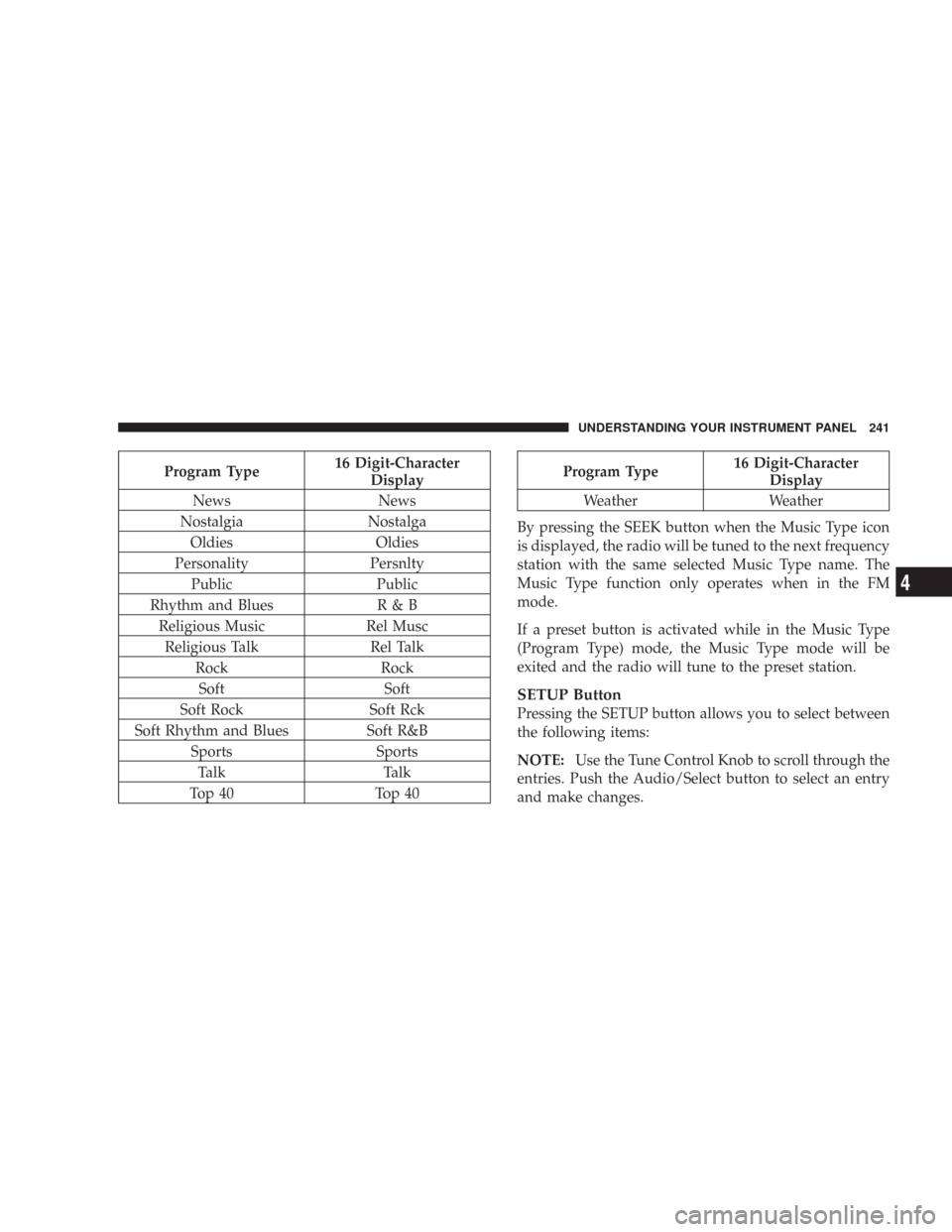
By pressing the SEEK button when the Music Type icon
is displayed, the radio will be tuned to the next frequency
station with the same selected Music Type name. The
Music Type function only operates when in the FM
mode.
If a preset button is activated while in the Music Type
(Program Type) mode, the Music Type mode will be
exited and the radio will tune to the preset station.
SETUP Button
Pressing the SETUP button allows you to select between
the following items:
NOTE:Use the Tune Control Knob to scroll through the
entries. Push the Audio/Select button to select an entry
and make changes.
UNDERSTANDING YOUR INSTRUMENT PANEL 241
4
Page 242 of 519

•DVD Enter -When the disc is in DVD Menu mode,
selecting DVD Enter will allow you to play the current
highlighted selection. Use the remote control to scroll
up and down the menu (If Equipped).
•DISC Play/Pause -You can toggle between
playing the DVD and pausing the DVD by
pushing the SELECT button (If Equipped).
•DVD Play Options -Selecting the DVD Play Options
will display the following:
•Subtitle – Repeatedly Pressing SELECT will switch
subtitles to different subtitle languages that are
available on the disc (If Equipped).
•Audio Stream – Repeatedly Pressing SELECT will
switch to different audio languages (if supported on
the disc) (If Equipped).
•Angle – Repeatedly Pressing SELECT will change
the viewing angle if supported by the DVD disc (If
Equipped).
NOTE:The available selections for each of the above
entries varies depending upon the disc.
NOTE:These selections can only be made while playing
a DVD.
•VES Power -Allows you to turn VES ON and OFF (If
Equipped).
•VES Lock -Locks out rear VES remote controls (If
Equipped).
•VES CH1/CH2 -Allows the user to change mode of
either the IR1 or IR2, wireless headphones, by pressing
the Audio/Select button (If Equipped).
242 UNDERSTANDING YOUR INSTRUMENT PANEL
