2008 CHEVROLET UPLANDER lock
[x] Cancel search: lockPage 247 of 476

Playing the Radio
Top Knob (Power/Volume):Press to turn the system
on and off. Turn clockwise or counterclockwise to
increase or to decrease the volume.
4(Information):For RDS, press to change what
displays while using RDS. The display options are
station name, RDS station frequency, PTY (program
type), and the name of the program (if available).
For XM™ (if equipped), press while in XM™ mode to
retrieve four different categories of information related
to the current song or channel: Artist, Song Title,
Category or PTY, Channel Number/Channel Name.
To change the default on the display, press until the
desired display appears, then hold for two seconds.
The radio produces one beep and the selected display
becomes the default.
AUTO
n(Automatic Volume):Automatic volume
adjusts the audio system automatically to make up
for road and wind noise while driving, by increasing
the volume as the vehicle speed increases.
Set the volume at the desired level. Press this button to
select AUTO VOLUME MIN (minimum), AUTO VOLUME
MED (medium), or AUTO VOLUME MAX (maximum).
Each higher setting provides more volume compensation
at faster vehicle speeds. To turn automatic volume off,
press this button until AUTO VOLUME OFF displays.MUTE:Press to silence the system. Press again to turn
the sound on.
This button is not available on the Radio with
Six-Disc CD.
Finding a Station
BAND:Press to switch between FM1, FM2, AM, or
XM1 or XM2 (if equipped). The selection displays.
O/e(Tune):Turn to select radio stations.
tSEEKu:Press the arrows to go to the previous
or to the next station and stay there.
The radio seeks stations only with a strong signal that
are in the selected band.
tSCANu:Press and hold either arrow for
two seconds until FREQUENCY SCAN displays.
The radio goes to a station, plays for a few seconds,
then goes to the next station. Press either arrow again
to stop scanning.
To scan preset stations, press and hold either arrow for
four seconds until PRESET SCAN displays. The radio
goes to the next preset station, plays for a few seconds,
then goes to the next preset station. Press either arrow
again or one of the pushbuttons to stop scanning presets.
The radio scans stations only with a strong signal that are
in the selected band.
3-87
Page 251 of 476
If TA displays, press the TRAF button to turn off the
traffic announcements.
This function does not apply to XM™ Satellite Radio
Service.
Radio Messages
CAL ERR (Calibration Error):The audio system
has been calibrated for your vehicle from the factory.
If CAL ERR displays, it means that the radio has
not been congured properly for your vehicle and
must be returned to your dealer/retailer for service.
LOCKED:This message displays when the
THEFTLOCK
®system has locked up. Take the
vehicle to your dealer/retailer for service.
If any error occurs repeatedly or if an error cannot
be corrected, contact your dealer/retailer. If the radio
displays an error message, write it down and provide
it to your dealer/retailer when reporting the problem.
XM™ Satellite Radio Service
XM™ is a satellite radio service that is based in the
48 contiguous United States and 10 Canadian provinces.
XM™ Satellite Radio has a wide variety of programming
and commercial-free music, coast-to-coast, and in
digital-quality sound. During your trial or when you
subscribe, you will get unlimited access to XM™ Radio
Online for when you are not in your vehicle. A service
fee is required to receive the XM™ service. For more
information, contact XM™ at www.xmradio.com or call
1-800-929-2100 in the U.S. and www.xmradio.ca or call
1-877-438-9677 in Canada.
Radio Messages for XM™ Only
SeeXM Radio Messages on page 3-101later in this
section for further detail.
3-91
Page 257 of 476

CD Messages
CHECK CD:If this message displays and/or the CD
comes out, it could be for one of the following reasons:
It is very hot. When the temperature returns to
normal, the CD should play.
You are driving on a very rough road. When the
road becomes smoother, the CD should play.
The CD is dirty, scratched, wet, or upside down.
The air is very humid. If so, wait about an hour and
try again.
There may have been a problem while burning
the CD.
The label may be caught in the CD player.
If the CD is not playing correctly, for any other reason,
try a known good CD.
If any error occurs repeatedly or if an error cannot
be corrected, contact your dealer/retailer. If the radio
displays an error message, write it down and provide
it to your dealer/retailer when reporting the problem.
Using the Auxiliary Input Jack
The radio system has an auxiliary input jack located on
the upper right side of the faceplate. This is not an
audio output; do not plug the headphone set into thefront auxiliary input jack. However, an external audio
device such as an iPod, laptop computer, MP3 player,
CD changer, or cassette tape player, etc. can be
connected to the auxiliary input jack for use as another
source for audio listening.
Drivers are encouraged to set up any auxiliary device
while the vehicle is in PARK (P). SeeDefensive Driving
on page 4-2.
To use a portable audio player, connect a 3.5 mm
(1/8 inch) cable to the radio’s front auxiliary input jack.
When a device is connected, the radio displays AUX
INPUT DEVICE and begins playing audio from
that device.
Top Knob (Power/Volume):Turn clockwise or
counterclockwise to increase or decrease the volume
of the portable player. Additional volume adjustments
might need to be made from the portable device.
BAND:Press to listen to the radio while a portable audio
device is playing. The portable audio device continues
playing, so you might want to stop it or turn it off.
CD/AUX (CD/Auxiliary):Press to play a CD or
other optional remote audio features, while a portable
audio device is playing. If the external audio device is
disconnected from the faceplate, the radio automatically
returns to the last station that was set.
3-97
Page 261 of 476
Press and release the RPT button until REPEAT OFF
displays, to turn off repeated play.
4(Information):Press to display the artist name and
album contained in the ID3 tag.
XM Radio Messages
XL (Explicit Language Channels):These channels,
or any others, can be blocked at a customer’s request,
by calling 1-800-852-XMXM (9696).
Updating:The encryption code in the receiver is
being updated, and no action is required. This process
should take no longer than 30 seconds.
No Signal:The system is functioning correctly, but
the vehicle is in a location that is blocking the XM™
signal. When you move into an open area, the signal
should return.
Loading XM:The audio system is acquiring and
processing audio and text data. No action is needed.
This message should disappear shortly.
CH Off Air:This channel is not currently in service.
Tune to another channel.CH Unavail:This previously assigned channel is no
longer assigned. Tune to another station. If this station
was one of the presets, choose another station for
that preset button.
No Info:No artist, song title, category, or text
information is available at this time on this channel.
The system is working properly.
Not Found:There are no channels available for the
selected category. The system is working properly.
XM Locked:The XM™ receiver in the vehicle
may have previously been in another vehicle.
For security purposes, XM™ receivers cannot be
swapped between vehicles. If this message is received
after having your vehicle serviced, check with your
dealer/retailer.
Radio ID:If tuned to channel 0, this message will
alternate with the XM™ Radio eight digit radio ID label.
This label is needed to activate the service.
Unknown:If this message is received when tuned to
channel 0, there may be a receiver fault. Consult
with your dealer/retailer.
Chk XMRcvr:If this message does not clear within a
short period of time, your receiver may have a fault.
Consult with your dealer/retailer.
3-101
Page 266 of 476
Video Screen
The video screen is located in the overhead console.
To use the video screen, do the following:
1. Push the release button located on the overhead
console.
2. Move the screen to the desired position.
When the video screen is not in use, push it up into its
locked position.
Notice:Avoid directly touching the video screen,
as damage may occur. See “Cleaning the Video
Screen” later in this section for more information.
DVD Player
The DVD player is located in the overhead console.
The DVD player can be controlled by the buttons on
the DVD player and/or by the buttons on the remote
control. See “Remote Control” later in this section
for more information.
The RSE system DVD player is only compatible with
DVDs of the appropriate region code for the country that
the vehicle was sold. The DVD region code is printed
on the jacket of most DVDs.
The player is capable of playing the following media
formats: DVD (single and dual player), DVD+R/RW,
DVD-R/RW, DVD-ROM with MP3, DVD-ROM with
WMA, CD-DA, CD-R/RW, CD-ROM with MP3, CD-ROM
with WMA, Enhanced CD, SACD (CD player only).
An error message could display if any other type
of media is inserted into the DVD player.
If an error message displays on the video screen,
see “DVD Messages” later in this section.
3-106
Page 269 of 476
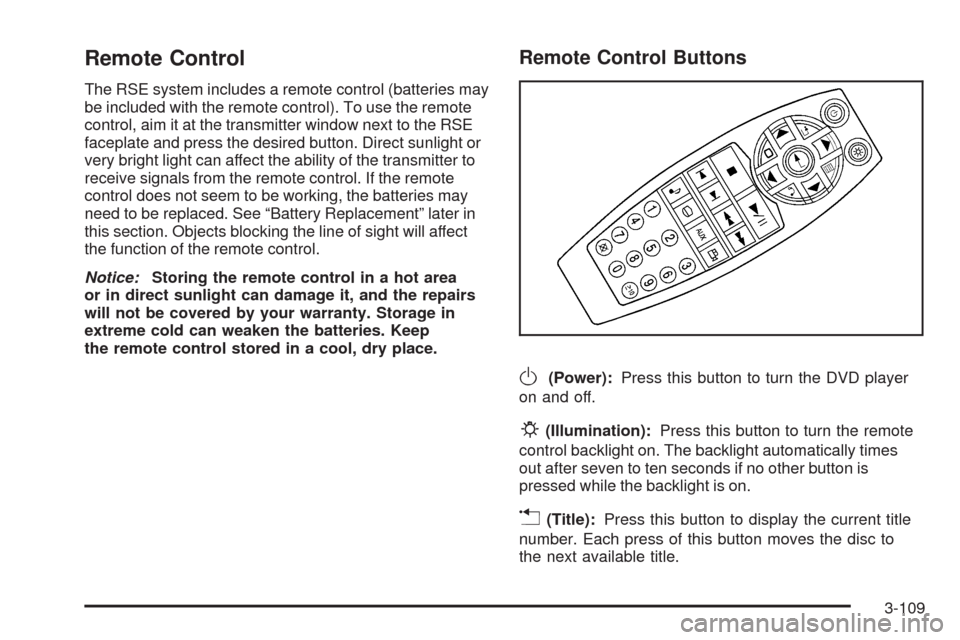
Remote Control
The RSE system includes a remote control (batteries may
be included with the remote control). To use the remote
control, aim it at the transmitter window next to the RSE
faceplate and press the desired button. Direct sunlight or
very bright light can affect the ability of the transmitter to
receive signals from the remote control. If the remote
control does not seem to be working, the batteries may
need to be replaced. See “Battery Replacement” later in
this section. Objects blocking the line of sight will affect
the function of the remote control.
Notice:Storing the remote control in a hot area
or in direct sunlight can damage it, and the repairs
will not be covered by your warranty. Storage in
extreme cold can weaken the batteries. Keep
the remote control stored in a cool, dry place.
Remote Control Buttons
O(Power):Press this button to turn the DVD player
on and off.
P(Illumination):Press this button to turn the remote
control backlight on. The backlight automatically times
out after seven to ten seconds if no other button is
pressed while the backlight is on.
v(Title):Press this button to display the current title
number. Each press of this button moves the disc to
the next available title.
3-109
Page 278 of 476

Left Arrow– Press the left arrow while in AM/FM tuner,
or XM™ Satellite Radio Service to seek down. Press the
left arrow while sourcing the single CD player, or the
six-disc CD player to go to the previous track.
Right Arrow– Press the right arrow while in AM/FM
tuner, or XM™ Satellite Radio Service to seek up. Press
the right arrow while sourcing the single CD player, or the
six-disc CD player to go to the next track.
43(Wired Headphone Volume):Press this button
to select the correct headphone. Then press the left
or right navigation arrows to increase or decrease the
headphone volume.
rj(Parental Control):This button is located behind
the video screen next to the auxiliary and headphone
jacks. Press this button while using RSA, or when a DVD
or CD is playing to blank the video screen and to mute
the audio. The power indicator lights on the DVD player
ashes. Turning on the parental control also disables all
other button operations from the remote control and the
DVD player, except for the eject button. Press this button
again to restore operation of the RSA, DVD player, and
remote control.This button can also be used to turn the DVD player
power on and automatically resume play if the vehicle is
on and a disc is in the player. If no disc is in the player
then the system powers up in auxiliary mode.
Theft-Deterrent Feature
THEFTLOCK®is designed to discourage theft of your
vehicle’s radio. The feature works automatically by
learning a portion of the Vehicle Identication Number
(VIN). If the radio is moved to a different vehicle, it does
not operate and LOC, LOCK, or LOCKED could display.
With THEFTLOCK
®activated, the radio does not
operate if stolen.
3-118
Page 283 of 476
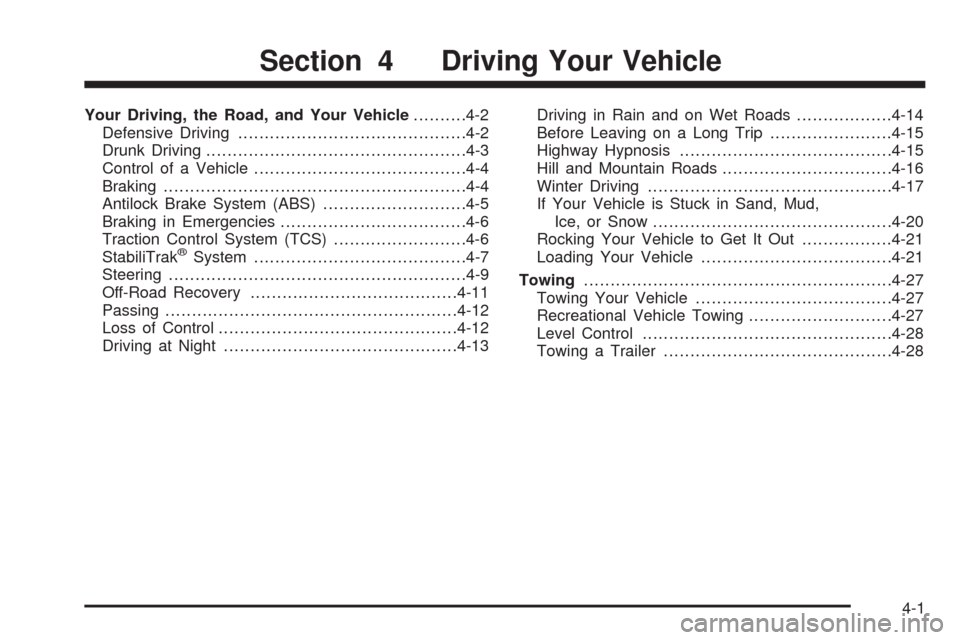
Your Driving, the Road, and Your Vehicle..........4-2
Defensive Driving...........................................4-2
Drunk Driving.................................................4-3
Control of a Vehicle........................................4-4
Braking.........................................................4-4
Antilock Brake System (ABS)...........................4-5
Braking in Emergencies...................................4-6
Traction Control System (TCS).........................4-6
StabiliTrak
®System........................................4-7
Steering........................................................4-9
Off-Road Recovery.......................................4-11
Passing.......................................................4-12
Loss of Control.............................................4-12
Driving at Night............................................4-13Driving in Rain and on Wet Roads..................4-14
Before Leaving on a Long Trip.......................4-15
Highway Hypnosis........................................4-15
Hill and Mountain Roads................................4-16
Winter Driving..............................................4-17
If Your Vehicle is Stuck in Sand, Mud,
Ice, or Snow.............................................4-20
Rocking Your Vehicle to Get It Out.................4-21
Loading Your Vehicle....................................4-21
Towing..........................................................4-27
Towing Your Vehicle.....................................4-27
Recreational Vehicle Towing...........................4-27
Level Control...............................................4-28
Towing a Trailer...........................................4-28
Section 4 Driving Your Vehicle
4-1