2008 CHEVROLET EQUINOX buttons
[x] Cancel search: buttonsPage 170 of 436
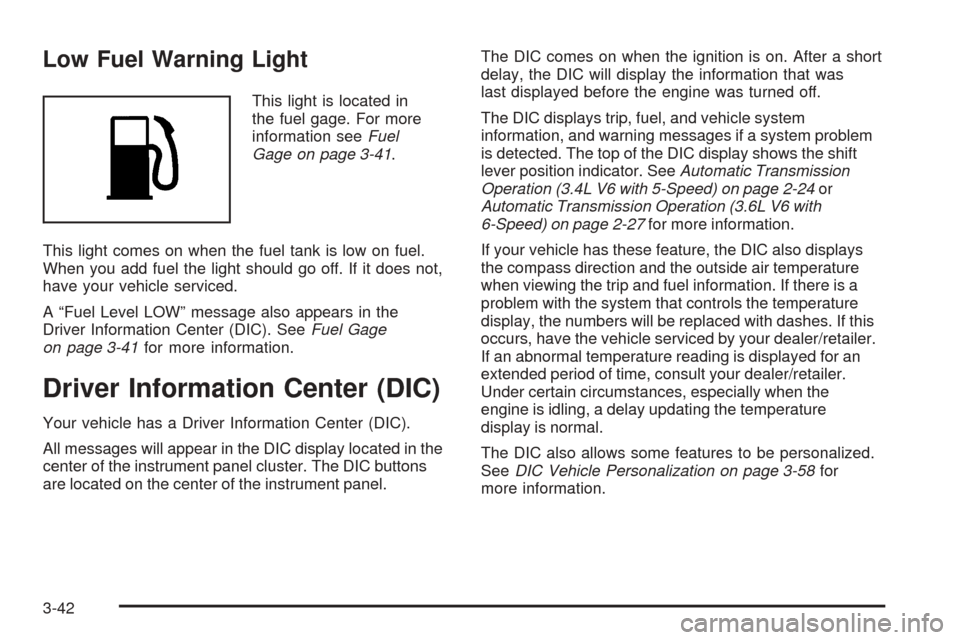
Low Fuel Warning Light
This light is located in
the fuel gage. For more
information seeFuel
Gage on page 3-41.
This light comes on when the fuel tank is low on fuel.
When you add fuel the light should go off. If it does not,
have your vehicle serviced.
A “Fuel Level LOW” message also appears in the
Driver Information Center (DIC). SeeFuel Gage
on page 3-41for more information.
Driver Information Center (DIC)
Your vehicle has a Driver Information Center (DIC).
All messages will appear in the DIC display located in the
center of the instrument panel cluster. The DIC buttons
are located on the center of the instrument panel.The DIC comes on when the ignition is on. After a short
delay, the DIC will display the information that was
last displayed before the engine was turned off.
The DIC displays trip, fuel, and vehicle system
information, and warning messages if a system problem
is detected. The top of the DIC display shows the shift
lever position indicator. SeeAutomatic Transmission
Operation (3.4L V6 with 5-Speed) on page 2-24or
Automatic Transmission Operation (3.6L V6 with
6-Speed) on page 2-27for more information.
If your vehicle has these feature, the DIC also displays
the compass direction and the outside air temperature
when viewing the trip and fuel information. If there is a
problem with the system that controls the temperature
display, the numbers will be replaced with dashes. If this
occurs, have the vehicle serviced by your dealer/retailer.
If an abnormal temperature reading is displayed for an
extended period of time, consult your dealer/retailer.
Under certain circumstances, especially when the
engine is idling, a delay updating the temperature
display is normal.
The DIC also allows some features to be personalized.
SeeDIC Vehicle Personalization on page 3-58for
more information.
3-42
Page 171 of 436
DIC Operation and Displays
The DIC has different displays which can be accessed
by pressing the DIC buttons located on the center
of the instrument panel.
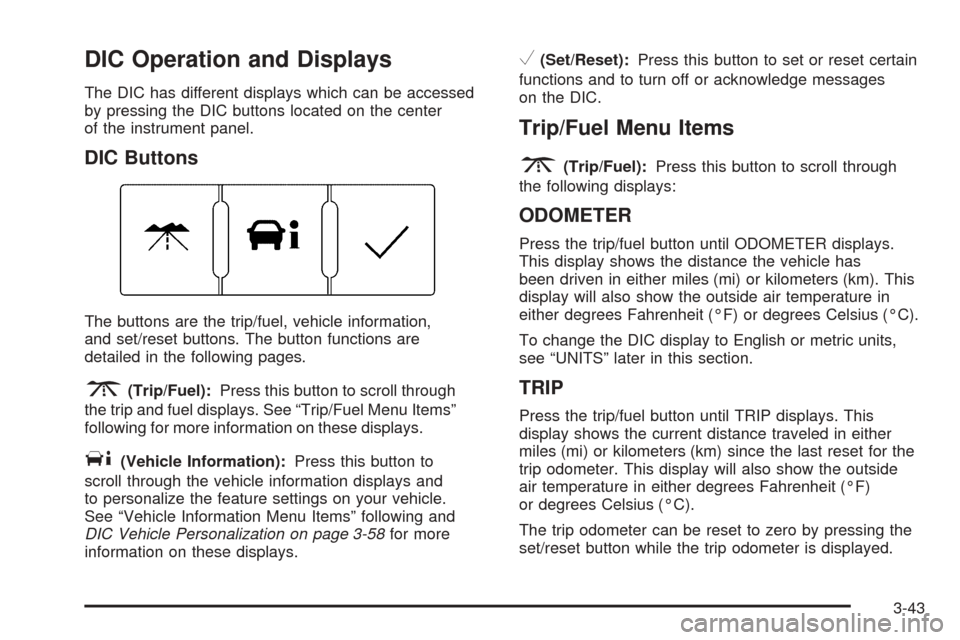
DIC Buttons
The buttons are the trip/fuel, vehicle information,
and set/reset buttons. The button functions are
detailed in the following pages.
3(Trip/Fuel):Press this button to scroll through
the trip and fuel displays. See “Trip/Fuel Menu Items”
following for more information on these displays.
T(Vehicle Information):Press this button to
scroll through the vehicle information displays and
to personalize the feature settings on your vehicle.
See “Vehicle Information Menu Items” following and
DIC Vehicle Personalization on page 3-58for more
information on these displays.
V(Set/Reset):Press this button to set or reset certain
functions and to turn off or acknowledge messages
on the DIC.
Trip/Fuel Menu Items
3
(Trip/Fuel):Press this button to scroll through
the following displays:
ODOMETER
Press the trip/fuel button until ODOMETER displays.
This display shows the distance the vehicle has
been driven in either miles (mi) or kilometers (km). This
display will also show the outside air temperature in
either degrees Fahrenheit (°F) or degrees Celsius (°C).
To change the DIC display to English or metric units,
see “UNITS” later in this section.
TRIP
Press the trip/fuel button until TRIP displays. This
display shows the current distance traveled in either
miles (mi) or kilometers (km) since the last reset for the
trip odometer. This display will also show the outside
air temperature in either degrees Fahrenheit (°F)
or degrees Celsius (°C).
The trip odometer can be reset to zero by pressing the
set/reset button while the trip odometer is displayed.
3-43
Page 174 of 436
If there is a problem with the battery charging system,
the DIC will display SERVICE BATTERY CHARGING
SYSTEM. See “SERVICE BATTERY CHARGING
SYSTEM” underDIC Warnings and Messages on
page 3-49. Also, seeElectric Power Management
on page 3-17for more information.
LEARN REMOTE KEY
This display allows you to match Remote Keyless
Entry (RKE) transmitters to your vehicle. To match
an RKE transmitter to your vehicle:
1. Make sure the vehicle is in PARK (P).
2. Press the vehicle information button until LEARN
REMOTE KEY PRESS
VTO BEGIN displays.
3. Press the set/reset button until REMOTE KEY
LEARNING ACTIVE is displayed.
4. Press and hold the lock and unlock buttons on
the rst transmitter at the same time for about
15 seconds.
A chime will sound indicating that the transmitter
is matched.
5. To match additional transmitters at this time,
repeat Step 3.
Each vehicle can have a maximum of
four transmitters matched to it.
6. To exit the programming mode, you must
cycle the key to LOCK/OFF.
CALIBRATE COMPAS (Compass)
Your vehicle may have this feature. The compass can
be manually calibrated. To calibrate the compass
through the DIC, seeDIC Compass on page 3-46.
CHANGE COMPASS ZONE
Your vehicle may have this feature. To change the
compass zone through the DIC, seeDIC Compass
on page 3-46.
Blank Display
This display shows no information.
FEATURE SETTNGS (Settings):
PRESS
VTO SELCT (Select)
This display allows you to personalize the feature
settings on your vehicle. SeeDIC Vehicle
Personalization on page 3-58for more information.
DIC Compass
Your vehicle may have a compass in the
Driver Information Center (DIC).
Compass Zone
The zone is set to zone eight upon leaving the factory.
Your dealer/retailer will set the correct zone for your
location.
3-46
Page 177 of 436
DIC Warnings and Messages
Messages are displayed on the DIC to notify the driver
that the status of the vehicle has changed and that
some action may be needed by the driver to correct
the condition. Multiple messages may appear one
after another.
Some messages may not require immediate action,
but you can press the set/reset button to acknowledge
that you received the messages and to clear them
from the display. Pressing any of the DIC buttons
also acknowledge and clear any messages.
Some messages cannot be cleared from the DIC
display because they are more urgent. These messages
require action before they can be cleared. You should
take any messages that appear on the display seriously
and remember that clearing the messages will only
make the messages disappear, not correct the problem.
The following are the possible messages that can
be displayed and some information about them.
ALL WHEEL DRIVE OFF
If your vehicle has the All-Wheel Drive (AWD) system,
this message displays along with the All-Wheel
Drive Disabled light when the rear drive system is
overheating. This message turns off when the rear
drive system cools down. If the warning message stays
on for a while, you need to reset the warning message.
To reset the warning message, turn the ignition off
and then back on again. If the message stays on, see
your dealer/retailer right away. SeeAll-Wheel Drive
(AWD) System on page 4-8andAll-Wheel Drive
Disabled Light on page 3-40for more information.
BATTERY SAVER ACTIVE
This message displays when the charging system
detects that the battery is being drained. You may
notice that the vehicle attempts to reduce the drain for
you by turning off accessories, such as interior fans, rear
defogger, and heated seats. Turn off all accessories.
If the vehicle is not running, start and run the engine
for at least 10 minutes to allow the battery to recharge.
If the engine is running and the condition persists,
see your dealer/retailer. SeeElectric Power
Management on page 3-17for more information.
3-49
Page 193 of 436
While your vehicle is parked:
Familiarize yourself with all of its controls.
Familiarize yourself with its operation.
Set up your audio system by presetting your
favorite radio stations, setting the tone, and
adjusting the speakers. Then, when driving
conditions permit, you can tune to your favorite
radio stations using the presets and steering
wheel controls if the vehicle has them.
Notice:Before adding any sound equipment to
your vehicle, such as an audio system, CD player,
CB radio, mobile telephone, or two-way radio, make
sure that it can be added by checking with your
dealer/retailer. Also, check federal rules covering
mobile radio and telephone units. If sound equipment
can be added, it is very important to do it properly.
Added sound equipment may interfere with the
operation of your vehicle’s engine, radio, or other
systems, and even damage them. Your vehicle’s
systems may interfere with the operation of sound
equipment that has been added.
Your vehicle has a feature called Retained Accessory
Power (RAP). With RAP, the audio system can
be played even after the ignition is turned off.
SeeRetained Accessory Power (RAP) on page 2-21
for more information.
Setting the Time
Without Date Display
AM/FM Base Radio with a Single CD Player
This type of radio has aH(clock) button for setting
the time. Set the time by following these steps:
1. Turn the radio on.
2. Press the
Hbutton until the hour begins ashing
on the display. Press the
Hbutton a second time
and the minutes begin ashing on the display.
3. While either the hour or the minutes are ashing,
turn the
f(tune) knob, located on the upper right
side of the radio, clockwise or counterclockwise
to increase or decrease the time. Instead of
using the
fknob, you can also press the SEEK
arrows,
\FWD (forward), orsREV (reverse)
buttons to adjust the time.
4. Press the
Hbutton again until the clock display
stops ashing to set the currently displayed time;
otherwise, the ashing stops after ve seconds and
the current time displayed is automatically set.
3-65
Page 198 of 436
Finding a Station
BAND:Press to switch between AM, FM, or XM
(if equipped). The selection displays.
f(Tune):Turn to select radio stations.
©SEEK¨:Press the arrows to go to the previous
or to the next station and stay there.
To scan stations, press and hold either arrow for a
few seconds until a beep sounds. The radio goes to
a station, plays for a few seconds, then goes to the
next station. Press either arrow again to stop scanning.
The radio only seeks and scans stations with a
strong signal that are in the selected band.
4(Information) (Base Radio with CD):Press to
switch the display between the radio station frequency
and the time. When the ignition is off, press to
display the time.
4(Information) (XM™ Satellite Radio Service,
MP3/WMA, and RDS Features):Press to display
additional text information related to the current
FM-RDS or XM station, or MP3/WMA song. A choice
of additional information such as: Channel, Song,
Artist, and CAT (category) can appear. Continue
pressing to highlight the desired label, or press the
pushbutton positioned under any one of the labels
and the information about that label displays.
When information is not available, No Info displays.
Setting Preset Stations
If the radio does not have XM™, up to 18 stations
(six FM1, six FM2, and six AM) can be programmed
on the six numbered pushbuttons, by performing
the following steps:
1. Turn the radio on.
2. Press BAND to select FM1, FM2, or AM.
3. Tune in the desired station.
4. Press and hold one of the six numbered
pushbuttons for three seconds until a beep sounds.
When that pushbutton is pressed and released,
the station that was set, returns.
5. Repeat the Steps 2 through 4 for each pushbutton.
3-70
Page 199 of 436
Storing a Radio Station as a Favorite
Drivers are encouraged to set up their radio station
favorites while the vehicle is parked. Tune to your
favorite stations using the presets, favorites button,
and steering wheel controls, if your vehicle has them.
SeeDefensive Driving on page 4-2.
If your radio has XM, a maximum of 36 stations can be
programmed as favorites using the six pushbuttons
positioned below the radio station frequency labels and
by using the radio favorites page button (FAV button).
FAV (Favorites):Press the FAV button to go through
up to six pages of favorites, each having six favorite
stations available per page. Each page of favorites
can contain any combination of AM, FM, or XM
(if equipped) stations. To store a station as a
favorite, perform the following steps:
1. Tune to the desired radio station.
2. Press the FAV button to display the page where
the station is to be stored.
3. Press and hold one of the six pushbuttons until a
beep sounds. When that pushbutton is pressed
and released, the station that was set, returns.
4. Repeat the steps for each pushbutton radio station
to be stored as a favorite.The number of favorites pages can be setup using
the MENU button. To setup the number of favorites
pages, perform the following steps:
1. Press the MENU button to display the radio
setup menu.
2. Press the pushbutton located below the
FAV 1-6 label.
3. Select the desired number of favorites pages
by pressing the pushbutton located below the
displayed page numbers.
4. Press the FAV button, or let the menu time out,
to return to the original main radio screen showing
the radio station frequency labels and to begin
the process of programming your favorites for
the chosen amount of numbered pages.
Setting the Tone (Bass/Treble)
(Base Radio with CD)
EQ (Equalization):To adjust the bass or treble,
press the
fknob or EQ button until the desired tone
control label displays. Turn the
fknob clockwise
or counterclockwise to increase or decrease the setting.
The display shows the current bass or treble level.
If a station’s frequency is weak, or if there is static,
decrease the treble.
3-71
Page 201 of 436
Adjusting the Speakers (Balance/Fade)
BAL/FADE (Balance/Fade):To adjust balance or
fade, press the
fknob until the speaker control
labels display. Continue pressing to highlight the
desired label, or press the pushbutton positioned
under the desired label. Turn the
fknob clockwise or
counterclockwise to adjust the highlighted setting.
You can also adjust the highlighted setting by pressing
the SEEK arrows,
\FWD, orsREV button until
the desired levels are obtained.
To quickly adjust balance or fade to the middle position,
press the pushbutton positioned under the BAL or
FADE label for more than two seconds. A beep sounds
and the level adjusts to the middle position.
To quickly adjust all speaker and tone controls to
the middle position, press the
fknob for more than
two seconds until a beep sounds.
Finding a Category (CAT) Station
If the radio has XM, the CAT button can be used to
nd XM stations when the radio is in the XM mode.
CAT (Category):To nd XM channels within a desired
category, perform the following:
1. Press the BAND button until the XM frequency is
displayed. Press the CAT button to display the
category labels on the radio display. Continue
pressing the CAT button until the desired category
name displays.
Depending on the radio, another way to navigate
the category list is to press the
sREV button
or the
\FWD button.
2. Press either of the two buttons below the desired
category label to immediately tune to the rst XM
station associated with that category.
3. Turn the
fknob, press the buttons below the right
or left arrows displayed, or press the Seek arrows
to go to the previous or to the next XM station within
the selected category.
4. To exit the category search mode, press the
FAV button or BAND button to display your
favorites again.
3-73