2008 BMW X6 language
[x] Cancel search: languagePage 197 of 288

Navigation
Entertainment
Driving tips
195Reference
At a glance
Controls
Communications
Mobility
>"Tone":
>"Treble / Bass" and "Balance":
Separately adjustable for the left and
right-hand headphones and the infrared
headphones.
>"Reset":
The settings are reset to the default
value.
>"DVD format":
>"Standard"
>"Zoom": full-screen playback
>"Language":
Language or sound track of DVD playback.
The language advances one setting each
time the menu item is selected.
>"Subtitles":
Language of subtitles
"00 n/a": no subtitles.
>"Title":
Selection of a single track of the DVD.
>"Angle of view":
Camera angle
Notes or symbols that appear during the
playback of a film generally point out differ-
ent camera angles. These are usually only
briefly available.
>"Menu":
Call up the DVD-specific menu.
>"Return":
Exit menu or:
Press the buttons on the remote con-
trol.
Many DVDs offer dialogs and subtitles in vari-
ous languages or scene descriptions for the
hearing impaired. These functions are stored
on the DVD.
With some DVDs, it is only possible to
select language, subtitles, camera angle,
or title by using the DVD-specific menu.
Refer to the information on your DVD for possi-
ble selections.
Menu entries that appear in gray cannot be
selected.
For example, it is possible to select from several
possible plots or display information on the film.
1.Press the button on the remote con-
trol during playback.
2.Select "Menu".
3.Press the button.
On some DVDs, selecting "Menu"
and "Title" gives you the option of
selecting from additional menus.<
To make a selection:
1.Use the buttons on the remote control to
select the desired function in the DVD-spe-
cific menu.
2.Press the button.
You can also select language, subtitles,
camera angle, or title in the DVD-specific
menu.
Consult the documentation for your DVD.<
Compressed video files
Playback
1.Select the directory if necessary.
2.Press the button.
Page 201 of 288
Navigation
Entertainment
Driving tips
199Reference
At a glance
Controls
Communications
Mobility
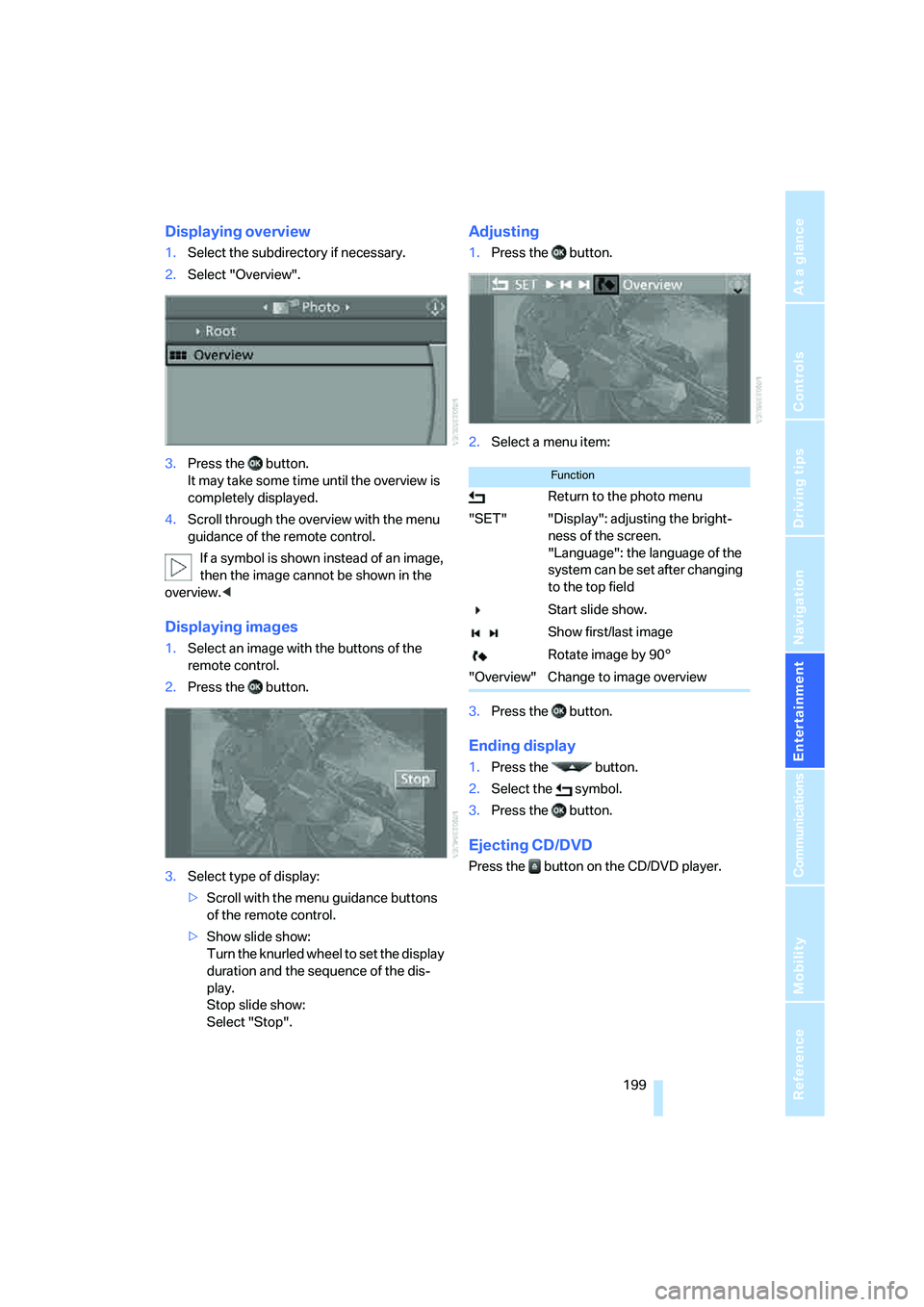
Displaying overview
1.Select the subdirectory if necessary.
2.Select "Overview".
3.Press the button.
It may take some time until the overview is
completely displayed.
4.Scroll through the overview with the menu
guidance of the remote control.
If a symbol is shown instead of an image,
then the image cannot be shown in the
overview.<
Displaying images
1.Select an image with the buttons of the
remote control.
2.Press the button.
3.Select type of display:
>Scroll with the menu guidance buttons
of the remote control.
>Show slide show:
Turn the knurled wheel to set the display
duration and the sequence of the dis-
play.
Stop slide show:
Select "Stop".
Adjusting
1.Press the button.
2.Select a menu item:
3.Press the button.
Ending display
1.Press the button.
2.Select the symbol.
3.Press the button.
Ejecting CD/DVD
Press the button on the CD/DVD player.
Function
Return to the photo menu
"SET" "Display": adjusting the bright-
ness of the screen.
"Language": the language of the
system can be set after changing
to the top field
Start slide show.
Show first/last image
Rotate image by 90°
"Overview" Change to image overview
Page 203 of 288
Navigation
Entertainment
Driving tips
201Reference
At a glance
Controls
Communications
Mobility
Humidity
High levels of humidity can lead to condensa-
tion on the CD/DVD or the laser's scan lens and
temporarily prevent playback.
Malfunctions with individual CDs/DVDs
If malfunctions occur only with particular CDs/
DVDs, this can be due to one of the following
causes.
Copied or self-recorded CDs/DVDs
Possible reasons for malfunctions with copied
or self-recorded CDs/DVDs are, e.g., inconsis-
tent data-creation or recording processes, or
poor quality or high age of the CD/DVD blank.
Only label CDs/DVDs on the side with the label
using a pen intended for this purpose.
Damaged CDs/DVDs
Avoid fingerprints, dust, scratches and mois-
ture.
Store CDs/DVDs in a sleeve.
Do not subject CDs/DVDs to temperatures over
1227/506, high levels of humidity or direct
sunlight.
CDs/DVDs with copy protection
CDs/DVDs are often provided with a copy pro-
tection feature by the manufacturer. As a result,
some CDs/DVDs cannot be played, can only be
played to a limited degree, or cause the system
to switch off. In this case, wait a short while and
then switch the system back on again. Then
remove the CD/DVD from the drive.
CDs/DVDs with compressed audio files
If the language set for the CD/DVD player does
not match the language of the music track, the
music tracks may be displayed incorrectly.
Care instructions
Do not use cleaning CDs with a brush.
External device
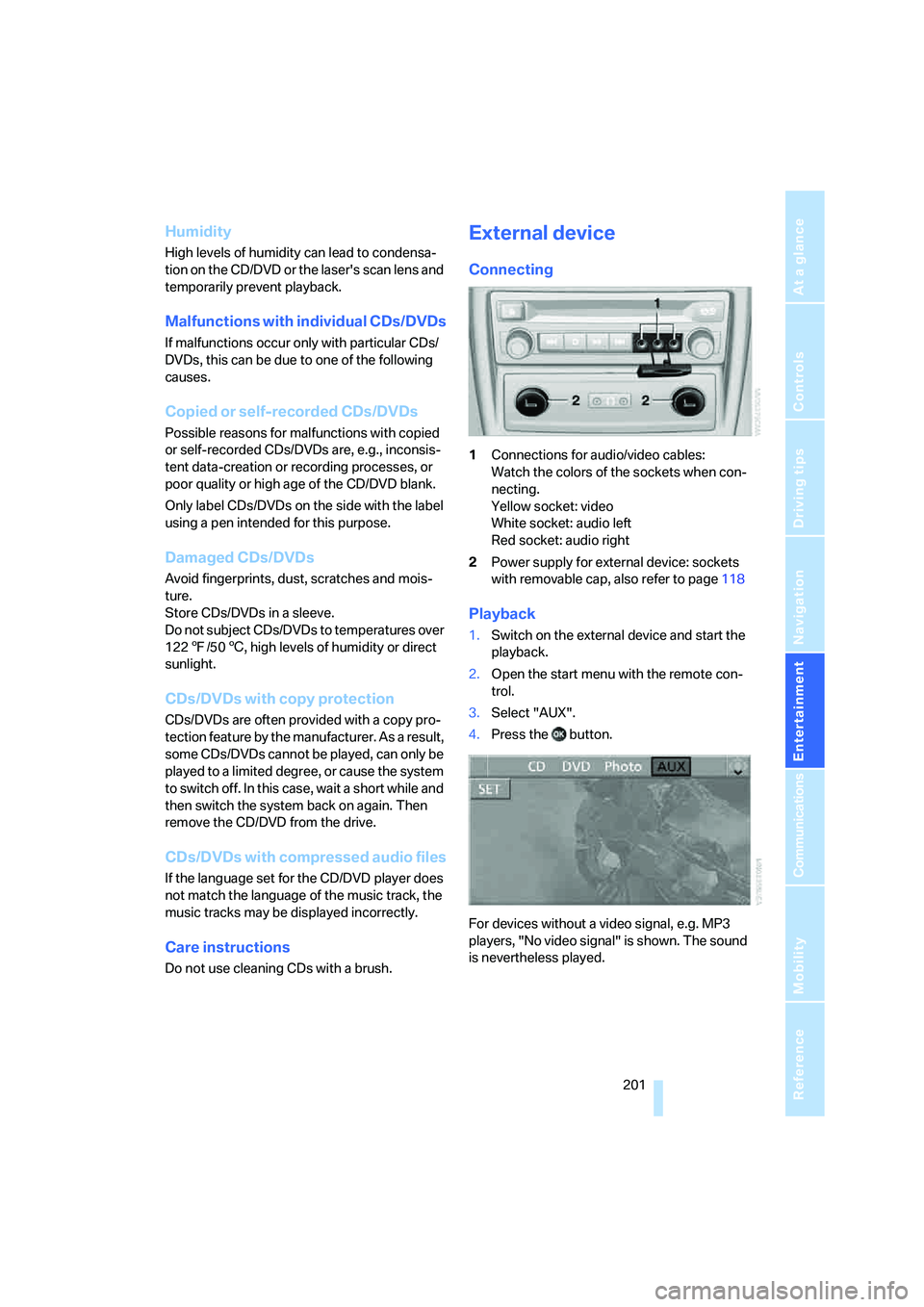
Connecting
1Connections for audio/video cables:
Watch the colors of the sockets when con-
necting.
Yellow socket: video
White socket: audio left
Red socket: audio right
2Power supply for external device: sockets
with removable cap, also refer to page118
Playback
1.Switch on the external device and start the
playback.
2.Open the start menu with the remote con-
trol.
3.Select "AUX".
4.Press the button.
For devices without a video signal, e.g. MP3
players, "No video signal" is shown. The sound
is nevertheless played.
Page 204 of 288

DVD system in rear
202
Settings for external devices
1.Press the button during playback.
2.Make the settings with the remote control:
>"Video settings":
>"Brightness", "Color" and "Contrast" of
video playback.
>"NTSC color":
The color can be adjusted on an external
device with the NTSC standard.
>"Standard":
The DVD system in the rear can be
adapted to external devices with various
TV standards. When doing so, also refer
to the operating manual of the external
device.
>"Reset":
The settings are reset to the default
value.
>"Tone":
>"Treble / Bass" and "Balance" can be
adjusted for the left and right-hand
headphones and the infrared head-
phones.
>"Reset":
Your settings are reset.
>Additional settings can be made after
changing to the top field.
"Audio": adjust the volume of the exter-
nal device to the volume of the CD/DVD
player.
"Language": system language of the
DVD system in the rear.
"Display": background brightness of
screen.>"Video Format":
>"Standard"
>"Zoom": full-screen playback
Page 267 of 288
Reference 265
At a glance
Controls
Driving tips
Communications
Navigation
Entertainment
Mobility
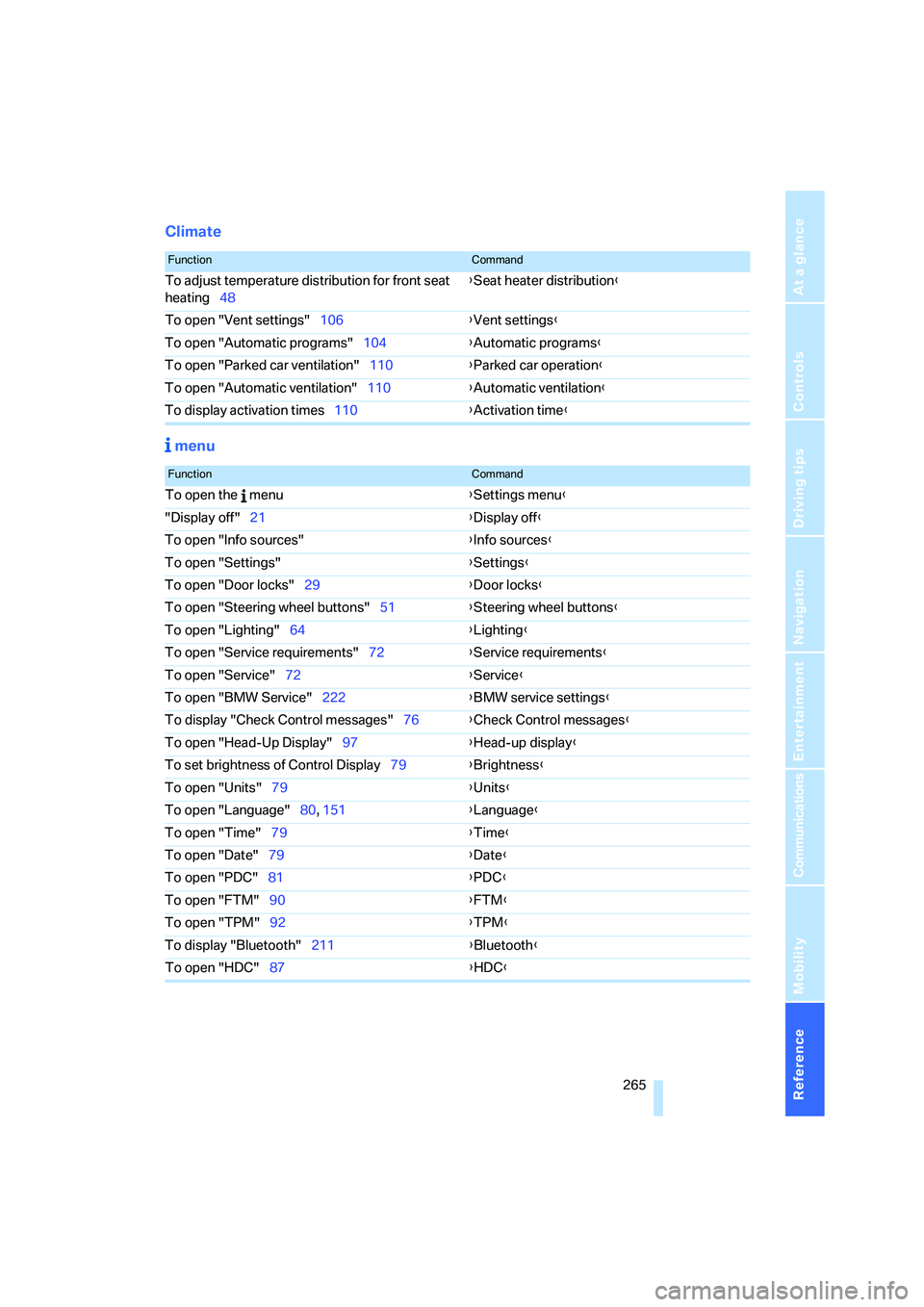
Climate
menu
FunctionCommand
To adjust temperature distribution for front seat
heating48{Seat heater distribution}
To open "Vent settings"106{Vent settings}
To open "Automatic programs"104{Automatic programs}
To open "Parked car ventilation"110{Parked car operation}
To open "Automatic ventilation"110{Automatic ventilation}
To display activation times110{Activation time}
FunctionCommand
To open the menu{Settings menu}
"Display off"21{Display off}
To open "Info sources"{Info sources}
To open "Settings"{Settings}
To open "Door locks"29{Door locks}
To open "Steering wheel buttons"51{Steering wheel buttons}
To open "Lighting"64{Lighting}
To open "Service requirements"72{Service requirements}
To open "Service"72{Service}
To open "BMW Service"222{BMW service settings}
To display "Check Control messages"76{Check Control messages}
To open "Head-Up Display"97{Head-up display}
To set brightness of Control Display79{Brightness}
To open "Units"79{Units}
To open "Language"80, 151{Language}
To open "Time"79{Time}
To open "Date"79{Date}
To open "PDC"81{PDC}
To open "FTM"90{FTM}
To open "TPM"92{TPM}
To display "Bluetooth"211
{Bluetooth}
To open "HDC"87{HDC}
Page 271 of 288

Reference 269
At a glance
Controls
Driving tips
Communications
Navigation
Entertainment
Mobility
"CD"161,173
– for DVD system in rear192
CD, refer to Playing audio
tracks, DVD system in
rear196
CD/DVD player, DVD system
in rear191
CD changer173
– compressed audio files173
– controls160
– fast forward/reverse176
– random sequence176
– repeating a track175
– sampling tracks175
– selecting a CD173
– selecting a track174
– switching on/off160
– tone control161
– volume161
CD player173
– compressed audio files173
– controls160
– fast forward/reverse176
– random sequence176
– repeating a track175
– sampling tracks175
– selecting a track174
– switching on/off160
– tone control161
– volume161
Cell phone, refer to Mobile
phone
Center armrest
– front116
– rear119
Center brake lamp248
Center console14
"Central locking"30
Central locking system29
– comfort access36
– from inside vehicle32
Changes, technical
– refer to For your own
safety5
– refer to Parts and
accessories6
Changing language on
Control Display80Changing tires237
Changing units of measure on
Control Display79
Changing wheels248
Check Control75
"Check Control
messages"76
Checking the air pressure,
refer to Tire inflation
pressure232
Children, transporting53
Child restraint fixing system
LATCH54
Child restraint systems53
Child-safety locks55
Child seats53
Chime, refer to Check
Control75
Chrome parts, care, refer to
Caring for your vehicle
brochure
Cigarette lighter, refer to
Lighter118
Cleaning, refer to Caring for
your vehicle brochure
"Climate"48
Clock68
– 12h/24h mode79
– setting time78
Closing
– from inside32
– using remote control29
Closing fuel filler cap230
Clothes hooks116
Cockpit10
Cold start, refer to Starting
engine57
"Color" for DVD system in
rear194
Comfort access36
– observe in car wash38
– replacing battery38
Comfort area, refer to Around
the center console14
Comfort start, refer to Starting
engine57
"Communica-
tion"212,222,223,224Compact Disc
– refer to CD changer173
– refer to CD player173
Compact wheel, wheel
change248
Compartment for remote
control, refer to Ignition
lock56
Compartments, refer to
Storage compartments116
Compass, digital114
Computer70
– displays in instrument
panel70
– displays on Control
Display70
– trip computer71
"Concierge"224
Concierge service224
Condition Based Service
CBS243
"Confirmation"31
Connecting car vacuum
cleaner, refer to Connecting
electrical devices118
Connecting headphones191
Consumption, refer to
Average fuel
consumption70
Consumption statistics, refer
to Average fuel
consumption70
"Continue guidance to
destination?"149
"Contrast"
– DVD changer182
– DVD system in rear194
Control Center, refer to
iDrive16
Control Display, refer to
iDrive16
– setting brightness79
Controller, refer to iDrive16
Controls
– DVD changer179
– DVD system in rear190
– refer to Cockpit10
Page 273 of 288

Reference 271
At a glance
Controls
Driving tips
Communications
Navigation
Entertainment
Mobility
"Distance to dest."71
Distance to destination, refer
to Computer70
Distance warning, refer to
PDC Park Distance
Control81
Door entry lighting102
Door key, refer to Keys/
remote control28
Door lock31
Door locking, confirmation
signals31
"Door locks"30,31,73
Doors
– manual operation32
– remote control29
DOT Quality Grades235
Downhill driving assistance,
refer to HDC87
Draft-free ventilation107
Drinks holder, refer to Cup
holders117
Drive for navigation DVDs160
"Driver's door only"30
Driver's seat, calibrating47
"Driver's seat climate"49
Driving lamps, refer to Parking
lamps/low beams99
Driving on poor roads130
Driving route, refer to
Displaying route149
Driving stability control
systems85
Driving through water127
Driving tips, refer to General
driving notes126
Dry air, refer to Cooling
function106
Drying the air, refer to Cooling
function106
DSC Dynamic Stability
Control86
– indicator lamp13,86
DTC Dynamic Traction
Control86
– activating86
– indicator lamp87"DVD"
– for DVD system in rear192
– in DVD changer180
DVD
– DVD changer179
– DVD system in rear190
– player for navigation
DVD160
DVD changer179
– adjusting brightness182
– adjusting contrast182
– adjusting tone182,185
– audio and video
playback180
– audio playback184
– chapter selection184
– controls179
– DVD audio content184
– DVD control181
– DVD country codes180
– DVD-specific menu183
– fast forward181
– filling179
– installation position179
– malfunctions180
– removing DVDs179
– reverse181
– selecting audio
language185
– selecting language182
– selecting subtitles183
– selecting track183
– selecting viewing angle183
– skip chapter181
– zoom182
"DVD format"
– for DVD system in rear195
– on DVD changer182
DVD for navigation134DVD system in rear190
– CD/DVD player191
– connecting headphones191
– controls190
– displaying images from CD/
DVD198
– DVD country codes192
– external device201
– information on CD/DVD
player200
– playing audio tracks from
CD/DVD196
– playing video from CD/
DVD192
– remote control191
– switching on/off192
Dynamic Performance
Control87
"Dynamic route" for
navigation147
Dynamic Stability Control
DSC86
Dynamic Traction Control
DTC86
E
Easy entry/exit51
Eject button, refer to Buttons
on the CD player160
Electrical malfunction
– automatic transmission with
Steptronic63
– door lock32
– driver's door32
– fuel filler door230
– glass sunroof, electric41
– parking brake60
Electric seat43
Electric steering wheel
adjustment51
Electronic brake-force
distribution85
Electronic oil level check240
Page 276 of 288

Everything from A to Z
274
I
IBOC, refer to High Definition
Radio167
Ice, refer to Outside
temperature warning68
Ice warning, refer to Outside
temperature warning68
ID3 tag, refer to Information on
track174
Identification, tire238
Identification mark, run-flat
tires237
iDrive16
– assistance window20
– changing language80
– changing menu page19
– changing settings78
– changing units of measure
and display type79
– confirming selection or
entry19
– controller16
– controls16
– displays, menus17
– selecting menu item19
– setting brightness79
– setting date79
– setting time78
– start menu17
– status information20
– symbols18
Ignition56
– switched off56
– switched on56
Ignition key, refer to Keys/
remote control28
Ignition key position 1, refer to
Radio readiness56
Ignition key position 2, refer to
Ignition on56
Ignition lock56
– starting engine with comfort
access37
Independent ventilation, refer
to Parked car ventilation109Indicator/warning lamps13
– active steering94
– airbags96
– DSC13,86
– DTC87
– fasten safety belt47
– Flat Tire Monitor90
– TPM Tire Pressure
Monitor92
Individual air distribution106
Individually programmable
buttons on steering
wheel51
Individual settings, refer to
Personal Profile28
Inflation pressure, refer to Tire
inflation pressure232
Inflation pressure monitoring
– refer to FTM Flat Tire
Monitor89
– refer to TPM Tire Pressure
Monitor91
Information
– on another location142
– on country142
– on current position142
– on destination location142
"Information on
destination"143
"Info sources"73
Initializing
– Flat Tire Monitor90
– refer to Power failure251
– refer to Setting date79
– refer to Setting time78
– seat, mirror and steering
wheel memory44
"Input map"141
Installation position
– DVD changer179
– mobile phone116
Instructions for navigation
system, refer to Voice
instructions151
Instrument cluster, refer to
Instrument panel12
Instrument illumination, refer
to Instrument lighting102
Instrument lighting102Instrument panel12
– refer to Cockpit10
Integrated key28
Integrated universal remote
control112
Interesting destination for
navigation142
"Interim time"77
Interior lamps102
– switching on with remote
control30
Interior motion sensor36
– switching off36
Interior rearview mirror50
– automatic dimming
feature51
– compass114
Intermittent mode of the
wipers64
J
Jacking points249
Joystick
– refer to iDrive16
– refer to Selector lever,
selecting transmission
positions61
Jumpering, refer to Jump
starting253
Jump starting253
K
Keyless-Go, refer to Comfort
access36
Keyless opening and closing,
refer to Comfort access36
Key Memory, refer to Personal
Profile28
"Keypad"216
Keys28
– key-related settings, refer to
Personal Profile28
Kick-down, automatic
transmission with
Steptronic62
Knock control231