Page 5 of 288

Reference
At a glance
Controls
Driving tips
Communications
Navigation
Entertainment
Mobility
Contents
The fastest way to find specific topics is to use
the index, refer to page264.
Using this Owner's Manual
4Notes
7Reporting safety defects
At a glance
10Cockpit
16iDrive
23Voice command system
Controls
28Opening and closing
45Adjusting
56Transporting children safely
61Driving
78Everything under control
90Technology for comfort, convenience
and safety
108Lamps
114Climate
121Practical interior accessories
Driving tips
134Things to remember when driving
Navigation
142Starting navigation system
144Destination entry
156Destination guidance
165What to do if …
Entertainment
168On/off and tone
172Radio
179Satellite radio
182CD player and CD changer
188AUX-In connection
189USB/audio interface
Communications
194Telephoning
209BMW Assist
Mobility
218Refueling
220Wheels and tires
230Under the hood
235Maintenance
237Replacing components
247Giving and receiving assistance
Reference
254Technical data
259Short commands of voice command
system
264Everything from A to Z
Page 15 of 288

At a glance
13Reference
Controls
Driving tips
Communications
Navigation
Entertainment
Mobility
Indicator and warning lamps
The concept
The indicator and warning lamps can light up in
different combinations and colors.
Some lamps are tested for proper function by
briefly lighting up during starting of the engine
or when the ignition is switched on.
Explanatory text messages
Text messages at the bottom edge of the
Control Display explain the meaning of the
displayed indicator and warning lamps.
Additional information, e.g. on the cause of a
malfunction and on the corresponding need to
take action can be displayed via the Check Con-
trol, refer to page83.In urgent cases, this information will be shown
as soon as the corresponding lamp comes on.
Indicator lamps without text messages
The following indicator lamps signal particular
functions:
High beams/headlamp flasher110
Fog lamps
*112
Handbrake applied63
Handbrake applied for Canadian
models
Lamp flashes:
DSC or DTC controls the drive and
braking forces for maintaining vehicle
stability92
DTC Dynamic Traction Control93
Engine malfunction with deteriorating
emissions levels236
Page 19 of 288
At a glance
17Reference
Controls
Driving tips
Communications
Navigation
Entertainment
Mobility
Menu overview
Communication
>Telephone*
>BMW Assist* or TeleService*
Navigation or onboard information
>Navigation system*
>Onboard information, e.g. for displaying
the average fuel consumption
Entertainment
>Radio
>CD player and CD changer
*
>AUX-In connection
>USB/audio interface
*
Climate
>Vent settings
>Automatic programs
>Seat heater distribution
*
>Parked car operation*
menu
>Switching off Control Display
>Tone and display settings
>Settings for your vehicle, e.g. for the central
locking system
>Display of maintenance intervals and dead-
lines for legally mandated inspections
>Settings for telephone
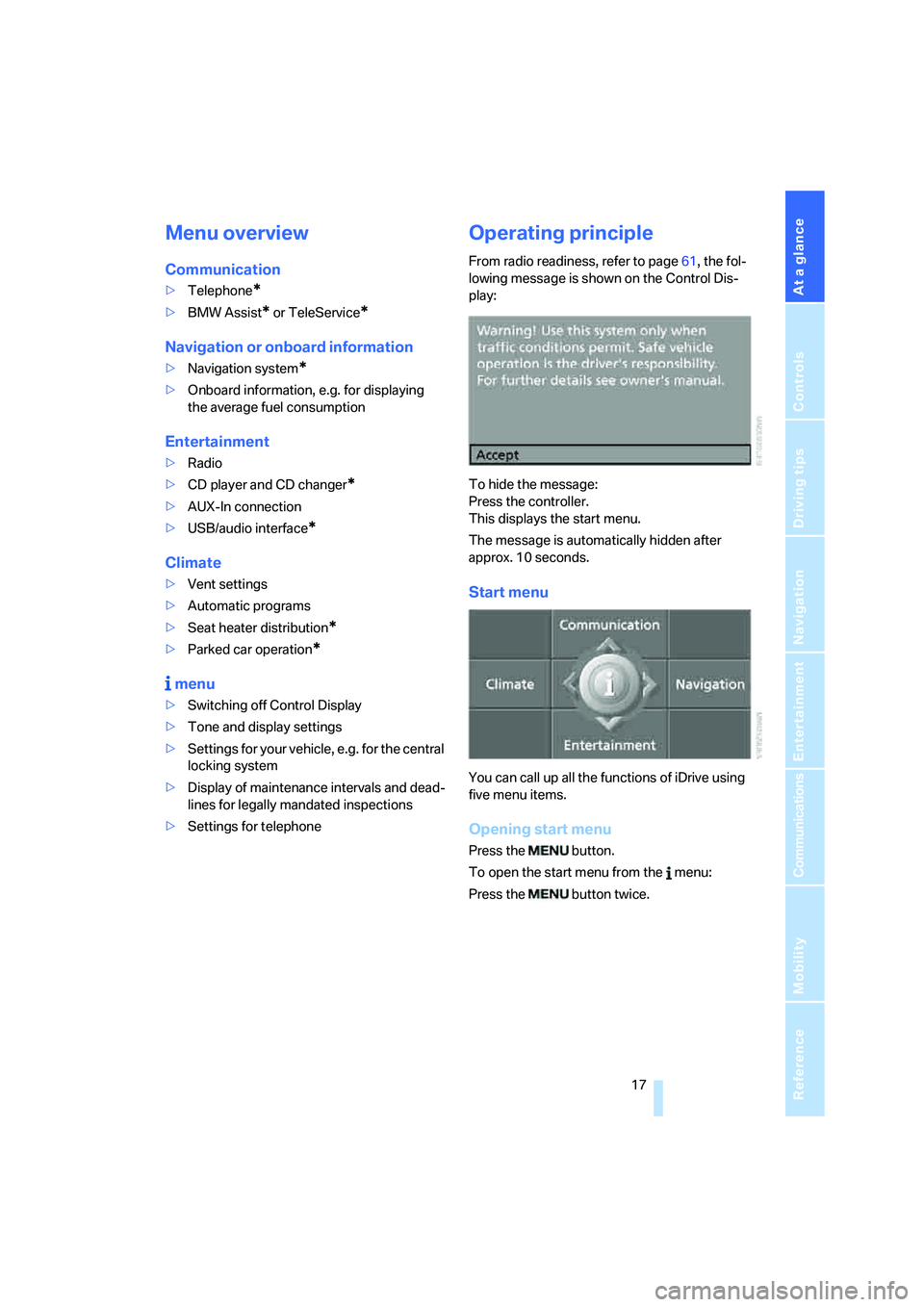
Operating principle
From radio readiness, refer to page61, the fol-
lowing message is shown on the Control Dis-
play:
To hide the message:
Press the controller.
This displays the start menu.
The message is automatically hidden after
approx. 10 seconds.
Start menu
You can call up all the functions of iDrive using
five menu items.
Opening start menu
Press the button.
To open the start menu from the menu:
Press the button twice.
Page 21 of 288
At a glance
19Reference
Controls
Driving tips
Communications
Navigation
Entertainment
Mobility
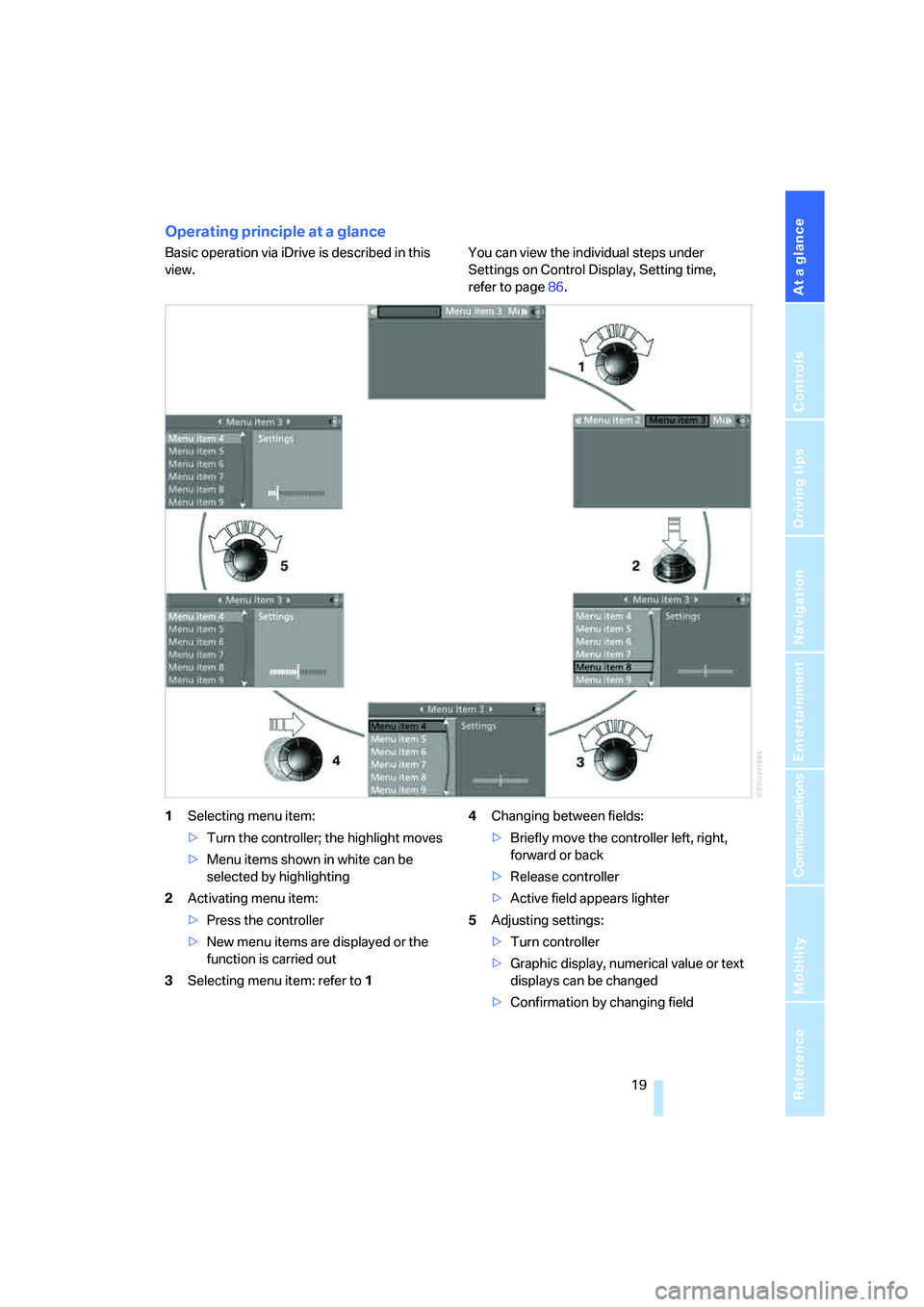
Operating principle at a glance
Basic operation via iDrive is described in this
view.You can view the individual steps under
Settings on Control Display, Setting time,
refer to page86.
1Selecting menu item:
>Turn the controller; the highlight moves
>Menu items shown in white can be
selected by highlighting
2Activating menu item:
>Press the controller
>New menu items are displayed or the
function is carried out
3Selecting menu item: refer to 14Changing between fields:
>Briefly move the controller left, right,
forward or back
>Release controller
>Active field appears lighter
5Adjusting settings:
>Turn controller
>Graphic display, numerical value or text
displays can be changed
>Confirmation by changing field
Page 25 of 288

At a glance
23Reference
Controls
Driving tips
Communications
Navigation
Entertainment
Mobility
Voice command system
The concept
The voice command system allows you to con-
trol operation of various vehicle systems with-
out taking your hands off the steering wheel.
Individual menu items on the Control Display
can be spoken as commands. This frees you of
having to use the controller.
The voice command system transforms your
oral commands into control signals for the
selected systems and provides support in the
form of instructions or questions.
The voice command system uses a special
microphone located in the area of the interior
rearview mirror, refer to page14.
Precondition
Via iDrive, set the language that applies for the
voice command system in order to enable iden-
tification of the spoken commands. To set the
language of iDrive, refer to page88.
Symbols in Owner's Manual
Voice commands
Activating voice command system
1.Press the button.
This symbol on the Control Display and
an acoustic signal tell you that the voice
command system can respond to com-
mands.
2.Say the command.
The command is displayed on the Control
Display.
This symbol is shown on the Control Display
when you can input additional commands.
*
{...} Say the specified commands word for
word.
{{...}} Indicates responses of the voice
command system.
Page 26 of 288
Voice command system
24 If no other commands are possible, then oper-
ate the equipment via iDrive.
Terminating or canceling voice
command system
Press the button on the steering wheel
or
Commands
Having possible commands read aloud
You can have the system read aloud the possi-
ble commands related to the selected menu
item on the Control Display.
To have the system list the possible com-
mands:
For example, if you have selected "CD", the
system will read aloud the possible commands
for operating the CD player and the CD
changer
*.
Opening help
Using alternative commands
There are often a number of commands to run a
function, e.g.:
Running functions directly with short
commands
With short commands you can run certain func-
tions directly, regardless of which menu item is
selected, refer to page259.
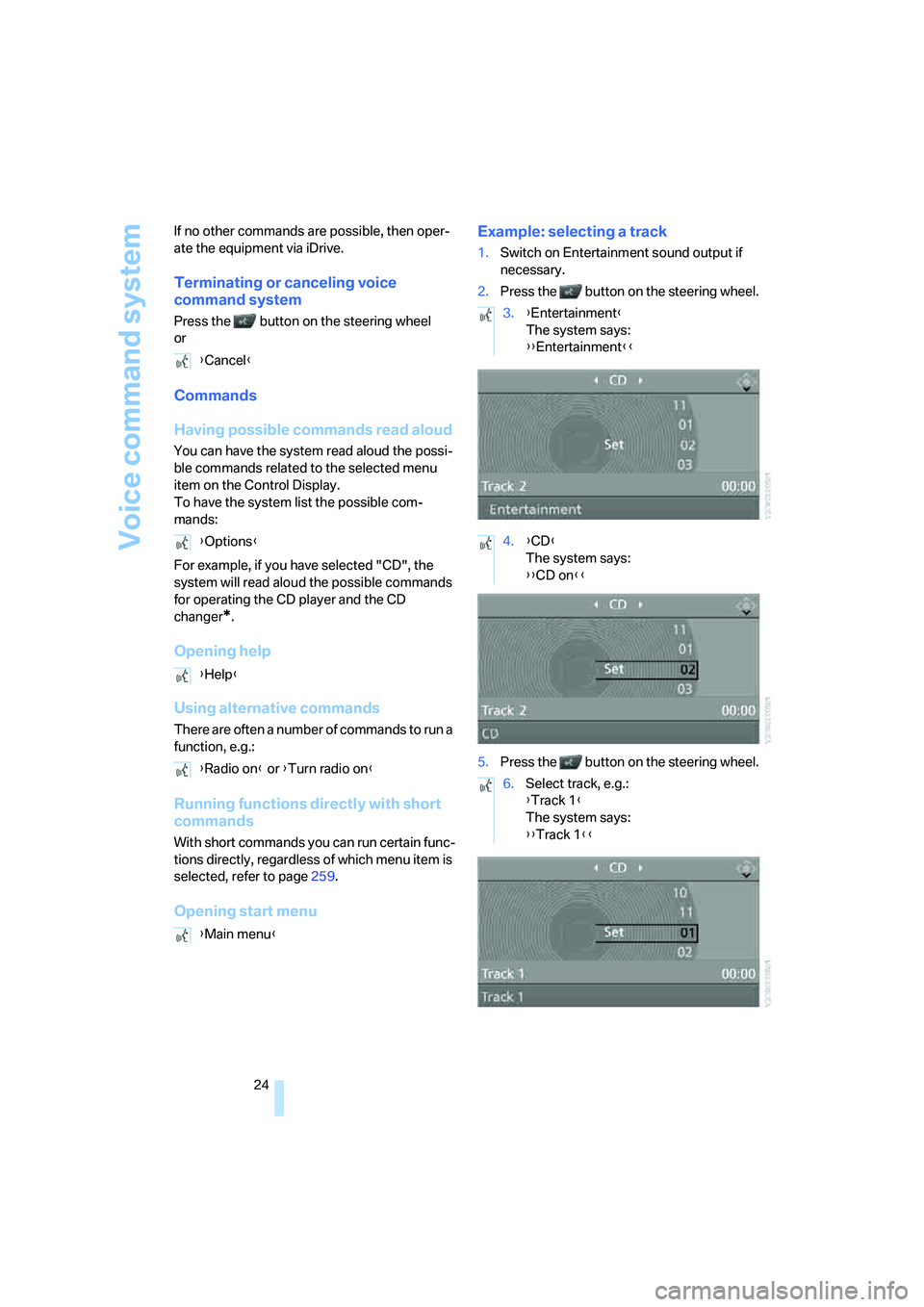
Opening start menuExample: selecting a track
1.Switch on Entertainment sound output if
necessary.
2.Press the button on the steering wheel.
5.Press the button on the steering wheel. {Cancel}
{Options}
{Help}
{Radio on} or {Turn radio on}
{Main menu}
3.{Entertainment}
The system says:
{{Entertainment}}
4.{CD}
The system says:
{{CD on}}
6.Select track, e.g.:
{Track 1}
The system says:
{{Track 1}}
Page 27 of 288
At a glance
25Reference
Controls
Driving tips
Communications
Navigation
Entertainment
Mobility
Notes
The mobile phone can also be operated
with voice commands, refer to
page205.<
For voice commands, bear the following in
mind:
>Say the commands and numbers smoothly
and at normal volume, avoiding excessive
emphasis and pauses. This also applies to
spelling when entering the destination.
>Always issue commands in the language of
the voice command system.
>When selecting a radio station, use the
common pronunciation of the station name.
>For entries in the voice-activated phone
book, only use names in the language of the
voice command system and do not use
abbreviations.
>Keep the doors, windows and glass sun-
roof
* or panorama glass sunroof* closed to
prevent interference from ambient noise.
>Avoid making other noise in the vehicle
while speaking.
Page 30 of 288

Opening and closing
28
Opening and closing
Keys/remote control
1Remote control with integrated key
2Spare key
3Adapter for spare key, in glove compart-
ment
Remote control with integrated key
Each remote control contains a battery which is
charged in the ignition lock while driving. Drive a
longer distance with each remote control at
least twice a year to keep the battery charged.
For comfort access
*, the remote control con-
tains a replaceable battery, refer to page40.
Depending on which remote control is detected
by the vehicle during unlocking, different set-
tings are activated and executed in the vehicle,
refer to Personal Profile, page29.
Information on the required for maintenance is
also stored in the remote control, refer to Ser-
vice data in remote control, page235.
Integrated key
Press button1 to unlock the key.The integrated key fits the following locks:
>Glove compartment, refer to page123
>Sports Wagon: floor panel flap in cargo bay,
refer to page129
>Driver's door, refer to page32
>Luggage compartment lid, refer to page33.
New remote controls
To obtain additional or replace lost keys, new
remote controls with an integrated key are
available at your BMW center.
Spare key
Store the spare key in a safe place such as your
wallet. This key is not intended for regular use.
The spare key and integrated key fit the same
locks.
Adapter for spare key
The adapter is required so that the vehicle can
be started with the spare key or radio readiness
can be switched on.
Remove the adapter from the holder in the
glove compartment and slide the spare key into
the adapter before use.