2008 BMW 4.8I lock
[x] Cancel search: lockPage 90 of 292
Technology for comfort, convenience and safety
88
Displays
You can have the picture from the rear view
camera displayed in several formats and in
combination with the PDC Park Distance Con-
trol, refer to page85.
In addition, you also have the option of display-
ing only the PDC Park Distance Control.
>"Camera picture and PDC"
The rear view camera picture is shown in
the main window of the Control Display.
>"Camera view: full screen"
The picture of the rear view camera is
shown on the entire Control Display.
>"Camera view: main window"
The picture of the rear view camera is
shown in the main window of the Control
Display.
>"PDC in main window only"
PDC is shown in the main window of the
Control Display.
Selecting displays
1.Select "Maneuvering aids" and press the
controller, refer to Driver assistance func-
tions.
2.Turn the controller until "View selection" is
selected and press the controller.
3.Select the desired display and press the
controller.
The setting is stored for the remote control cur-
rently in use.
Setting brightness
You can set the brightness of the camera view
with the rear view camera switched on.
iDrive, for operating principle refer to page16.1.Press the controller.
2.Turn the controller until "Brightness" is
selected and press the controller.
3.Set the desired brightness.
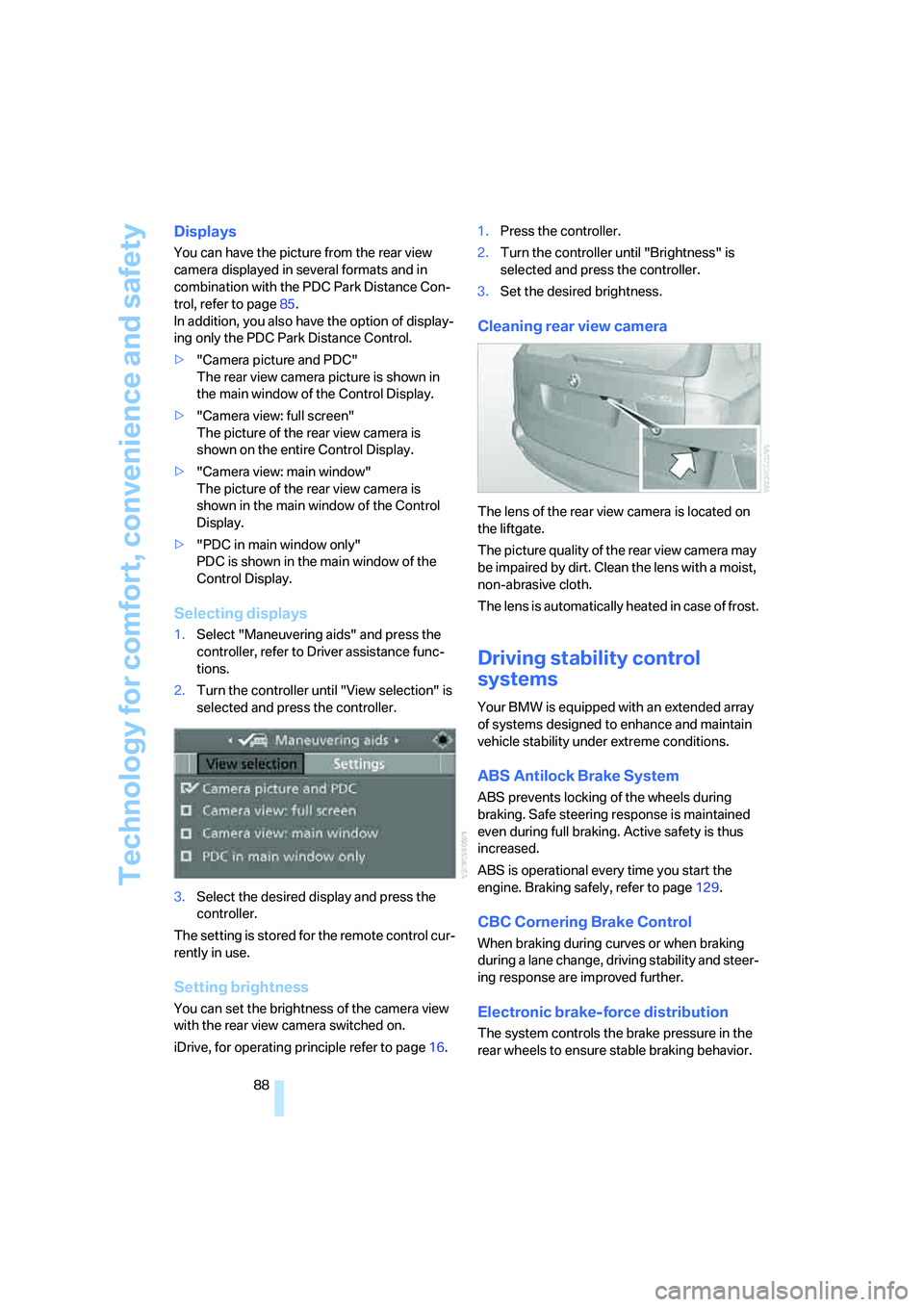
Cleaning rear view camera
The lens of the rear view camera is located on
the liftgate.
The picture quality of the rear view camera may
be impaired by dirt. Clean the lens with a moist,
non-abrasive cloth.
The lens is automatically heated in case of frost.
Driving stability control
systems
Your BMW is equipped with an extended array
of systems designed to enhance and maintain
vehicle stability under extreme conditions.
ABS Antilock Brake System
ABS prevents locking of the wheels during
braking. Safe steering response is maintained
even during full braking. Active safety is thus
increased.
ABS is operational every time you start the
engine. Braking safely, refer to page129.
CBC Cornering Brake Control
When braking during curves or when braking
during a lane change, driving stability and steer-
ing response are improved further.
Electronic brake-force distribution
The system controls the brake pressure in the
rear wheels to ensure stable braking behavior.
Page 104 of 292
Lamps
102
Lamps
Parking lamps/low beams
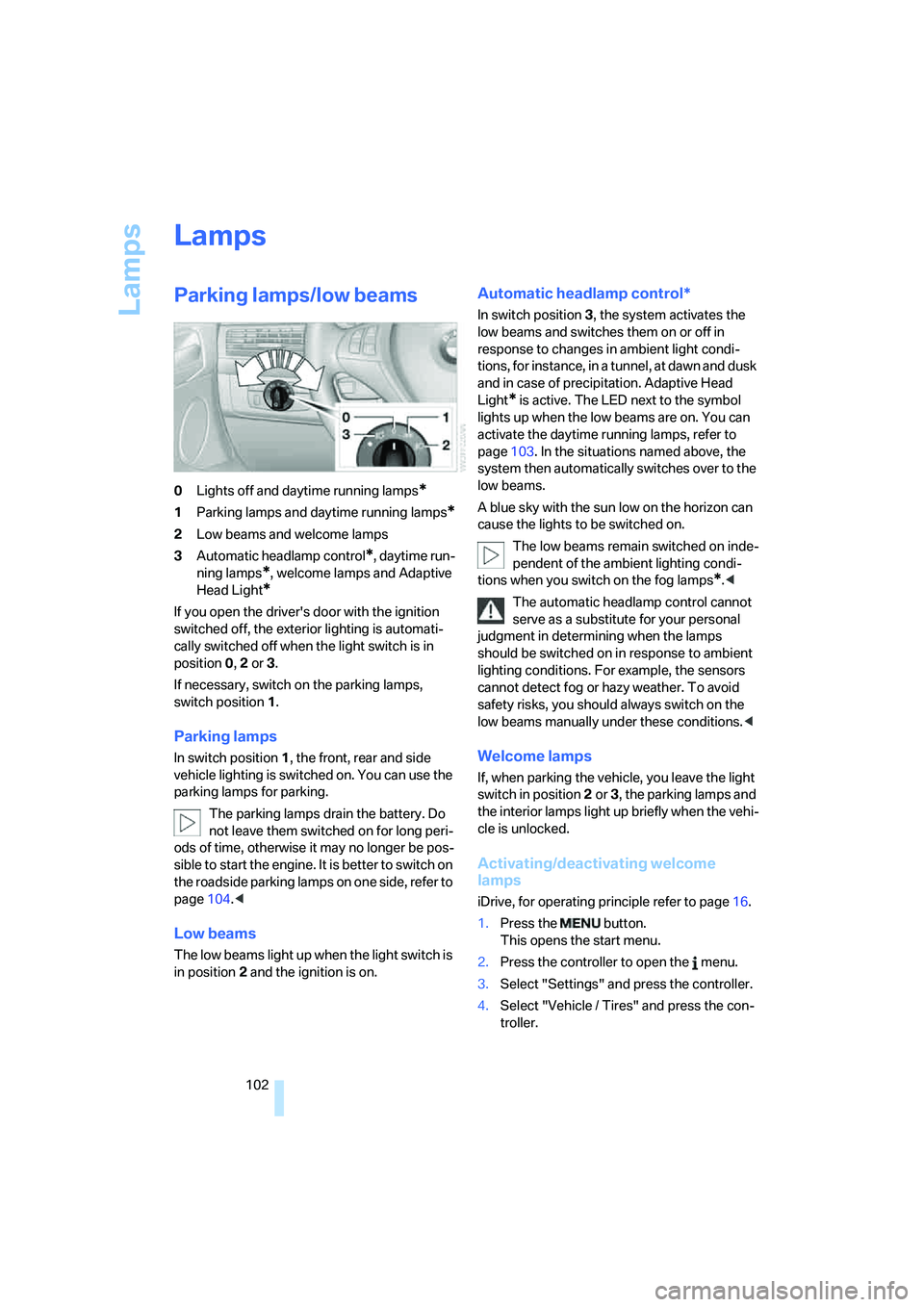
0Lights off and daytime running lamps*
1Parking lamps and daytime running lamps*
2Low beams and welcome lamps
3Automatic headlamp control
*, daytime run-
ning lamps
*, welcome lamps and Adaptive
Head Light
*
If you open the driver's door with the ignition
switched off, the exterior lighting is automati-
cally switched off when the light switch is in
position0, 2 or 3.
If necessary, switch on the parking lamps,
switch position1.
Parking lamps
In switch position1, the front, rear and side
vehicle lighting is switched on. You can use the
parking lamps for parking.
The parking lamps drain the battery. Do
not leave them switched on for long peri-
ods of time, otherwise it may no longer be pos-
sible to start the engine. It is better to switch on
the roadside parking lamps on one side, refer to
page104.<
Low beams
The low beams light up when the light switch is
in position 2 and the ignition is on.
Automatic headlamp control*
In switch position3, the system activates the
low beams and switches them on or off in
response to changes in ambient light condi-
tions, for instance, in a tunnel, at dawn and dusk
and in case of precipitation. Adaptive Head
Light
* is active. The LED next to the symbol
lights up when the low beams are on. You can
activate the daytime running lamps, refer to
page103. In the situations named above, the
system then automatically switches over to the
low beams.
A blue sky with the sun low on the horizon can
cause the lights to be switched on.
The low beams remain switched on inde-
pendent of the ambient lighting condi-
tions when you switch on the fog lamps
*.<
The automatic headlamp control cannot
serve as a substitute for your personal
judgment in determining when the lamps
should be switched on in response to ambient
lighting conditions. For example, the sensors
cannot detect fog or hazy weather. To avoid
safety risks, you should always switch on the
low beams manually under these conditions.<
Welcome lamps
If, when parking the vehicle, you leave the light
switch in position2 or3, the parking lamps and
the interior lamps light up briefly when the vehi-
cle is unlocked.
Activating/deactivating welcome
lamps
iDrive, for operating principle refer to page16.
1.Press the button.
This opens the start menu.
2.Press the controller to open the menu.
3.Select "Settings" and press the controller.
4.Select "Vehicle / Tires" and press the con-
troller.
Page 122 of 292
Practical interior accessories
120
Cup holders
Do not place containers made of glass in
the cup holders. This would lead to an
increased risk of injury in the event of an acci-
dent. Do not force unsuitable containers into
the cup holders, as otherwise damage can
result.<
Front
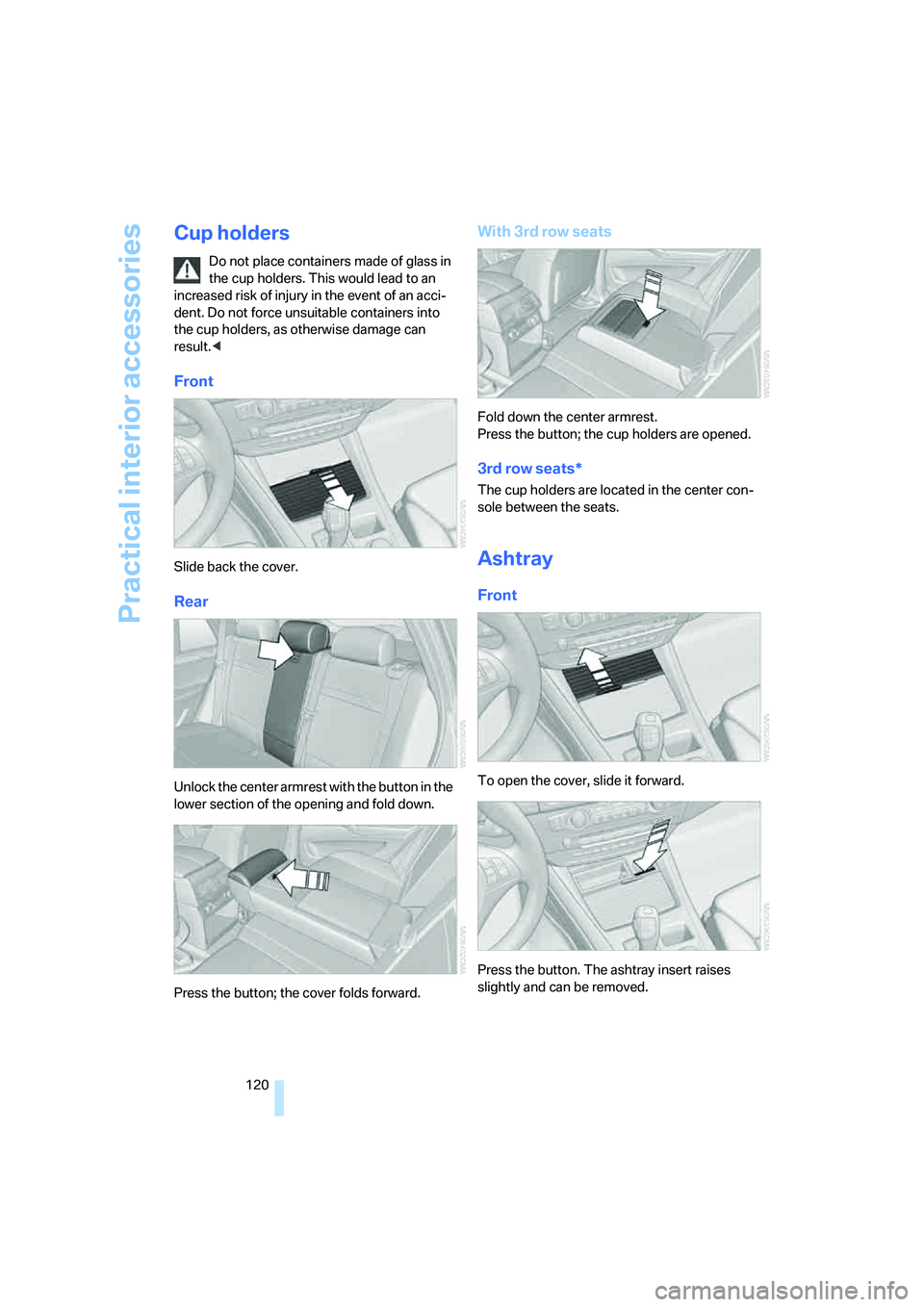
Slide back the cover.
Rear
Unlock the center armrest with the button in the
lower section of the opening and fold down.
Press the button; the cover folds forward.
With 3rd row seats
Fold down the center armrest.
Press the button; the cup holders are opened.
3rd row seats*
The cup holders are located in the center con-
sole between the seats.
Ashtray
Front
To open the cover, slide it forward.
Press the button. The ashtray insert raises
slightly and can be removed.
Page 124 of 292
Practical interior accessories
122
In the rear center console
Depending on your vehicle's equipment pack-
age, the socket in the rear is covered with a cap
or equipped with a lighter. Refer to Cigarette
lighter, front, page121.
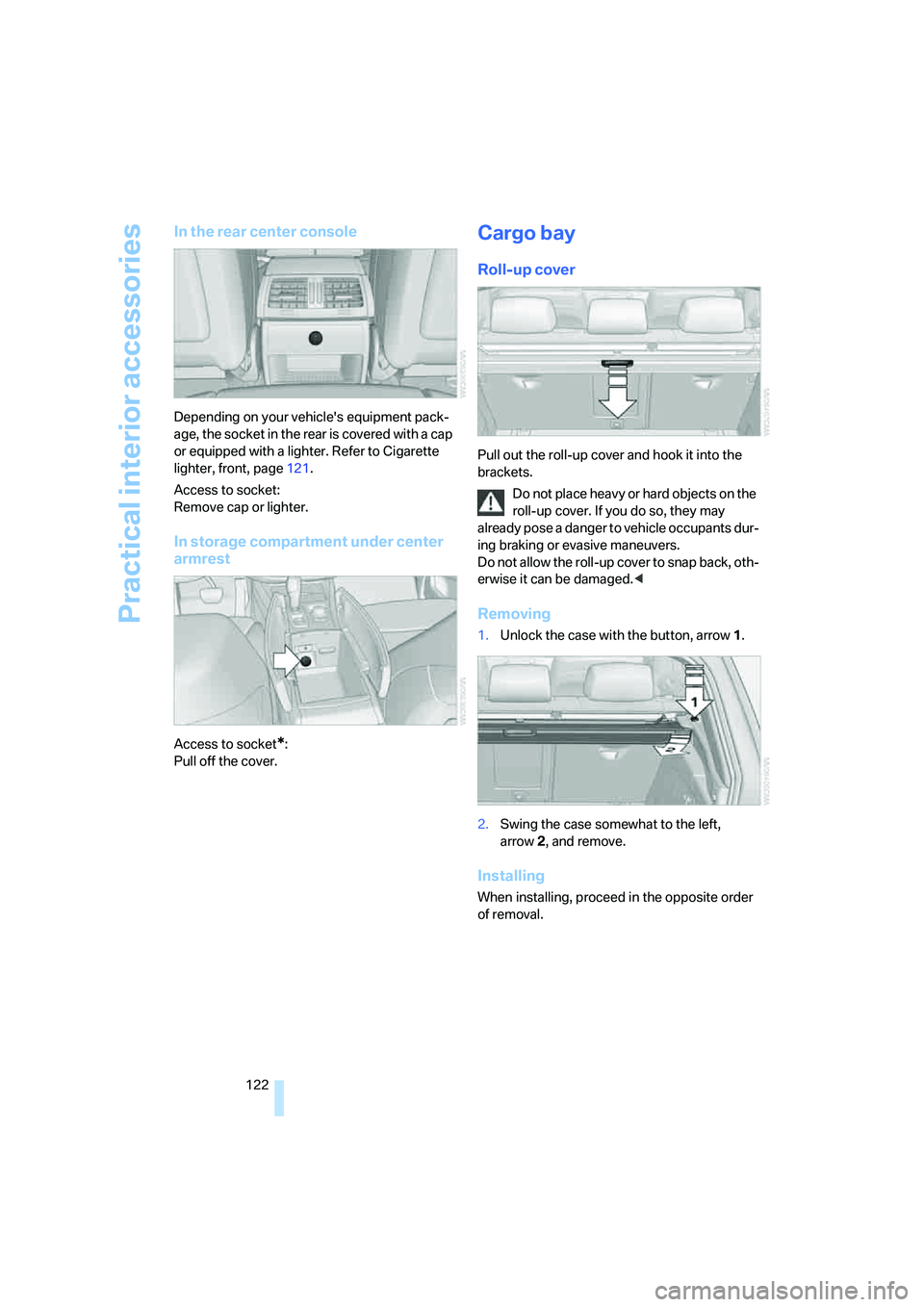
Access to socket:
Remove cap or lighter.
In storage compartment under center
armrest
Access to socket*:
Pull off the cover.
Cargo bay
Roll-up cover
Pull out the roll-up cover and hook it into the
brackets.
Do not place heavy or hard objects on the
roll-up cover. If you do so, they may
already pose a danger to vehicle occupants dur-
ing braking or evasive maneuvers.
Do not allow the roll-up cover to snap back, oth-
erwise it can be damaged.<
Removing
1.Unlock the case with the button, arrow1.
2.Swing the case somewhat to the left,
arrow2, and remove.
Installing
When installing, proceed in the opposite order
of removal.
Page 125 of 292
Controls
123Reference
At a glance
Driving tips
Communications
Navigation
Entertainment
Mobility
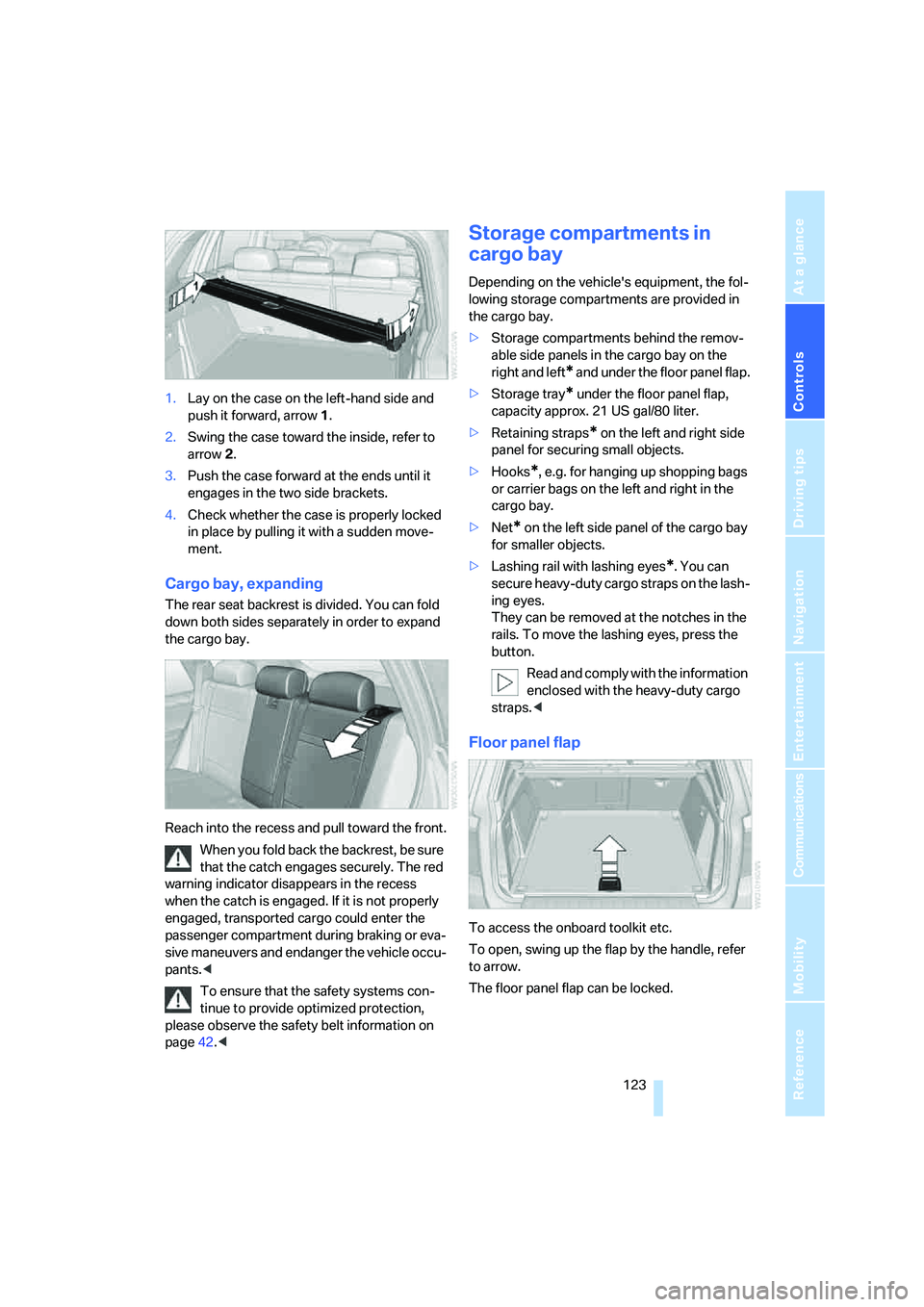
1.Lay on the case on the left-hand side and
push it forward, arrow1.
2.Swing the case toward the inside, refer to
arrow2.
3.Push the case forward at the ends until it
engages in the two side brackets.
4.Check whether the case is properly locked
in place by pulling it with a sudden move-
ment.
Cargo bay, expanding
The rear seat backrest is divided. You can fold
down both sides separately in order to expand
the cargo bay.
Reach into the recess and pull toward the front.
When you fold back the backrest, be sure
that the catch engages securely. The red
warning indicator disappears in the recess
when the catch is engaged. If it is not properly
engaged, transported cargo could enter the
passenger compartment during braking or eva-
sive maneuvers and endanger the vehicle occu-
pants.<
To ensure that the safety systems con-
tinue to provide optimized protection,
please observe the safety belt information on
page42.<
Storage compartments in
cargo bay
Depending on the vehicle's equipment, the fol-
lowing storage compartments are provided in
the cargo bay.
>Storage compartments behind the remov-
able side panels in the cargo bay on the
right and left
* and under the floor panel flap.
>Storage tray
* under the floor panel flap,
capacity approx. 21 US gal/80 liter.
>Retaining straps
* on the left and right side
panel for securing small objects.
>Hooks
*, e.g. for hanging up shopping bags
or carrier bags on the left and right in the
cargo bay.
>Net
* on the left side panel of the cargo bay
for smaller objects.
>Lashing rail with lashing eyes
*. You can
secure heavy-duty cargo straps on the lash-
ing eyes.
They can be removed at the notches in the
rails. To move the lashing eyes, press the
button.
Read and comply with the information
enclosed with the heavy-duty cargo
straps.<
Floor panel flap
To access the onboard toolkit etc.
To open, swing up the flap by the handle, refer
to arrow.
The floor panel flap can be locked.
Page 126 of 292
Practical interior accessories
124
Adaptive fastening system*
The adaptive fastening system is used to divide
up the cargo bay. It consists of two brackets
with a telescopic rail and retaining straps.
These are guided into the two rails on the cargo
bay floor.
Before using the adaptive fastening sys-
tem, fold up and lock the backrest of the
2nd or 3rd row seats, as otherwise the cargo
could be thrown around in the vehicle interior in
an accident.<
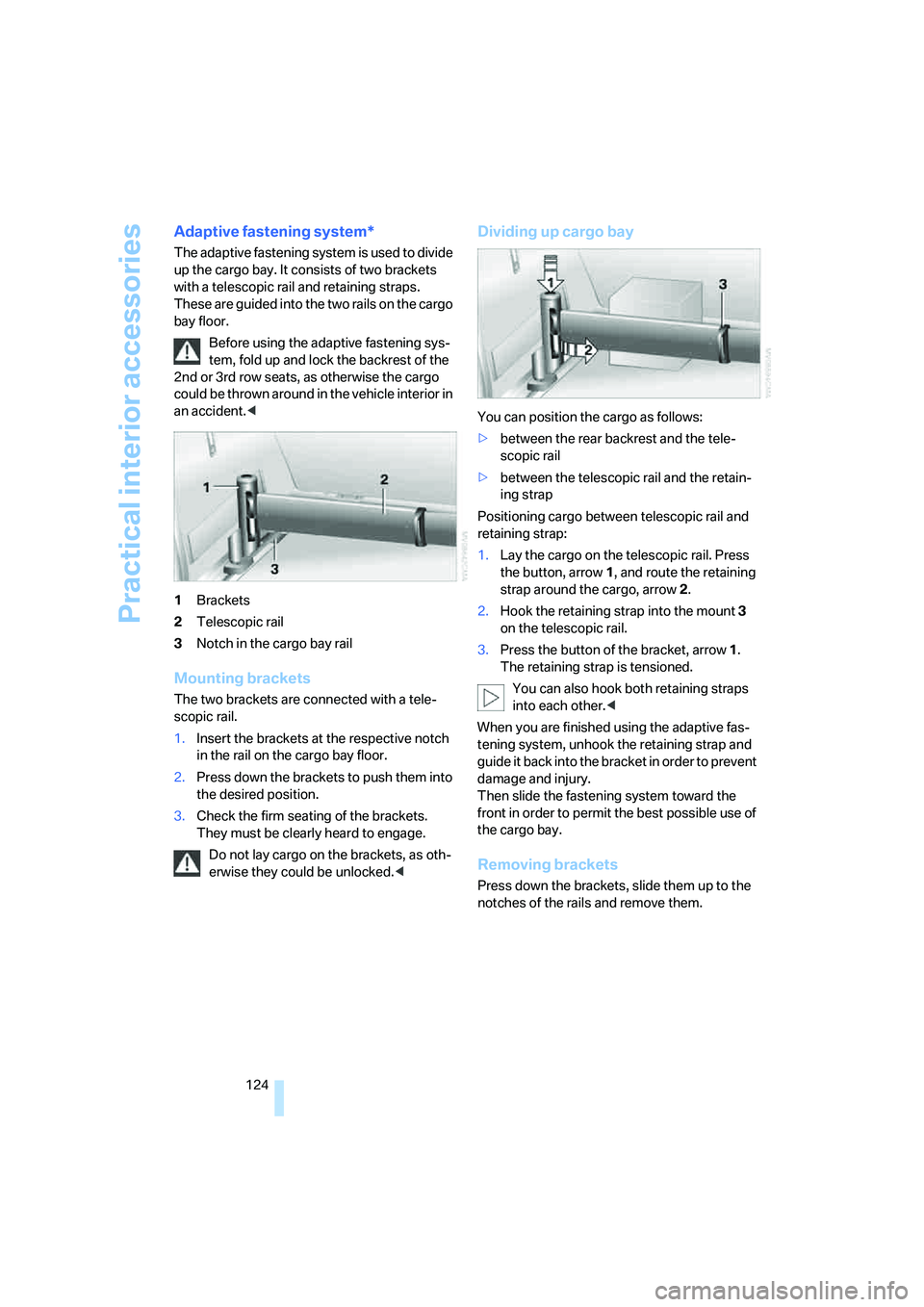
1Brackets
2Telescopic rail
3Notch in the cargo bay rail
Mounting brackets
The two brackets are connected with a tele-
scopic rail.
1.Insert the brackets at the respective notch
in the rail on the cargo bay floor.
2.Press down the brackets to push them into
the desired position.
3.Check the firm seating of the brackets.
They must be clearly heard to engage.
Do not lay cargo on the brackets, as oth-
erwise they could be unlocked.<
Dividing up cargo bay
You can position the cargo as follows:
>between the rear backrest and the tele-
scopic rail
>between the telescopic rail and the retain-
ing strap
Positioning cargo between telescopic rail and
retaining strap:
1.Lay the cargo on the telescopic rail. Press
the button, arrow1, and route the retaining
strap around the cargo, arrow2.
2.Hook the retaining strap into the mount3
on the telescopic rail.
3.Press the button of the bracket, arrow1.
The retaining strap is tensioned.
You can also hook both retaining straps
into each other.<
When you are finished using the adaptive fas-
tening system, unhook the retaining strap and
guide it back into the bracket in order to prevent
damage and injury.
Then slide the fastening system toward the
front in order to permit the best possible use of
the cargo bay.
Removing brackets
Press down the brackets, slide them up to the
notches of the rails and remove them.
Page 132 of 292
Things to remember when driving
130 possible obstacles with a minimum of steering
effort.
Pulsation of the brake pedal, combined with
sounds from the hydraulic circuits, indicate that
ABS is in its active mode.
Do not drive with your foot resting on the
brake pedal. Even light but consistent
pedal pressure can lead to high temperatures,
brake wear and possibly even brake failure.<
Driving in wet conditions
When roads are wet or there is heavy rain,
briefly exert gentle pressure on the brake pedal
every few miles. Monitor traffic conditions to
ensure that this maneuver does not endanger
other road users. The heat generated in this
process helps dry the pads and rotors to ensure
that full braking efficiency will then be available
when you need it.
Hills
To prevent overheating and the resulting
reduced efficiency of the brake system,
drive long or steep downhill gradients in the
gear in which the least braking is required. Even
light but consistent pressure on the brake pedal
can lead to high temperatures, brake wear and
possibly even brake failure.<
The braking effect of the engine can be further
increased by downshifting in the manual mode
of the automatic transmission, if necessary into
first gear, refer to page65. This prevents an
excessive strain on the brakes.
Do not drive in idle or with the engine
stopped, otherwise there will be no
engine braking action or support of the braking
force and steering.
Never allow floor mats, carpets or any other
objects to protrude into the area of movement
of the pedals and impair their operation.<
Corrosion on brake rotors
When the vehicle is driven only occasionally,
during extended periods when the vehicle is not
used at all, and in operating conditions where
brake applications are less frequent, there is an
increased tendency for corrosion to form on rotors, while contaminants accumulate on the
brake pads. This occurs because the minimum
pressure which must be exerted by the pads
during brake applications to clean the rotors is
not reached.
Should corrosion form on the brake rotors, the
brakes will tend to respond with a pulsating
effect that even extended application will fail to
cure.
When vehicle is parked
Condensation forms in the automatic climate
control system during operation, and then exits
under the vehicle. Traces of condensed water
under the vehicle are therefore normal.
Before driving into a car wash
Fold in the exterior mirrors, refer to page51,
otherwise they could be damaged due to the
width of the vehicle.
Release the parking brake, particularly when
you have activated Automatic Hold, refer to
page61.
General information on the care and mainte-
nance of your BMW is contained in the Caring
for your vehicle brochure.
Mixed tires*
Before driving into a car wash, make sure
that the vehicle width is not too large for
the car wash, as otherwise the vehicle and the
car wash could be damaged.<
Rear window wiper
The rear window wiper can be damaged in car
washes. Take appropriate protective measures;
ask the car wash operator if necessary.
With comfort access*
Insert the remote control into the ignition lock.
The engine can be switched off in transmission
position N, also refer to page37.
Page 138 of 292
Starting navigation system
136
Starting navigation system
Your navigation system can use satellites to
ascertain the precise position of your vehicle
and guide you reliably to any destination you
enter.
Navigation DVD
The navigation system requires a special navi-
gation DVD. The latest version is available at
your BMW Sports Activity Vehicle Center.
Inserting navigation DVD
Use the lower drive for navigation DVD.
1.Insert the navigation DVD with the labeled
side up.
The navigation DVD is automatically pulled
in.
2.Allow several seconds for the system to
scan the data from the DVD.
Removing navigation DVD
1.Press the button 1.
The DVD emerges slightly from the drive.
2.Remove the DVD.
If the DVD is not ejected from the drive, it is pos-
sible that it is blocked. In this case a message is
also shown on the Control Display.
Display in assistance window
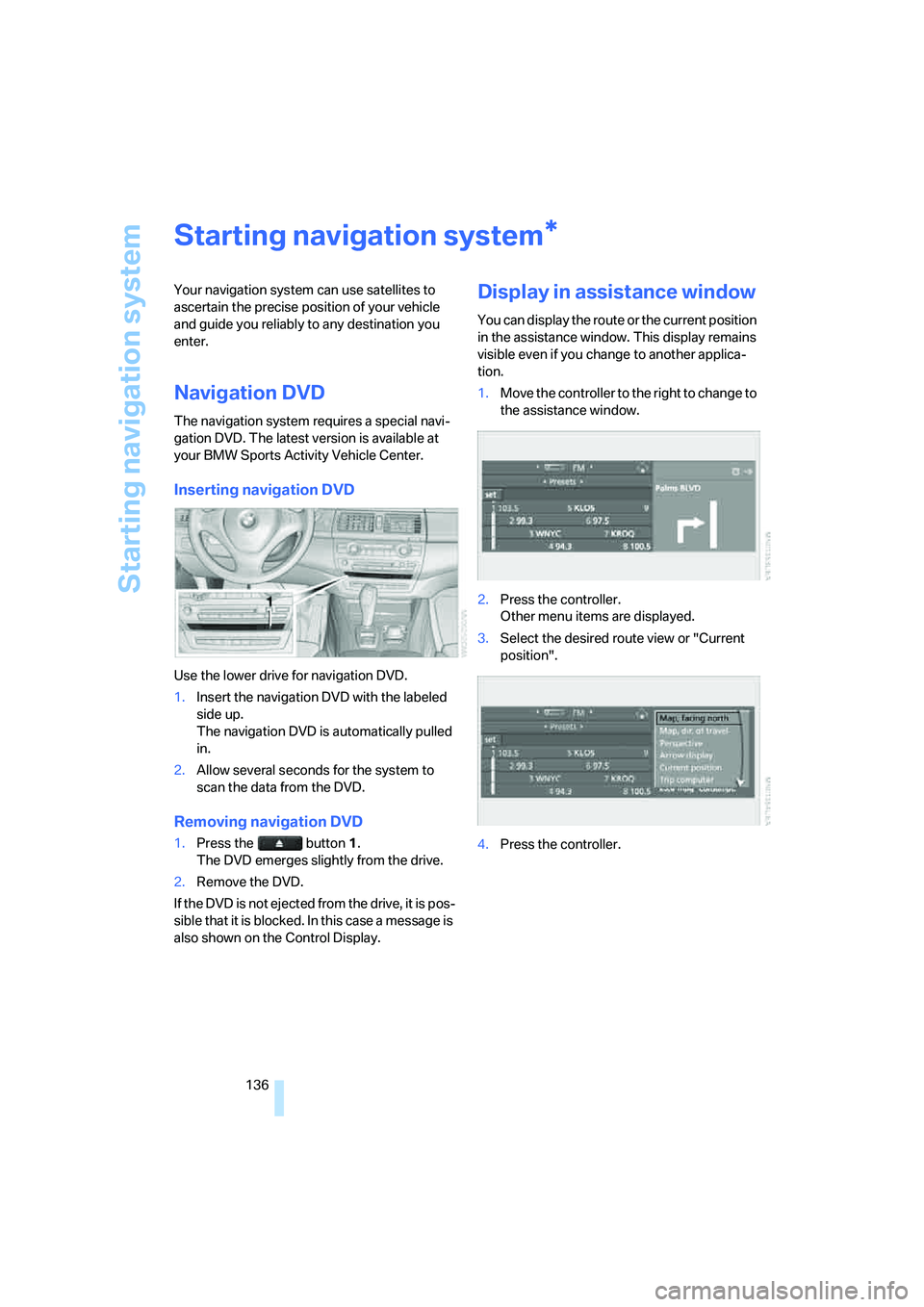
You can display the route or the current position
in the assistance window. This display remains
visible even if you change to another applica-
tion.
1.Move the controller to the right to change to
the assistance window.
2.Press the controller.
Other menu items are displayed.
3.Select the desired route view or "Current
position".
4.Press the controller.
*