2008 AUDI A4 main
[x] Cancel search: mainPage 173 of 342
Parking aid171
Controls
Safety
Driving tips
General maintenance
Self-help
Technical data
– Press the switch
, or
– Switch off the ignition.
Segments in the graphic display
You can estimate the distance to an obstacle by referring to the red
segments at the front and rear of the vehicle ⇒page 170, fig. 186.
The closer the vehicle gets to the obstacle the closer the segments
move towards the vehicle in the graphic. At the latest when the
penultimate segment is highlighted the vehicle has reached the
danger (collision) zone. Stop moving immediately ⇒!
WARNING
•
The parking aid cannot replace the full concentration of the
driver. The driver is always responsible for safety during parking
and other manoeuvres.
•
The sensors have blind spots in which obstacles are not regis-
tered. It is particularly important to ensure that there are no small
children or animals near the vehicle, as the sensors may not
always be able to detect them.
•
Always keep a close watch on the area around the vehicle and
make full use of the rear-view mirrors.Caution
Please note that low obstacles detected by the system may no
longer be registered by the sensors as the car moves closer, so the
system will not give any further warning. Certain kinds of obstacles
(such as wire fences, chains, thin painted posts or trailer draw bars,
etc.) may not always be detected by the system, so take care not to
damage the vehicle in such cases.
Note
•
You can change the display and adjust the volume and pitch of
the beeps ⇒page 177.
•
Please refer to the notes on towing ⇒page 177.
•
There is a slight delay in the picture display.
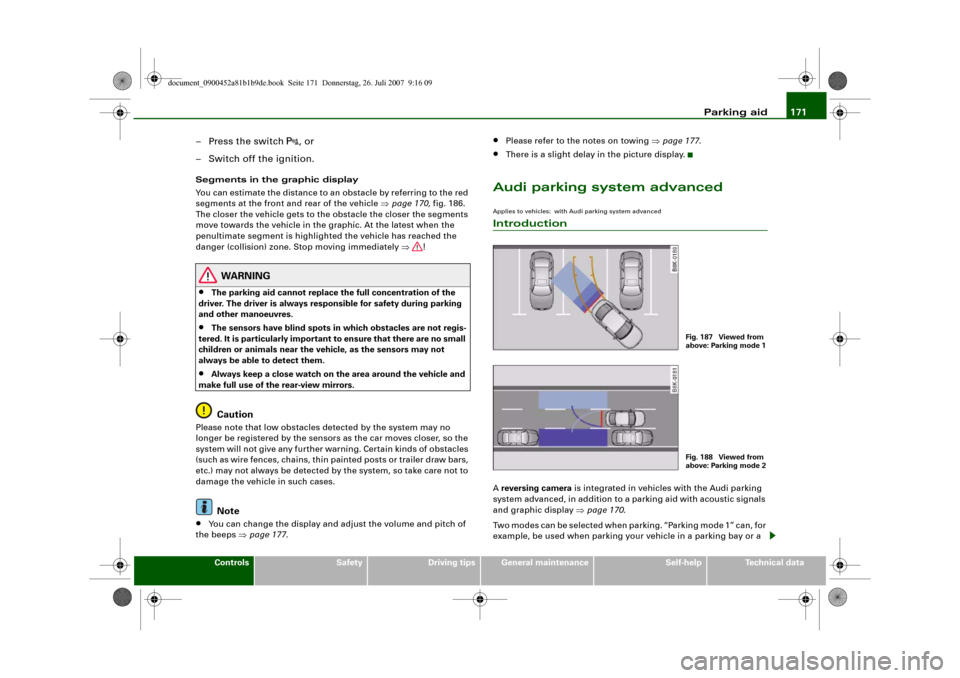
Audi parking system advancedApplies to vehicles: with Audi parking system advancedIntroductionA reversing camera is integrated in vehicles with the Audi parking
system advanced, in addition to a parking aid with acoustic signals
and graphic display ⇒page 170.
Two modes can be selected when parking. “Parking mode 1” can, for
example, be used when parking your vehicle in a parking bay or a
Fig. 187 Viewed from
above: Parking mode 1Fig. 188 Viewed from
above: Parking mode 2
document_0900452a81b1b9de.book Seite 171 Donnerstag, 26. Juli 2007 9:16 09
Page 175 of 342
Parking aid173
Controls
Safety
Driving tips
General maintenance
Self-help
Technical data
•
Moisten the lens using a commercially available, alcohol-based
glass cleaning agent and clean the lens with a dry cloth ⇒.
•
Use a small brush to remove snow and a de-icer spray to remove
ice ⇒.
WARNING
•
The parking aid cannot replace the full concentration of the
driver. The driver is always responsible for safety during parking
and other manoeuvres.
•
Always keep a close watch on the area around the vehicle and
make full use of the rear-view mirrors.
•
Do not allow the camera images in the MMI display to distract
you from watching the traffic.
•
For safety reasons, you should not use the system if the posi-
tion and installation angle of the camera have been changed, e.g.
in a rear-end collision. Have it checked by a qualified workshop.Caution
•
Please note that low obstacles detected by the system may no
longer be registered by the sensors as the car moves closer, so the
system will not give any further warning. Certain kinds of obstacles
(such as wire fences, chains, thin painted posts or trailer draw bars,
etc.) may not always be detected by the system, so take care not to
damage the vehicle in such cases.
•
Never remove snow and ice from the lens of the reversing
camera using warm or hot water - danger of cracks appearing on the
lens.
•
Never use abrasive cleaning agents on the lens.
Applies to vehicles: with Audi parking system advancedSwitching on/off
The reversing camera is automatically switched on
together with the acoustic signals and graphic display
when you select reverse gear.Switching on
– Switch on the MMI system.
– Engage reverse gear, or
– Press the switch
in the centre console ⇒page 170,
fig. 185. You will hear a brief acknowledgement tone and
the diode in the switch will light up.
Switching off
– Drive forwards faster than 10 km/h, or
– Press the switch
, or
– Switch off the ignition.
Changing display via MMI
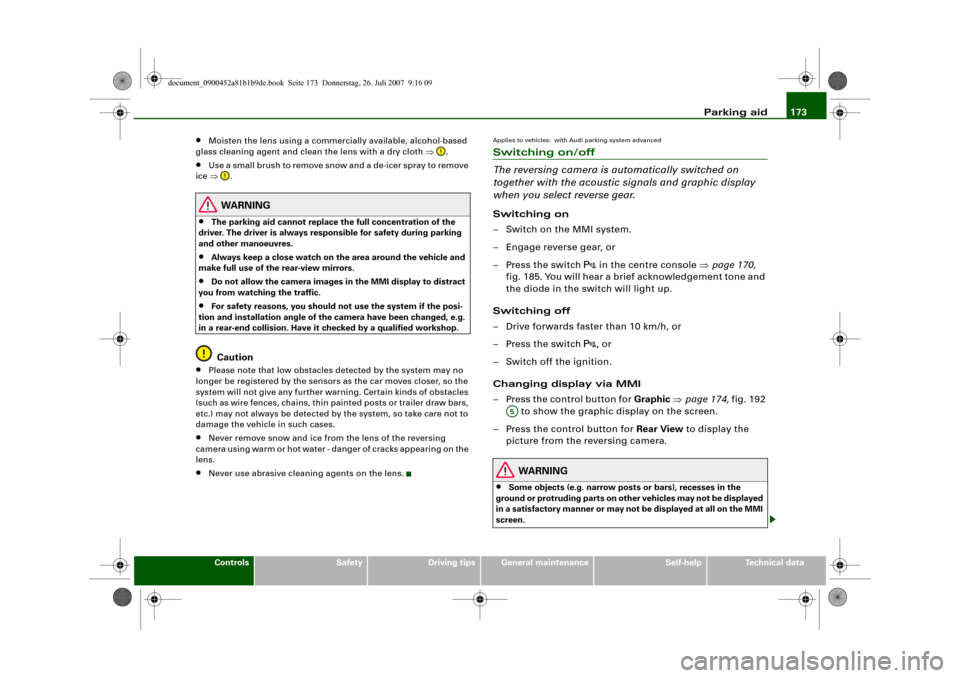
– Press the control button for Graphic ⇒page 174, fig. 192
to show the graphic display on the screen.
– Press the control button for Rear View to display the
picture from the reversing camera.
WARNING
•
Some objects (e.g. narrow posts or bars), recesses in the
ground or protruding parts on other vehicles may not be displayed
in a satisfactory manner or may not be displayed at all on the MMI
screen.A5
document_0900452a81b1b9de.book Seite 173 Donnerstag, 26. Juli 2007 9:16 09
Page 177 of 342
Parking aid175
Controls
Safety
Driving tips
General maintenance
Self-help
Technical data
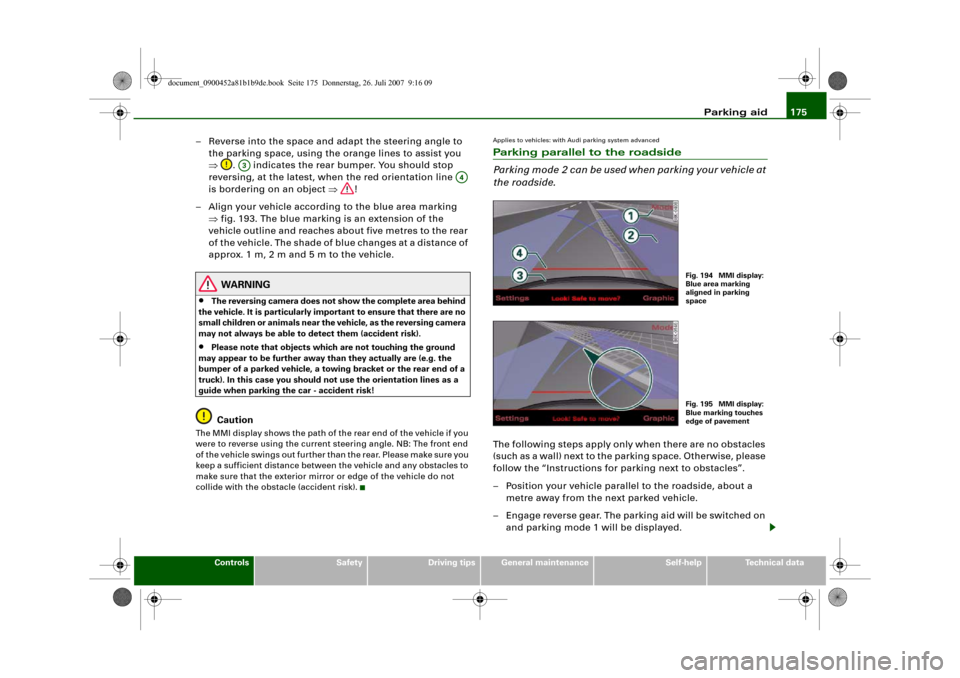
– Reverse into the space and adapt the steering angle to
the parking space, using the orange lines to assist you
⇒. indicates the rear bumper. You should stop
reversing, at the latest, when the red orientation line
is bordering on an object ⇒!
– Align your vehicle according to the blue area marking
⇒fig. 193. The blue marking is an extension of the
vehicle outline and reaches about five metres to the rear
of the vehicle. The shade of blue changes at a distance of
approx. 1m, 2m and 5m to the vehicle.
WARNING
•
The reversing camera does not show the complete area behind
the vehicle. It is particularly important to ensure that there are no
small children or animals near the vehicle, as the reversing camera
may not always be able to detect them (accident risk).
•
Please note that objects which are not touching the ground
may appear to be further away than they actually are (e.g. the
bumper of a parked vehicle, a towing bracket or the rear end of a
truck). In this case you should not use the orientation lines as a
guide when parking the car - accident risk!Caution
The MMI display shows the path of the rear end of the vehicle if you
were to reverse using the current steering angle. NB: The front end
of the vehicle swings out further than the rear. Please make sure you
keep a sufficient distance between the vehicle and any obstacles to
make sure that the exterior mirror or edge of the vehicle do not
collide with the obstacle (accident risk).
Applies to vehicles: with Audi parking system advancedParking parallel to the roadside
Parking mode 2 can be used when parking your vehicle at
the roadside.The following steps apply only when there are no obstacles
(such as a wall) next to the parking space. Otherwise, please
follow the “Instructions for parking next to obstacles”.
– Position your vehicle parallel to the roadside, about a
metre away from the next parked vehicle.
– Engage reverse gear. The parking aid will be switched on
and parking mode 1 will be displayed.
A3
A4
Fig. 194 MMI display:
Blue area marking
aligned in parking
spaceFig. 195 MMI display:
Blue marking touches
edge of pavement
document_0900452a81b1b9de.book Seite 175 Donnerstag, 26. Juli 2007 9:16 09
Page 179 of 342
Parking aid177
Controls
Safety
Driving tips
General maintenance
Self-help
Technical data
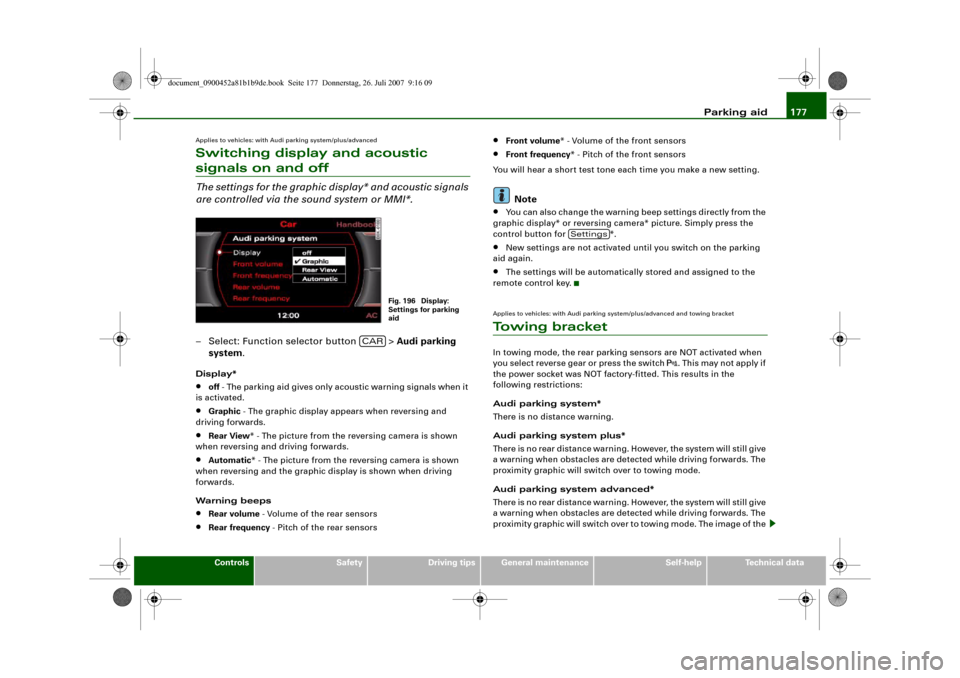
Applies to vehicles: with Audi parking system/plus/advancedSwitching display and acoustic signals on and offThe settings for the graphic display* and acoustic signals
are controlled via the sound system or MMI*.– Select: Function selector button > Audi parking
system.Display*•
off - The parking aid gives only acoustic warning signals when it
is activated.
•
Graphic - The graphic display appears when reversing and
driving forwards.
•
Rear View* - The picture from the reversing camera is shown
when reversing and driving forwards.
•
Automatic* - The picture from the reversing camera is shown
when reversing and the graphic display is shown when driving
forwards.
Warning beeps
•
Rear volume - Volume of the rear sensors
•
Rear frequency - Pitch of the rear sensors
•
Front volume* - Volume of the front sensors
•
Front frequency* - Pitch of the front sensors
You will hear a short test tone each time you make a new setting.Note
•
You can also change the warning beep settings directly from the
graphic display* or reversing camera* picture. Simply press the
control button for *.
•
New settings are not activated until you switch on the parking
aid again.
•
The settings will be automatically stored and assigned to the
remote control key.
Applies to vehicles: with Audi parking system/plus/advanced and towing bracketTo w i n g b r a c k e tIn towing mode, the rear parking sensors are NOT activated when
you select reverse gear or press the switch
. This may not apply if
the power socket was NOT factory-fitted. This results in the
following restrictions:
Audi parking system*
There is no distance warning.
Audi parking system plus*
There is no rear distance warning. However, the system will still give
a warning when obstacles are detected while driving forwards. The
proximity graphic will switch over to towing mode.
Audi parking system advanced*
There is no rear distance warning. However, the system will still give
a warning when obstacles are detected while driving forwards. The
proximity graphic will switch over to towing mode. The image of the
Fig. 196 Display:
Settings for parking
aid
CAR
Settings
document_0900452a81b1b9de.book Seite 177 Donnerstag, 26. Juli 2007 9:16 09
Page 181 of 342
HomeLink179
Controls
Safety
Driving tips
General maintenance
Self-help
Technical data
HomeLinkUniversal transmitterApplies to vehicles: with HomeLinkDescription
The HomeLink universal transmitter can be programmed
to replace the hand-held controls of devices already in
use.HomeLink allows you to conveniently activate garage doors, estate
gates, security systems, home or office lighting and other electric
devices by means of control buttons inside your car.
HomeLink can replace up to three hand-held transmitters operating
existing devices on your property with a single universal trans-
mitter. This will be possible for most transmitters which control the
drive units for a garage door or external gates, etc. You can
programme the individual hand-held transmitters for your remote
control at or near the centre of the radiator grille. This is where the
control unit is located.
To be able to control systems with HomeLink, you need to perform
initial programming on the HomeLink transmitter first. If systems
fail to respond after the initial programming, check whether these
systems work with a "rolling code" (variable security code)
⇒page 180.
WARNING
When you are programming the HomeLink universal transmitter,
make sure that no persons or objects are close to the devices
receiving the transmitter signals. If a gate or door is inadvertently
set into motion during programming, persons might be injured or
other damage caused by moving parts.
Note
•
For additional information on HomeLink
® and/or products
compatible with HomeLink
®, please call the toll-free HomeLink
®
hotline (0) 08000466 35465 or alternatively +49 (0) 6838 907 277, or
visit the HomeLink
® website at: www.homelink.com
•
HomeLink
® is a registered trademark of Johnson Controls.
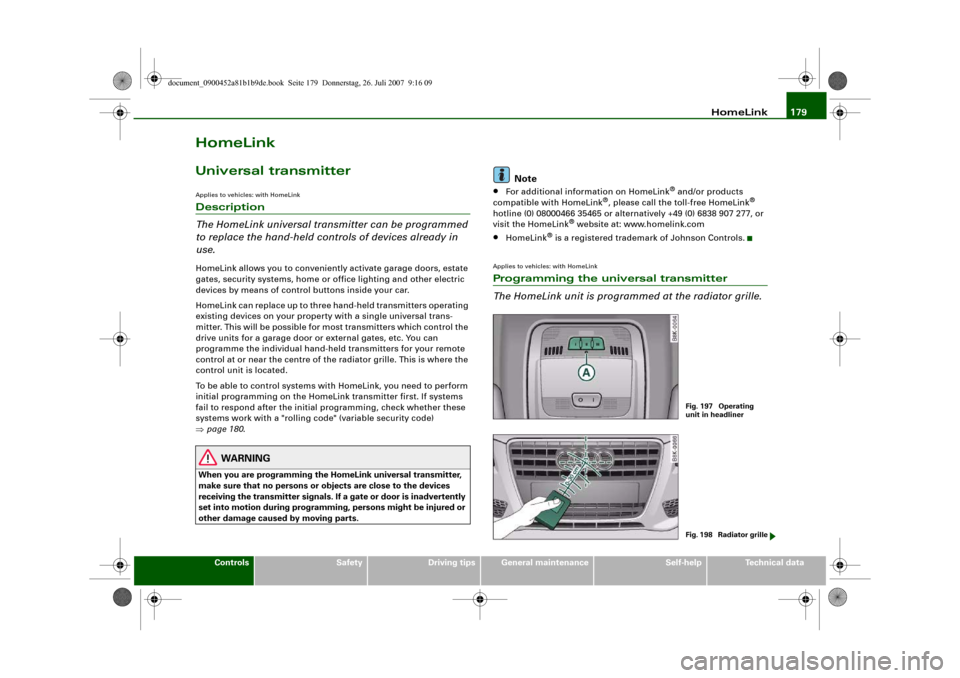
Applies to vehicles: with HomeLinkProgramming the universal transmitter
The HomeLink unit is programmed at the radiator grille.
Fig. 197 Operating
unit in headlinerFig. 198 Radiator grille
document_0900452a81b1b9de.book Seite 179 Donnerstag, 26. Juli 2007 9:16 09
Page 182 of 342
HomeLink 180
At the operating unit
1. Switch on the ignition (do not start the engine).
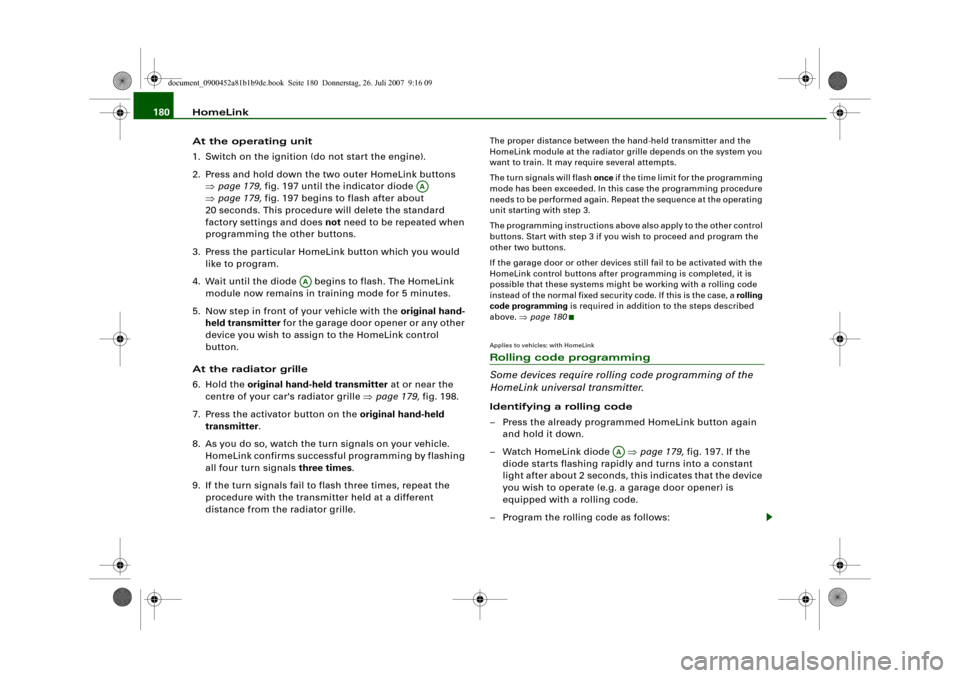
2. Press and hold down the two outer HomeLink buttons
⇒page 179, fig. 197 until the indicator diode
⇒page 179, fig. 197 begins to flash after about
20 seconds. This procedure will delete the standard
factory settings and does not need to be repeated when
programming the other buttons.
3. Press the particular HomeLink button which you would
like to program.
4. Wait until the diode begins to flash. The HomeLink
module now remains in training mode for 5 minutes.
5. Now step in front of your vehicle with the original hand-
held transmitter for the garage door opener or any other
device you wish to assign to the HomeLink control
button.
At the radiator grille
6. Hold the original hand-held transmitter at or near the
centre of your car's radiator grille ⇒page 179, fig. 198.
7. Press the activator button on the original hand-held
transmitter.
8. As you do so, watch the turn signals on your vehicle.
HomeLink confirms successful programming by flashing
all four turn signals three times.
9. If the turn signals fail to flash three times, repeat the
procedure with the transmitter held at a different
distance from the radiator grille.
The proper distance between the hand-held transmitter and the
HomeLink module at the radiator grille depends on the system you
want to train. It may require several attempts.
The turn signals will flash once if the time limit for the programming
mode has been exceeded. In this case the programming procedure
needs to be performed again. Repeat the sequence at the operating
unit starting with step 3.
The programming instructions above also apply to the other control
buttons. Start with step 3 if you wish to proceed and program the
other two buttons.
If the garage door or other devices still fail to be activated with the
HomeLink control buttons after programming is completed, it is
possible that these systems might be working with a rolling code
instead of the normal fixed security code. If this is the case, a rolling
code programming is required in addition to the steps described
above. ⇒page 180Applies to vehicles: with HomeLinkRolling code programming
Some devices require rolling code programming of the
HomeLink universal transmitter.Identifying a rolling code
– Press the already programmed HomeLink button again
and hold it down.
–Watch HomeLink diode ⇒page 179, fig. 197. If the
diode starts flashing rapidly and turns into a constant
light after about 2 seconds, this indicates that the device
you wish to operate (e.g. a garage door opener) is
equipped with a rolling code.
– Program the rolling code as follows:
AA
AA
AA
document_0900452a81b1b9de.book Seite 180 Donnerstag, 26. Juli 2007 9:16 09
Page 183 of 342
HomeLink181
Controls
Safety
Driving tips
General maintenance
Self-help
Technical data
Activating the garage door opener drive unit
– Locate the programming button on the garage door
drive. The exact location and colour of the button may
vary depending on the type of garage door opener.
– Press the programming button on the door drive unit
(this will normally cause a “programming mode indicator
lamp” on the unit to light up). You now have about 30
seconds to start and complete the programming of the
HomeLink control button on the operating unit.
Programming at the operating unit in the
headliner
– Press and release the already programmed HomeLink
button.
– Press the HomeLink button again to complete rolling
code programming.After programming at the operating unit in the headliner, the
garage door opener should recognize the HomeLink signal and
respond when the HomeLink button is pressed. Now the other
control buttons can be programmed as required.
Note
•
Having a second person assist you makes programming of the
rolling code easier and faster. For some makes of garage door
openers the HomeLink button may have to be pressed a third time
to complete the training sequence.
•
If you encounter problems programming the rolling code you
may find helpful information in the operating instructions of the
garage door opener or other device you wish to operate.
Applies to vehicles: with HomeLinkOperating HomeLink
The programmed devices are activated by means of the
HomeLink control buttons in the headliner.– Make sure that the ignition is on.
– Press the programmed HomeLink button ⇒page 179,
fig. 197. The device assigned to that button (e.g. garage
door) will be activated.The HomeLink indicator diode ⇒page 179, fig. 197 will light up
when you press the button.Applies to vehicles: with HomeLinkErasing the button programming
You can erase the complete HomeLink programming by
pressing the two outer buttons.– Switch on the ignition (do not start the engine).
– Press and hold down the two outer buttons until the indi-
cator diode starts to flash ⇒page 179, fig. 197.
– Then release the buttons.After the programming of the HomeLink buttons has been erased,
the system will return to the training mode and is ready to be re-
programmed at any time.
Note
•
Programmed buttons cannot be erased individually.
•
For security reasons it is advisable to erase the programming of
the HomeLink buttons prior to selling your vehicle.
document_0900452a81b1b9de.book Seite 181 Donnerstag, 26. Juli 2007 9:16 09
Page 185 of 342
HomeLink183
Controls
Safety
Driving tips
General maintenance
Self-help
Technical data
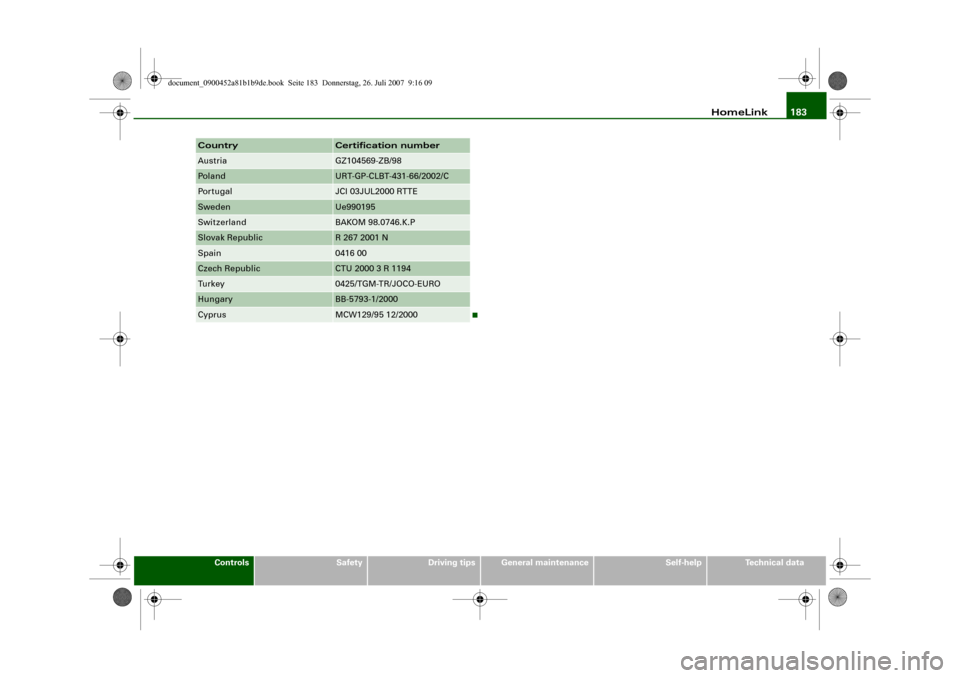
Austria
GZ104569-ZB/98
Pol and
URT-GP-CLBT-431-66/2002/C
Portugal
JCI 03JUL2000 RTTE
Sweden
Ue990195
Switzerland
BAKOM 98.0746.K.P
Slovak Republic
R 267 2001 N
Spain
0416 00
Czech Republic
CTU 2000 3 R 1194
Tu r k e y
0425/TGM-TR/JOCO-EURO
Hungary
BB-5793-1/2000
Cyprus
MCW129/95 12/2000
Country
Certification number
document_0900452a81b1b9de.book Seite 183 Donnerstag, 26. Juli 2007 9:16 09