Page 108 of 251
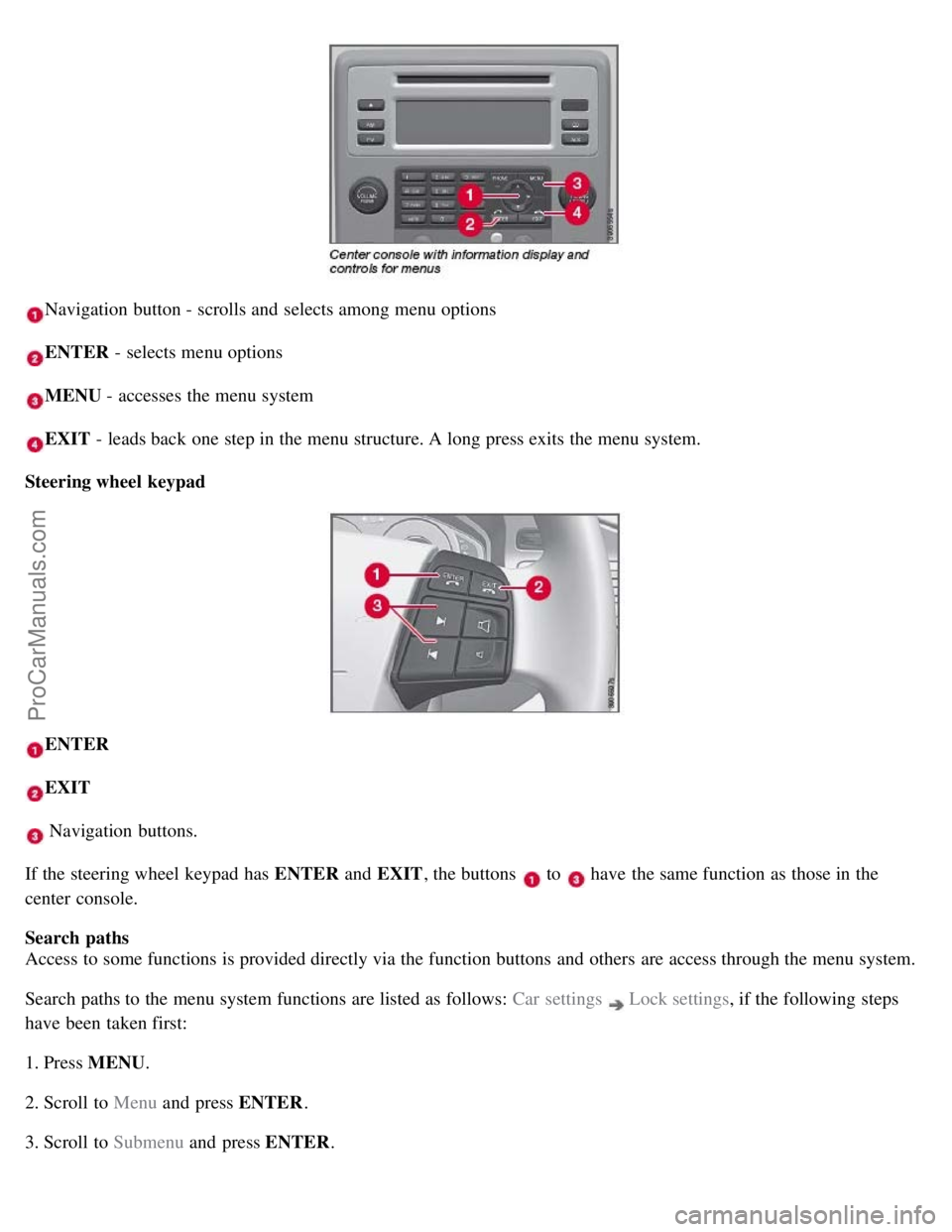
Navigation button - scrolls and selects among menu options
ENTER - selects menu options
MENU - accesses the menu system
EXIT - leads back one step in the menu structure. A long press exits the menu system.
Steering wheel keypad
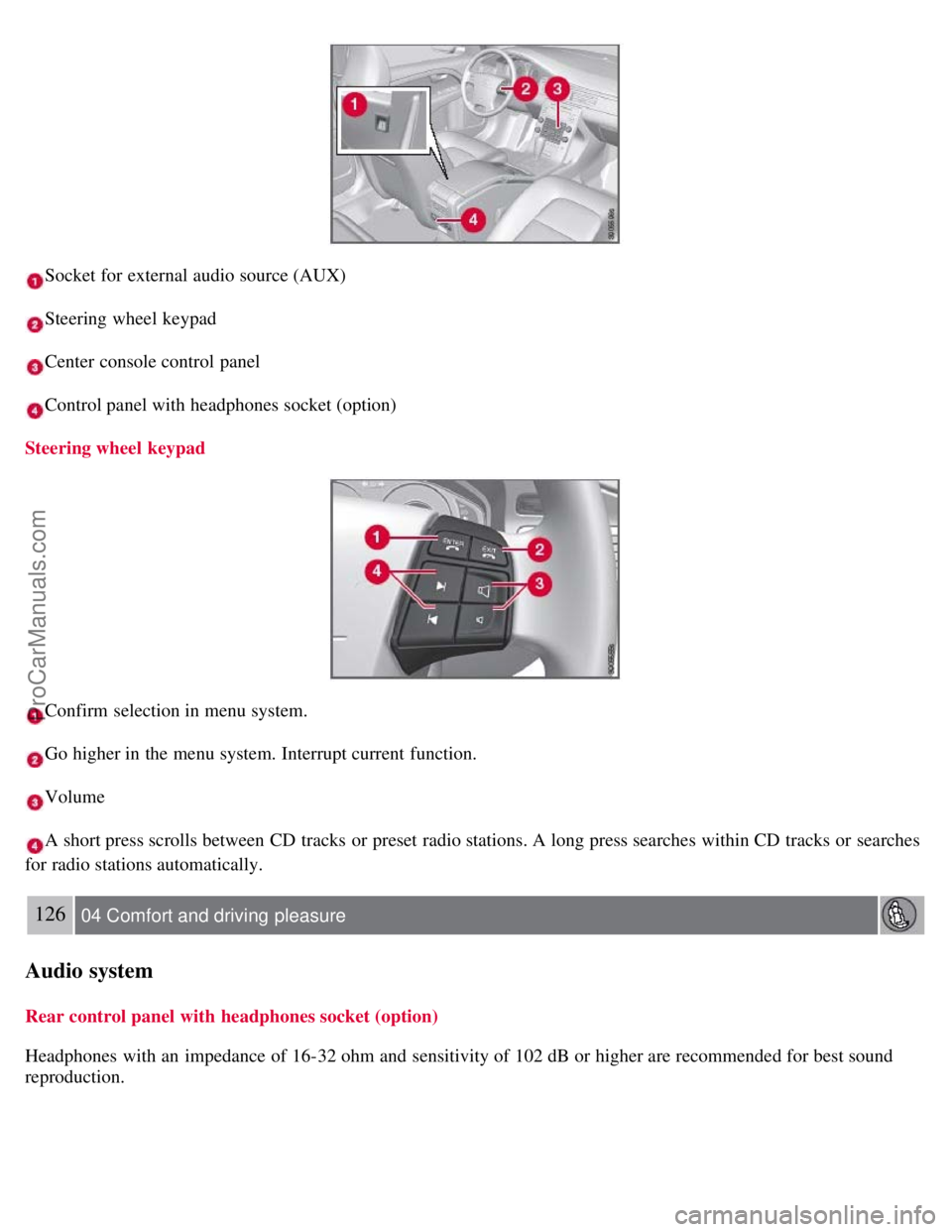
ENTER
EXIT
Navigation buttons.
If the steering wheel keypad has ENTER and EXIT, the buttons
to have the same function as those in the
center console.
Search paths
Access to some functions is provided directly via the function buttons and others are access through the menu system.
Search paths to the menu system functions are listed as follows: Car settings
Lock settings , if the following steps
have been taken first:
1. Press MENU .
2. Scroll to Menu and press ENTER .
3. Scroll to Submenu and press ENTER.
ProCarManuals.com
Page 109 of 251
The navigation button can be used instead of ENTER and EXIT when navigating the menu hierarchy. The right arrow
is equal to ENTER and the left arrow to EXIT .
The menu options are numbered and can also be selected directly with the numerical keypad (1-9 only).
115 04 Comfort and driving pleasure
Menus and messages
Menu overview
Car key memory
Seat & mirror positions
Car settings
Fold mirr. when locking (option on certain markets only)
Collision warning settings (option)
Light settings
Lock settings
Parking camera settings (accessory)
Steering force level (option)
Information
Climate settings
Automatic blower adjust
Recirculation timer
Auto. rear defroster
Reset climate settings
Main menu AM
Audio settings
1
Sound stage
Equalizer, front
Equalizer, rear
Auto. volume control
Resets all audio settings.
Main menu FM
FM settings
Radio text
Advanced radio settings
Audio settings
Main menu CD
Random
Off
Folder
Disc
Single disc
All discs
CD settings
Disc text (option)
Audio settings
Main menu AUX
Volume, AUX input
ProCarManuals.com
Page 121 of 251
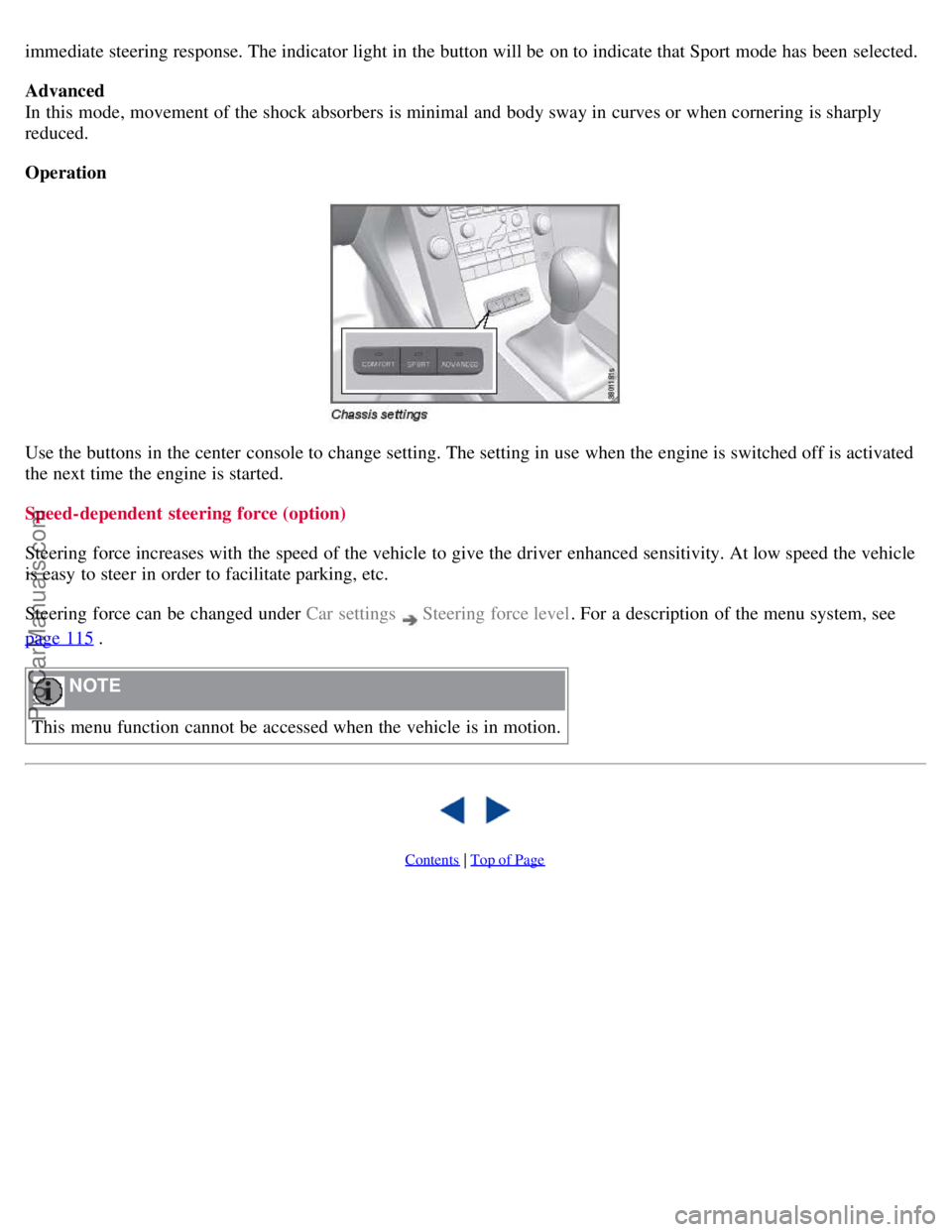
Socket for external audio source (AUX)
Steering wheel keypad
Center console control panel
Control panel with headphones socket (option)
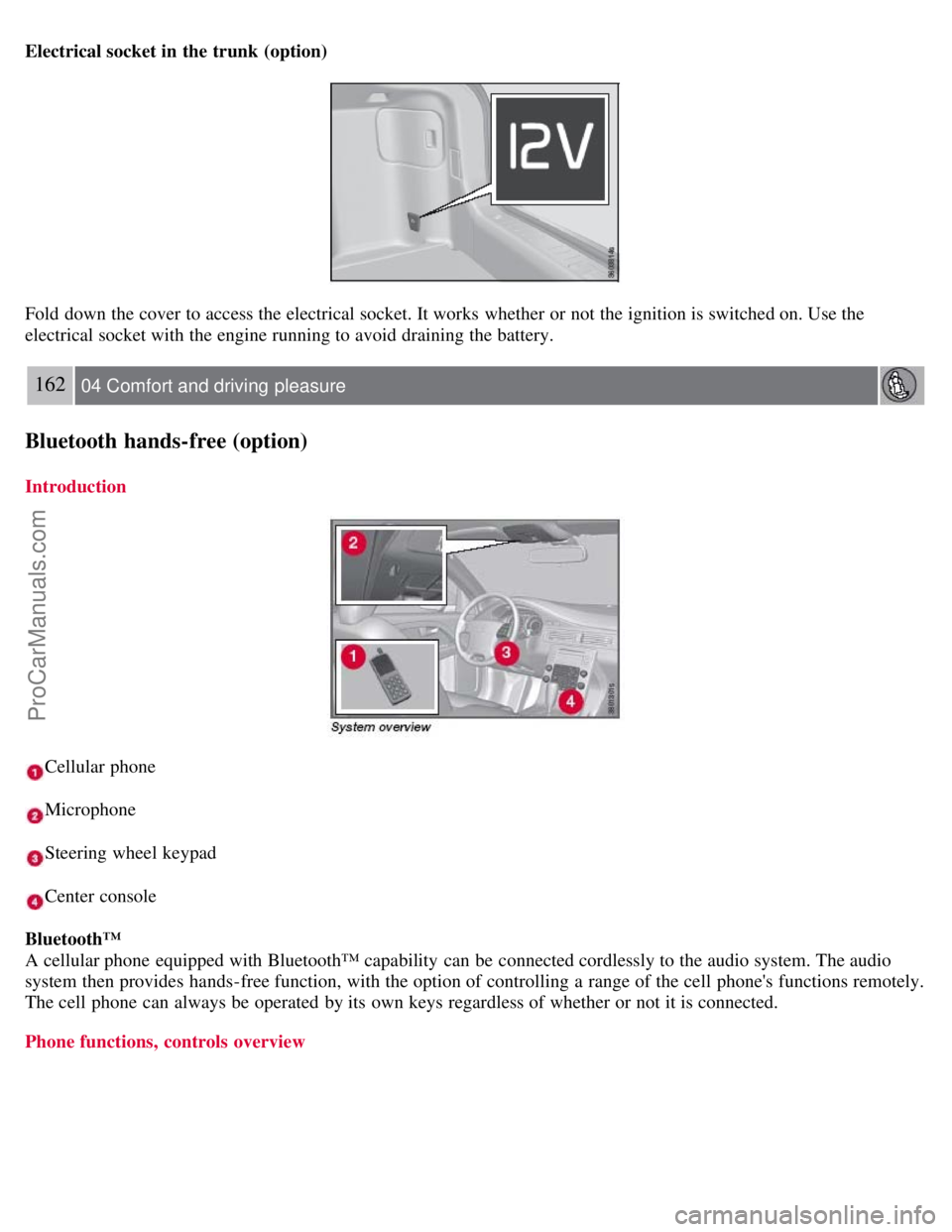
Steering wheel keypad
Confirm selection in menu system.
Go higher in the menu system. Interrupt current function.
Volume
A short press scrolls between CD tracks or preset radio stations. A long press searches within CD tracks or searches
for radio stations automatically.
126 04 Comfort and driving pleasure
Audio system
Rear control panel with headphones socket (option)
Headphones with an impedance of 16-32 ohm and sensitivity of 102 dB or higher are recommended for best sound
reproduction.
ProCarManuals.com
Page 126 of 251
Navigating the disc and playing tracks
If a disc containing sound files is inside the CD player, press ENTER to display the disc's directory structure. The
directory structure is navigated in the same way as the audio system's menu structure. Sound files have the symbol and
directories have the
symbol. Press ENTER to play a selected folder or a file.
When the music file has been played, the player will continue to play the rest of the files in the current folder. When
all of the files in the folder have been played, the player will automatically go to the next folder and play the files in it.
Fast-forward/change CD tracks and sound files
Short presses
/ on the navigation button are used to scroll between CD tracks/ sound files. Long presses are
used to search within CD tracks/sound files. TUNING (or the steering wheel keypad) can also be used for this
purpose.
Scan CD
This function plays the first ten seconds of each CD track/sound file. Press SCAN to activate. Interrupt with EXIT or
SCAN to continue playing the current CD track/ sound file.
Random
This function plays the tracks in random order (shuffle). The random CD tracks/sound files can be scrolled through in
the normal way.
NOTE
It is only possible to scroll between random CD tracks on the current disc.
Different messages are displayed depending on which random function has been selected:
RANDOM means that the tracks from only one music CD are played
RND ALL means that all tracks on all music CDs in the optional CD changer are played.
RANDOM FOLDER means that the sound files in a directory on the current CD are played.
CD player
If a normal music CD is being played, activate/deactivate under Random .
If a disc with sound files is being played, activate/deactivate under Random
Folder .
CD changer
If a normal music CD is being played under Random
Single disc or Random All discs. The option All discs only
applies to the music CDs in the changer.
If a CD with sound files is being played, activate/ deactivate instead under Random
Folder . If you select another
CD the function is deactivated.
Disc text
If title information is stored on a music CD it can be shown on the display
1. Activate/deactivate in CD mode under CD
settings
Disc text.
1Only applies to CD changer.
130 04 Comfort and driving pleasure
Audio system
ProCarManuals.com
Page 138 of 251
immediate steering response. The indicator light in the button will be on to indicate that Sport mode has been selected.
Advanced
In this mode, movement of the shock absorbers is minimal and body sway in curves or when cornering is sharply
reduced.
Operation
Use the buttons in the center console to change setting. The setting in use when the engine is switched off is activated
the next time the engine is started.
Speed-dependent steering force (option)
Steering force increases with the speed of the vehicle to give the driver enhanced sensitivity. At low speed the vehicle
is easy to steer in order to facilitate parking, etc.
Steering force can be changed under Car settings
Steering force level. For a description of the menu system, see
page 115
.
NOTE
This menu function cannot be accessed when the vehicle is in motion.
Contents | Top of Page
ProCarManuals.com
Page 148 of 251

Visual warning signal, collision risk
Sensor
The radar sensor detects vehicles ahead that are moving in the same direction as your vehicle. In the event of a
collision risk, you will be alerted by a red warning light and an audible warning signal.
If the risk of collision increases after the warning, brake support is activated.
The brake support prepares the brake system for rapid braking and the brakes are applied gently, which may be
noticeable. If the brake pedal is depressed quickly then braking is implemented with full brake function, even if the
force on the pedal is light.
151 04 Comfort and driving pleasure
Collision warning system (option)
The collision warning system is active at speeds above approximately 5 mph (7 km/h).
Limitations
The visual warning signal may be difficult to see in strong sunlight or when sunglasses are being worn. For this reason
always activate the audible warning signal in such conditions.
NOTE
The visual warning signal may be temporarily disengaged in the event of high passenger compartment temperature
due to strong sunlight, etc. If this occurs, the audible warning signal will be used, even if it has been deactivated in
the menu system.
Warnings may not appear if the distance to the vehicle ahead is very small or if steering wheel and pedal movements
are large, for example, due to a very active driving style.
The collision warning system uses the same radar sensors as adaptive cruise control. For more information on the radar
sensor and its limitations, see page 146
.
WARNING
In certain situations, the system cannot provide warnings, the warning may be delayed, or false warnings may be
given if traffic conditions make it impossible for the radar sensor to detect the vehicle ahead.
If no warning is given, no brake support is provided.
ProCarManuals.com
Page 159 of 251
Electrical socket in the trunk (option)
Fold down the cover to access the electrical socket. It works whether or not the ignition is switched on. Use the
electrical socket with the engine running to avoid draining the battery.
162 04 Comfort and driving pleasure
Bluetooth hands-free (option)
Introduction
Cellular phone
Microphone
Steering wheel keypad
Center console
Bluetooth™
A cellular phone equipped with Bluetooth™ capability can be connected cordlessly to the audio system. The audio
system then provides hands-free function, with the option of controlling a range of the cell phone's functions remotely.
The cell phone can always be operated by its own keys regardless of whether or not it is connected.
Phone functions, controls overview
ProCarManuals.com
Page 160 of 251
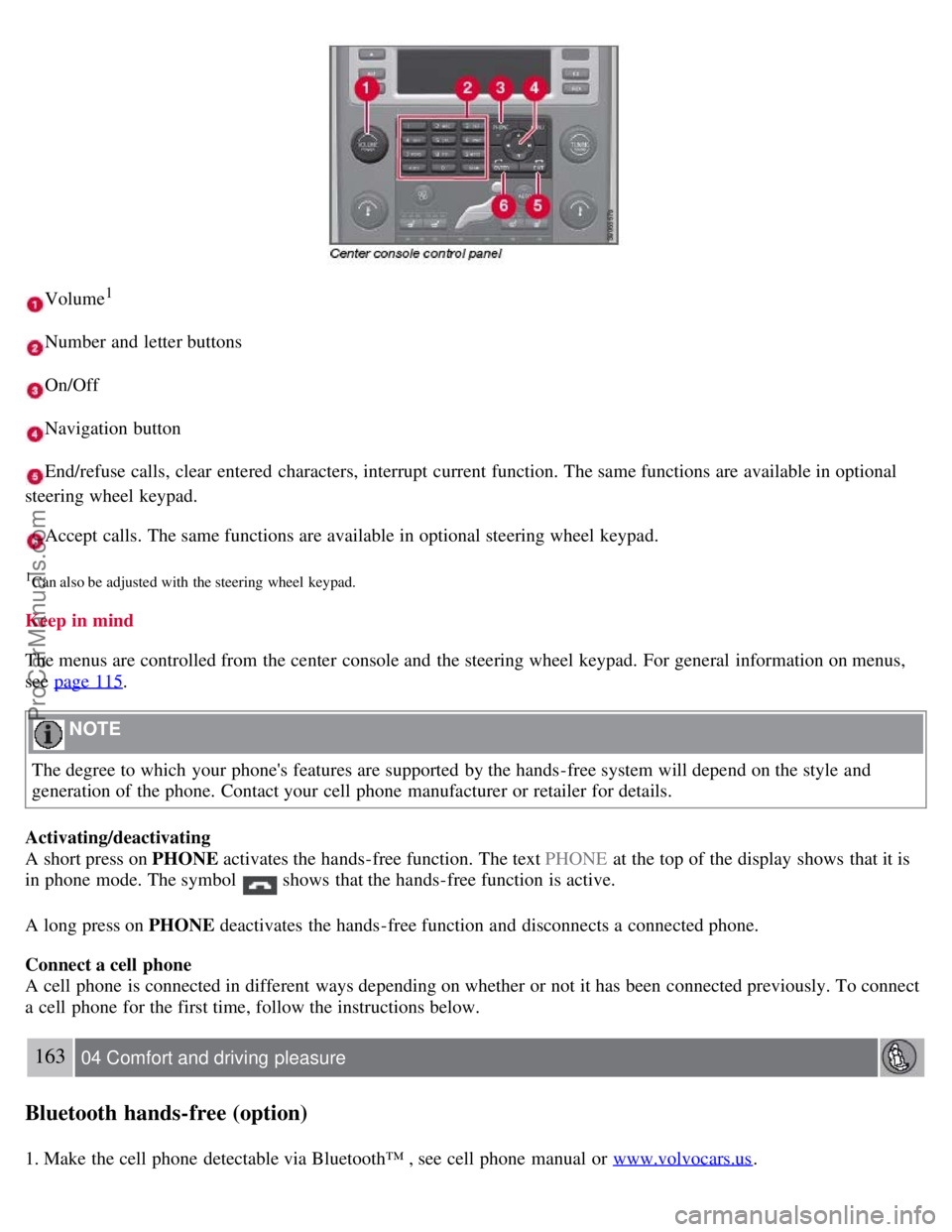
Volume1
Number and letter buttons
On/Off
Navigation button
End/refuse calls, clear entered characters, interrupt current function. The same functions are available in optional
steering wheel keypad.
Accept calls. The same functions are available in optional steering wheel keypad.
1Can also be adjusted with the steering wheel keypad.
Keep in mind
The menus are controlled from the center console and the steering wheel keypad. For general information on menus,
see page 115
.
NOTE
The degree to which your phone's features are supported by the hands-free system will depend on the style and
generation of the phone. Contact your cell phone manufacturer or retailer for details.
Activating/deactivating
A short press on PHONE activates the hands-free function. The text PHONE at the top of the display shows that it is
in phone mode. The symbol
shows that the hands-free function is active.
A long press on PHONE deactivates the hands-free function and disconnects a connected phone.
Connect a cell phone
A cell phone is connected in different ways depending on whether or not it has been connected previously. To connect
a cell phone for the first time, follow the instructions below.
163 04 Comfort and driving pleasure
Bluetooth hands-free (option)
1. Make the cell phone detectable via Bluetooth™ , see cell phone manual or www.volvocars.us.
ProCarManuals.com