2007 VOLVO S80 audio
[x] Cancel search: audioPage 129 of 251
1. Press Power to switch on the audio system (see pages 127 and 130 for information on the standard audio and radio
functions).
2. Press the MODE button repeatedly until Sirius 1 or 2 is displayed.
Activating Sirius radio
1. Tune to a satellite channel that has no audio, which means that the channel is unsubscribed and the text "Call 888-
539-SIRIUS TO SUBSCRIBE" is displayed (see also "Selecting a channel".
2. Call Sirius at 1-888-539-SIRIUS (7474).
3. When asked for the Sirius ID number press AUTO to display this number. It is also possible to retrieve the Sirius ID
from the menu.
4. UPDATING SUBSCRIPTION will be displayed while the subscription is being updated, after which the display
will return to the normal view.
SIRIUS ID
The SIRIUS ID is required when contacting the Sirius Call Center. It is used to activate your account and when making
any account transactions. The SIRIUS ID is sometimes referred to as the Electronic Serial Number (ESN).
Selecting a channel category
1. Select Sirius radio mode as described above.
2. Press ENTER .
3. Use the up/down arrow keys to scroll through the list of categories.
4. Press ENTER or the right arrow key to select a category.
The first channel in the selected category will then be played.
NOTE
The category ALL is default, which enables you to scroll through the entire list of available satellite channels.
The channel categories are automatically updated several times a year. This takes approximately two minutes and
will interrupt normal broadcasting. A message will be displayed while updating is in progress. Information on
channel or feature updates is available at www.sirius.com
.
Selecting a channel
There are three ways of tuning in a channel:
Using the left and right arrow keys
By turning the tuning control
Through direct channel entry.
NOTE
The numbers of skipped or locked channels will not be displayed.
If a channel is locked, the access code must be entered before the channel can be selected. See "Unlocking a
channel" on page 134
.
133 04 Comfort and driving pleasure
ProCarManuals.com
Page 130 of 251
Audio system
Direct channel entry
The Sirius satellite channels are in numerical order throughout all of the categories. To access a channel directly:
1. Press MENU and scroll to Direct channel entry .
2. Use the numerical keypad to enter the channel's number.
3. Press ENTER . The radio will tune to this channel, even if it belongs to a category other than the currently selected
one.
Scanning
SCAN automatically searches through the list of satellite channels. The search will only be carried out in the selected
category. See page 130
for more detailed information.
Storing a channel
A total of 20 satellite channels can be stored; 10 channels each for Sirius 1 and 2. See page 130
for detailed
information on storing channels.
A long press on one of the number keys stores the currently tuned channel on that key.
A short press on a number key while the radio is in Sirius 1or 2 mode will tune to the preset satellite channel stored
on that button, regardless of the currently selected channel category.
Song Seek and Song Memory
The Song Seek and Song Memory functions provide both audio and visual notification when Sirius is broadcasting
your favorite songs. Song Seek enables you to store the name of the song for future advance notification when that
song is being played. The Song Memory feature makes it possible to view all of the current songs that are stored in
memory.
Song memory
Up to ten songs can be saved in the system's memory.
1. Press MENU .
2. Scroll to Add song to song mem. and follow the instructions shown in the display.
If a new song is selected when the memory is full, you will be prompted to press ENTER to delete the last song on
the list.
NOTE
The remaining songs in the list will move down one position, and the newly added song will be placed at the top of
the list.
Song seek
When a satellite radio channel plays one of the songs stored in the song memory, the listener will be alerted by a text
message and an audible signal.
Press ENTER to listen to the song or EXIT to cancel.
To activate/deactivate the song seek function:
1. Press MENU
ProCarManuals.com
Page 131 of 251
2. Scroll to Song seek
3. Press ENTER to activate or deactivate the function.
NOTE
When the song has ended, the radio will remain tuned to the channel on which the song was played.
Radio text
The text that is displayed about the song that is currently playing can be changed. Use the AUTO button or the menu
to display the Artist, Title, Composer, or switch radio text off.
134 04 Comfort and driving pleasure
Audio system
Advanced settings
This menu function enables you to make settings on certain Sirius satellite radio functions.
To access this menu:
1. Press MENU .
2. Scroll to the Sirius menu.
3. Select Advanced Sirius settings .
WARNING
Settings should be made when the vehicle is at a standstill.
The following settings can be made in the Sirius menu:
The list of saved songs can be displayed
Channel skip settings can be made
Channel lock settings can be made
The channel access code can be displayed or changed
Your Sirius ID can be displayed
Skip options
This function is used to remove a channel from the list of available channels.
Skipping a channel
1. Select CHANNEL SKIP LIST and press ENTER.
2. Select a category in the list and press ENTER .
3. Skip channels in the list presented by pressing ENTER or right arrow key.
Unskip all channels
This permanently removes all channels from the skip list and makes them available for selection.
ProCarManuals.com
Page 132 of 251
Temp. unskip all ch.
This function will temporarily unskip all channels and make them available for selection. The channels remain on the
skip list and will again be skipped the next time the ignition is switched on.
Channel lock
Access to specific channels can be restricted (locked). A locked channel will not provide audio, song titles, or artist
information.
NOTE
All channels are initially unlocked.
Locking a channel:
1. Select Sirius ID in the menu and select LOCK OPTIONS and press ENTER.
2. Select CHANNEL LOCK LIST and press ENTER
3. Enter the channel access code
1 and press ENTER .
4. Select a category in the list and press ENTER .
5. Lock channels in the list presented by pressing ENTER or right arrow.
The channel is now locked and a checked box will be displayed to indicate this. It will be necessary to enter the
channel access code
1 in order to listen to a locked channel.
Unlocking a channel
A channel's access code
1 is required to unlock a channel.
Unlock all channels
This permanently removes all channels from the locked list and makes them available for selection.
Temp. unlock all ch.
This function will temporarily unlock all channels and make them available for selection. The channels remain on the
locked list and will again be locked the next time the ignition is switched on.
1The default code is 0000. If you have changed the code and forgotten it, see the section "If you have forgotten the access code."
135 04 Comfort and driving pleasure
Audio system
CHANGE CODE
This function makes it possible to change the channel access code. The default code is 0000.
To change the code:
1. Select CHANGE CODE and press ENTER.
2. Enter the current code and press ENTER .
3. Enter the new code and press ENTER .
ProCarManuals.com
Page 149 of 251
A delayed warning means that brake support will also be delayed.
The false warnings may be in the form of both audio and visual signals.
NOTE
The number of false warnings can be limited by reducing the warning distance. See the section "Set warning
distance."
Operation
Some settings are controlled from the center console via a menu system. For information on how the menu system is
used, see page 114
.
NOTE
The following settings apply to the collision warning system only and do not affect brake support.
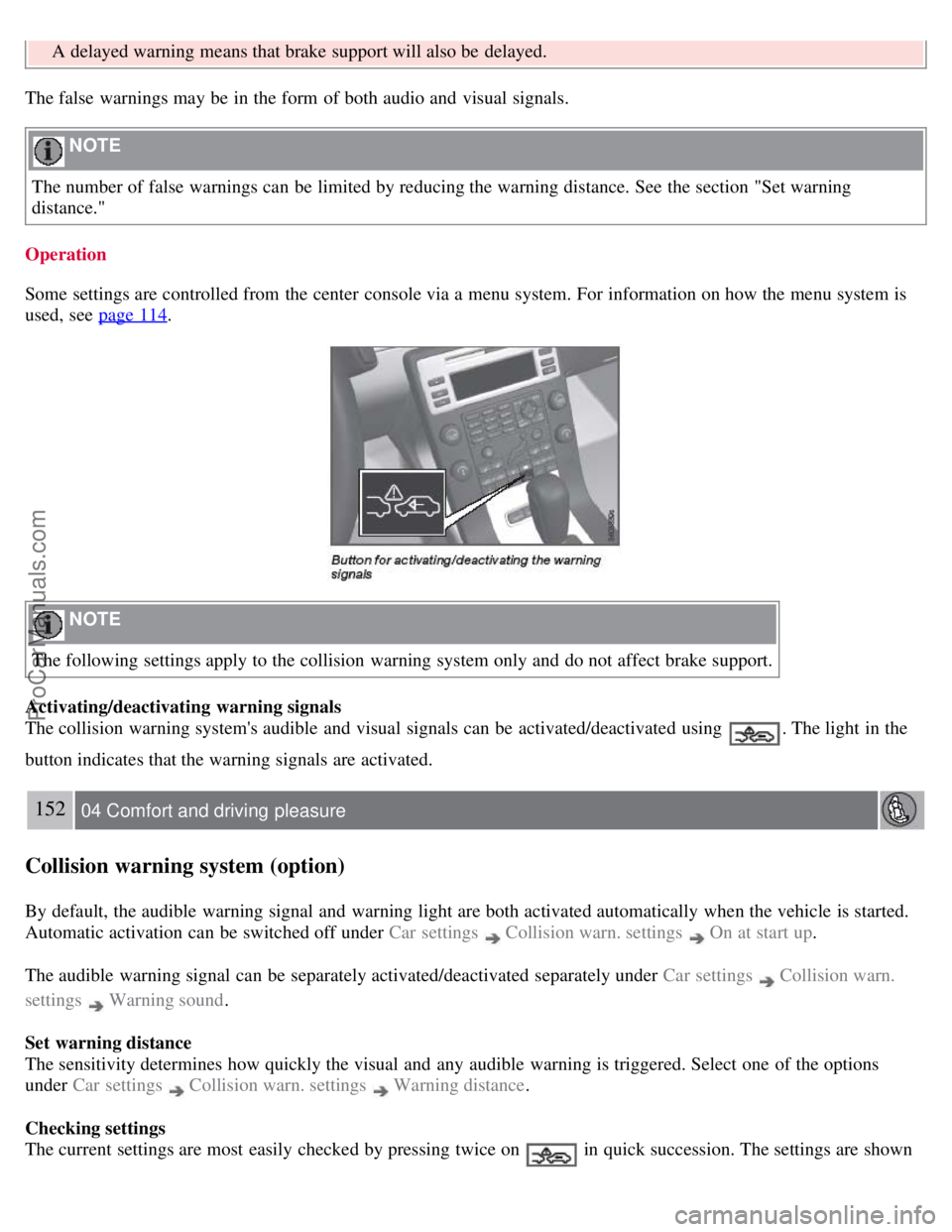
Activating/deactivating warning signals
The collision warning system's audible and visual signals can be activated/deactivated using
. The light in the
button indicates that the warning signals are activated.
152 04 Comfort and driving pleasure
Collision warning system (option)
By default, the audible warning signal and warning light are both activated automatically when the vehicle is started.
Automatic activation can be switched off under Car settings
Collision warn. settings On at start up.
The audible warning signal can be separately activated/deactivated separately under Car settings
Collision warn.
settings
Warning sound .
Set warning distance
The sensitivity determines how quickly the visual and any audible warning is triggered. Select one of the options
under Car settings
Collision warn. settings Warning distance .
Checking settings
The current settings are most easily checked by pressing twice on
in quick succession. The settings are shown
ProCarManuals.com
Page 150 of 251

in the display.
Messages on the display
Clean the radar sensor in the grille - The collision warning system is temporarily disengaged. The message is shown
temporarily if for example slush has collected in front of the radar sensor.
Collision warn. Service required - The collision warning system is disengaged. Contact an authorized Volvo workshop
if the message remains.
153 04 Comfort and driving pleasure
Park assist (option)
Introduction
The park assist system(s) are designed to assist you when driving into parking spaces, garages, etc. They utilize
ultrasound sensors located in the bumpers to measure the distance to a vehicle or other object, or a person who may be
close to the front or rear of the vehicle.
WARNING
These systems are designed to be a supplementary aid when parking the vehicle. They are not, however, intended to
replace the driver's attention and judgement.
Function
The system is activated automatically when the vehicle is started. The indicator light in the button in the center console
illuminates. The text Park Assist ON is shown in the center console display if reverse gear is selected or if the front
sensors detect an object.
The front park assist system is active from the time the engine is started until the vehicle exceeds a speed of
approximately 10 mph (15 km/h). It is also active when the vehicle is backing up.
Rear park assist is active when the engine is running and reverse gear has been selected.
An intermittent audio signal becomes audible when your vehicle approaches an object. The frequency of the signal
increases as you come closer to the object in front of or behind the vehicle. If the volume of another audio source from
the audio system is high, this will be automatically lowered.
The tone becomes constant at a distance of approximately 1 ft (30 cm). If there are objects within this distance both
behind and in front of the vehicle, the signal alternates between front and rear speakers.
Rear park assist
ProCarManuals.com
Page 159 of 251
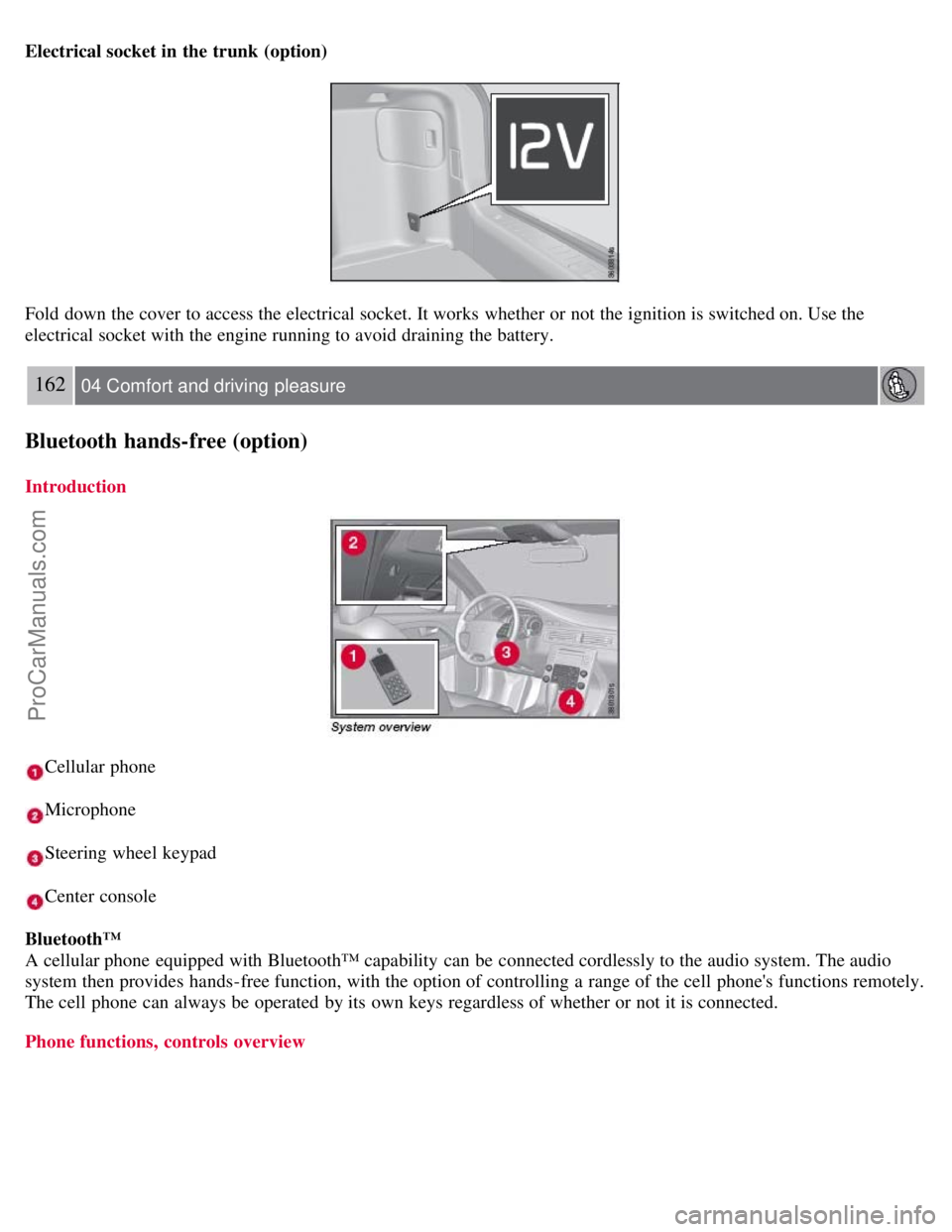
Electrical socket in the trunk (option)
Fold down the cover to access the electrical socket. It works whether or not the ignition is switched on. Use the
electrical socket with the engine running to avoid draining the battery.
162 04 Comfort and driving pleasure
Bluetooth hands-free (option)
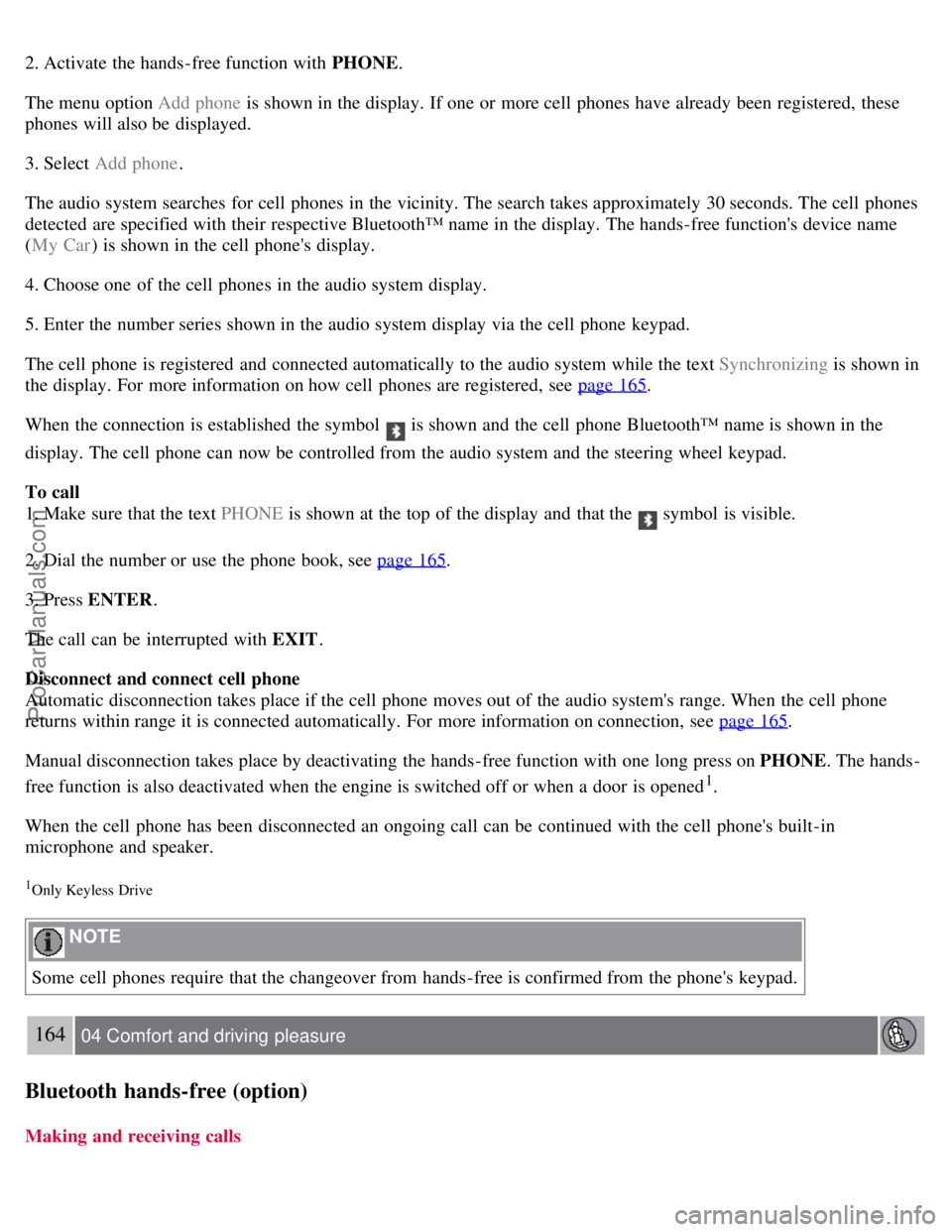
Introduction
Cellular phone
Microphone
Steering wheel keypad
Center console
Bluetooth™
A cellular phone equipped with Bluetooth™ capability can be connected cordlessly to the audio system. The audio
system then provides hands-free function, with the option of controlling a range of the cell phone's functions remotely.
The cell phone can always be operated by its own keys regardless of whether or not it is connected.
Phone functions, controls overview
ProCarManuals.com
Page 161 of 251
2. Activate the hands-free function with PHONE.
The menu option Add phone is shown in the display. If one or more cell phones have already been registered, these
phones will also be displayed.
3. Select Add phone .
The audio system searches for cell phones in the vicinity. The search takes approximately 30 seconds. The cell phones
detected are specified with their respective Bluetooth™ name in the display. The hands-free function's device name
( My Car ) is shown in the cell phone's display.
4. Choose one of the cell phones in the audio system display.
5. Enter the number series shown in the audio system display via the cell phone keypad.
The cell phone is registered and connected automatically to the audio system while the text Synchronizing is shown in
the display. For more information on how cell phones are registered, see page 165
.
When the connection is established the symbol
is shown and the cell phone Bluetooth™ name is shown in the
display. The cell phone can now be controlled from the audio system and the steering wheel keypad.
To call
1. Make sure that the text PHONE is shown at the top of the display and that the
symbol is visible.
2. Dial the number or use the phone book, see page 165
.
3. Press ENTER .
The call can be interrupted with EXIT .
Disconnect and connect cell phone
Automatic disconnection takes place if the cell phone moves out of the audio system's range. When the cell phone
returns within range it is connected automatically. For more information on connection, see page 165
.
Manual disconnection takes place by deactivating the hands-free function with one long press on PHONE . The hands-
free function is also deactivated when the engine is switched off or when a door is opened
1.
When the cell phone has been disconnected an ongoing call can be continued with the cell phone's built-in
microphone and speaker.
1Only Keyless Drive
NOTE
Some cell phones require that the changeover from hands-free is confirmed from the phone's keypad.
164 04 Comfort and driving pleasure
Bluetooth hands-free (option)
Making and receiving calls
ProCarManuals.com