Page 188 of 208
6. EXIT-press to cancel a menu selection or a selected function
7. AUTO -search for and store the strongest radio stations in the area in which you are driving
Searching for stations
There are two ways to manually tune a radio station:
1. Turn the TUNING dial (3) to the desired frequency.
2. Press the left or right arrow key on the MENU NAVIGATION CONTROL and hold it down. The radio scans
slowly in the selected direction and will increase the scanning speed after a few seconds. Release the button when the
desired frequency appears in the display.
The frequency can be fine-tuned by short presses on the left/right arrow keys.
Storing preset stations
Manually storing a station
1. Tune to the desired station.
2. Press and hold the preset button under which the station is to be stored. The audio system sound will be interrupted
for a few seconds and STATION STORED will appear in the display.
NOTE
A total of 30 stations can be stored; 10 stations each in AM , FM1 and FM2 .
Automatically storing a station
Pressing AUTO (7) automatically searches for and stores up to ten strong AM or FM stations in a separate memory. If
more than ten stations are found, the ten strongest ones are stored. This function is especially useful in areas in which
you are not familiar with radio stations or their frequencies.
To use the AUTO function:
1. Select a waveband using the AM/FM button (1).
2. Start the search by pressing AUTO until AUTO STORING appears in the display.
When the search is completed, AUTO STORING will no longer be displayed. If there are no stations with sufficient
signal strength, NO AST FOUND is displayed.
The auto-stored stations can be selected using the preset buttons (2).
Press EXIT (6) to terminate the automatic storing function.
When the radio is in auto-store mode, AUTO is shown in the display. AUTO disappears when you return to normal
radio mode, which can be done by briefly pressing AM/FM (1), EXIT (6), or AUTO (7).
214 10 Audio
Radio functions
To return to the Auto-store mode, press the AUTO button briefly and select a stored station by pressing one of the
preset buttons (2).
ProCarManuals.com
Page 196 of 208
Audio files
In addition to playing normal music CDs, the CD player/changer can also play discs containing files in mp3 or wma
format.
NOTE
Certain discs that are copy protected cannot be read by the player.
When a disc with audio files is inserted in the player, the player scans the disc's folders before it begins playing the
files. The length of time that this takes depends on the quality of the disc.
Navigating the disc and playing tracks
If a disc with audio files is in the CD player, press ENTER to display a list of folders on the disc.
Use the up and down arrows in the navigation control (see the illustration on page 219
) to move among the folders on
the disc. Audio files have the
symbol and folders containing these files have the symbol. Press ENTER to play a
selected folder or a file.
When the music file has been played, the player will continue to play the rest of the files in the current folder. When
all of the files in the folder have been played, the player will automatically go to the next folder and play the files in it.
Press the left or right arrow key on the navigation control if the entire name of the current track does not fit in the
display.
Changing tracks
Briefly press the left or right arrow keys on the MENU NAVIGATION CONTROL to skip to the previous or next
track/file.
NOTE
The TUNING dial (6) (turn clockwise to go to the next track/file, or counterclockwise to go to the previous
track/file) or the optional steering wheel keypad can also be used for this purpose.
Fast forward/back
Press and hold down the left or right arrows keys in the MENU NAVIGATION CONTROL (or the corresponding
keys on the optional steering wheel keypad) to search within a track/file or the whole disc. The search continues for as
long as the buttons are held down.
Random play
This function plays the tracks/files on a CD (or on all of the CDs if the vehicle is equipped with the optional CD
changer) in random order (shuffle).
221 10 Audio
CD player/CD changer (option)
Activating/deactivating the random function-CD player
If a normal CD is being played:
1. Press MENU followed by ENTER .
ProCarManuals.com
Page 201 of 208
227 11 Specifications
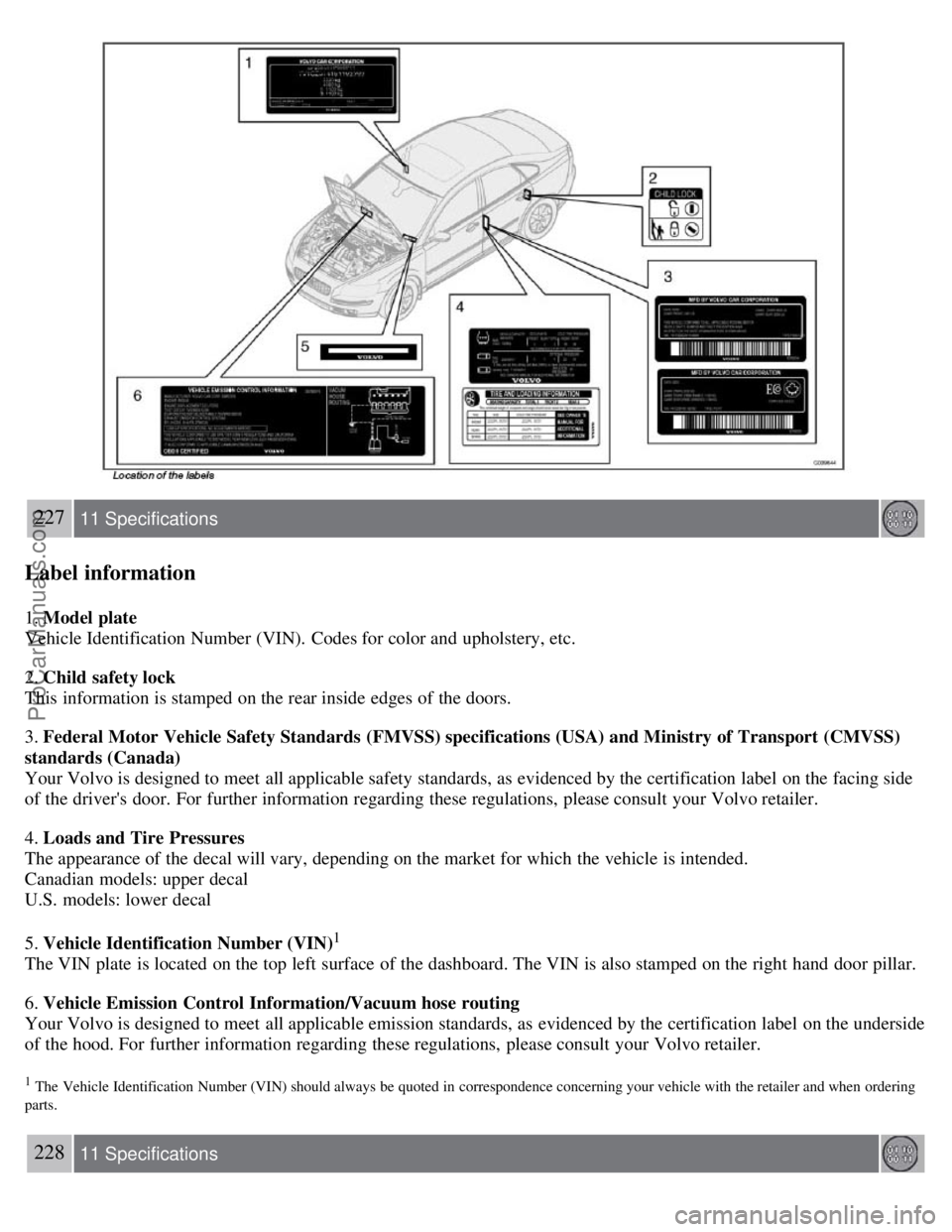
Label information
1. Model plate
Vehicle Identification Number (VIN). Codes for color and upholstery, etc.
2. Child safety lock
This information is stamped on the rear inside edges of the doors.
3. Federal Motor Vehicle Safety Standards (FMVSS) specifications (USA) and Ministry of Transport (CMVSS)
standards (Canada)
Your Volvo is designed to meet all applicable safety standards, as evidenced by the certification label on the facing side
of the driver's door. For further information regarding these regulations, please consult your Volvo retailer.
4. Loads and Tire Pressures
The appearance of the decal will vary, depending on the market for which the vehicle is intended.
Canadian models: upper decal
U.S. models: lower decal
5. Vehicle Identification Number (VIN)
1
The VIN plate is located on the top left surface of the dashboard. The VIN is also stamped on the right hand door pillar.
6. Vehicle Emission Control Information/Vacuum hose routing
Your Volvo is designed to meet all applicable emission standards, as evidenced by the certification label on the underside
of the hood. For further information regarding these regulations, please consult your Volvo retailer.
1 The Vehicle Identification Number (VIN) should always be quoted in correspondence concerning your vehicle with the retailer and when ordering
parts.
228 11 Specifications
ProCarManuals.com
Page:
< prev 1-8 9-16 17-24