Page 231 of 458
231
27p320
2. Use the software keyboard to inputthe device name. (d) Changing the Bluetooth
� settings
You can change the display and settings
of Bluetooth � information on the system.
The information displays the following
items.
Device Name the name in the . .
Bluetooth � network. You
can change it.
Passkey the password when you . . . . . . .
register your cellular
phone in the system. You
can change it into the
figure of 4 −8 digits.
Bluetooth � D ev i c e A ddr es s . . . . . . . . . . . . . .
the address peculiar to
the system. You can not
change it. If you have
registered two Bluetooth �
phones with the same
Device Name or Passkey
and you cannot
distinguish one from the
other, refer to it.
27p321
When you change the device name or
Passkey, do the following.
1. Touch the “Bluetooth*” switch.
*: Bluetooth is a registered trademark of
Bluetooth SIG. Inc.
Page 234 of 458
234
27p328
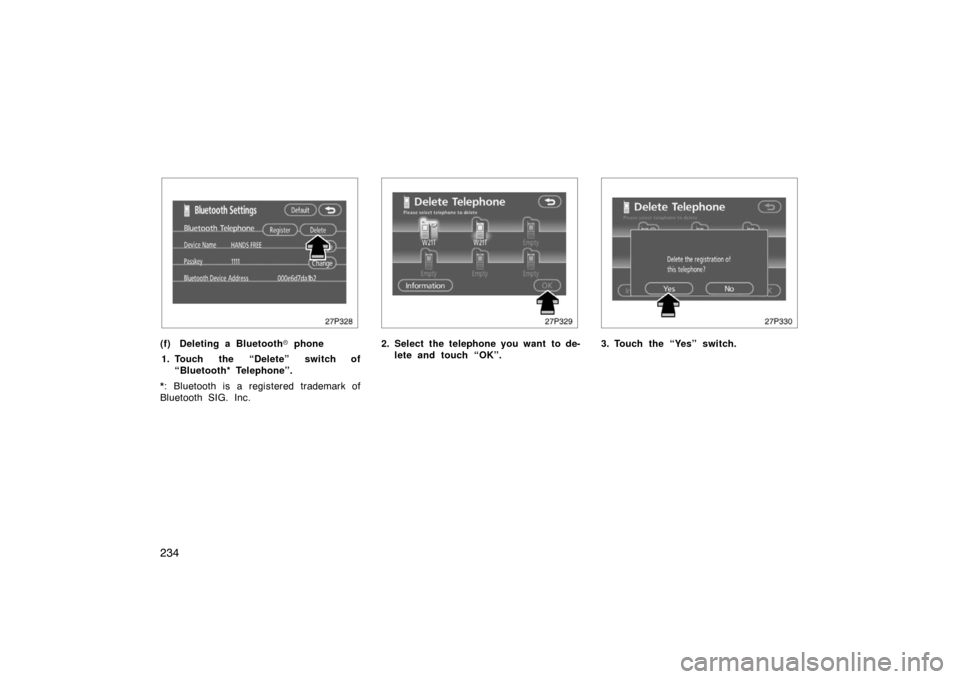
(f) Deleting a Bluetooth� phone
1. Touch the “Delete” switch of “Bluetooth* Telephone”.
*: Bluetooth is a registered trademark of
Bluetooth SIG. Inc.
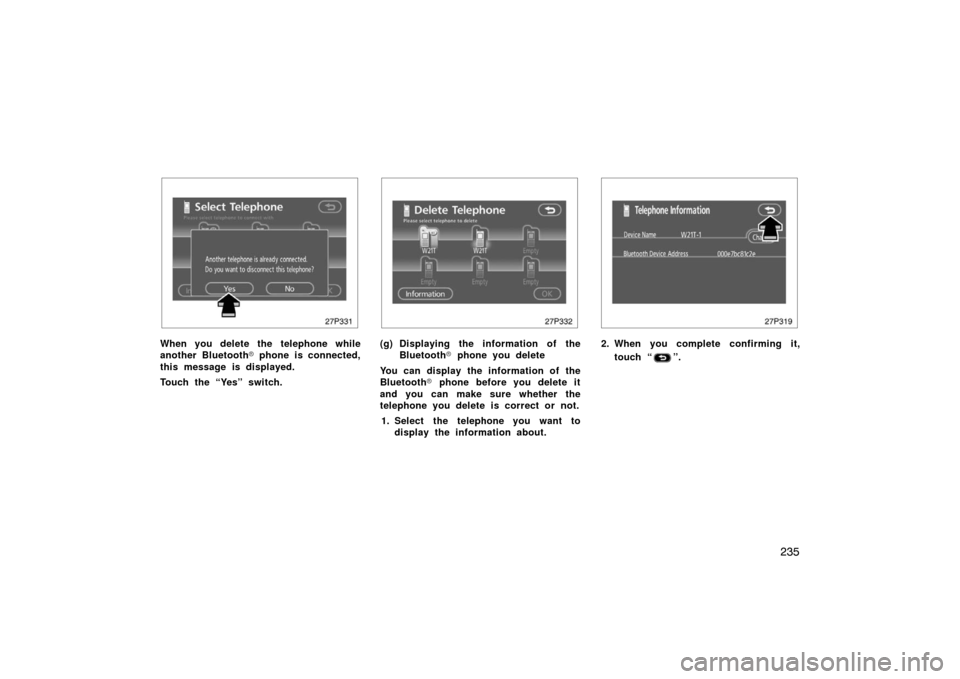
27p329
2. Select the telephone you want to de- lete and touch “OK”.
27p330
3. Touch the “Yes” switch.
Page 235 of 458
235
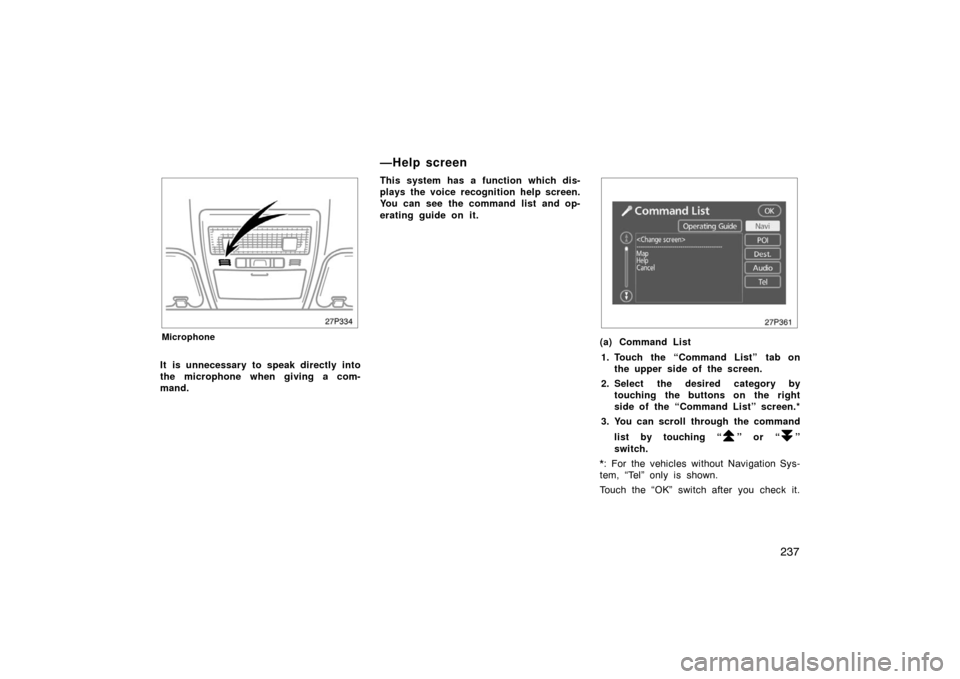
27p331
When you delete the telephone while
another Bluetooth� phone is connected,
this message is displayed.
Touch the “Yes” switch.
27p332
(g) Displaying the information of the Bluetooth � phone you delete
You can display the information of the
Bluetooth � phone before you delete it
and you can make sure whether the
telephone you delete is correct or not.
1. Select the telephone you want to display the information about.
27p319
2. When you complete confirming it,
touch “
”.
Page 237 of 458
237
27p334
Microphone
It is unnecessary to speak directly into
the microphone when giving a com-
mand.This system has a function which dis-
plays the voice recognition help screen.
You can see the command list and op-
erating guide on it.
27p361
(a) Command List
1. Touch the “Command List” tab on the upper side of the screen.
2. Select the desired category by touching the buttons on the right
side of the “Command List” screen.*
3. You can scroll through the command
list by touching “
” or “”
switch.
*: For the vehicles without Navigation Sys-
tem, “Tel” only is shown.
Touch the “OK” switch after you check it.
—Help screen
Page 264 of 458

264
(h) If the satellite radio tuner malfunctions
When problems occur with the XM� tuner, a message will appear on the display. Referring to the table below to identify the problem,
take the suggested corrective action.
ANTENNAThe XM � antenna is not connected. Check whether the XM� antenna cable is attached securely.
A short−circuit occurs in the antenna or the surrounding antenna cable. See a T\
oyota certified dealer.
UPDATING
You have not subscribed to the XM � satellite radio. The radio is being updated with the latest encryption\
code. Contact the XM� satellite radio for subscription information. When a contact is cancel\
ed, you can
choose the “CH000” and all free −to− air channels.
The premium channel you selected is not authorized. Wait for about 2 seconds until the radio returns to
the previous channel or “CH001”. If it does not change automatica\
lly, select another channel. If you want
to listen to the premium channel, contact the XM � satellite radio.
NO SIGNALThe XM� signal is too weak at the current location. Wait until your vehicle reaches a location with a stron-
ger signal.
LOADINGThe unit is acquiring audio or program information. Wait until the unit has received the information.
OFF AIRThe channel you selected is not broadcasting any programming. Select an\
other channel.
−−−−−There is no song/program title or artist name/feature associated with th\
e channel at that time. No action
needed.
−−−The channel you selected is no longer available. Wait for about 2 seconds until the radio returns to the
previous channel or “CH001”. If it does not change automatically, select another channel.
The XM � Listener Care Center is also available on the phone, please call (800) 967 −2346 during the following hours:
Monday – Saturday: 6 a.m. – 2 a.m. Eastern Time
Sunday: 8 a.m – 8 p.m. Eastern Time
Page 279 of 458

279
If you install an audio system other than
a genuine audio system, you will not be
able to use the AUX adapter.NOTICE
To ensure correct audio system op-
erations:
�Be careful not to spill beverages
over the audio system.
� The use of a cellular phone inside
or near the vehicle may cause a
noise from the speakers of the au-
dio system which you are listening
to. However, this does not indicate
a malfunction.
RADIO RECEPTION
Usually, a problem with radio reception
does not mean there is a problem with
your radio—it is just the normal result of
conditions outside the vehicle.
For example, nearby buildings and terrain
can interfere with FM reception. Power
lines or telephone wires can interfere with
AM signals. And of course, radio signals
have a limited range. The farther you are
from a station, the weaker its signal will
be. In addition, reception conditions
change constantly as your vehicle moves. Here are some common reception prob-
lems that probably do not indicate a prob-
lem with your radio:
FM
Fading and drifting stations—Generally, the
effective range of FM is about 40 km (25
miles). Once outside this range, you may
notice fading and drifting, which increase
with the distance from the radio transmit-
ter. They are often accompanied by distor-
tion.
Multi
−path—FM signals are reflective,
making it possible for two signals to reach
your antenna at the same time. If this
happens, the signals will cancel each oth-
er out, causing a momentary flutter or
loss of reception.
Static and fluttering—These occur when
signals are blocked by buildings, trees, or
other large objects. Increasing the bass
level may reduce static and fluttering.
Station swapping—If the FM signal you
are listening to is interrupted or weak-
ened, and there is another strong station
nearby on the FM band, your radio may
tune in the second station until the origi-
nal signal can be picked up again.
Audio system operating hints