Page 216 of 458
216
27p281
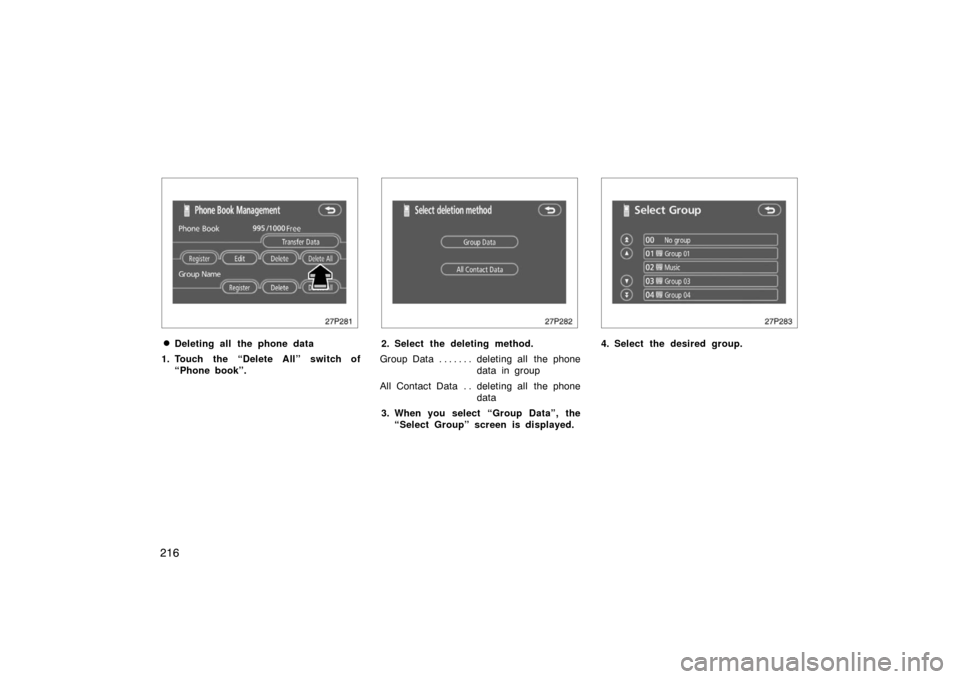
�Deleting all the phone data
1. Touch the “Delete All” switch of “Phone book”.
27p282
2. Select the deleting method.
Group Data deleting all the phone . . . . . . .
data in group
All Contact Data deleting all the phone . .
data
3. When you select “Group Data”, the “Select Group” screen is displayed.
27p283
4. Select the desired group.
Page 217 of 458
217
27p284
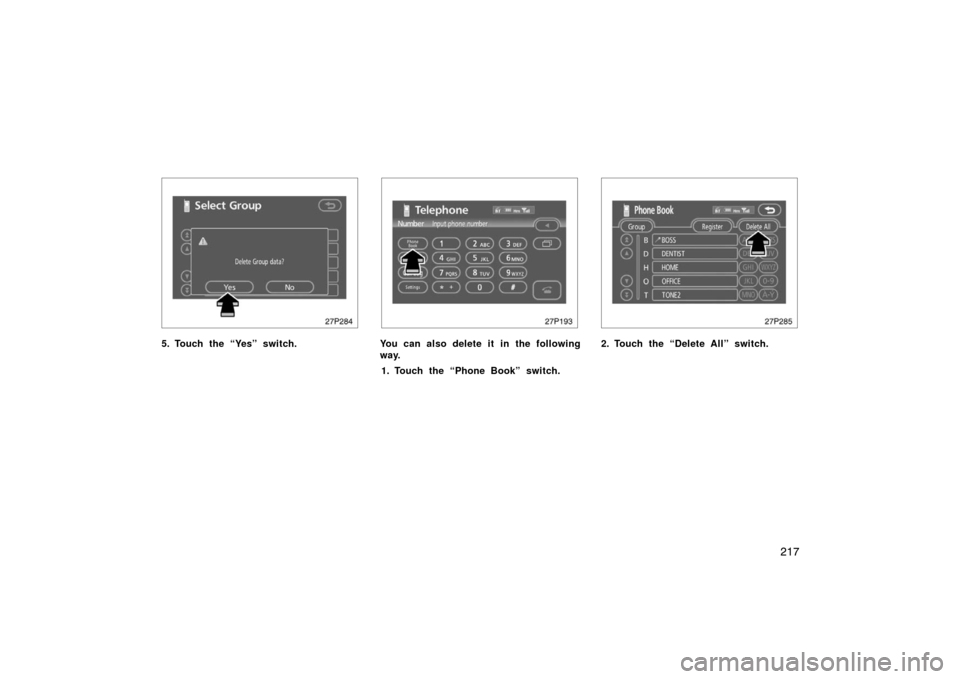
5. Touch the “Yes” switch.
27p193
You can also delete it in the following
way.1. Touch the “Phone Book” switch.
27p285
2. Touch the “Delete All” switch.
Page 224 of 458
224
27p302
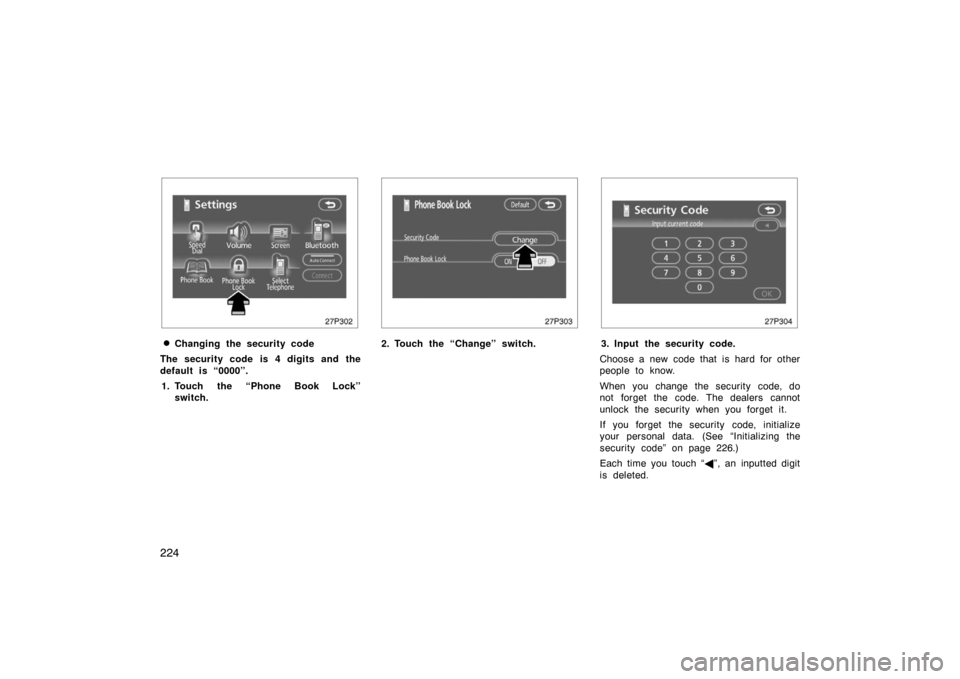
�Changing the security code
The security code is 4 digits and the
default is “0000”. 1. Touch the “Phone Book Lock” switch.
27p303
2. Touch the “Change” switch.
27p304
3. Input the security code.
Choose a new code that is hard for other
people to know.
When you change the security code, do
not forget the code. The dealers cannot
unlock the security when you forget it.
If you forget the security code, initialize
your personal data. (See “Initializing the
security code” on page 226.)
Each time you touch “ �”, an inputted digit
is deleted.
Page 225 of 458
225
27p305
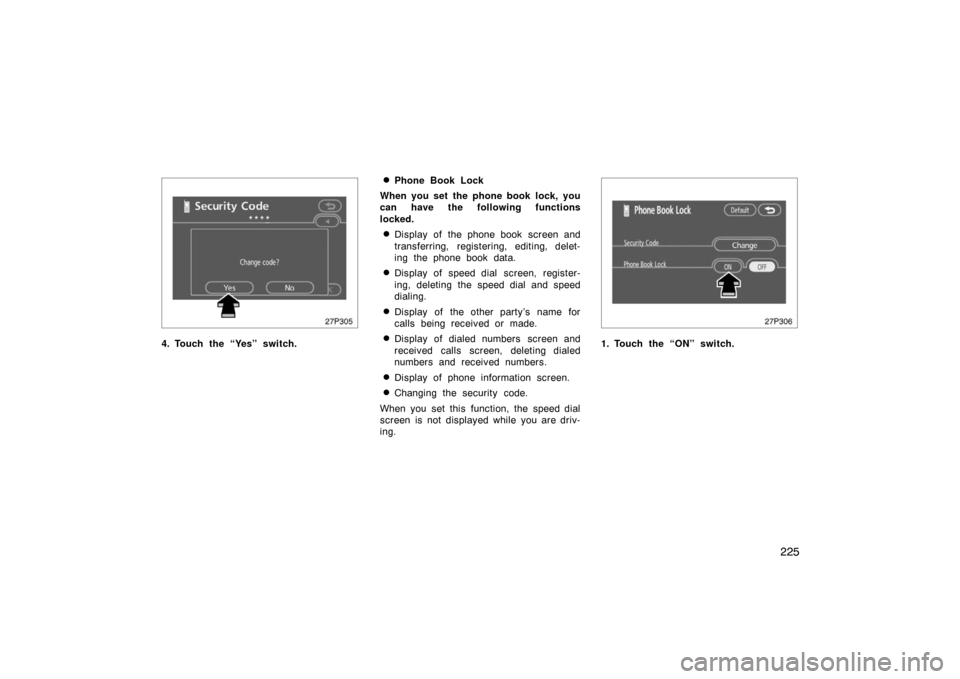
4. Touch the “Yes” switch.
�Phone Book Lock
When you set the phone book lock, you
can have the following functions
locked.
�Display of the phone book screen and
transferring, registering, editing, delet-
ing the phone book data.
�Display of speed dial screen, register-
ing, deleting the speed dial and speed
dialing.
�Display of the other party’s name for
calls being received or made.
�Display of dialed numbers screen and
received calls screen, deleting dialed
numbers and received numbers.
�Display of phone information screen.
�Changing the security code.
When you set this function, the speed dial
screen is not displayed while you are driv-
ing.
27p306
1. Touch the “ON” switch.
Page 227 of 458
227
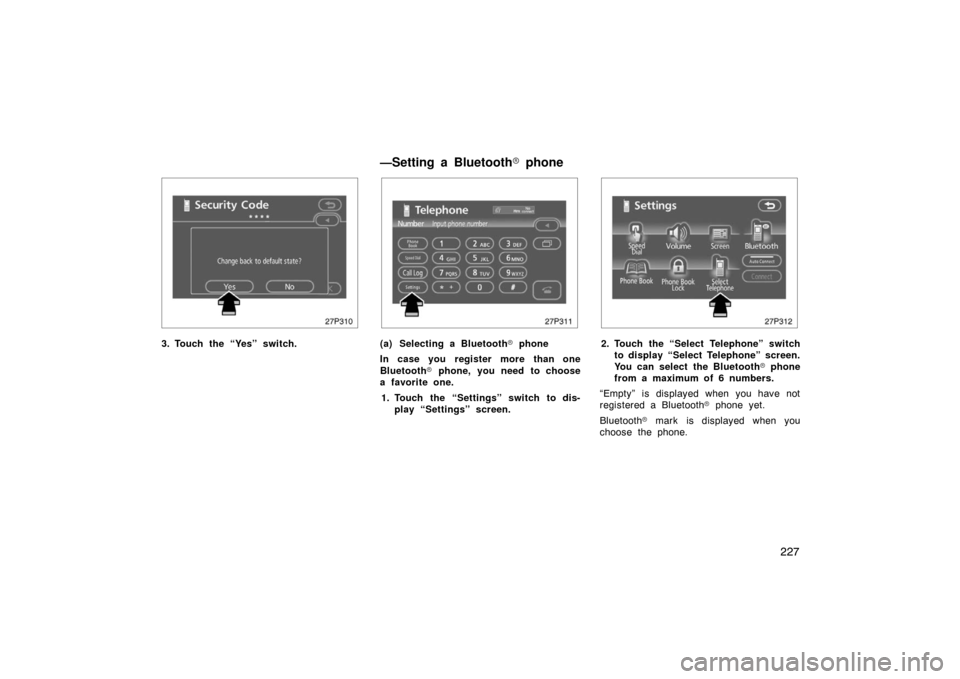
27p310
3. Touch the “Yes” switch.
27p311
(a) Selecting a Bluetooth� phone
In case you register more than one
Bluetooth � phone, you need to choose
a favorite one.
1. Touch the “Settings” switch to dis- play “Settings” screen.
27p312
2. Touch the “Select Telephone” switchto display “Select Telephone” screen.
You can select the Bluetooth � phone
from a maximum of 6 numbers.
“Empty” is displayed when you have not
registered a Bluetooth � phone yet.
Bluetooth � mark is displayed when you
choose the phone.
—Setting a Bluetooth� phone
Page 228 of 458
228
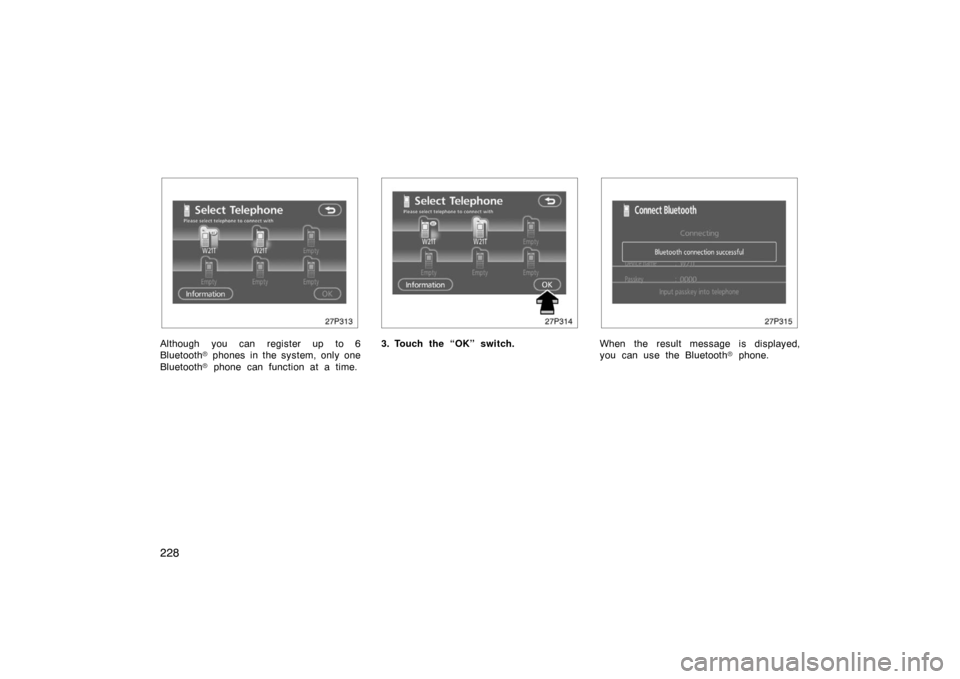
27p313
Although you can register up to 6
Bluetooth� phones in the system, only one
Bluetooth � phone can function at a time.
27p314
3. Touch the “OK” switch.
27p315
When the result message is displayed,
you can use the Bluetooth � phone.
Page 229 of 458
229
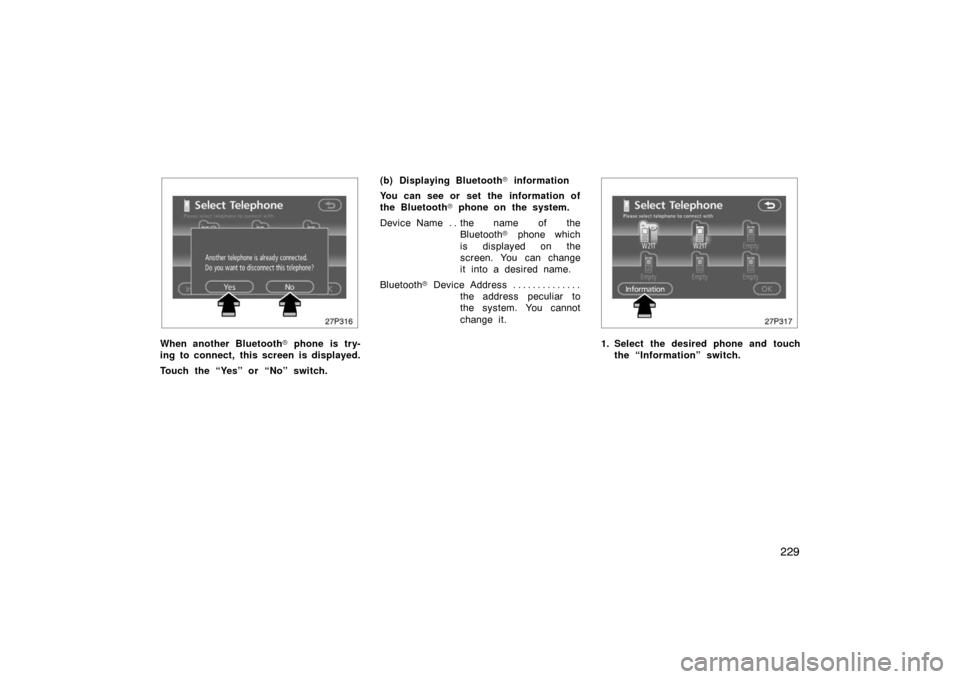
27p316
When another Bluetooth� phone is try-
ing to connect, this screen is displayed.
Touch the “Yes” or “No” switch. (b) Displaying Bluetooth
� information
You can see or set the information of
the Bluetooth � phone on the system.
Device Name the name of the . .
Bluetooth � phone which
is displayed on the
screen. You can change
it into a desired name.
Bluetooth � D ev i c e A ddr es s . . . . . . . . . . . . . .
the address peculiar to
the system. You cannot
change it.
27p317
1. Select the desired phone and touchthe “Information” switch.
Page 230 of 458
230
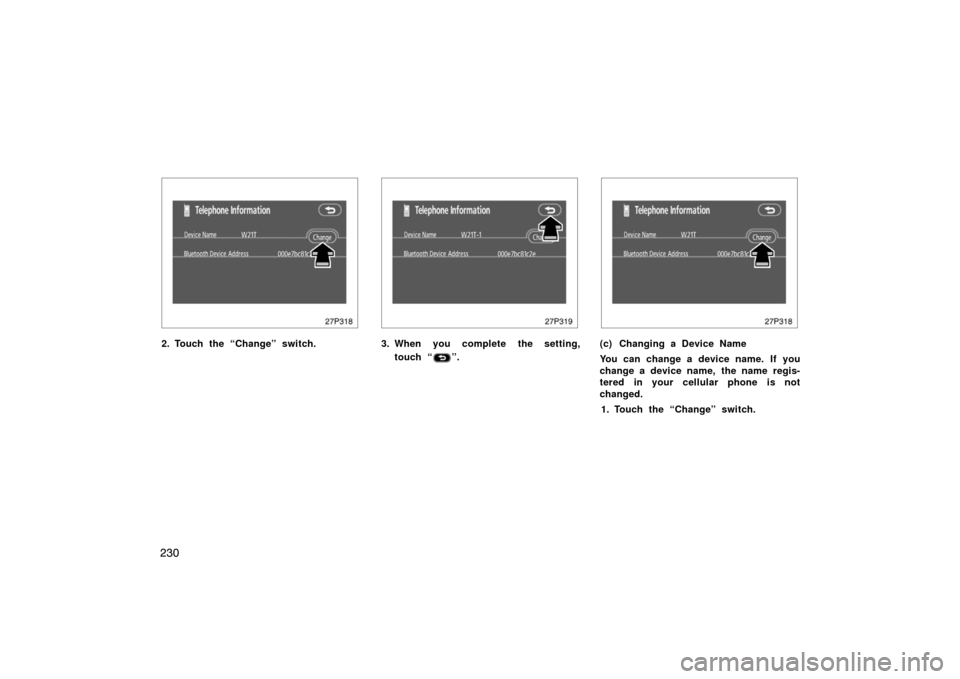
27p318
2. Touch the “Change” switch.
27p319
3. When you complete the setting,touch “
”.
27p318
(c) Changing a Device Name
You can change a device name. If you
change a device name, the name regis-
tered in your cellular phone is not
changed.
1. Touch the “Change” switch.