Page 240 of 470
2302007 4Runner from Aug. ’06 Prod. (OM35866U)
MP3/WMA player
Use this switch to select a desired file or
disc.
To select a desired file:
Quickly push and release the “�” or “ �”
side of the switch until the file you want
to listen to is set. If you want to return
to the beginning of the current file, push
the “ �” side of the switch once, quickly.
To select a desired disc:
Push and hold the “� ” or “�” side of the
switch until the disc you want to listen to
is set.
Vehicles with rear seat entertainment sys-
tem—
While the DVD player is in operation, the
chapter or track can be changed by push-
ing the “ �” or “ �” side of the switch.
3. “MODE” switch
Push the “MODE” switch to select an au-
dio mode. Each push changes the mode
sequentially if the desired mode is ready
to use.
To turn the audio system on, push the
“MODE” switch.
To turn the audio system off, push and
hold the “MODE” switch until the system
turns off.
CY17076
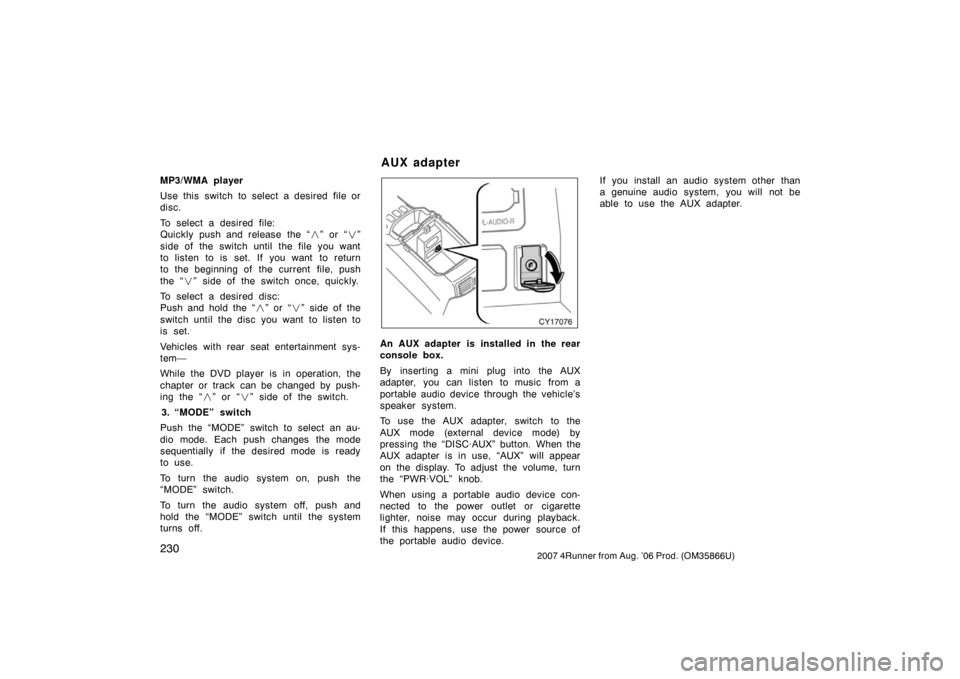
An AUX adapter is installed in the rear
console box.
By inserting a mini plug into the AUX
adapter, you can listen to music from a
portable audio device through the vehicle’s
speaker system.
To use the AUX adapter, switch to the
AUX mode (external device mode) by
pressing the “DISC·AUX” button. When the
AUX adapter is in use, “AUX” will appear
on the display. To adjust the volume, turn
the “PWR·VOL” knob.
When using a portable audio device con-
nected to the power outlet or cigarette
lighter, noise may occur during playback.
If this happens, use the power source of
the portable audio device. If you install an audio system other than
a genuine audio system, you will not be
able to use the AUX adapter.
AUX adapter
Page 243 of 470
2332007 4Runner from Aug. ’06 Prod. (OM35866U)
CY17059
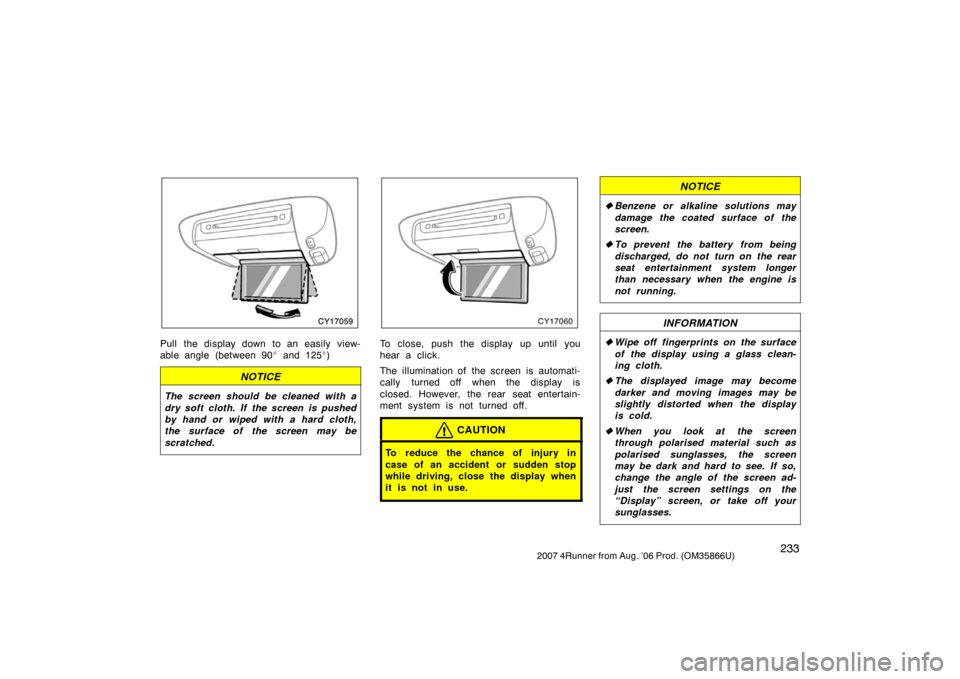
Pull the display down to an easily view-
able angle (between 90� and 125 �)
NOTICE
The screen should be cleaned with a
dry soft cloth. If the screen is pushed
by hand or wiped with a hard cloth,
the surface of the screen may be
scratched.
CY17060
To close, push the display up until you
hear a click.
The illumination of the screen is automati-
cally turned off when the display is
closed. However, the rear seat entertain-
ment system is not turned off.
CAUTION
To reduce the chance of injury in
case of an accident or sudden stop
while driving, close the display when
it is not in use.
NOTICE
� Benzene or alkaline solutions may
damage the coated surface of the
screen .
� To prevent the battery from being
discharged, do not turn on the rear
seat entertainment system longer
than necessary when the engine is
not running.
INFORMATION
�Wipe off fingerprints on the surface
of the display using a glass clean-
ing cloth.
� The displayed image may become
darker and moving images may be
slightly distorted when the display
is cold.
� When you look at the screen
through polarised material such as
polarised sunglasses, the screen
may be dark and hard to see. If so,
change the angle of the screen ad-
just the screen settings on the
“Display” screen, or take off your
sunglasses.
Page 244 of 470
2342007 4Runner from Aug. ’06 Prod. (OM35866U)
The rear seat entertainment system can
be operated with the rear seat entertain-
ment system controller and buttons on the
DVD player unit. The system cannot be
operated by touching the switches on the
screen directly.
CAUTION
Do not disassemble or modify the
controller. It may cause an accident,
fire or electric shock.
NOTICE
Keep the controller away from direct
sunlight, high heat and high humidity.
These conditions could cause the
case to deform or the battery to ex-
plode or leak.
BEFORE USING THE CONTROLLER
(for new vehicle owners)
A battery is already set in the control-
ler with an insulating sheet, which pre-
vents the battery from being dis-
charged. Before using the controller,
remove the insulating sheet according
to the following procedure.
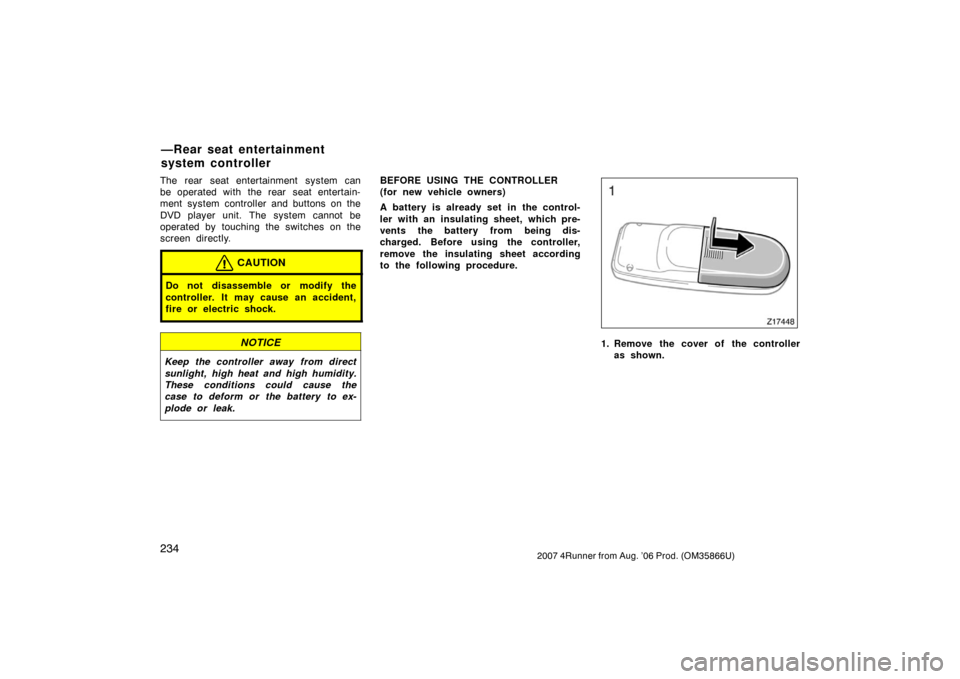
Z17448
1. Remove the cover of the controlleras shown.
—Rear seat entertainment
system controller
Page 245 of 470
2352007 4Runner from Aug. ’06 Prod. (OM35866U)
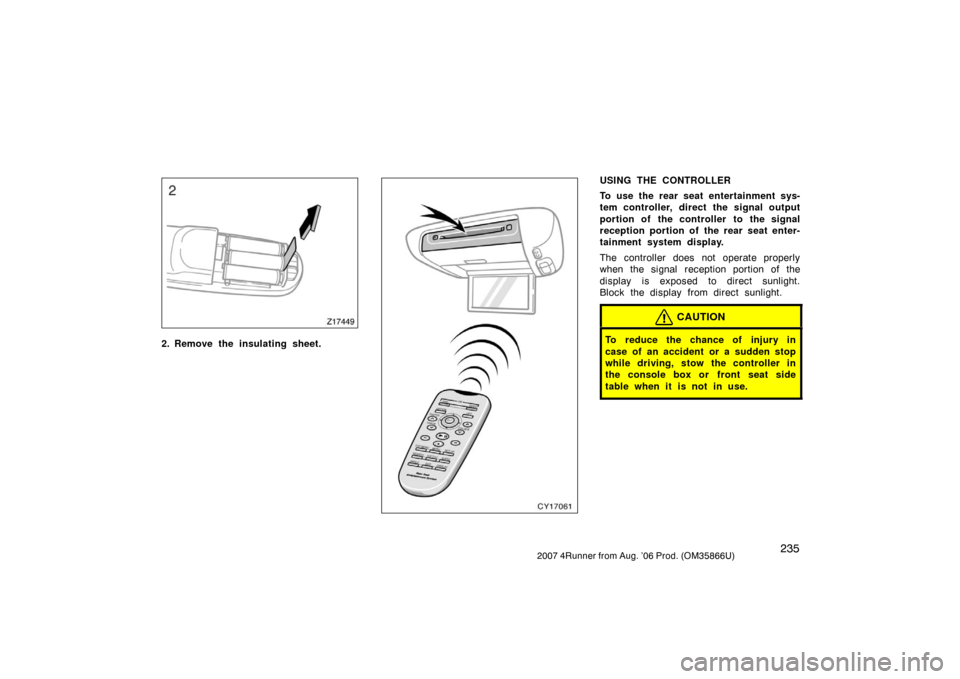
Z17449
2. Remove the insulating sheet.CY17061
USING THE CONTROLLER
To use the rear seat entertainment sys-
tem controller, direct the signal output
portion of the controller to the signal
reception portion of the rear seat enter-
tainment system display.
The controller does not operate properly
when the signal reception portion of the
display is exposed to direct sunlight.
Block the display from direct sunlight.
CAUTION
To reduce the chance of injury in
case of an accident or a sudden stop
while driving, stow the controller in
the console box or front seat side
table when it is not in use.
Page 252 of 470
2422007 4Runner from Aug. ’06 Prod. (OM35866U)
Z17443
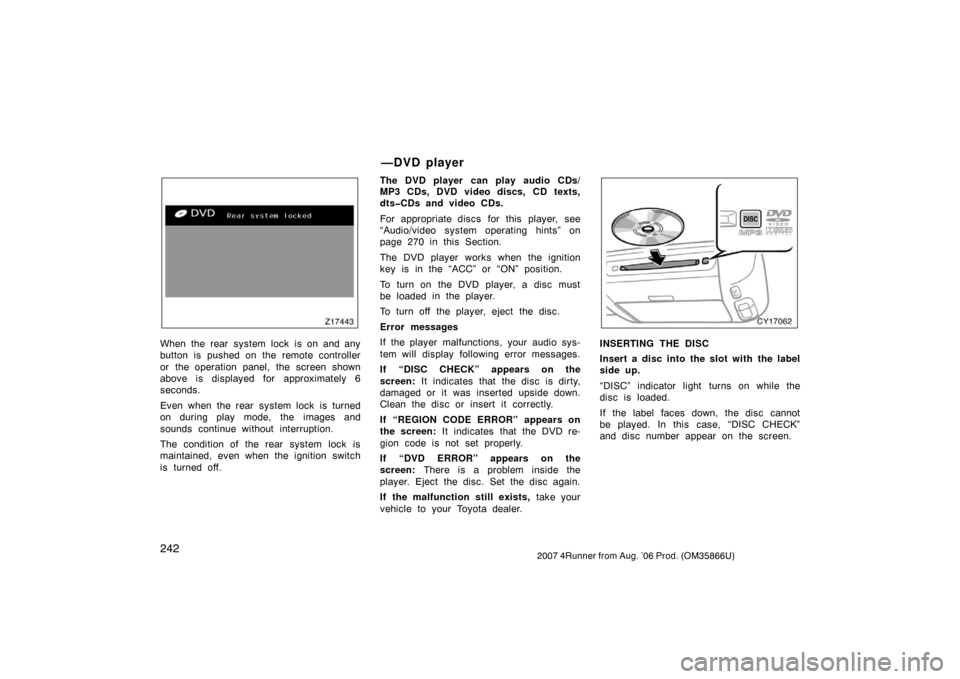
When the rear system lock is on and any
button is pushed on the remote controller
or the operation panel, the screen shown
above is displayed for approximately 6
seconds.
Even when the rear system lock is turned
on during play mode, the images and
sounds continue without interruption.
The condition of the rear system lock is
maintained, even when the ignition switch
is turned off.The DVD player can play audio CDs/
MP3 CDs, DVD video discs, CD texts,
dtsCDs and video CDs.
For appropriate discs for this player, see
“Audio/video system operating hints” on
page 270 in this Section.
The DVD player works when the ignition
key is in the “ACC” or “ON” position.
To turn on the DVD player, a disc must
be loaded in the player.
To turn off the player, eject the disc.
Error messages
If the player malfunctions, your audio sys-
tem will display following error messages.
If “DISC CHECK” appears on the
screen:
It indicates that the disc is dirty,
damaged or it was inserted upside down.
Clean the disc or insert it correctly.
If “REGION CODE ERROR” appears on
the screen: It indicates that the DVD re-
gion code is not set properly.
If “DVD ERROR” appears on the
screen: There is a problem inside the
player. Eject the disc. Set the disc again.
If the malfunction still exists, take your
vehicle to your Toyota dealer.
CY17062
INSERTING THE DISC
Insert a disc into the slot with the label
side up.
“DISC” indicator light turns on while the
disc is loaded.
If the label faces down, the disc cannot
be played. In this case, “DISC CHECK”
and disc number appear on the screen.
—DVD player
Page 254 of 470
2442007 4Runner from Aug. ’06 Prod. (OM35866U)
Z17461
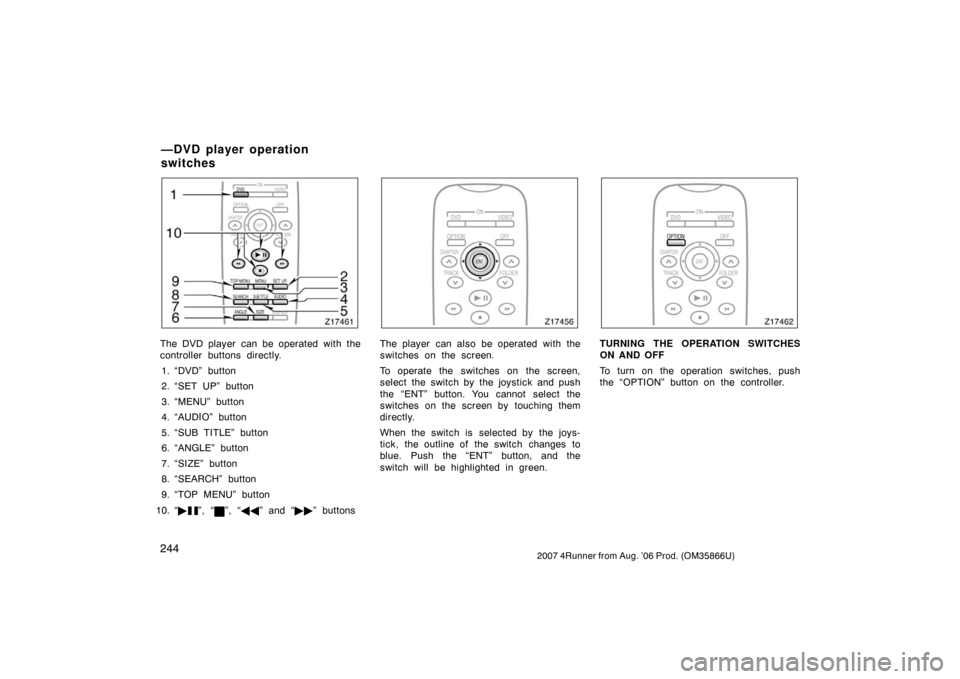
The DVD player can be operated with the
controller buttons directly.1. “DVD” button
2. “SET UP” button
3. “MENU” button
4. “AUDIO” button
5. “SUB TITLE” button
6. “ANGLE” button
7. “SIZE” button
8. “SEARCH” button
9. “TOP MENU” button
10. “ �
”, “”, “�� ” and “�� ” buttons
Z17456
The player can also be operated with the
switches on the screen.
To operate the switches on the screen,
select the switch by the joystick and push
the “ENT” button. You cannot select the
switches on the screen by touching them
directly.
When the switch is selected by the joys-
tick, the outline of the switch changes to
blue. Push the “ENT” button, and the
switch will be highlighted in green.
Z17462
TURNING THE OPERATION SWITCHES
ON AND OFF
To turn on the operation switches, push
the “OPTION” button on the controller.
—DVD player operation
switches
Page 275 of 470
2652007 4Runner from Aug. ’06 Prod. (OM35866U)
3. “SCAN” switchWhen the “SCAN” switch is pushed, all
the files in a current folder will be
scanned. Only the first 10 seconds of
each file are played sequentially until
all the files are scanned. When the
switch is pushed for at least 0.8 sec-
onds, the first 10 seconds of each ini-
tial file of all the folders in the disk will
be played sequentially until the entire
initial files are scanned. To stop scan-
ning, push the switch again.
4. “FLD
” switch
When the switch is pushed, the initial
file of the next folder will be played.
5. “
FLD” switch
When the switch is pushed, the initial
file of the previous folder will be
played.
6. “DETAIL” switch
When the switch is pushed while a
track is played, the detailed file infor-
mation of the track will be displayed. You can adjust the color, contrast, tone
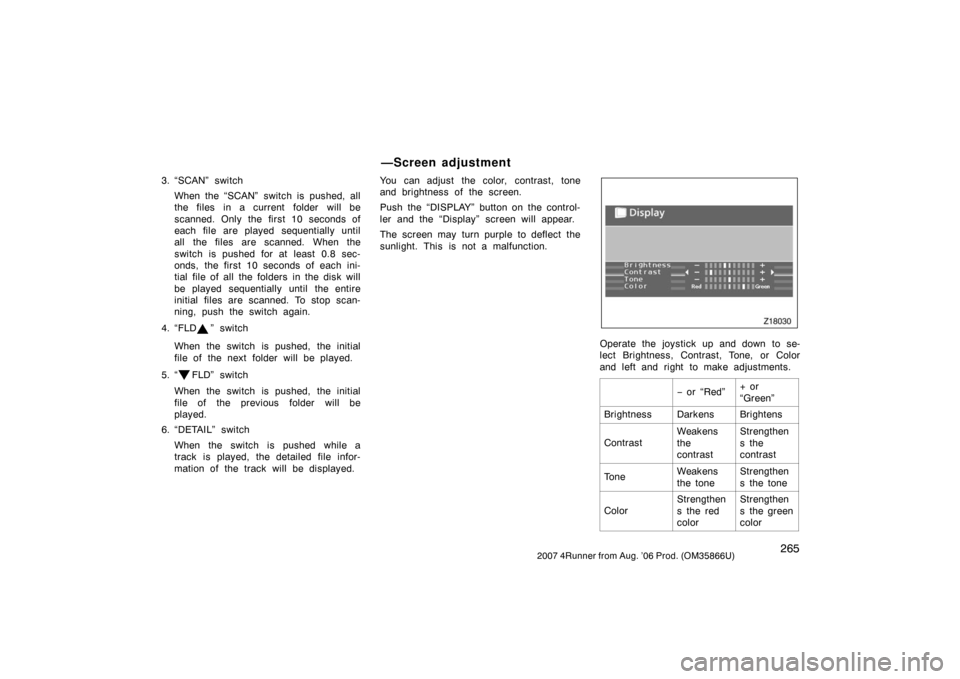
and brightness of the screen.
Push the “DISPLAY” button on the control-
ler and the “Display” screen will appear.
The screen may turn purple to deflect the
sunlight. This is not a malfunction.
Z18030
Operate the joystick up and down to se-
lect Brightness, Contrast, Tone, or Color
and left and right to make adjustments.
−
or “Red”+ or
“Green”
BrightnessDarkensBrightens
Contrast
Weakens
the
contrastStrengthen
s the
contrast
ToneWeakens
the toneStrengthen
s the tone
Color
Strengthen
s the red
colorStrengthen
s the green
color
—Screen adjustment
Page 279 of 470
2692007 4Runner from Aug. ’06 Prod. (OM35866U)
CY17073
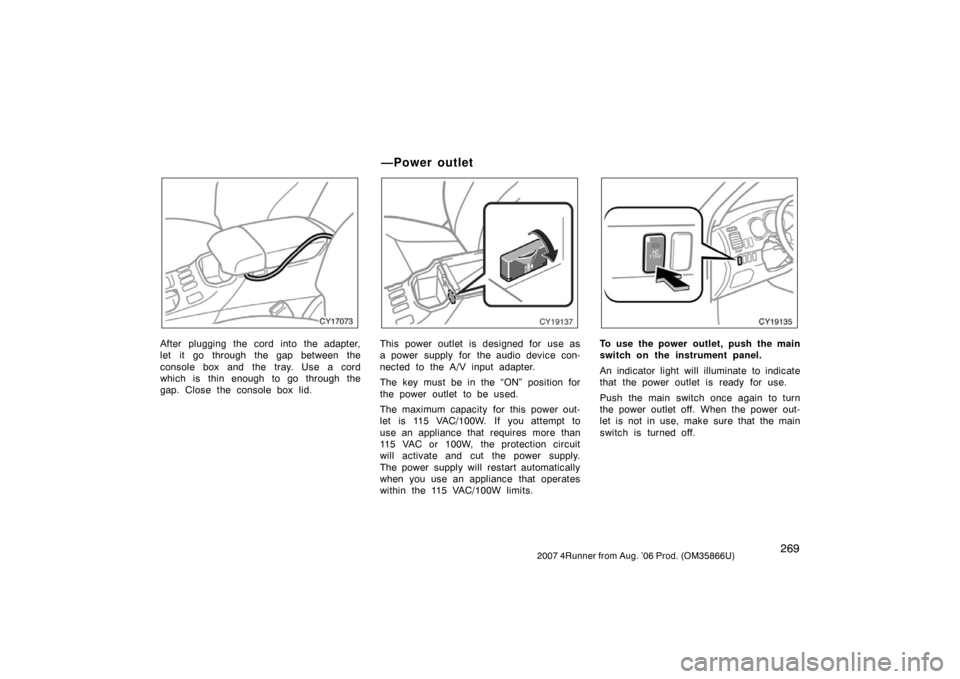
After plugging the cord into the adapter,
let it go through the gap between the
console box and the tray. Use a cord
which is thin enough to go through the
gap. Close the console box lid.
CY19137
This power outlet is designed for use as
a power supply for the audio device con-
nected to the A/V input adapter.
The key must be in the “ON” position for
the power outlet to be used.
The maximum capacity for this power out-
let is 115 VAC/100W. If you attempt to
use an appliance that requires more than
115 VAC or 100W, the protection circuit
will activate and cut the power supply.
The power supply will restart automatically
when you use an appliance that operates
within the 115 VAC/100W limits.
CY19135
To use the power outlet, push the main
switch on the instrument panel.
An indicator light will illuminate to indicate
that the power outlet is ready for use.
Push the main switch once again to turn
the power outlet off. When the power out-
let is not in use, make sure that the main
switch is turned off.
—Power outlet