Page 188 of 570

Cruise Control
{CAUTION:
Cruise control can be dangerous where
you cannot drive safely at a steady speed.
So, do not use your cruise control on
winding roads or in heavy traffic.
Cruise control can be dangerous on
slippery roads. On such roads, fast
changes in tire traction can cause
excessive wheel slip, and you could lose
control. Do not use cruise control on
slippery roads.If your vehicle has
cruise control, the lever
is located below the
windshield wiper control
on the right side of
the steering wheel.
QRES + (Resume/Accelerate):Push the lever
up to resume the cruise control speed, or to
accelerate when passing another vehicle.
J(CRUISE CONTROL) ON/OFFq:Press the
button on the end of the lever to turn the cruise
control on. Press it again to turn cruise control off.
RSET — (Set/Coast/Decelerate):Push the
lever down to set the cruise speed. If the cruise
speed is already set this position can be used
to coast or decelerate from a higher speed.
CANCEL
R:Pull the lever to cancel the cruise
control speed.
188
ProCarManuals.com
Page 189 of 570

Cruise control allows a speed of approximately
25 mph (40 km/h) or more to be maintained
without keeping your foot on the accelerator. This
is helpful on long trips. Cruise control does not
work at speeds below about 25 mph (40 km/h).
When the brakes are applied, the cruise control
shuts off.
If the vehicle is in cruise control and the Traction
Control System (TCS) begins to limit wheel
spin, the cruise control will automatically
disengage. SeeTraction Control System (TCS) on
page 365. When road conditions allow, the
cruise control can be used again.
Setting Cruise Control
{CAUTION:
If you leave your cruise control on when
you are not using cruise, you might hit a
button and go into cruise when you do not
want to. You could be startled and even
lose control. Keep the cruise control switch
off until you want to use cruise control.1. Push the button at the end of the cruise
control lever to turn the cruise control on.
2. Accelerate to the desired speed.
3. Push down on the cruise control lever and
release it. This will set the speed in cruise
control.
4. Remove your foot from the accelerator pedal.
This symbol will appear
on the instrument panel
cluster when the
cruise control is set.
This symbol will disappear when the brakes are
applied or the cruise control is cancelled. It will
reappear when the set cruise speed is resumed.
189
ProCarManuals.com
Page 212 of 570

Outlet Adjustment
k(Open):Turn the thumbwheel to this position
to open the air outlets.
l(Closed):Turn the thumbwheel to this position
to close the air outlets.
Use the louvers located on the air outlets to
change the direction of the airow.
Operation Tips
Clear away any ice, snow, or leaves from the
air inlets at the base of the vehicle that may
block the ow of air into your vehicle.
Use of non-GM approved hood deectors may
adversely affect the performance of the
system.
Keep the path under the front seats clear of
objects to help circulate the air inside of
your vehicle more effectively.
Rear Climate Control System
(Option A, Uplevel)
Your vehicle may have a rear climate control
system that allows the driver to adjust the
fan speed for the rear seating area. This system
works with the main climate control system in your
vehicle.
This lever is located below the main climate
control system on the instrument panel. Use this
lever to adjust the fan speed for the rear seat
passengers.
212
ProCarManuals.com
Page 270 of 570

Audio System(s)
Determine which radio your vehicle has and then
read the pages following to familiarize yourself
with its features.
Driving without distraction is a necessity for a
safer driving experience. SeeDefensive Driving on
page 358. By taking a few moments to read this
manual and get familiar with your vehicle’s
audio system, you can use it with less effort, as
well as take advantage of its features. While your
vehicle is parked, set up your audio system by
presetting your favorite radio stations, setting the
tone and adjusting the speakers. Then, when
driving conditions permit, you can tune to
your favorite stations using the presets and
steering wheel controls if the vehicle has them.{CAUTION:
This system provides you with a far
greater access to audio stations and song
listings. Giving extended attention to
entertainment tasks while driving can
cause a crash and you or others can be
injured or killed. Always keep your eyes
on the road and your mind on the
drive — avoid engaging in extended
searching while driving.
Keeping your mind on the drive is important for
safe driving. For more information, seeDefensive
Driving on page 358.
270
ProCarManuals.com
Page 271 of 570

Here are some ways in which you can help avoid
distraction while driving.
While your vehicle is parked:
Familiarize yourself with all of its controls.
Familiarize yourself with its operation.
Set up your audio system by presetting your
favorite radio stations, setting the tone, and
adjusting the speakers. Then, when driving
conditions permit, you can tune to your favorite
radio stations using the presets and steering
wheel controls if the vehicle has them.
Notice:Before adding any sound equipment
to your vehicle, such as an audio system,
CD player, CB radio, mobile telephone,
or two-way radio, make sure that it can be
added by checking with your retailer. Also,
check federal rules covering mobile radio and
telephone units. If sound equipment can be
added, it is very important to do it properly.
Added sound equipment may interfere with the
operation of your vehicle’s engine, radio, or
other systems, and even damage them.
Your vehicle’s systems may interfere with the
operation of sound equipment that has
been added.Notice:The chime signals related to safety
belts, parking brake, and other functions
of your vehicle operate through the radio/
entertainment system. If that equipment
is replaced or additional equipment is added to
your vehicle, the chimes may not work. Make
sure that replacement or additional equipment
is compatible with your vehicle before
installing it. SeeAccessories and Modifications
on page 412.
Your vehicle has a feature called Retained
Accessory Power (RAP). With RAP, the audio
system can be played even after the ignition
is turned off. SeeRetained Accessory Power
(RAP) on page 139for more information.
271
ProCarManuals.com
Page 330 of 570
Mobile Digital Media System
GM Mobile Digital Media System
Your vehicle may have the GM Mobile Digital
Media system which is made up of a digital media
player, a wireless game controller, the digital
media storage (DMS) cartridge, the USB 2.0 cradle
(docking station), and the PhatNoise™ Media
Manager software.
See the following information to learn more about
the components that make up the complete
Digital Media system.
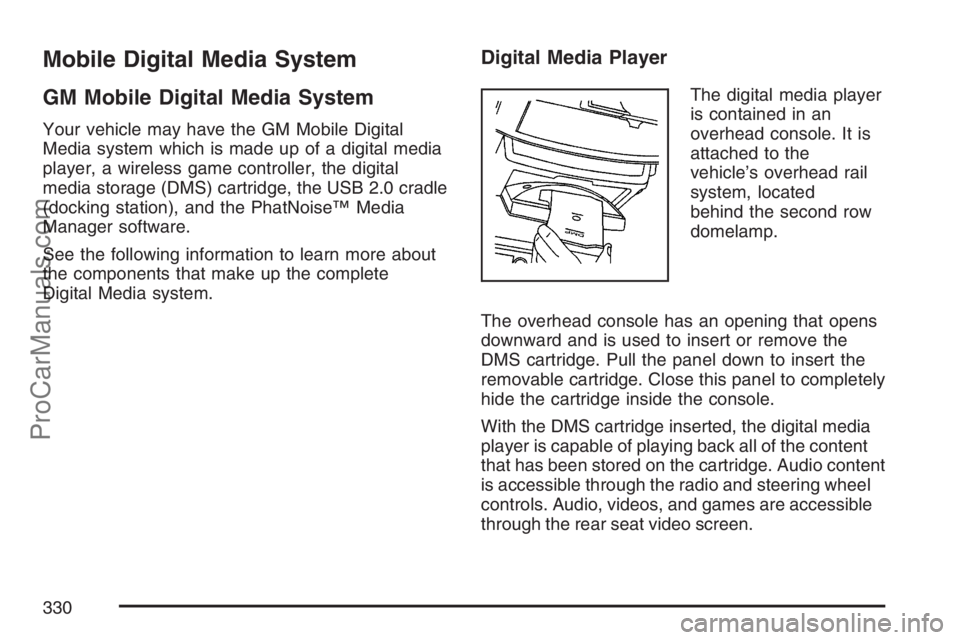
Digital Media Player
The digital media player
is contained in an
overhead console. It is
attached to the
vehicle’s overhead rail
system, located
behind the second row
domelamp.
The overhead console has an opening that opens
downward and is used to insert or remove the
DMS cartridge. Pull the panel down to insert the
removable cartridge. Close this panel to completely
hide the cartridge inside the console.
With the DMS cartridge inserted, the digital media
player is capable of playing back all of the content
that has been stored on the cartridge. Audio content
is accessible through the radio and steering wheel
controls. Audio, videos, and games are accessible
through the rear seat video screen.
330
ProCarManuals.com
Page 333 of 570
Quick Start Guide
Selecting Your Mobile Digital Media as the
Active Source
Your radio and rear seat entertainment system
communicate with the GM Mobile Digital
Media system, as one compact unit that can be
accessed by everyone seated inside the vehicle.
The GM Mobile Digital Media system can hold
thousands of songs, hours of videos, and
hundreds of games.
To help use this system, see the following “Quick
Start” information:
Front seat driver and passenger, use the radio
and steering wheel controls to access the
music collection with PhatNoise Voice Index™
technology. The preset buttons can be used
to select the browsing category. The Next,
Previous, and Seek buttons can be used to
browse within a browsing category. Browse the
music collection by artist, album, genre, or
custom playlist as the system uses the voice
mode to announce these selections. See
“Using the GM Mobile Digital Media System
for Front Seat Audio Entertainment” later
in this manual.
Rear seat passengers, use the wireless DVD
remote control to navigate the menu displayed
on the overhead DVD video screen, then
select to play music, videos, or games.
A dedicated game controller is included with
the Mobile Digital Media package. See
“Using the GM Mobile Digital Media System
for Rear Seat Entertainment” later in this
manual.
Your vehicle may have audio steering wheel
controls. Some audio controls can be adjusted at
the steering wheel. SeeAudio Steering Wheel
Controls on page 353in your owner manual.
If your vehicle has the OnStar
®/Mute audio
steering wheel control, read the following
instructions.
333
ProCarManuals.com
Page 335 of 570
The GM Mobile Digital Media is controlled through
the radio and steering wheel controls on your
vehicle’s audio system. This system functions
differently than a typical CD changer. The Digital
Media system allows you to switch between
different playback modes. These modes determine
the next song that will play. Using modes, you
can browse through playlists, artists, albums, and
genres while the system reads Voice Index™
names to you while you drive. By selecting Playlist
Mode, you can access the music collection in
the order placed onto the DMS cartridge, or you
can have the system sort the music by Album,
Artist, or Genre by selecting the corresponding
Modes.Starting the System for Front Seat
Entertainment
The GM Mobile Digital Media system is available
through the DMS mode of your radio. This
system will power on and off automatically and
resume where the system last stopped.
To begin playback, follow the instructions listed
below:
1. Insert the DMS cartridge into the GM Mobile
Digital Media player.
2. Turn on your radio and switch to the DMS
mode by pressing the CD/AUX button on
your radio.
3. Press any of the rst four pushbuttons (A-D)
to select different browse modes.
4. Press the left or right SEEK/SCAN arrow (E)
to navigate through the mode items.
5. Turn the tune knob (F) to navigate through
songs in a song list.
335
ProCarManuals.com