2007 PONTIAC TORRENT stop start
[x] Cancel search: stop startPage 267 of 490

Playing an MP3 (In Either the DVD or
CD Slot)
Insert a CD-R partway into either the top or
bottom slot, label side up. The player pulls it in,
and the CD-R should begin playing.
Depending on the format of the disc, a softkey
menu appears and allow navigation of the
disc. The menu reads left to right as RDM
(Randomize song play order), a Folder icon with
left and right arrows (to move up or down
through available folders), a PL tag if the disc has
a Playlist available, and a Music Navigator tag.
If a Playlist tag is shown, toggling this key brings
up a Folder softkey only or the menu as
previously described.
If the ignition or radio is turned off with a CD-R in
the player, it stays in the player. When the
ignition or radio is turned on, the CD-R starts to
play where it stopped, if it was the last selected
audio source.As each new track starts to play, the track number
and song title appears on the display.
The CD player can play the smaller 3 inch (8 cm)
single CD-Rs with an adapter ring. Full-size
CD-Rs and the smaller CD-Rs are loaded in the
same manner.
If playing a CD-R, the sound quality may be
reduced due to CD-R quality, the method of
recording, the quality of the music that has been
recorded, and the way the CD-R has been
handled. There may be an increase in skipping,
difficulty in nding tracks, and/or difficulty in loading
and ejecting. If these problems occur, check the
bottom surface of the CD. If the surface of the CD
is damaged, such as cracked, broken, or
scratched, the CD does not play properly. If the
surface of the CD is soiled, seeCare of Your CDs
and DVDs on page 288for more information.
267
Page 281 of 490

s(Play/Pause):Press this button to start
playing a DVD. Press this button while a DVD is
playing to pause it. Press it again to continue
playing the DVD.
When the DVD is playing, depending on the radio,
you may be able to do slow play by pressing
the pause button then pressing the fast forward
button. The DVD will continue playing in a
slow play mode. You may also, depending on the
radio, perform reverse slow play by pressing
the pause button and then pressing the fast
reverse button. To cancel slow play mode, press
the play/pause button.
t(Previous Track/Chapter):Press this button
to return to the start of the current track or
chapter. Press this button again to go to the
previous track or chapter. This button may
not work when the DVD is playing the copyright
information or the previews.
u(Next Track/Chapter):Press this button to go
to the beginning of the next chapter or track.
This button may not work when the DVD is playing
the copyright information or the previews.
r(Fast Reverse):Press this button to fast
reverse the DVD or CD. To stop fast reversing a
DVD video, press the play button. To stop
fast reversing a DVD audio or CD, release the fast
reverse button. This button may not work when
the DVD is playing the copyright information or the
previews.
[(Fast Forward):Press this button to fast
forward the DVD or CD. To stop fast forwarding a
DVD video, press the play button. To stop fast
forwarding a DVD audio or CD, release the
fast forward button. This button may not work
when the DVD is playing the copyright information
or the previews.
e(Audio):Press this button to change audio
tracks on DVDs that have this feature when
the DVD is playing. The format and content of this
function will vary for each disc.
{(Subtitles):Press this button to turn ON/OFF
subtitles and to move through subtitle options
when a DVD is playing. The format and content of
this function will vary for each disc.
281
Page 283 of 490
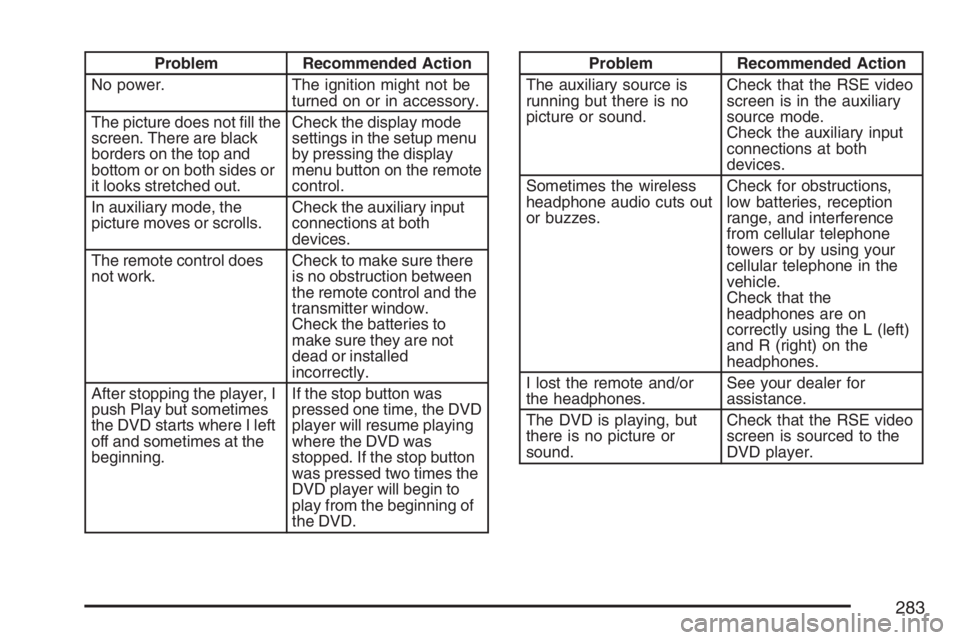
Problem Recommended Action
No power. The ignition might not be
turned on or in accessory.
The picture does not ll the
screen. There are black
borders on the top and
bottom or on both sides or
it looks stretched out.Check the display mode
settings in the setup menu
by pressing the display
menu button on the remote
control.
In auxiliary mode, the
picture moves or scrolls.Check the auxiliary input
connections at both
devices.
The remote control does
not work.Check to make sure there
is no obstruction between
the remote control and the
transmitter window.
Check the batteries to
make sure they are not
dead or installed
incorrectly.
After stopping the player, I
push Play but sometimes
the DVD starts where I left
off and sometimes at the
beginning.If the stop button was
pressed one time, the DVD
player will resume playing
where the DVD was
stopped. If the stop button
was pressed two times the
DVD player will begin to
play from the beginning of
the DVD.Problem Recommended Action
The auxiliary source is
running but there is no
picture or sound.Check that the RSE video
screen is in the auxiliary
source mode.
Check the auxiliary input
connections at both
devices.
Sometimes the wireless
headphone audio cuts out
or buzzes.Check for obstructions,
low batteries, reception
range, and interference
from cellular telephone
towers or by using your
cellular telephone in the
vehicle.
Check that the
headphones are on
correctly using the L (left)
and R (right) on the
headphones.
I lost the remote and/or
the headphones.See your dealer for
assistance.
The DVD is playing, but
there is no picture or
sound.Check that the RSE video
screen is sourced to the
DVD player.
283
Page 295 of 490

Avoid needless heavy braking. Some people drive
in spurts — heavy acceleration followed by
heavy braking — rather than keeping pace with
traffic. This is a mistake. The brakes may not have
time to cool between hard stops. The brakes
will wear out much faster if you do a lot of heavy
braking. If you keep pace with the traffic and
allow realistic following distances, you will
eliminate a lot of unnecessary braking. That means
better braking and longer brake life.
If your vehicle’s engine ever stops while you are
driving, brake normally but do not pump the
brakes. If you do, the pedal may get harder to
push down. If the engine stops, you will still have
some power brake assist. But you will use it
when you brake. Once the power assist is used
up, it may take longer to stop and the brake pedal
will be harder to push.
Adding non-GM accessories can affect your
vehicle’s performance. SeeAccessories and
Modications on page 339.Anti-Lock Brake System (ABS)
Your vehicle has the Anti-Lock Brake System
(ABS), an advanced electronic braking system
that will help prevent a braking skid.
When you start your engine and begin to drive
away, ABS will check itself. You may hear a
momentary motor or clicking noise while this test
is going on, and you may even notice that
your brake pedal moves a little. This is normal.
If there is a problem
with ABS, this warning
light will stay on.
SeeAnti-Lock Brake
System Warning
Light on page 181.
295
Page 304 of 490
Watch for traffic signs, pavement markings,
and lines. If you can see a sign up ahead
that might indicate a turn or an intersection,
delay your pass. A broken center line
usually indicates it is all right to pass, providing
the road ahead is clear. Never cross a solid
line on your side of the lane or a double solid
line, even if the road seems empty of
approaching traffic.
Do not get too close to the vehicle you want
to pass while you are awaiting an opportunity.
For one thing, following too closely reduces
your area of vision, especially if you are
following a larger vehicle. Also, you will not
have adequate space if the vehicle ahead
suddenly slows or stops. Keep back a
reasonable distance.
When it looks like a chance to pass is coming
up, start to accelerate but stay in the right
lane and do not get too close. Time your move
so you will be increasing speed as the time
comes to move into the other lane. If the way
is clear to pass, you will have a running
start that more than makes up for the distance
you would lose by dropping back. And ifsomething happens to cause you to cancel
your pass, you need only slow down and drop
back again and wait for another opportunity.
If other vehicles are lined up to pass a slow
vehicle, wait your turn. But take care that
someone is not trying to pass you as you pull
out to pass the slow vehicle. Remember to
glance over your shoulder and check the
blind spot.
Check your vehicle’s mirrors, glance over your
shoulder, and start your left lane change
signal before moving out of the right lane to
pass. When you are far enough ahead of
the passed vehicle to see its front in
your vehicle’s inside mirror, activate the right
lane change signal and move back into
the right lane. Remember that your vehicle’s
passenger side outside mirror is convex.
The vehicle you just passed may seem to be
farther away from you than it really is.
Try not to pass more than one vehicle at a
time on two-lane roads. Reconsider before
passing the next vehicle.
304
Page 308 of 490
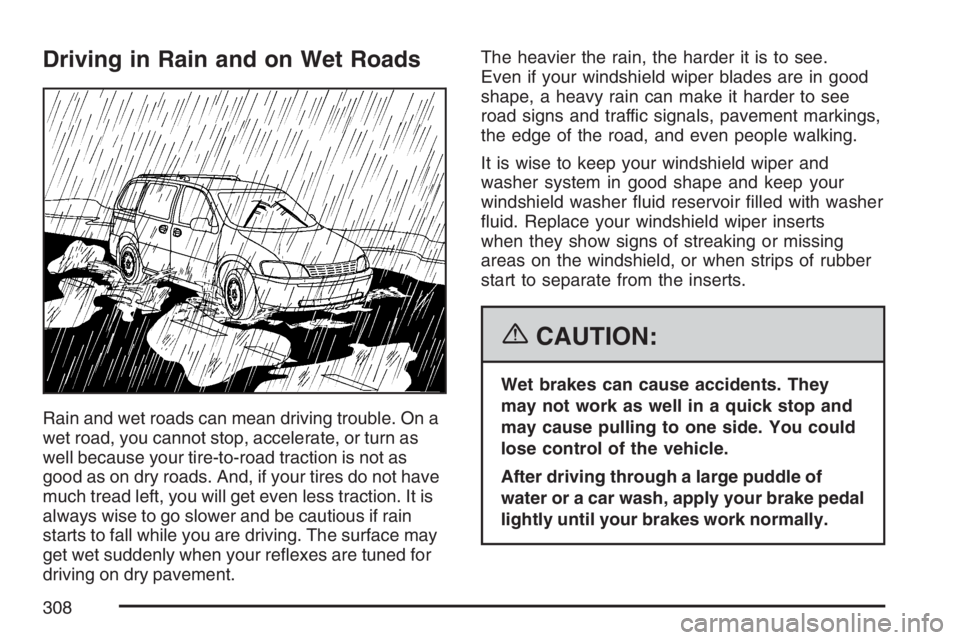
Driving in Rain and on Wet Roads
Rain and wet roads can mean driving trouble. On a
wet road, you cannot stop, accelerate, or turn as
well because your tire-to-road traction is not as
good as on dry roads. And, if your tires do not have
much tread left, you will get even less traction. It is
always wise to go slower and be cautious if rain
starts to fall while you are driving. The surface may
get wet suddenly when your reexes are tuned for
driving on dry pavement.The heavier the rain, the harder it is to see.
Even if your windshield wiper blades are in good
shape, a heavy rain can make it harder to see
road signs and traffic signals, pavement markings,
the edge of the road, and even people walking.
It is wise to keep your windshield wiper and
washer system in good shape and keep your
windshield washer uid reservoir lled with washer
uid. Replace your windshield wiper inserts
when they show signs of streaking or missing
areas on the windshield, or when strips of rubber
start to separate from the inserts.
{CAUTION:
Wet brakes can cause accidents. They
may not work as well in a quick stop and
may cause pulling to one side. You could
lose control of the vehicle.
After driving through a large puddle of
water or a car wash, apply your brake pedal
lightly until your brakes work normally.
308
Page 313 of 490

Once you are moving on the freeway, make
certain you allow a reasonable following distance.
Expect to move slightly slower at night.
When you want to leave the freeway, move to the
proper lane well in advance. If you miss your
exit, do not, under any circumstances, stop and
back up. Drive on to the next exit.
The exit ramp can be curved, sometimes quite
sharply. The exit speed is usually posted.
Reduce your speed according to your
speedometer, not to your sense of motion.
After driving for any distance at higher speeds,
you may tend to think you are going slower than
you actually are.
Before Leaving on a Long Trip
Make sure you are ready. Try to be well rested.
If you must start when you are not fresh — such as
after a day’s work — do not plan to make too
many miles that rst part of the journey. Wear
comfortable clothing and shoes you can easily
drive in.Is your vehicle ready for a long trip? If you keep it
serviced and maintained, it is ready to go. If it needs
service, have it done before starting out. Of course,
you will nd experienced and able service experts
in GM dealerships all across North America. They
will be ready and willing to help if you need it.
Here are some things you can check before a trip:
Windshield Washer Fluid:Is the reservoir
full? Are all windows clean inside and outside?
Wiper Blades:Are they in good shape?
Fuel, Engine Oil, Other Fluids:Have you
checked all levels?
Lamps:Are they all working? Are the lenses
clean?
Tires:They are vitally important to a safe,
trouble-free trip. Is the tread good enough
for long-distance driving? Are the tires
all inated to the recommended pressure?
Weather Forecasts:What is the weather
outlook along your route? Should you
delay your trip a short time to avoid a major
storm system?
Maps:Do you have up-to-date maps?
313
Page 334 of 490
Turn Signals When Towing a Trailer
When you tow a trailer, your vehicle has to have
extra wiring.
The arrows on your instrument panel will ash
whenever you signal a turn or lane change.
Properly hooked up, the trailer lamps will also
ash, telling other drivers you are about to turn,
change lanes or stop.
When towing a trailer, the arrows on your
instrument panel will ash for turns even if the bulbs
on the trailer are burned out. Thus, you may think
drivers behind you are seeing your signal when
they are not. It’s important to check occasionally to
be sure the trailer bulbs are still working.
Driving On Grades
Reduce speed and shift to a lower gear before
you start down a long or steep downgrade. If you
do not shift down, you might have to use your
brakes so much that they would get hot and
no longer work well.If you are towing a trailer that weighs more than
1,000 lbs (450 kg), drive in INTERMEDIATE (I)
instead of DRIVE (D) or, as you need to, a lower
gear. This will minimize heat build-up and
extend the life of your transaxle.
Parking on Hills
{CAUTION:
You really should not park your vehicle,
with a trailer attached, on a hill. If
something goes wrong, your rig could
start to move. People can be injured, and
both your vehicle and the trailer can be
damaged.
But if you ever have to park your rig on a hill, do
the following:
1. Apply your regular brakes, but do not shift into
PARK (P) yet.
2. Have someone place chocks under the trailer
wheels.
334