2007 NISSAN QUEST change time
[x] Cancel search: change timePage 219 of 384

Compact disc (CD) player operation
(Type A)
Turn the ignition key to the ACC or ON position
and insert the compact disc into the slot with the
label side facing up. The compact disc will be
guided automatically into the slot and start play-
ing.
If the radio is already operating, it will automati-
cally turn off and the compact disc will play.
If the system has been turned off while the com-
pact disc was playing, pressing the
POWER/VOLUME control knob will start the
compact disc.
CD/DVD button:
When the CD/DVD button is pressed with the
system off and the compact disc loaded, the
system will turn on and the compact disc will start
to play.
When the CD/DVD button is pressed with the
compact disc loaded but the radio playing, the
radio will automatically be turned off and the
compact disc will start to play.
SEEK/TRACK (Fast For-
ward and Rewind):
When the SEEK/TRACK button is pressed for
more than 1.5 seconds,
(fast forward)or
(rewind) while the compact disc is be-
ing played, the compact disc will play while fast
forwarding or rewinding. When the button is re-
leased, the compact disc will return to normal
play speed.
SEEK/TRACK:
When the
button is pressed for less than
1.5 seconds while a compact disc is playing, the
track being played returns to its beginning. Press
several times to skip back through tracks. The
compact disc will go back the number of times
the button is pressed.
When the
button is pressed for less than
1.5 seconds while a compact disc is playing, the
next track will start to play from its beginning.
Press several times to skip through tracks. The
compact disc will advance the number of times
the button is pressed. (When the last track on the
compact disc is skipped through, the first track
will be played.)
When the
orbutton is pressed for
more than 1.5 seconds, the CD will fast forward
or rewind.
SCAN/RPT (Repeat, Type A and B):
When the SCAN/RPT button is pressed while
the compact disc is being played, the play pattern
can be changed as follows:1 DISC RPT!1 TRACK RPT!1 DISC RDM
1 DISC RPT: The disc that is currently playing will
be repeated
1 TRACK RPT: The track that is currently playing
will be repeated.
1 DISC RDM: Tracks from the disc that is cur-
rently playing will be played randomly.
REAR CTRL:
Pressing the REAR CTRL button turns the rear
seat audio controller on. REAR CTRL ON will
display. Pressing it again will turn the rear seat
audio controller off. REAR CTRL OFF will display.
If the vehicle is not equipped with a rear seat
audio controller, the display will show “REAR AV
N/A”.
AUX (Auxiliary) button:
The AUX jack is located on the CD player. The
AUX audio input jack accepts any standard ana-
log audio input such as from a portable cassette
tape/CD player, MP3 player or laptop computers.
Press the AUX button to play a compatible device
when it is plugged into the AUX jack.
Display screen, heater, air conditioner, audio and phone systems4-55
ZREVIEW COPYÐ2007 Quest(van)
Owners ManualÐUSA_English(nna)
02/27/06Ðdebbie
X
Page 220 of 384

(SPEAKER CONTROL) button:
Press this
button to turn the rear speakers
off and headphones on. Press thisbutton
again to turn rear seat speakers back on and
headphones off.
CD EJECT:
When the
button is pressed with the com-
pact disc loaded, the compact disc will be
ejected.
When
button is pressed while the com-
pact disc is being played, the compact disc will
eject and the system will turn off.
CD IN indicator:
CD IN indicator appears on the display when the
CD is loaded with the system on.
Compact disc (CD) changer operation
(Type B and C)
Turn the ignition key to the ACC or ON position.
To insert the disc, first press the LOAD button.
Insert the compact disc into the slot with the label
side facing up. The compact disc will be guided
automatically into the slot and start playing.
If the radio is already operating, it will automati-
cally turn off and the compact disc will play.If the system has been turned off while the com-
pact disc was playing, pressing the
POWER/VOLUME control knob will start the
compact disc.
CD LOAD button:
To insert a CD in the CD changer, press
the
load button for less than 1.5 seconds.
Select the loading slot by pressing the CD insert
select button (1 – 6) , then insert the CD.
To insert 6 CDs to the CD changer, press
the
load button for more than 1.5 seconds.
The slot numbers (1 – 6) will illuminate on the
display when CDs are loaded into the changer.
CD/DVD button:
When the CD/DVD button is pressed with the
system off and the compact disc loaded, the
system will turn on and the compact disc will start
to play.
When the CD/DVD button is pressed with the
compact disc loaded with the radio playing, the
radio will automatically be turned off and the
compact disc will start to play.
SEEK/TRACK (Fast For-
ward and Rewind):
When the SEEK/TRACK button is pressed for
more than 1.5 seconds,
(fast forward)or
(rewind) while the compact disc is be-
ing played, the compact disc will play while fast
forwarding or rewinding . When the button is
released, the compact disc will return to normal
play speed.
SEEK/TRACK:
When the
button is pressed for less than
1.5 seconds while a compact disc is playing, the
track being played returns to its beginning. Press
several times to skip back through tracks. The
compact disc will go back the number of times
the button is pressed.
When the
button is pressed for less than
1.5 seconds while the compact disc is playing,
the next track will start to play from its beginning.
Press several times to skip through tracks. The
compact disc will advance the number of times
the button is pressed. (When the last track on the
compact disc is skipped through, the first track
will be played.)
When the
orbutton is pressed for
more than 1.5 seconds, the CD will fast forward
or rewind.
TUNE/FLDR•CAT
(Folder•Catalog):
While playing an MP3, press the
TUNE/FLDR•CAT button
orto scan
through available folders.
4-56Display screen, heater, air conditioner, audio and phone systems
ZREVIEW COPYÐ2007 Quest(van)
Owners ManualÐUSA_English(nna)
02/27/06Ðdebbie
X
Page 223 of 384

1. Volume control switch
2. Phone operation switch
3. POWER on and MODE select switch
4. Tuning switch
STEERING WHEEL SWITCH FOR
AUDIO CONTROL
The audio system can be operated using the
controls on the steering wheel.
POWER on/off switch
With the ignition key turned to the ACC or ON
position, push the POWER switch to turn the
audio system on or off.If you have the Type B switch, with the ignition key
turned to the ACC or ON position push the
MODE switch to turn the audio system on.
MODE select switch
Push the MODE select switch to change the
mode in the following sequence: PRESET A!
PRESET B!PRESET C!CD!DVD (if so
equipped)!AUX.
While in one of the preset radio station banks (A,
B or C) , use the tuning switch
orto
select one of the preset radio stations (1-6) .
Volume control switch
Push the volume control switch up or down to
increase or decrease the volume.
Tuning
Memory change (radio):
While in one of the preset radio station banks (A,
B or C) , push the tuning switch
orfor less than 1.5 seconds to change to the next
preset station in memory.
Seek tuning (radio):
Push the tuning switch
orfor more
than 1.5 seconds to seek the next or previous
radio station.Next/Previous track (CD):
Push the tuning switch
orfor less
than 1.5 seconds to return to the beginning of the
present track or skip to the next track. Push
several times to skip back or skip through tracks.
This system searches for the blank intervals be-
tween selections. If there is a blank interval within
1 program or there is no interval between pro-
grams, the system may not stop in the desired or
expected location.
Change disc (CD) (if so equipped):
Push the SEEK tuning switch
orfor
more than 1.5 seconds to change the playing
disc up or down.
Type B
WHA0637
Display screen, heater, air conditioner, audio and phone systems4-59
ZREVIEW COPYÐ2007 Quest(van)
Owners ManualÐUSA_English(nna)
02/27/06Ðdebbie
X
Page 230 of 384
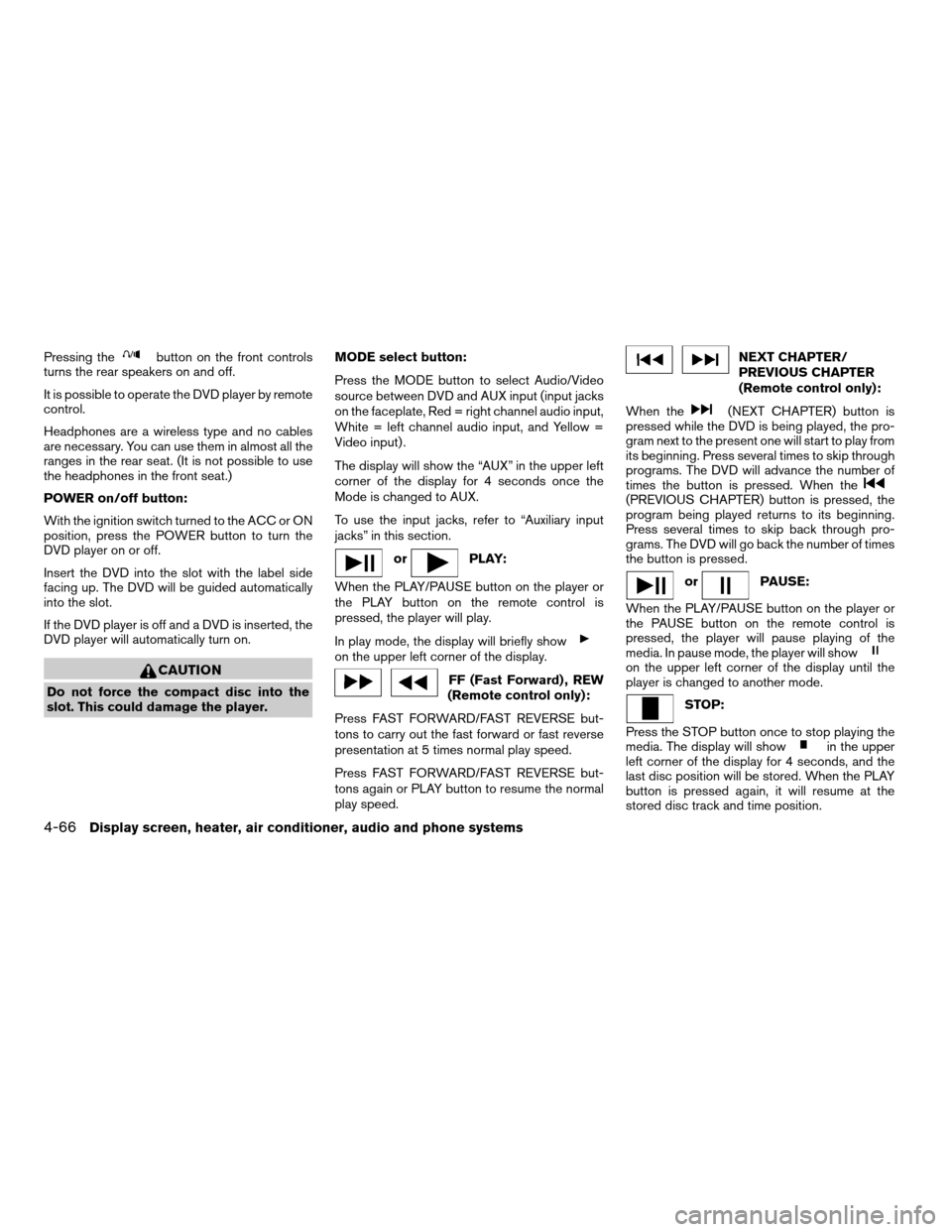
Pressing thebutton on the front controls
turns the rear speakers on and off.
It is possible to operate the DVD player by remote
control.
Headphones are a wireless type and no cables
are necessary. You can use them in almost all the
ranges in the rear seat. (It is not possible to use
the headphones in the front seat.)
POWER on/off button:
With the ignition switch turned to the ACC or ON
position, press the POWER button to turn the
DVD player on or off.
Insert the DVD into the slot with the label side
facing up. The DVD will be guided automatically
into the slot.
If the DVD player is off and a DVD is inserted, the
DVD player will automatically turn on.
CAUTION
Do not force the compact disc into the
slot. This could damage the player.MODE select button:
Press the MODE button to select Audio/Video
source between DVD and AUX input (input jacks
on the faceplate, Red = right channel audio input,
White = left channel audio input, and Yellow =
Video input) .
The display will show the “AUX” in the upper left
corner of the display for 4 seconds once the
Mode is changed to AUX.
To use the input jacks, refer to “Auxiliary input
jacks” in this section.
orPLAY:
When the PLAY/PAUSE button on the player or
the PLAY button on the remote control is
pressed, the player will play.
In play mode, the display will briefly show
on the upper left corner of the display.
FF (Fast Forward) , REW
(Remote control only):
Press FAST FORWARD/FAST REVERSE but-
tons to carry out the fast forward or fast reverse
presentation at 5 times normal play speed.
Press FAST FORWARD/FAST REVERSE but-
tons again or PLAY button to resume the normal
play speed.
NEXT CHAPTER/
PREVIOUS CHAPTER
(Remote control only):
When the
(NEXT CHAPTER) button is
pressed while the DVD is being played, the pro-
gram next to the present one will start to play from
its beginning. Press several times to skip through
programs. The DVD will advance the number of
times the button is pressed. When the
(PREVIOUS CHAPTER) button is pressed, the
program being played returns to its beginning.
Press several times to skip back through pro-
grams. The DVD will go back the number of times
the button is pressed.
orPAUSE:
When the PLAY/PAUSE button on the player or
the PAUSE button on the remote control is
pressed, the player will pause playing of the
media. In pause mode, the player will show
on the upper left corner of the display until the
player is changed to another mode.
STOP:
Press the STOP button once to stop playing the
media. The display will show
in the upper
left corner of the display for 4 seconds, and the
last disc position will be stored. When the PLAY
button is pressed again, it will resume at the
stored disc track and time position.
4-66Display screen, heater, air conditioner, audio and phone systems
ZREVIEW COPYÐ2007 Quest(van)
Owners ManualÐUSA_English(nna)
02/27/06Ðdebbie
X
Page 235 of 384

Remote control and headphones
battery replacement
Replace the battery as follows:
1. Open the lid.
2. Replace batteries with new ones.
cSize AA (remote control)
cSize AAA (headphones)
Make sure that the
andends on
the batteries match the markings inside the
compartment.
3. Close the lid securely.If the battery is removed for any reason
other than replacement, close the lid se-
curely.
cIf you will not be using the remote control for
long periods of time, remove the batteries.
cReplacement of the batteries is needed
when the remote control only functions at
extremely close distances to the DVD player
or not at all.
cBe careful not to touch the battery terminal.
cAn improperly disposed battery can harm
the environment. Always confirm local regu-
lations for battery disposal.cWhen changing batteries, do not let dust or
oil get on the remote control and head-
phones.
FCC Notice:
Changes or modifications not expressly ap-
proved by the party responsible for compli-
ance could void the user’s authority to op-
erate the equipment. This device complies
with Part 15 of the FCC Rules and RSS-210
of Industry Canada. Operation is subject to
the following two conditions: (1) This de-
vice may not cause harmful interference,
and (2) this device must accept any inter-
ference received, including interference
that may cause undesired operation of the
device.
LHA0318SAA0723
Display screen, heater, air conditioner, audio and phone systems4-71
ZREVIEW COPYÐ2007 Quest(van)
Owners ManualÐUSA_English(nna)
02/27/06Ðdebbie
X
Page 245 of 384

To delete entries from the phone book, say a
name or “All entries” when prompted by the sys-
tem.
The system acknowledges the command and
asks you to confirm the deletion.
To delete the current redial number or call back
number, say “redial number” or “call back num-
ber” when prompted by the system.
If a redial number or a call back number exists, the
system deletes them without asking for confirma-
tion.
If there is no number for the entry you are trying to
delete, the system says so and ends the VR
session.
“List names”
sD
Use the List Names command to hear all the
names and locations in the phone book.
The system recites the phone book entries but
does not include the actual phone numbers.
When the playback of the list is complete the
system ends the VR session.
You can stop the playback of the list at any time
by pressing the
button on the steering
wheel. The system ends the VR session.
“Memo pad”
Main Menu
“Memo Pad”
“Record”
sA
“Play”sB
“Delete”sC
The Memo Pad records a maximum of 3 voice
memos, each up to 20 seconds long.
“Record”
sA
The system announces “Recording” and a tone
sounds signaling you to begin.
Speak the information you wish to record clearly.
When you are done, press the
orbutton on the steering wheel.
A tone sounds and the system announces
“Memo recorded.” Another tone sounds to end
the VR session.
If the memo pad is full, the system asks if you wish
to record over the oldest memo.
“Play”
sB
The system plays back all the memos in the order
of newest to oldest. The system ends the VR
session.If there are no memos recorded, the system an-
nounces “No messages to play.” The system
ends the VR session.
“Delete”
sC
The Delete command erases all memos. The
system asks you to confirm this action before
deleting all memos.
“Setup”
Main Menu
“Setup”
“Pair Phone”
sA
“List Phone”sB
“Select Phone”sC
“Change Priority”sD
“Delete Phone”sE
“Select Ringtone”sF
“Bluetooth Off”sG
Use the Setup command to change options as-
sociated with the BluetoothTHands-Free Phone
System.
“Pair phone”
sA
Use the Pair Phone command to pair a phone to
the BluetoothTHands-Free Phone System.
Display screen, heater, air conditioner, audio and phone systems4-81
ZREVIEW COPYÐ2007 Quest(van)
Owners ManualÐUSA_English(nna)
02/27/06Ðdebbie
X
Page 246 of 384

NOTE:
The pairing procedure must be performed
when the vehicle is stationary. If the vehicle
starts moving during the procedure, the
procedure will be cancelled. Also, see
“Pairing procedure” earlier in this section
for additional information.
Up to 5 phones can be paired. If you try to pair a
sixth phone, the system announces that you must
first delete one phone or replace an existing
phone.
If you try to pair a phone that has already been
paired to your vehicle’s system, the system an-
nounces the name the phone is already using.
The pairing procedure will then be cancelled.
When prompted by the system, choose from the
following commands:
c“New phone” — Refer to “Pairing a phone”
earlier in this section.
c“Replace phone” — The system announces
the names of the phones already paired and
asks which you would like to replace.
Once you say the name of the phone you
wish to replace, the pairing procedure will
begin. Refer to “Pairing procedure” earlier in
this section.
c“List phone” – See the description below.“List phone”sB
Use the List Phone command to hear the names
of the phones currently paired. If no phones are
paired, the system announces, “No paired
phones to list.” The system then ends the VR
session.
“Select phone”
sC
Use the Select Phone command to select a
phone of lesser priority when two or more phones
paired with BluetoothTHands-Free Phone Sys-
tem are in the vehicle at the same time.
The system asks you to name the phone and
confirm the selection.
Once the selection is confirmed, the selected
phone remains active until the ignition switch is
turned OFF or you select a new phone.
“Change priority”
sD
Use the Change Priority command to change the
priority level of the active phone.
The priority level determines which phone is ac-
tive when more than one paired BluetoothT
phone is in the vehicle.
The system states the priority level of the active
phone and asks for a new priority level (1, 2, 3, 4,
5) .If the new priority level is already being used for
another phone, the two phones will swap priority
levels.
For example, if the current priority levels are:
Priority Level 1 = Phone A
Priority Level 2 = Phone B
Priority Level 3 = Phone C
and you change the priority level of Phone C to
Level 1, then:
Priority Level 1 = Phone C
Priority Level 2 = Phone B
Priority Level 3 = Phone A
“Delete phone”
sE
Use the Delete Phone command to delete a
specific phone or all phones from the BluetoothT
Hands-Free Phone System.
The system announces the names of the phones
already paired with the system and their priority
level. The system then gives you the option to
delete a specific phone, all phones or listen to the
list again.
Once you chose to delete a phone or all phones,
the system asks you to confirm this action.
4-82Display screen, heater, air conditioner, audio and phone systems
ZREVIEW COPYÐ2007 Quest(van)
Owners ManualÐUSA_English(nna)
02/27/06Ðdebbie
X
Page 252 of 384
WARNING
cDo not leave children or adults who
would normally require the assistance
of others alone in your vehicle. Pets
should also not be left alone. They
could accidentally injure themselves or
others through inadvertent operation of
the vehicle. Also, on hot, sunny days,
temperatures in a closed vehicle could
quickly become high enough to cause
severe or possibly fatal injuries to
people or animals.
cProperly secure all cargo with ropes or
straps to help prevent it from sliding or
shifting. Do not place cargo higher than
the seatbacks. In a sudden stop or col-
lision, unsecured cargo could cause
personal injury.
EXHAUST GAS (carbon monoxide)
WARNING
cDo not breathe exhaust gases; they
contain colorless and odorless carbon
monoxide. Carbon monoxide is danger-
ous. It can cause unconsciousness or
death.cIf you suspect that exhaust fumes are
entering the vehicle, drive with all win-
dows fully open, and have the vehicle
inspected immediately.
cDo not run the engine in closed spaces
such as a garage.
cDo not park the vehicle with the engine
running for any extended length of time.
cKeep the lift gate and rear vent windows
closed while driving, otherwise exhaust
gases could be drawn into the passen-
ger compartment. If you must drive with
the lift gate or rear vent windows open,
follow these precautions:
1. Open all the windows.
2. Set the
air recirculation but-
ton to off and the fan control dial to
high to circulate the air.
cIf electrical wiring or other cable con-
nections must pass to a trailer through
the seal on the lift gate or the body,
follow the manufacturer’s recommen-
dation to prevent carbon monoxide en-
try into the vehicle.
cThe exhaust system and body should be
inspected by a qualified mechanic
whenever:a. The vehicle is raised for service.
b. You suspect that exhaust fumes are
entering into the passenger
compartment.
c. You notice a change in the sound of
the exhaust system.
d. You have had an accident involving
damage to the exhaust system, un-
derbody, or rear of the vehicle.
THREE-WAY CATALYST
The three-way catalyst is an emission control
device installed in the exhaust system. Exhaust
gases in the three-way catalyst are burned at
high temperatures to help reduce pollutants.
WARNING
cThe exhaust gas and the exhaust sys-
tem are very hot. Keep people, animals
or flammable materials away from the
exhaust system components.
cDo not stop or park the vehicle over
flammable materials such as dry grass,
waste paper or rags. They may ignite
and cause a fire.
PRECAUTIONS WHEN STARTING
AND DRIVING
5-2Starting and driving
ZREVIEW COPYÐ2007 Quest(van)
Owners ManualÐUSA_English(nna)
02/27/06Ðdebbie
X