2007 NISSAN ALTIMA change time
[x] Cancel search: change timePage 182 of 344

FM/AM/SAT RADIO WITH
COMPACT DISC (CD) CHANGER (if
so equipped)
No satellite radio reception is available unless
there is an active XMTsatellite radio service
subscription. Satellite radio is not available in
Alaska, Hawaii and Guam. If satellite radio is not
operational then pressing the RADIO button will
switch between FM and AM bands.
Reference symbols:
RADIO button — This is a button on the radio. By
pressing this button you can select the item or
perform this action.
“Display” key — This is a select key on the touch-
screen. By touching this key you can proceed to
the next function.
Audio main operation
ON·OFF/VOL control:
Place the ignition switch to the ACC or ON
position, then press the ON·OFF/VOL control
knob while the audio system is off to call up the
mode (radio or CD) which was playing immedi-
ately before the system was turned off.
To turn the system off, press the ON·OFF/VOL
control knob.Turn the ON·OFF/VOL control knob to adjust the
volume.
This vehicle may be equipped with Speed Sen-
sitive Volume (SSV) for audio. The audio volume
changes as the driving speed changes.
AUDIO knob (Bass, Treble, Balance, Fade,
and SSV):
Press the AUDIO knob to change the mode as
follows:
Bass!Treble!Balance!Fade!Audio or off
!Bass
To adjust Bass, Treble, Balance, and Fade press
the AUDIO knob until the desired mode appears
in the display. Turn the Tuning knob to adjust
Bass and Treble to the desired level. You can also
use the Tuning knob to adjust Fade and Balance
modes. Fade adjusts the sound level between the
front and rear speakers and Balance adjusts the
sound between the right and left speakers.
Once you have adjusted the sound quality to the
desired level, press the AUDIO knob repeatedly
until the radio or CD display reappears. Other-
wise, the radio or CD display will automatically
reappear after about 10 seconds.To change the SSV mode from 0 to 5, press the
SETUP button. Then touch the “Audio” key, the
audio settings screen will be displayed. Touch
the “–” or “+” key to change the SSV.
While in this screen you can also adjust the other
audio settings by touching the corresponding
key.
Once you have adjusted the sound quality to the
desired level, touch the “Back” key repeatedly
until the radio or the CD display reappears.
Clock set
For setting the clock, see “Adjusting the time”
earlier in this section.
LHA0747
4-38Monitor, climate, audio, phone and voice recognition systems
ZREVIEW COPYÐ2007 Altima(alt)
Owners ManualÐUSA_English(nna)
10/26/06Ðdebbie
X
Page 183 of 344

CD display mode
While listening to a CD or an MP3/WMA CD
certain text might be displayed (when CD en-
coded with text is being used) .
Depending on how the CD or MP3/WMA CD is
encoded the following text might be displayed
during CD playback:
cDisc number displays which disc is playing
cFolder number displays the folder number on
the CD that is being played.
cTrack number displays the number of the
track that is being played.
cTrack time displays the amount of time the
current track has been playing.
cTitle displays the name of the song playing.
cArtist displays the name of the artist.
cAlbum displays the name of the album.
Satellite radio display (if so equipped)
Some satellite stations might broadcast informa-
tion that shows up in the display.
Depending on what the station decides to broad-
cast the following text might be displayed:
cChannel number displays the channel num-
ber of the selected satellite radio station.cCategory name displays the category name
of the selected satellite radio station.
cChannel name displays the channel name of
the selected satellite radio station.
cArtist name displays the name of the artist,
host or weather condition of the selected
satellite radio station.
cSong title displays the song title, show
name, or temperature of the selected satel-
lite radio station.
FM/AM/SAT radio operation
FM/AM/SAT band select:
Pressing the RADIO button will change the band
as follows:
AMÃ!FMÃ!SAT (Satellite, if so equipped)
When the RADIO button is pressed with the
ignition switch in the ACC or ON position, the
radio will come on at the station last played.
No satellite radio reception is available unless
there is an active XMTsatellite radio service
subscription. Satellite radio is not available in
Alaska, Hawaii and Guam. If satellite radio is not
operational then pressing the RADIO button will
switch between FM and AM bands.If a compact disc is playing when the RADIO
button is pressed, the compact disc will auto-
matically be turned off and the last radio station
played will come on.
The FM stereo indicator ST will glow during FM
stereo reception. When the stereo broadcast
signal is weak, the radio will automatically change
from stereo to monaural reception.
TUNE·FOLDER (tuning) knob:
To manually tune the radio, turn the
TUNE·FOLDER tuning knob to the right or left.SEEK/TRACK (tuning)
button:
Press the SEEK/TRACK button
orfor less than 1.5 seconds to tune from high to low
or low to high frequencies and stop at the next
broadcasting station.
“Scan” (tuning) key:
Touch the “Scan” key. SCAN illuminates in the
display window. Scan tuning begins from low to
high frequencies. Scan tuning stops for 5 sec-
onds at each broadcasting station that has suffi-
cient signal strength. Touching the “Scan” key
again during this 5 second period stops scan
tuning and the radio remains tuned to that station.
Monitor, climate, audio, phone and voice recognition systems4-39
ZREVIEW COPYÐ2007 Altima(alt)
Owners ManualÐUSA_English(nna)
10/27/06Ðdebbie
X
Page 185 of 344

When the CD/AUX button is pressed with the
compact disc loaded but the radio playing, the
radio will automatically be turned off and the
compact disc will start to play.
TUNE·FOLDER knob:
While playing an MP3 CD to skip through folders
turn the TUNE·FOLDER knob right or left to skip
forward or backward through the available fold-
ers.
This function will only operate on an MP3 CD with
multiple folders.
“Folder” key:
While playing an MP3 CD you can select a track
inside a folder. Touch the “Folder” key; a list
screen displays. Touch one of the folder select
keys; another list screen displays. Touch one of
the file select keys; the system will start playing
that track in the selected folder.
SEEK/TRACK button:
When the SEEK/TRACK
button is
pressed for less than 1.5 seconds while a com-
pact disc is playing, the track being played re-
turns to its beginning. Press several times to skip
back through tracks. The compact disc will go
back the number of times the button is pressed.When the SEEK/TRACK
button is
pressed for less than 1.5 seconds while the
compact disc is playing, the next track will start to
play from its beginning. Press several times to
skip through tracks. The compact disc will ad-
vance the number of times the button is pressed.
(When the last track on the compact disc is
skipped through, the first track will be played.)
When pressing the SEEK/TRACK
(fast
forward) or(rewind) button for more than
1.5 seconds, the CD being played will fast for-
ward or rewind. When the button is released, the
CD will return to normal play speed.
“Track” key:
While playing a CD or an MP3 CD you can select
a track or file on the disc. Touch the “Track” key, a
list screen displays. Touch one of the track or file
select keys, the system will start playing that track
or file.
CD select buttons:
To play another CD that has been loaded:
cTouch one of the CD select (1–6) keys on
the touch-screen or
cPress one of the station and CD select (1 –
6) buttons on the radio or
cPress one of the CD changer (1 – 6) select
buttons.“Scan” key:
While listening to a CD, touch the “Scan” key to
preview the first 10 seconds of each track on the
current CD playing. Touching the “Scan” key
during this 10 second period stops the scan and
the CD remains on that track.
“Repeat” key:
When the “Repeat” key is touched while a com-
pact disc is played, the play pattern can be
changed as follows:
CD:
1 DISC RPT!1 TRACK RPT
MP3 CD:
1 DISC RPT!1 FOLDER RPT!1 TRACK
RPT
1 DISC RPT: The disc that is currently playing will
be repeated.
1 TRACK RPT: The track that is currently playing
will be repeated
1 FOLDER RPT: The folder that is currently play-
ing will be repeated.
Monitor, climate, audio, phone and voice recognition systems4-41
ZREVIEW COPYÐ2007 Altima(alt)
Owners ManualÐUSA_English(nna)
10/27/06Ðdebbie
X
Page 188 of 344
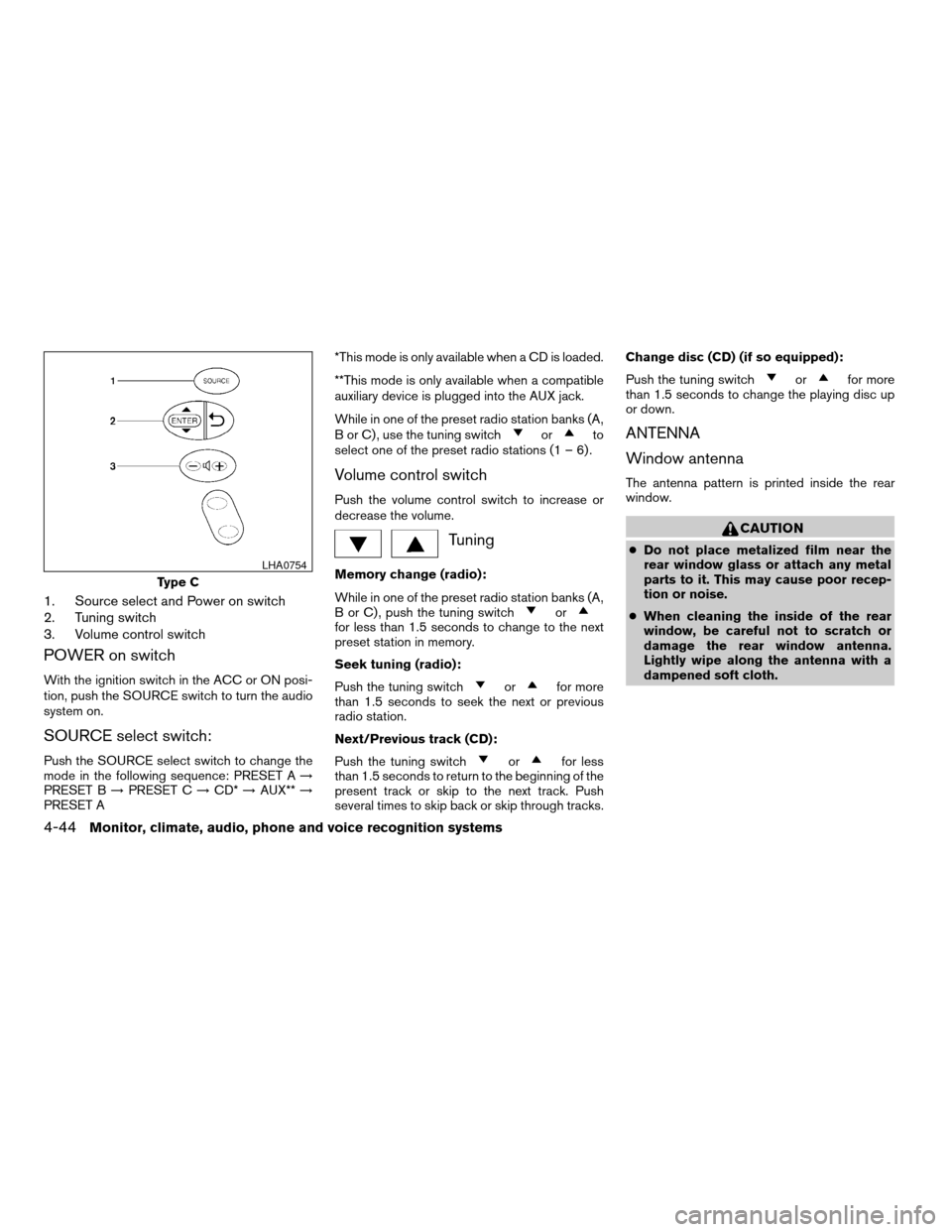
1. Source select and Power on switch
2. Tuning switch
3. Volume control switch
POWER on switch
With the ignition switch in the ACC or ON posi-
tion, push the SOURCE switch to turn the audio
system on.
SOURCE select switch:
Push the SOURCE select switch to change the
mode in the following sequence: PRESET A!
PRESET B!PRESET C!CD*!AUX**!
PRESET A*This mode is only available when a CD is loaded.
**This mode is only available when a compatible
auxiliary device is plugged into the AUX jack.
While in one of the preset radio station banks (A,
B or C) , use the tuning switch
orto
select one of the preset radio stations (1 – 6) .
Volume control switch
Push the volume control switch to increase or
decrease the volume.
Tuning
Memory change (radio):
While in one of the preset radio station banks (A,
B or C) , push the tuning switch
orfor less than 1.5 seconds to change to the next
preset station in memory.
Seek tuning (radio):
Push the tuning switch
orfor more
than 1.5 seconds to seek the next or previous
radio station.
Next/Previous track (CD):
Push the tuning switch
orfor less
than 1.5 seconds to return to the beginning of the
present track or skip to the next track. Push
several times to skip back or skip through tracks.Change disc (CD) (if so equipped):
Push the tuning switch
orfor more
than 1.5 seconds to change the playing disc up
or down.
ANTENNA
Window antenna
The antenna pattern is printed inside the rear
window.
CAUTION
cDo not place metalized film near the
rear window glass or attach any metal
parts to it. This may cause poor recep-
tion or noise.
cWhen cleaning the inside of the rear
window, be careful not to scratch or
damage the rear window antenna.
Lightly wipe along the antenna with a
dampened soft cloth.
Type C
LHA0754
4-44Monitor, climate, audio, phone and voice recognition systems
ZREVIEW COPYÐ2007 Altima(alt)
Owners ManualÐUSA_English(nna)
10/27/06Ðdebbie
X
Page 199 of 344

“Play”sB
The system plays back all the memos in the order
of newest to oldest. The system ends the VR
session.
If there are no memos recorded, the system an-
nounces “No messages to play.” The system
ends the VR session.
“Delete”
sC
The Delete command erases all memos. The
system asks you to confirm this action before
deleting all memos.
“Setup”
Main Menu
“Setup”
“Pair Phone”
sA
“List Phone”sB
“Select Phone”sC
“Change Priority”sD
“Delete Phone”sE
“Select Ringtone”sF
“Bluetooth Off”sG
Use the Setup command to change options as-
sociated with the BluetoothTHands-Free Phone
System.
“Pair phone”
sA
Use the Pair Phone command to pair a phone to
the BluetoothTHands-Free Phone System.
NOTE:
The pairing procedure must be performed
when the vehicle is stationary. If the vehicle
starts moving during the procedure, the
procedure will be cancelled. Also, see
“Pairing procedure” earlier in this section
for additional information.
Up to 5 phones can be paired. If you try to pair a
sixth phone, the system announces that you must
first delete one phone or replace an existing
phone.
If you try to pair a phone that has already been
paired to your vehicle’s system, the system an-
nounces the name the phone is already using.
The pairing procedure will then be cancelled.
When prompted by the system, choose from the
following commands:
c“New phone” — Refer to “Pairing a phone”
earlier in this section.c“Replace phone” — The system announces
the names of the phones already paired and
asks which you would like to replace.
Once you say the name of the phone you
wish to replace, the pairing procedure will
begin. Refer to “Pairing procedure” earlier in
this section.
c“List phone” – See the description below.
“List phone”
sB
Use the List Phone command to hear the names
of the phones currently paired. If no phones are
paired, the system announces, “No paired
phones to list.” The system then ends the VR
session.
“Select phone”
sC
Use the Select Phone command to select a
phone of lesser priority when two or more phones
paired with BluetoothTHands-Free Phone Sys-
tem are in the vehicle at the same time.
The system asks you to name the phone and
confirm the selection.
Once the selection is confirmed, the selected
phone remains active until the ignition switch is
turned OFF or you select a new phone.
Monitor, climate, audio, phone and voice recognition systems4-55
ZREVIEW COPYÐ2007 Altima(alt)
Owners ManualÐUSA_English(nna)
10/27/06Ðdebbie
X
Page 202 of 344

ccall star two zero nine five
cdelete phone
cdial eight three zero five one
cHome
cfour three pause two nine pause zero
cdelete redial number
cphone book list names
ccall eight oh five four onecCorrection
csetup change ring tone
cdial seven four oh one eight
csetup main menu
cDelete
cdial nine seven two six six
cmemo pad delete
ccall seven six three oh one
cgo backccall five six two eight zero
cdial six six four three seven
TROUBLESHOOTING GUIDE
The system should respond correctly to all voice
commands without difficulty. If problems are en-
countered, try the following solutions.
Where the solutions are listed by number, try
each solution in turn, starting with number 1, until
the problem is resolved.
Symptom Solution
System fails to interpret the command correctly.1. Ensure that the command is valid. See “List of voice commands” earlier in this section.
2. Ensure that the command is spoken after the tone.
3. Speak clearly without pausing between words and at a level appropriate to the ambient noise level in the vehicle.
4. Ensure that the ambient noise level is not excessive (for example, windows open or defroster on) . NOTE: If it is too
noisy to use the phone, it is likely that the voice commands will not be recognized.
5. If more than one command was said at a time, try saying the commands separately.
6. If the system consistently fails to recognize commands, the voice training procedure should be carried out to im-
prove the recognition response for the speaker. See “Speaker adaptation (SA) mode” earlier in this section.
The system consistently selects the wrong entry from the
phone book.1. Ensure that the phone book entry name requested matches what was originally stored. This can be confirmed by
using the “List Names” command. See “Phone book” earlier in this section.
2. Replace one of the names being confused with a new name.
4-58Monitor, climate, audio, phone and voice recognition systems
ZREVIEW COPYÐ2007 Altima(alt)
Owners ManualÐUSA_English(nna)
10/27/06Ðdebbie
X
Page 210 of 344

cBluetooth Hands-Free:
If this item is turned off, the connection be-
tween the cellular phone and the in-vehicle
phone module will be canceled.
cPaired Phone List:
Up to 5 registered cellular phones are
shown on the list.
cPair Phone:
See “Pairing Procedure” in this section.
cPriority Change
If multiple phones are registered to the sys-
tem, you can change the priority of the
phones on the shown list.
cRemove Paired Phone:
Delete a registered cellular phone from the
paired list.
cBluetooth Info:
Check information about the device name,
vehicle name, device address device PIN
and connection status.
cEdit Phone Name:
If you would like to change the way your
phone’s name is displayed select this key, a
character input screen will be displayed.The NISSAN Voice Recognition system allows
hands-free operation of the systems equipped on
this vehicle, such as the phone and navigation
systems.
To operate NISSAN Voice Recognition, press
the
button located on the steering wheel.
Then speak the command for the system you
wish to activate. The command given is picked up
by the microphone, and it is performed when it is
properly recognized. At this time NISSAN Voice
Recognition will provide a voice and message (in
the center display) to inform you of the command
results.
USING THE SYSTEM
Initialization
When the ignition switch is in the ON position,
NISSAN Voice Recognition is initialized, which
takes a few seconds. When completed, the sys-
tem is ready to accept voice commands. If
the
button is pressed before the initializa-
tion completes, the display will show the mes-
sage: “Phonetic data downloaded. Please wait.”
Giving voice commands
1. Press thebutton.
2. The system announces: “Please say a com-
mand after a tone.”
3. After the tone sounds and the face icon of
the display changes, speak a command. For
additional information, see “List of voice
commands” later in this section.
4. Voice and message feedback will be pro-
vided when the command is accepted.
cIf the command is not recognized, the sys-
tem announces: “Please say again.” Repeat
the command in a clear voice.
LHA0768
NISSAN VOICE RECOGNITION
SYSTEM (if so equipped)
4-66Monitor, climate, audio, phone and voice recognition systems
ZREVIEW COPYÐ2007 Altima(alt)
Owners ManualÐUSA_English(nna)
10/27/06Ðdebbie
X
Page 216 of 344
WARNING
cDo not leave children or adults who
would normally require the assistance
of others alone in your vehicle. Pets
should also not be left alone. They
could accidentally injure themselves or
others through inadvertent operation of
the vehicle. Also, on hot, sunny days,
temperatures in a closed vehicle could
quickly become high enough to cause
severe or possibly fatal injuries to
people or animals.
cClosely supervise children when they
are around cars to prevent them from
playing and becoming locked in the
trunk where they could be seriously in-
jured. Keep the car locked, with the rear
seatback and trunk lid securely latched
when not in use, and prevent children’s
access to car keys.
EXHAUST GAS (carbon monoxide)
WARNING
cDo not breathe exhaust gases; they
contain colorless and odorless carbon
monoxide. Carbon monoxide is danger-
ous. It can cause unconsciousness or
death.cIf you suspect that exhaust fumes are
entering the vehicle, drive with all win-
dows fully open, and have the vehicle
inspected immediately.
cDo not run the engine in closed spaces
such as a garage.
cDo not park the vehicle with the engine
running for any extended length of time.
cKeep the trunk lid closed while driving,
otherwise exhaust gases could be
drawn into the passenger compart-
ment. If you must drive with the trunk lid
open, follow these precautions:
1. Open all the windows.
2. Set the
air recirculation but-
ton to off and the fan control dial to
high to circulate the air.
cIf electrical wiring or other cable con-
nections must pass to a trailer through
the seal on the trunk lid or the body,
follow the manufacturer’s recommen-
dation to prevent carbon monoxide en-
try into the vehicle.
cThe exhaust system and body should be
inspected by a qualified mechanic
whenever:a. The vehicle is raised for service.
b. You suspect that exhaust fumes are
entering into the passenger
compartment.
c. You notice a change in the sound of
the exhaust system.
d. You have had an accident involving
damage to the exhaust system, un-
derbody, or rear of the vehicle.
THREE-WAY CATALYST
The three-way catalyst is an emission control
device installed in the exhaust system. Exhaust
gases in the three-way catalyst are burned at
high temperatures to help reduce pollutants.
WARNING
cThe exhaust gas and the exhaust sys-
tem are very hot. Keep people, animals
or flammable materials away from the
exhaust system components.
cDo not stop or park the vehicle over
flammable materials such as dry grass,
waste paper or rags. They may ignite
and cause a fire.
PRECAUTIONS WHEN STARTING
AND DRIVING
5-2Starting and driving
ZREVIEW COPYÐ2007 Altima(alt)
Owners ManualÐUSA_English(nna)
10/27/06Ðdebbie
X