Page 94 of 705
93 Control systems
COMAND FM/AM radio
�COMAND FM/AM radio
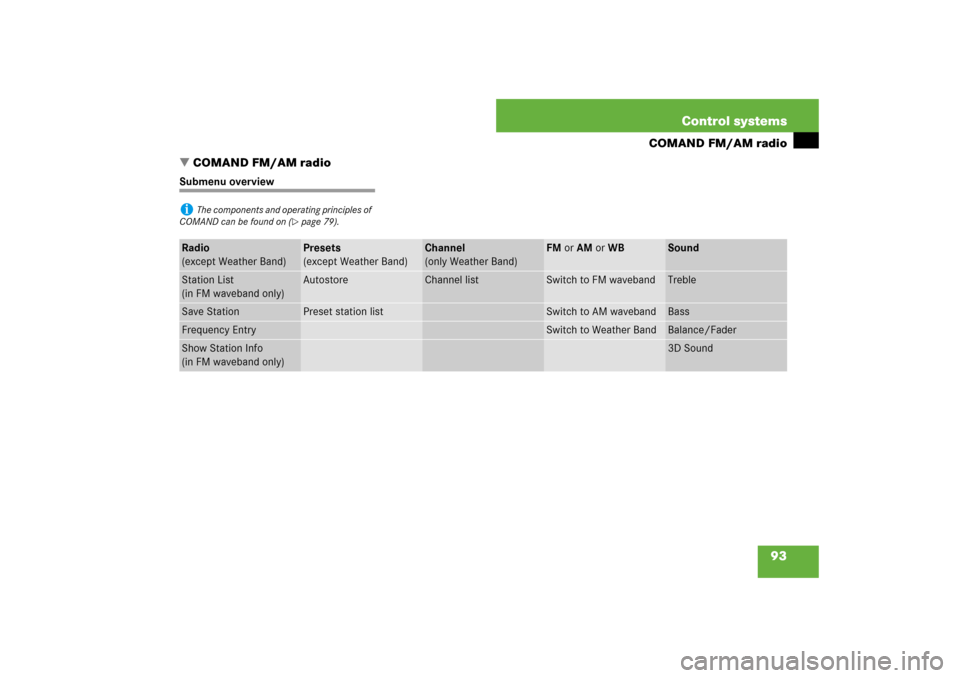
Submenu overviewi
The components and operating principles of
COMAND can be found on (
�page 79).
Radio
(except Weather Band)
Presets
(except Weather Band)
Channel
(only Weather Band)
FM or AM or WB
Sound
Station List
(in FM waveband only)
Autostore
Channel list
Switch to FM waveband
Treble
Save Station
Preset station list
Switch to AM waveband
Bass
Frequency Entry
Switch to Weather Band
Balance/Fader
Show Station Info
(in FM waveband only)
3D Sound
Page 95 of 705
94 Control systemsCOMAND FM/AM radioSwitching to radio mode �
Select “Audio”� “Audio”� “FM/AM
Radio”.
or
�
Press the M shortcut button once or
twice.
The radio display appears once you
have switched to radio mode. You will
hear the station/channel last tuned in
in the previously selected waveband,
provided that the station/channel can
be received.
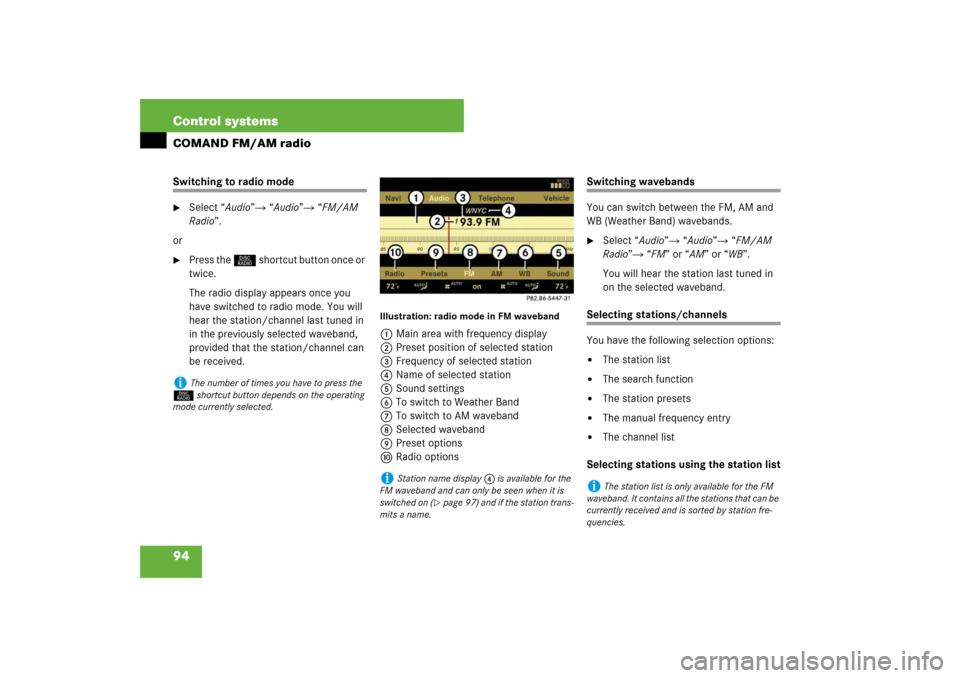
Illustration: radio mode in FM waveband1Main area with frequency display
2Preset position of selected station
3Frequency of selected station
4Name of selected station
5Sound settings
6To switch to Weather Band
7To switch to AM waveband
8Selected waveband
9Preset options
aRadio options
Switching wavebands
You can switch between the FM, AM and
WB (Weather Band) wavebands.�
Select “Audio”� “Audio”� “FM/AM
Radio”� “FM” or “AM” or “WB”.
You will hear the station last tuned in
on the selected waveband.
Selecting stations/channels
You have the following selection options:�
The station list
�
The search function
�
The station presets
�
The manual frequency entry
�
The channel list
Selecting stations using the station list
i
The number of times you have to press the
M shortcut button depends on the operating
mode currently selected.
i
Station name display 4 is available for the
FM waveband and can only be seen when it is
switched on (
�page 97) and if the station trans-
mits a name.
i
The station list is only available for the FM
waveband. It contains all the stations that can be
currently received and is sorted by station fre-
quencies.
Page 99 of 705

98 Control systemsCOMAND satellite radio* (USA only)Submenu overviewIntroduction to Satellite radio
Sirius Satellite Radio provides 100 chan-
nels, so called streams, of digital-quality
radio, among others music, sports, news,
and entertainment free of commercials.
Sirius Satellite Radio uses a fleet of high-power satellites to broadcast 24
hours per day, coast-to-coast, in the con-
tiguous US.
This diverse, satellite-delivered program-
ming is available for a monthly subscrip-
tion fee.
For more information and service availabil-
ity call the Sirius Service Center
(
�page 103), or go to
www.siriusradio.com.
i
The components and operating principles of
COMAND can be found on (
�page 79).
Sat Radio
Presets
Info
Category
Sound
Channel List
Station presets
Show program info
Select category
Treble
Save Channel
Bass
Channel Entry
Balance/Fader
Service
3D Sound
i
A subscription to Sirius satellite radio ser-
vice provider is required for the satellite radio op-
eration described in this chapter. Contact an
authorized Mercedes-Benz Center for details
and availability for your vehicle.
i
Satellite radio service may be unavailable or
interrupted from time to time for a variety of rea-
sons, such as environmental or topographic con-
ditions and other things we can’t control. Service
might also not be available in certain places
(e.g., in tunnels, parking garages, or within or
next to buildings) or near other technologies. In
such situations, the satellite radio’s main menu
shows the “Acquiring signal...” screen. At this
point, the radio’s functions are restricted to
manual channel number entry (
�page 101) and
service info display (
�page 103).
Page 111 of 705
110 Control systemsCOMAND audio CD/audio DVD/MP3Submenu overviewi
The components and operating principles of
COMAND can be found on (
�page 79).
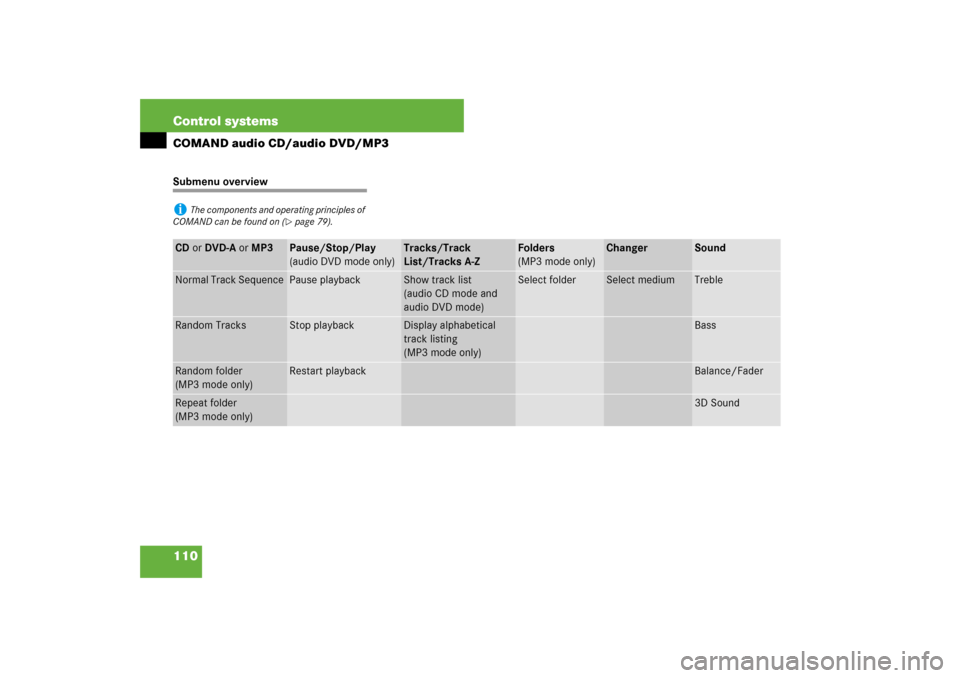
CD or DVD-A or MP3
Pause/Stop/Play
(audio DVD mode only)
Tracks/Track
List/Tracks A-Z
Folders
(MP3 mode only)
Changer
Sound
Normal Track Sequence
Pause playback
Show track list
(audio CD mode and
audio DVD mode)
Select folder
Select medium
Treble
Random Tracks
Stop playback
Display alphabetical
track listing
(MP3 mode only)
Bass
Random folder
(MP3 mode only)
Restart playback
Balance/Fader
Repeat folder
(MP3 mode only)
3D Sound
Page 116 of 705
115 Control systems
COMAND telephone*
�COMAND telephone*
Safety precautions
General notes
Calls disconnected while the vehicle is
in motion
A call may be disconnected if:�
there is insufficient network coverage
�
you move from one transmitter/receiv-
er area (cell) into another and no chan-
nels are free or the cell is fullOperating options
If the mobile phone is inserted in the cra-
dle, you can use the mobile phone func-
tions with the following devices:
�
COMAND / telephone keypad
�
Multifunction steering wheel
�
Voice Control*
�
Bluetooth headset
The descriptions in this section assume
that the mobile phone is inserted in the
cradle. Exceptions to this are clearly stat-
ed.
Warning!
G
Some jurisdictions prohibit the driver from
using a cellular telephone while driving.
Whether or not prohibited by law, for safety
reasons, the driver should not use the cellu-
lar telephone while the vehicle is in motion.
Stop the vehicle in a safe location before
placing or answering a call.
If you nonetheless choose to use the cellular
phone while driving, please use the hands-
free feature and be sure to pay attention to
the traffic situation at all times. Use the cel-
lular phone only when road, weather and
traffic conditions permit.
Bear in mind that at a speed of just 30 mph
(approximately 50 km/h), your vehicle is
covering a distance of 44 feet (approxima-
tely 14 m) every second.
Warning!
G
Never operate radio transmitters equipped
with a built-in or attached antenna (i.e. with-
out being connected to an external antenna)
from inside the vehicle while the engine is
running. Doing so could lead to a malfunc-
tion of the vehicle’s electronic system, pos-
sibly resulting in an accident and/or
personal injury.
i
The components and operating principles of
COMAND can be found on (
�page 79) and
(
�page 87).
i
In order for the functions described in this
section to work correctly, the Bluetooth headset
must be linked to COMAND (
�page 217).
Please make sure any Bluetooth headset linked
with the mobile phone is switched off or that the
headset is linked with COMAND before you use
the functions described in this section.
Page 117 of 705
116 Control systemsCOMAND telephone*Unless otherwise indicated, the descrip-
tions and illustrations in this section refer
to COMAND and the telephone keypad.
Operation using the mobile phone and
Bluetooth headset is described in the re-
spective separate Operating Instructions.
Caller ID
COMAND can display the telephone num-
ber and the name of the caller, e.g. for an
incoming call and also in other menus or
displays.
For the telephone number to be displayed,
the caller must transmit their telephone
number.
This is also the case for name displays. For
this, the telephone number and the name
of the caller must also be saved in the mo-
bile phone book.Functional restrictions
You will not be able to use the telephone,
or you may have to wait a while, in the fol-
lowing situations:
�
If the telephone has not yet logged into
the network.
The telephone automatically tries to
log into a network. If no network is
available, you will also not be able to
make a “911” emergency call.
If you attempt to make an outgoing call,
the “No Service” message will appear
for a short while.
�
If the mobile phone is not inserted in
the cradle.
�
SIM card is not inserted in GSM type
phone
Switching telephone on or off�
Switching on: insert mobile phone
into cradle when COMAND is switched
on.
or
�
Switch on the mobile phone
(see mobile phone operating instruc-
tions).
�
Switching off: Select “Telephone” �
“Telephone” � “Telephone OFF”.
or
�
Switch off mobile phone (see mobile
phone operating instructions).
Page 120 of 705

119 Control systems
COMAND telephone*
Entering the PIN
Entering using the COMAND controller�
Select “Telephone” � “Telephone” �
“Telephone”.
�
Entering: Select all the digits in se-
quence.
�
Deleting a digit: Select ) and briefly
press n.
�
Deleting an entire number: Select )
and press and hold n until the number
is deleted.
�
Confirming an entry: Press n.
Entering using the telephone keypad
�
Entering: Enter digits (
�page 117).
�
Confirming an entry: Press n or
press s.
Entering the PIN2
The phone may request the PIN2 in order
to use certain functions. A corresponding
message appears in the display.�
Enter PIN2 digits into mobile phone.
Entering the PUK / PUK2
If you enter the PIN or PIN2 incorrectly
three times, the SIM card will be locked.
A corresponding message appears in the
display. It is necessary to enter the
PUK /PUK2 to unlock it. The PUK and/or
PUK2 are provided by your telephone ser-
vice provider.�
Enter PUK/PUK2 digits into mobile
phone.
Entering the unlock code
Many mobile phones can be protected
from unauthorized use with an unlock code
(see mobile phone operating instructions).
If you wish to use the phone functions
when the unlock code is active, a screen
appears requesting that you enter the un-
lock code. You cannot use the phone func-
tions (except “911” emergency call) until
you have entered the unlock code.�
Proceed in the same way as entering
the PIN (
�page 119).
i
The PIN entry applies only to GSM mobile
phones.
i
The PIN2 entry applies only to GSM mobile
phones.
i
The PUK/PUK2 entry applies only to GSM
mobile phones.
Page 121 of 705
120 Control systemsCOMAND telephone*Telephone submenu overviewi
The components and operating principles of
COMAND can be found on (
�page 79).
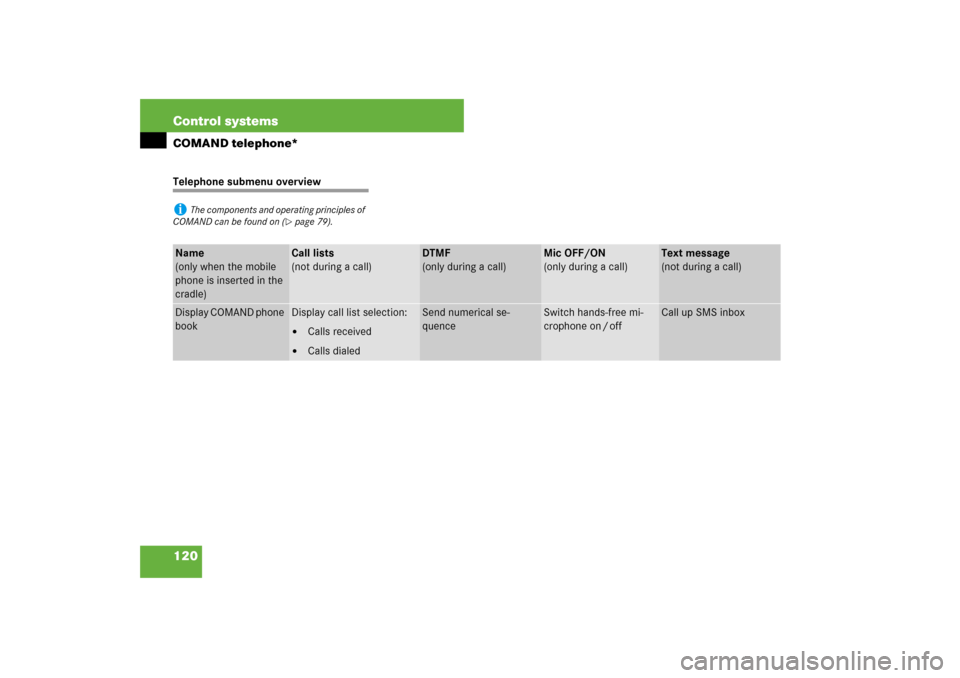
Name
(only when the mobile
phone is inserted in the
cradle)
Call lists
(not during a call)
DTMF
(only during a call)
Mic OFF/ON
(only during a call)
Text message
(not during a call)
Display COMAND phone
book
Display call list selection:�
Calls received
�
Calls dialed
Send numerical se-
quence
Switch hands-free mi-
crophone on / off
Call up SMS inbox