Page 148 of 585

147 Controls in detail
Control system
�Control system
The control system is activated as soon as
the SmartKey in the starter switch is
turned to position1 (
�page 40) or as
soon as the KEYLESS-GO start/stop but-
ton* is in position1 (�page 42). The con-
trol system enables you to
�
call up information about your vehicle
�
change vehicle settings
For example, you can use the control sys-
tem to find out when your vehicle is next
due for maintenance service, to set the
language for messages in the instrument
cluster display, and much more.
The control system relays information to
the multifunction display.
Multifunction display
1Trip odometer
2Main odometer
3Transmission position indicator
4Current transmission program mode
1
5Status indicator (outside temperature
or digital speedometer)
For more information on menus displayed
in the multifunction display, see “Menus”
(�page 150).
i
The displays for the audio systems (radio,
CD player) will appear in English, regardless of
the language selected.
Warning!
G
A driver’s attention to the road and traffic
conditions must always be his/her primary
focus when driving.
For your safety and the safety of others, se-
lecting features through the multifunction
steering wheel should only be done by the
driver when traffic and road conditions per-
mit it to be done safely.
Bear in mind that at a speed of just 30 mph
(approximately 50 km/h), your vehicle is
covering a distance of 44 feet (approximate-
ly 14 m) every second.
1AMG vehicles only.
Page 149 of 585

148 Controls in detailControl systemMultifunction steering wheel
The displays in the multifunction display
and the settings in the control system are
controlled by the buttons on the multifunc-
tion steering wheel.
Depending on the selected menu
(
�page 150), pressing the buttons on the
multifunction steering wheel will alter what
is shown in the multifunction display.
The information available in the multifunc-
tion display is arranged in menus, each
containing a number of functions or sub-
menus.
The individual functions are then found
within the relevant menu (radio or
CD operations under
Audio
, for example).
These functions serve to call up relevant
information or to customize the settings
for your vehicle.
1
Multifunction displayOperating the control system
2
Telephone*:
Press buttonsto take a call
to dial
to redialtto end a call
to reject an incoming call
3
Selecting the submenu or setting
the volume:
Press buttonæup/to increaseçdown/to decrease
4
Voice Control*
1
1Vehicles without Voice Control: Button without
function.5
Moving within a menu:
Press buttonjfor next displaykfor previous display
6
Voice Control*
1
7
Menu systems:
Press buttonèfor next menuÿfor previous menu
Page 150 of 585
149 Controls in detail
Control system
It is helpful to think of the menus, and the
functions within each menu, as being ar-
ranged in a circular pattern.�
If you press buttonè orÿ
repeatedly, you will pass through each
menu one after the other.
�
If you press buttonk orj
repeatedly, you will pass through each
function display, one after the other, in
the current menu.In the
Settings
menu, instead of
functions, you will find a number of
submenus for calling up and changing
settings. For instructions on using these
submenus, see “Settings menu”
(
�page 164).
The number of menus available in the sys-
tem depends on which optional equipment
is installed in your vehicle.The menus are described on the following
pages.
Page 154 of 585

153 Controls in detail
Control system
Menus, submenus and functions
Menu7
Menu8
Menu9
Menua
Menub
Menuc
DISTRONIC*
Vehicle status
message memory
1
1The vehicle status message memory menu is only displayed if there is a message stored.
Settings
Vehicle configuration
Trip computer
Telephone*
(�page 162)
(�page 163)
(�page 164)
(�page 178)
(�page 180)
(�page 182)
Commands/submenusCalling up settings
Calling up vehicle mal-
function, warning and
system status messages
stored in memory
Resetting to factory
settings
Distance warning
function* on/off
Fuel consumption
statistics from start
Loading
phone book
Instrument cluster
submenu
DSR (Downhill Speed
Regulation) pro-
grammed default speed
Fuel consumption
statistics since the
last reset
Searching for
name in
phone book
Time/Date sub-
menu
Distance to empty
Lighting submenuVehicle submenuComfort submenu*
i
The headings used in the menus table are
designed to facilitate navigation within thesystem and are not necessarily identical to those
shown in the control system displays. The firstfunction displayed in each menu will show you
which part of the system you are in.
Page 162 of 585

161 Controls in detail
Control system
Operating the CD player
Selecting CD track�
Turn on the COMAND system and
select CD. Refer to separate COMAND
system operating instructions.
�
Press buttonè orÿ repeatedly
until the settings for the CD currently
being played appear in the multifunc-
tion display.1Current CD (for CD changer*)
2Current track
�
Press buttonk orj repeatedly
until the desired track is selected.
Selecting MP3-CD track
�
Turn on the COMAND system and se-
lect MP3. Refer to separate COMAND
system operating instructions.
�
Press buttonè orÿ repeatedly
until the settings for the MP3-CD
currently being played appear in the
multifunction display.1MP3 mode
2Current track
�
Press buttonk orj repeatedly
until the desired track is selected.
Navi* menu
The
Navi
menu contains the functions
needed to operate your navigation system.
�
Press buttonè orÿ repeatedly
until the message
Navi
appears in the
multifunction display.
i
Additional optional satellite radio equipment
and a subscription to satellite radio service pro-
vider are required for satellite radio operation.
Contact an authorized Mercedes-Benz Light
Truck Center for details and availability for your
vehicle.
For more information, refer to separate
COMAND system operating instructions.
i
Vehicles with CD changer*: To select a CD
from the magazine, press a number on the
COMAND system key pad located in the center
console.
Page 163 of 585

162 Controls in detailControl systemThe message shown in the multifunction
display depends on the status of the navi-
gation system:�
With the COMAND system switched
off, the message
Navi off
appears in
the multifunction display.
�
With the COMAND system switched on
but route guidance not activated, the
direction of travel and, if applicable, the
name of the street currently traveled
on appear in the multifunction display.
�
With the COMAND system switched on
and route guidance activated, the di-
rection of travel and maneuver instruc-
tions appear in the multifunction
display.
Please refer to the COMAND system
manual for instructions on how to activate
the route guidance system.
AIRMATIC*/Compass menu
The
AIRMATIC/Compass
menu displays the
messages for air suspension* and the
direction into which you are currently
driving.
�
Press buttonè orÿ repeatedly
until one of the following messages ap-
pears in the multifunction display.
Vehicles with steel suspension:
Vehicles with air suspension* or
ML 63 AMG:
�
Press buttonk orj repeatedly
until the desired setting is found.
For information on air suspension, see “Air
suspension package*” (
�page 269).
For information on the compass, see
“Vehicle submenu” (
�page 174) and
“Compass” (
�page 321).
DISTRONIC* menu
Use the
DISTRONIC
menu (
�page 255) to
display the current settings for your
Distronic system. The information shown
in the multifunction display depends on
whether the Distronic system is activated
or deactivated.
Please refer to the “Driving systems” sec-
tion of this manual (
�page 250) for
instructions on how to activate Distronic.
�
Press buttonè orÿ repeatedly
to select the Distronic menu in the
multifunction display.
Page 165 of 585
164 Controls in detailControl systemShould the vehicle’s system record any
conditions while driving, the number of
messages will reappear in the multifunc-
tion display�
when the SmartKey in the starter
switch is turned to position0 or
removed from the starter switch.
or
�
when you turn off the engine by
pressing the KEYLESS-GO* start/stop
button (
�page 67) in the starter
switch once and open the driver’s door
(this puts the starter switch in
position0, same as with the SmartKey
removed from the starter switch)
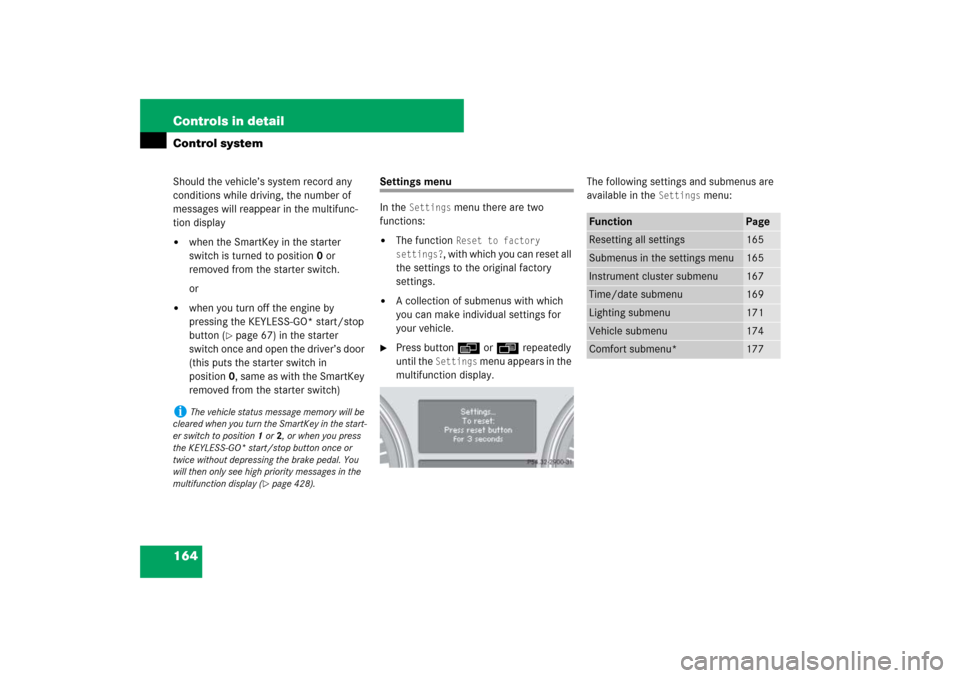
Settings menu
In the
Settings
menu there are two
functions:
�
The function
Reset to factory
settings?
, with which you can reset all
the settings to the original factory
settings.
�
A collection of submenus with which
you can make individual settings for
your vehicle.
�
Press buttonè orÿ repeatedly
until the
Settings
menu appears in the
multifunction display.The following settings and submenus are
available in the
Settings
menu:
i
The vehicle status message memory will be
cleared when you turn the SmartKey in the start-
er switch to position1 or2, or when you press
the KEYLESS-GO* start/stop button once or
twice without depressing the brake pedal. You
will then only see high priority messages in the
multifunction display (
�page 428).
Function
Page
Resetting all settings
165
Submenus in the settings menu
165
Instrument cluster submenu
167
Time/date submenu
169
Lighting submenu
171
Vehicle submenu
174
Comfort submenu*
177
Page 166 of 585
165 Controls in detail
Control system
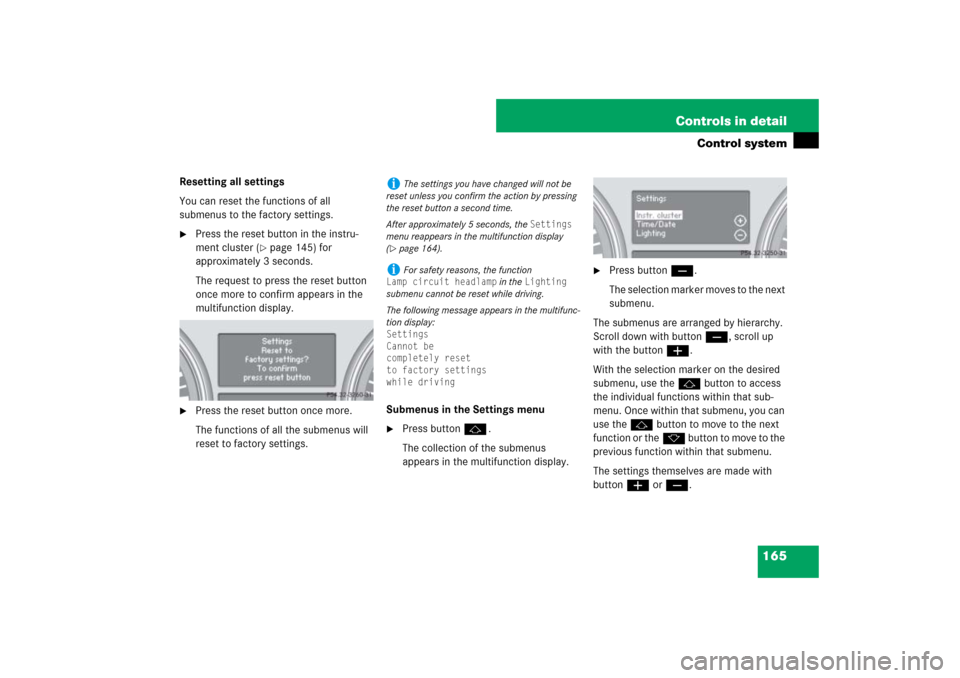
Resetting all settings
You can reset the functions of all
submenus to the factory settings.�
Press the reset button in the instru-
ment cluster (
�page 145) for
approximately 3 seconds.
The request to press the reset button
once more to confirm appears in the
multifunction display.
�
Press the reset button once more.
The functions of all the submenus will
reset to factory settings.Submenus in the Settings menu
�
Press buttonj.
The collection of the submenus
appears in the multifunction display.
�
Press buttonç.
The selection marker moves to the next
submenu.
The submenus are arranged by hierarchy.
Scroll down with buttonç, scroll up
with the buttonæ.
With the selection marker on the desired
submenu, use the jbutton to access
the individual functions within that sub-
menu. Once within that submenu, you can
use thej button to move to the next
function or thek button to move to the
previous function within that submenu.
The settings themselves are made with
buttonæ orç.
i
The settings you have changed will not be
reset unless you confirm the action by pressing
the reset button a second time.
After approximately 5 seconds, the
Settings
menu reappears in the multifunction display
(
�page 164).
i
For safety reasons, the function
Lamp circuit headlamp
in the
Lighting
submenu cannot be reset while driving.
The following message appears in the multifunc-
tion display:
Settings
Cannot be
completely reset
to factory settings
while driving
