Page 339 of 674
SRCE (Source):Press this button to switch
between the DVD player and an auxiliary source.
c(Stop):Press this button to stop playing,
rewinding, or fast forwarding a DVD or CD. Press
this button twice to return to the beginning of
the DVD.
s(Play/Pause):Press this button to start play
of a DVD or CD. Press this button while a
DVD or CD is playing to pause it. Press this button
again to continue the play of the DVD or CD.
y(Main DVD Menu):Press this button to access
the DVD menu. The DVD menu is different on every
DVD. Use the up, down, left, and right arrow
buttons to move the cursor around the DVD menu.
After making a selection press the enter button.
This button only operates when playing a DVD.
z(Set-up Menu):Press this button to adjust the
color, tint, brightness, contrast, display mode,
and dynamic range compression. The dynamic
range compression feature can be used to reduce
loud audio and increase low audio produced by
some DVDs.To change a feature back to the factory default
setting, press this button to display the feature,
then press and hold this button. The default setting
will appear on the display.
While playing an Audio or DVD disc, press and
hold this button to display and to remove the track
and time information.
n,q,p,o(Menu Navigation Arrows):Use
the arrow buttons to navigate through a menu.
r(Enter):Press this button to select the
choices that are highlighted in any menu.
Playing a Disc
To play a disc, gently insert the disc with the label
side up into the loading slot. The DVD player
will continue loading the disc and the player will
automatically start, if the vehicle is in RUN,
ACCESSORY, or when RAP is active.
If a disc is already in the player, press the
play/pause button on the DVD player faceplate or
on the remote control.
339
Page 343 of 674
[(Fast Forward):Press this button to fast
forward the DVD or CD. To stop fast forwarding,
press this button again. This button may not
work when the DVD is playing the copyright
information or the previews.
s(Play/Pause):Press this button to start play
of a DVD or CD. Press this button while a
DVD or CD is playing to pause it. Press this button
again to continue the play of the DVD or CD.
When the DVD is playing, press the pause button
then press the fast forward button. The DVD
will continue playing in a slow play mode.
To cancel slow play mode, press the play/pause
button.
u(Next Track/Chapter):Press this button to
advance to the beginning of the next track
or chapter. This button may not work when the
DVD is playing the copyright information or
the previews.
Battery Replacement
To change the batteries, do the following:
1. Remove the battery compartment door located
on the bottom of the remote control.
2. Replace the two AA batteries in the
compartment. Make sure that they are
installed correctly, using the diagram on the
inside of the battery compartment.
3. Close the battery door securely.
If the remote control is to be stored for a long
period of time, remove the batteries and keep them
in a cool, dry place.
343
Page 345 of 674
Problem Recommended Action
After stopping the player,
I push Play but
sometimes the DVD
starts where I left off and
sometimes at the
beginning.If the stop button was
pressed one time, the
DVD player will resume
playing where the DVD
was stopped. If the stop
button was pressed
two times the DVD player
will begin to play from the
beginning of the DVD.
The auxiliary source is
running but there is no
picture or sound.Check that the DVD
player is in the auxiliary
source mode.
Check the auxiliary input
connections at both
devices.
My disc is stuck in the
player. The Load/Eject
button does not work.Turn the DVD power off,
then on, then press the
load/eject button on the
DVD player.
Do not attempt to forcibly
remove the disc from the
DVD player. This could
permanently damage the
disc and DVD player.Problem Recommended Action
Sometimes the wireless
headphone audio cuts out
or buzzes.Check for obstructions,
low batteries, reception
range, and interference
from cellular telephone
towers or by using your
cellular telephone in the
vehicle.
Check that the
headphones are facing
the front of the vehicle.
I lost the remote and/or
the headphones.See your dealer for
assistance.
The DVD is playing, but
there is no picture or
sound.Check that the DVD
player is in DVD mode.
The audio/video skips
or jumps.The DVD or CD could be
dirty, scratched, or
damaged.
The audio from the radio
for the Radio with
Six-Disc CD and XM™
has taken over the audio
from the DVD or CD when
using the wired
headphones.The RSE is working
correctly.
Use the wireless
headphones or have the
front seat passengers
listen to another audio
source.
345
Page 364 of 674
If your vehicle is in cruise control when the TAS
begins to limit wheel spin, the cruise control will
automatically disengage. When road conditions
allow you to safely use it again, you may re-engage
the cruise control. SeeCruise Control on page 217.
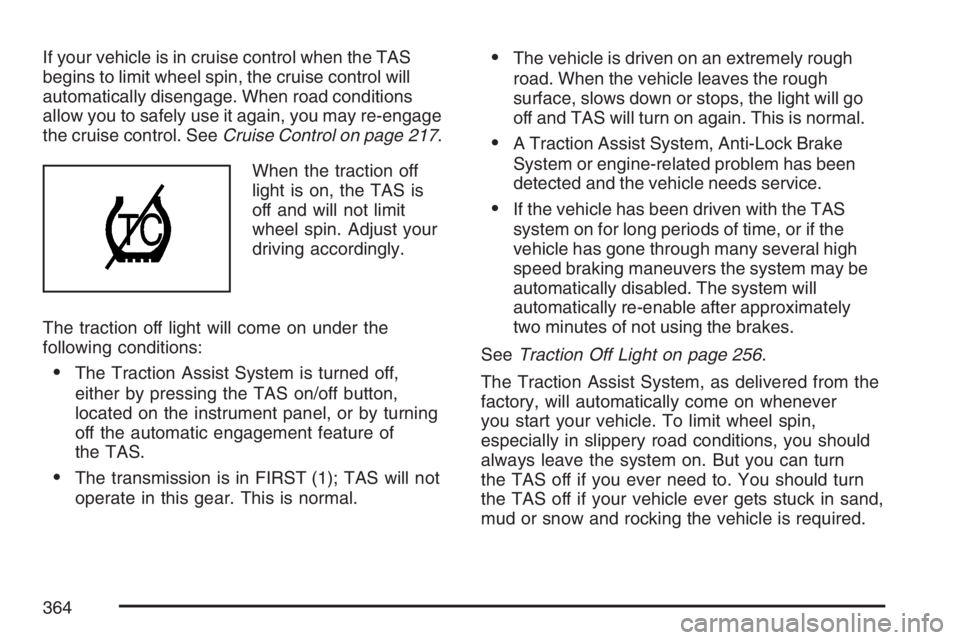
When the traction off
light is on, the TAS is
off and will not limit
wheel spin. Adjust your
driving accordingly.
The traction off light will come on under the
following conditions:
The Traction Assist System is turned off,
either by pressing the TAS on/off button,
located on the instrument panel, or by turning
off the automatic engagement feature of
the TAS.
The transmission is in FIRST (1); TAS will not
operate in this gear. This is normal.
The vehicle is driven on an extremely rough
road. When the vehicle leaves the rough
surface, slows down or stops, the light will go
off and TAS will turn on again. This is normal.
A Traction Assist System, Anti-Lock Brake
System or engine-related problem has been
detected and the vehicle needs service.
If the vehicle has been driven with the TAS
system on for long periods of time, or if the
vehicle has gone through many several high
speed braking maneuvers the system may be
automatically disabled. The system will
automatically re-enable after approximately
two minutes of not using the brakes.
SeeTraction Off Light on page 256.
The Traction Assist System, as delivered from the
factory, will automatically come on whenever
you start your vehicle. To limit wheel spin,
especially in slippery road conditions, you should
always leave the system on. But you can turn
the TAS off if you ever need to. You should turn
the TAS off if your vehicle ever gets stuck in sand,
mud or snow and rocking the vehicle is required.
364